Desktop recording lets you capture real workflows in desktop applications and convert them into reusable simulations. Unlike browser-tab recording, desktop recording supports full application windows, cross-application flows, and legacy systems-so simulations reflect how work actually happens. Desktop recording extends the Simulation element in WalkMe Learning Arc and is designed to turn real desktop work into scalable learning and practice assets.
Prerequisites
For all desktop recording:
To use this new capability, make sure the latest WalkMe Menu for desktop is installed
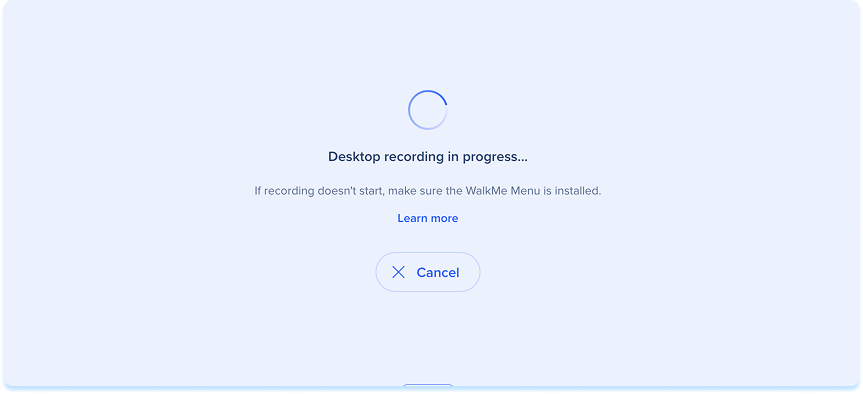
If WalkMe Menu for desktop isn't installed, you'll be prompted to install it during the recording flow
For SAP GUI and SAP Business Client recording:
WalkMe Menu for desktop version 4.4.0 or later
SAP Scripting turned on for both the SAP client and the SAP server (backend)
In the Learning Content page, select the learning content you want to edit
Add a simulation element to your lesson
Select Record
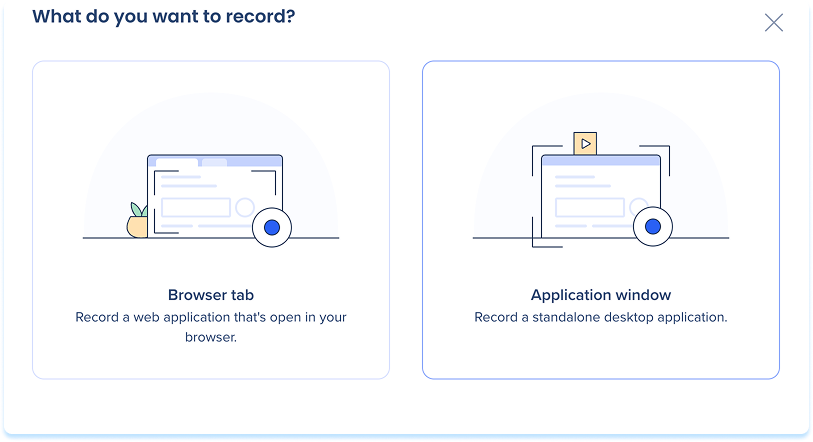
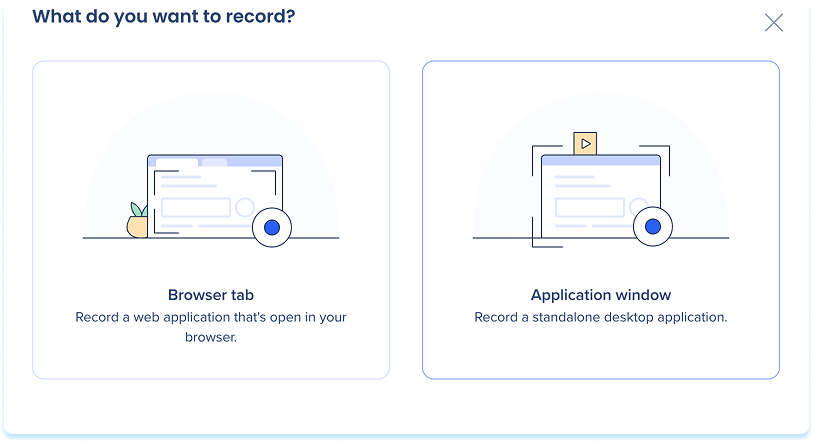
In the What do you want to record? popup, select Application window
Note
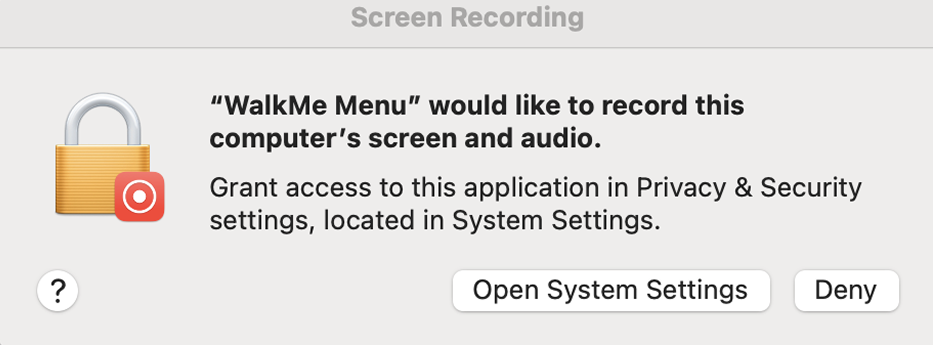
The first time you record a desktop simulation on macOS, you'll be prompted to grant screen recording permissions. Follow the on-screen instructions to allow access
Complete the workflow you want learners to practice
Select Stop Recording when you're done
The simulation is automatically added to your lesson and is ready to edit, publish, and reuse
Download WalkMe Menu for Desktop
If WalkMe Menu for desktop isn't installed:
Select Learn more in the loading screen
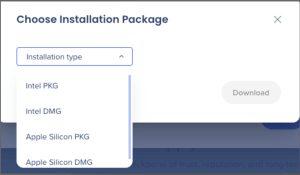
In the popup that appears, follow the on-screen instructions to download and install the WalkMe Menu
Once installation is complete, restart the recording
Installing the WalkMe desktop application
Mac
WalkMe for Mac is available in two formats: DMG and PKG.
The DMG is the simplest option — open it and drag the app to your Applications folder.
The PKG is designed for organizational deployment, installs WalkMe for all users on the machine, and supports automatic updates. Admin permissions are required.
Not sure which chip you have? Go to Apple menu → About This Mac. Select Intel DMG for Intel-based Macs, or Apple Silicon DMG for M-series Macs.
Windows
The User Installer (EXE) installs WalkMe for the current user only. In some environments, administrator permissions may be required.
SAP GUI and SAP Business Client Recording
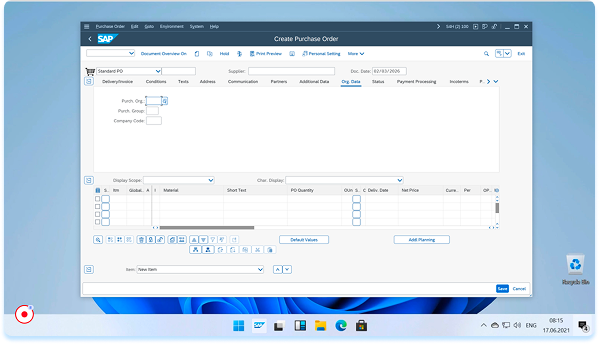
When SAP Scripting is turned on, desktop recording captures more detail from SAP controls, so simulation steps are clearer and guide learners better. This applies to SAP GUI for Windows and SAP Business Client.
Supported SAP controls
Desktop recording captures the following when you record SAP GUI or SAP Business Client applications:
SAP control
What's captured
Buttons
The button text, or the tooltip if the button has no text.
Input field labels
The field's associated label, when available, for more descriptive step names.
Tabs
The tab's displayed text, instead of a generic click action.
Checkboxes
The checkbox text, for clearer simulation steps.
Technical Notes
Supported platforms:
Windows 10, Windows 11, macOS Sonoma 14 or later
Canceling a recording in Learning Arc does not cancel it in WalkMe Menu, and vice versa
Desktop recordings support click events only
The Blur feature is not currently supported within the controller