Brief Overview
Folder restrictions let you control who can view and edit the content in a folder. You can keep a folder open to everyone, restrict it to a specific list of users, or have it follow its parent folder. This gives you a way to keep sensitive or in-progress content limited to the right people without changing anyone's role.
Note
This setting controls viewing and editing in WalkMe Learning Arc. Content is still accessible through source systems, API calls, or direct links.
Restriction States
A folder can be in one of three access states:
- Open to everyone: Anyone can view and edit the content in the folder. This is the default for new folders.
- Restricted: Only users you add can view or edit the content. Everyone else sees the folder as restricted.
- Inherit from parent: The folder uses the same access as its parent. When a parent folder is set to Restricted, its child folders are set to Inherit from parent by default.
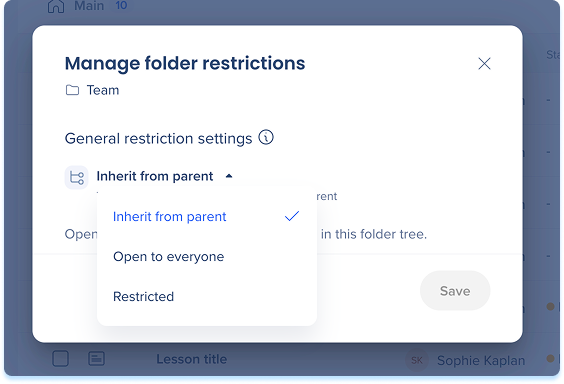
Set Folder Restrictions
To change who can view and edit a folder:
- Hover over the folder and open the Options menu
- Select Manage restrictions
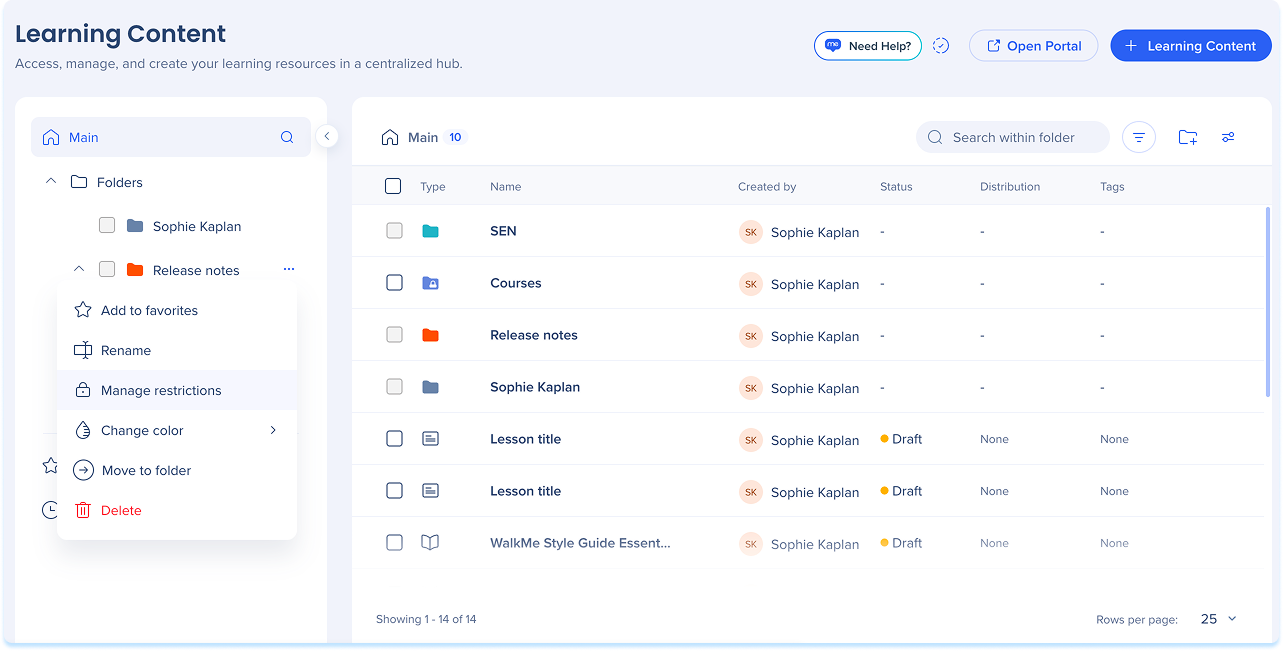
-
Under General restriction settings, choose an access state:
-
Open to everyone
-
Restricted
-
Inherit from parent
-
Select Save
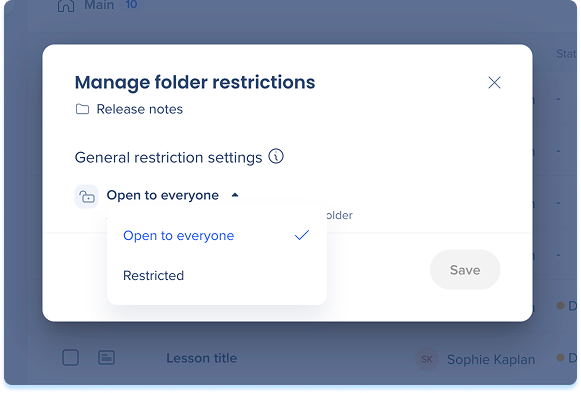
Restricted Folders
Add users to a restricted folder
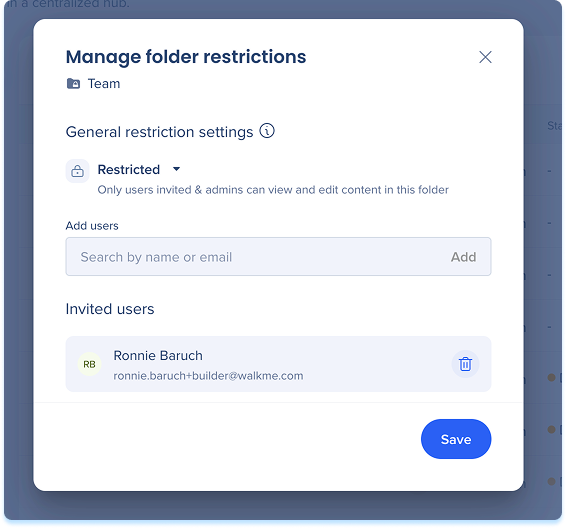
When a folder is set to Restricted, add the users who should be able to view and edit it:
- Open Manage restrictions for the folder
- In the Add users field, search by name or email
- Select Add
- Select Save
Note
If you set a folder to Restricted without adding users, only users with the Folder Restrictions permission can open it. To give others access, add them to the folder.
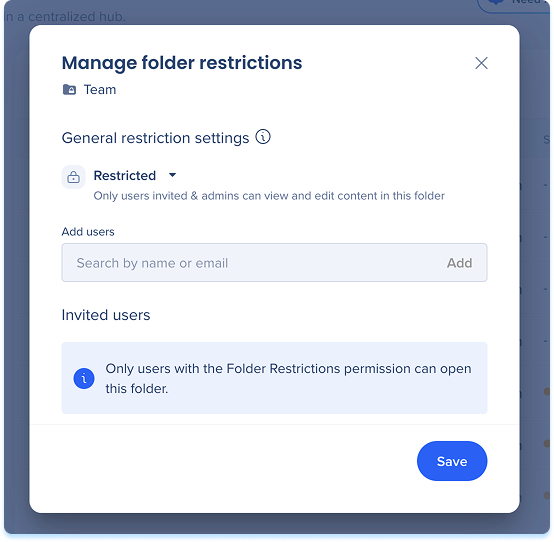
Remove users from a restricted folder
- Open Manage restrictions for the folder
- Find the user under Invited users
- Remove the user
- Select Save
How restricted folders appear
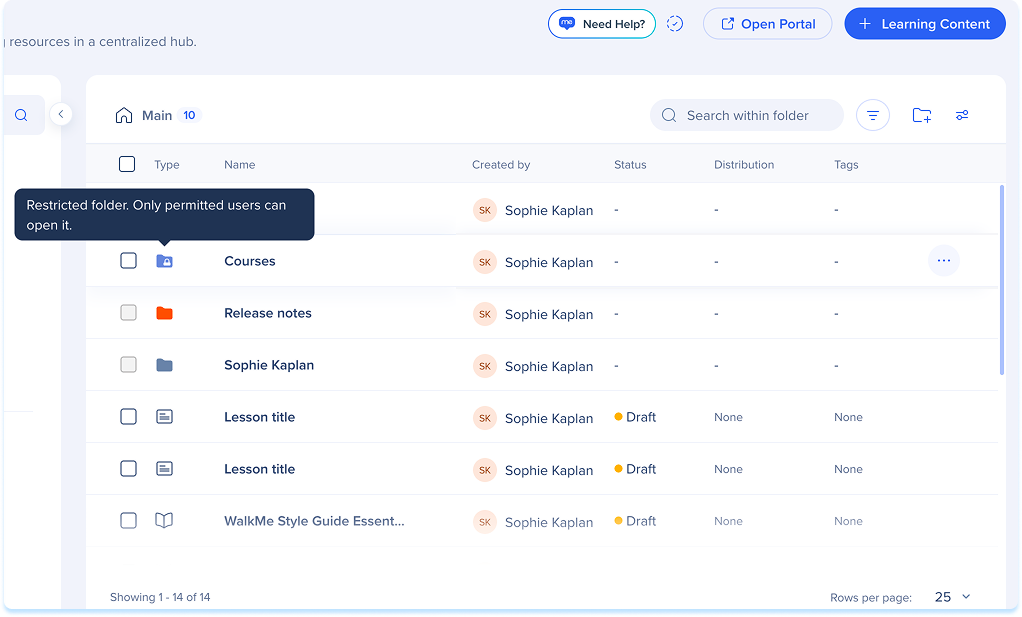
A restricted folder stays visible in the folder tree, so users always know it's there. Users you haven't added see the folder as restricted: they can see its name but can't open it or view its contents, and the contents don't appear in search.
Change Inherited Access
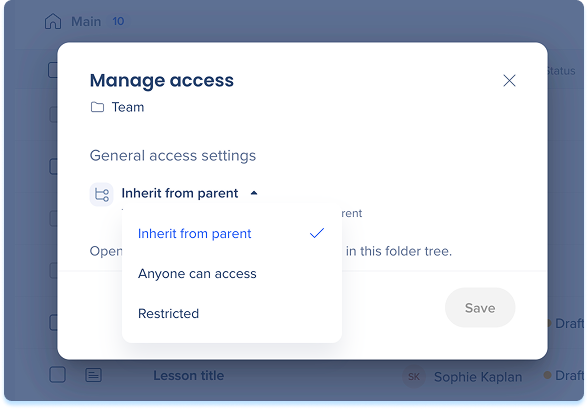
A folder set to Inherit from parent follows its parent's access. To give it its own settings instead:
- Open Manage restrictions for the folder
- Change the access state from Inherit from parent to Anyone can access or Restricted
- Select Save
To return the folder to its parent's access, set it back to Inherit from parent.
Move a Folder
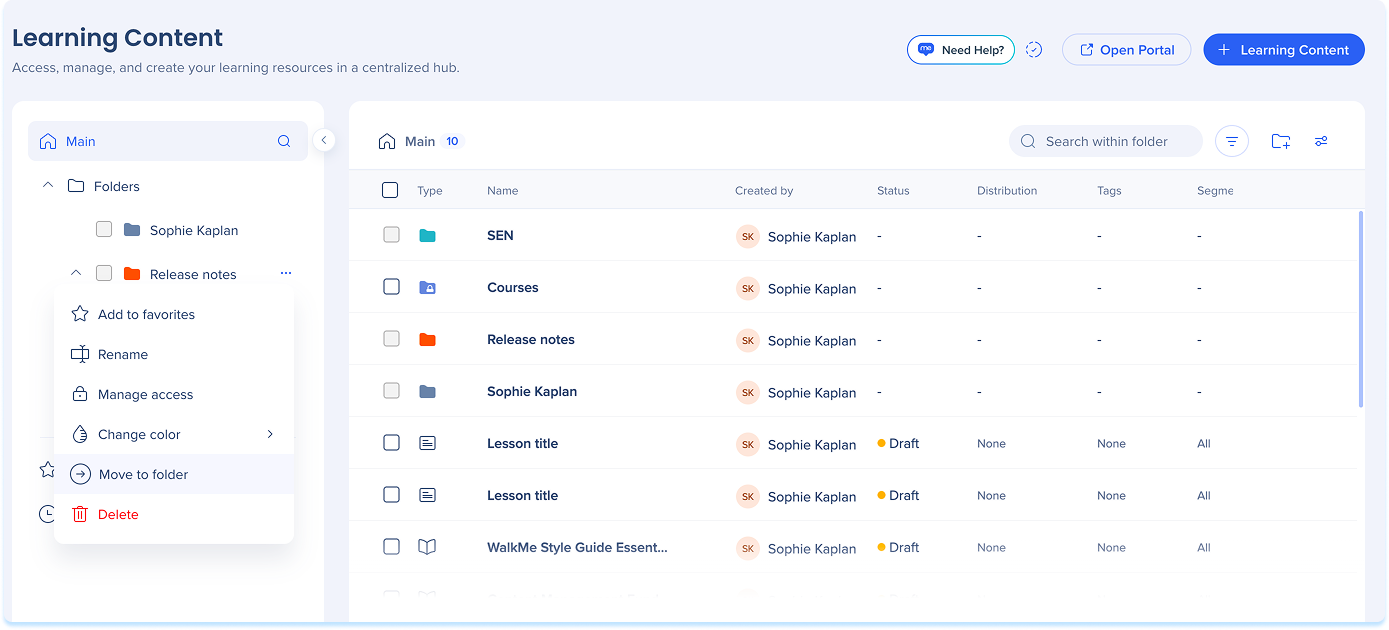
- Hover over the folder and open the Options menu
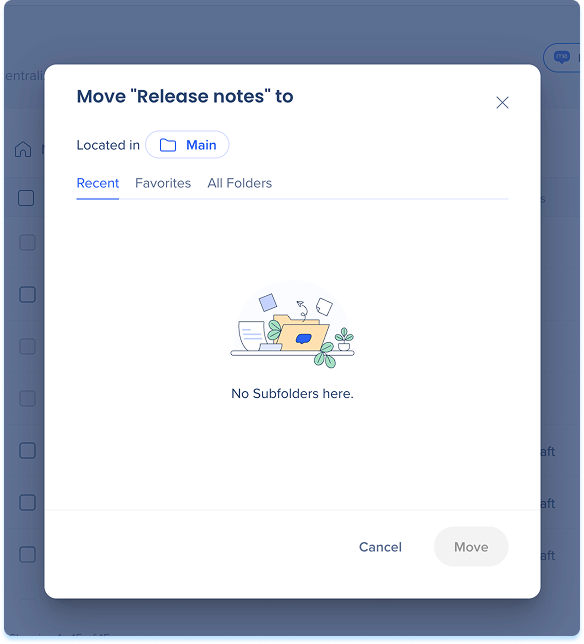
- Select Move to folder
-
Choose the destination
Note
When you move a restricted folder, some users may lose access if they aren't on the destination's access list. If that happens, a warning shows who's affected before the move.
Technical Notes
Access & Visibility
-
Requires "Folder Restrictions Allowed" permission to manage
-
Admins have this permission built into their role
-
Admins see all folders and content, even if restricted


