Brief Overview
Building your content is only part of the process. Once your learning content is ready, you can save drafts to keep working, preview the learner experience, collaborate with other authors, export in multiple formats for distribution, and publish to make it available in the portal. All of these options are available from the top panel in the builder and apply across all content types.
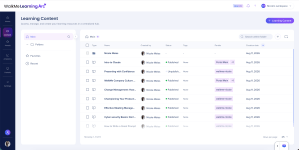
Save Content
Saving keeps your content as a draft and records a new version in History. Your content isn't visible to learners until you publish it, so you can save as many times as you need while you're still building and refining.
Preview Content
Previewing lets you see how your content looks to learners before publishing.
- Select Preview
- If the content is published to multiple portals, select which portal you want to preview
- Review the learner-facing version
- Close the preview when you're done
Share Content
You can invite other builders to collaborate on your content.
- Select the Options menu
- Select Share
Choose one of the following:
- Send invites directly — under Invite other builders, type the names or email addresses of colleagues on your company's email domain, add a message (optional), and select Share
- Manually share — select Direct link or Portal link, then select Copy Link
Note
Direct link sends the course to someone even if they're not a portal member, while portal link shows it within the full portal experience. The learner UI differs slightly between the two, and from a direct link there's no way to navigate back to the full portal
Export Content
You can export your learning content in multiple formats to share or distribute it outside the portal.
- Select the Options menu
- Select Export
- Choose an export format:
-
- PDF: Portrait orientation
- Word: Portrait orientation, editable
- PowerPoint: Landscape orientation, suitable for presentation decks
- SCORM: Deploy content directly into your LMS
- Select Next
PDF, Word, and PowerPoint settings
When exporting as PDF, Word, or PowerPoint, configure the following options before exporting:
- Cover page: Turn on to include a cover page in the export
- Export language: Choose the language for the exported content
- Quiz answers: Turn on to include correct answers in the export
- Simulation steps: Turn on to include all steps of the simulation instead of a preview image
- Select Export when you're done
Export SCORM Packages
History
History lets you view, preview, rename, and restore previous versions of your content. Every time content is drafted, updated, or published, a new version is added to History.
View history
- Select the Options menu
- Select Show History
History in WalkMe Learning Arc
Publish Content
Publishing makes your content available to learners in the portal. Before publishing, you can review the content details, preview the learner experience, and configure distribution options.
- Select Publish
- Review the content details on the publish popup
- Under Portal, select the portal(s) you want to publish this content to
- Under Version, review the current version date and select Show History to review past versions (optional)
- Select Edit content details to make any updates before publishing (optional)
- Select Preview to review the learner experience (optional)
- Select Publish
Content is only visible to learners once it's added to a portal. If you publish without selecting a portal, you'll see a prompt letting you know the content isn't available to learners yet, with the option to share it or add it to a portal.
Technical Notes
- The export layout is fixed. You can't change the position of elements like the date or logo
- Exported files are only available to authors. To share content with learners, add the file as an attachment element in the course
- SCORM exports support SCORM 1.2 only
- Learning journeys don't support export
- The Export language option is only available for offline translations
- Publishing a new version of learning content resets progress for learners who haven't completed it, requiring them to start from the beginning


