Brief Overview
The Simulations settings let you define the default visual style and playback behavior for simulations across your organization.
Note
You're editing global simulation settings. Changes here set the default for all simulations. To override the global defaults for a specific simulation, edit that simulation directly.
Customization Tab
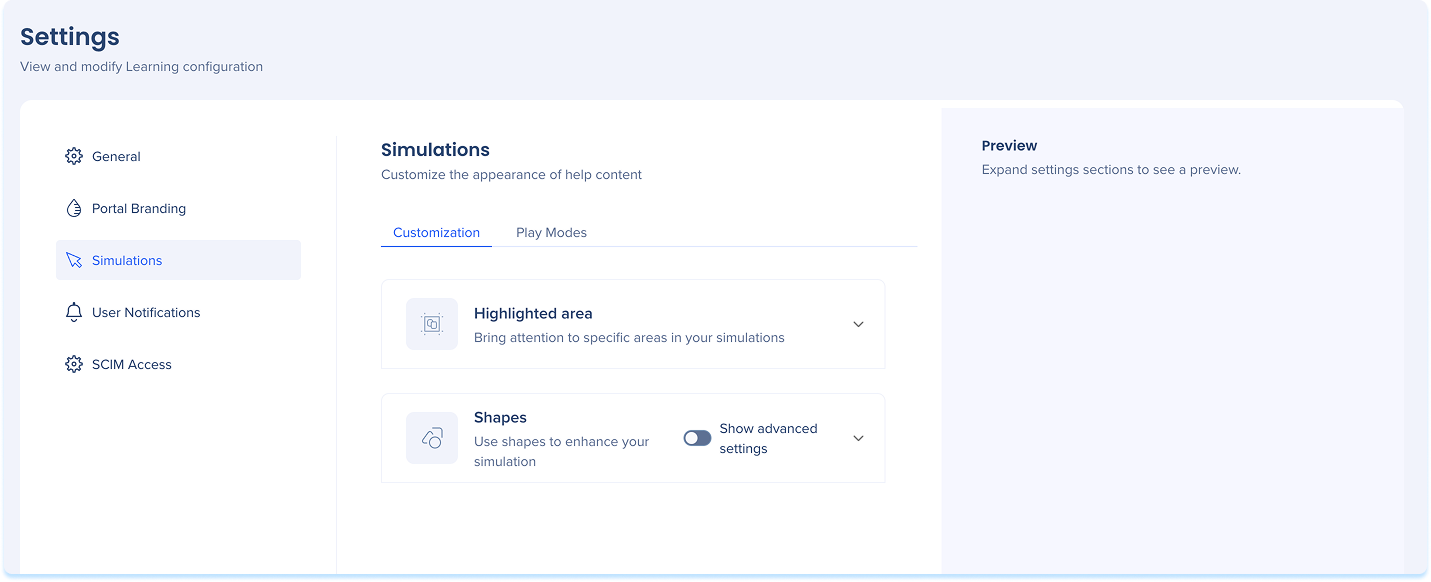
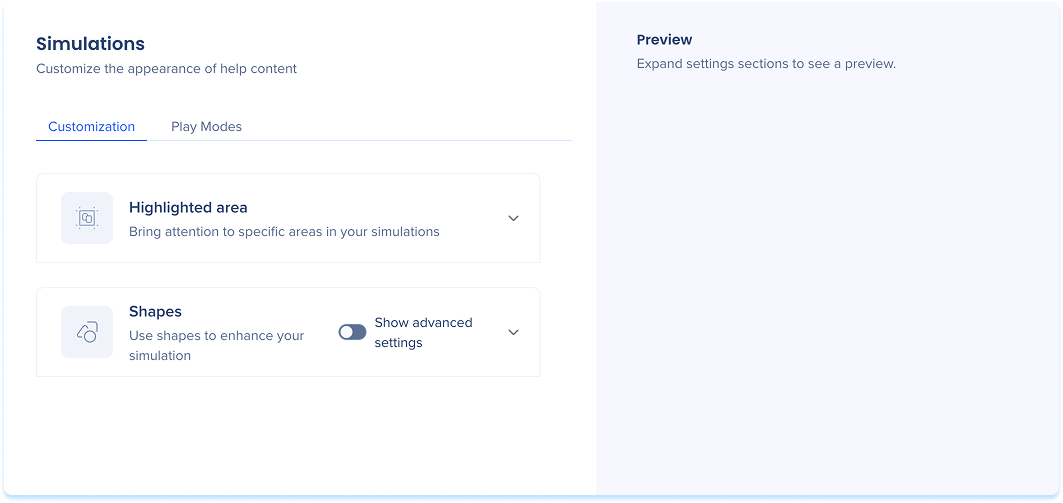
Use the Customization tab to define the default style of visual elements used in simulations.
Tip
Use the Preview panel on the right to see changes in context.
Highlighted area
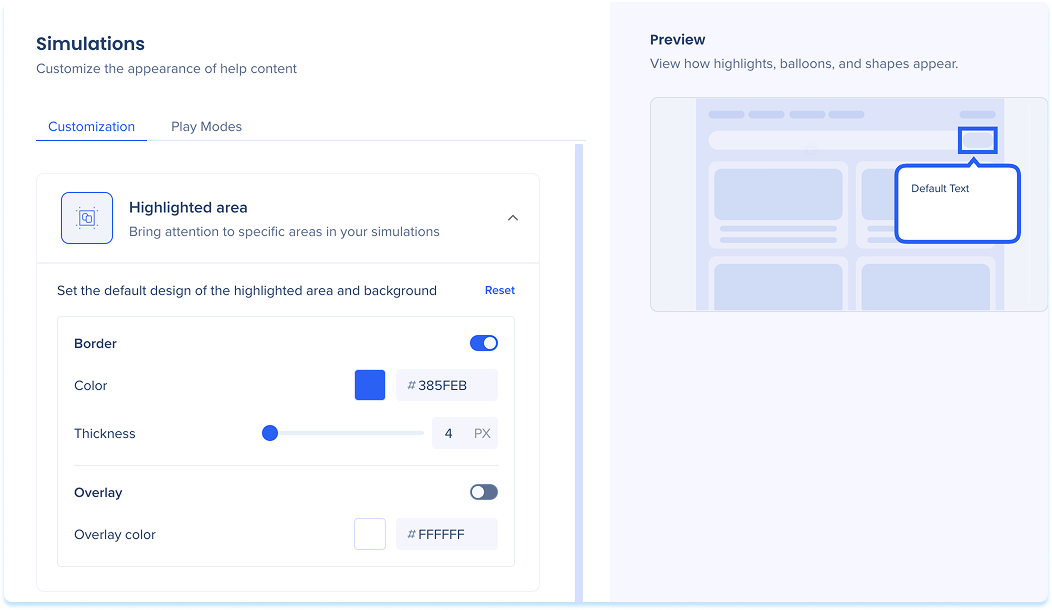
Defines the style of the area highlighted when a learner clicks during a simulation. Adjust the following:
- Border: Turn on to show a border around the highlighted area
- Set the color and thickness
- Overlay: Turn on to show a dimmed background behind the highlighted area
- Set the overlay color
Shapes
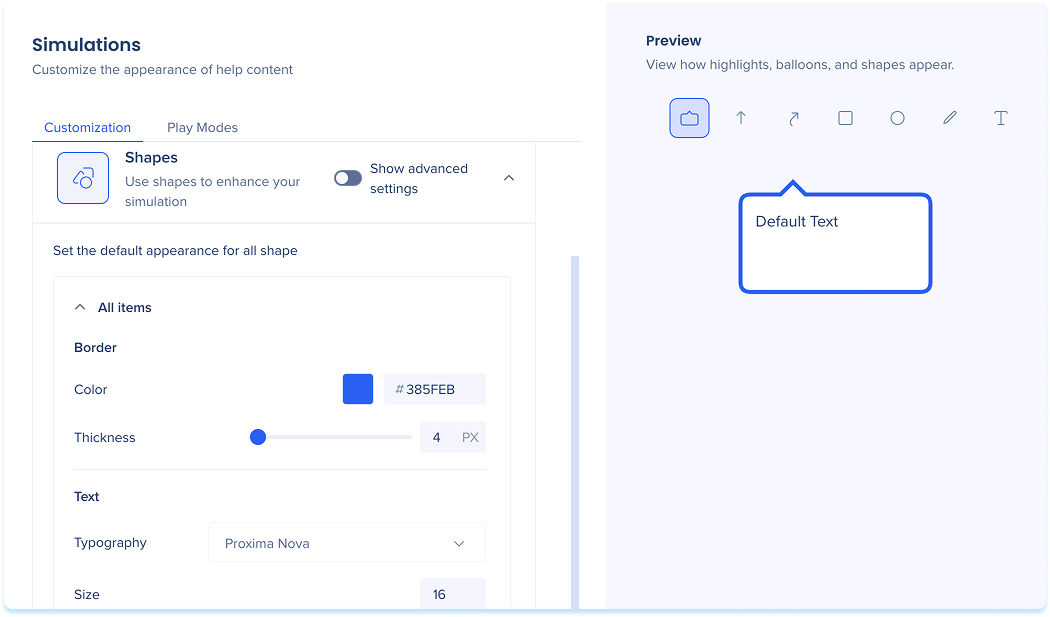
Customize the appearance of shapes added in simulations. Choose between:
- Basic mode: Adjust the appearance of all shapes at once
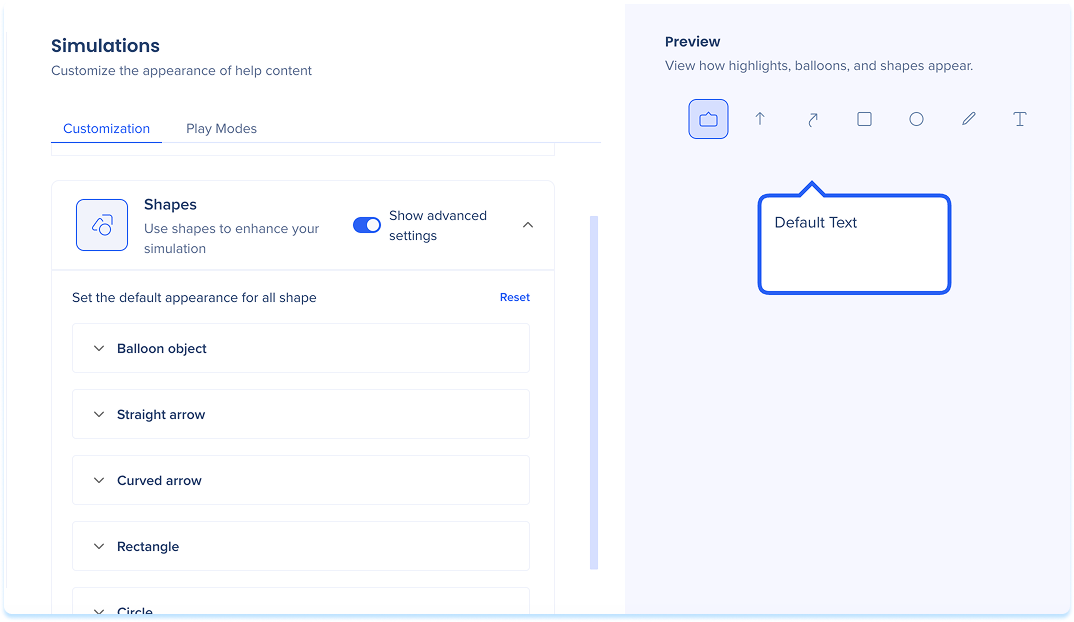
- Show advanced settings: Edit each shape individually to fine-tune its appearance
Basic mode
-
Select Colors to customize:
-
Fill: Set the fill color
-
Stroke: Set the border color and thickness
-
Select Typography to adjust:
-
Text: Choose the font and size
Show advanced settings
-
Select the dropdown for any shape and adjust the following:
-
Fill: Set the fill color
-
Stroke: Set the border color and thickness
-
Text: Choose font and size
Play Modes Tab
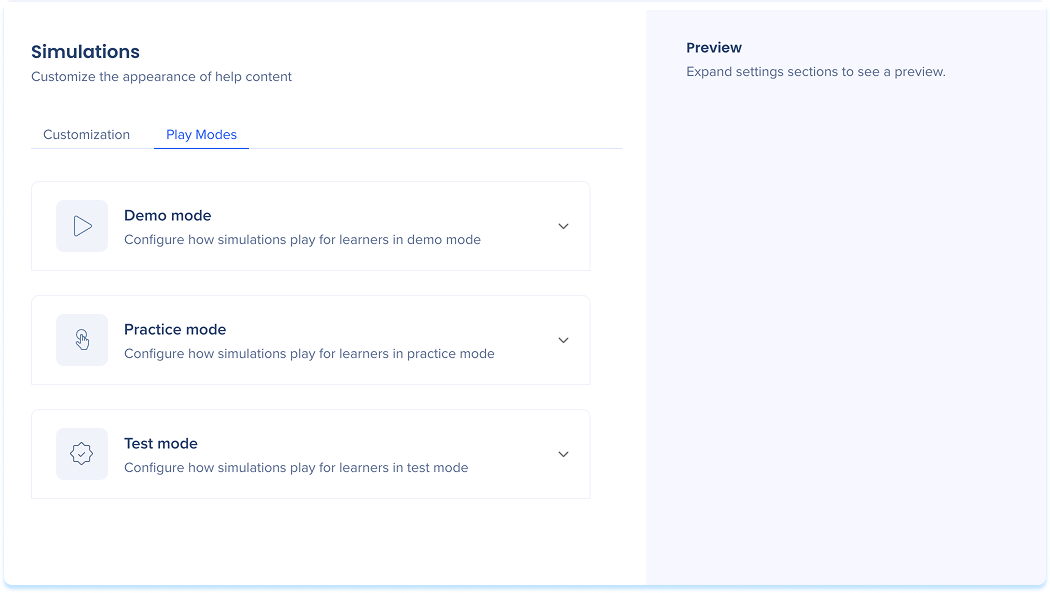
The Play Modes tab controls how simulations behave during playback, including success messages, error handling, and timing.
Includes:
- Demo mode: Plays the simulation in a guided walkthrough format
- Practice mode: Lets users try the steps themselves, with optional feedback for mistakes
- Test mode: Assess understanding without guidance
Demo mode
-
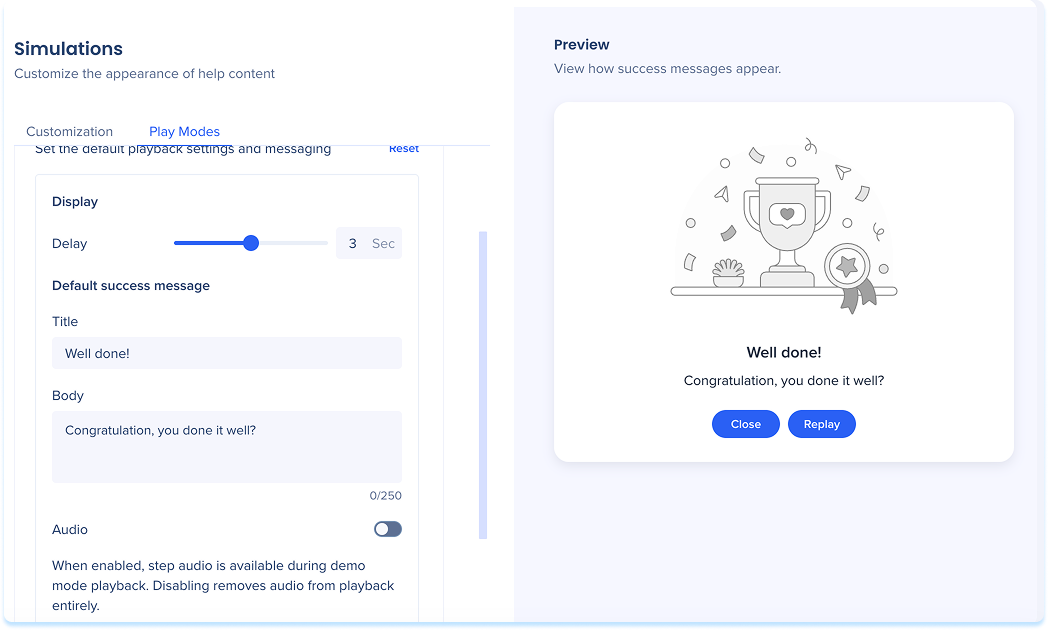
Display delay: Set how long each slide appears
-
Adjust the slider or enter a value
-
Default success message: Add a short title and message shown after the simulation is completed
-
Audio: Turn on to enabled step audio during demo mode playback (disabling removes audio from playback entirely)
-
Select Reset to restore defaults (optional)
-
Select Save to apply changes
Practice mode
Error handling: Choose how the simulation responds to incorrect attempts
-
Error Message: Show a custom message when a user clicks incorrectly
-
None: No message (the user must select the correct element)
If Error Message is selected, configure:
-
Title: Error heading
-
Body: Short guidance or hint
-
Button text: Label for the action button
-
Allowed attempts: Number of retries
-
Click Reset to revert to the default error handling (optional)
Note
When the user fails all allowed attempts, the error message will reappear with a Show me button. This button triggers an animation that demonstrates the correct action and moves the user forward to the next step.
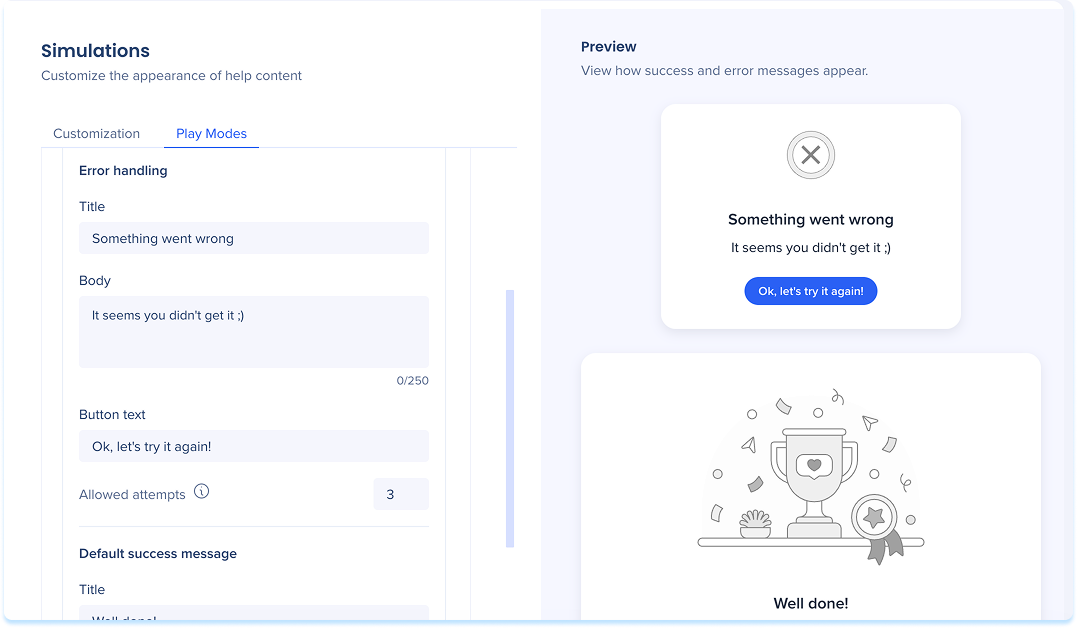
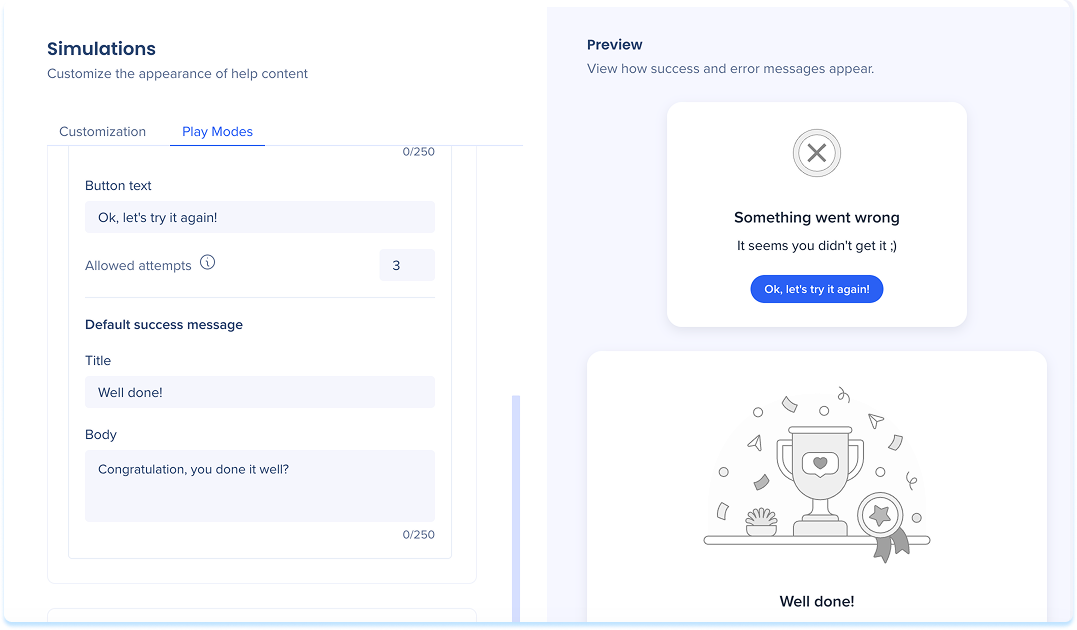
Default success messages: Message is shown after the simulation ends
-
Title: A short, encouraging line
-
Body: A follow-up message
-
Click Reset to restore to the default message (optional)
-
Click Save to apply changes
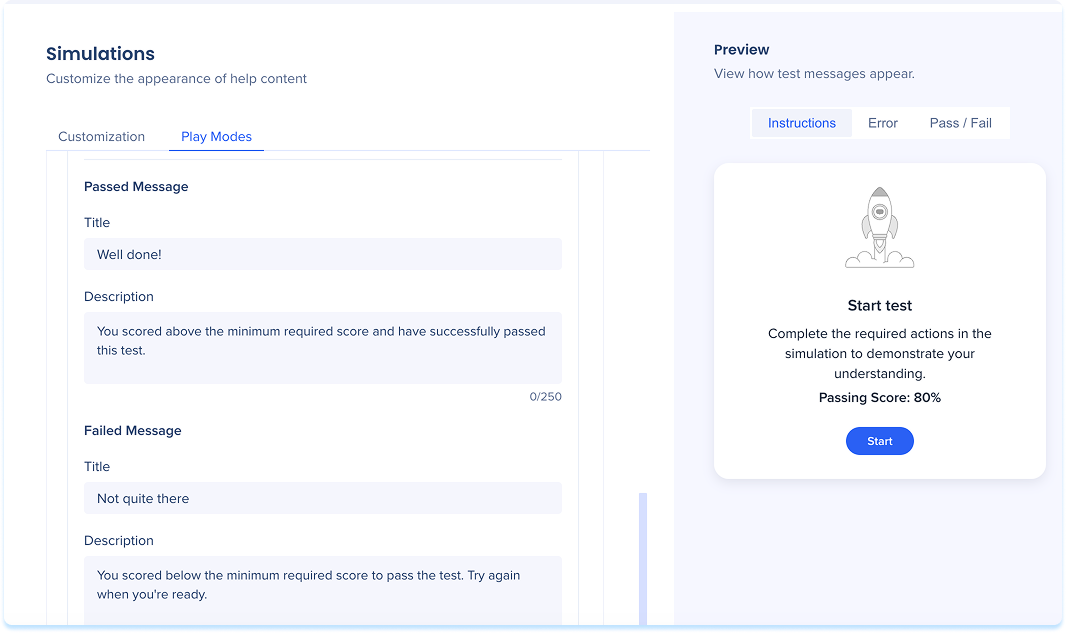
Test mode
-
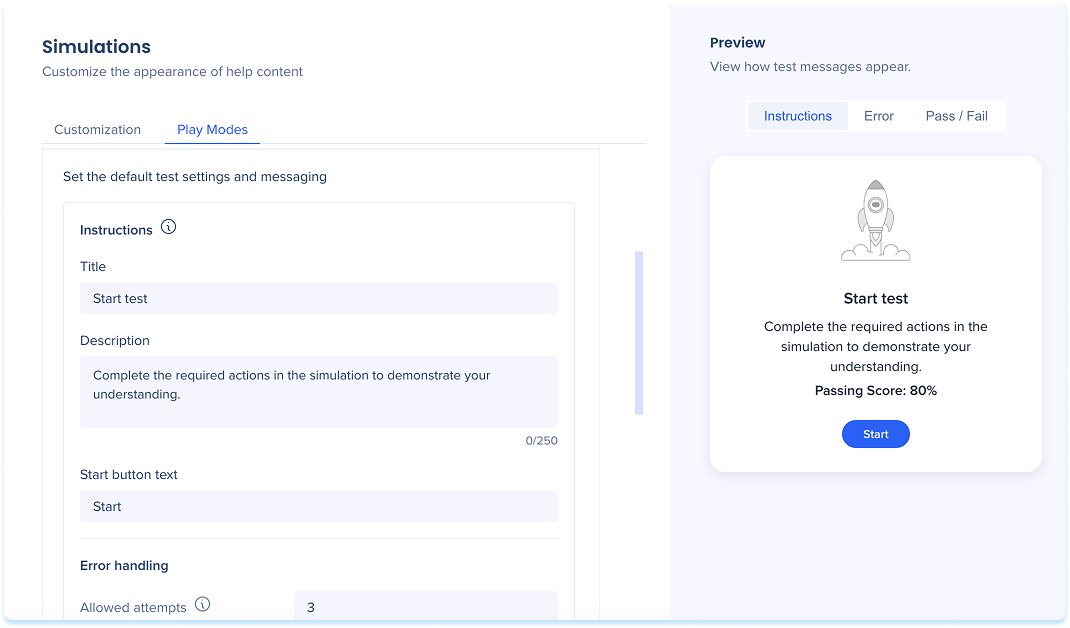
Instructions: Add a title and message shown at the start of the simulation
-
Error handling: Add a short title and message shown when a user clicks incorrectly
-
Allowed attempts: Number of retries
-
Scoring: Set the required score to pass the test
-
Passed message: Add a short title and description shown when the learner meets the minimum score
-
Failed message: Add a short title and description shown when the learner does not meet the minimum score
-
Click Reset to revert to the default settings
-
Click Done to apply changes