Brief Overview
Export a simulation to use it outside WalkMe Learning Arc. You can export a simulation as a PDF, Word document, PowerPoint, video, or SCORM package. Each format renders the recorded steps in a layout suited to a different use, from a printable job aid to an LMS-ready package.
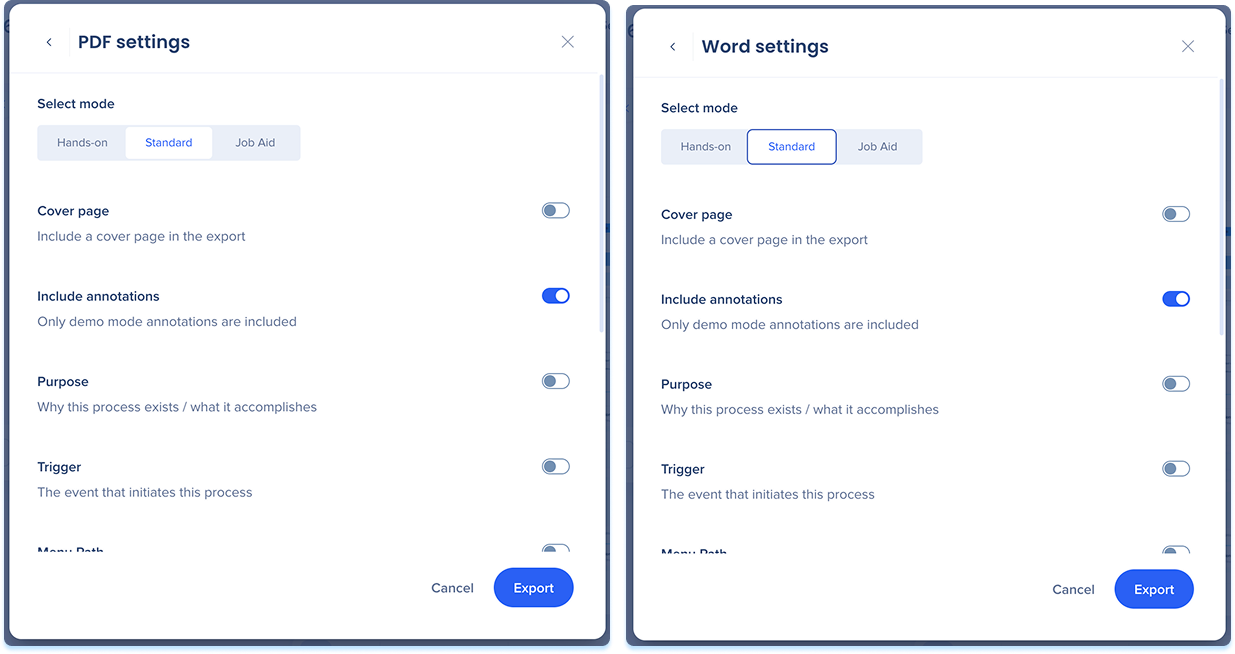
You can export a simulation in the folliwing formats:
- PDF: A step-by-step document in three layouts (Hands-on, Standard, Job Aid). Use for guides, process documentation, or a printable job aid
- Word: A step-by-step document in three layouts (Hands-on, Standard, Job Aid). Use for guides, process documentation, or a printable job aid
- PowerPoint: A slide deck with one step per slide. Use for presentations or training material
- Video: An MP4 video that plays through the simulation step by step.
- SCORM: A package you upload to your LMS to deliver the simulation and track learner progress
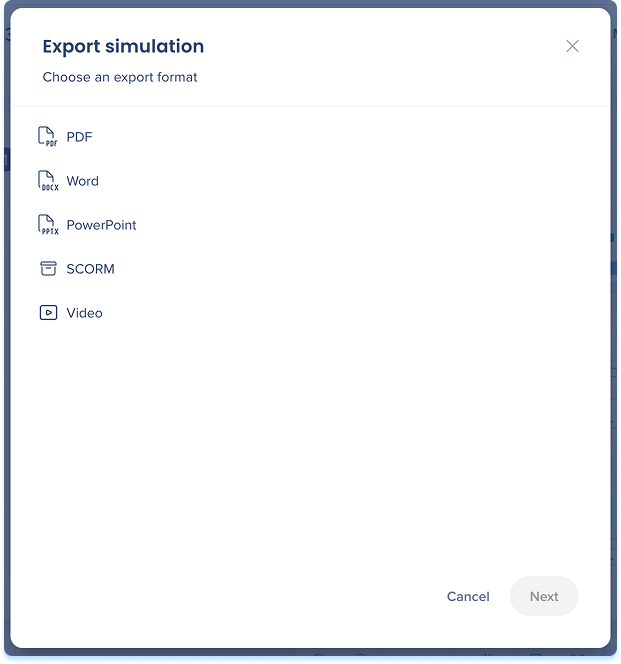
Export a Simulation
- Open the simulation in the Simulation editor
- Select the Options menu in the top panel and select Export
PDF and Word
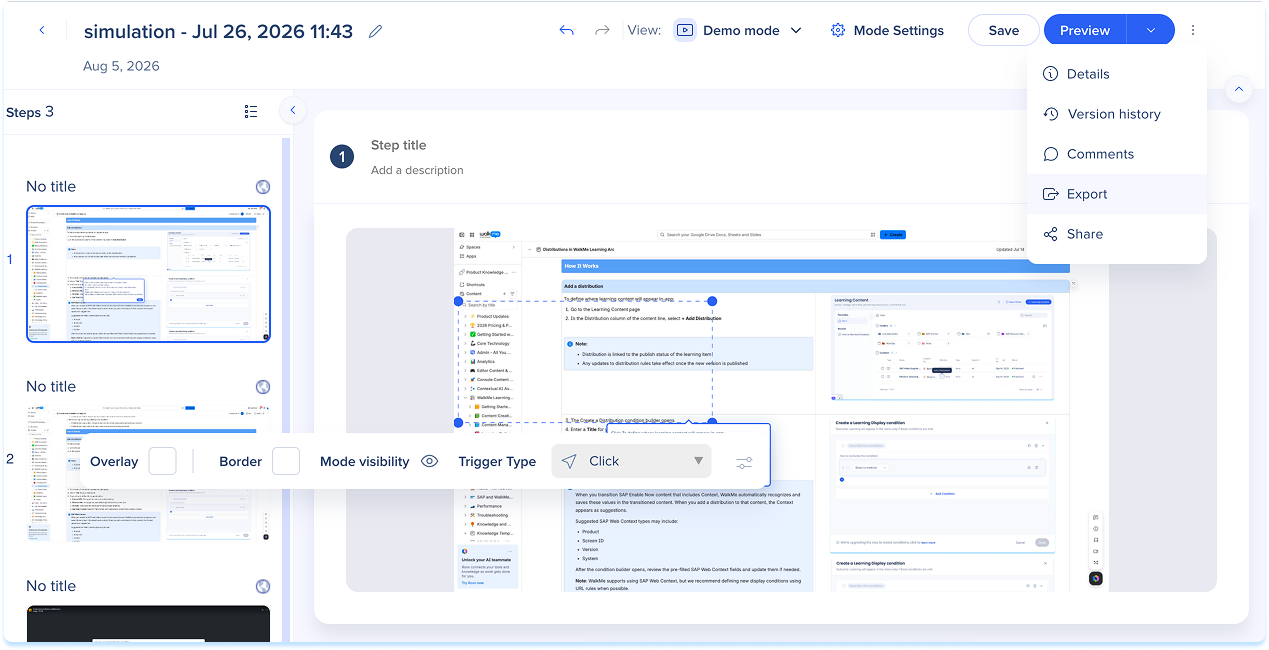
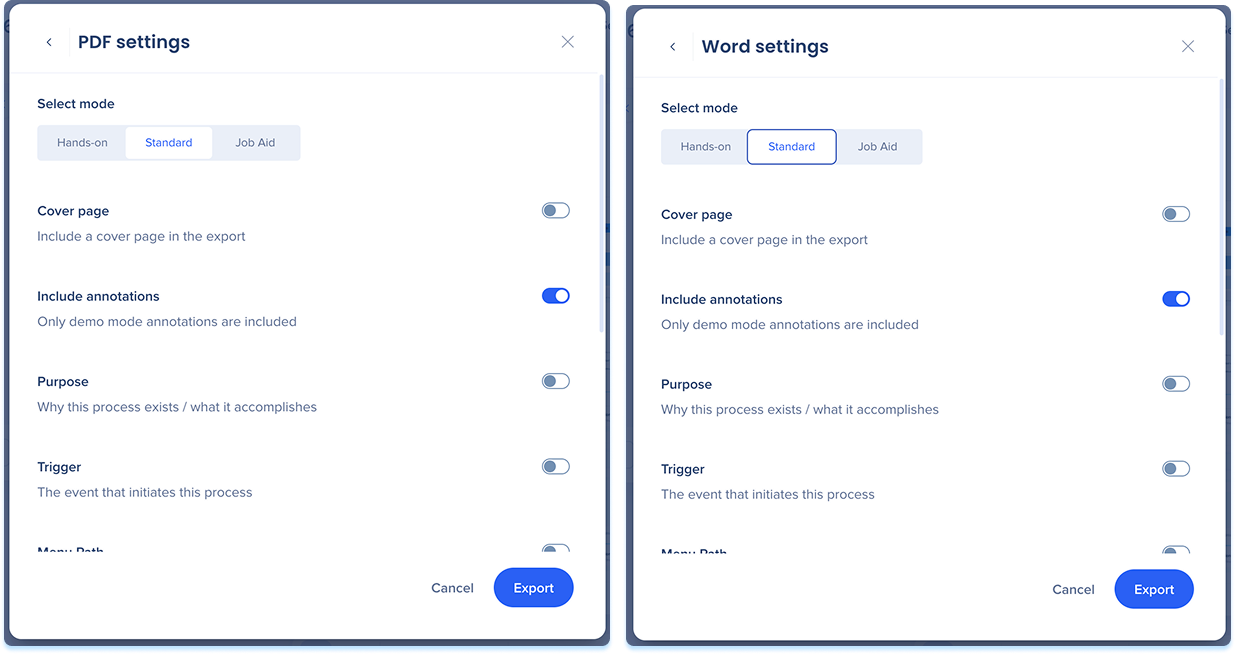
PDF and Word share the same settings and produce the same content in different file types.
- Select PDF or Word
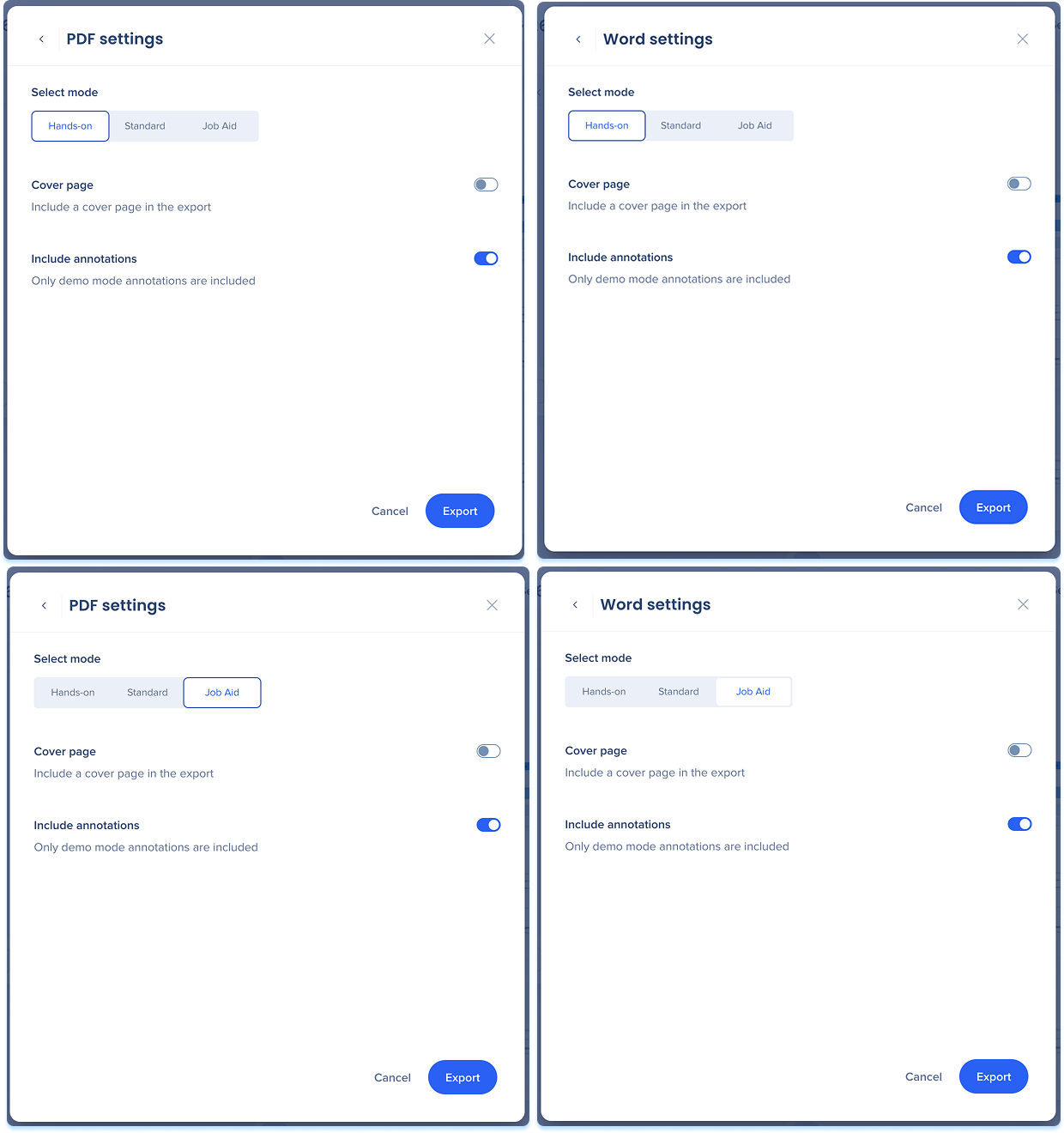
- Under Select mode, choose the document type:
- Hands-on: An instruction beside an annotated screenshot for each step, grouped by screen
- Standard: An introduction and process fields, then steps grouped by screen with full-width screenshots
- Job Aid: A one-page numbered list of steps, without screenshots
-
Turn on Cover page to add a cover page (optional)
-
Turn on Include annotations to show the simulation's annotations on the screenshots (optional)
-
In Standard mode, turn on any of these fields and type your text for each:
-
Purpose: Why the process exists
-
Trigger: The event that starts the process
-
Menu Path: How to reach the starting screen
-
Description: A free-text introduction shown near the top of the document
-
Prerequisites: What's needed before starting
-
Business Process Flow: The parent process this belongs to
-
FAQ: Common questions about the process
-
Select Export
PowerPoint
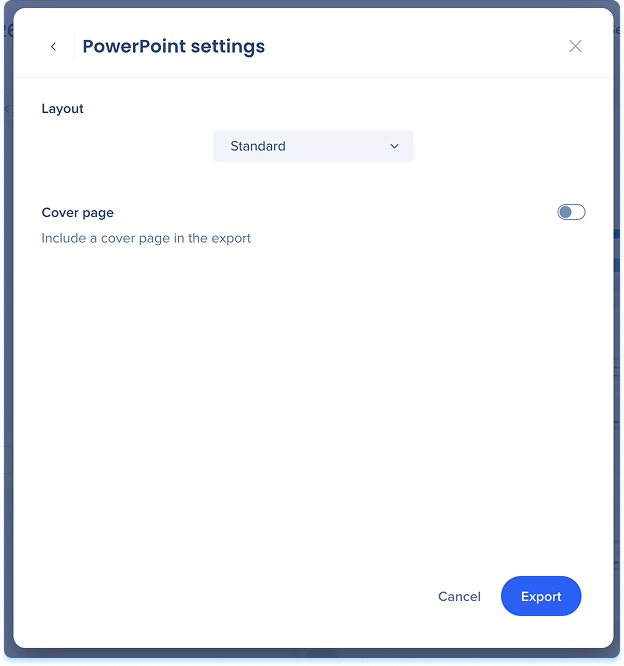
- Select PowerPoint
- In the Layout dropdown, choose Standard or Styled
- Turn on Cover page to add a cover page (optional)
- Select Export
Video
- Select Video
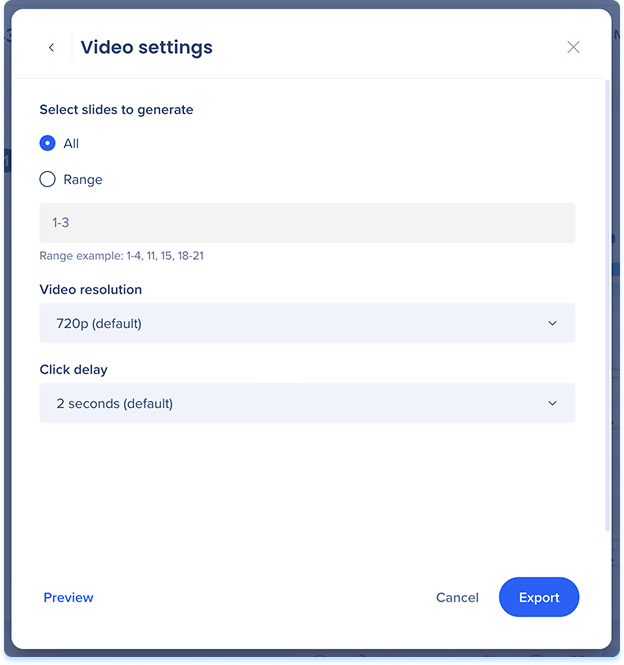
- In the Video settings popup, choose which slides to generate:
- All: Generates a video from every slide in the simulation.
- Range: Generates a video from specific slides only
- Enter the slides in the range field (for example, 1-4, 11, 15, 18-21)
- Select a Video resolution from the dropdown
- The default is 720p
- Select a Click delay from the dropdown to set the pause between clicks
- The default is 2 seconds
- Select Preview to review the video before exporting (optional)
- Select Export
SCORM
SCORM exports a package you upload to your LMS, which then tracks learner progress
- Select SCORM
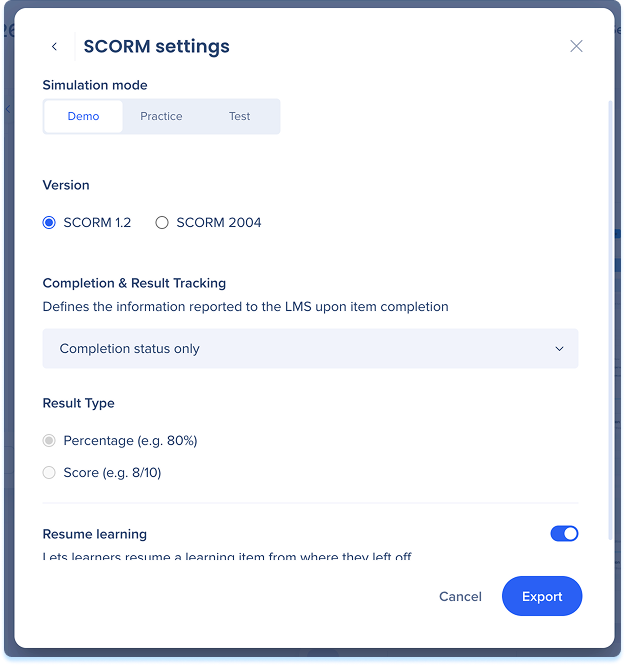
- Under Simulation mode, choose the mode learners run in the LMS: Demo, Practice, or Test
- Under Version, choose SCORM 1.2 or SCORM 2004 to match your LMS
- In completion and result tracking, choose what's reported to your LMS when the learner finishes (the available options depend on the mode you selected):
- Result and completion status: The learner's score and whether they finished
- Result only: The learner's score, without completion
- Completion status only: Whether the learner finished, without a score
- None: Sends no tracking data to the LMS
- For an option that reports a result, in Result type choose Percentage or Score
- Turn on Resume learning to let learners resume from where they left off
- Select Export to generate the ZIP file
Technical Notes
- SCORM:
- Data pushes out to the LMS only. Learning Arc doesn't receive analytics back from exported simulations
- Learning Arc updates don't auto-sync to the LMS. Changes require a manual re-export


