Brief Overview
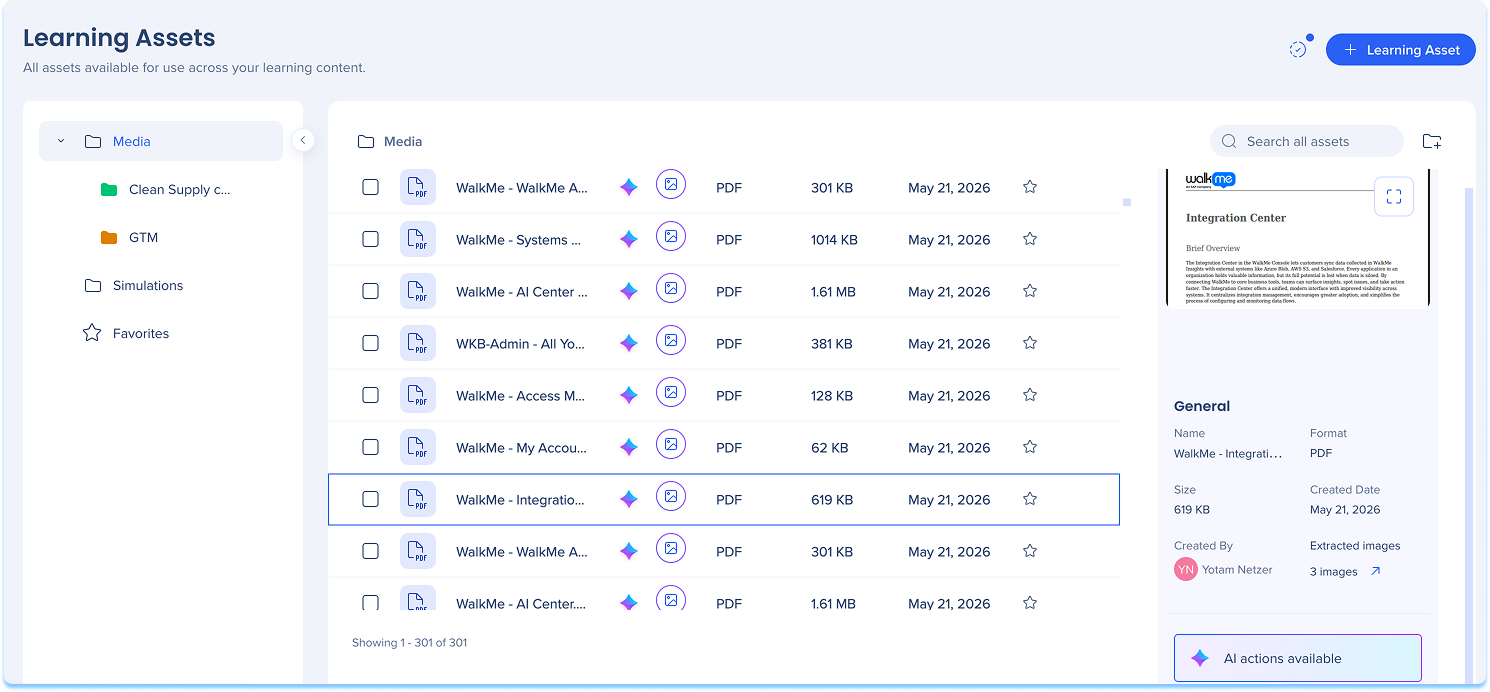
Use the Learning Assets page to manage and reuse media and simulation files across lessons and courses. It helps you stay organized, avoid duplicate uploads, and keep learning content consistent.
Assets stored here can be added to microlearnings, courses, quizzes, and simulations. Any file you upload, whether from a course or directly from this page, appears here for quick access.
When you upload a supported file, it's automatically analyzed by AI so it's ready for AI-powered content generation. You can track the analysis status from the asset preview panel.
Access
Access Learning Arc in the console:
- Open the WalkMe Console
- Go to the Content category
- Select Learning Arc
- Select the Assets page
WalkMe Learning Arc free trial
How It Works
Folders
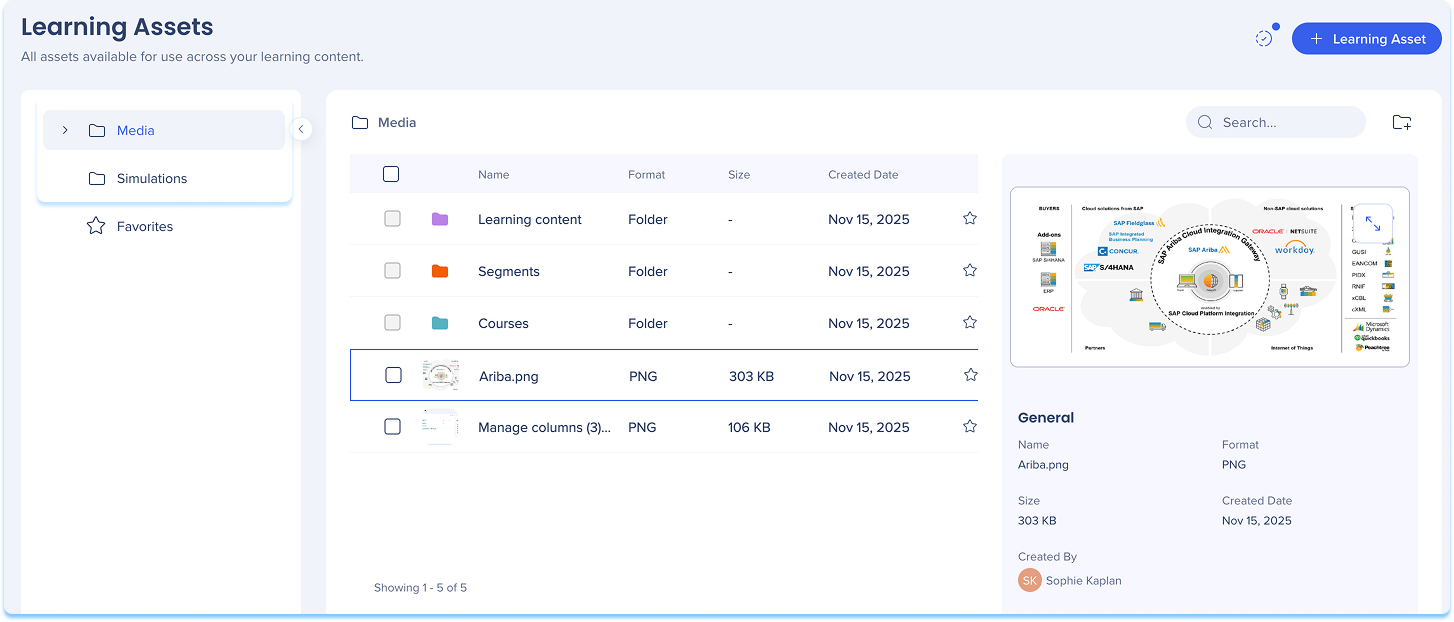
Use folders to keep learning assets organized by topic, workspace, or use case.
Two folders are included by default:
- Media: Images, videos, documents, and other uploadable files
- Simulations: All recorded or uploaded simulations
Note
When you insert an AI-generated image, it's saved to the AI Generated folder so you can reuse it across lessons and courses without generating it again. This folder is created automatically the first time an image is saved.
Subfolders
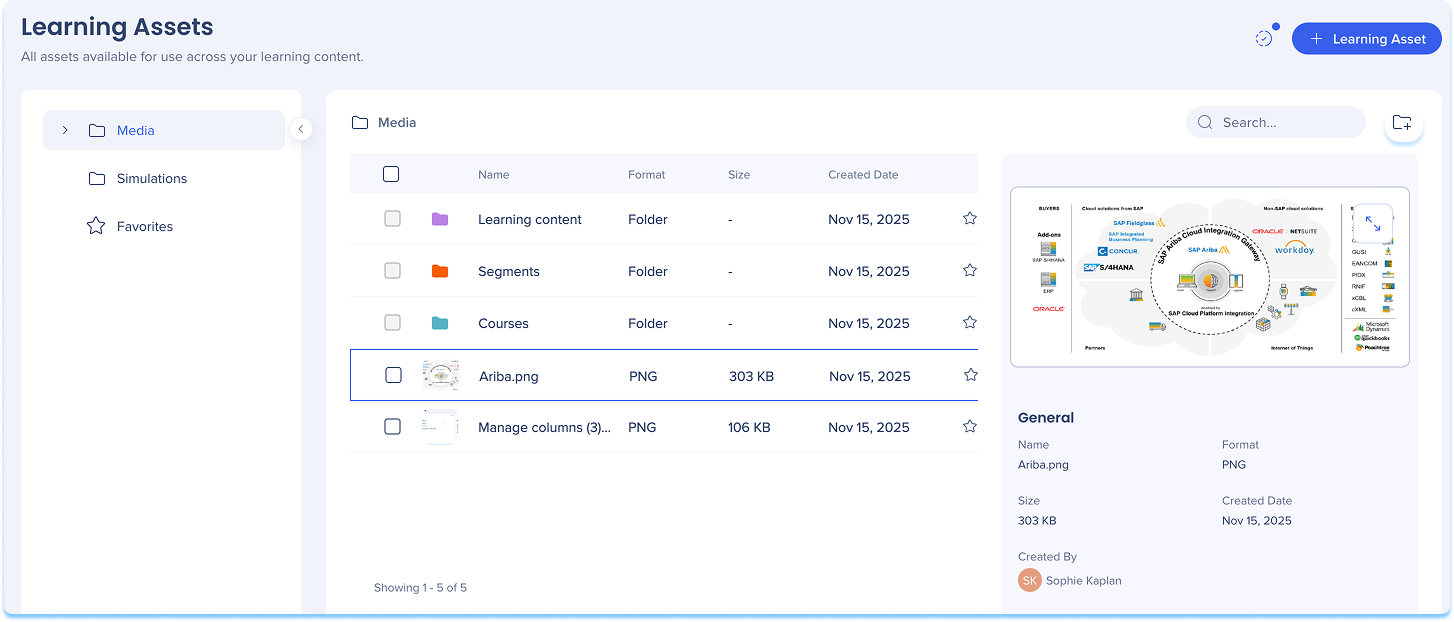
Create a subfolder within the Media or Simulations folder to better organize your content.
How it works:
- Open the Media or Simulations folder
- Select the Add Folder icon in the top-right corner
- Enter a name and choose a color
- Select Create Folder

Folder options
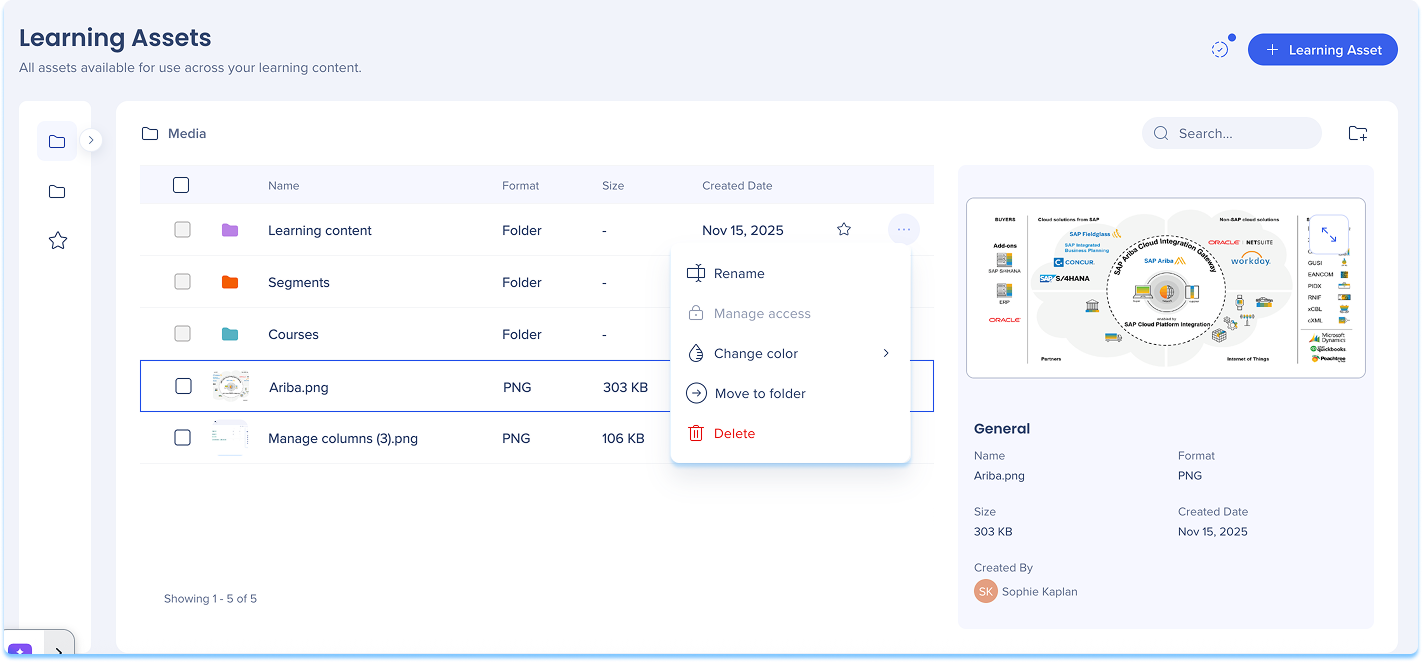
Access folder actions from the Options menu next to the folder name.
Available actions:
- Change color
- Move to folder
- Delete
Add learning asset
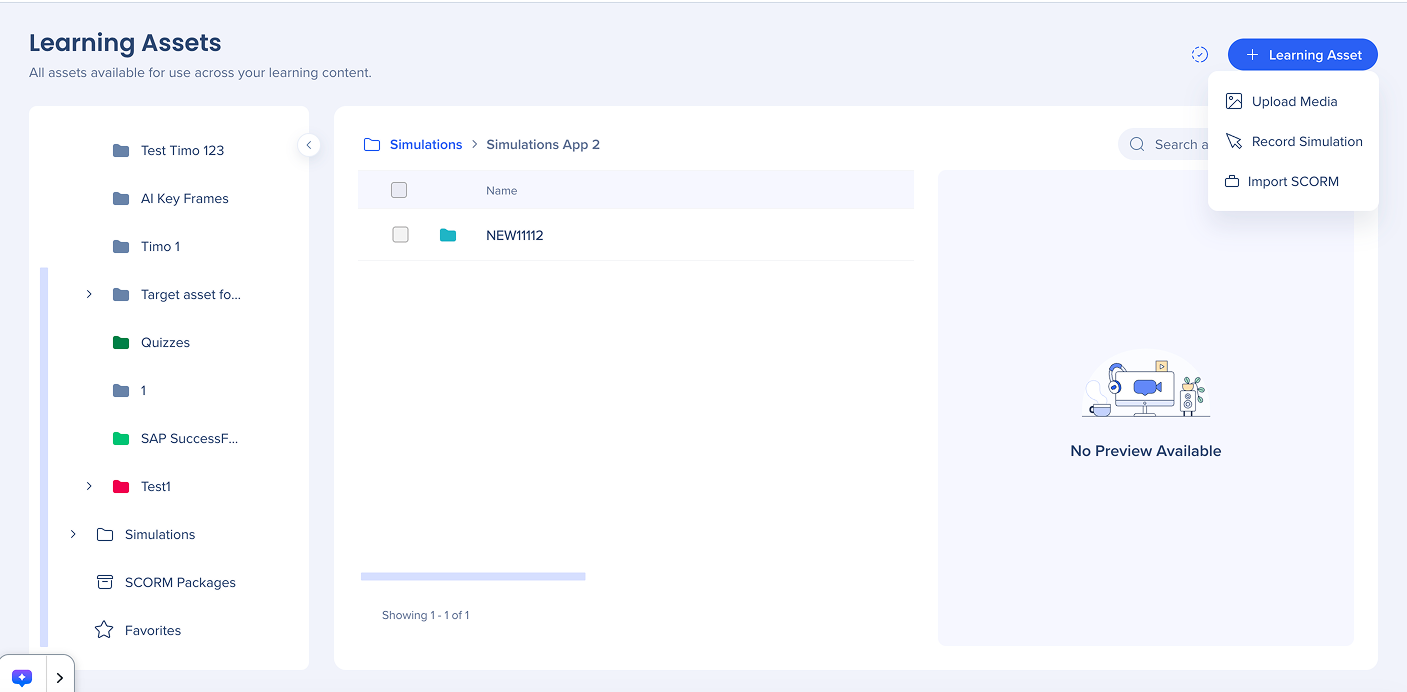
Upload media files or record simulations directly from the Learning Assets page.
How it works:
- Select + Learning Asset in the top-right corner of the page
- Choose one of the following:
- Upload Media: Add images, videos, or documents from your device
- Record Simulation: Capture a new simulation
- Import SCORM: Upload a SCORM package to add existing learning content
Import SCORM Packages
Preview asset
When you select the asset, the preview panel displays:
- Asset metadata: Includes file name, size, format, creator, and date
- Edit simulation: Available for simulation assets to launch simulation editing
- AI analysis status: Indicates if the asset is ready for AI content generation
AI analysis
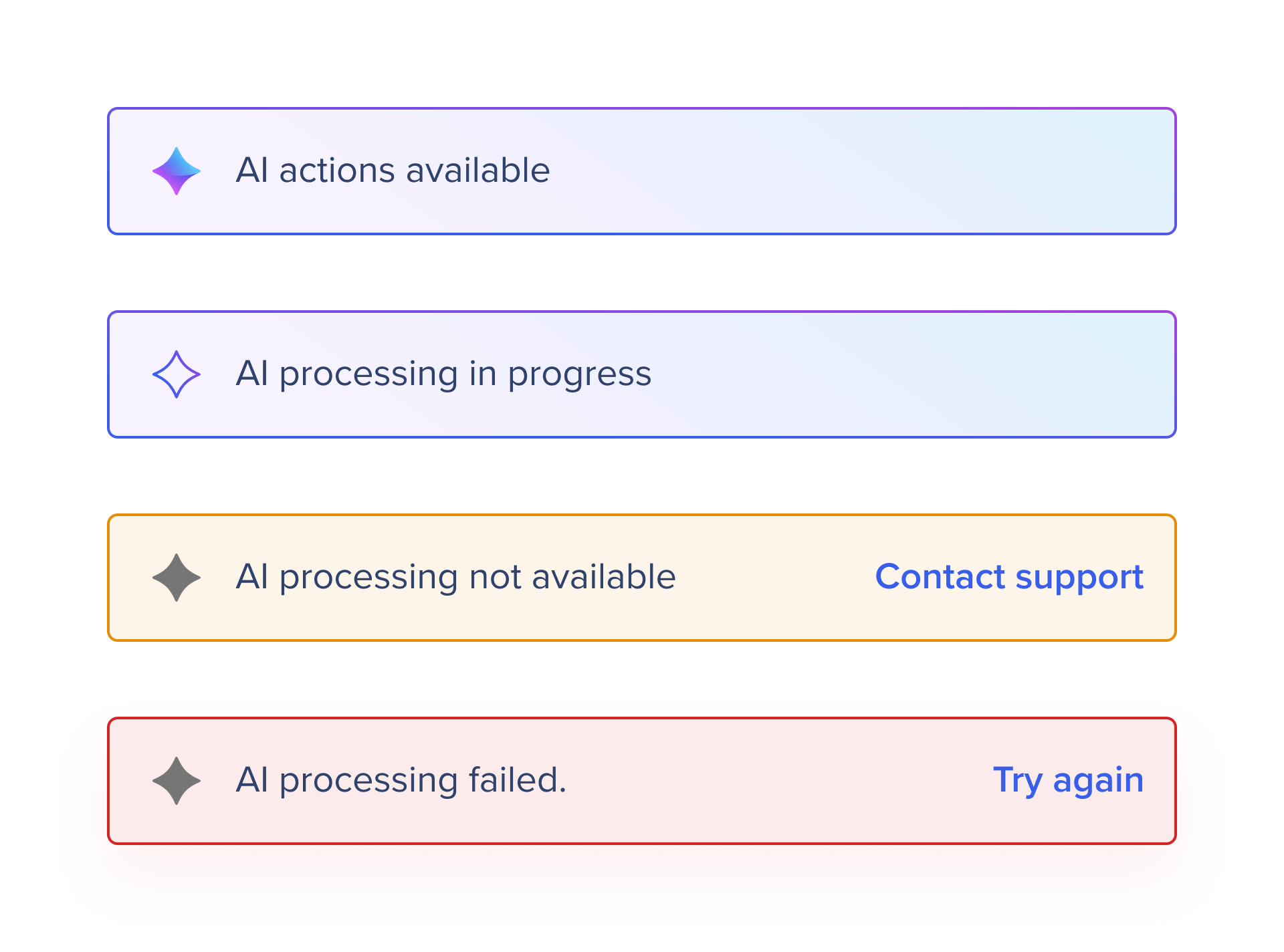
The preview panel indicates if an asset has been analyzed and is ready for AI-powered content generation.
- AI processing in progress: The system is currently analyzing the file
- AI actions available: Analysis is complete and the asset is ready for use
- AI processing failed: Select Try again to attempt the process again
- AI processing not available: The file format is not supported for AI analysis
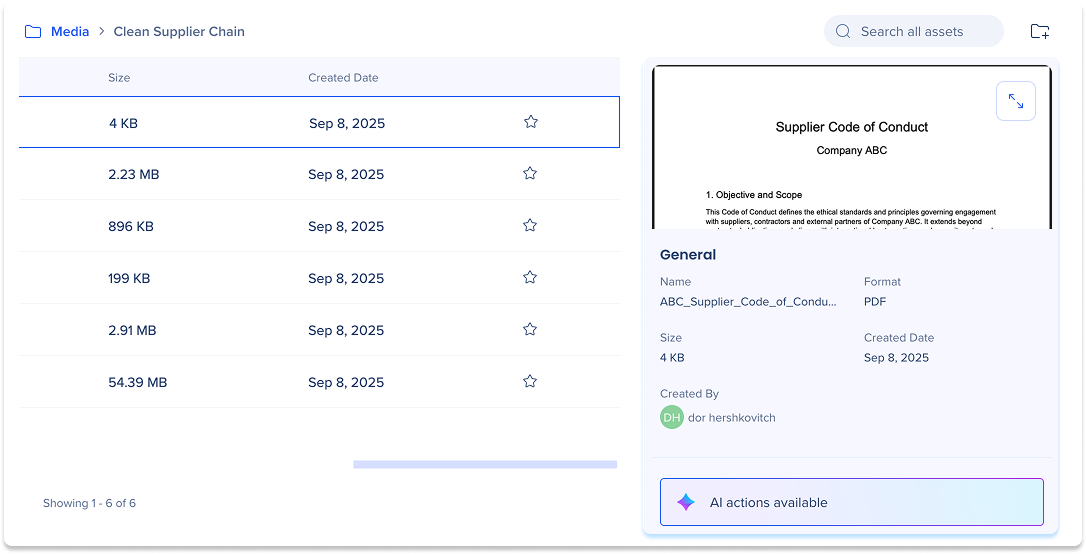
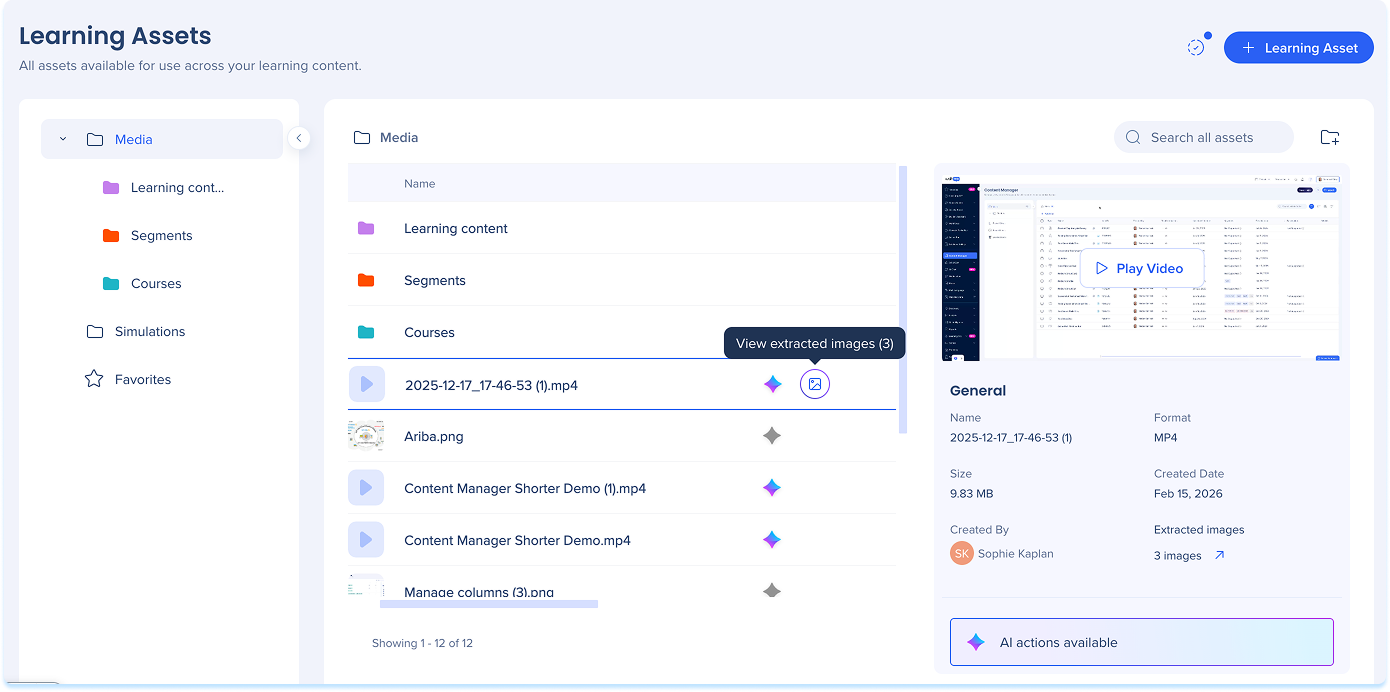
Images from uploaded PDFs and videos can be extracted and reused when building learning content.
- PDF files: Images are extracted automatically during AI analysis and are available in the asset library
- Video files: Images are extracted only after the video is used in a lesson — not during upload or analysis
To view them, select View extracted images next to the asset in the asset library
Image Extraction
Favorites
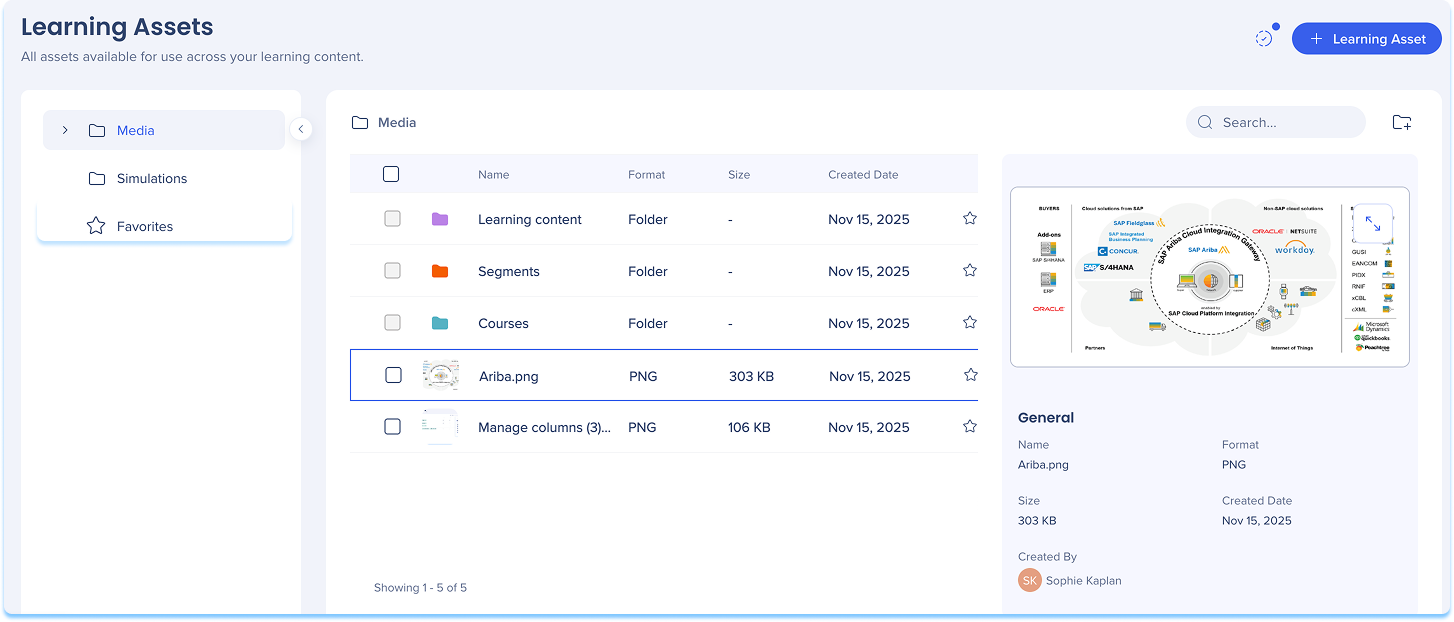
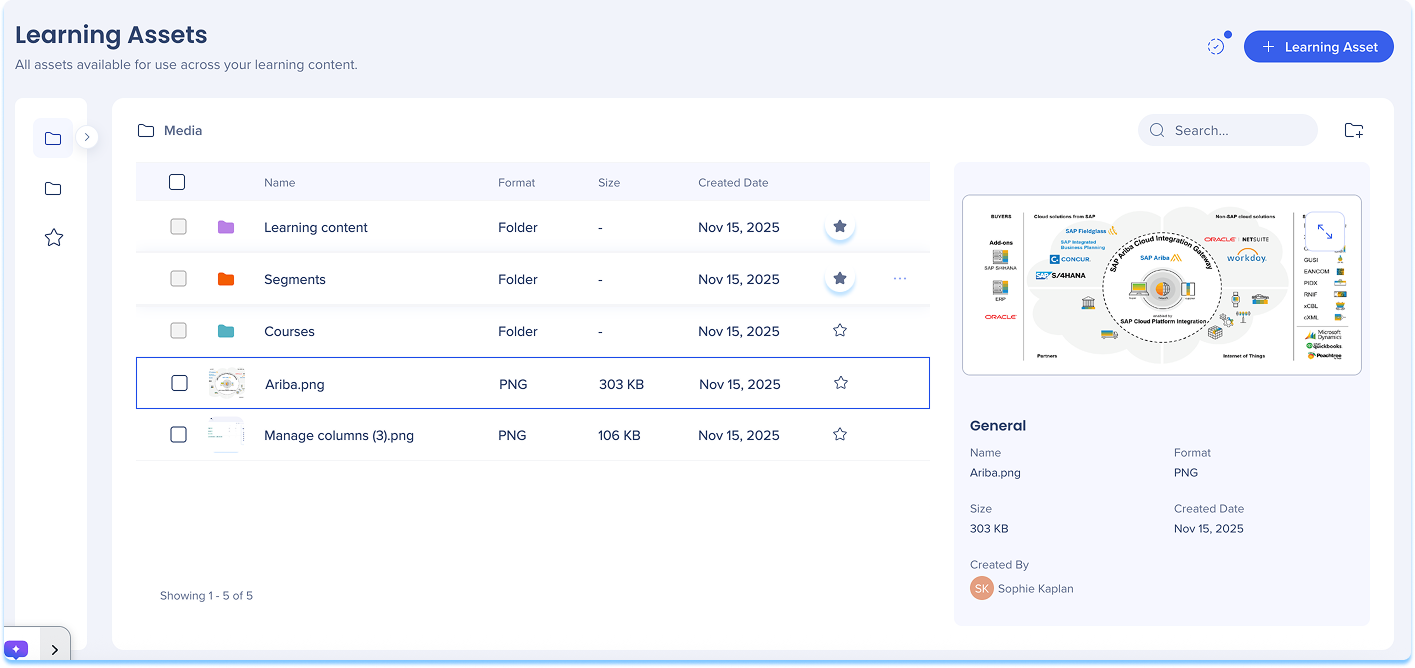
Add folders or assets to your favorites for faster access.
To favorite an asset, either:
- Open the Options menu next in the asset line and select Add to favorites
- Select the Star icon next to an asset in the asset line
To favorite a folder:
- Open the Options menu next to the folder name
- Select Add to favorites
Note
Your favorite folders appear in the Favorites view.
Search capabilities
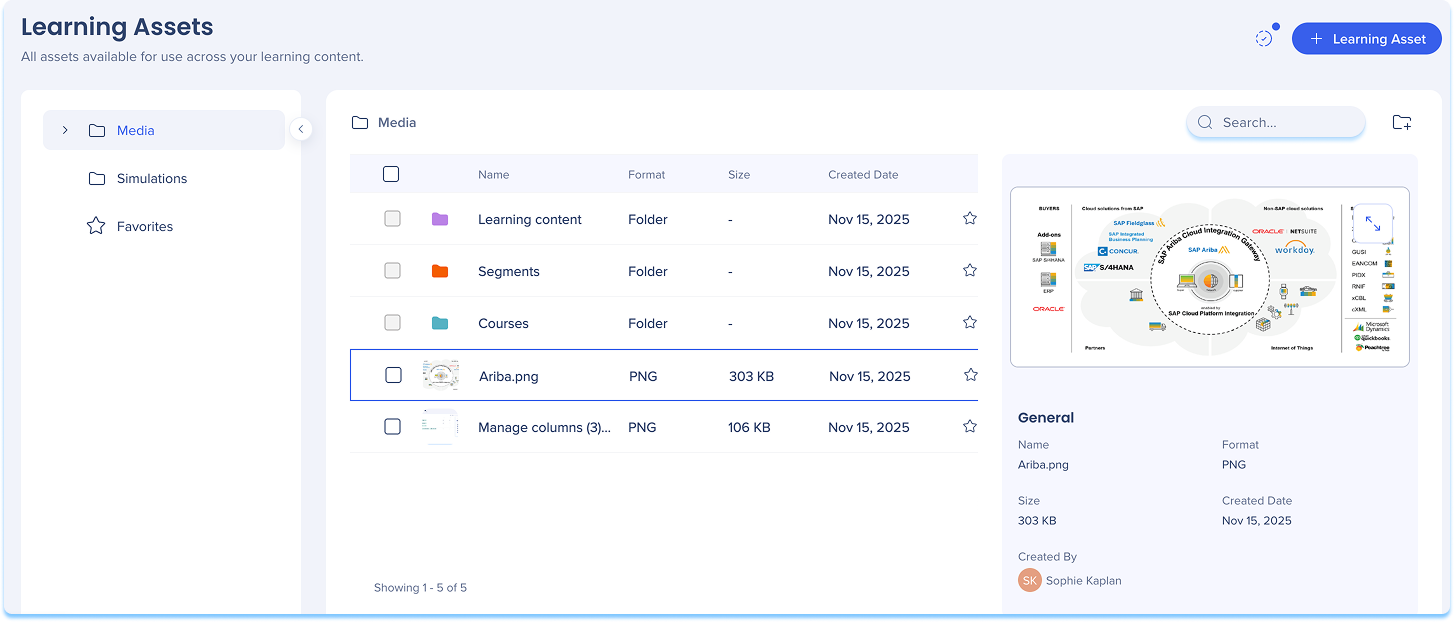
Quickly locate any file, folder, or simulation in the Learning Assets page.
Use the Search bar at the top of the page to find content by name or type. Search results update as you type to help you locate what you need faster.
Learning asset options
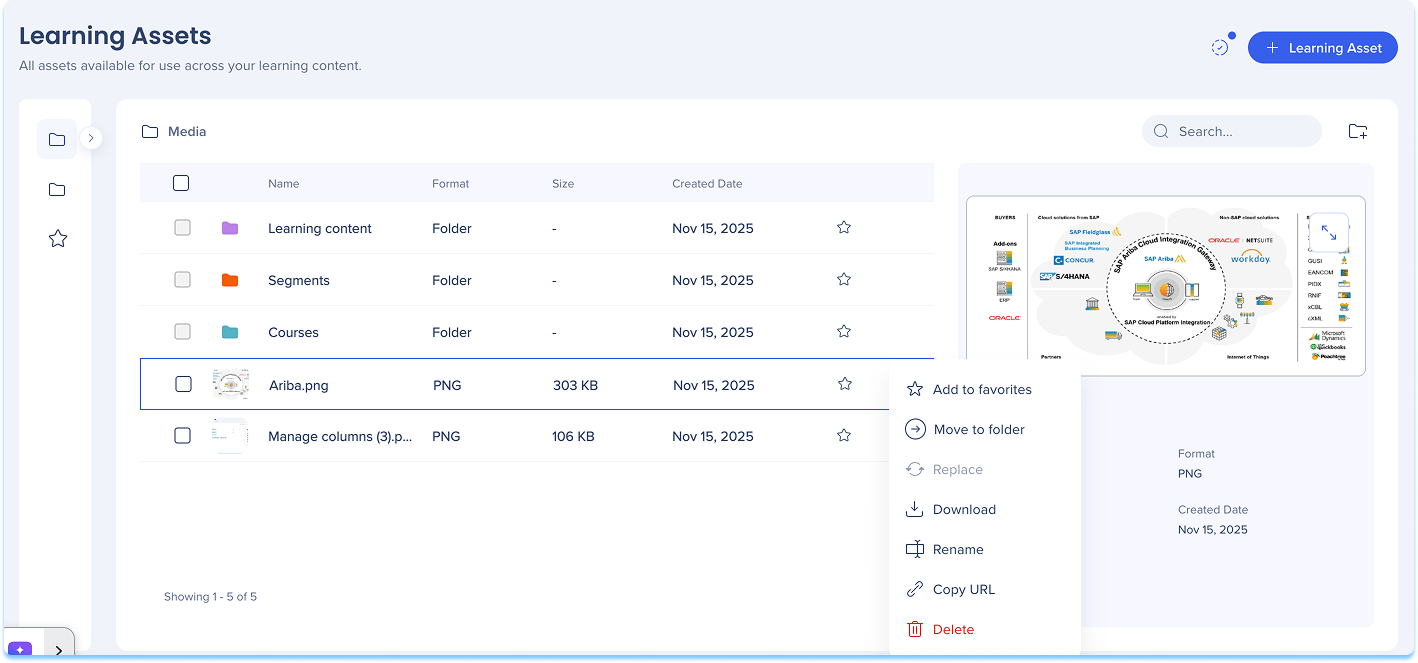
Access actions for individual assets from the Options menu in the top-right corner of each asset tile.
Available actions:
- Add to favorites
- Move to folder
- Download
- Rename
- Copy URL
- Delete
- Duplicate (simulations)
Note
Deleting an asset removes it from the Asset Library, but not from any course or lesson where it's already used.
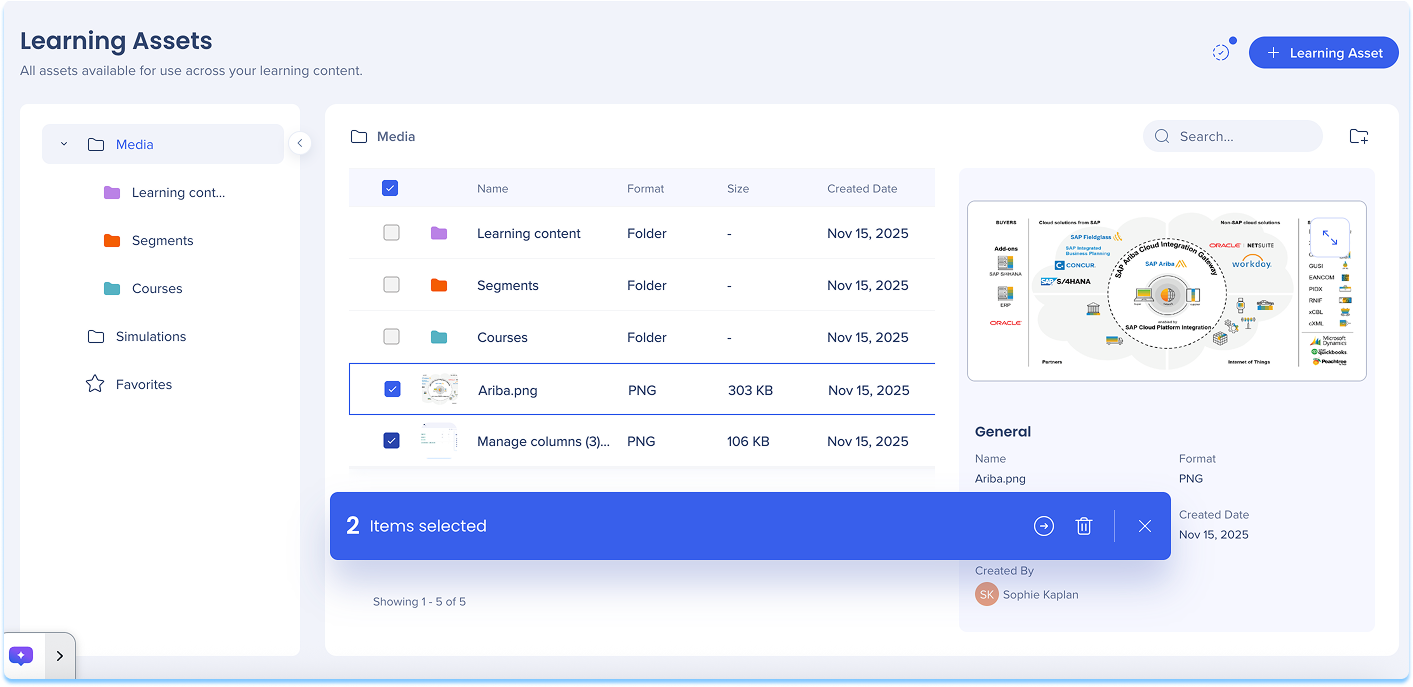
Learning asset bulk actions
Manage multiple assets at once using bulk actions.
- Select one or more assets by checking the box in the top-left corner of each asset tile
- Choose an action from the bulk actions menu
Available actions:
Technical Notes
General
-
- Videos longer than 60 minutes may still be analyzed as long as they stay under 500 MB, though processing stability is not guaranteed.
- Tip: To keep videos under 500 MB, compress them before uploading by lowering the resolution (for example, to 720p) or reducing the bitrate.
Models
- Currently, WalkMe uses Google and OpenAI models for AI features in WalkMe Learning Arc. However, WalkMe reserves the right to change the LLM vendor in the future to enhance the performance and quality of the service.


