Brief Overview
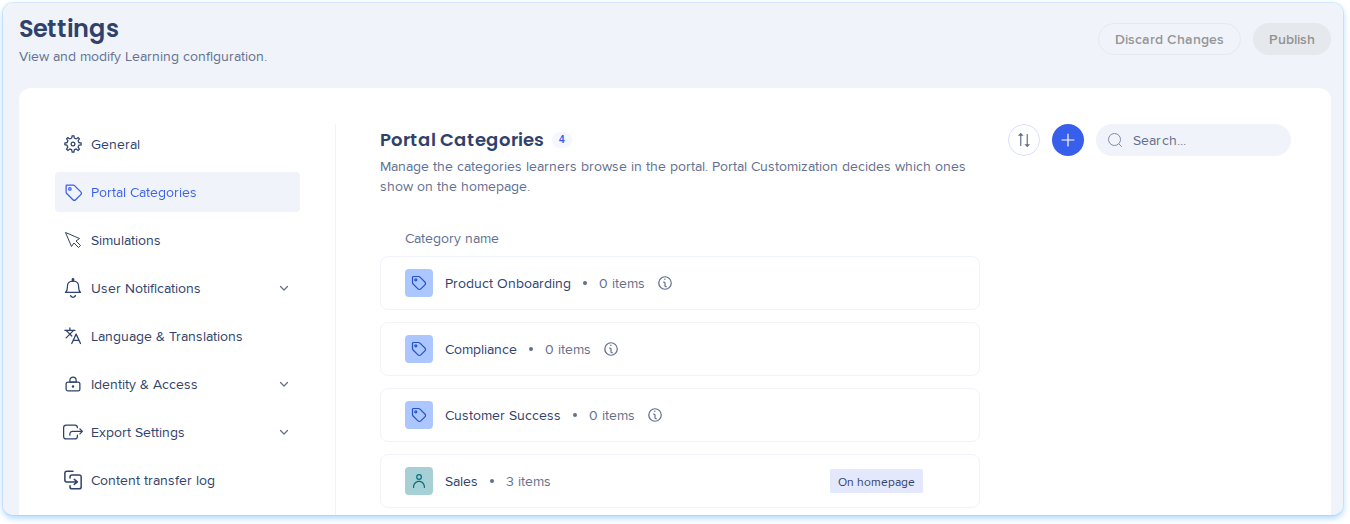
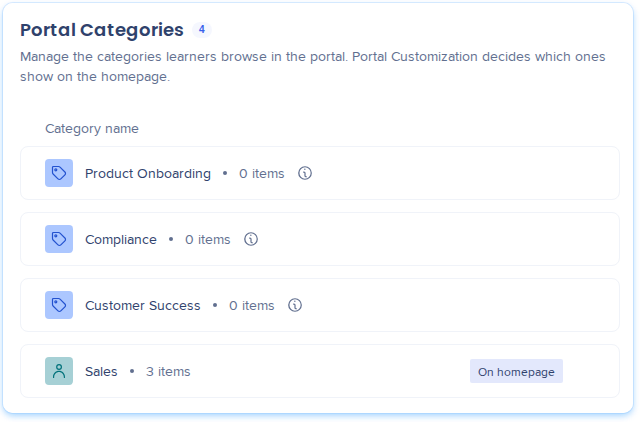
Portal Categories group learning content by subject, so learners can find what they need in the WalkMe Learning Arc portal. You create categories in Settings, give each one an icon and a color, and choose which ones show on the portal homepage.
After you create categories, add 1 to each course, microlearning, or learning journey on the Learning Content page.
Use Cases
- Group training by team, like Sales or Customer Success
- Feature onboarding or compliance content on the portal homepage
- Help learners browse a large catalog
Access
Access Portal Categories in Learning Arc:
- Open WalkMe Learning Arc:
- Select Settings and then Portal Categories
How It Works
You create and arrange categories in Settings, and then add them to content. Changes on the Portal Categories page reach learners only after you select Publish. To drop changes you haven't published, select Discard Changes.
Create a category
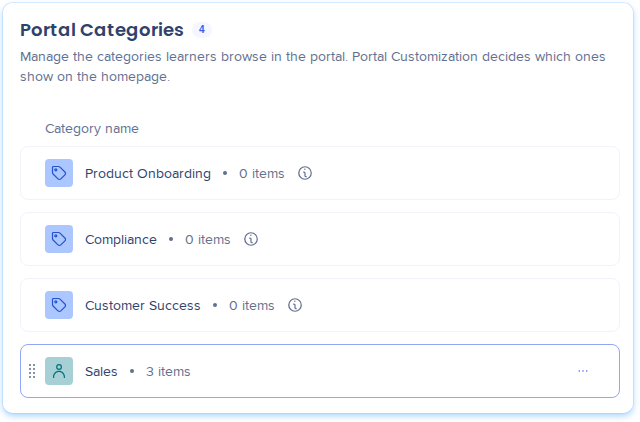
- Select the plus button, or Create Category if you have no categories yet
- Type a name and press Enter
Choose an icon and a color
- Select the Icon box next to the category name
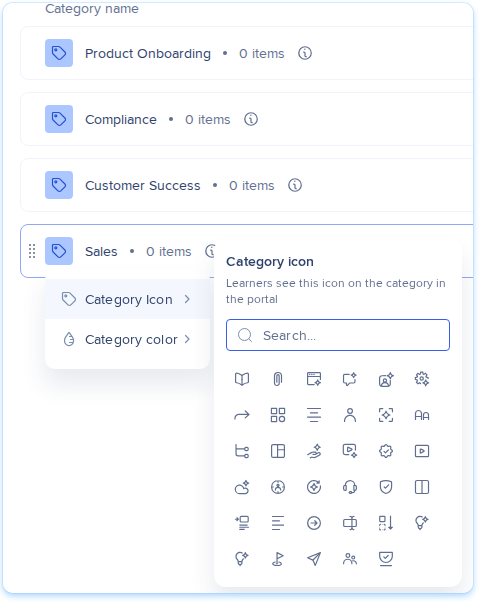
- Select Category Icon and choose an icon. You can search the icons by name.
- Select Category color and choose a color: Purple, Blue (the default), Teal, Red, Orange, Green, Yellow, Pink, Brown, or Grey
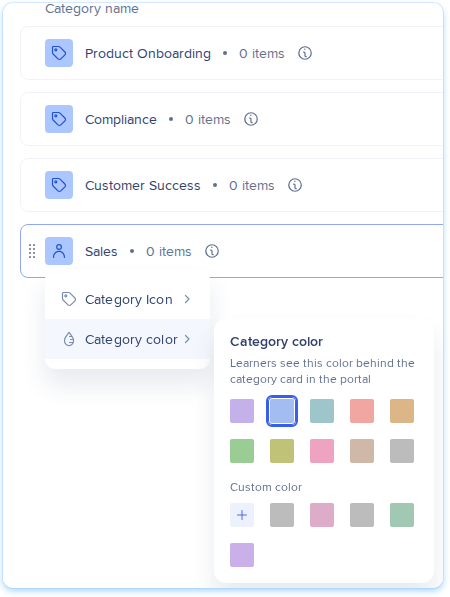
- To use your brand color, select the plus button under Custom color, type a 6-digit hex color, and select Add (optional)
- Select Publish
Show categories on the homepage
These steps apply to portals without Portal Customization:
- Turn on the switch on the category's row
- Drag the rows to set the order learners see
- Select Publish
The counter above the list shows how many are on, for example "3 of 6 in homepage." When 6 are on, turn one off before you turn on another.
Note
The portal shows only categories that have items.
Rename, move, or delete a category
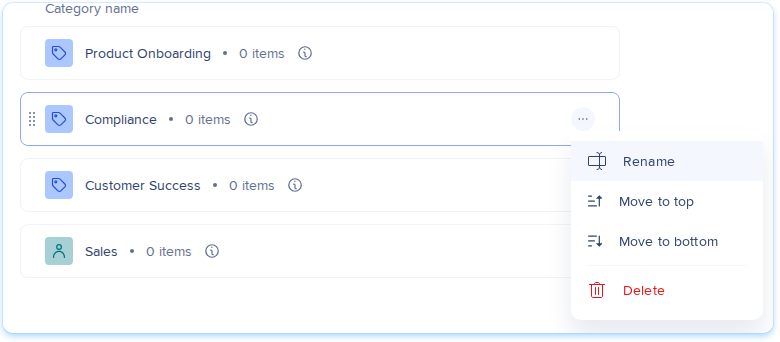
- Open the Options menu on the category's row
- Select Rename, Move to top, Move to bottom, or Delete
- Select Publish
Deleting a category removes it from all its items and from the portal. The items themselves stay.
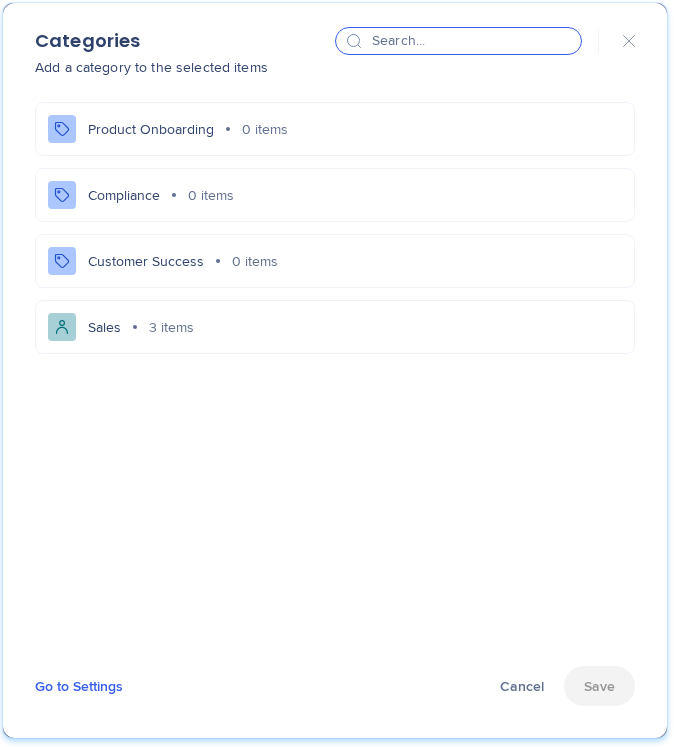
Add categories to content
After you create categories, add 1 to each course, microlearning, or learning journey on the Learning Content page.
Learning Content in WalkMe Learning Arc
What learners see
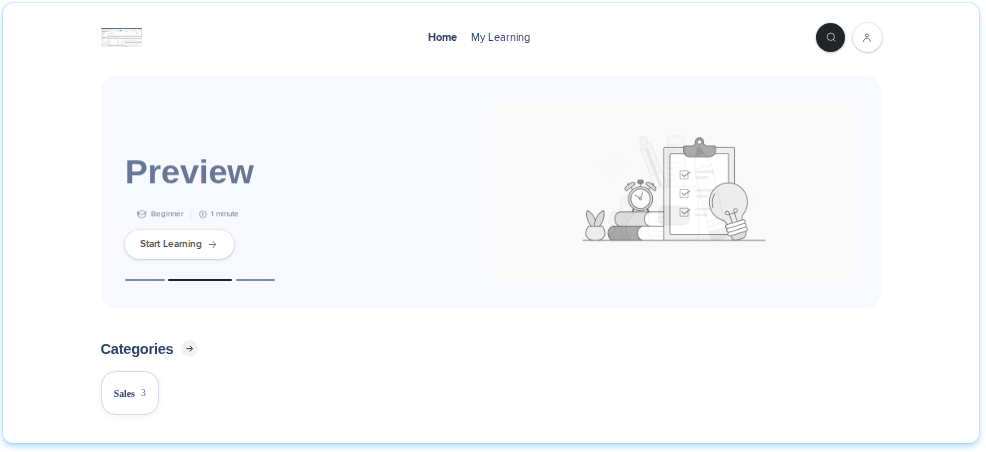
The portal shows categories in 3 places:
- A Categories band under the hero, with All Categories first and then each category that has items
- A row of content for each homepage category, in the order you set
- An All Categories page with every category, and a page for each category with its content
If no category has items, the band doesn't show.
Technical Notes
Limitations
- Each item can have 1 category
- The portal homepage shows up to 6 categories
- A category shows in the portal only if it has at least 1 item
- Categories apply to courses, microlearnings, and learning journeys only, not folders
- Category names need to be unique, and can be up to 100 characters
- Changes reach learners only after you publish


