Brief Overview
Copy content lets you reuse WalkMe Learning Arc content in another place without building it again. You can copy items to another system of the same account, or export them as a package and import the package into another account or data center.
Copies arrive as unpublished drafts in the folder you choose. They keep the content, pages, quizzes, translations, files, simulations, SCORM, certificate designs, and tags. Learners, enrollments, and publishing stay behind.
Use Cases
- Reuse a course built for 1 system in another system of the same account
- Move content from a test account to a production account
- Move content between data centers
Access
Copy and export content from the Learning Content page:
- Go to the Learning Content page
- Select 1 or more items
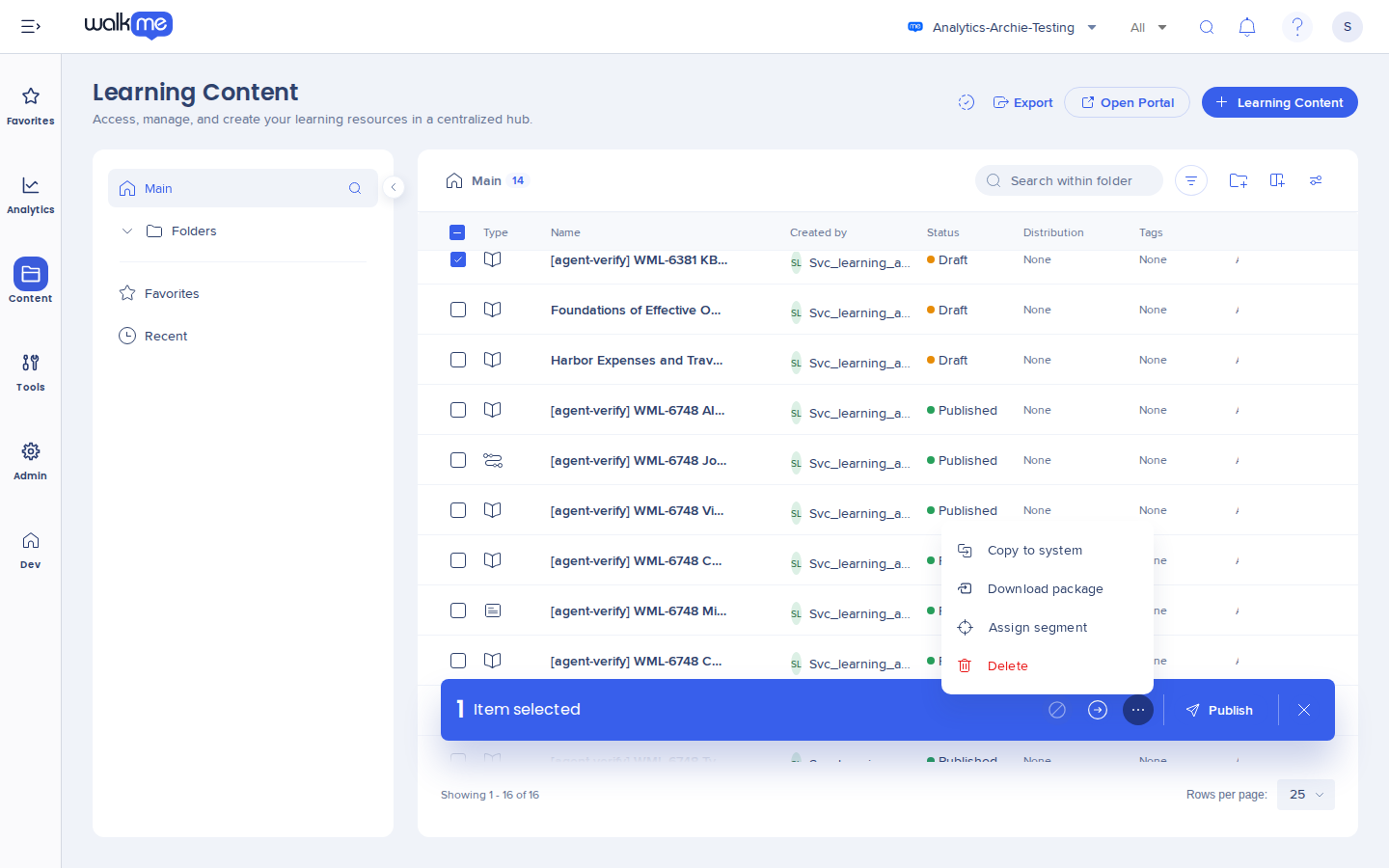
- In the bulk action bar, open the Options menu
The menu shows Copy to system and Download package.
How It Works
Copy to system moves content between systems of the same account in 1 step. To move content to another account or data center, export it as a package and import the package there. Copies, exports, and imports run in the background, and their reports are in Learning notifications.
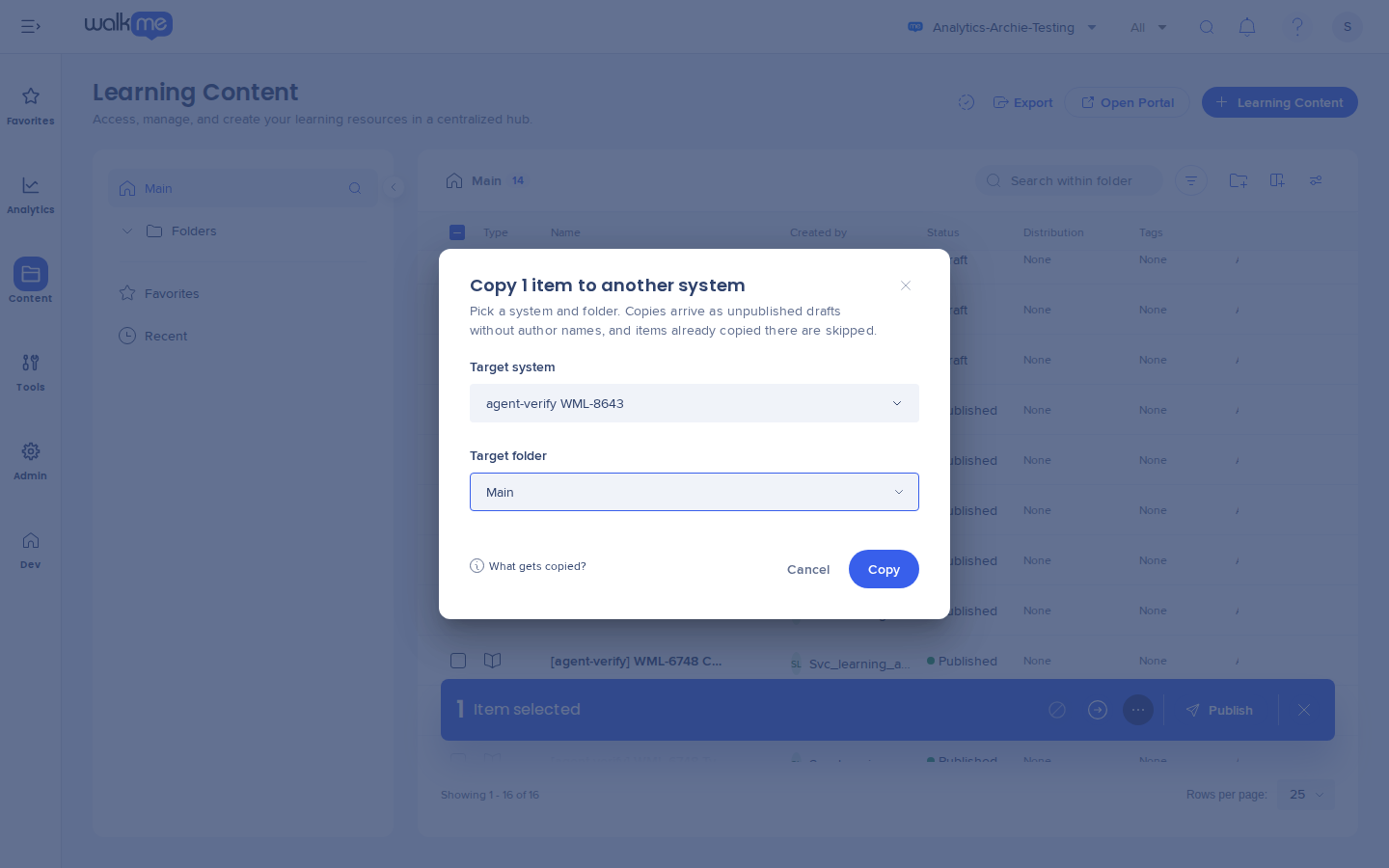
Copy items to another system
- On the Learning Content page, select 1 or more items
- In the bulk action bar, open the Options menu and select Copy to system
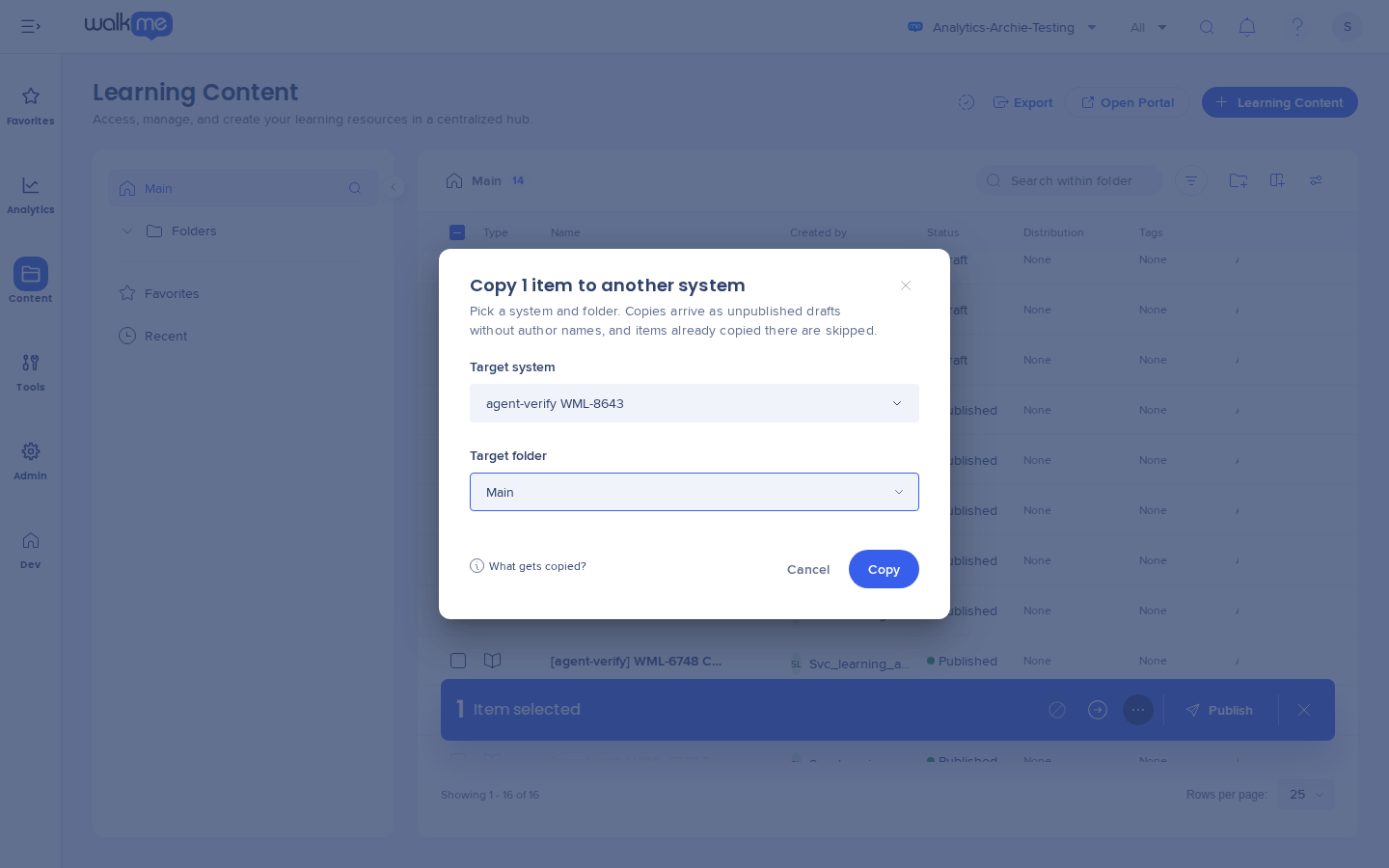
- In the popup, choose the Target system
- Choose the Target folder
- Select Copy
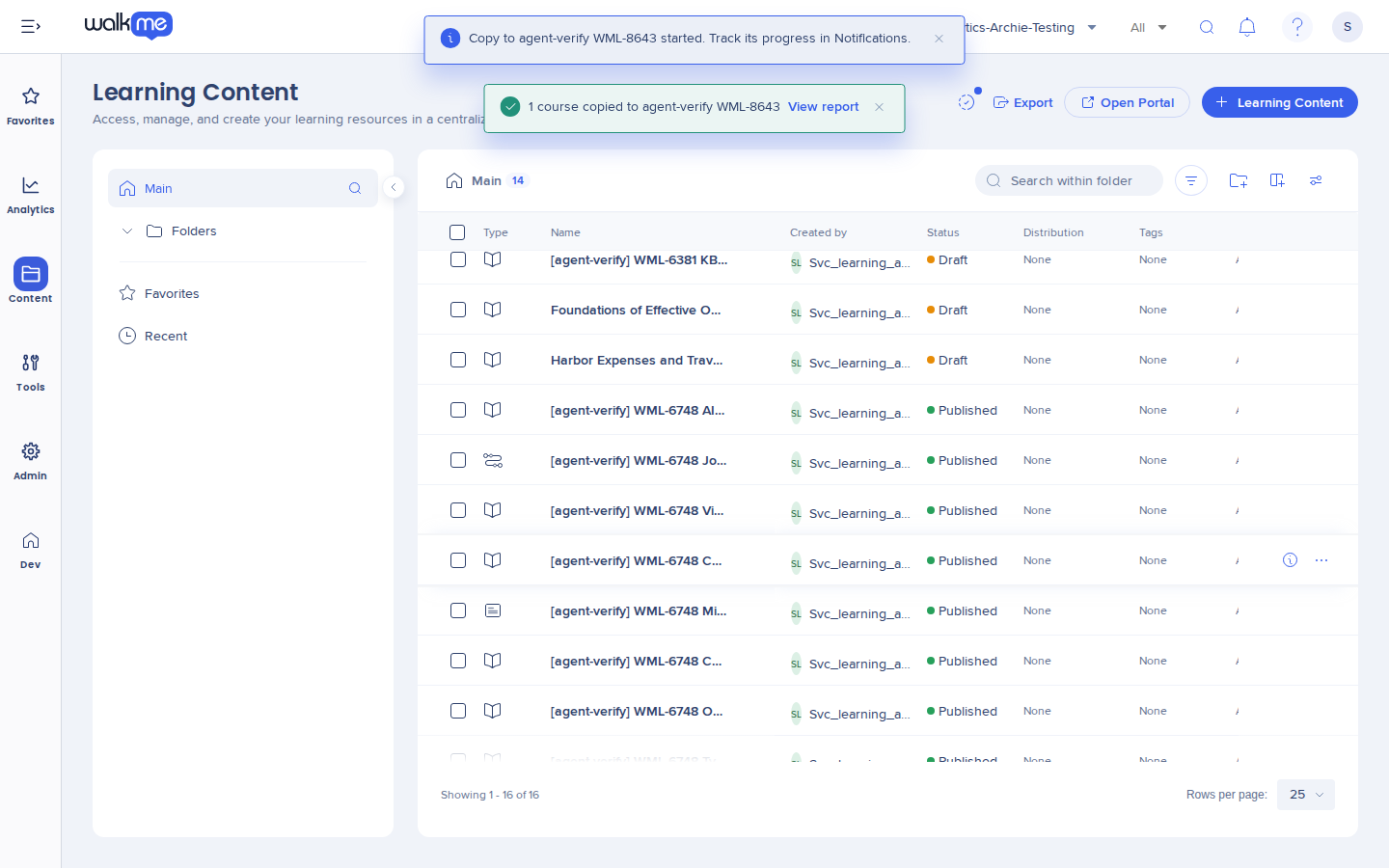
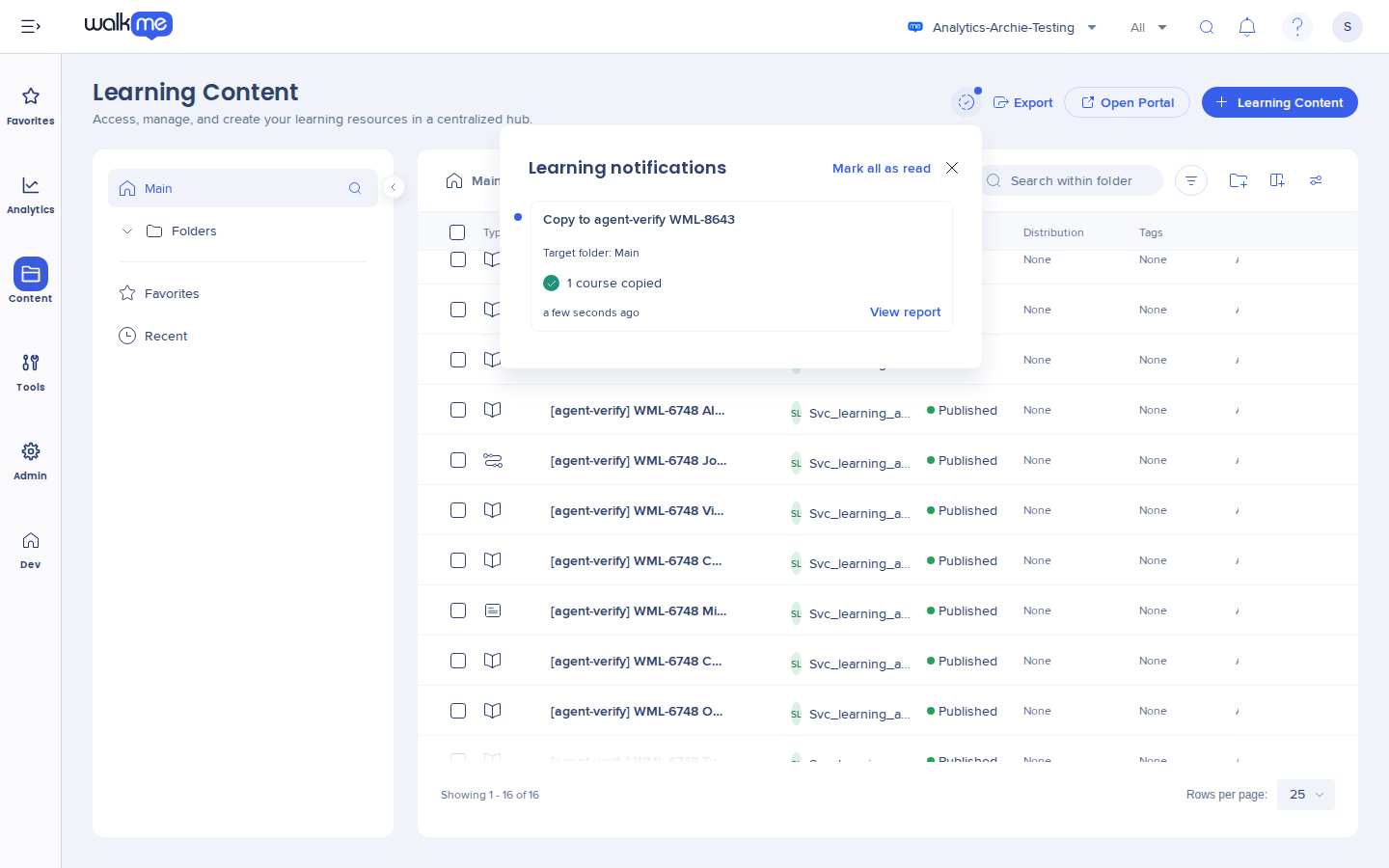
The copy runs in the background. When it ends, a message says how many courses were copied, with View report. To stop a running copy, cancel it from its notification.
Read the copy report
- Open Learning notifications
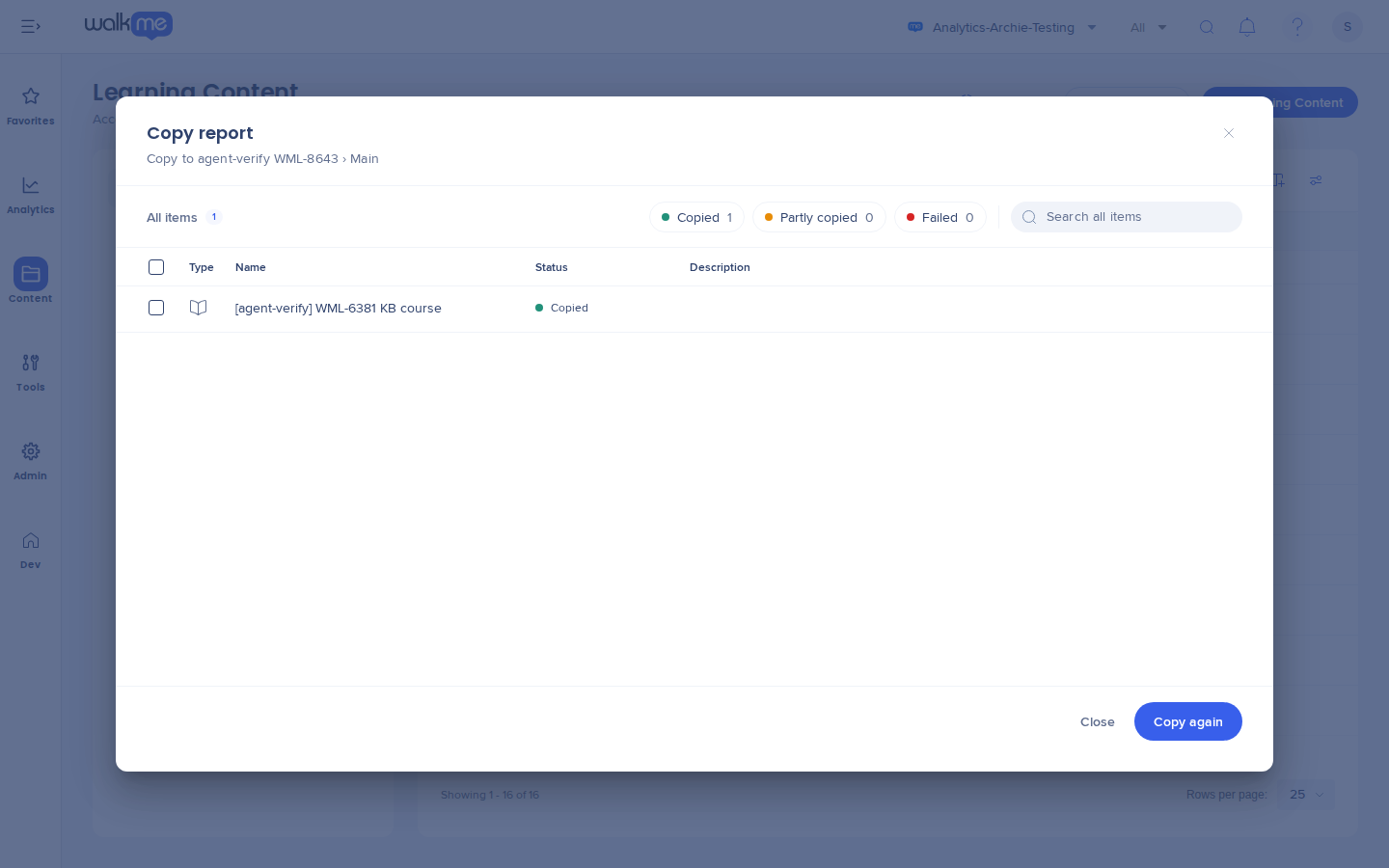
- Select View report to open the Copy report
Each item shows 1 status:
-
Copied: The item is in the target folder
-
Needs attention: The item was copied, but part of it was left out. The Details column says what
-
Failed: The item wasn't copied
-
Already there: The item was copied to that system before, so it was skipped
To copy items again, select them and select Copy again.
Tip
An item already copied to a system is skipped. To copy it again, delete the earlier copy in the target system first.
Export items as a package
To move content to another account or data center, export it as a package file:
- On the Learning Content page, select the items
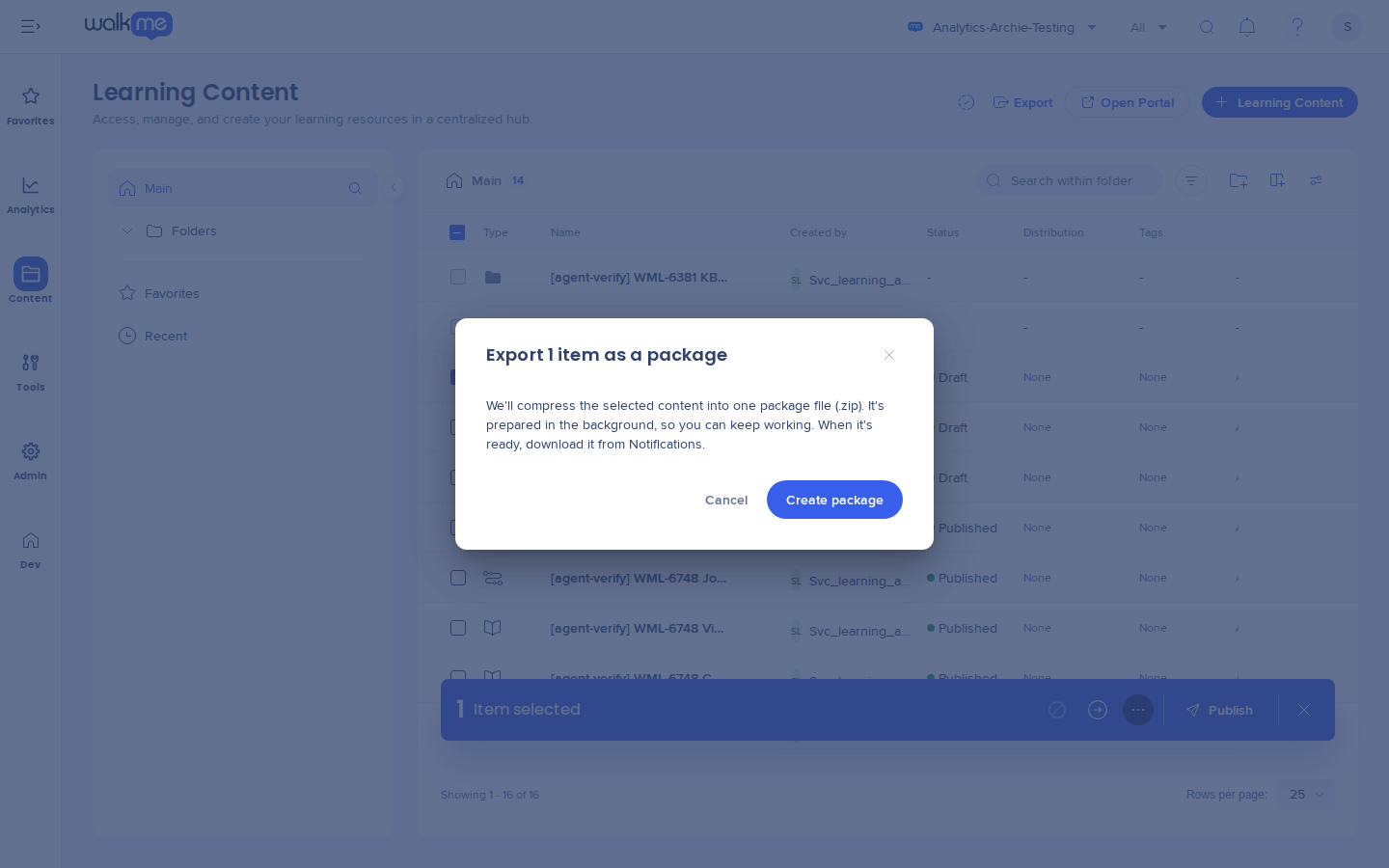
- In the bulk action bar, open the Options menu and select Export package
- In the popup, select Export
- When the package is ready, download it from Learning notifications
Note
The download link expires 7 days after the export finishes. If it has, export the content again.
Import a package
In the target account:
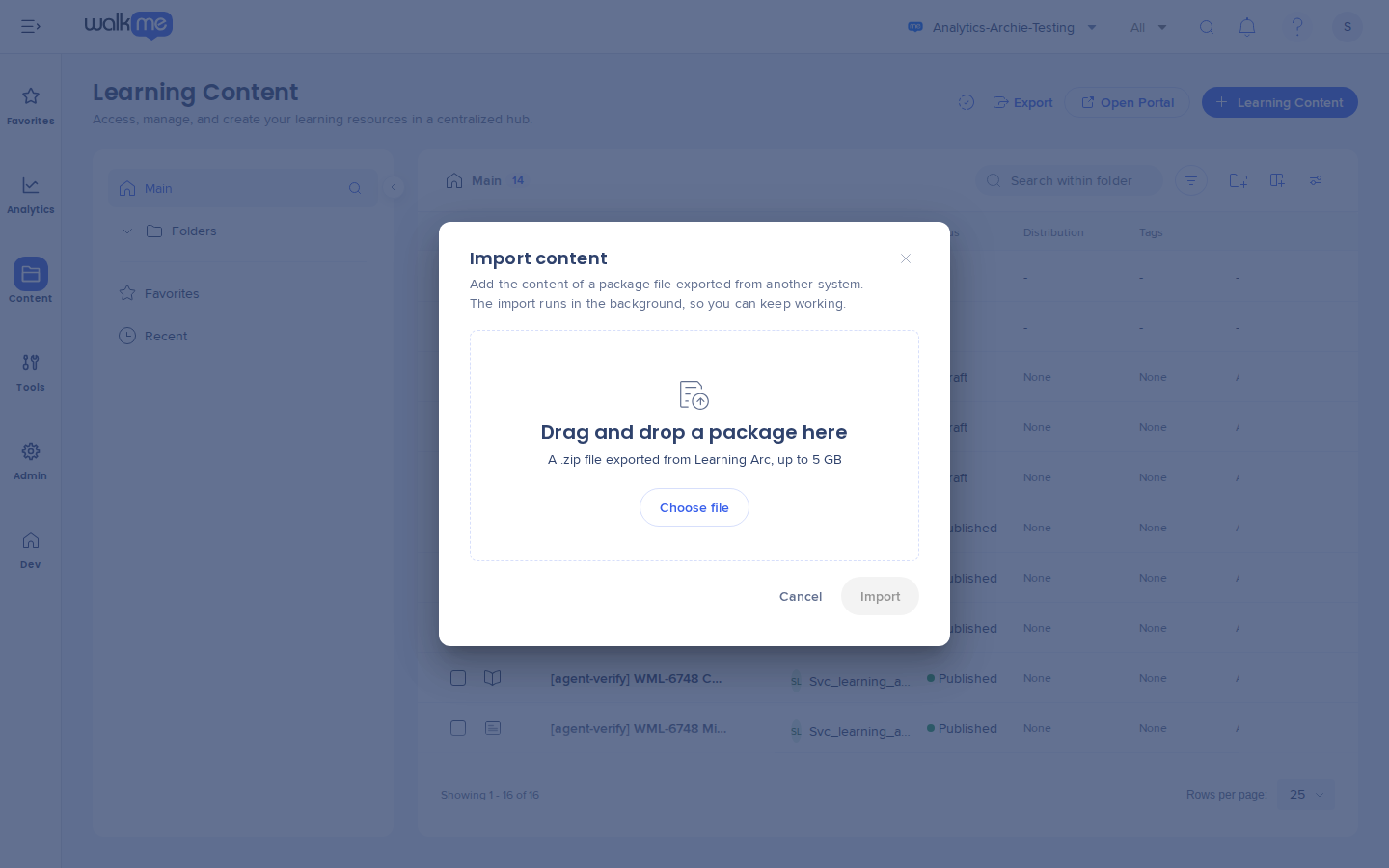
- On the Learning Content page, select the Options menu and select Import package
- Drag the ZIP file into the Import content popup, or select Upload from Device
- Select Import
The import runs in the background. Its report is in Learning notifications. Courses already in the system are skipped.
Note
The package must be a .zip file exported from Learning Arc, up to 5 GB. A package made by a newer version of Learning Arc can't be imported until the target system is updated.
See every copy, export, and import
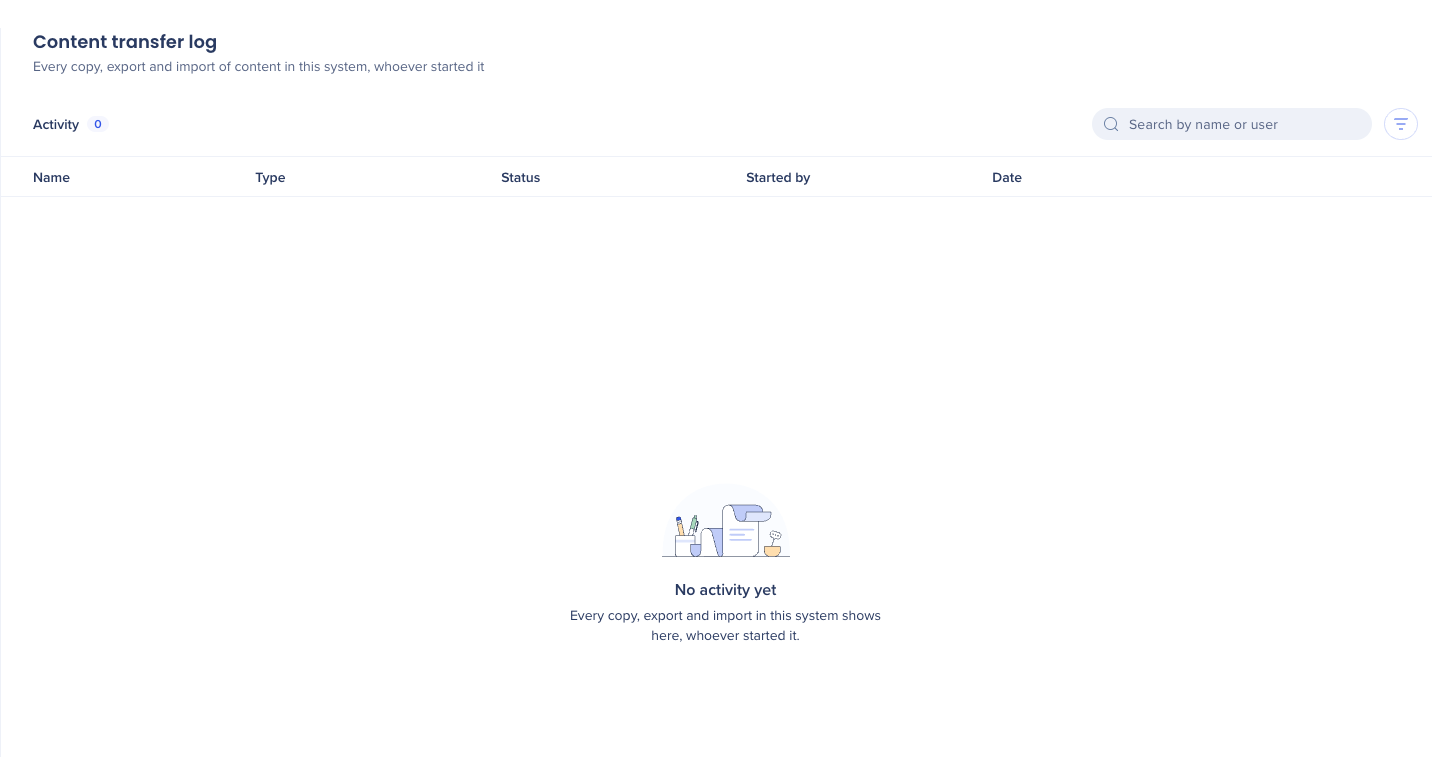
Go to Settings and select Content Transfer Log. The tab lists every copy, export, and import of content in this system, whoever started it, with Name, Type, Started by, Date, and Status.
From a row, select View progress, View report, or Download. Only the person who started a copy, export, or import can see its progress and report, or download its package.
Technical Notes


