Brief Overview
Precision AI authoring helps you update and enhance learning content without regenerating entire courses. Instead of starting over, you can guide the AI to work with specific sources, lessons, sections, or elements, keeping updates focused, accurate, and easier to maintain.
Use Precision AI Authoring when you want to:
- Update specific parts of a course without affecting the rest
- Stay anchored to approved sources and standards
- Confidently refresh learning content as processes, tools, or policies change
This article covers grounding and refining individual elements. To generate or edit elements with AI, see Generate and Edit Elements with AI. To make broader changes at the course or lesson level, see Edit a Course with AI.
Use Cases
- Targeted updates: Refresh a single element while keeping the rest of the lesson unchanged
- Compliance alignment: Update learning content quickly when company policies or tools change
- Consistency: Maintain a consistent tone and terminology across different courses
How It Works
Overview
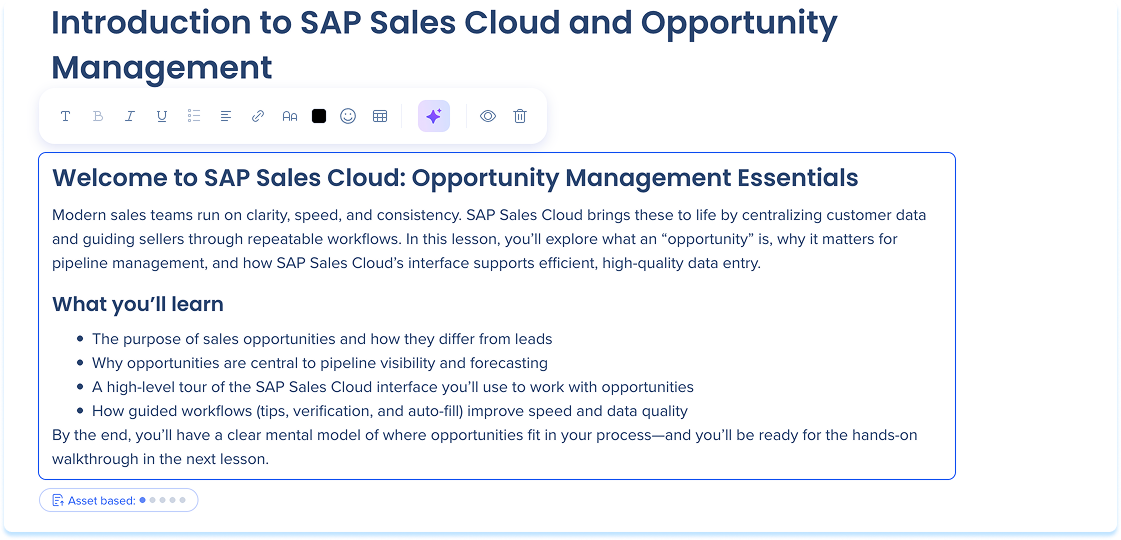
Precision AI Authoring uses assets and instructions to give you visibility and control over how content is grounded. For eligible elements, you can see how strongly an element is grounded in assets and refine the output using targeted instructions.
Supported asset types:
Note
Assets must be successfully analyzed to be available for grounding. Assets that weren't analyzed, or couldn't be analyzed, aren't available for use. To upload assets and track their AI analysis status, see Learning Assets.
Asset based indicator
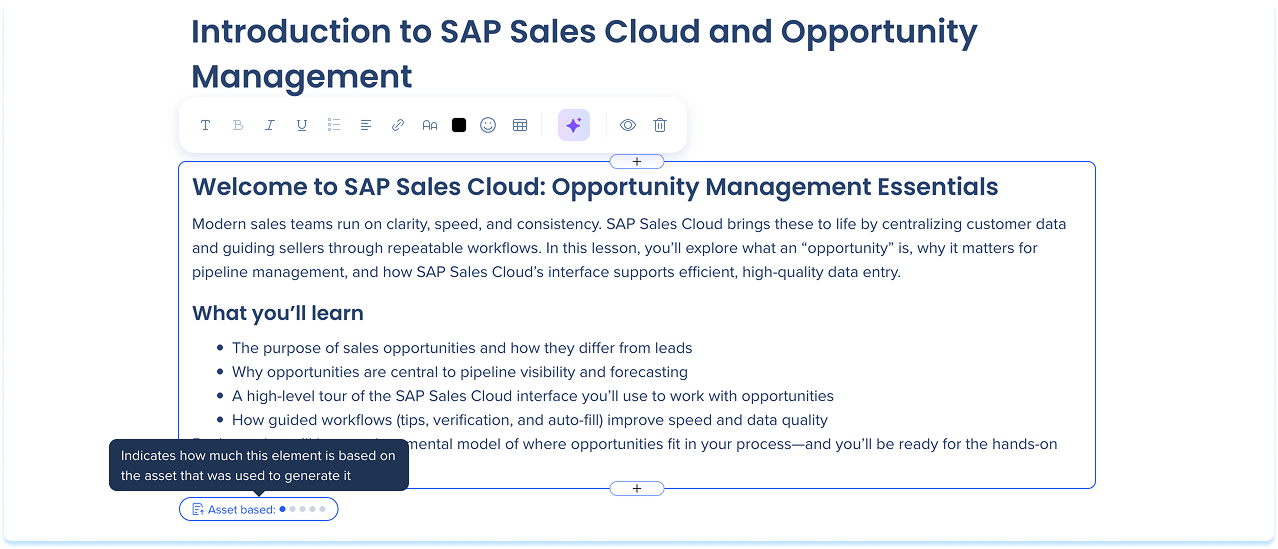
Some generated elements display an Asset based indicator below the element. This indicator shows how much of the element's content is derived from uploaded assets.
Note
Only elements generated using assets show this indicator. Elements created manually or generated without assets don't display asset based grounding.
To view the indicator:
- Select a generated element in the lesson
- If the element was generated using assets, the asset based indicator appears below the element
- View the grounding strength indicated by the dots below the element
Sources
To review or refine how an element was generated:
- Select the Asset based indicator below the element
- The Sources side panel opens
- The side panel shows two types of sources:
- General instructions
- Assets
Note
Editing or regenerating instructions affects only the selected element and doesn't change the overall lesson context.

General instructions
General instructions provide high-level guidance for how the element should be generated, such as audience, tone, or focus.
To edit general instructions:
- In the side panel, select General instructions
- Select the Edit icon
- Update the text to clarify what the element should cover
- Select the Checkmark icon to save

To remove general instructions and generate the element using only assets:
- In the General instructions section, select the Delete icon

Asset instructions
To edit asset instructions:
- In the Assets section, select the relevant asset
- Select the Edit icon
- Update the Asset instructions to narrow the focus or emphasize specific sections
- Update the Asset scope to define which part of the asset the AI can use:
- PDFs: set From page and To page to limit grounding to specific pages
- Videos (MP4): set From time and To time to limit grounding to a timeline segment
- Select the Checkmark icon to save
Note
If asset instructions and asset scope conflict, asset scope takes priority.

To update the assets:
- In the Assets section, select the + icon to add a new asset

- Select the asset you want to remove and select the Delete icon

Regenerate element
After updating instructions, regenerate the element to apply your changes.
To regenerate:
- Select Regenerate Element
- Review the updated content
- Select Replace Element to insert the updated content

Technical Notes
Models
- Currently, WalkMe uses Google and OpenAI models for AI features in WalkMe Learning Arc. However, WalkMe reserves the right to change the LLM vendor in the future to enhance the performance and quality of the service.


