Brief Overview
You can use AI to generate a course outline and content automatically. AI creation helps you get started faster by creating a structured draft that you can refine. This article walks through the full creation flow using AI, from generating a course outline to reviewing the content and publishing it for learners.
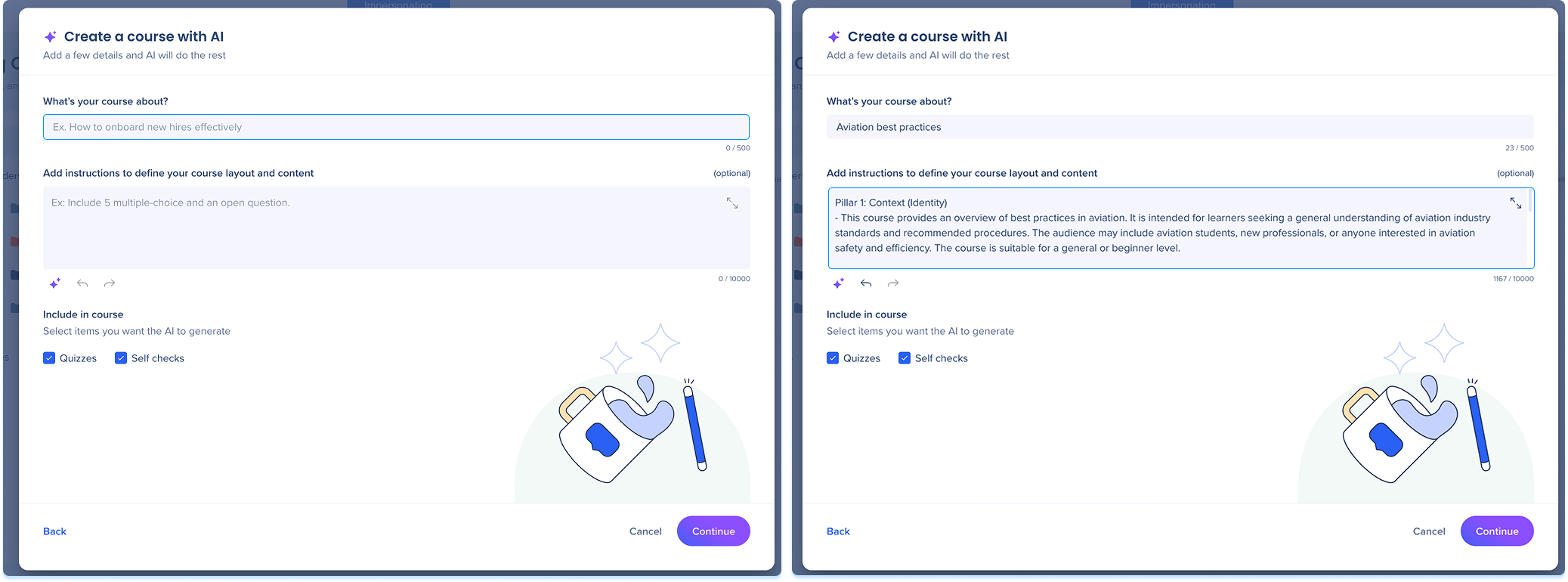
Get Started
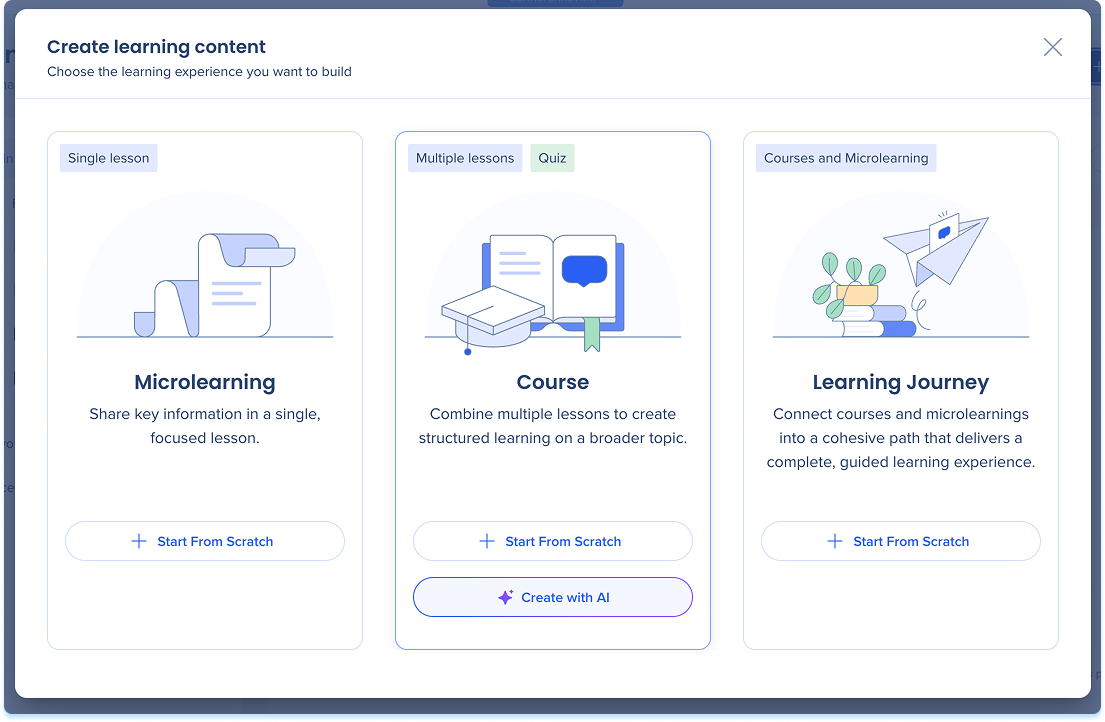
- Go to the Learning Content page
- Select + Learning Content
- Select Create with AI
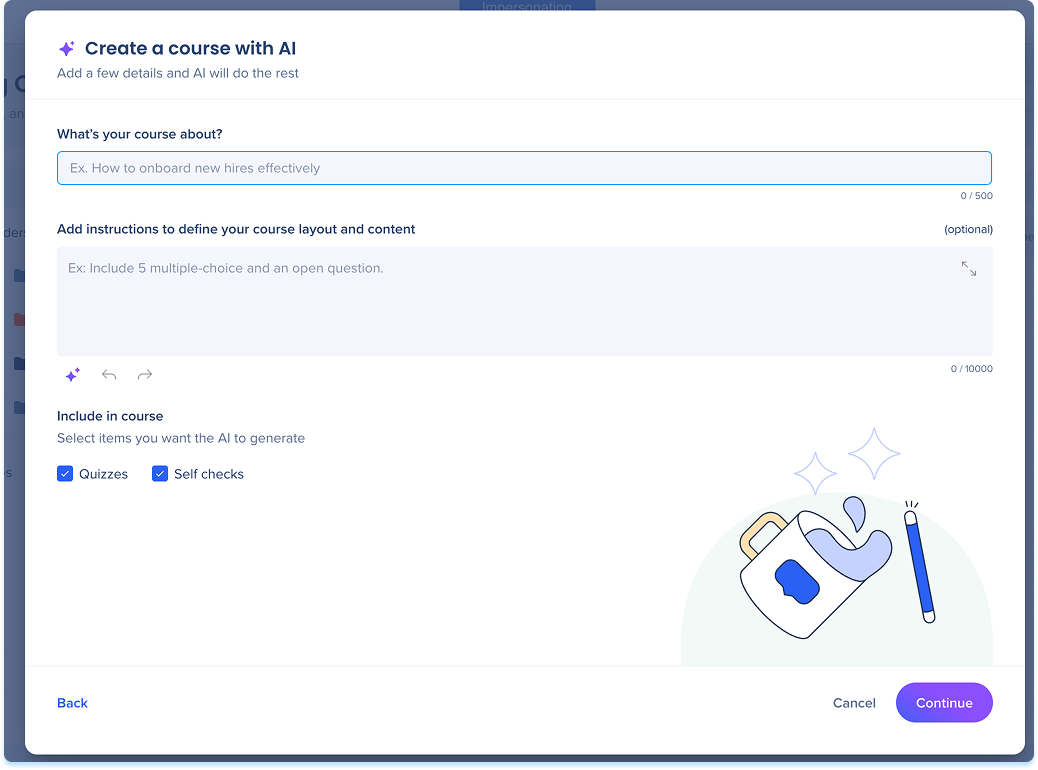
The Create a course with AI popup opens.
Course Details
What's your course about?
- Fill in a short summary of the course topic
Add instructions
- Describe what you want the course to cover (optional)
- Select the Improve with AI icon to rewrite and expand your instructions (optional)
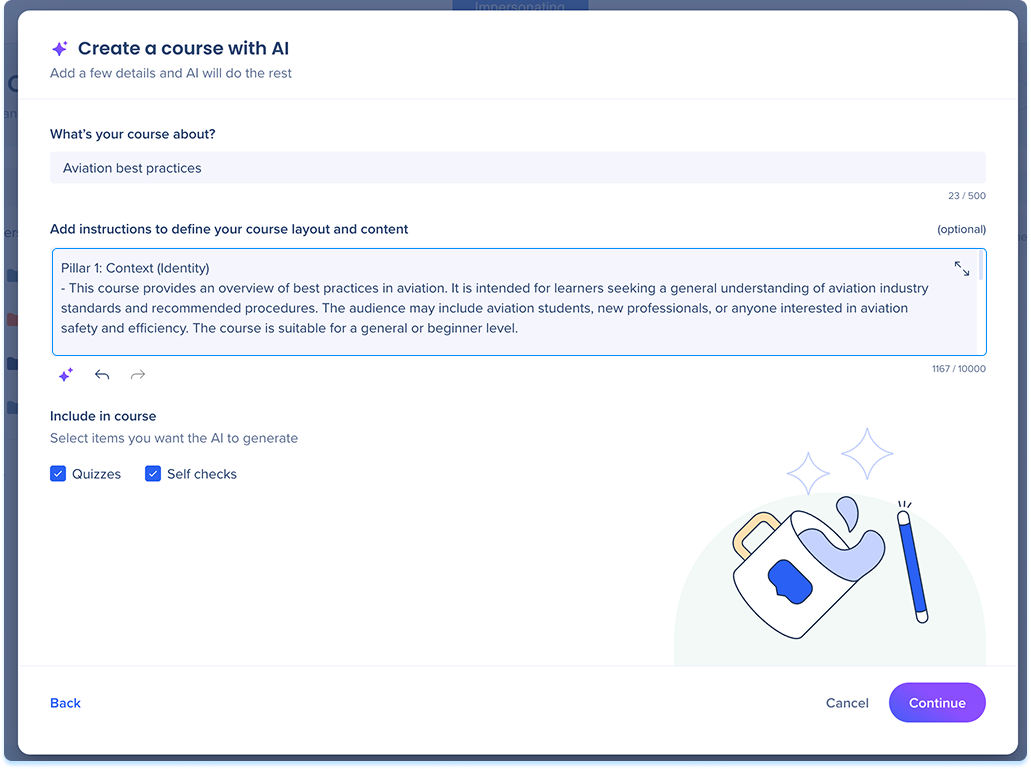
The Improve with AI icon refines your instructions using four areas:
- Context: Who the course is for and what they should learn
- Structure: How many lessons you want and how content should flow
- Rules: Tone, constraints, or topics to avoid
- Reference: How the AI should use any files you upload
Note
The AI will prioritize the selected assets over these suggestions.
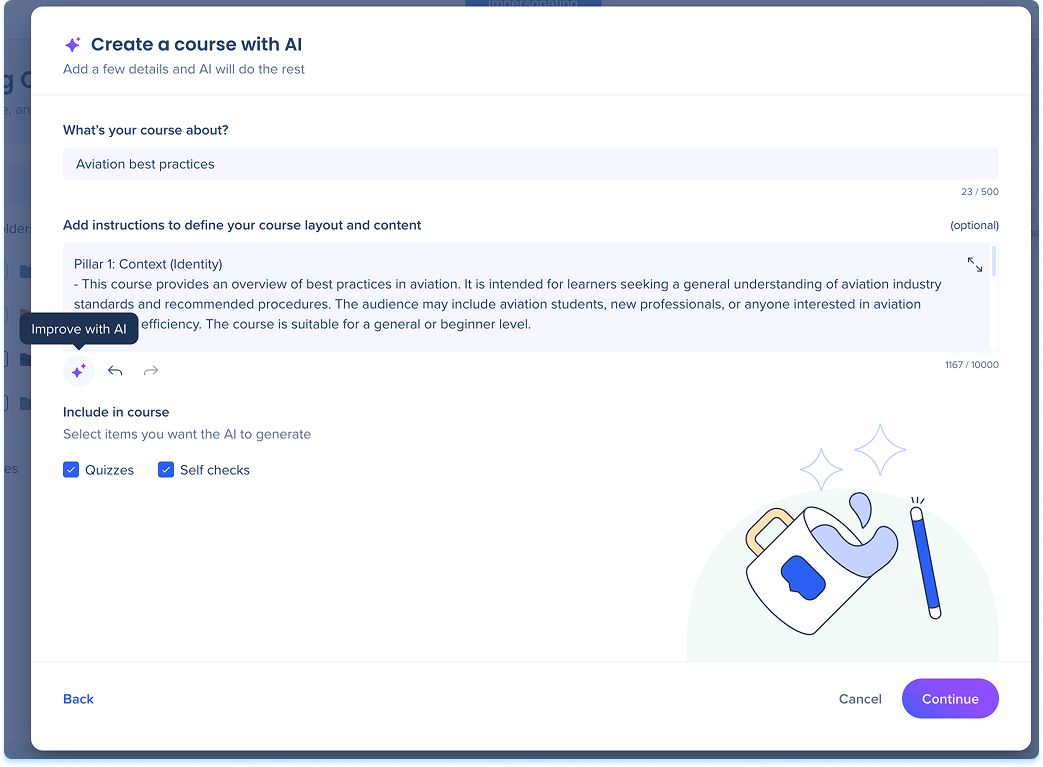
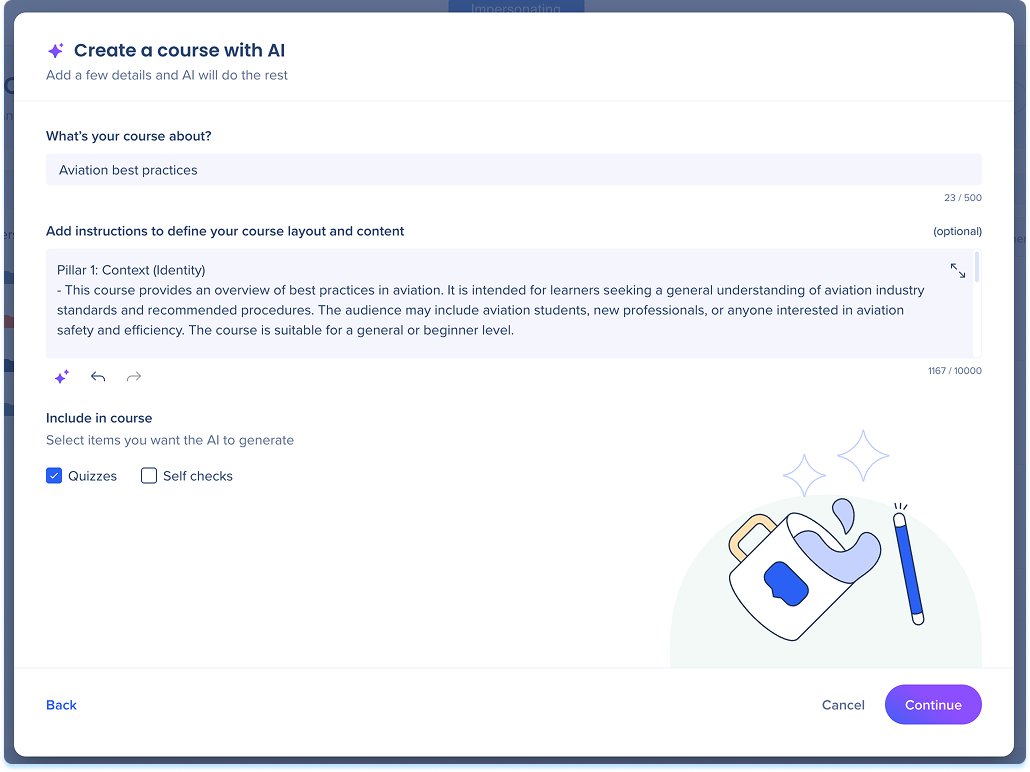
Include in course
- Under Include in course, select what you want the AI to generate:
- Quizzes: Assess learner knowledge at the end of a lesson
- Self checks: Add short knowledge checks within lessons
- Select Continue to move to the next step
Upload Files
You can upload files to shape how the AI builds your course. Files can serve as source material for the AI, or you can include them directly in the course so learners can access them.
- Select Insert from Assets or Upload from Device
- Add one or more files
Supported formats: JPG, PNG, MP4, WebM, AVI, PDF, DOCX, PPTX, MD, and TXT.
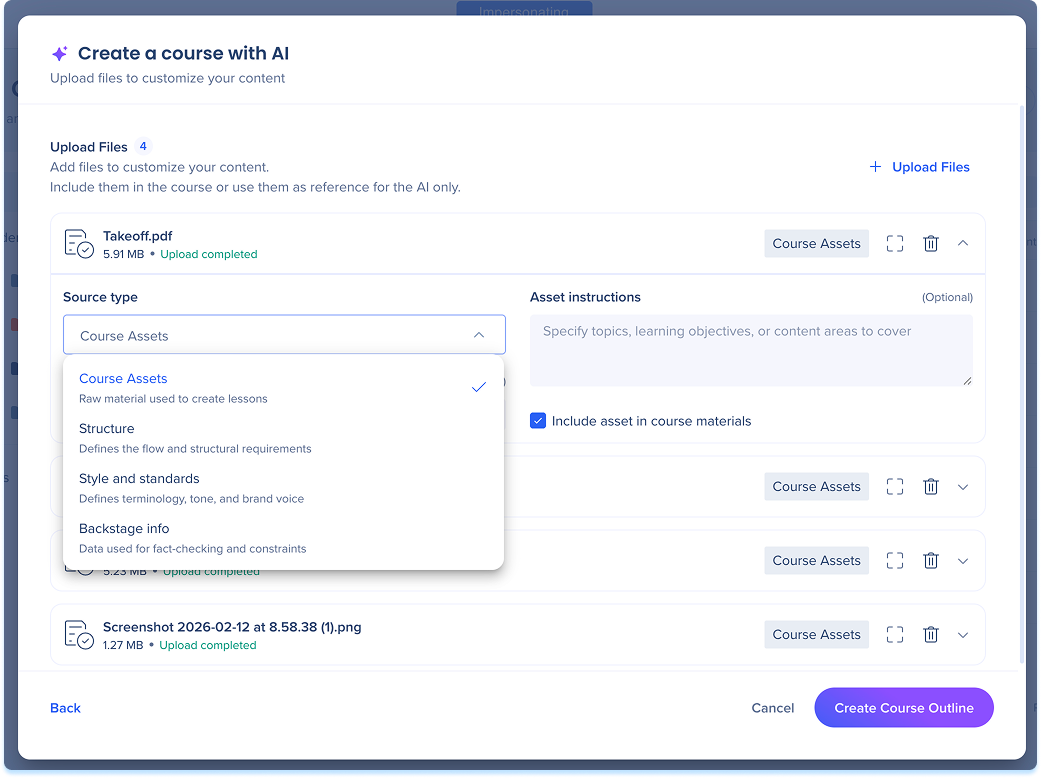
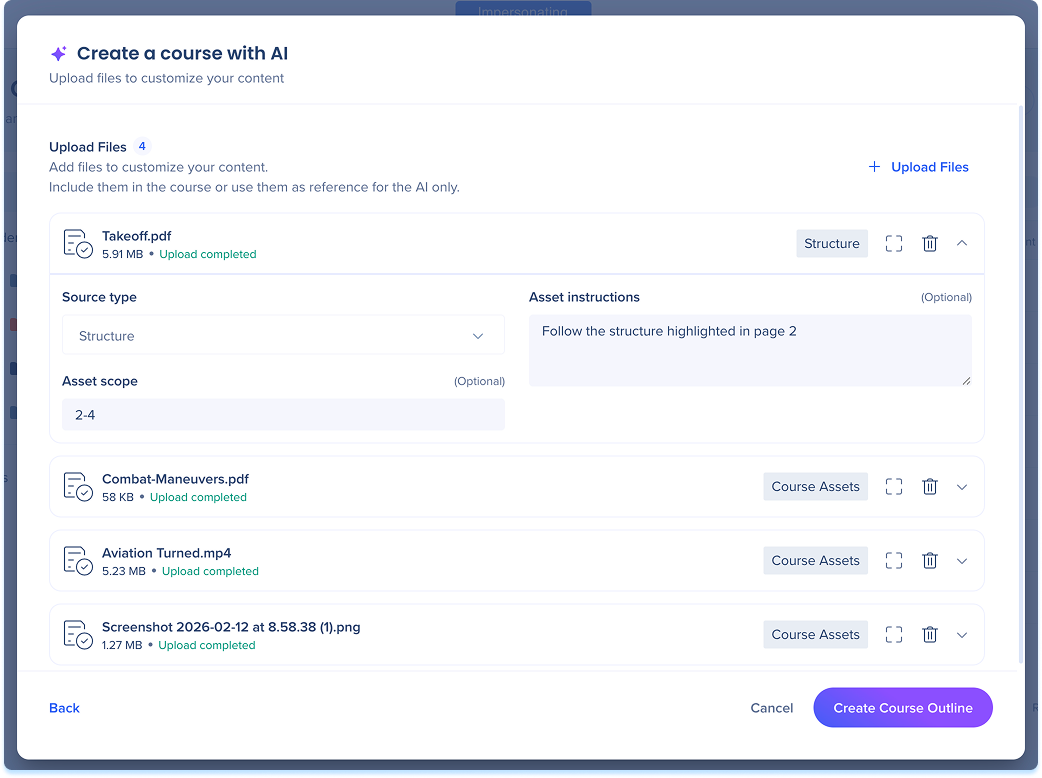
Once a file uploads, expand it to configure how the AI uses it.
- Under Source type, choose how the AI should treat the file:
- Course assets: Raw material used to create lesson content (default)
- Structure: Defines the flow and organizational requirements of the course
- Style and standards: Sets the terminology, tone, and brand voice
- Backstage info: Background data used for fact-checking or constraints
- Under Asset scope, fill in a page or time range if you only want the AI to use part of the file (optional)
- Under Asset instructions, add guidance on how the AI should apply the asset (optional)
- Turn on Include asset in course materials if you want learners to access the file in the published course
- Select Create Course Outline
Generate Course
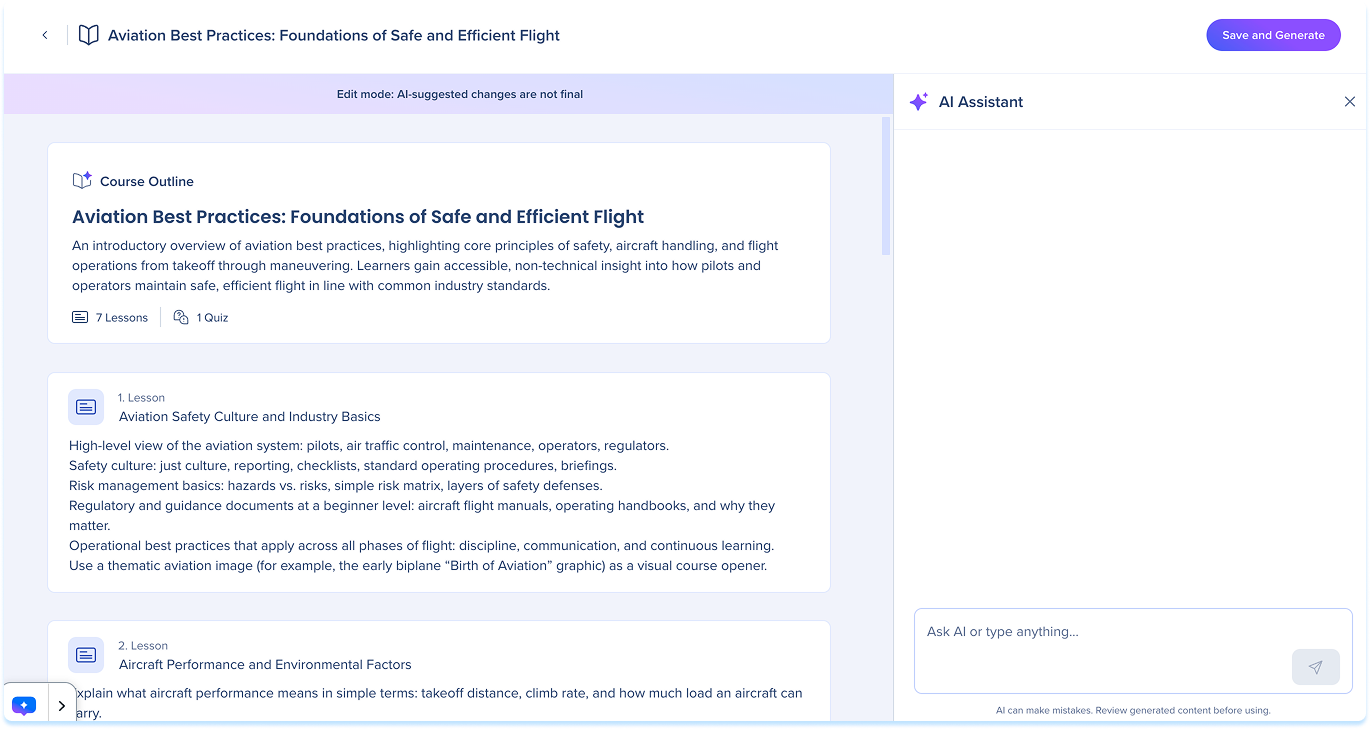
When the outline is ready, you'll get a notification. The generated lessons and course structure appear for you to review.
- Select Save and Generate to create the course
You can edit, rearrange, or remove anything after this step.
Edit a Course with AI
Notes
- When the AI generates your course, it also creates images for the image elements it adds, and for the course cover. After the course is created, you can review, replace, or regenerate any image.
- Content is generated in the course source language, even when the files you upload are in another language.
Technical Notes
- File uploads support files up to 200 MB
- Video file uploads support files up to 500 MB and up to 60 minutes
- SVG and MP3 files are not supported


