Brief Overview
Use AI to edit and refine your course and lesson outlines at any point while building your course. Authors can iterate on courses more easily, refreshing tone, restructuring a lesson, or rolling out a policy update, without editing block by block. You get more control over course content at the course, lesson, and element level, so changes stay scoped to what you actually want to change. The same asset instructions, tone, and structure rules set during course creation are respected during editing.
To edit and ground individual elements, see:
Precision AI Authoring
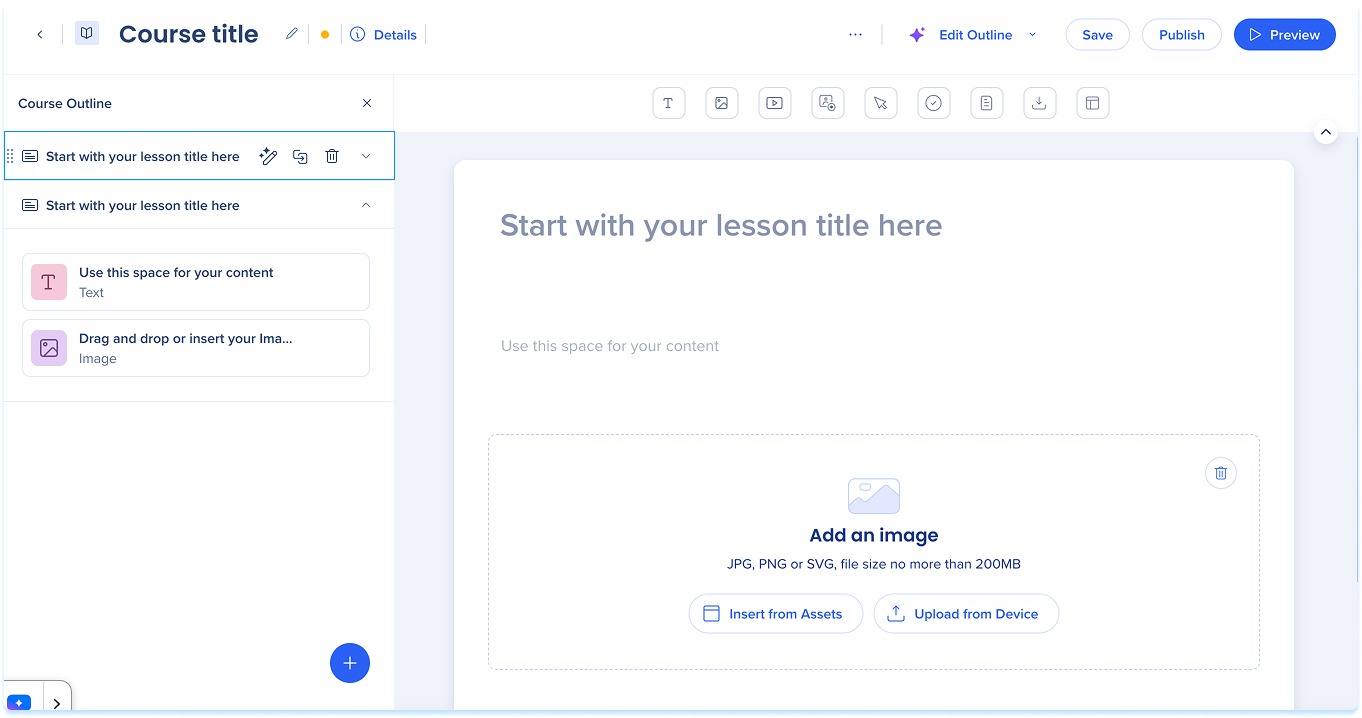
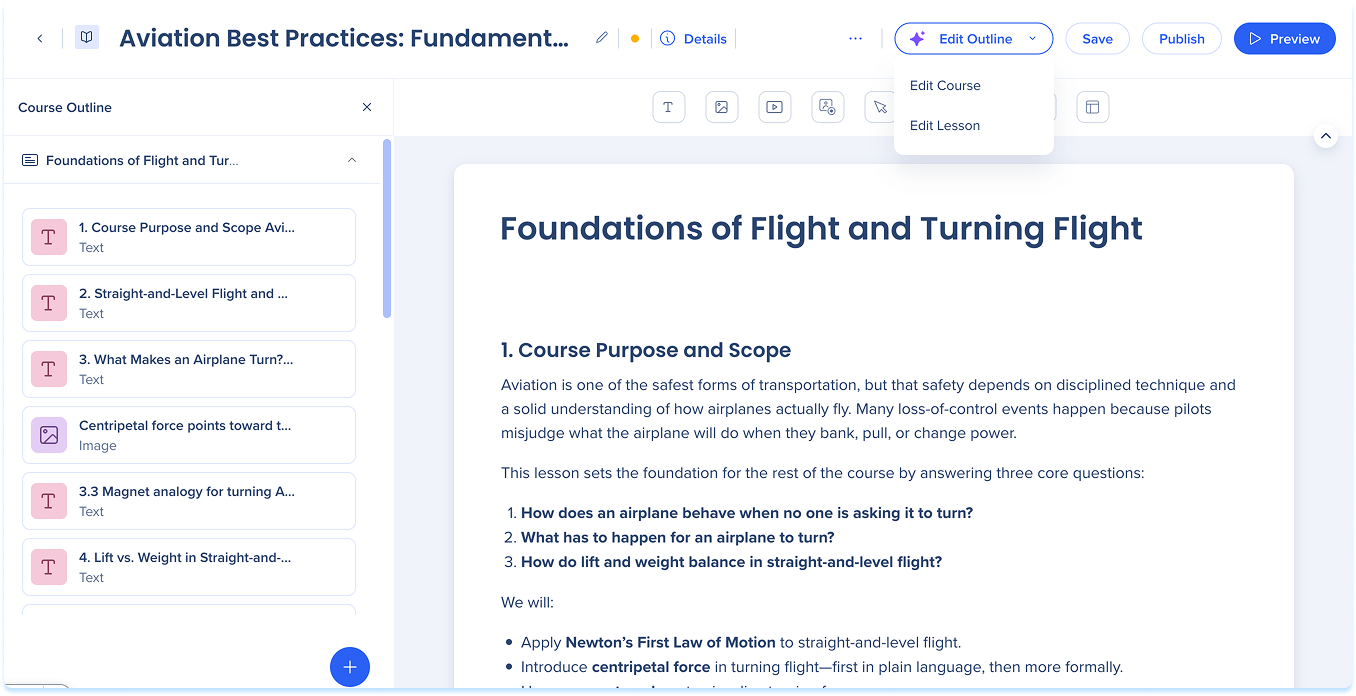
Access Outline Editing
To access course outline editing:
- Select Edit Outline in the course builder and select Edit Course
Note
When you select Create Course after generating a course outline from Create with AI, you land directly in course outline editing mode.
To access lesson outline editing either:
- Select Edit Outline in the course builder and select Edit Lesson
- Select Edit Lesson Outline on a lesson row in the layers panel
Edit Course Outline
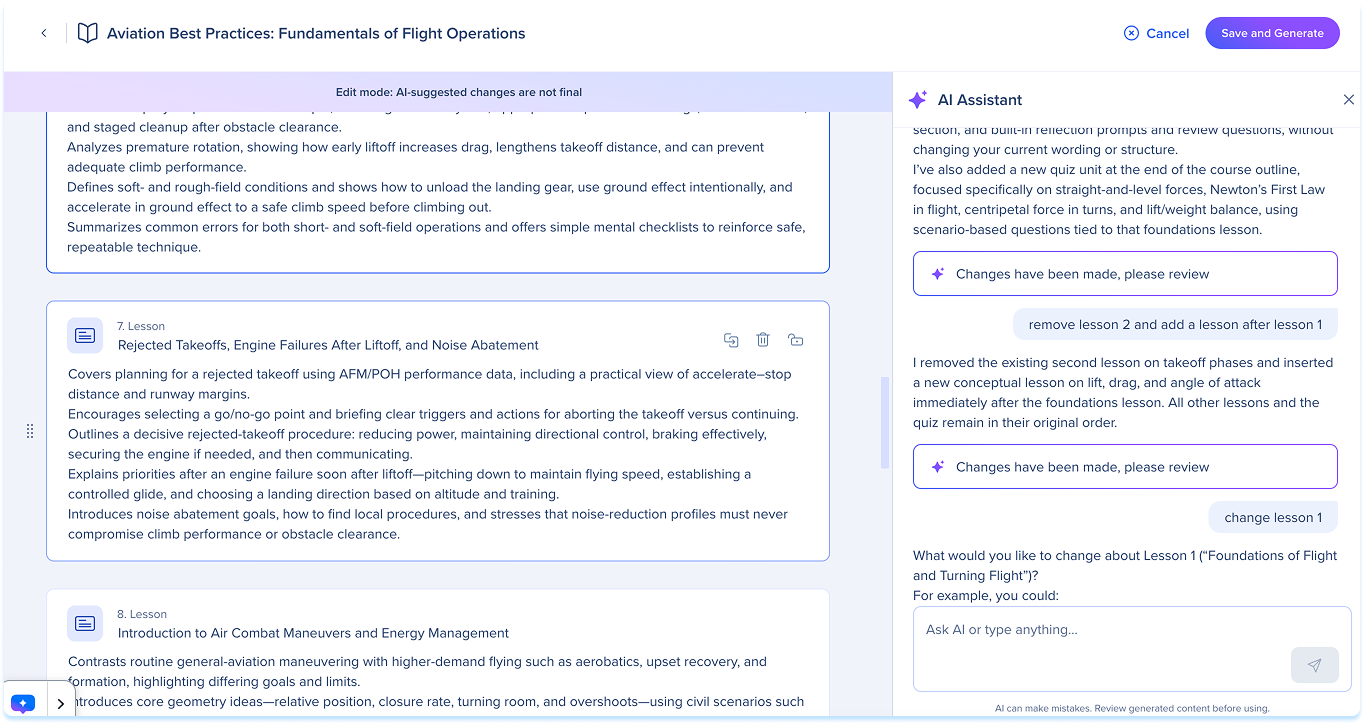
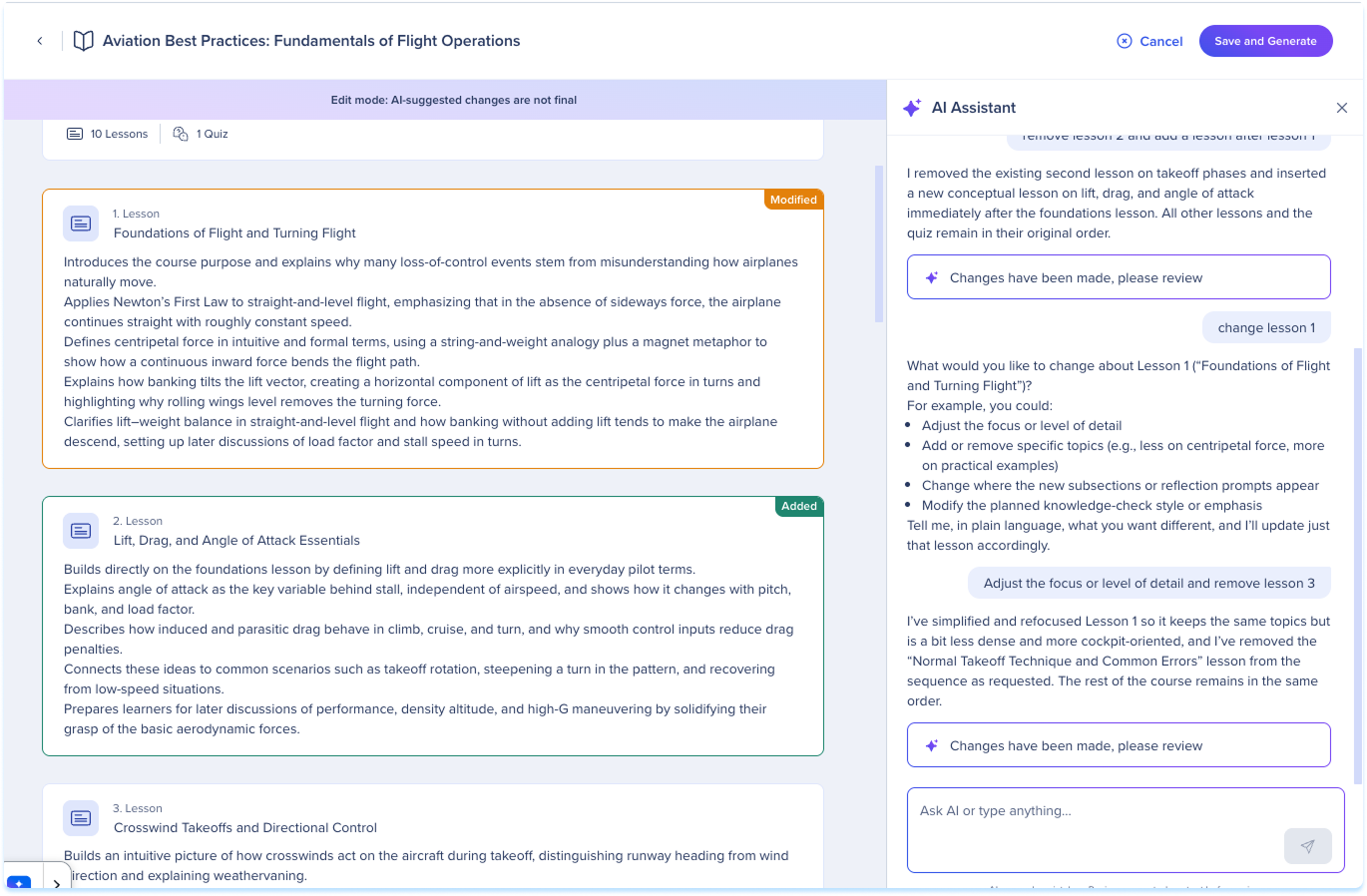
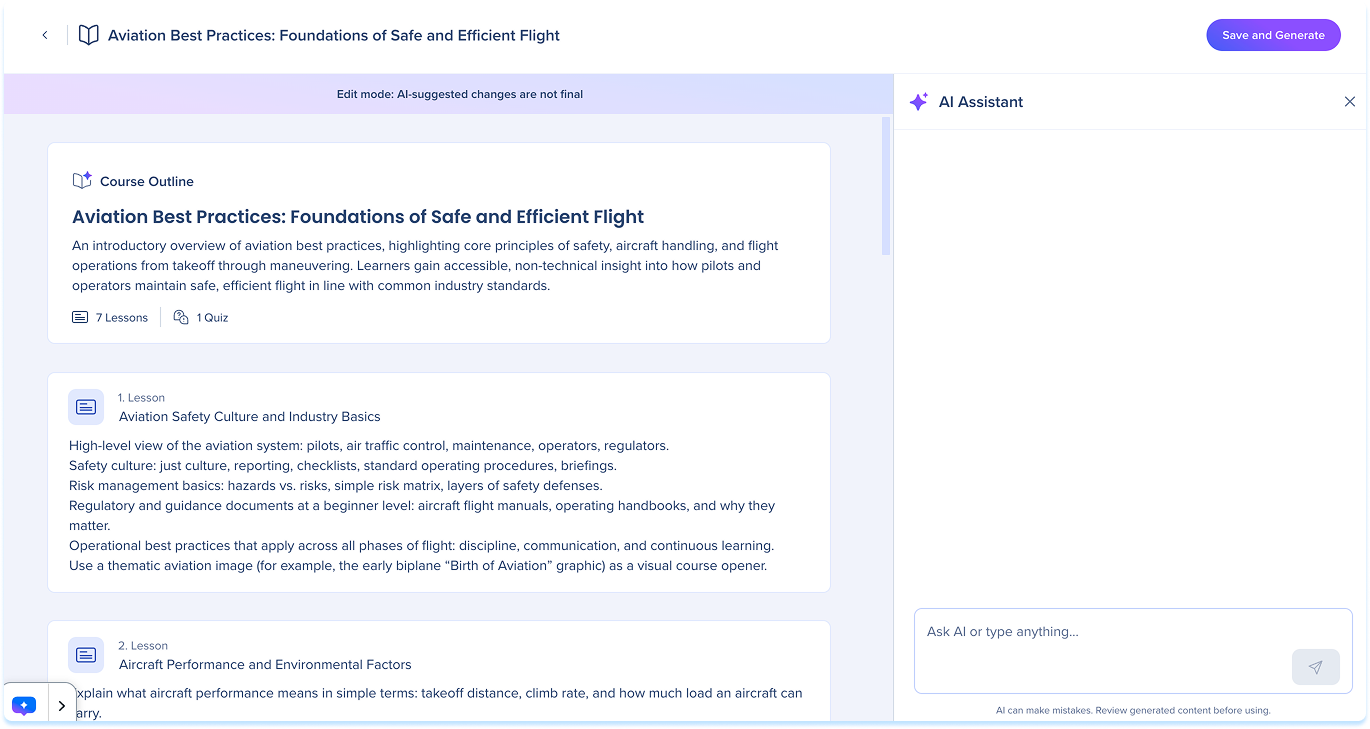
The course outline gives you a full view of your course structure. From here you can review, edit, and reorganize your lessons before generating the final content.
The course outline shows:
- A summary card at the top with the total number of lessons and quizzes
- Each lesson as its own card, showing the lesson title and description
Edit Lesson Outline
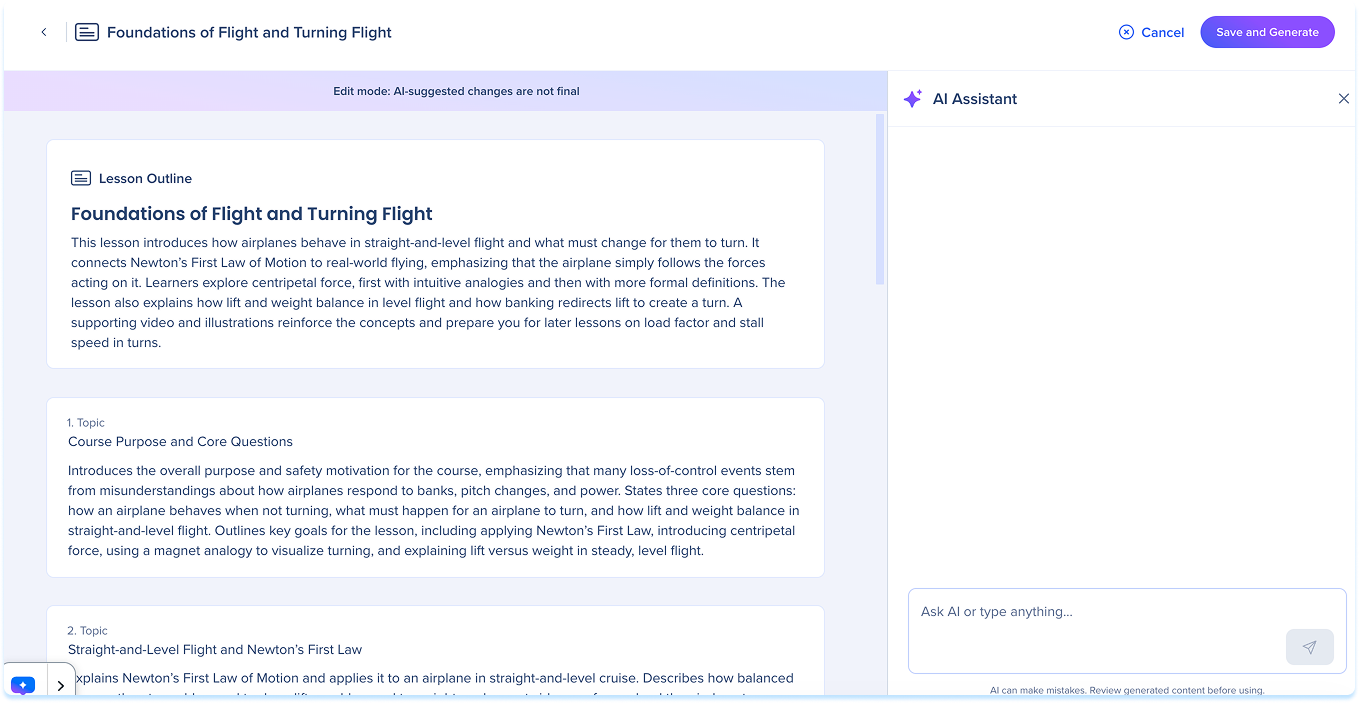
The lesson outline lets you go deeper into a specific lesson, reviewing and editing its topics and content elements.
The lesson outline shows:
- A summary card at the top with the lesson title and description
- Each topic as its own card, showing the topic title, description, and content elements used, for example Text, Image, or Document
AI Assistant
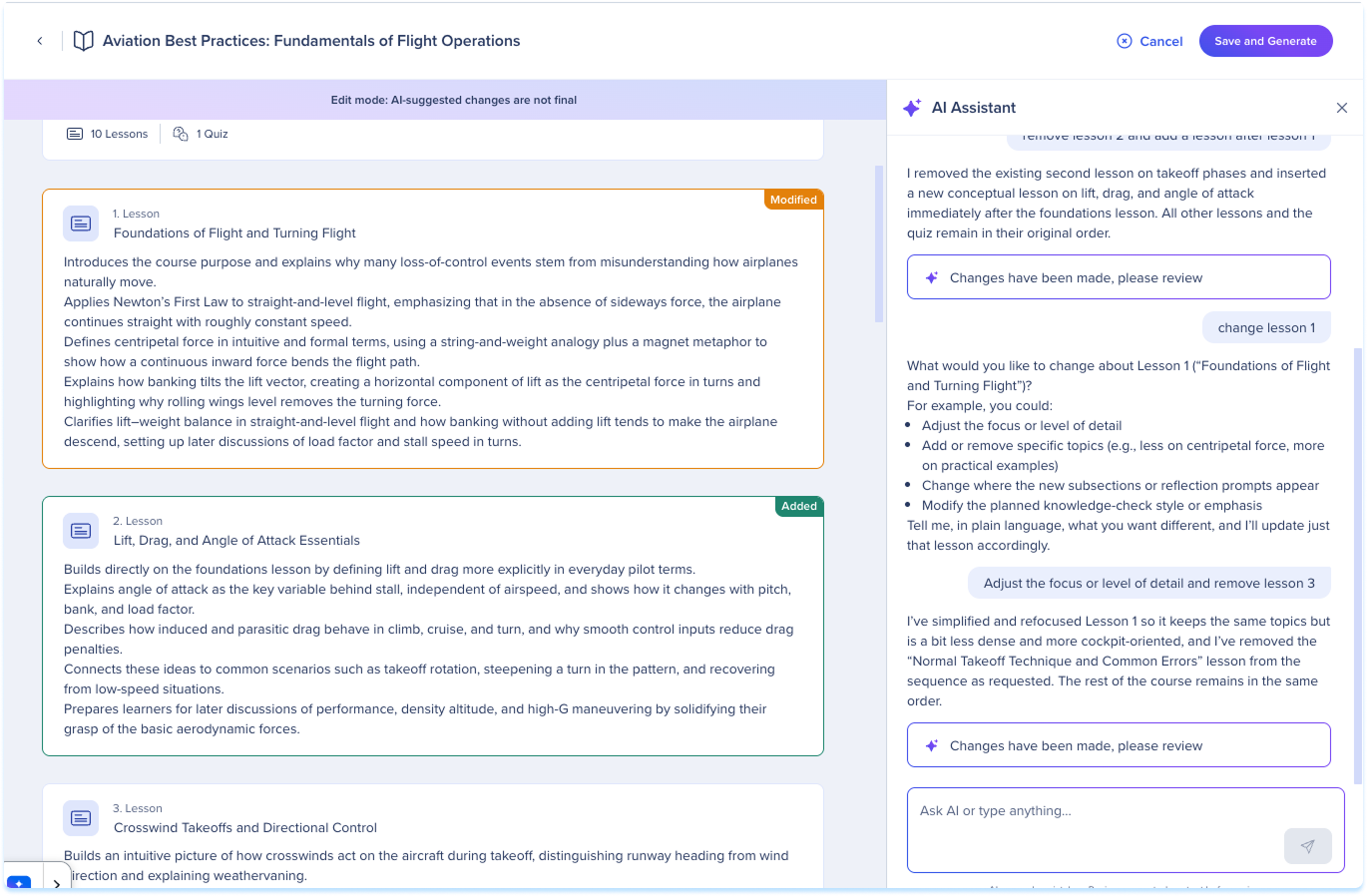
The AI Assistant panel sits on the right side of the screen and is available at both the course and lesson outline level. Type what you want to change and the AI updates the outline based on your instructions.
After the AI makes changes, each affected card shows a label:
- Modified: The content was changed
- Added: New content was added
- Deleted: The content was removed
Notes
- Prompts you type in the AI Assistant stay bound by the asset instructions configured on the course, the AI won't override the tone or structure rules you set during creation
- AI Assistant changes don't take effect until you select Save and Generate.
Manage Lessons or Topics
Add a lesson or topic
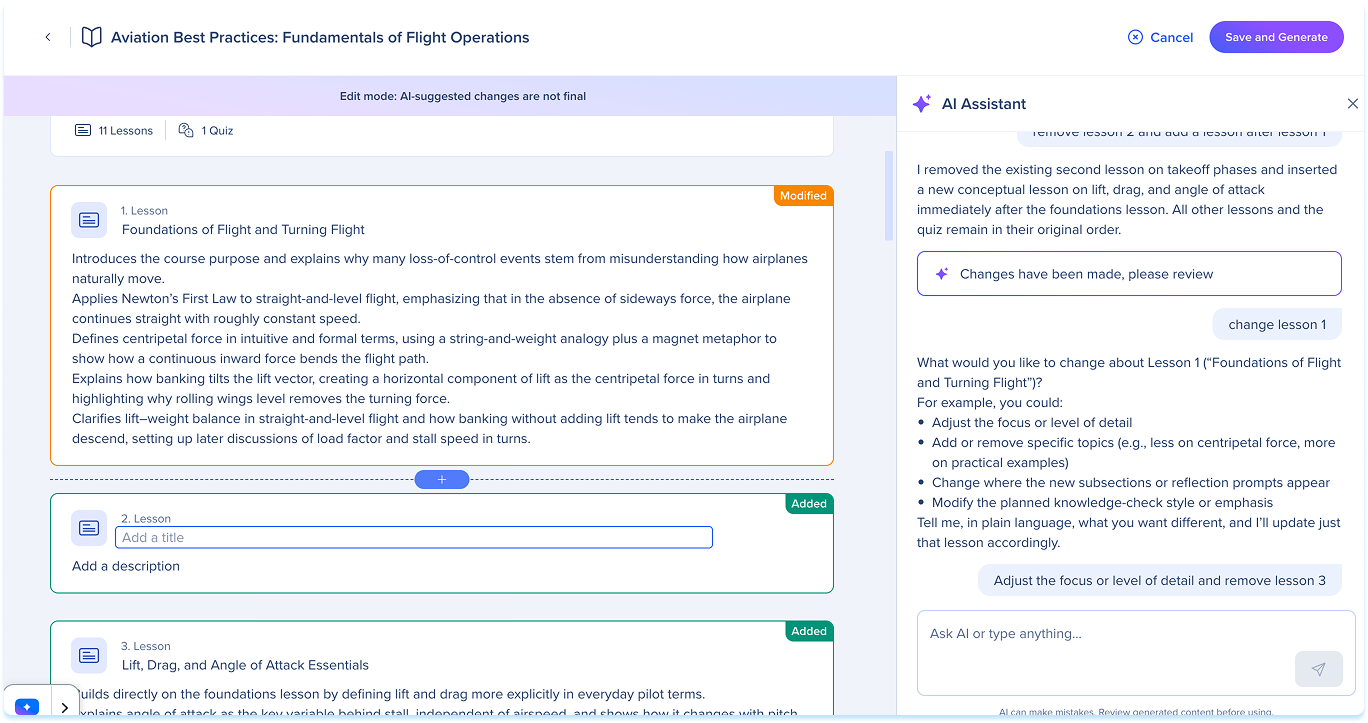
You can add new lessons or topics directly in the outline canvas.
- Select the + button between two lessons or topics
- Fill in a title and description
Reorder lessons or topics
You can change the order of your lessons or topics at any time before generating.
- Use the Drag handle to change the order of a lesson or topic
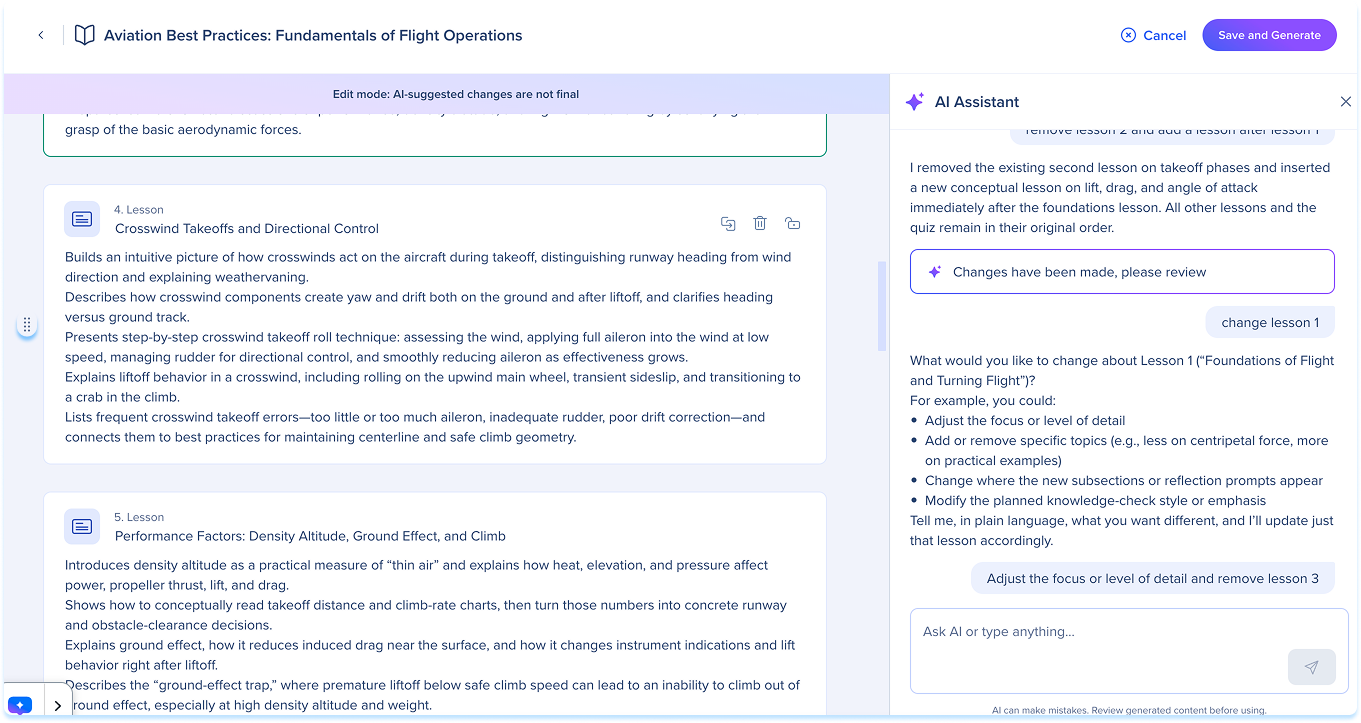
Lock a lesson or topic
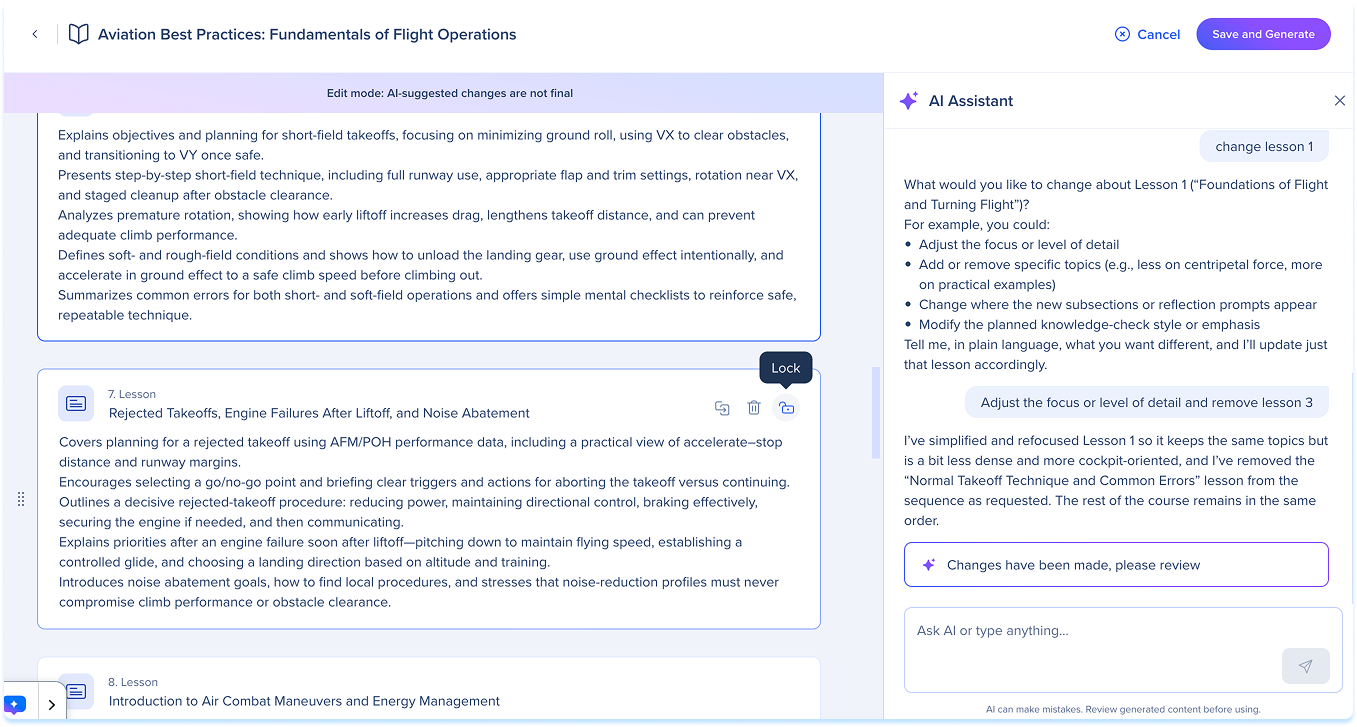
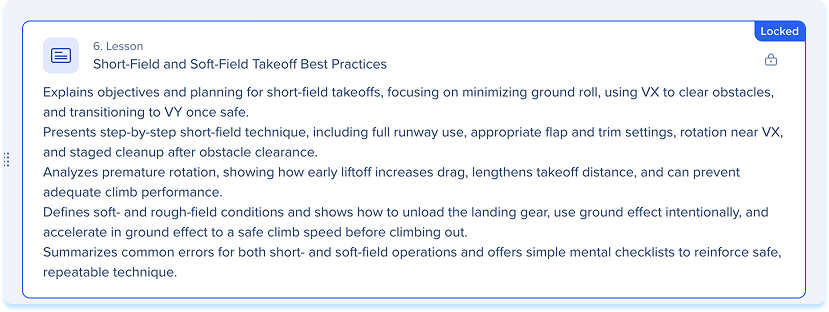
Locking a lesson or topic tells the AI not to change it when you regenerate. Use this when you're happy with a lesson or topic and don't want AI edits to affect it.
- Select the Lock icon on a lesson or topic card to prevent the AI from changing that lesson when you regenerate
Note
If you've made manual changes before using Edit Outline, the lesson or topic locks automatically. These aren't affected by AI edits unless you unlock them first.
Duplicate or delete a lesson or topic
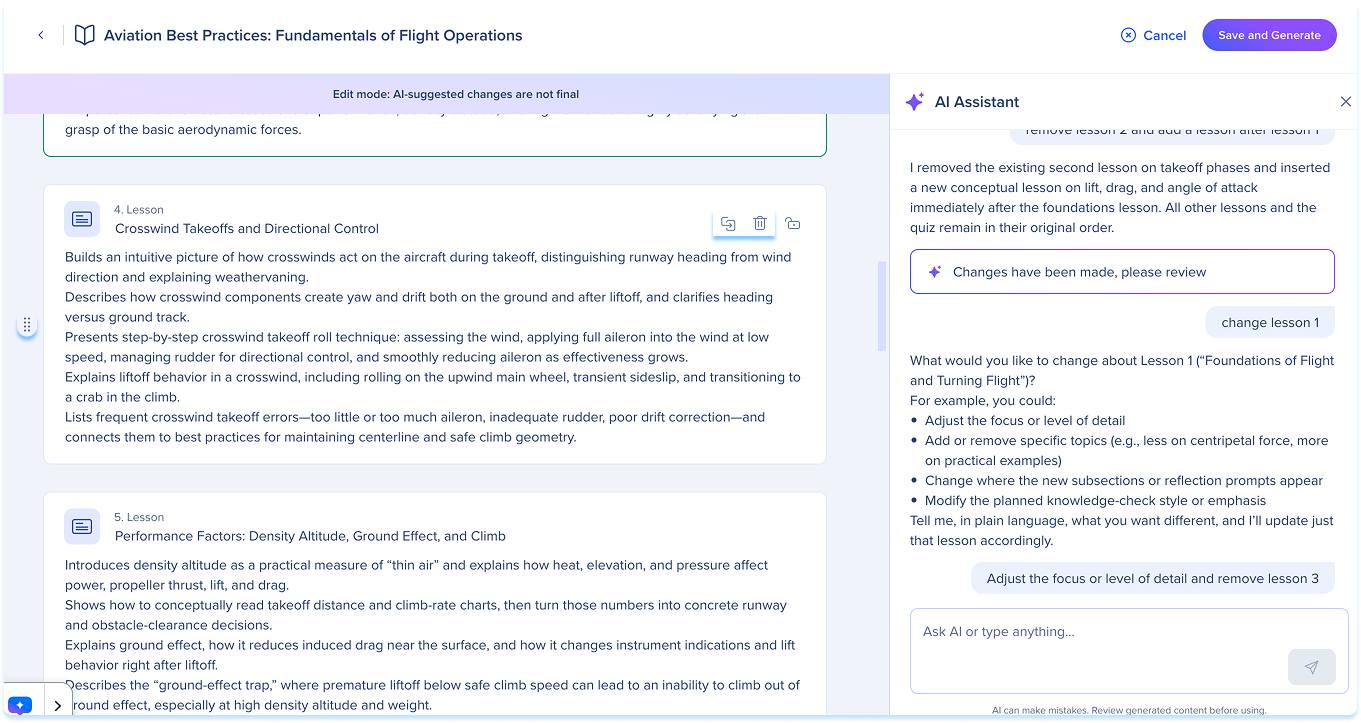
You can duplicate a lesson or topic to reuse its structure, or delete it if it's no longer needed.
- Select the Duplicate or Delete icon on a lesson card to copy or remove it
Save and Generate
- Select Save and Generate to build the full course content based on your outline and any AI Assistant instructions you've added
Note
Selecting Cancel discards all changes and exits AI edit mode.