Brief Overview
Building your content is only part of the process. Once your learning content is ready, you can save drafts to keep working, preview the learner experience, collaborate with other authors, export in multiple formats for distribution, and publish to make it available in the portal. All of these options are available from the top panel in the builder and apply across all content types.
Save Content
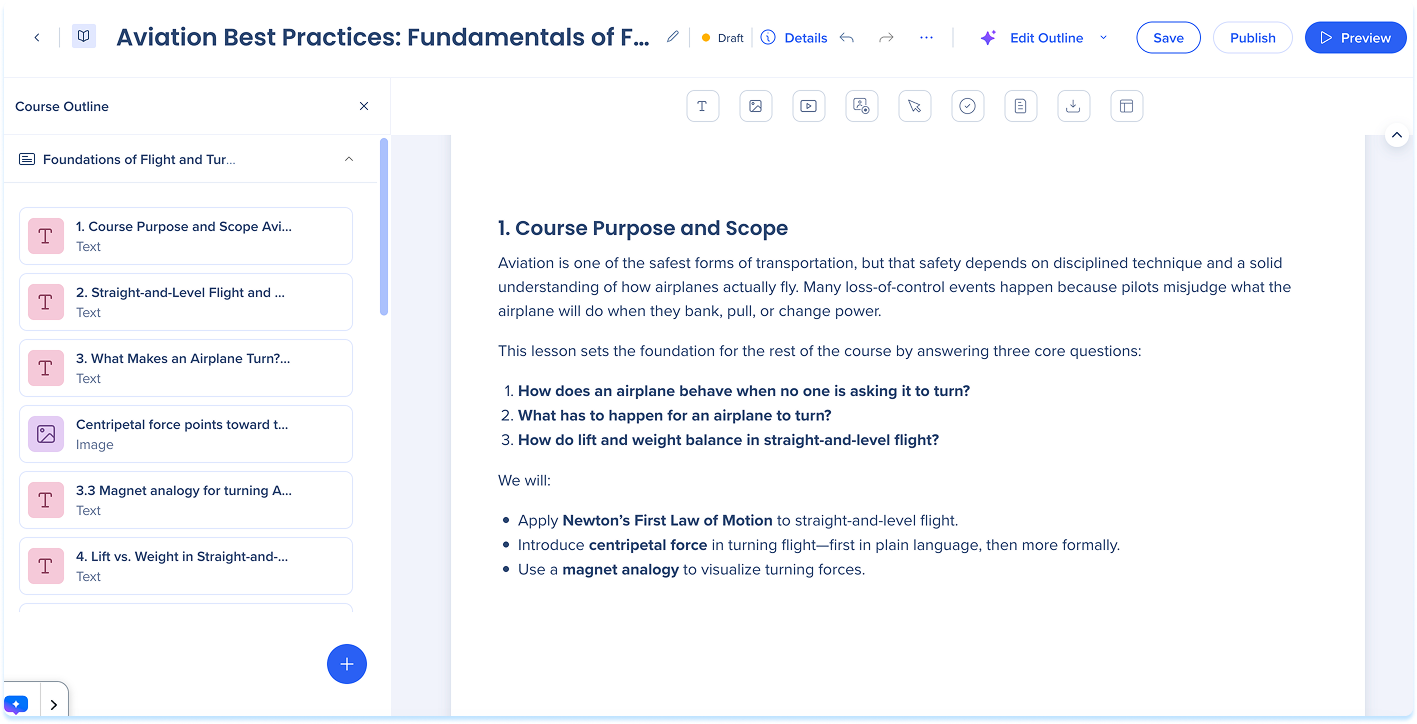
Saving keeps your content as a draft and records a new version in History. Your content isn't visible to learners until you publish it, so you can save as many times as you need while you're still building and refining.
- Select Save
Preview Content
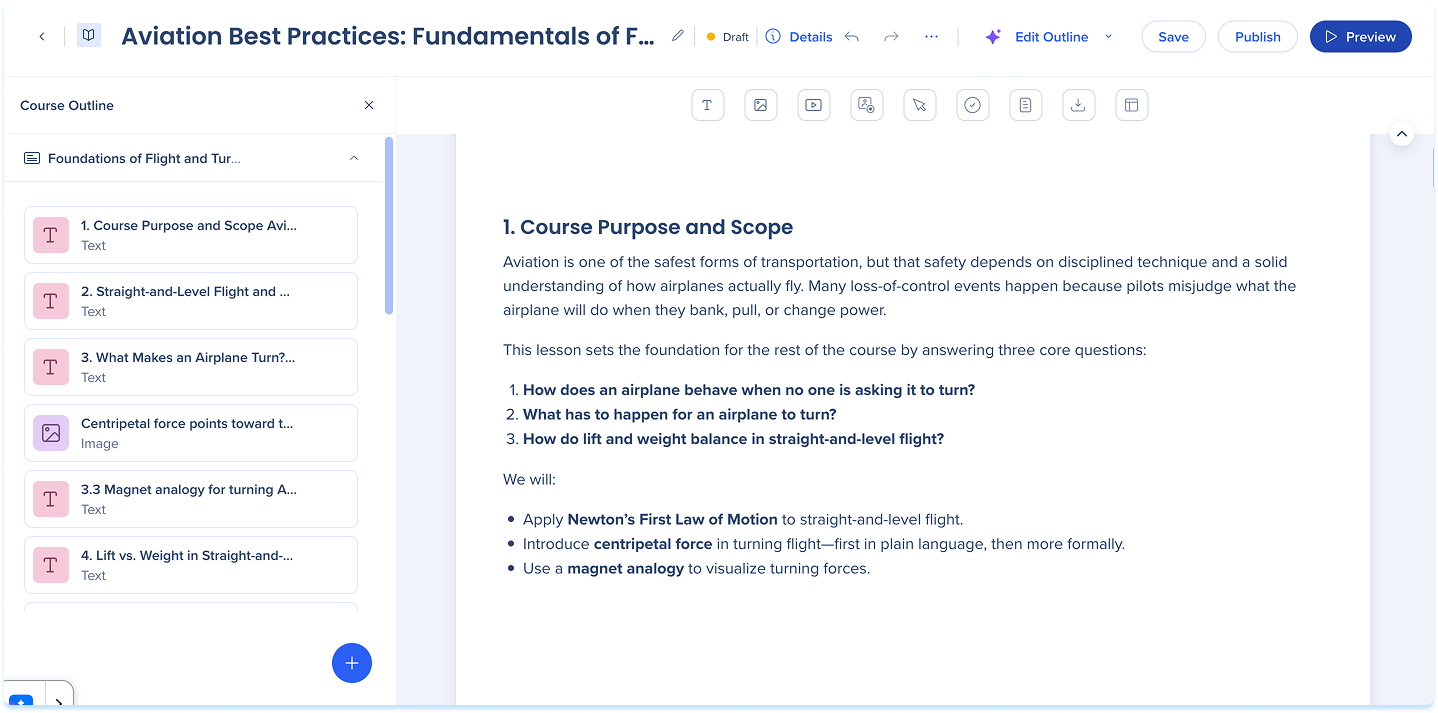
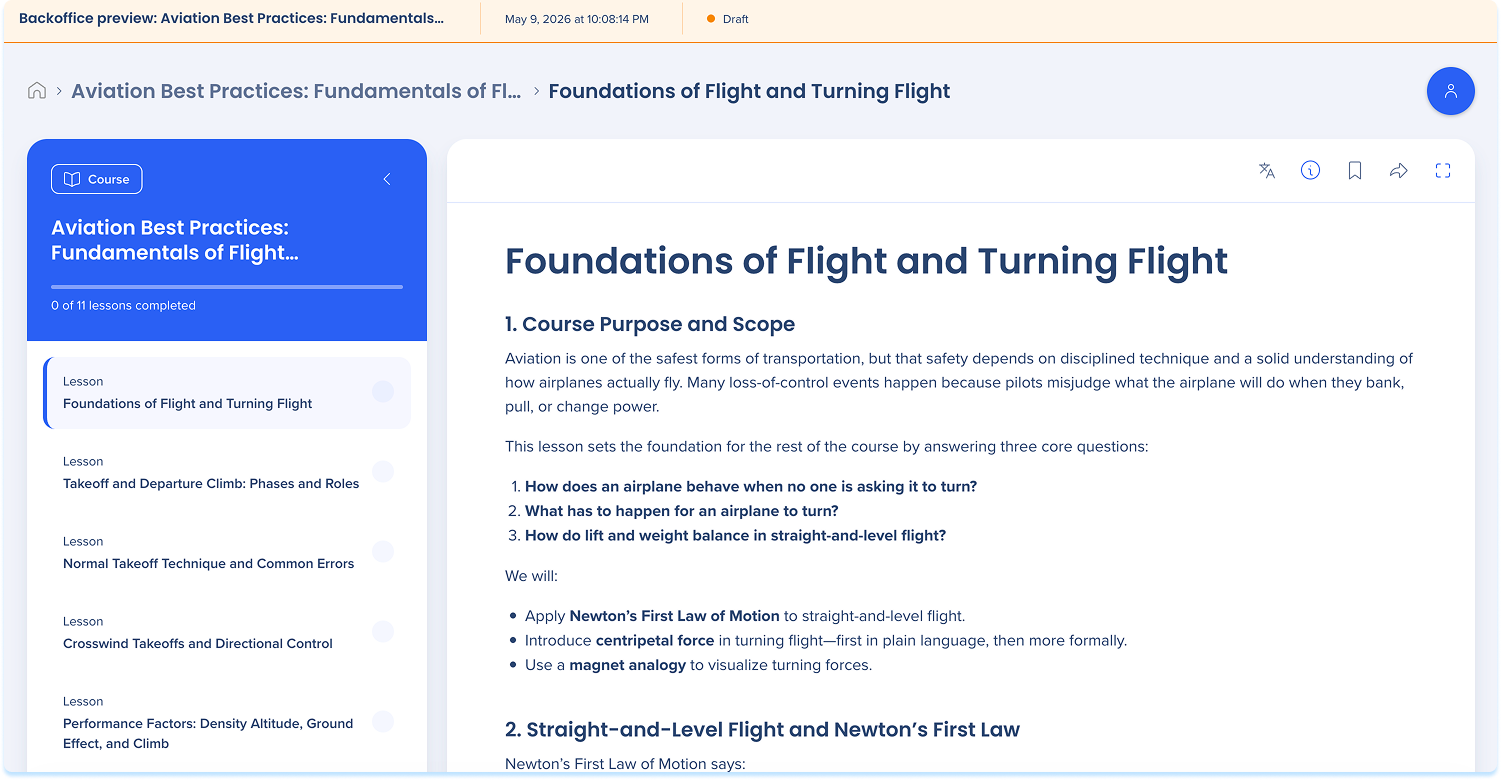
Previewing lets you see how your content looks to learners before publishing.
- Select Preview
- Review the learner-facing version
- Close the preview when you're done
Share Content
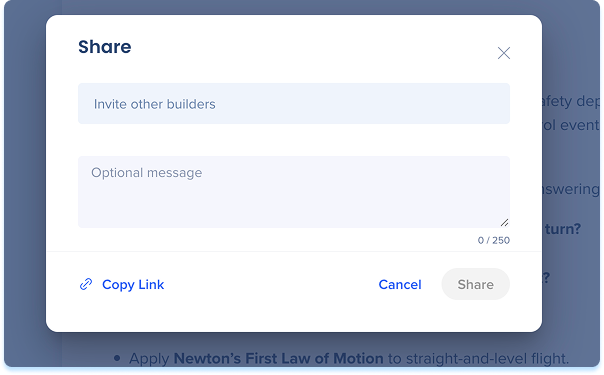
You can invite other builders to collaborate on your content.
- Select the Options menu
- Select Share
- Choose one of the following:
- Send invites directly
- Under Invite other builders, fill in collaborator names
- Fill in a message (optional)
- Select Share
- Manually share
- Select Copy Link
Export Content
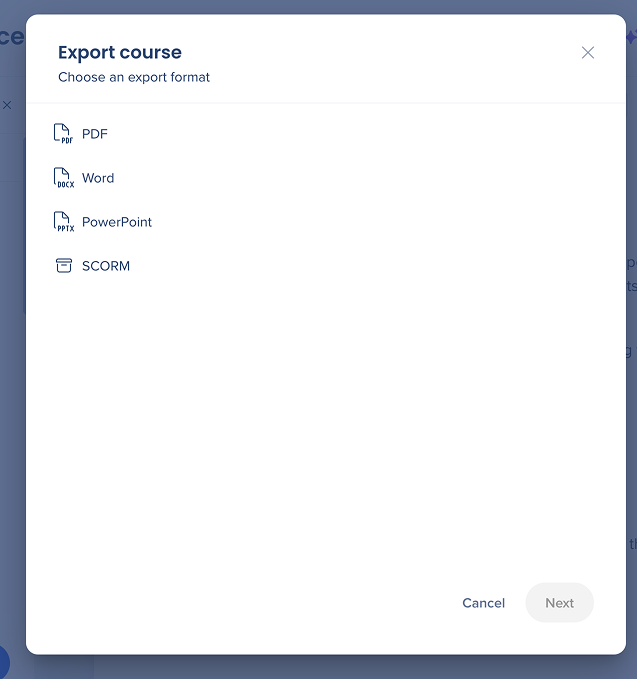
You can export your learning content in multiple formats to share or distribute it outside the portal.
- Select the Options menu
- Select Export
- Choose an export format:
- PDF: Portrait orientation
- Word: Portrait orientation, editable
- PowerPoint: Landscape orientation, suitable for presentation decks
- SCORM: Deploy content directly into your LMS
- Select Next
Export SCORM Packages
PDF, Word, and PowerPoint settings
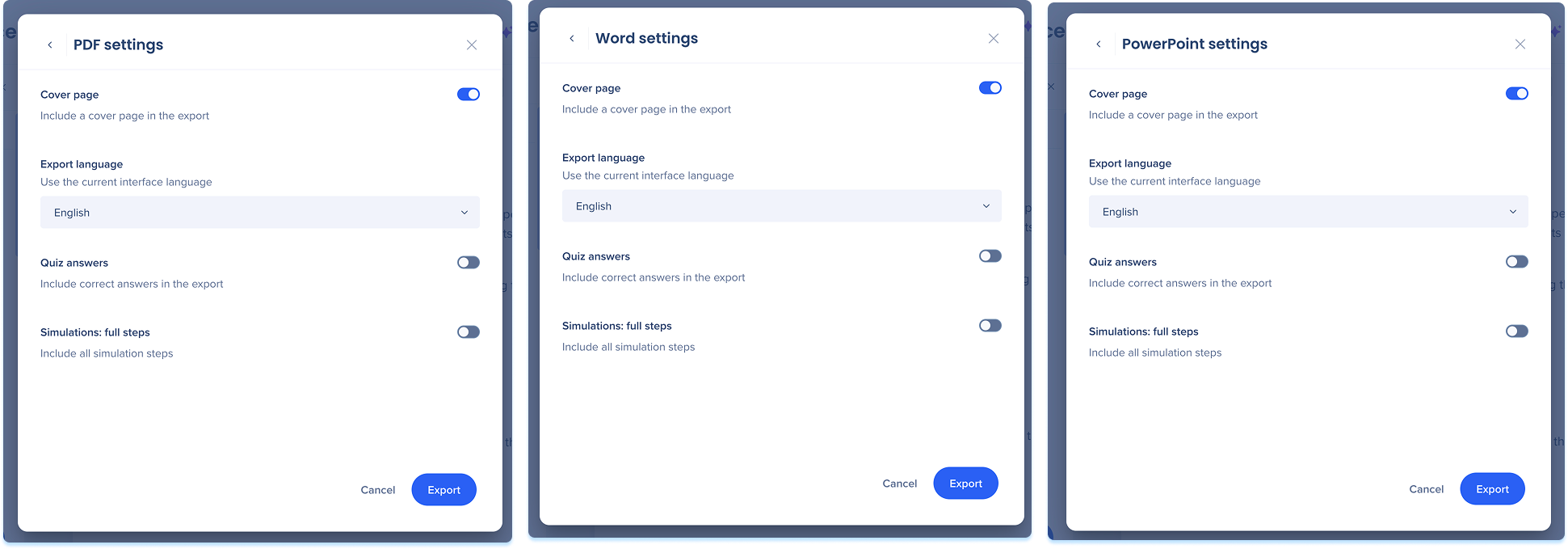
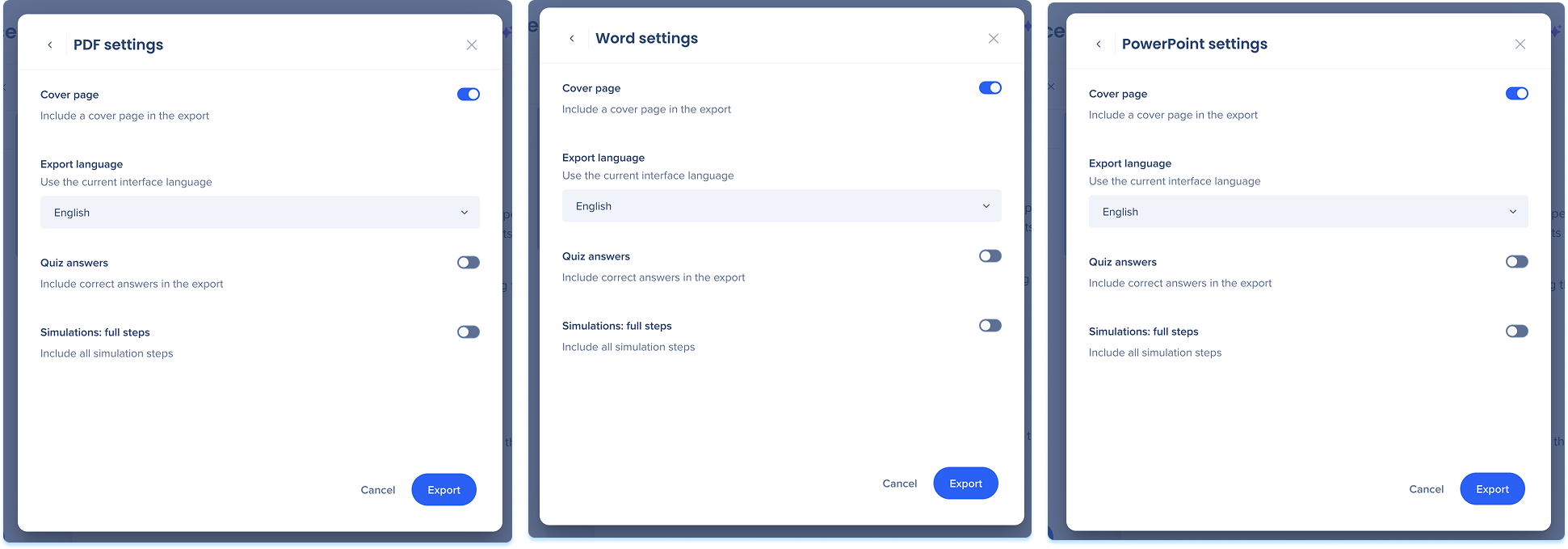
When exporting as PDF, Word, or PowerPoint, configure the following options before exporting:
- Cover page: Turn on to include a cover page in the export
- Export language: Choose the language for the exported content
- Quiz answers: Turn on to include correct answers in the export
- Simulation steps: Turn on to include all steps of the simulation instead of a preview image
- Select Export when you're done
History
History lets you view, preview, rename, and restore previous versions of your content. Every time content is drafted, updated, or published, a new version is added to History.
View history
- Select the Options menu
- Select Show History
History in WalkMe Learning Arc
Publish Content
Publishing makes your content available to learners in the portal. Before publishing, you can review the content details, preview the learner experience, and configure distribution options.
- Select Publish
- Review the content details on the publish popup
- Under Options, turn on Activate in-app distribution on publish to make the content available in-app (optional)
- Under Version, review the current version date and select Show History to review past versions (optional)
- Select Edit content details to make any updates before publishing (optional)
- Select Preview to review the learner experience (optional)
- Select Publish
Technical Notes
- The export layout is fixed. You can't change the position of elements like the date or logo.
- Exported files are only available to authors. To share content with learners, add the file as an attachment element in the course.
- SCORM exports support SCORM 1.2 only
- Learning journeys don't support export
- The Export language option is only available for offline translations
- Publishing a new version of learning content resets progress for learners who haven't completed it, requiring them to start from the beginning


