Brief Overview
Export learning content and simulations as SCORM-compliant packages to deploy content directly into your Learning Management System (LMS). This feature enables you to use WalkMe for course authoring while maintaining your existing LMS as the system of record for learner progress and completion data.
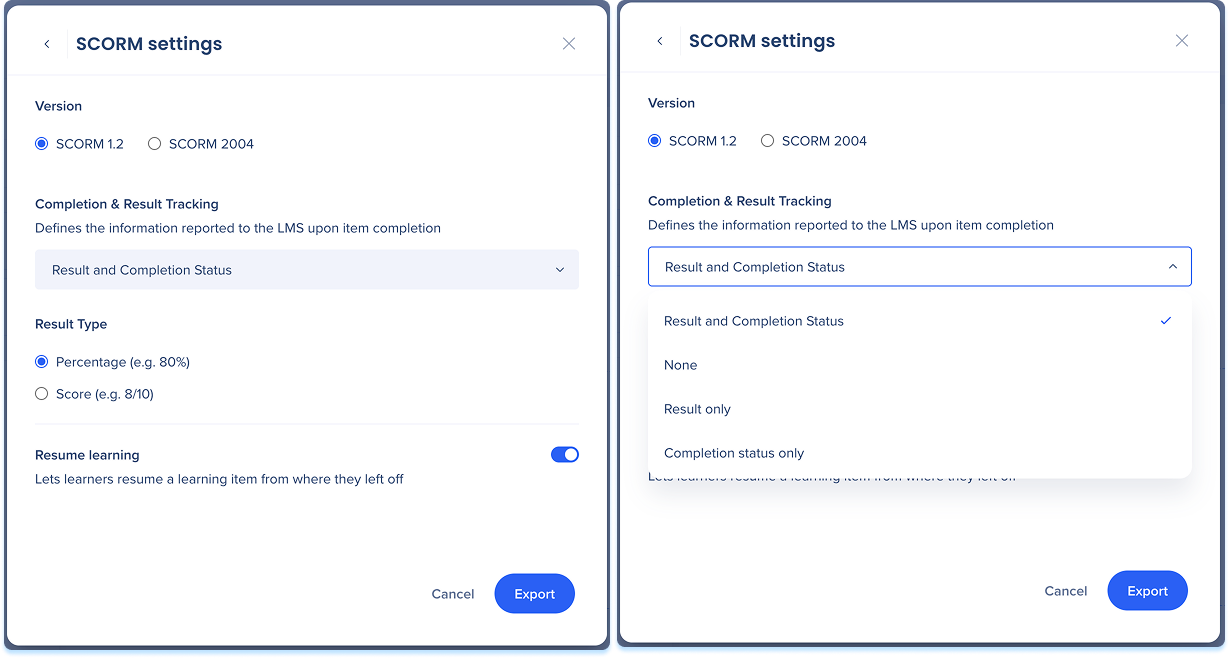
SCORM export settings include default values that apply when exporting a course or simulation. To view or update these defaults, go to:
Export Settings
Export Learning Content
- Open the item in the learning content builder
- Select the Options menu and select Export
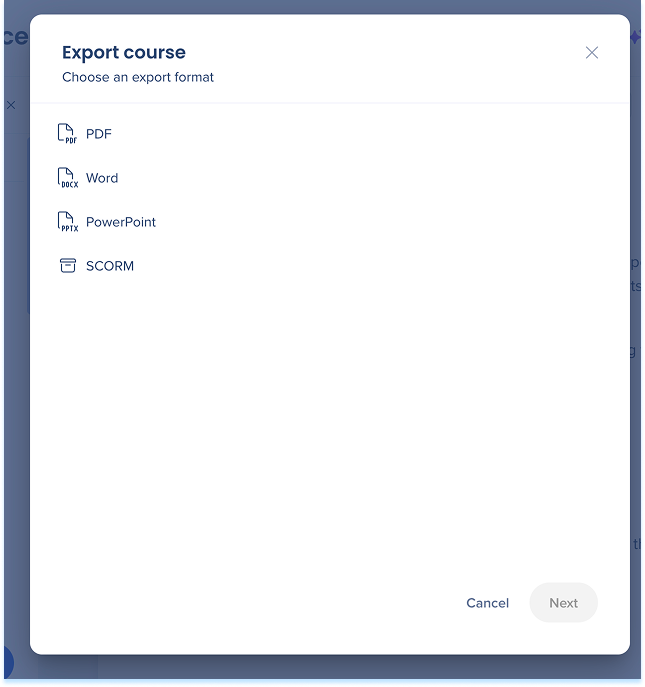
- Choose SCORM as the export format and select Next
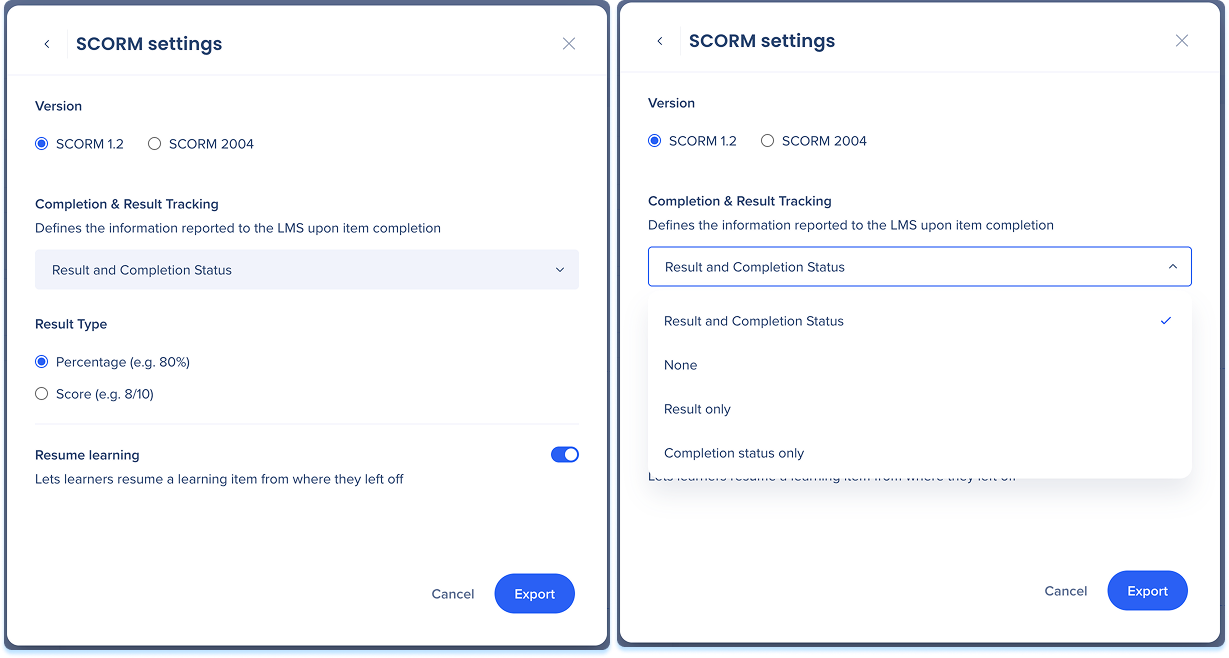
In the SCORM settings menu, configure the following:
- In Version, choose SCORM 1.2 or SCORM 2004 to match your LMS
- Choose an option from the Completion and result tracking dropdown to define how much data your LMS captures:
- Result and completion status: Tracks both your learner's assessment scores and their course completion progress
- Result only: Tracks assessment scores but ignores course completion status
- Completion status only: Tracks whether the learner finished the course without recording assessment scores
- None: sends no tracking data from WalkMe to your LMS
- Select your preferred Result type to determine how quiz results appear in your LMS:
- Percentage
- Score
- Turn on the Resume learning toggle if you want to allow learners to return to their last session point
- Select Export to generate the ZIP file.
Technical Notes
- Embedded assets such as PowerPoint files can't be previewed directly in an LMS (learners need to download the file to view it)
- Data pushes out to the LMS only. Learning Arc doesn't receive analytics back from exported courses
- Learning Arc updates don't auto-sync to the LMS. Changes require a manual re-export
- Proper LMS configuration during import is required to make sure tracking data is captured
Tracking levels:
- Completion status: Incomplete, Completed, Passed, or Failed
- SCORM 1.2: cmi.core.lesson_status
- SCORM 2004: cmi.completion_status and cmi.success_status
- Score: Pushes raw scores or percentages from Learning Arc quizzes. Only sent when the tracking mode includes results
- SCORM 1.2: cmi.core.score.raw, .max, .min
- SCORM 2004: cmi.score.raw, .max, .min
- Resume point: Saves the exact lesson and step index so learners can resume where they left off
- SCORM 1.2: cmi.core.lesson_location
- SCORM 2004: cmi.location
- Suspend data (cmi.suspend_data): Stores the full tracking state to support resume functionality. Same field in both SCORM 1.2 and 2004


