Brief Overview
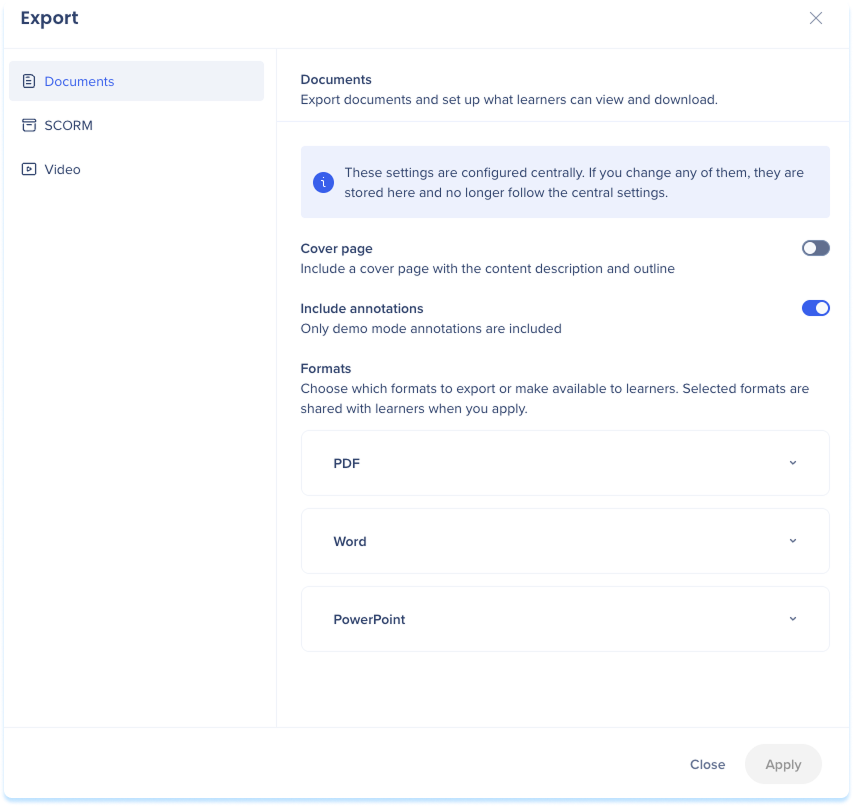
With Share documentation, learners can open WalkMe Learning Arc content as documents. Each shared format has its own link. A PDF opens in a read-only viewer inside the portal, and Word and PowerPoint files download to the learner's device. Learners sign in to the portal to open a link, so only members of your account can reach the content.
Admins set the default formats and options for the account in Export Settings. Authors then turn sharing on or off for each item and choose which formats learners get. Publishing rebuilds the shared documents automatically, so learners always get the latest version on the same link.
Supported content:
- Courses
- Microlearning
- Simulations
Access
Set the account defaults to share documentation in settings:
- Open Learning Arc:
- Go to Settings, then Export settings
- Select Share documentation
Setup
Admins set the account defaults, and authors can override them for each course, microlearning, or simulation.
Set the account defaults
Set which formats and options shared documents use, unless an item has its own share settings.
-
Go to Settings and select Export Settings
-
Select Share Documentation
-
On the Learning content tab, under Formats, select the formats learners can view and download: PDF, Word, and PowerPoint
-
Turn on the options you need: Cover page, Quiz answers, and Simulation steps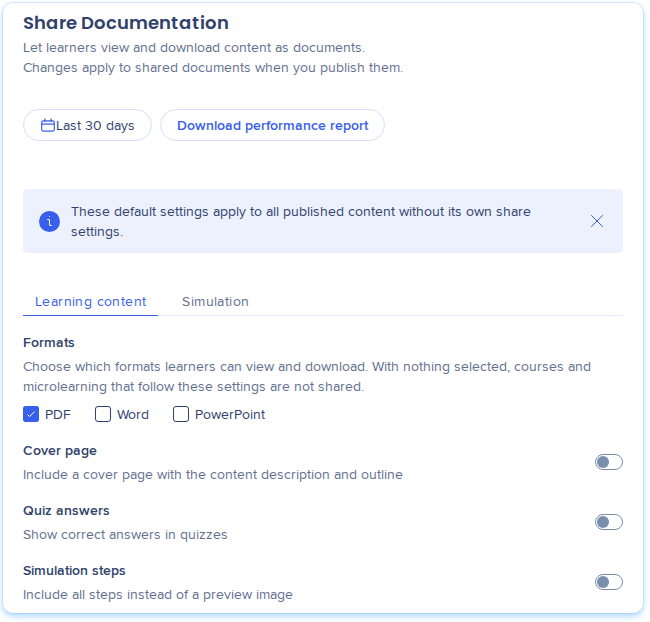
-
Select the Simulation tab and set the simulation defaults:
-
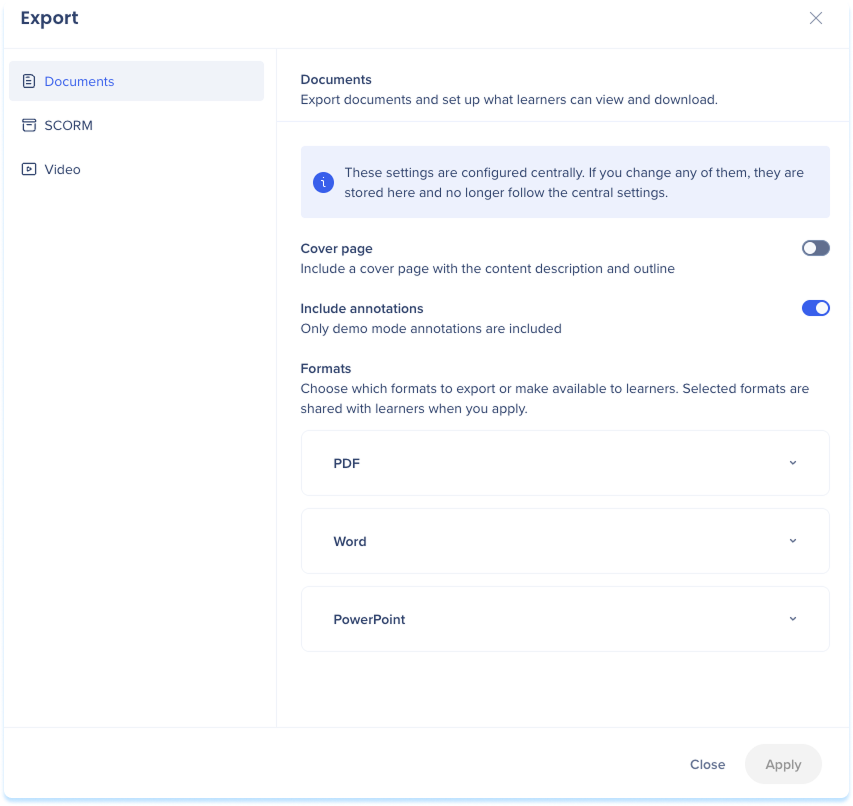
Turn on Cover page and Include annotations if you need them
-
Under PDF and Word select one or more modes
-
Under PowerPoint, choose a layout
-
Select Publish
Learning content options:
-
Cover page: Includes a cover page with the content description and outline
-
Quiz answers: Shows correct answers in quizzes
-
Simulation steps: Includes all steps instead of a preview image
Simulation options:
-
Cover page: Includes a cover page with the content description and outline
-
Include annotations: Includes demo mode annotations only
-
PDF and Word: Hands-on, Standard, and Job Aid. Each mode you select gets its own link.
-
PowerPoint layout: None, Standard, or Styled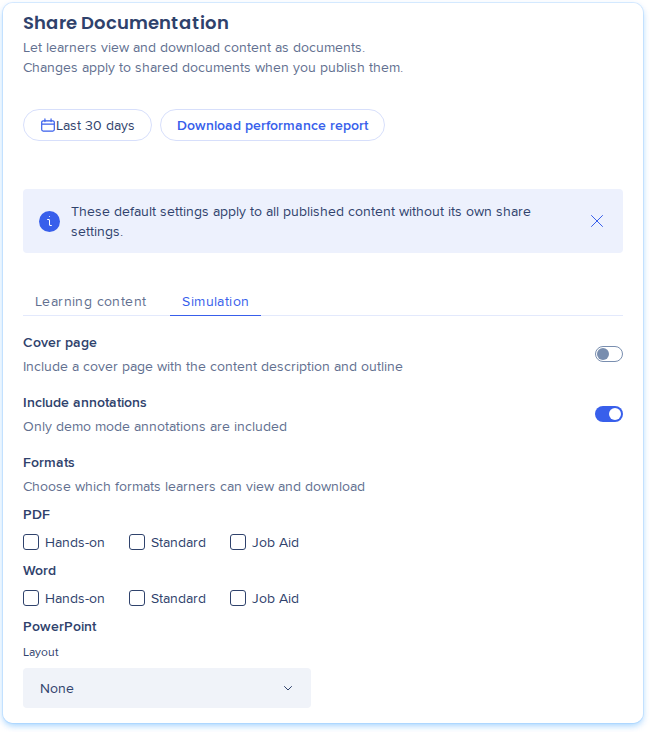
To see how shared documents are used, select a date range, like Last 30 days, and select Download performance report.
Note
After you select Publish, WalkMe rebuilds each affected document the next time a learner opens it. Large courses rebuild right away.
Share a course or microlearning
-
Open the course or microlearning and go to its Details page
-
In the Details page menu, select Share documentation
-
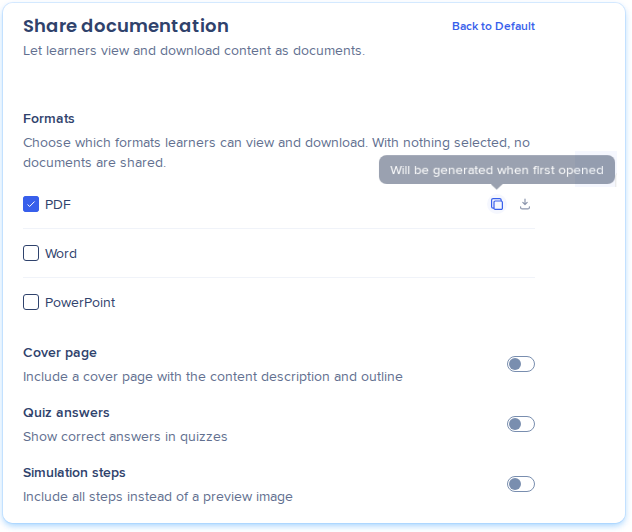
Under Formats, select the formats learners get: PDF, Word, or PowerPoint. With nothing selected, no documents are shared
-
Each format shows its status, its view count, and Copy link.
-
Turn on the options you need: Cover page, Quiz answers, and Simulation steps
-
Select Save, then publish the content
-
To send a link to learners, select Copy link next to the format (optional)
-
To use the account defaults again, select Back to Default (optional)
Each format shows its status, its view count, and Copy link. Hover over Copy link to see the status.
Share a simulation
-
Open the simulation in the simulation editor and open the export dialog
-
Select the Documents tab
-
Select the formats and the PDF and Word modes learners get
-
Choose a PowerPoint layout
-
Select Apply
-
Review the status of each document, then select Close
Each format and mode has its own link, with a view count and Copy link.
Turn sharing off
-
Go to the Share documentation section of the Details page, or the Documents tab for a simulation
-
Clear every format
-
Select Save
Note
The links stop working until a format is selected again. The links don't change, so when you select a format again, the same link works.
What learners see
Learners open a shared document from the Open as menu, which lists the shared formats. The menu appears in:
- The Options menu in the player header
- The content details popup
- The top bar of a standalone simulation
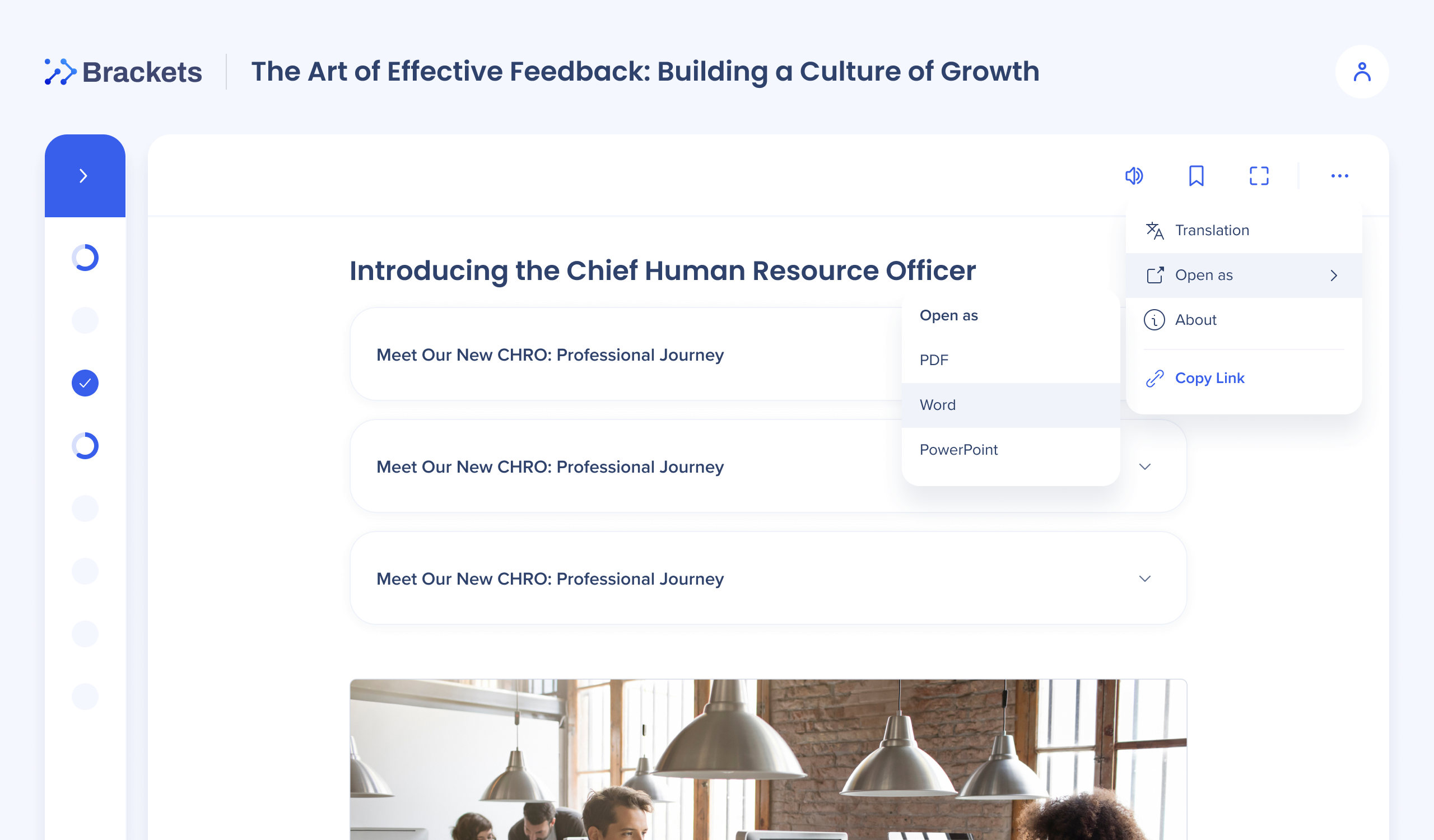
Each format opens differently:
- PDF: Opens in a read-only viewer with page navigation, zoom, and fit to width
- Word and PowerPoint: Download to the learner's device
Learners who aren't logged in go to the portal login page, then return to the same link. Documents follow the learner's portal language. If there's no file in that language, the learner gets the source language. Documents are built for every published offline language.
While a document rebuilds, learners get the last working file with a note.
Technical Notes
Required permissions
- Account defaults: Users with Settings permission
- Sharing for each course, microlearning, or simulation: Users with publishing rights on that content
WalkMe Learning Arc Roles & Permissions
Limitations
- Simulations, SCORM content, and instructor-led courses sessions can't be opened as documents when they sit inside a course or learning journey.
- Learners must log into the portal as members of your account to open a link. Anyone outside the account can't open it, even with the link
- The PDF viewer has no download or print option