Brief Overview
Use AI to create a microlearning from a short topic description, optional instructions, and your own files. The AI builds a single, focused lesson that opens in the microlearning builder, where you can review and refine it before you publish.
Unlike creating a course with AI, there's no outline to review. The AI builds the microlearning directly.
Access
To create a microlearning with AI:
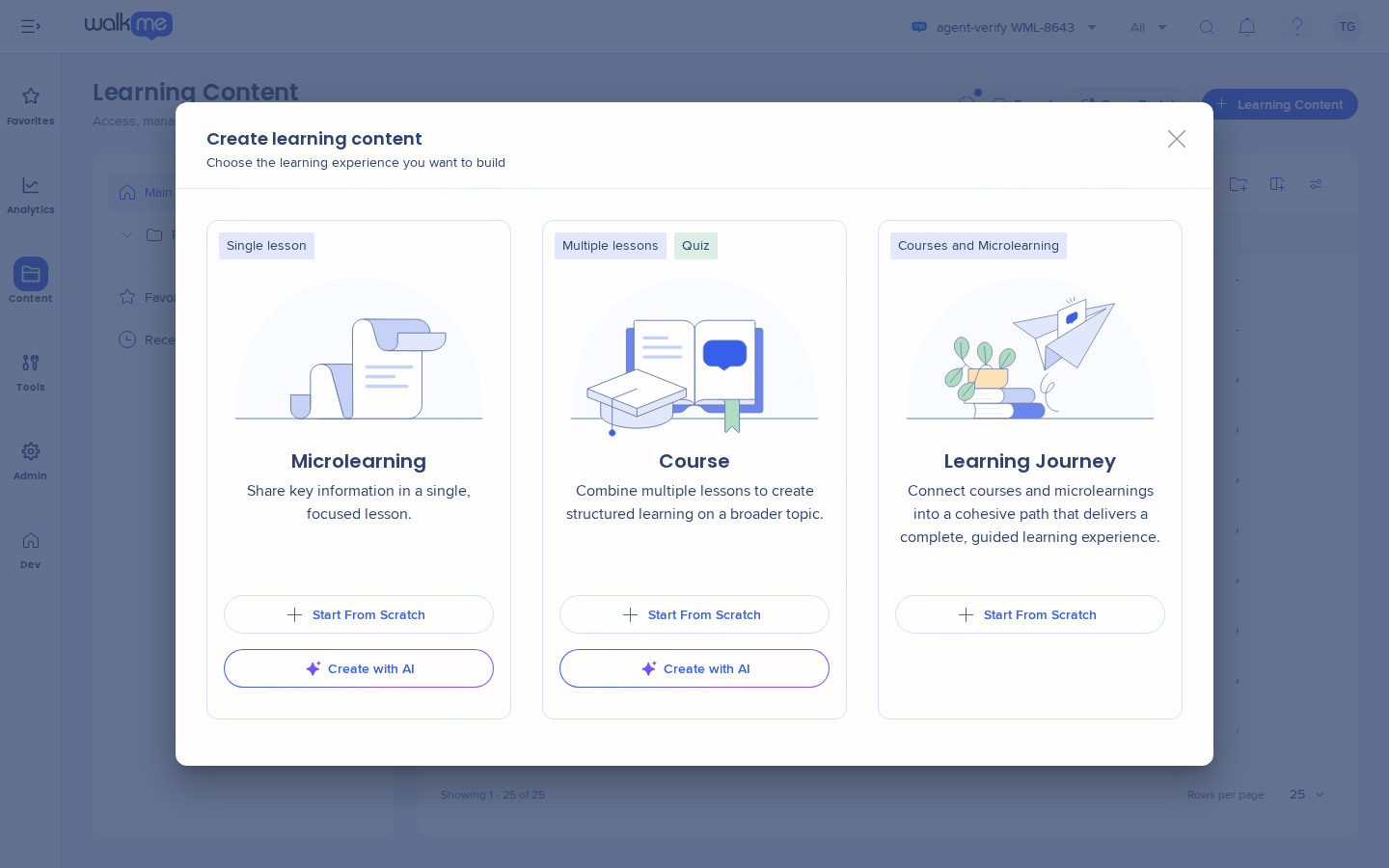
- Open Learning Arc:
- Go to Learning Content
- Select + Learning Content
- On the Microlearning card, select Create with AI
You can also start from the Microlearning card on the Home page.
How It Works
You describe the topic, add files if you have them, and the AI creates 1 lesson with a few short topics. You can keep working while it runs, and the result opens in the microlearning builder.
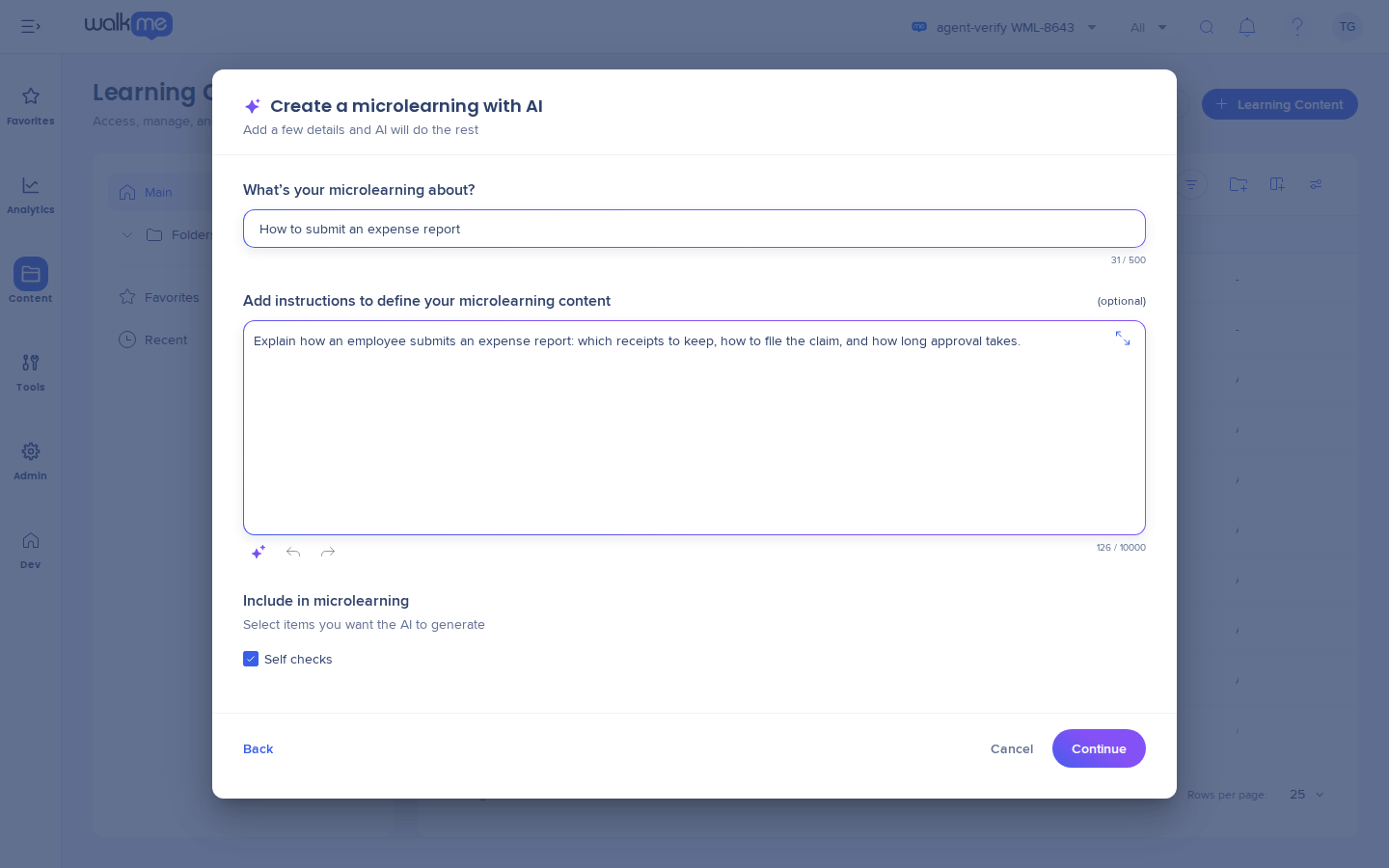
Describe the microlearning
- Under What's your microlearning about?, type a short summary of the topic (up to 500 characters)
- Under Add instructions to define your microlearning content, describe what the microlearning should cover (optional)
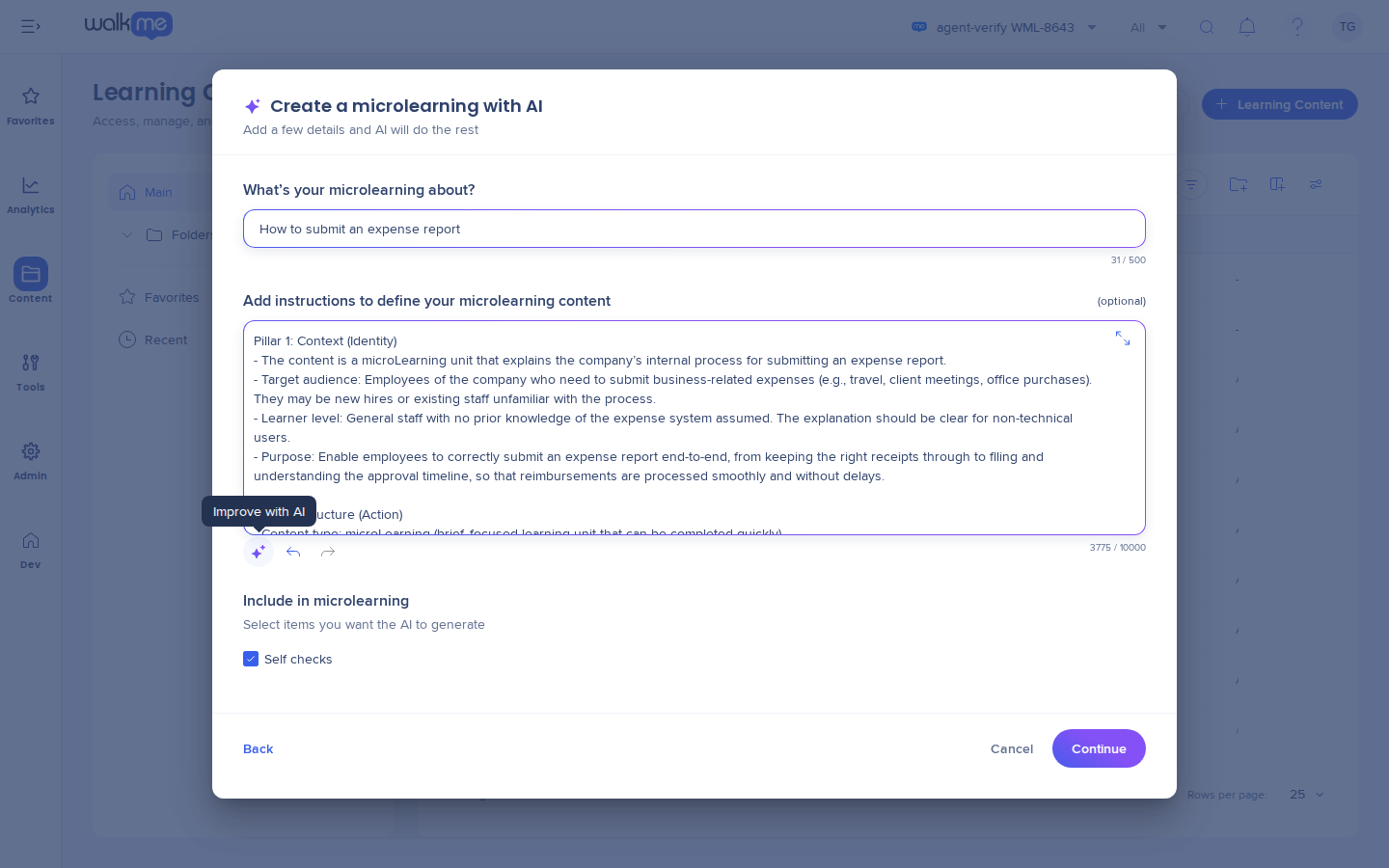
- Select Improve with AI to rewrite and expand your instructions (optional)
- Under Include in microlearning, select Self checks to add short knowledge checks to the lesson. It's selected by default
- Select Continue
Improve with AI organizes your instructions into 4 areas:
- Context: Who the microlearning is for and what they should learn
- Structure: How the content should flow
- Rules: Tone, constraints, or topics to avoid
- References: How the AI should use any files you upload
Note
If your files and your instructions conflict, the AI follows the files.
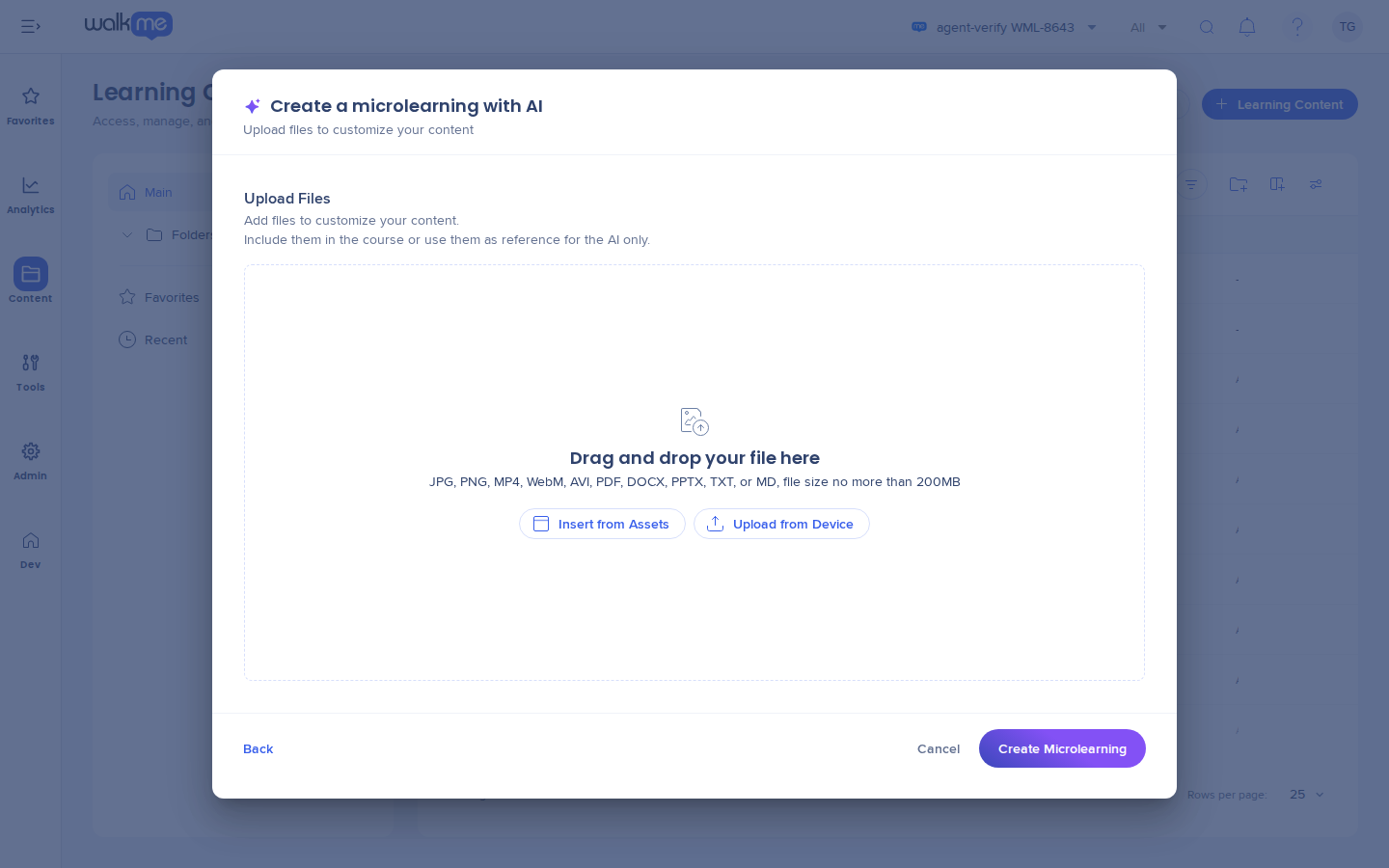
Upload files
Files can be source material for the AI, or you can include them in the microlearning so learners can open them.
- Select Insert from Assets or Upload from Device
- Add 1 or more files
Supported formats: JPG, PNG, MP4, WebM, AVI, PDF, DOCX, PPTX, TXT, and MD, up to 200 MB per file.
Set up each file
After a file uploads, expand it to choose how the AI uses it:
- Under Source type, choose how the AI treats the file:
- Course Assets: Raw material for the lesson (default)
- Structure: Defines the flow and structure
- Style and standards: Defines terminology, tone, and brand voice
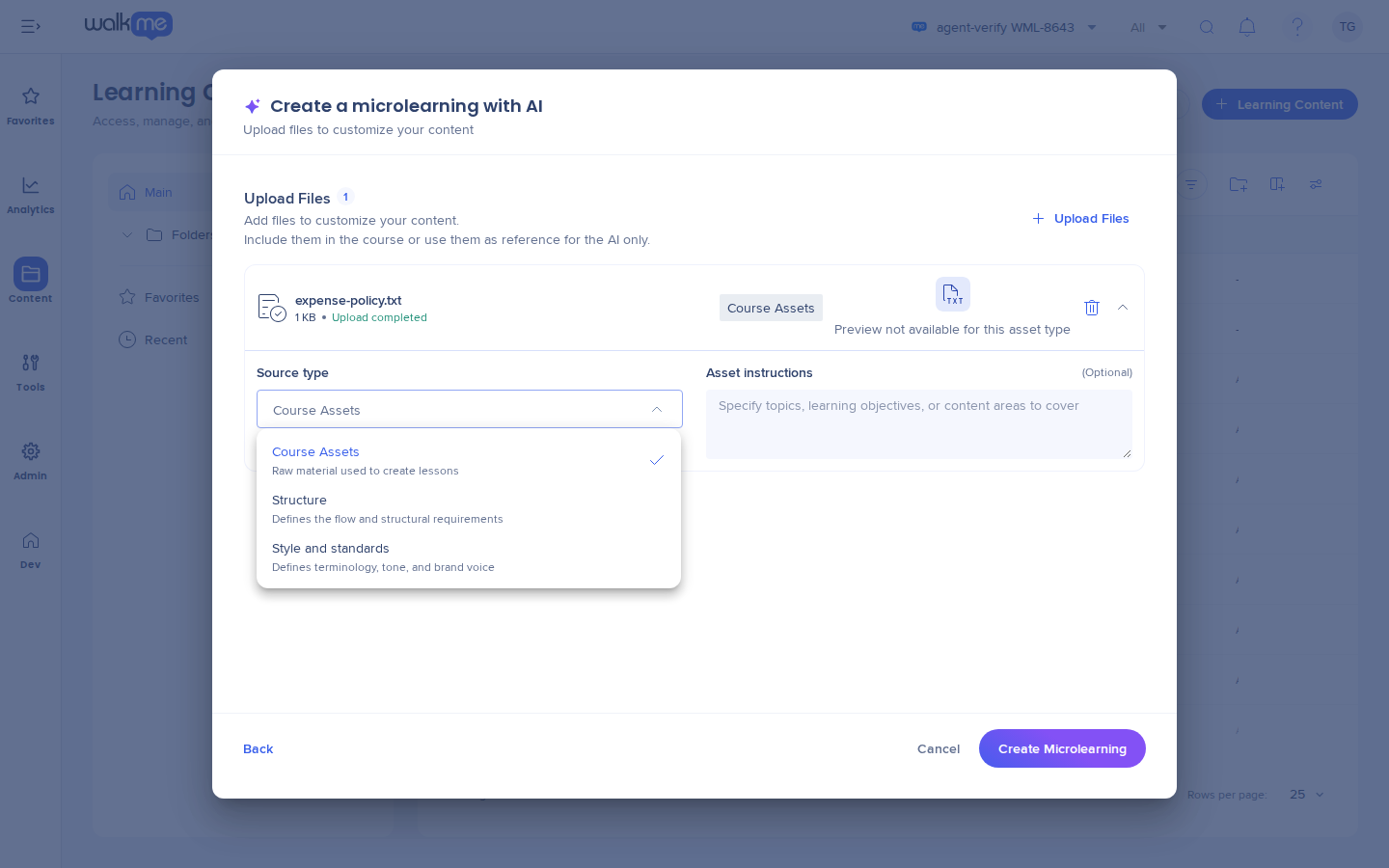
- Under Asset scope, add a page range to use only part of the file (optional)
- Under Asset instructions, add the topics, learning objectives, or content areas the AI should cover (optional)
- Select Include asset in course materials to let learners open the file in the published microlearning. It's selected by default
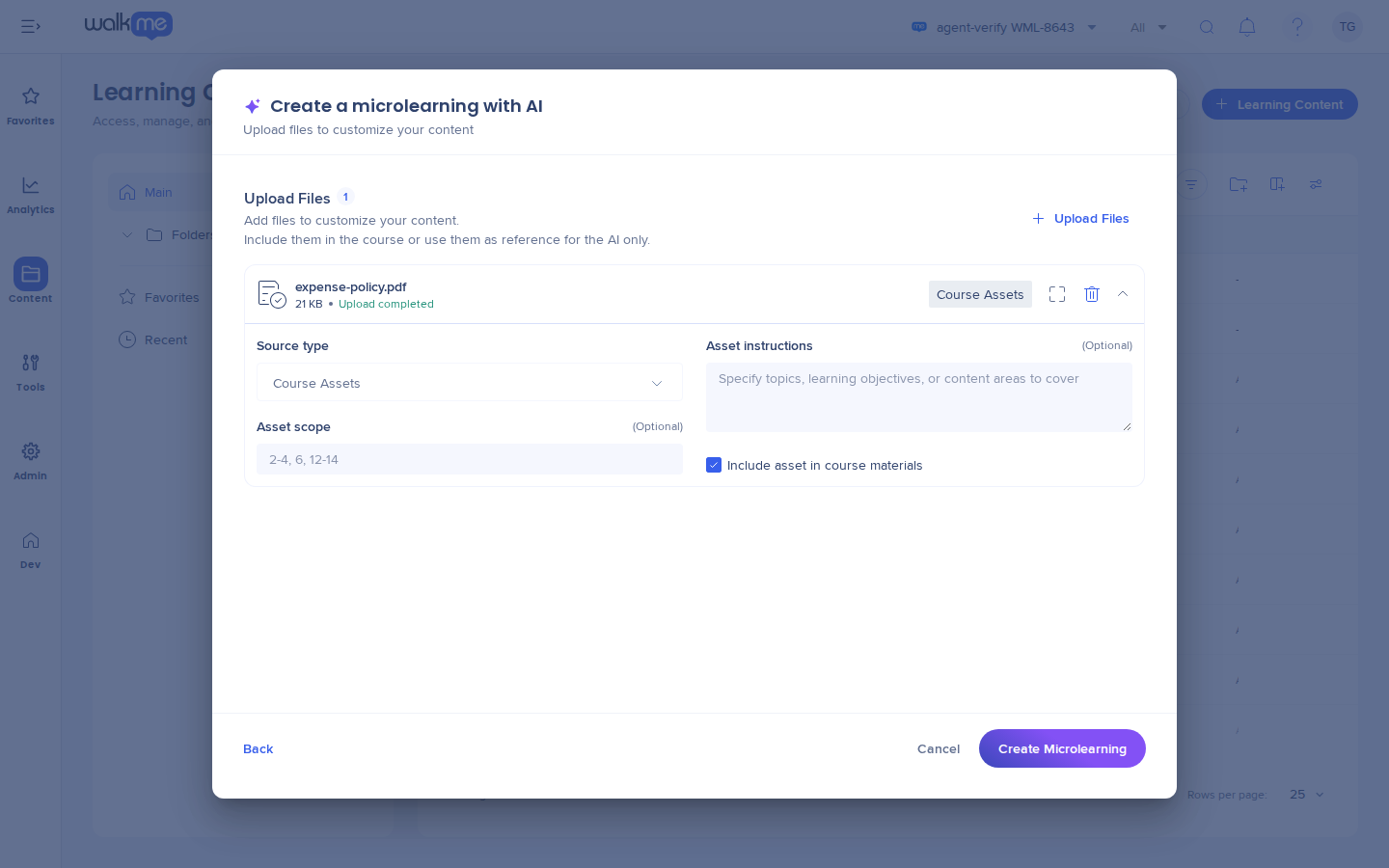
Asset scope and Include asset in course materials show for documents like PDF files, not for text files.
Create the microlearning
- Select Create Microlearning
The AI shows its progress while it works. You can select Close and keep working in the meantime.
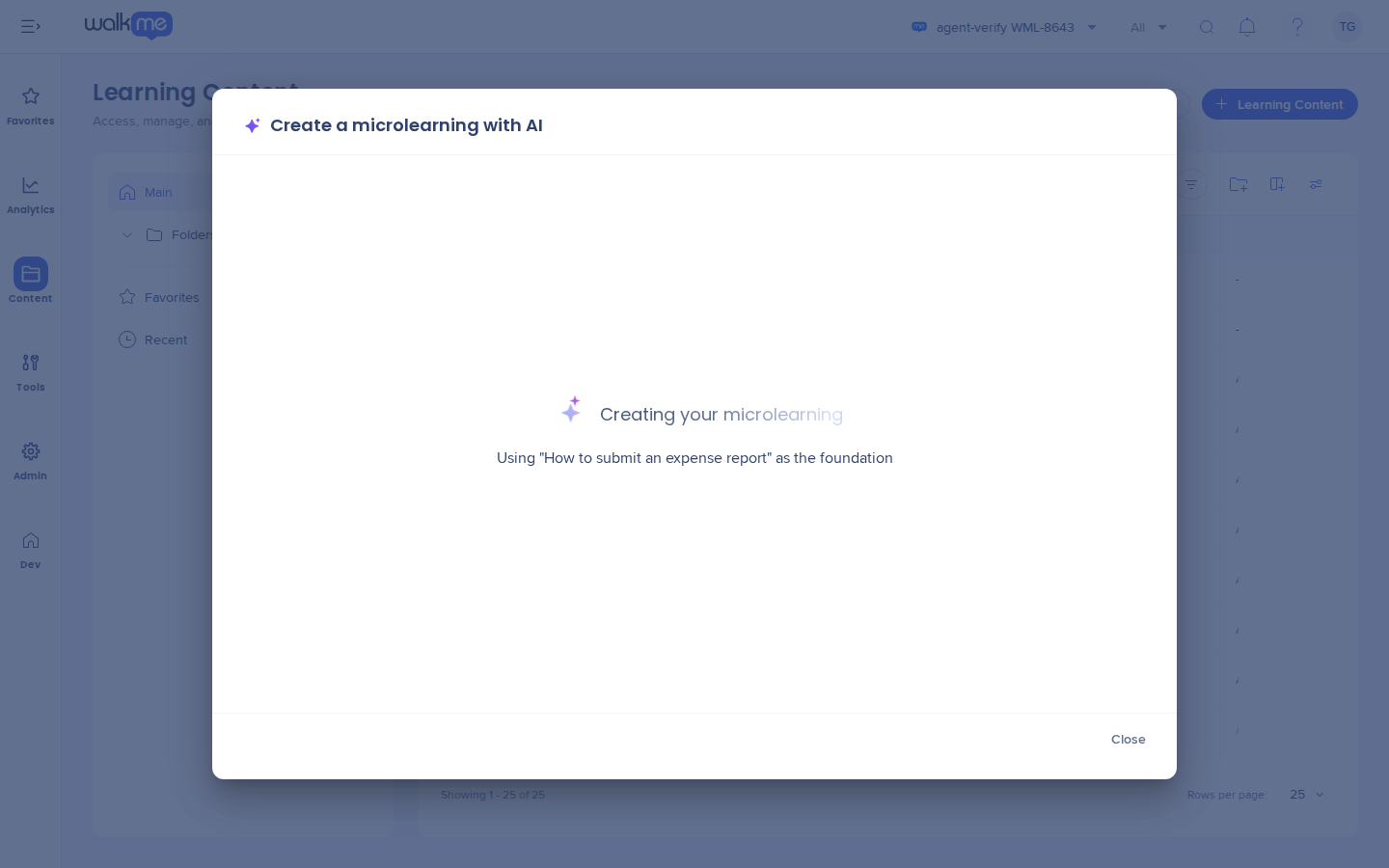
When it's ready, the microlearning opens in the builder, where you can edit, rearrange, or remove anything before you publish.
Note
- The AI writes in the microlearning's source language, even when your files are in another language
- The AI creates 1 lesson with a few short topics. If you selected Self checks, it adds a self check to the lesson
Technical Notes
Limitations
- Microlearnings created with AI include self checks only. Quizzes aren't available
- The AI creates a single lesson. To create more than 1 lesson, create a course with AI instead
Create a Course with AI
AI features
- AI features are on by default. To turn them off for your account, reach out to your Customer Success Manager or WalkMe contact
- WalkMe uses Google and OpenAI models for AI features in WalkMe Learning Arc. WalkMe may change the model vendor to improve the performance and quality of the service
Required permissions
For details, refer to the Roles & Permissions article.
WalkMe Learning Arc Roles & Permissions


