Brief Overview
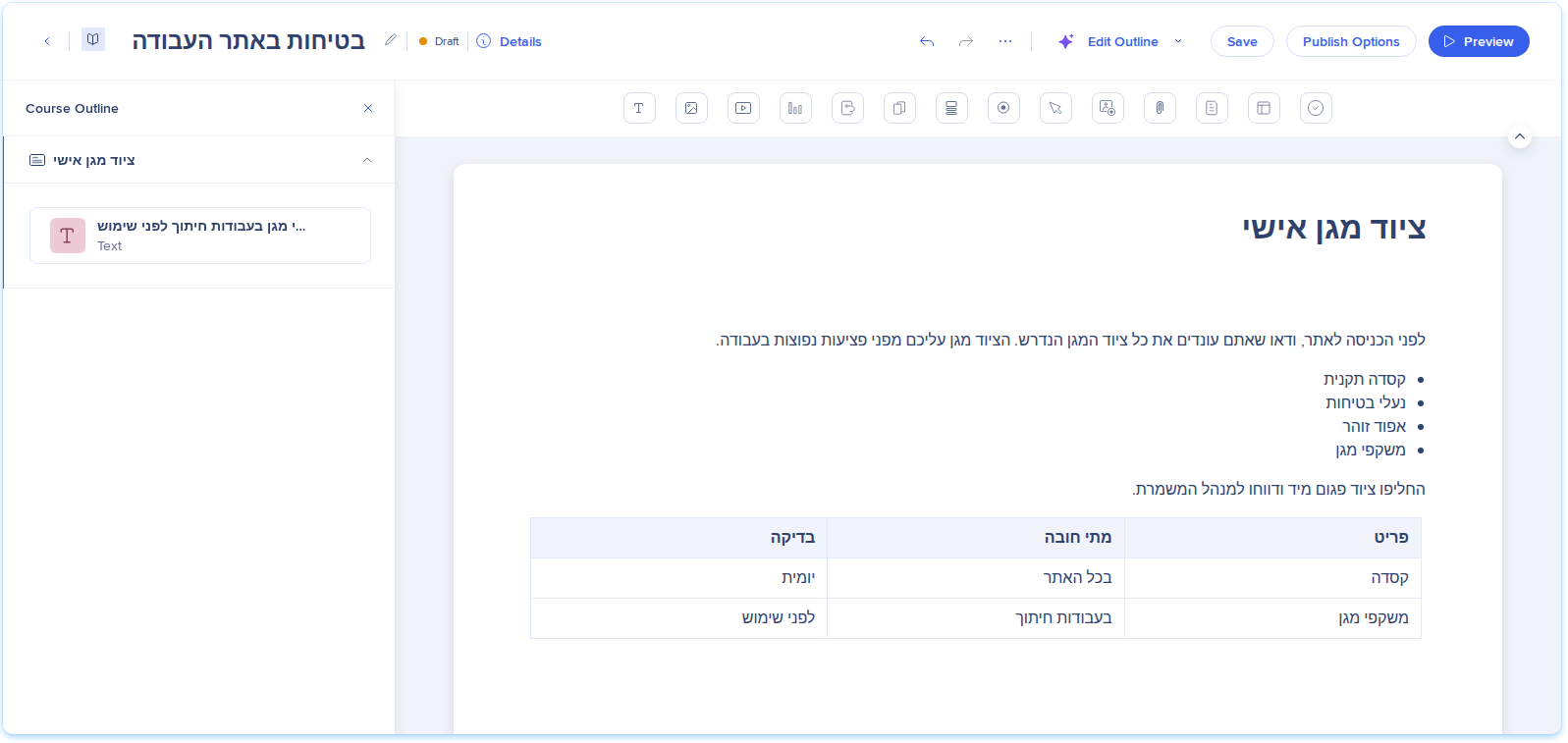
WalkMe Learning Arc supports right-to-left (RTL) languages in learning content. When the language of a course, or of one of its translations, is an RTL language, the editor, preview, portal, and PDF exports show the content right to left. Text starts on the right, list bullets and numbers move to the right, and tables are mirrored.
In the Text element, you can also set the direction of a single block manually, for example an English paragraph inside a Hebrew course.
Access
RTL support has no page of its own. It applies automatically when the source language of a learning item, or a translation added in its Translations tab, is an RTL language.
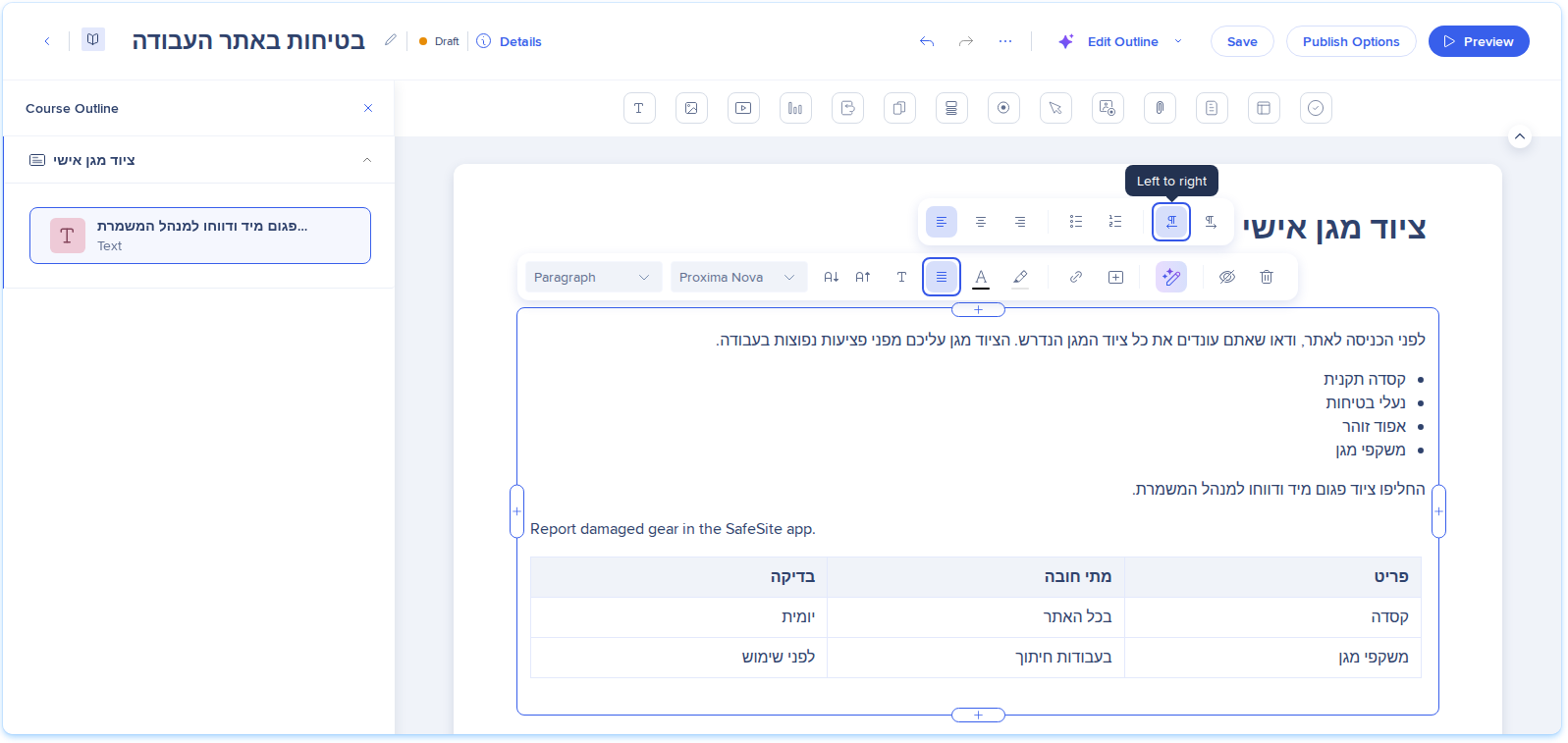
To set the direction of a single block manually, open a Text element in the editor and select Structure in its toolbar.
How It Works
Learning Arc sets the direction from the language of each version, so a course and its translations can each read in their own direction. You can override the direction for individual text blocks.
RTL languages
Learning Arc treats these languages as right to left:
- Arabic, including regional variants like Arabic (Egypt)
- Hebrew
- Persian (Farsi)
- Urdu
Every other language stays left to right, including other languages written in an RTL script.
RTL in the editor
The editor takes the direction from the language of the version you edit:
- RTL source language: A course whose source language is Arabic, Hebrew, Persian, or Urdu opens right to left
- RTL translation: An RTL language you add in the Translations tab opens right to left, while the source version keeps its own direction
- Changed source language: If you change the source language of an existing course to an RTL language, its pages open right to left
In an RTL version, these follow the course direction:
- The course title, course description, and page and lesson titles on the page
- Text, headings, bullet and numbered lists (bullets and numbers on the right), and tables (first column on the right)
- Panels and quotes, with the accent bar on the right
- Quiz, self-check, and pre-assessment questions and answers, with the selector on the right
- Flip cards, accordions, tabs, and hotspot popups
- Video and screen recording titles. Player controls stay left to right
- Content you generate with AI inside the course, like a lesson, quiz, accordion, or flash cards
The editor toolbar, side panels, menus, and popups stay left to right.
Note
Hebrew or Arabic typed into an English course stays left to right. To show 1 block right to left there, set its direction in the Text element.
Tip
Alignment follows the text direction. If you change the direction of a block aligned left or right, its text moves to the other side. Centered text stays centered.
RTL in the side-by-side translator
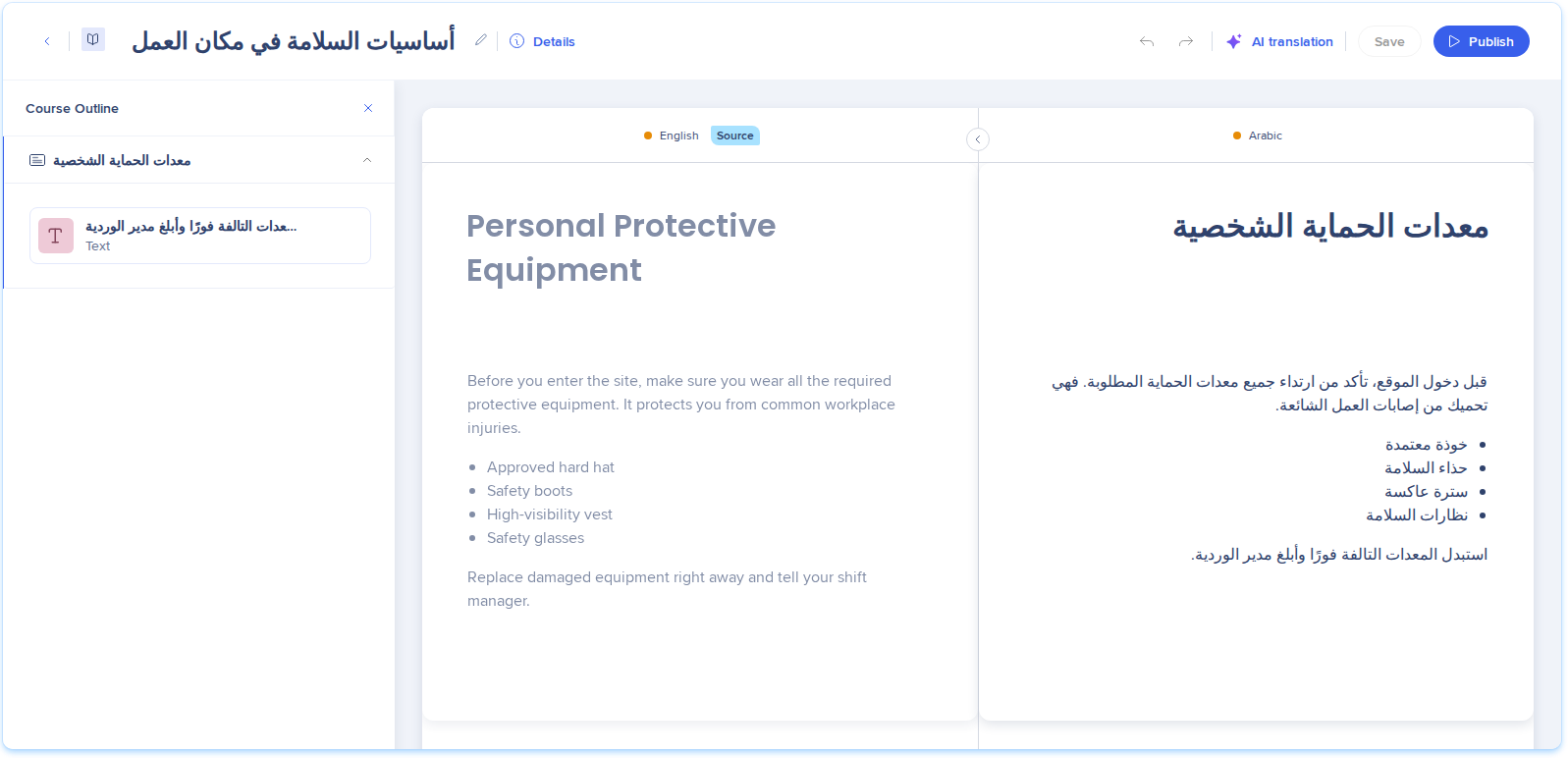
In the side-by-side translator, each panel uses the direction of its own language. For example, an English source shows left to right and its Arabic translation shows right to left. Elements in both panels stay aligned row by row.
You can set the direction of a block in the translation panel from the Text element toolbar. Only that block changes. For more on translating, refer to the following article: Translate Learning Content
Set the direction of a text block
Set the direction of a single block in a Text element, for example an English product name in an Arabic course or an Arabic paragraph in an English course.
- Select the Text element and place the cursor in the block
- Select Structure in the toolbar
- Select Right to left or Left to right
- Select Save
The direction applies to:
- Paragraphs, headings, code blocks, panels, and preformatted text
- In a list, the list item under the cursor. To flip the whole list, select every item
- Every block in a selection, when you select several blocks
The button for the current direction is highlighted. A direction you set manually stays after you save and reload. To undo it, press Ctrl+Z (⌘+Z on Mac).
Note
Learners see a direction change after you publish the course again.
RTL in the portal
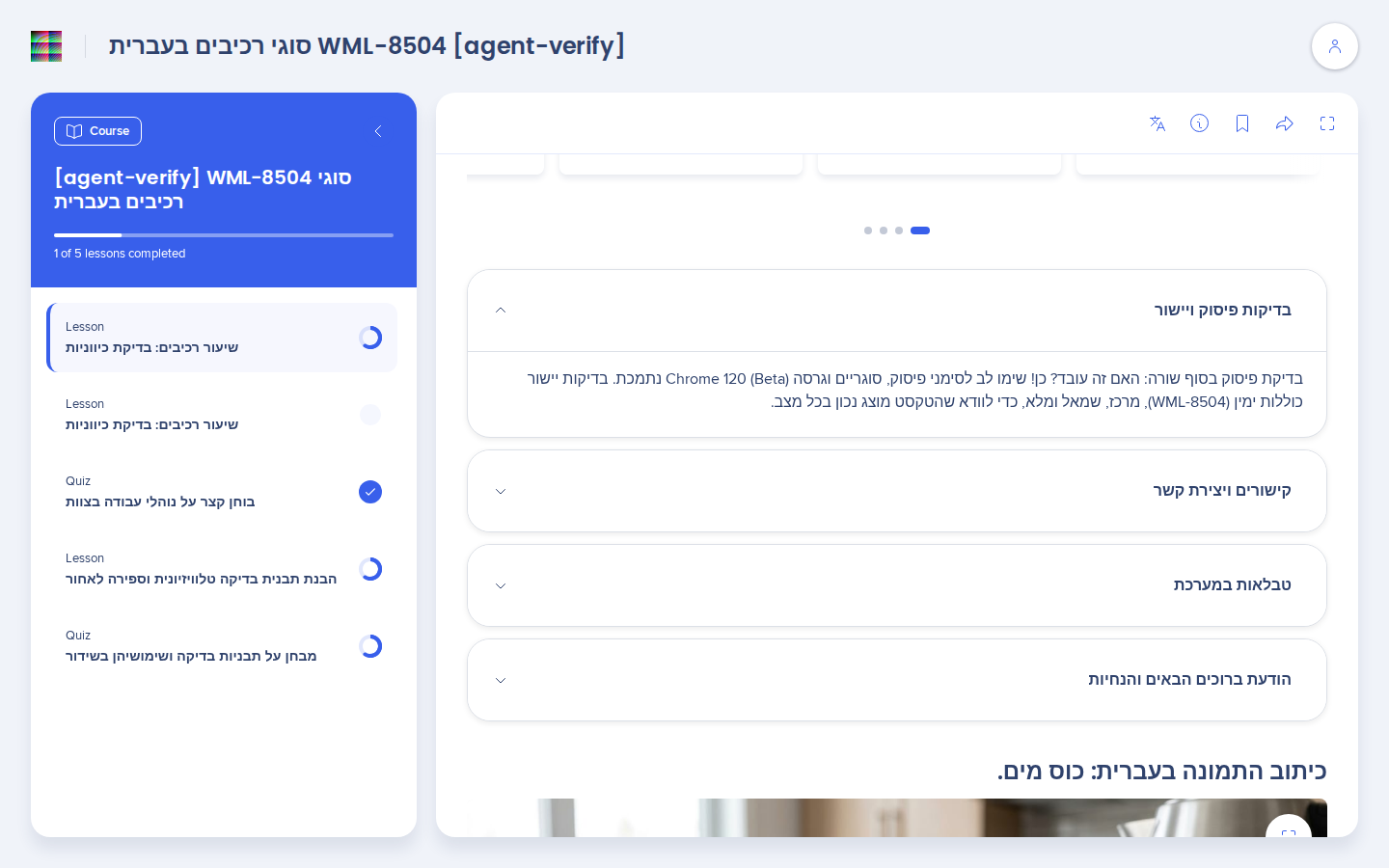
When a learner opens a published RTL version, the portal shows it as it looks in the editor: text right to left, lists and tables mirrored, and blocks set manually keep their direction. The course title, the About text, and the Hero card title are right-aligned.
Portal menus, buttons, and the progress bar stay left to right.
RTL in exports
When the Export language of a PDF export is an RTL language, the whole document reads right to left:
- Text, lists, and tables start on the right
- Two-column groups, the cover page, and the table of contents are mirrored
- With header and footer on, the header and footer sides swap and the page number moves to the mirrored side
- Images and screenshots aren't mirrored
- Labels like the page count stay in your Console language
For a course with an RTL translation, the export language decides the direction: the Arabic export is right to left and the English export is left to right. In a left-to-right export, a paragraph you set to right to left manually stays right to left.
Manage and Publish Learning Content
Technical Notes
Required permissions
WalkMe Learning Arc Roles & Permissions
Limitations
- In every RTL language, courses translated in real time open left to right in the portal. Only translations an author adds and publishes show right to left.
- Lesson titles in the portal and preview sidebar, in the info dialog Content list, and in the Course Outline panel of the editor stay left to right. A long title is cut at its start
- Portal search shows the search bar and the result cards left to right
- The AI drawer shows suggestions such as Elaborate, Shorten, Rephrase, and Bullet list left to right. After you replace the element, the text shows right to left in the editor
- Direction buttons are available only in the Text element
- Titles, questions, answers, and interactive elements follow the course language, and you can't set their direction manually
- Notification emails show the course title in a left-to-right template, so punctuation in a title that mixes RTL and English text can show on the wrong side
- Certificates, SCORM export, and the standalone simulation export are not mirrored
- Audio mode does not support RTL languages


