WalkMe's Contextual AI Suite is a collection of AI-enabled adoption features. They use on-screen context to give you more ways to address friction and deliver impact for your users and your organization.
Contextual AI features are included in the WalkMe license, but customers must have WalkMe AI Terms or SAP AI Terms in place to use them. To get your AI Terms signed, reach out to your WalkMe account team.
Contextual AI assistance is delivered across applications in three ways:
Pinned: Attaches AI assistance to specific elements or workflow steps, so users get the right information or support at the exact moment of need.
Proactive: Surfaces suggested actions and guidance in the Action Bar, triggered by on-screen context when builder-defined conditions are met.
On-Demand: Gives users access to AI assistance and company resources through AI Chat, available from the WalkMe Menu or the Action Bar.
Pinned AI
AI SmartTips
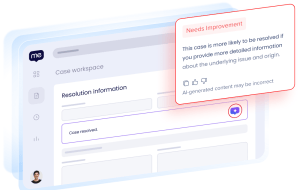
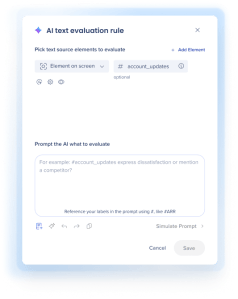
Best for: Improving the data quality and compliance of open-text form fields by using WalkMe AI to evaluate user inputs in real time and offer revisions.
When to use it: Any open-text field where the quality of the input matters, either because it feeds an audit trail or compliance review, or because vague input creates rework downstream.
Delivery instructions on manufacturing orders (ERP)
Instructions like "leave at dock" are too vague for the warehouse to act on, which causes delays and misdeliveries.
The validation rule requires a specific location, contact, and building access details. AI SmartTips flags vague instructions and suggests a complete version the warehouse can act on.
Insurance claims documentation (insurance)
Submitters often leave out a clear, specific reason for coverage review. If an auditor reviews the claim later, the record can't show why the claim went to review, which exposes the organization to compliance findings.
Checks the claim description in real time against company policy and flags entries that don't state what needs review and why, so claims route faster and comply with policy.
Incident and safety reports (EHS)
Employees submit incomplete accounts of what happened or what contributed to it. During a regulatory audit, these gaps leave the organization unable to demonstrate proper recordkeeping or root-cause analysis.
The validation rule defines a complete report: what happened, when, and the contributing factors. The AI SmartTip flags when reports are missing required details and suggests revisions before the reporter submits, so incident and safety reports are compliant, minimizing risk if audited.
Loan or credit exception requests (banking)
Reps submit vague justifications for underwriting exceptions. In a heavily audited process, an exception without a documented rationale becomes a compliance finding waiting to happen.
Evaluates each justification against the organization's exception criteria and lending policy, attached as knowledge sources, so the AI SmartTip compares the user input against actual company policy.
Travel and expense requests
Requests arrive with thin justification, and approvers sign off anyway. If an auditor questions the expense later, the organization has no documented business reason to point to.
Checks the business justification against the organization's travel and expense policy, attached as a knowledge source. Requesters fix gaps before the request reaches an approver.
Discount requests (CRM)
Discount requests are often vague or incomplete, leading to back-and-forth with Deal Desk and delayed approvals.
Evaluates discount justifications in real time, compares them to organizational pricing policies, and provides immediate, contextual guidance so reps submit a complete request the first time.
System access requests (ITSM)
Requests often lack a sufficient business justification. During a security or compliance audit, the organization can't show why a user received access, which creates audit findings and security risk.
Checks the business justification against the organization's policy, attached as a knowledge source. Flags weak justifications and suggests revisions before the request is submitted.
Leave requests (HCM)
Employees submit requests without the information HR policy requires, which stalls processing and forces follow-up.
AI SmartTips checks the request against the required details, with the leave policy attached as a knowledge source. Employees add what's missing before they submit.
Smart Highlights
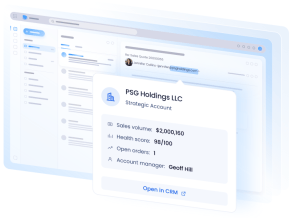
Best for: Surfacing live data from connected systems so users don't have to switch tabs to look it up.
When to use it: Workflows where users constantly switch tabs to look up data in systems that Smart Highlights supports. For a list of supported systems, see Smart Highlights.
CRM account snapshot visibility: While reading an email, Slack message, Jira ticket, or ServiceNow ticket, hover over a company name to instantly see the account's key details (for example, ARR, renewal date, health score), so at-risk accounts that need immediate attention are visible without needing to check Salesforce or SAP Sales Cloud.
Real-time ticket and case tracking: Hover over a ticket number (for example, INC0012345 or PROJ-123) in an email or Slack to see a customer's current ServiceNow or Jira ticket status, priority, assignee, and SLA due date. Customer-facing teams and support agents get an instant status update on a technical issue or customer case, without switching tabs.
Procurement and invoice reviews: Hover over a purchase order or invoice number in email or Slack to see the fulfillment status, total value, and expected delivery date, so procurement teams can check where an order or invoice stands without logging into Ariba or S/4HANA.
Employee profile context: While reading an email, SuccessFactors data (role, manager, department, location) appears, so employees can quickly confirm who someone is and who they report to without having to look it up.
Proactive AI
Action Bar
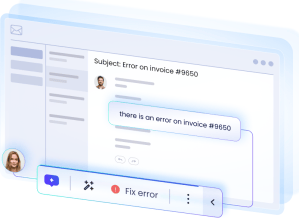
The Action Bar is the evolution of the WalkMe widget. It gives users one persistent place to access guidance, resources, and suggested actions.
When AI is turned on, the Action Bar can:
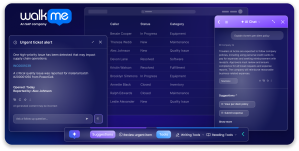
Use on-screen context to proactively surface relevant actions or guidance through AI Launchers or other WalkMe content, like Smart Walk-Thrus.
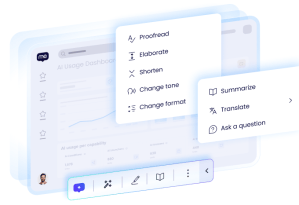
Give users built-in generative AI tools to proofread, summarize, and translate text. Users can also save their own reusable prompts as custom actions, so they can run frequent tasks in one click without leaving the page.
Best for: Giving users an accessible assistant that uses on-screen context to surface the next best step, guidance, or AI action, plus out-of-the-box reading, writing, and quick action tools they can use whenever needed.
When to use it: For guidance that is relevant to the page or spans a workflow, not guidance tied to one element.
These categories often overlap. For example, a single use case can flag a risk and move data between systems. A good rule of thumb: whenever an important signal appears on screen, AI Conditions and AI Launchers can work together to surface the right guidance or next step in the Action Bar.
Flagging risk signals and recommending a next step: When a risk signal appears on screen, like an urgent ticket, a deal at risk, a forecast date that no longer matches the record, or a benefits enrollment deadline about to lapse, an AI Condition detects it and surfaces the next step in the Action Bar before anyone misses it. That step can be a Smart Walk-Thru that guides users through what to do, or an AI Launcher that drafts a response users can insert into the right field with one click.
Catching errors so users don't have to: Before users advance an opportunity stage, submit an expense report or purchase order, or finalize a regulatory disclosure, an AI Condition checks what they entered against builder-defined criteria. If something is missing or incorrect, the Action Bar surfaces an AI Launcher that explains the fix or drafts the correction, so users can insert it into the right field with one click.
Turning cryptic error messages into a clear fix: When a system returns a technical validation error that doesn't say what went wrong or how to fix it, an AI Launcher appears in the Action Bar. When the user selects it, the AI Launcher reads the error message on screen together with what the user entered. Using company policy attached as a knowledge source, it explains the problem in plain language and tells the user what to change.
Using information from one system in another: When work in one system depends on information that lives in another, like case details that shape a downstream assessment or candidate details needed to set up an HR profile, a Launcher in the Action Bar starts a Smart Walk-Thru with an AI Action step. The AI Action reads the source information on screen, then summarizes or restructures it for the target system. The Smart Walk-Thru brings it into that system for the user to review before saving.
Tips
To make an error or risk stand out in the Action Bar, set the AI Launcher's display type to Alert. This adds a red dot that draws the user's attention.
When more than one next step could apply, use an AI-Selected Launcher. The AI reads the on-screen context and suggests the most relevant actions from the WalkMe content you choose.
Pinned and Proactive AI
AI Launchers
Launchers are unique among WalkMe content types because they can live in two places: pinned directly next to the element they relate to, or surfaced proactively in the Action Bar. Use a Launcher next to an element when it's only relevant to a particular element. For example, a Launcher next to a complex form field that needs the same explanation every time.
Use the Action Bar when a Launcher should surface based on a broader on-screen signal, unrelated to any one element. For example, surfacing a Launcher only when a support agent opens a ticket where the customer mentions canceling, regardless of which element they're looking at.
Best for: Giving users a consistent, AI-generated response at the right step in their workflow, without needing to write a prompt. Builders define the prompt once, and the AI Launcher applies it to on-screen context each time, using a knowledge source as a reference if one is attached. It can summarize what's on screen, draft an email, check entries against set criteria, analyze data, or suggest next steps. Users can insert, refine, or copy the response, so they always start from a strong baseline instead of a blank field.
When to use it: For tasks that follow a consistent pattern and come up at the same point in a workflow, like summarizing something on screen, drafting a response, or generating a status report. Use an AI Launcher when a builder-written prompt in the flow of work can save users time and keep the output reliable, instead of each user writing prompts of varying quality.
Drafting personalized outreach in a CRM: Personalizing every customer and prospect email means scanning the contact's history and deal details before typing a word. An AI Launcher next to the Compose Email or Log Activity field can generate a draft using the details on the contact record, so the rep can review and send.
Flagging risk signals and recommending a next step: When a risk signal appears on screen, like an urgent ticket, an incorrect expense report or purchase order, a deal at risk, or a benefits enrollment deadline about to lapse, an AI Launcher can surface the next step automatically, before anyone misses it. That step can be a Smart Walk-Thru that guides users through the fix, or an AI Action that drafts the correction so users can insert it into the right field with one click.
Summarizing support tickets for handoff: When a ticket moves between reps or teams, the new owner has to read through the full history to get up to speed. An AI Launcher next to the ticket's activity feed can generate a summary at the point of handoff, so nothing gets lost in the transition.
Suggesting the next step to keep a workflow moving: For workflows like deal progression, account planning, onboarding, or purchase approvals, an AI Launcher can proactively surface what to do next.
Preparing executive business reviews: Pulling together an EBR deck manually means digging through account history, usage data, and past notes. An AI Launcher next to the account summary or health-score panel can generate a draft summary of account health and key talking points for the CSM to refine.
Validating information before users move forward: When users advance a deal stage, confirm handoff readiness, or submit expense reports, order forms, or regulatory disclosures, an AI Launcher checks the on-screen information against builder-defined criteria and prompts a fix.
Tip
An AI Launcher can run on its own, or as an AI Action step in a Smart Walk-Thru. As an AI Action step, it can save its output as WalkMe Data so later steps can act on it.
For example, when users must pick a category or code from hundreds of options, an AI Action step can read the item description and suggest the closest matches from a list attached as a knowledge source. The next step then fills in the user's choice, and WalkMe can verify the selection when they submit. The step combines what used to be a separate Action step and Set WalkMe Data step into one.
Builders can use AI Conditions for a range of rule types. For the full list of supported content types, see AI Conditions.
Best for: Triggering guidance when what matters is what someone meant, not the exact words they used, especially when phrasing varies by writer, region, or language.
When to use it: Any situation where the guidance you want to trigger depends on the meaning of what someone wrote, not a fixed set of keywords, especially when the phrasing is unpredictable or varies by writer, region, or language.
Also use AI Conditions to replace Display Conditions that have grown too complex to maintain. Builders can upgrade an existing condition to an AI Condition with a natural-language description, cutting the ongoing work of writing and updating rules for every possible variation.
Security or data-breach detection in incident reports
Users describe breaches in their own words: "someone got into my account," "my password leaked," "unauthorized login from another IP." No shared keyword links these reports, so keyword rules can't reliably catch them.
Evaluates whether the ticket text describes a security breach and surfaces a Launcher that redirects the user to the dedicated security incident form.
Competitor mentioned in a CRM note
Reps reference competitors in many ways, from product names to "their current vendor" or "the other options." Keyword matching needs every name and phrasing defined in advance, and reps end up searching for battlecards on their own.
Evaluates whether a CRM note mentions a competitor and surfaces a Launcher with the relevant battlecard right in context.
Frustrated or urgent tone detection in help desk tickets
Frustration and urgency come through in tone, not specific words, which keyword rules can't evaluate.
Evaluates the tone of the ticket and, when it reads as frustrated or urgent, surfaces a Launcher or SmartTip that reassures the customer on expected response times.
Tip
Use AI Conditions even when you can list the exact keywords or values. Describing the rule in plain language takes less time than defining every value by keyword.
Builders can also instruct the AI to include translations for defined phrases, so the set of rules is supported in multiple languages.
On-Demand AI
AI Chat
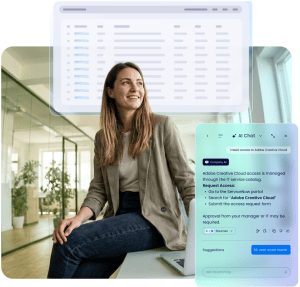
AI Chat gives users one conversational place to find information and get answers to their questions. It brings ActionBot, Company AI, and General AI together in a single interface and routes each question to the best-suited assistant. Company AI integrates with company-specific knowledge sources, so answers are grounded in the organization's policies and procedures. Admins manage which assistants appear in AI Chat from the WalkMe Console.
Best for: Giving users a conversational interface to ask questions in their own words and get answers grounded in company knowledge, on demand.
When to use it: Any time a user needs an answer that lives in company policies, procedures, or documentation they'd otherwise have to search for, ask a colleague about, or open a ticket to get.
Simple questions about gift policies, SLAs, error codes, or vacation rules turn into unnecessary tickets.
Answers the question on the spot from company knowledge sources, so reps, support agents, and employees get what they need without opening a ticket.
Taking action after an answer in chat
Users get an answer, then have to leave the conversation to find the tool or process that acts on it.
AI Chat can surface the matching action directly in the chat: launching a Smart Walk-Thru, triggering ActionBot, or opening a tool like ServiceNow.
Multi-step troubleshooting instead of one-off answers
Issues with several dependent settings turn into a string of separate searches or tickets, with users re-explaining their situation every time.
Keeps the conversation's context, so each follow-up question builds on the last and users work through the issue in one thread.
Tip
Use AI Chat when a user wants an answer rather than a guided path. Users can hold a real back-and-forth conversation, so each follow-up question builds on the last one instead of starting over.
Publish relevant Smart Walk-Thrus to the Menu with clear descriptions, and AI Chat can recommend them in its answers.
How to get started
WalkMe's Contextual AI features provide different ways of delivering the same underlying capability: WalkMe's AI reads on-screen context and responds in real time, whether that means validating data quality in an open-text field, flagging a signal before the user thinks to look for help, or answering a question the moment it's asked. When deciding when to use Contextual AI in a workflow, think about two things:
Existing WalkMe builds where adding Contextual AI to the experience can create even more value and reduce maintenance work. For example:
Upgrade a regular SmartTip to an AI SmartTip to improve the data quality and compliance of open-text fields in real time. Connect internal company documentation to the AI Knowledge Sources page to ground AI SmartTip responses in your company's policies.
Update a Display Condition to an AI Condition by writing a natural-language description, so you no longer have to write and maintain a rule for every possible variation.
Friction that you haven't been able to resolve yet. For example:
Use the AI-enabled Action Bar to proactively surface the next best action the moment an important risk signal appears on screen, so the problem doesn't go unnoticed or get ignored until it turns into rework.
Add an AI Action step to a Smart Walk-Thru to process on-screen data within a workflow, such as recommending the right value from a long list or carrying information from one system into another.
Some WalkMe AI features change how existing Menu and widget settings behave. Review this section before you turn on AI on a system that already has content live in production. As a best practice, turn on AI features in a test environment first, and validate your existing ActionBots, Menu, and widget there before you publish to production.
An account admin first turns on AI for the account in the WalkMe Console. The admin then turns on AI for each system that will use it, and chooses which AI features are available on each system.
What changes when you turn on AI features
AI feature
Prerequisite or setting change
What it can affect
How to avoid impact
AI Chat
Requires switching the WalkMe Menu to the Pro Menu
If an ActionBot uses the legacy UI, its existing conversations get a refreshed UI
Test the Pro Menu switch in a test environment and validate ActionBot appearance
Action Bar
Turning on the Action Bar activates the Pro Menu
If you have a legacy Menu published, the Pro Menu becomes visible to users
Review Menu content before turning on the Action Bar
AI Answers knowledge sources
Content uploaded to the AI Center
No impact on existing content. Affects only AI Chat responses and the output of any AI prompt that references these knowledge sources.
Review which sources are connected before go-live
Checklist
Make sure a test environment is available
Agree on a rollback owner and plan before you publish global settings
Note your current Menu type (Legacy or Pro) for each system where you want to turn on AI Chat
In the Console, select the systems where AI Chat and the Action Bar are available to users
Recommended rollout sequence
Publishing global settings applies changes to all users of that environment, so follow this sequence:
Validate in a test environment
Roll out to a limited segment
Publish to all of production
If something stops working
Use Version History to revert the Menu or widget setting you changed, and re-publish global settings.
Confirm in the test environment that the affected content works again.