Brief Overview
Use the accordion element to present layered content that learners open one section at a time. Each section has a title learners always see and content that shows when they expand it. Accordions keep dense material manageable, so learners move through it at their own pace.

Use Cases
- Break a step-by-step process into sections learners open in order
- Present policy or reference material without overwhelming the page
- Group related details under titles learners can scan first
Add an Accordion
- Drag the accordion element from the elements panel onto the canvas or a spot in the layers panel
- A new accordion starts with one empty section

Build the Sections
Each section has a header and body content. Body content supports text and images.
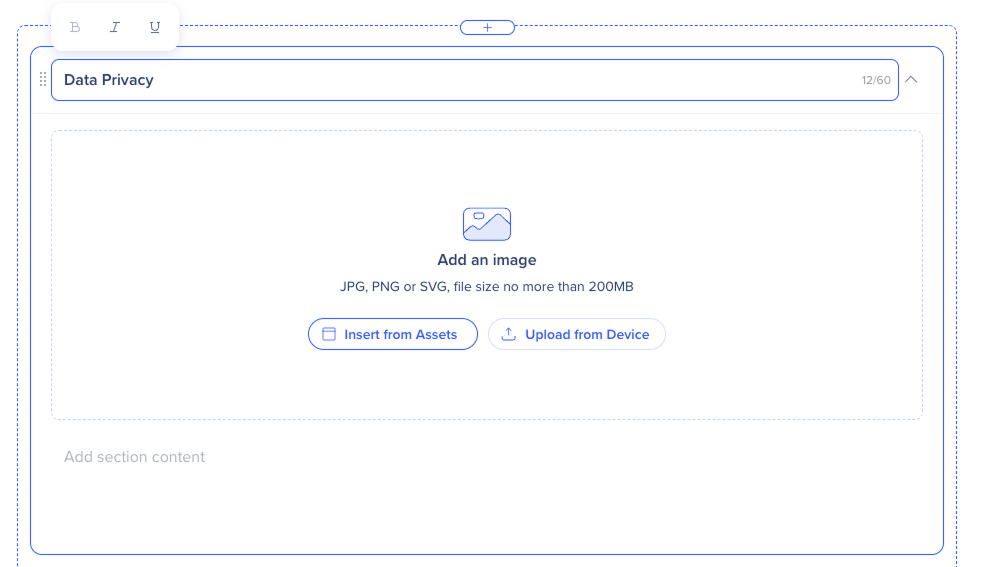
- Type a Section title
Use the formatting toolbar to style the section title:
- Bold: Make the selected text bold
- Italic: Italicize the selected text
- Underline: Underline the selected text
-
Select the section type from the dropdown:
-
- Text and Image: Show both an image and text
- Text: Show text only
- Image: Show an image and section title only

-
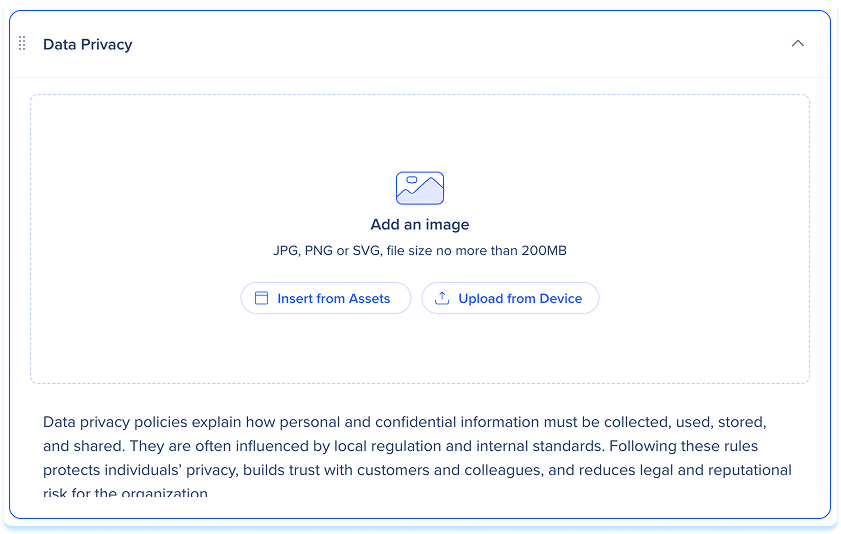
Add an image (for Text and Image or Image sections):
-
Insert from Assets: Select an image from your learning assets
-
Upload from Device: Choose a file from your computer
Note
Recommended aspect ratio: 3:1.
-
Select Add section content and type the section content
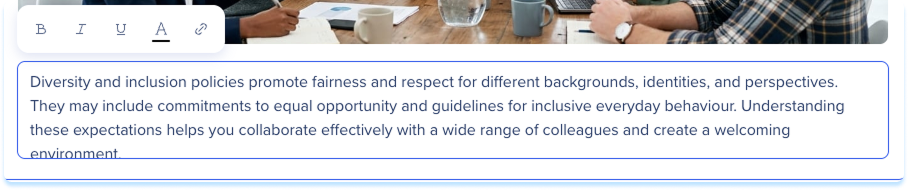
Use the formatting toolbar to style the section text:
-
Bold: Make the selected text bold
-
Italic: Italicize the selected text
-
Underline: Underline the selected text
-
Text color: Set the color of the selected text
-
Link: Add a hyperlink to the selected text
-
To add another section, select Add section
-
To reorder sections, drag them into the order you want

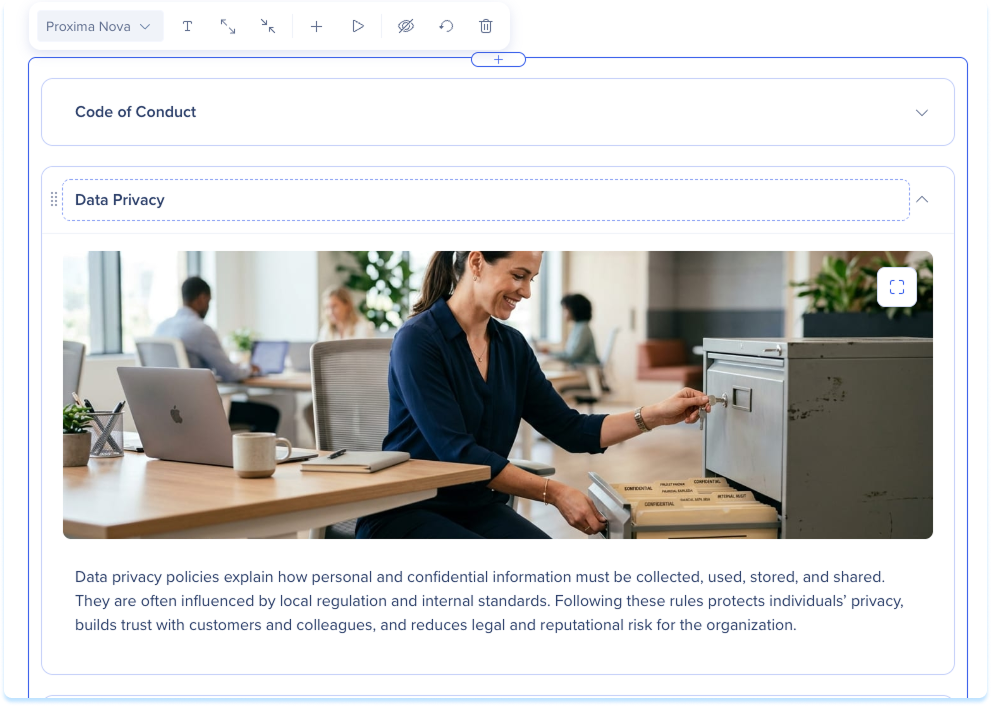
Select the accordion to show the toolbar:
- Font: Set the font for the accordion text
- Expand all: Open every section
- Collapse all: Close every section
- Add section: Add a section to the accordion
- Preview: Preview how the accordion works for learners
- Hide element: Keep the element hidden from learners but available in the background
- Reset element: Reset the element
- Delete: Remove the element from the lesson
Learner View
Learners see the sections collapsed and open them one at a time.

Technical Notes
- Accordions can have up to 6 sections


