Brief Overview
Content details control what learners see in the learning portal. You can update them at any point while building your content. They apply across all content types: courses, microlearning items, and learning journeys.
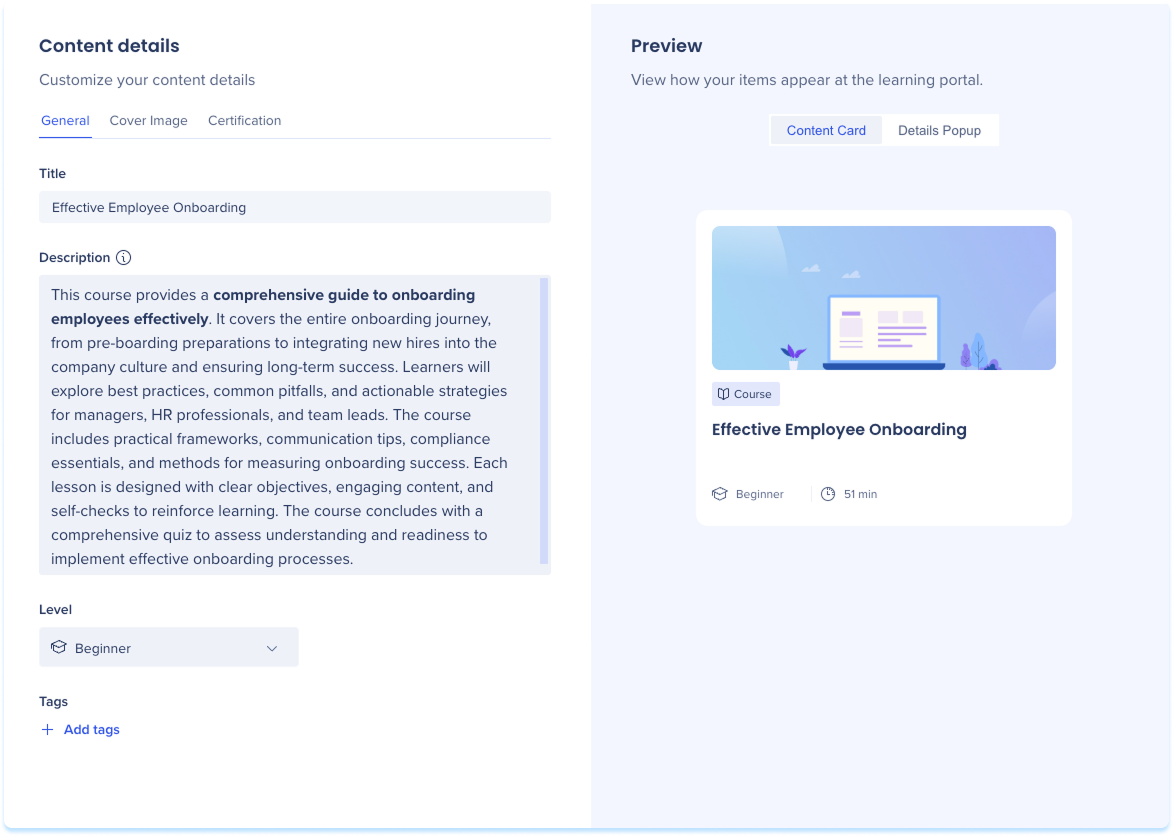
Access Content Details
Open your learning content in the builder
- Select Details from the top panel
- The Content details panel includes the following tabs:
- General
- Cover image
- Certifications
- Prerequisites (learning journeys only)
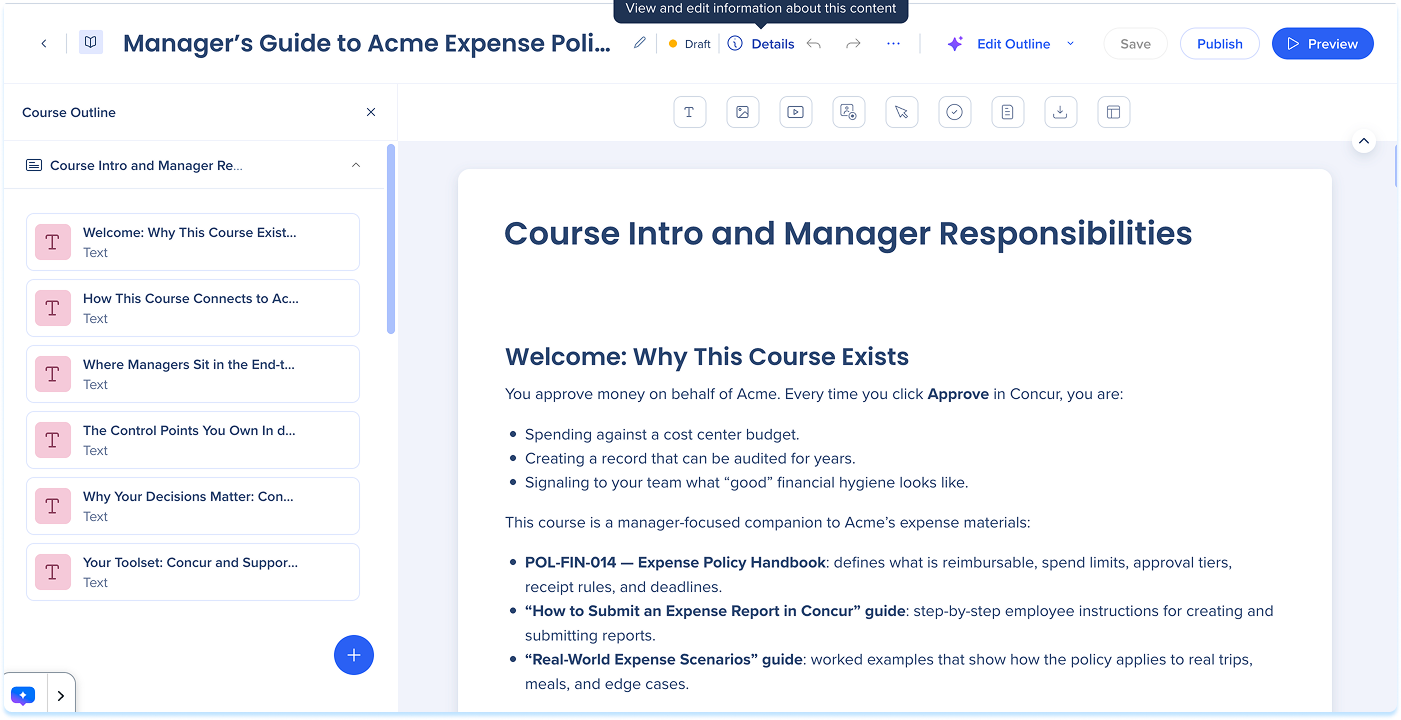
General Tab
Use the General tab to define core information for the learning content
- Select General
- Update the fields:
- Title: The name of the learning content
- Description: Introduce key concepts, explain fundamentals, and outline what learners will gain
- Level: Beginner, Intermediate, or Advanced
- Language: Select a source language for your content
- Tags: Keywords used to organize and surface the learning content
- Turn on Hide in portal to hide the course or microlearning from the portal as a standalone item, hidden content can only be accessed within a learning journey (optional)
Tip
Use the Preview panel on the right to review how the content appears to learners. Switch between Content Card and Details Popup to see both views.
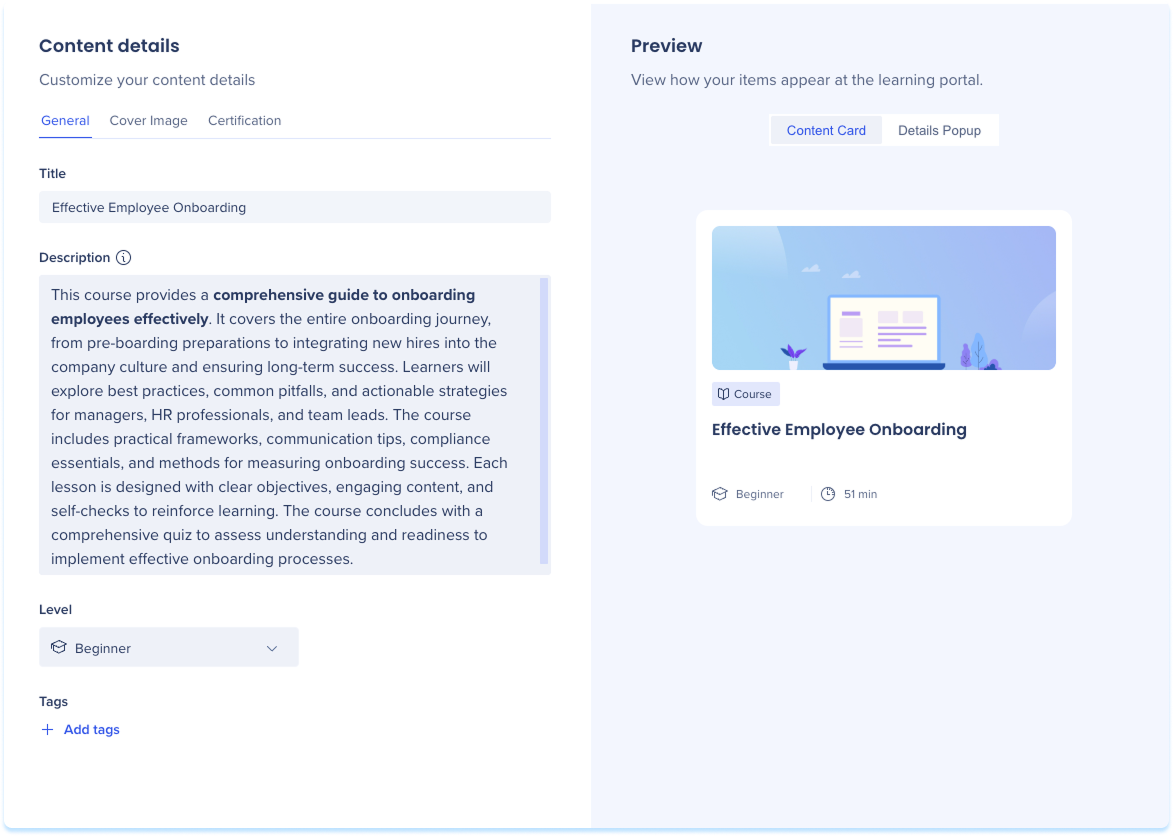
Cover Image Tab
Use the Cover image tab to manage the image displayed on the content card.
- Select Cover image
- Add or update an image:
- Select Insert from Assets
- Select Upload from Device
- Generate with AI
Image Element
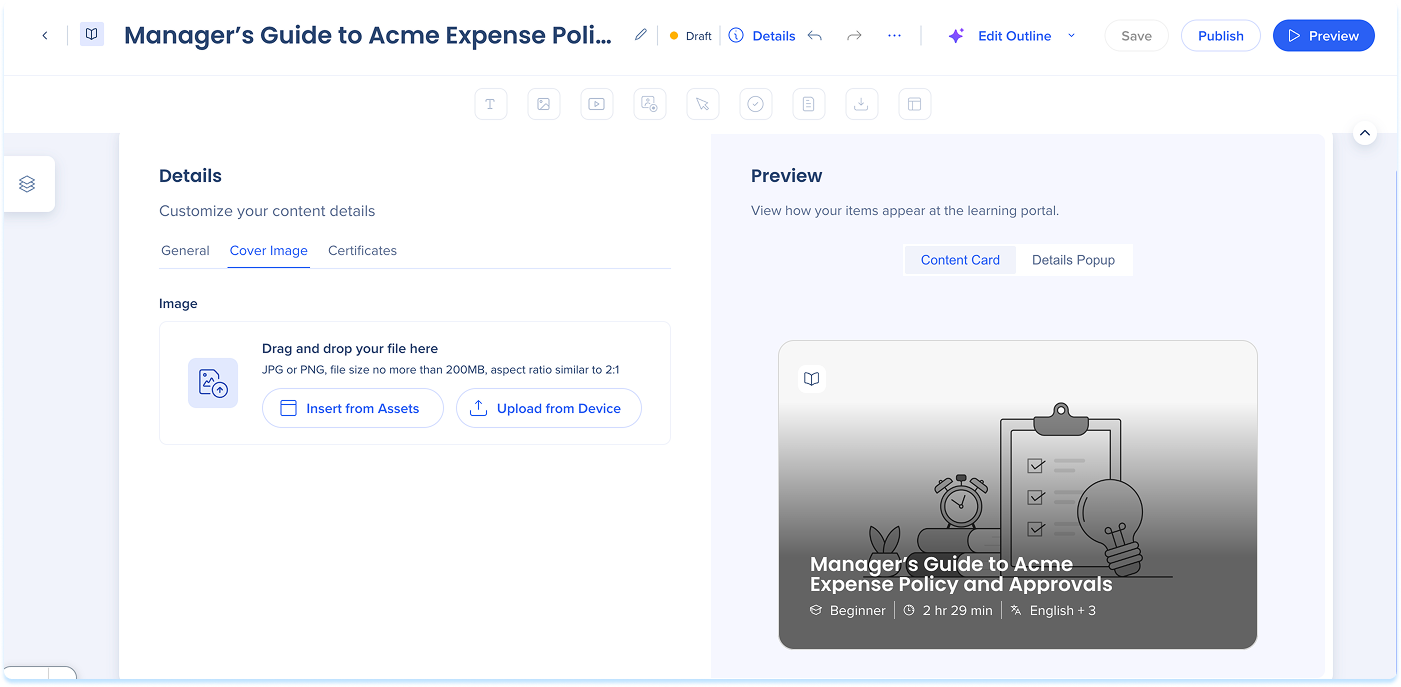
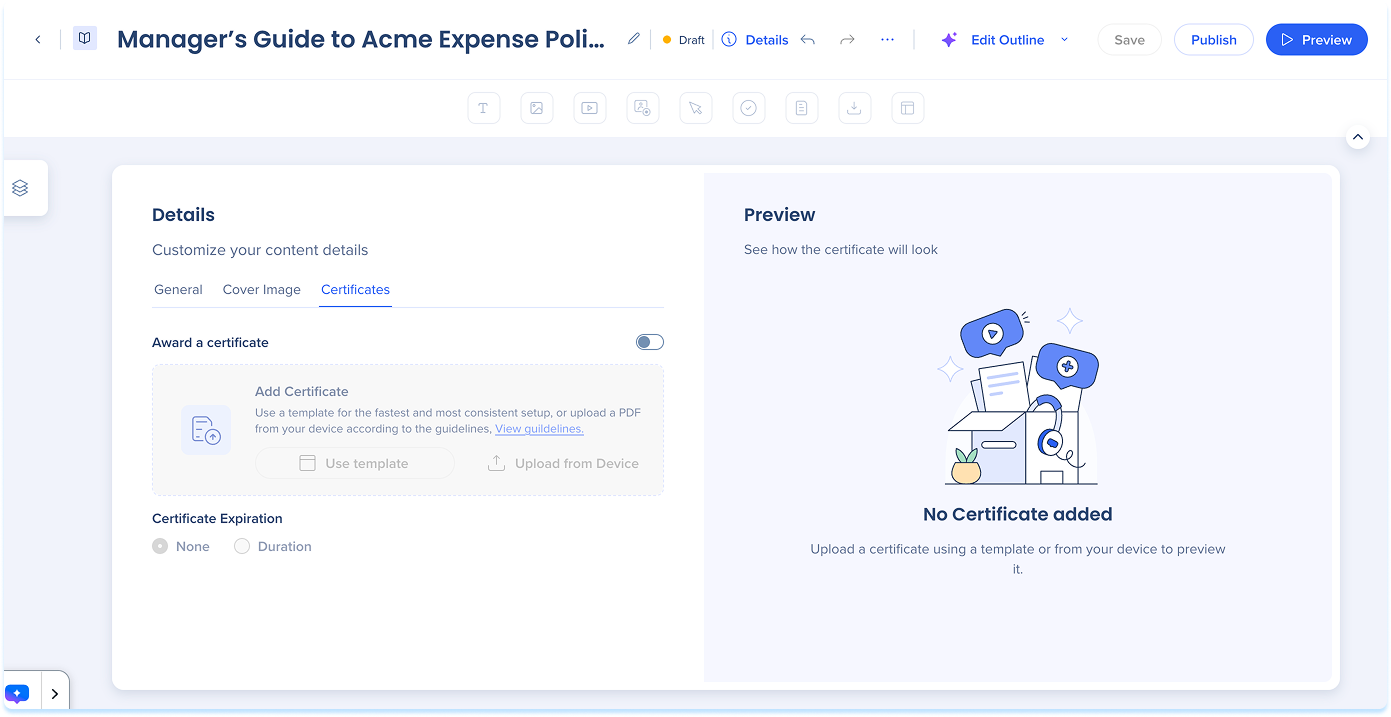
Certifications Tab
Configure certificates that learners receive after successfully completing the learning content.
- Select Certifications
- Configure certificate settings as needed (optional)
Certificates
Prerequisites Tab
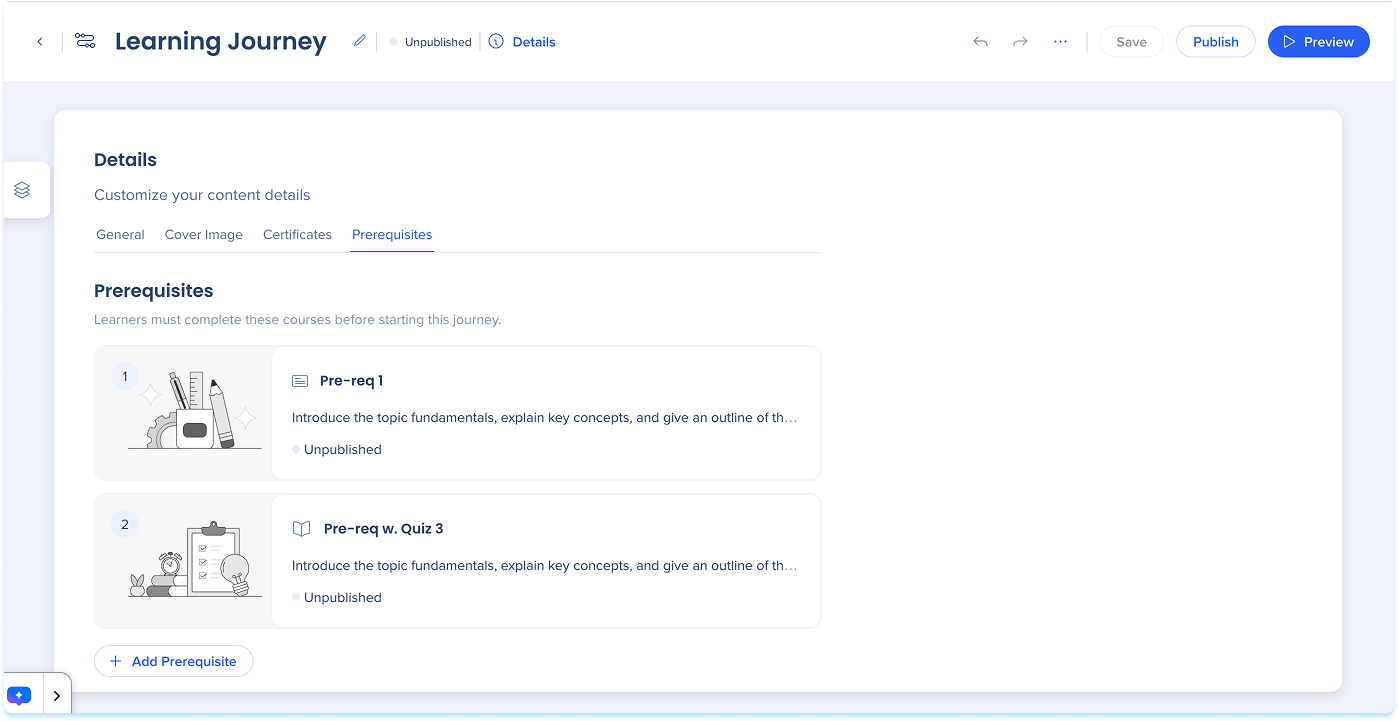
Prerequisites are only available for learning journeys. Use this tab to define what learners need to complete before accessing the learning journey.
- Select Prerequisites
- Select Add Content
- Select existing courses or microlearning
- Select Add
Learning Journey
Technical Notes
- AI translation availability depends on the source language, and some source languages support few or no target languages


