Brief Overview
You can invite team members to your WalkMe Learning Arc workspace to help build and manage content. This article covers how to send invites, what each role can do, and how to revoke access.
You can also invite members to a specific portal rather than to the whole workspace. To learn more, refer to the following article: Manage Your Portals
Invite a Team Member
You can invite members to any workspace or portal you have access to if your role allows it, and you can give someone a permission level equal to or lower than your own. Invites go to colleagues on your organization's email domain.
There are two ways to invite a member, depending on whether they need access to a single workspace or to a workspace and a portal at the same time.
Invite a team member to a workspace
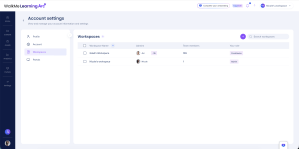
- In the left sidebar, select Account settings
- Open the Workspaces tab
- Select the workspace you want to invite the member to
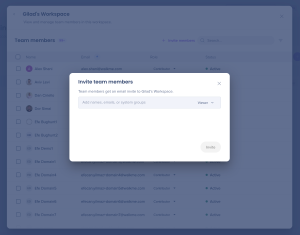
- Select + Invite members
- Type the name, email address, or system group of the person you want to invite
- Choose their role, then select Invite
Invite a team member to a workspace and a portal at once
An account-level invite lets you invite someone to a workspace and a portal at the same time. This option is available to contributors and admins.
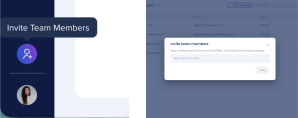
- In the left sidebar, select Invite Members
- Type the name, email address, or system group of the person you want to invite
- Choose a workspace and a portal. If you don't have access to any portal, you'll see only the workspace option
- Choose their role, then select Invite
The member you invite gets an email with a link to join. Their status shows as Invite pending until they accept.
Note
This invite covers the one workspace and the one portal you select — it doesn't grant access to everything in your account. To invite someone to a workspace only, use the Workspaces tab
Member Roles
Account Admin
- Full access to every workspace and portal in the account, whatever role they hold in an individual workspace
Admin
- Full access to workspace settings and content
Contributor
- Can create, edit, and publish learning content, and can invite or remove members in the workspace and set their role
Viewer
- Can see the workspace and its member list. Can't create, edit, or publish content, and can't invite members
Note
Inviting a Contributor gives them access to your full workspace, including all courses and learning assets. Contributors who sign up from an invitation can also create their own content
Statuses
Active
- The member accepted their invitation and has access to the workspace
Invite pending
- You sent the invitation, and the member hasn't accepted it yet
Pending request
- The member requested access to the workspace and is waiting for approval
Revoked
- The member's access was removed
If a person already has a WalkMe Learning Arc account, they get access immediately and their status shows as Active. If they're new, they get a sign-up email and show as Invite pending — you can resend it from the Team members table.
Revoke Access
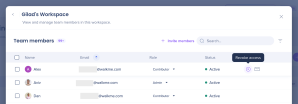
To remove a member's access to your workspace:
- Go to the Team members table
- Select the Remove icon next to the member's name
- Select Revoke Access to confirm
The member loses their role and access to that workspace immediately. This doesn't remove any portal access they have — you manage portal access separately, per portal.