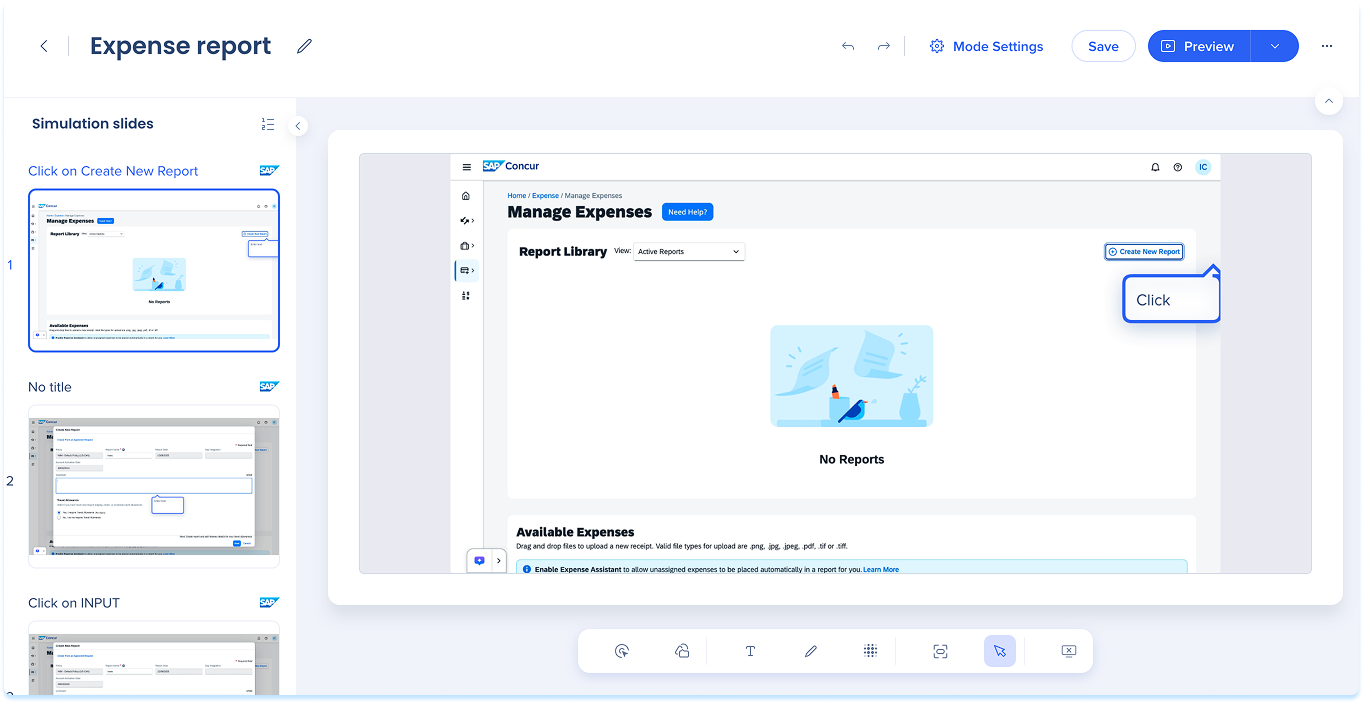
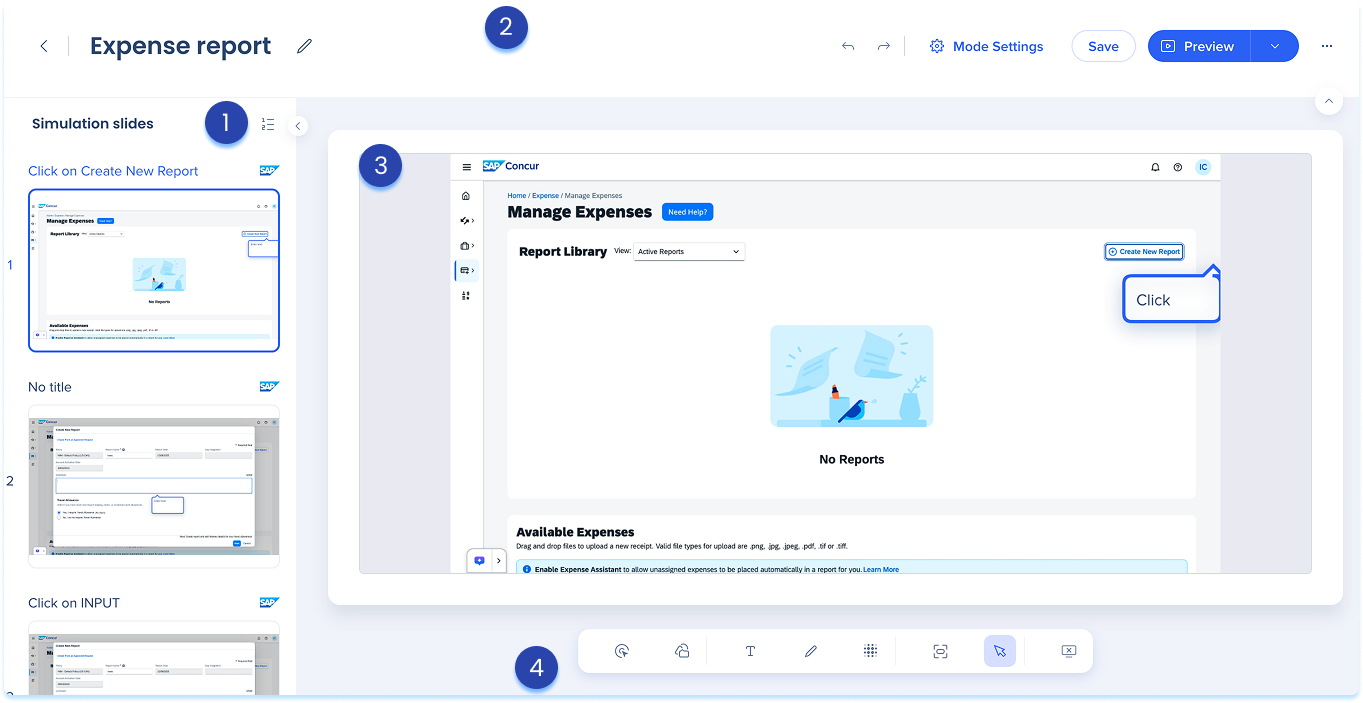
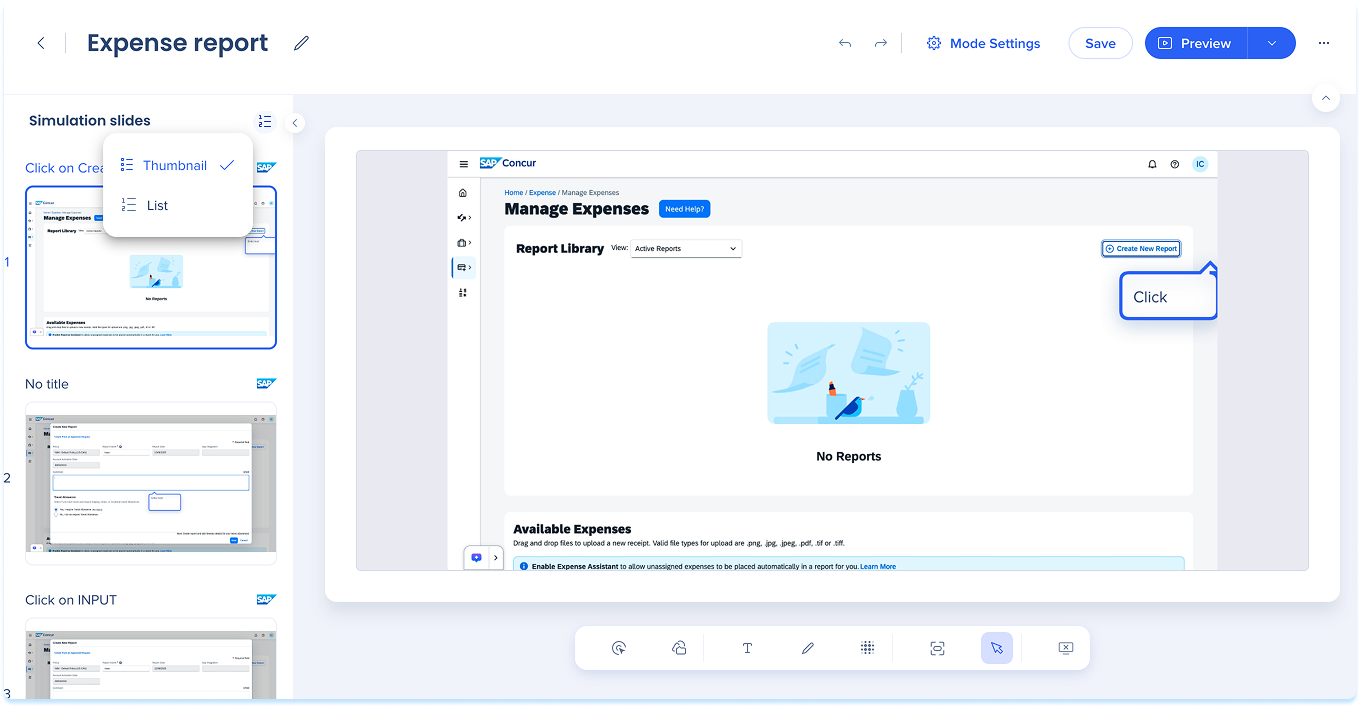
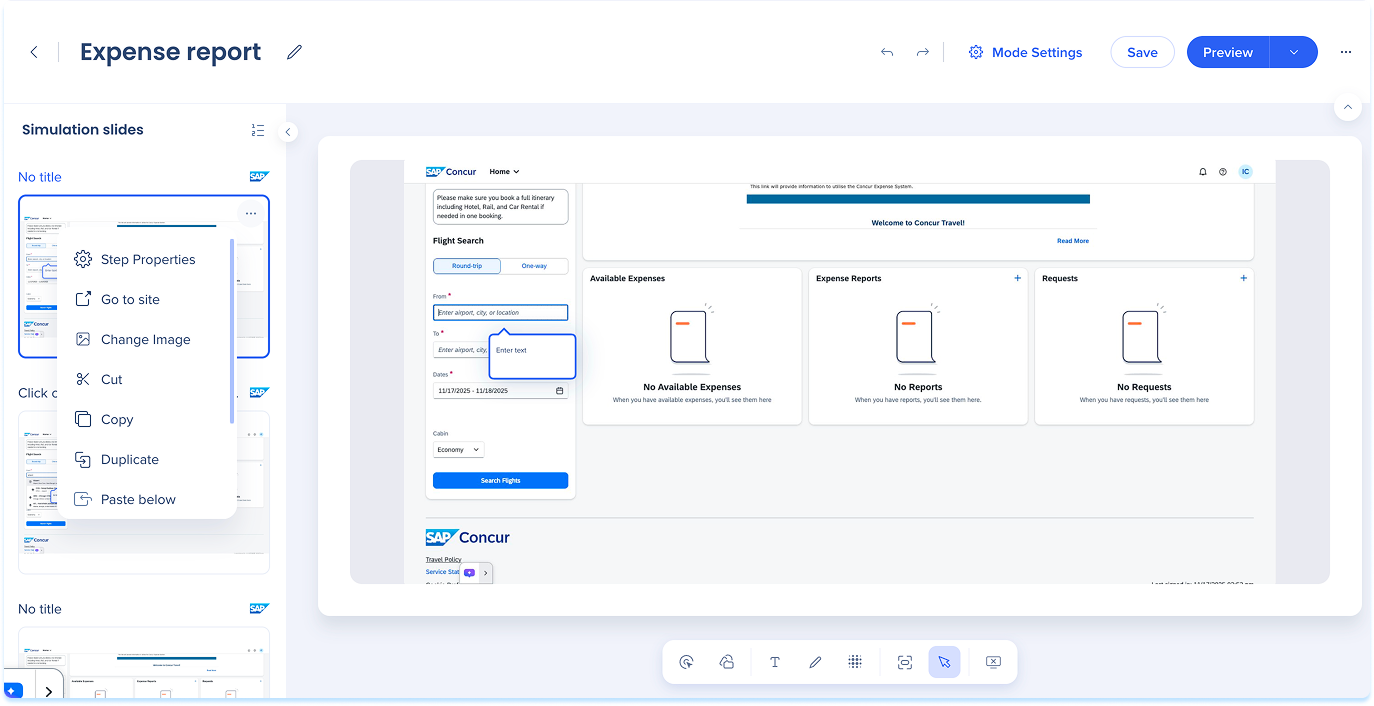
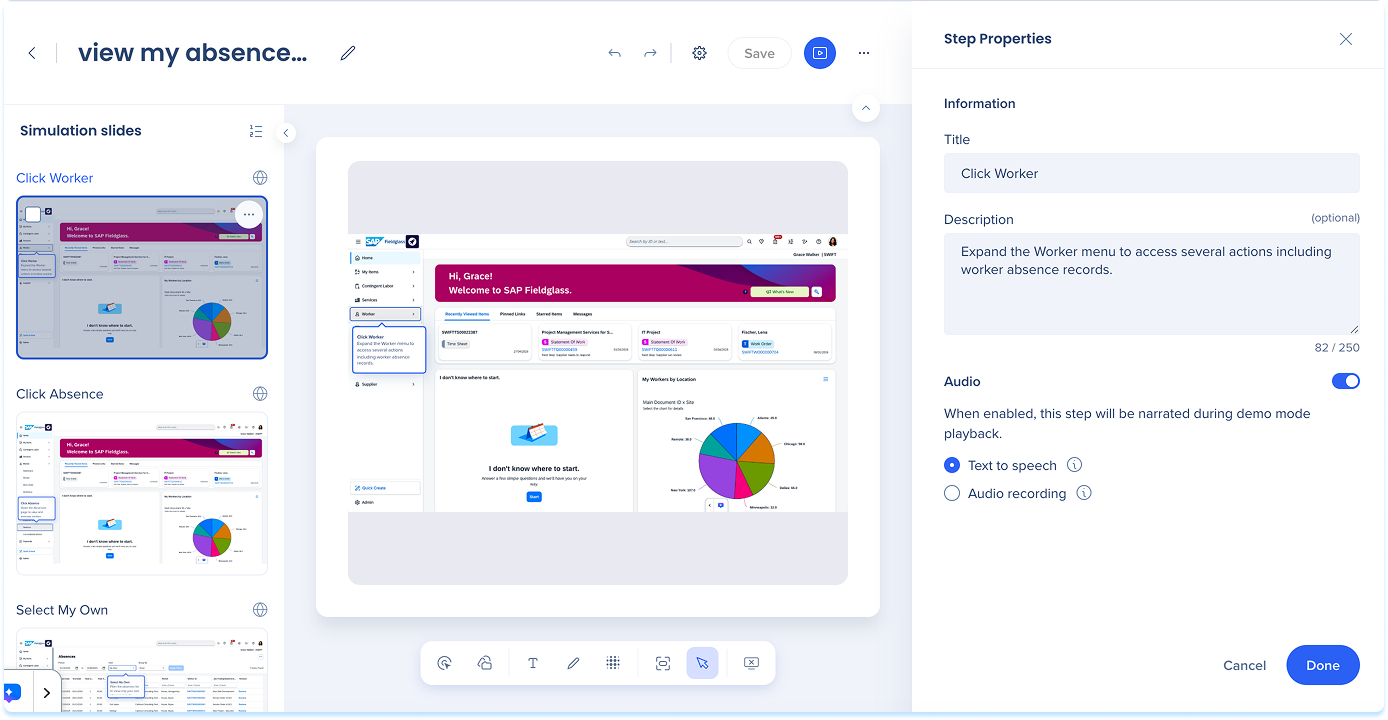
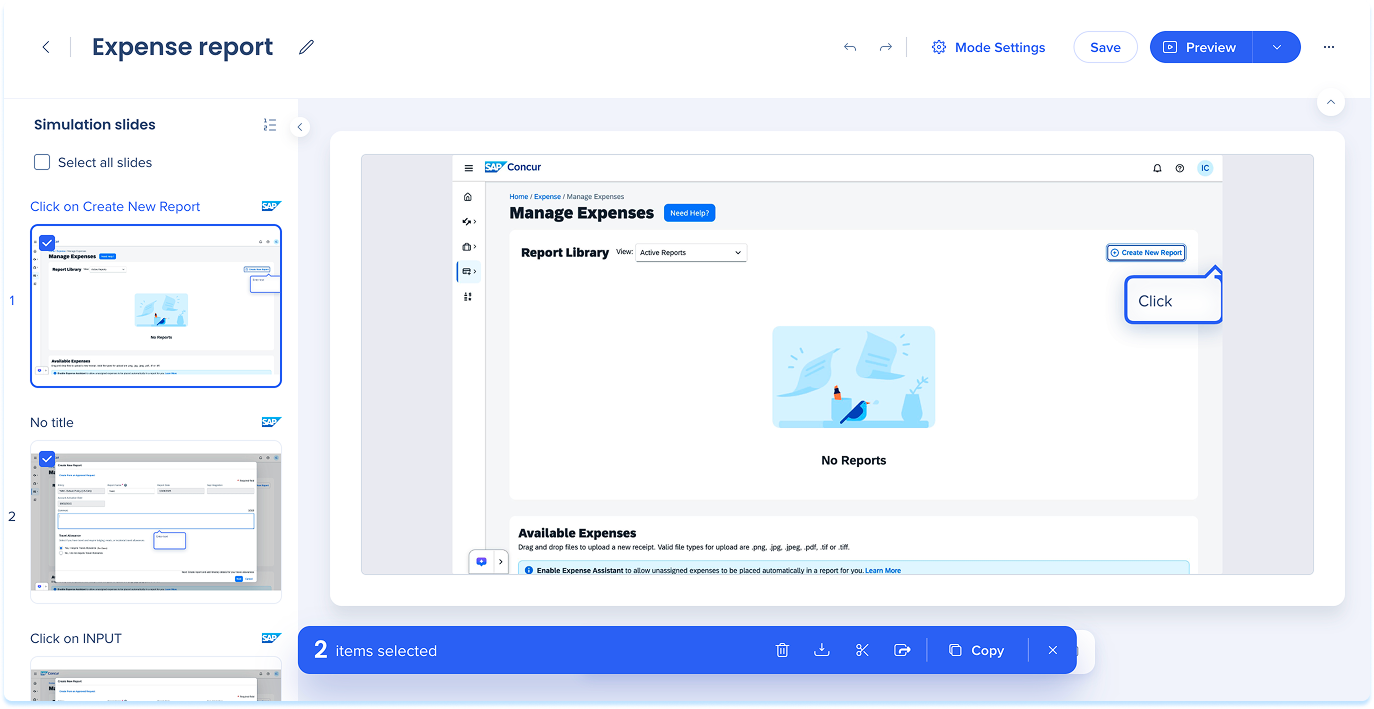
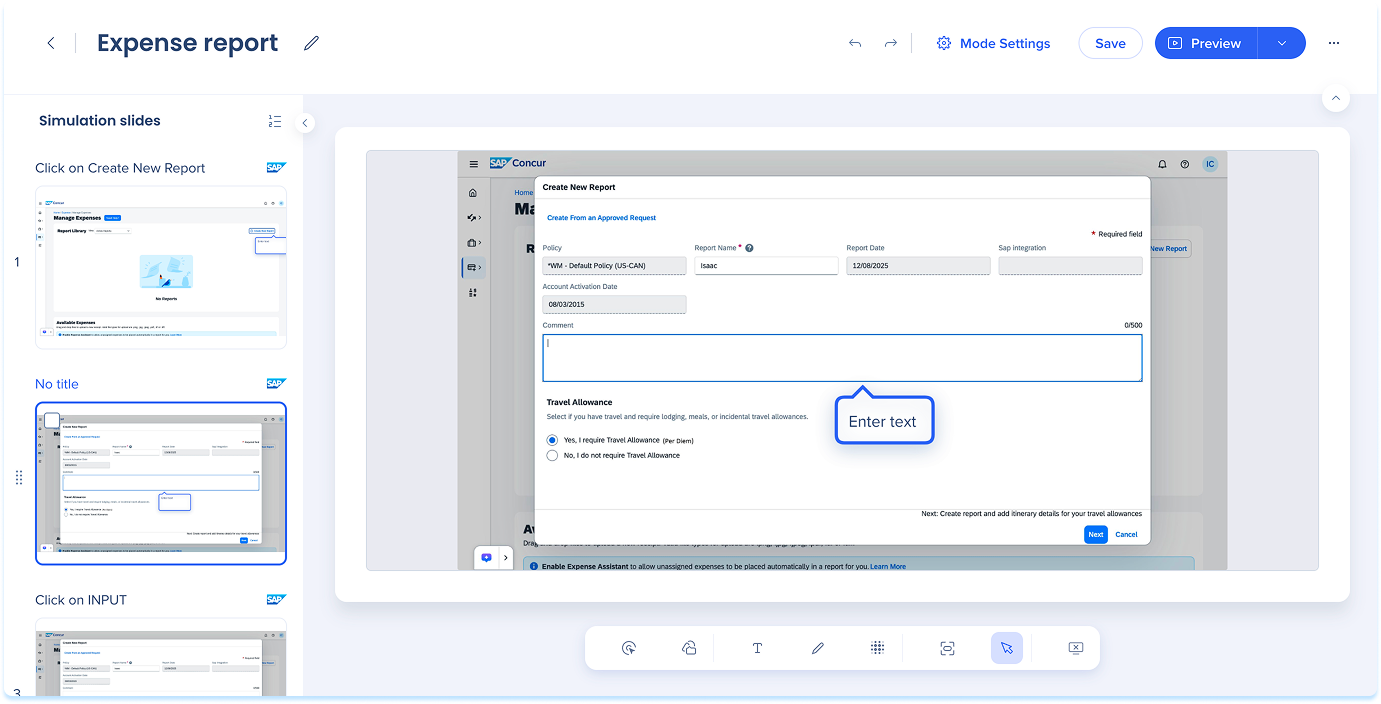
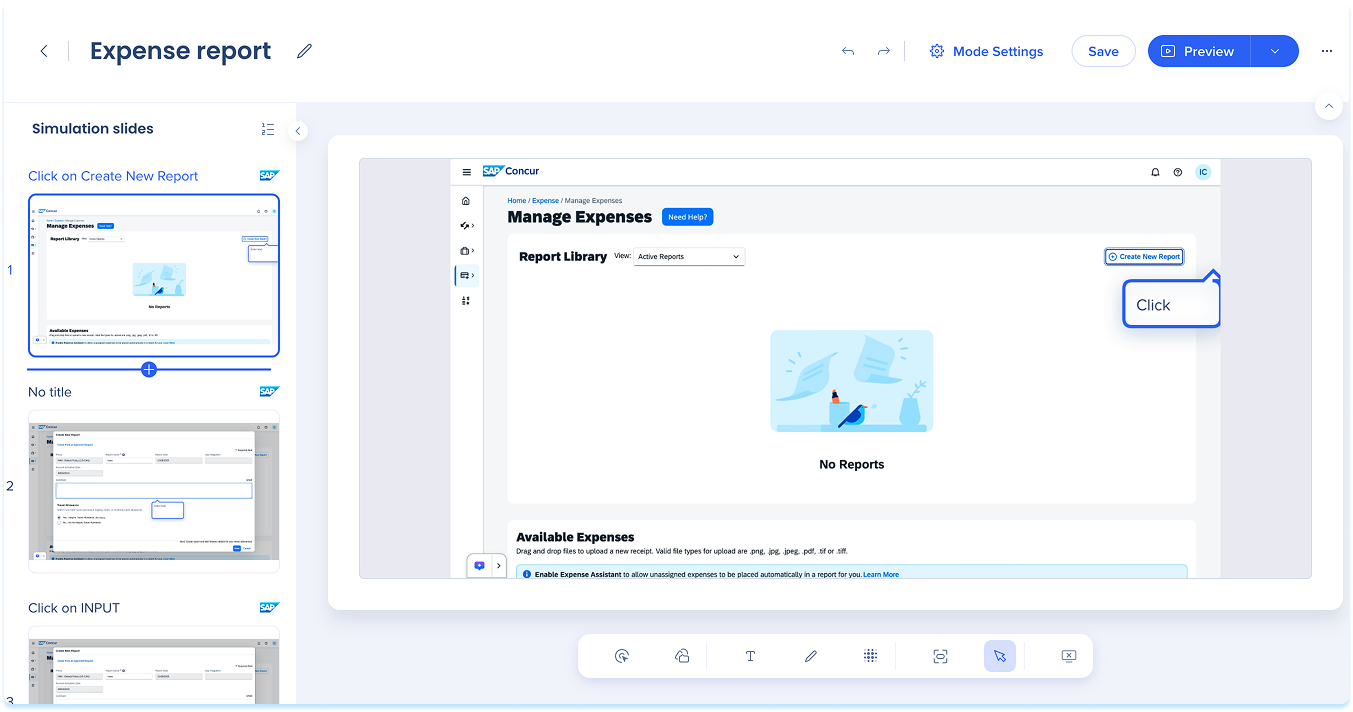
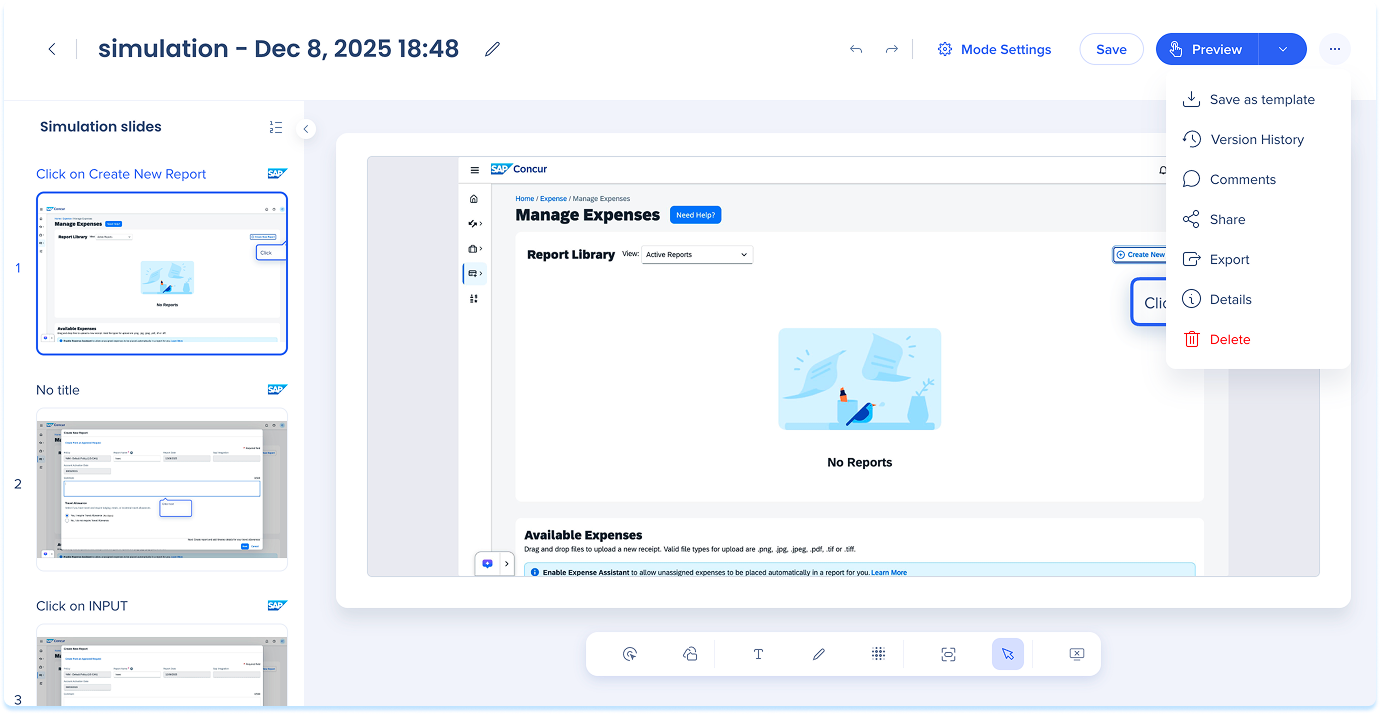
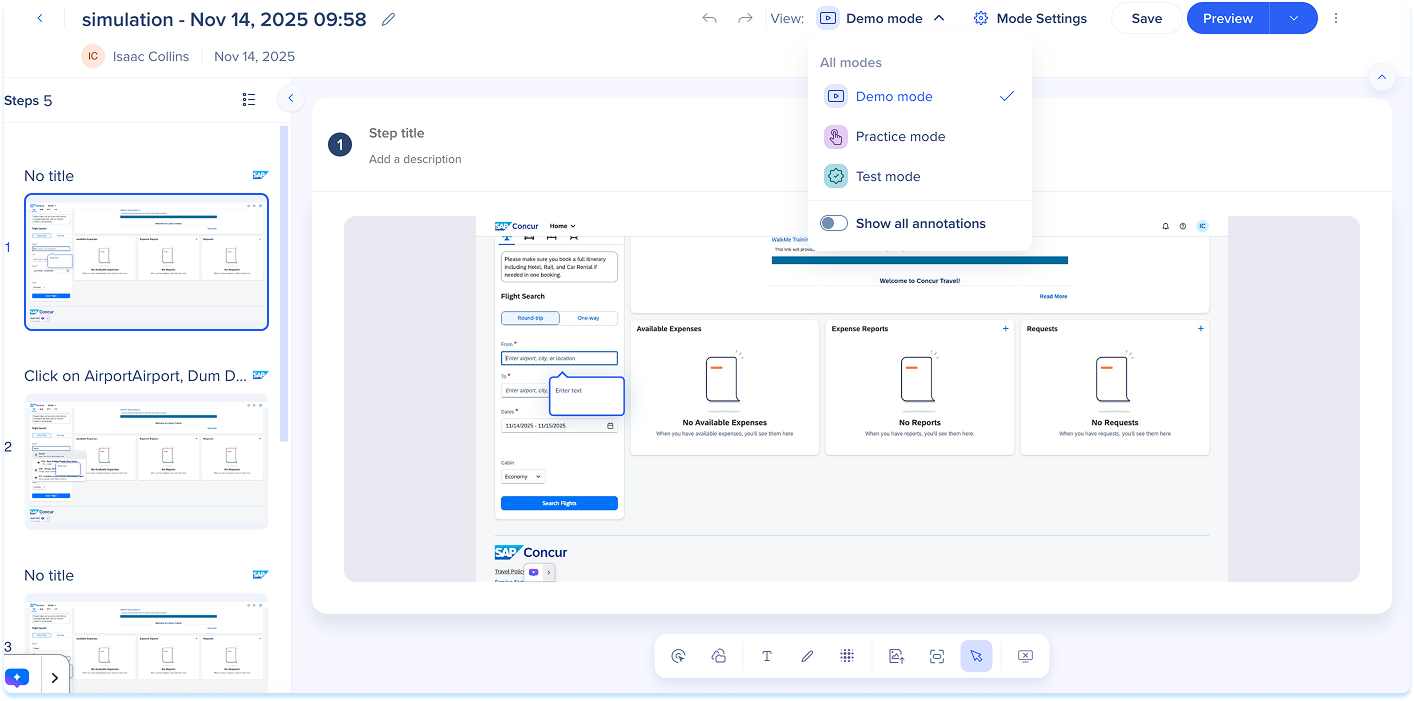
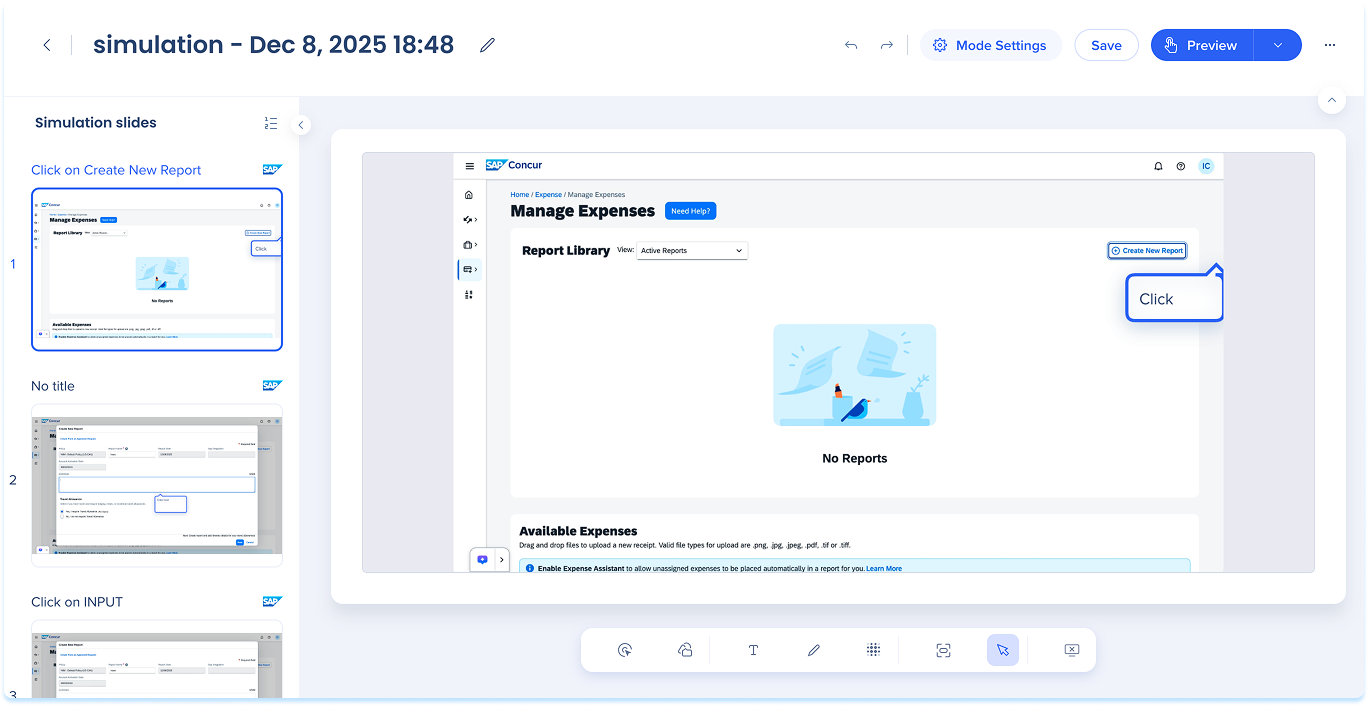
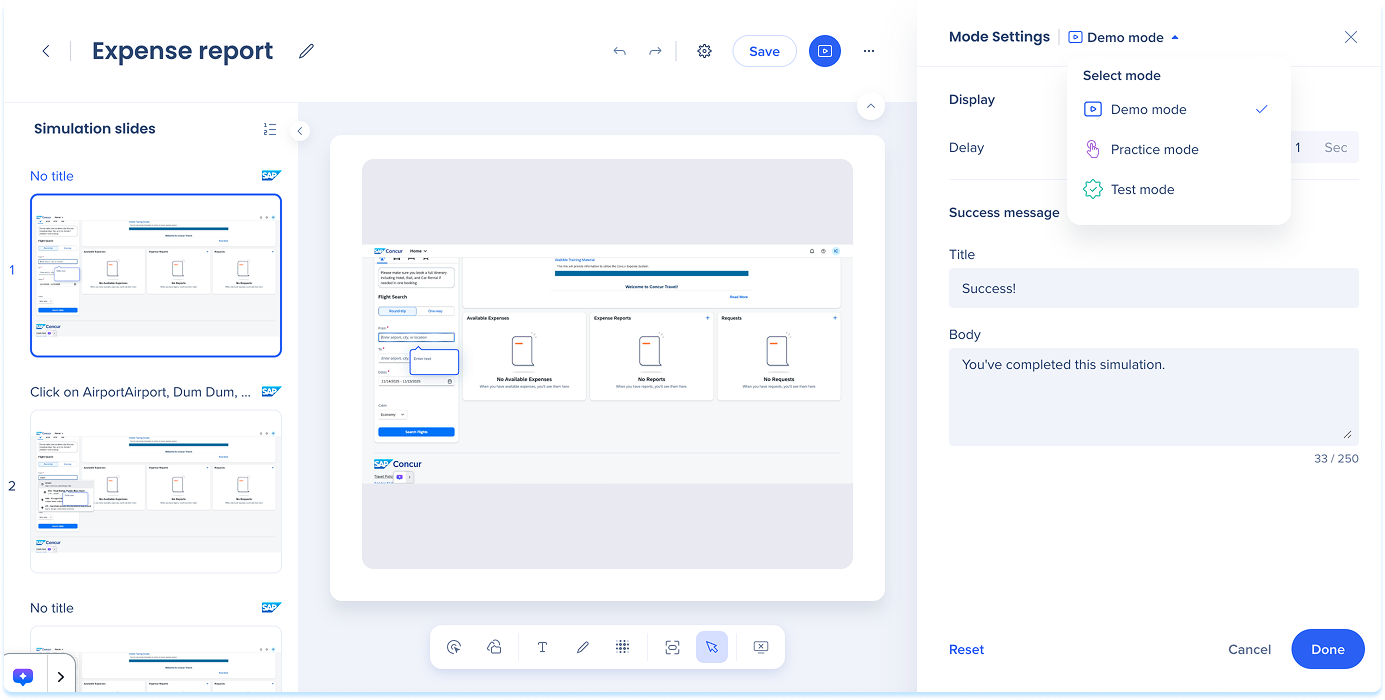
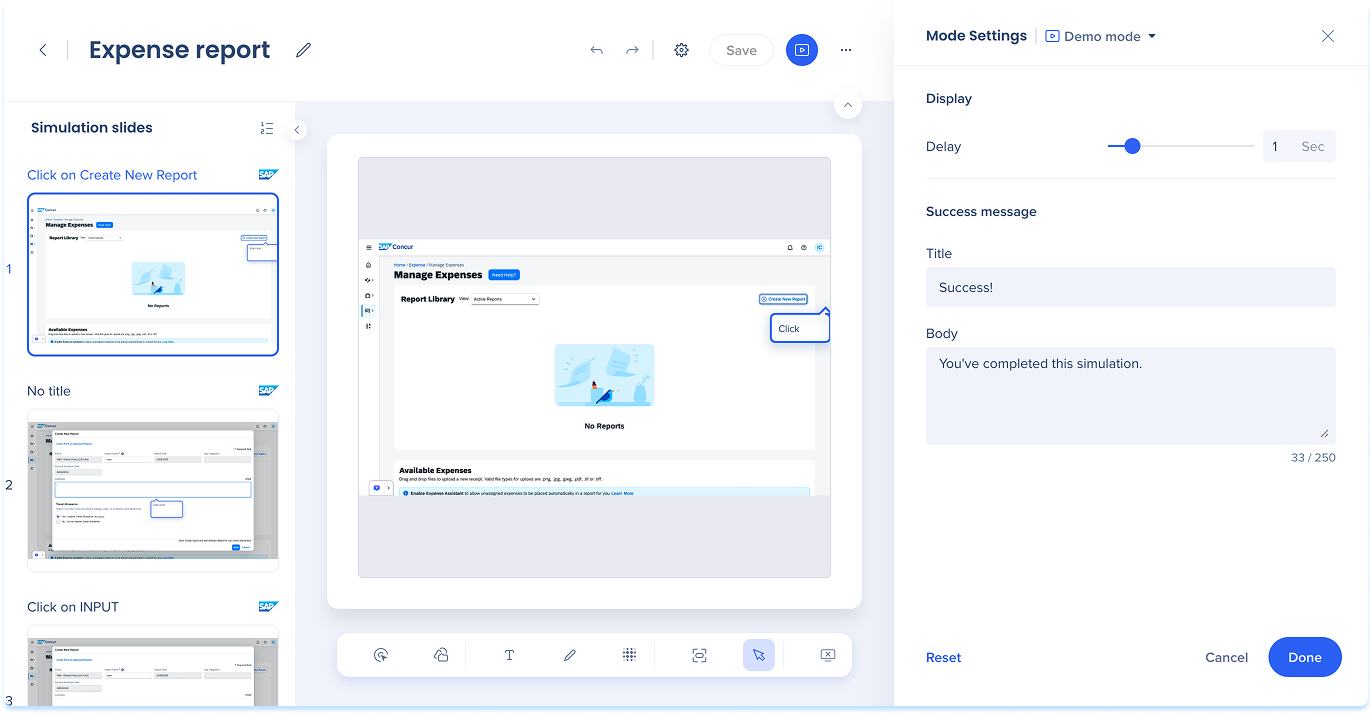
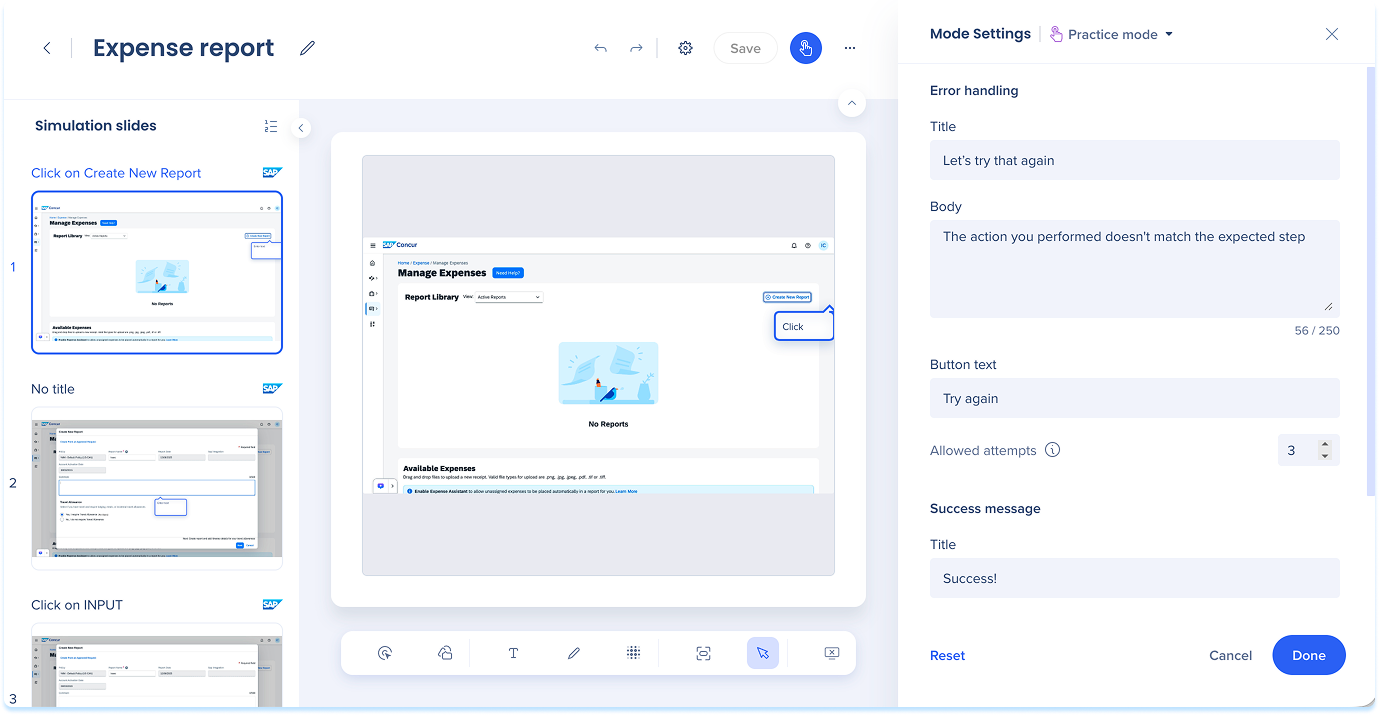
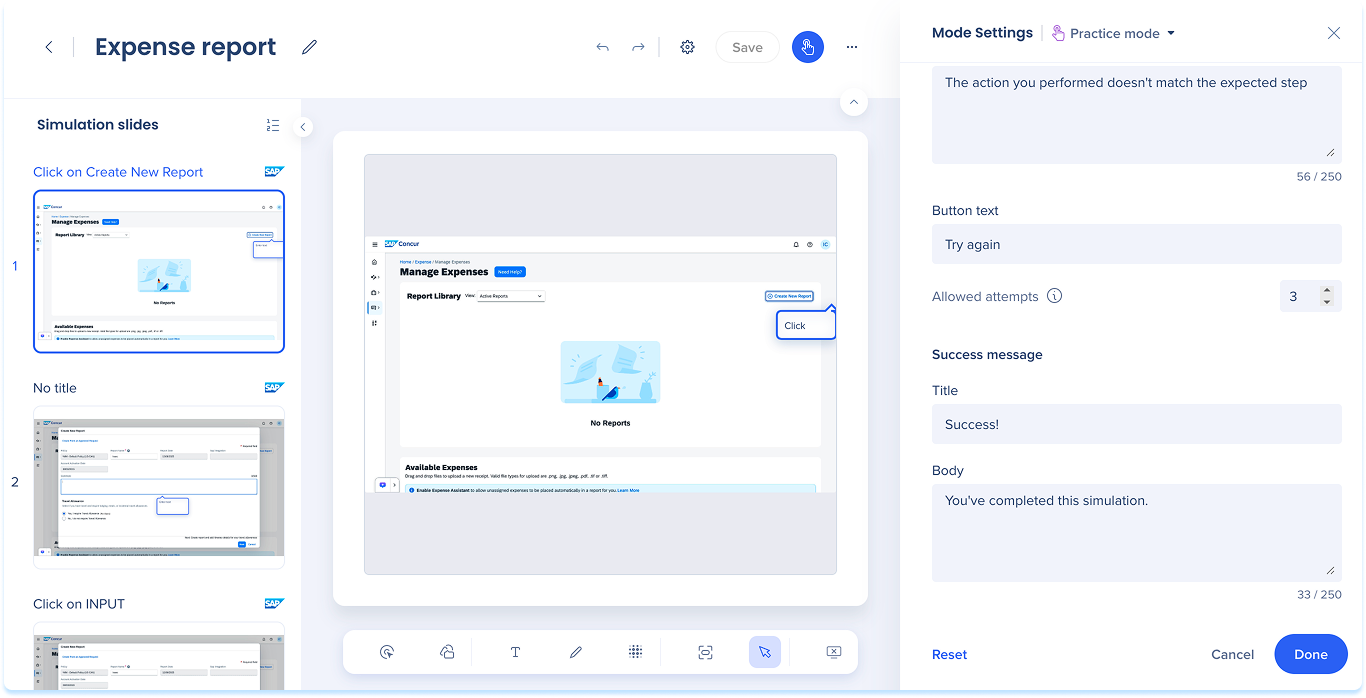
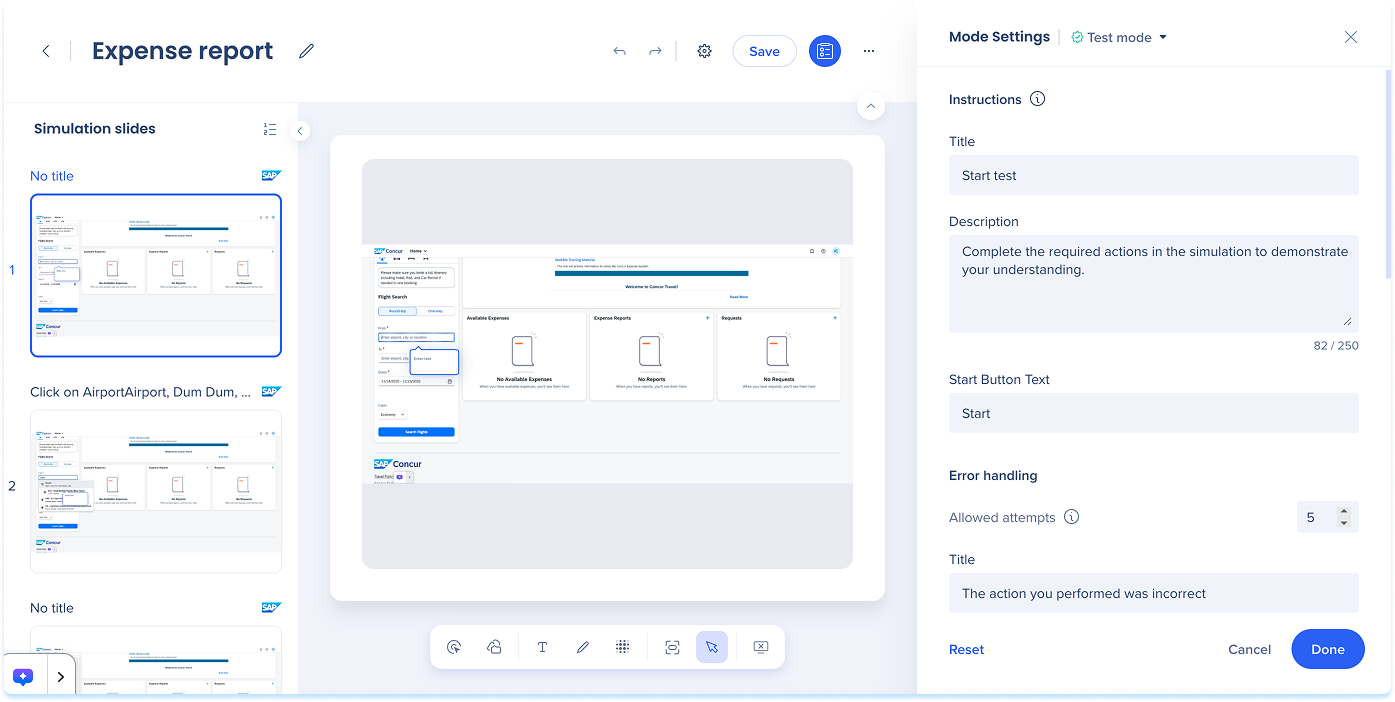
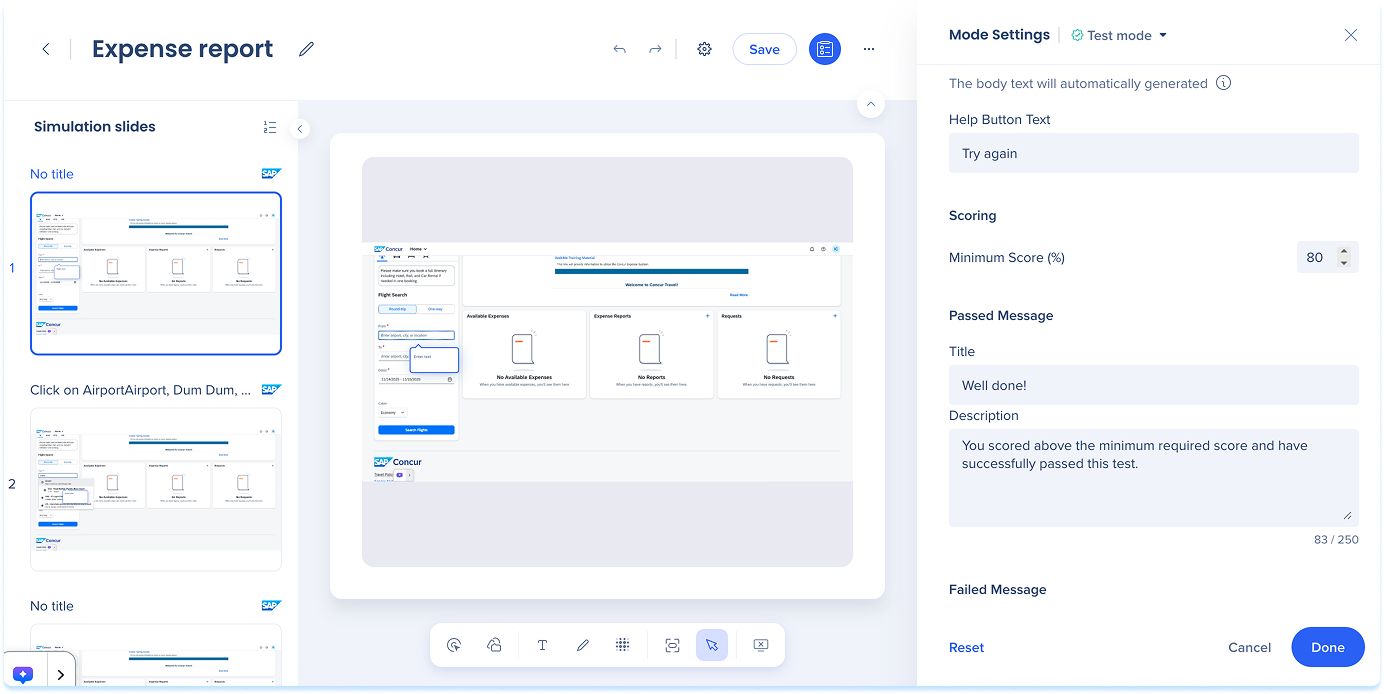
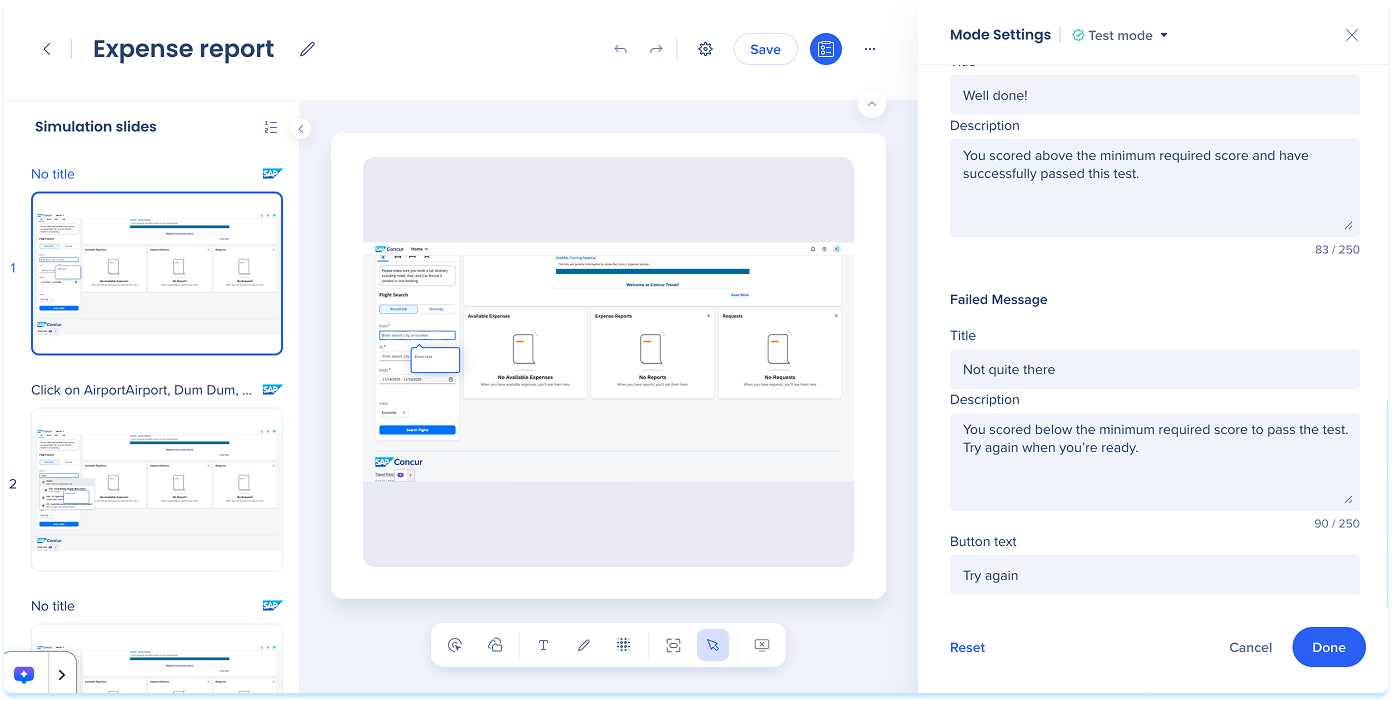
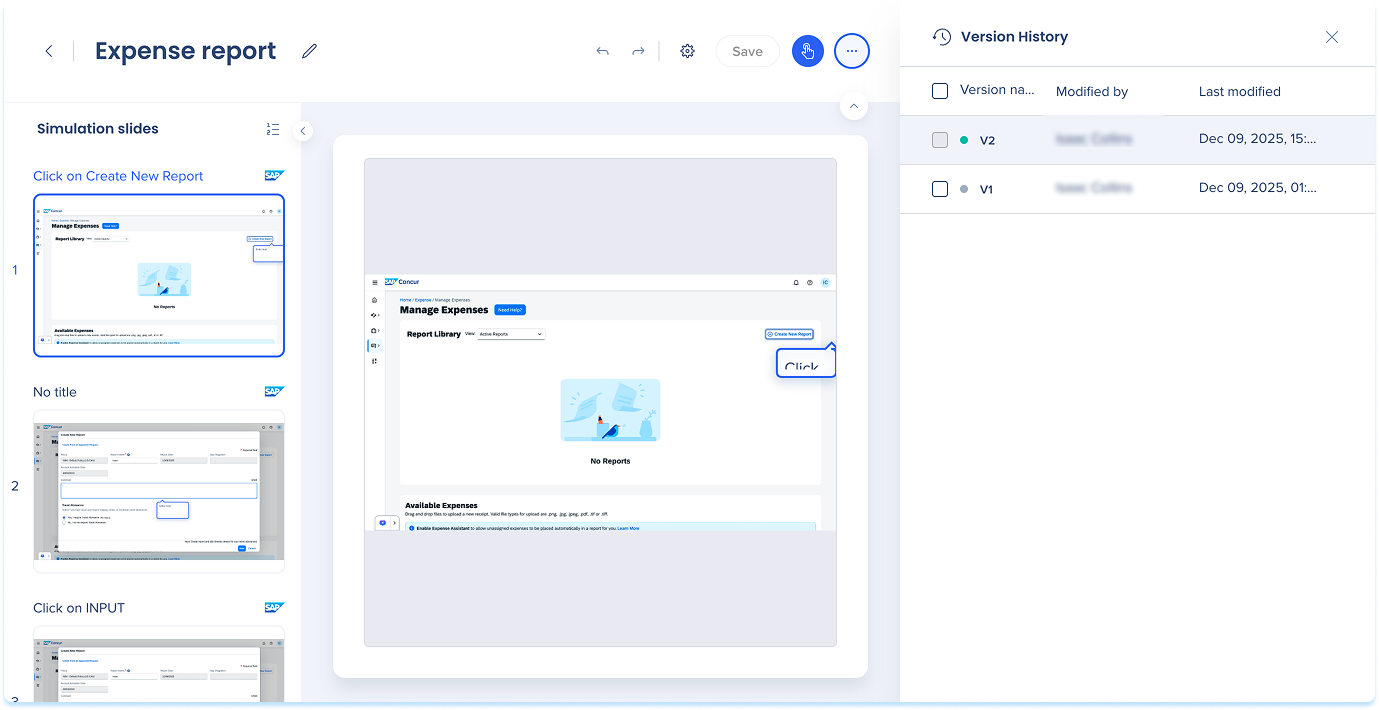
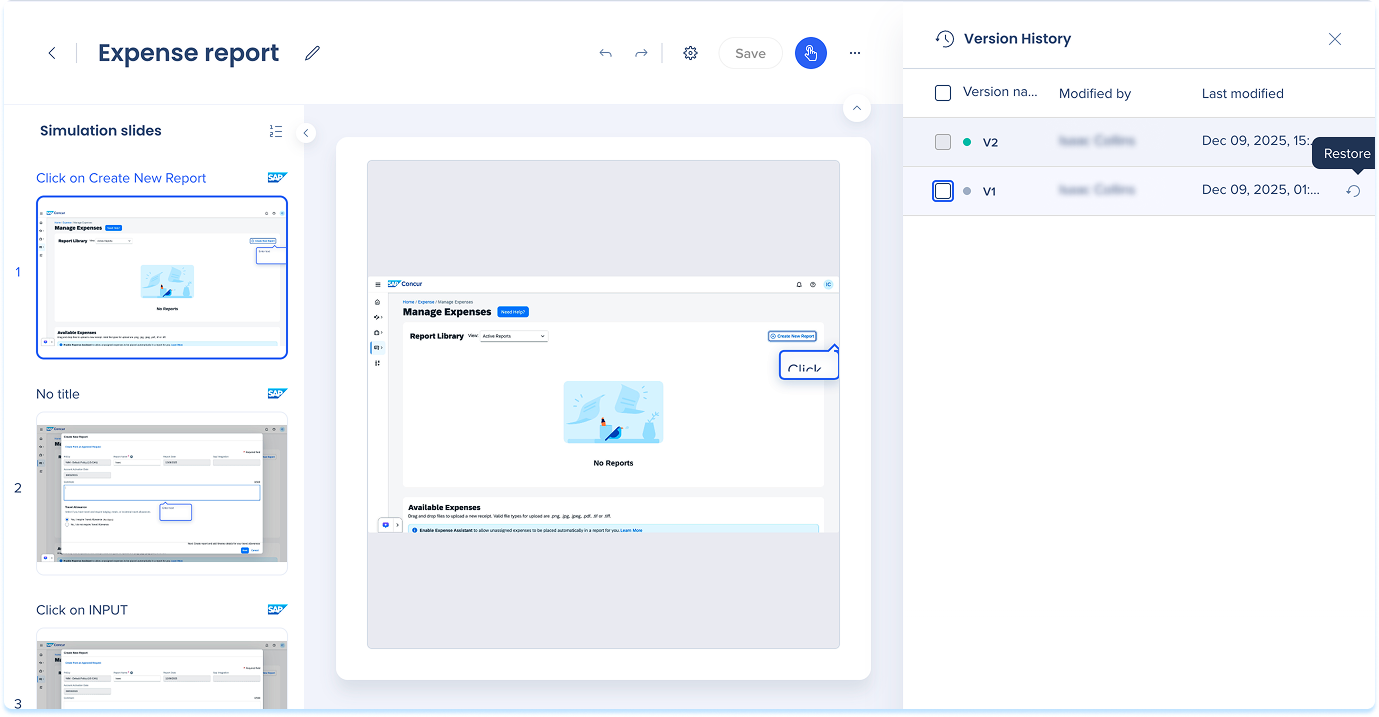
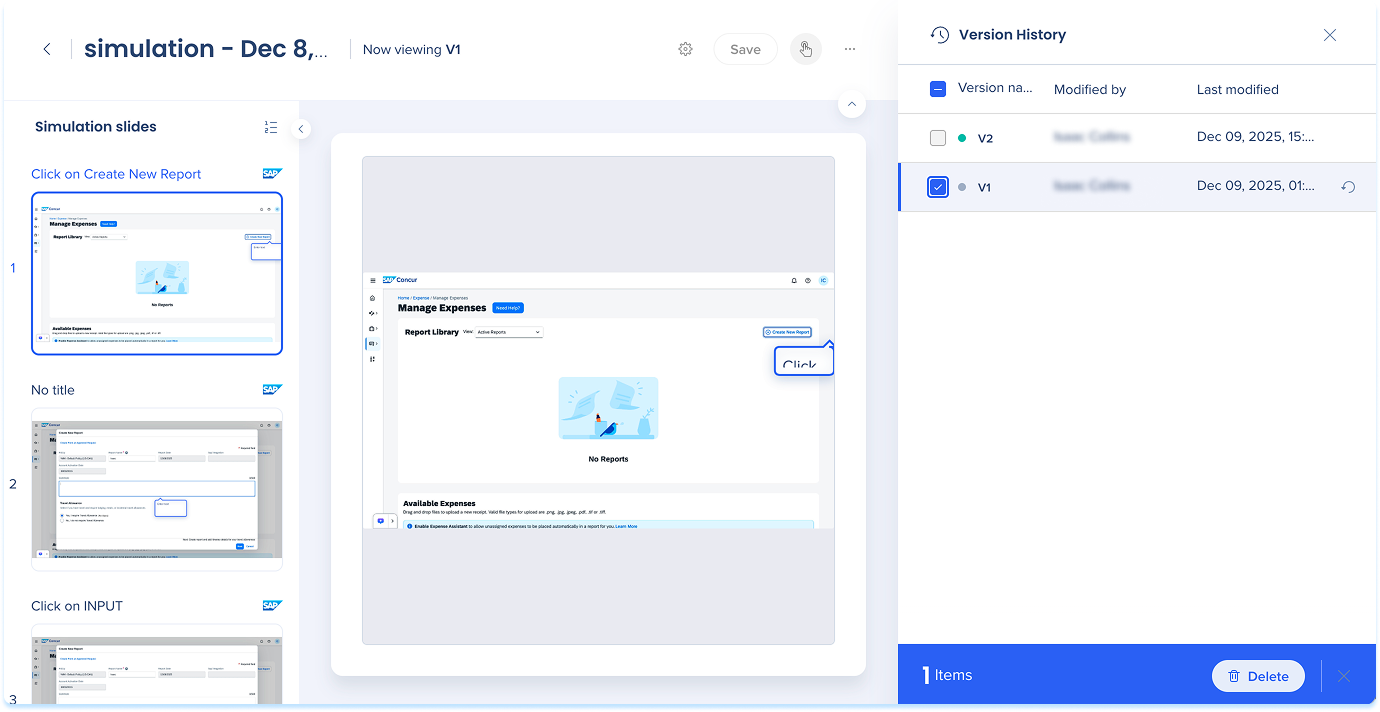
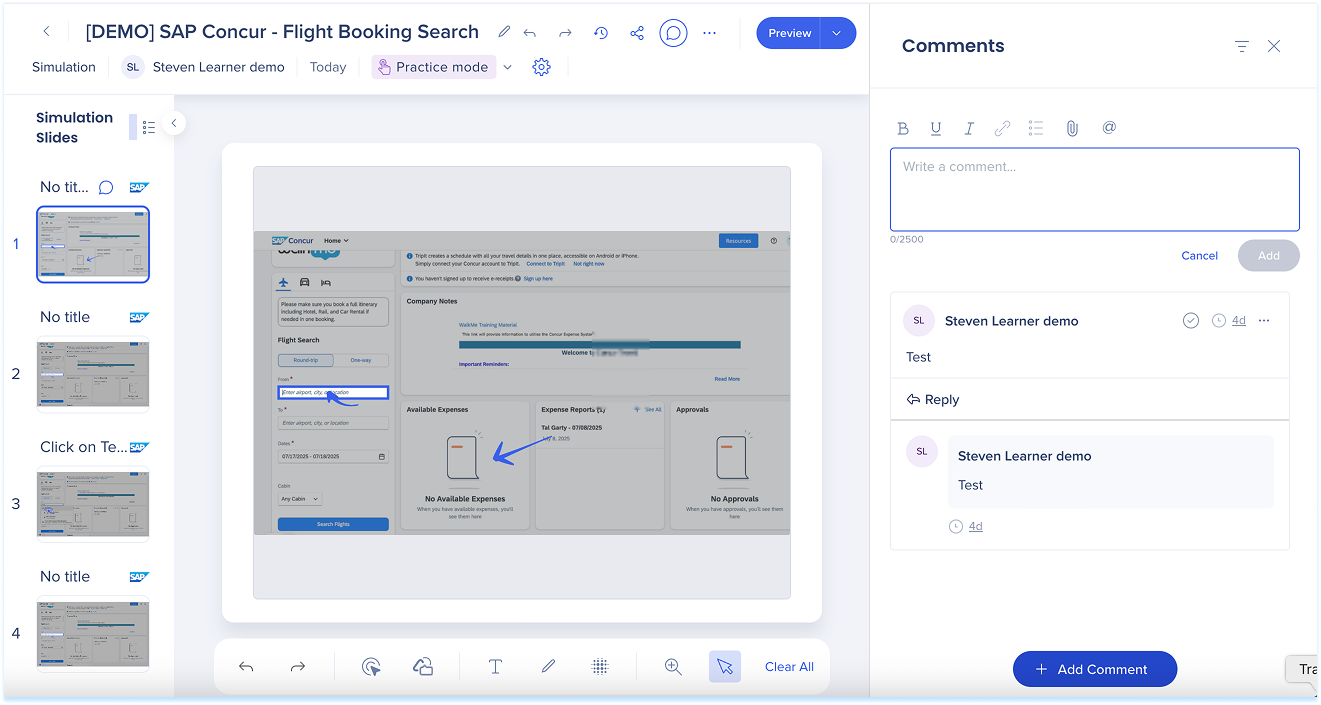
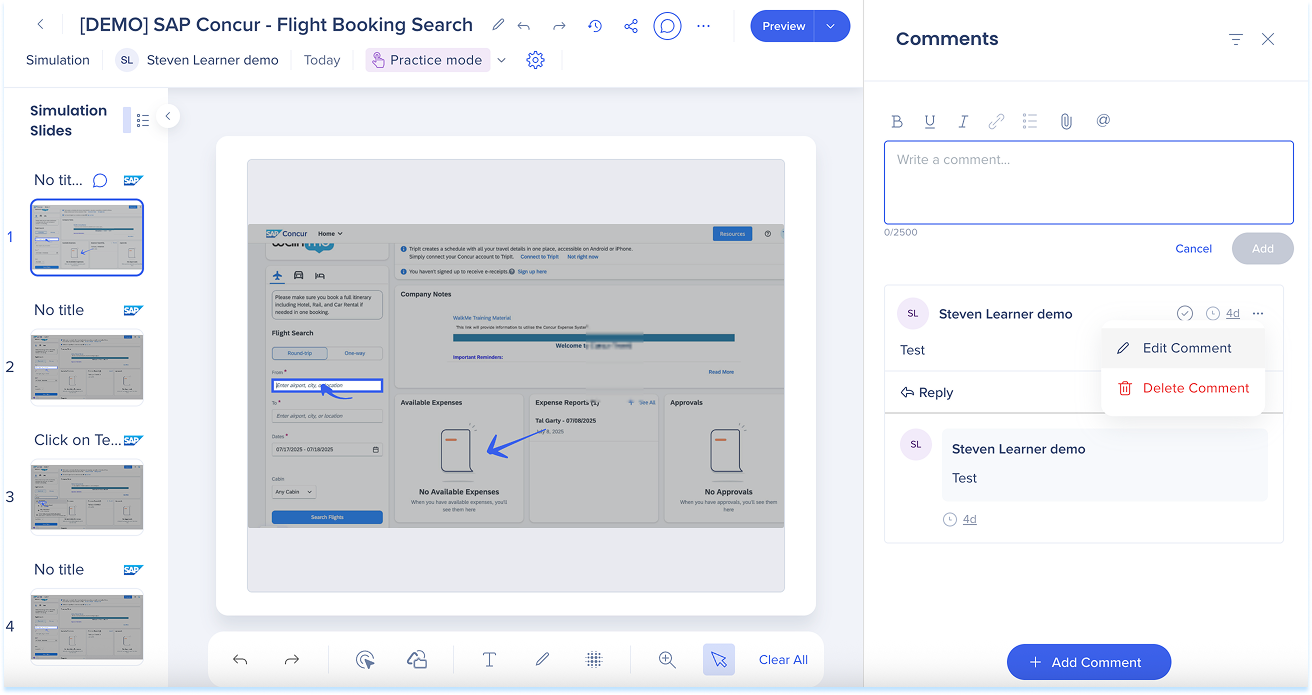
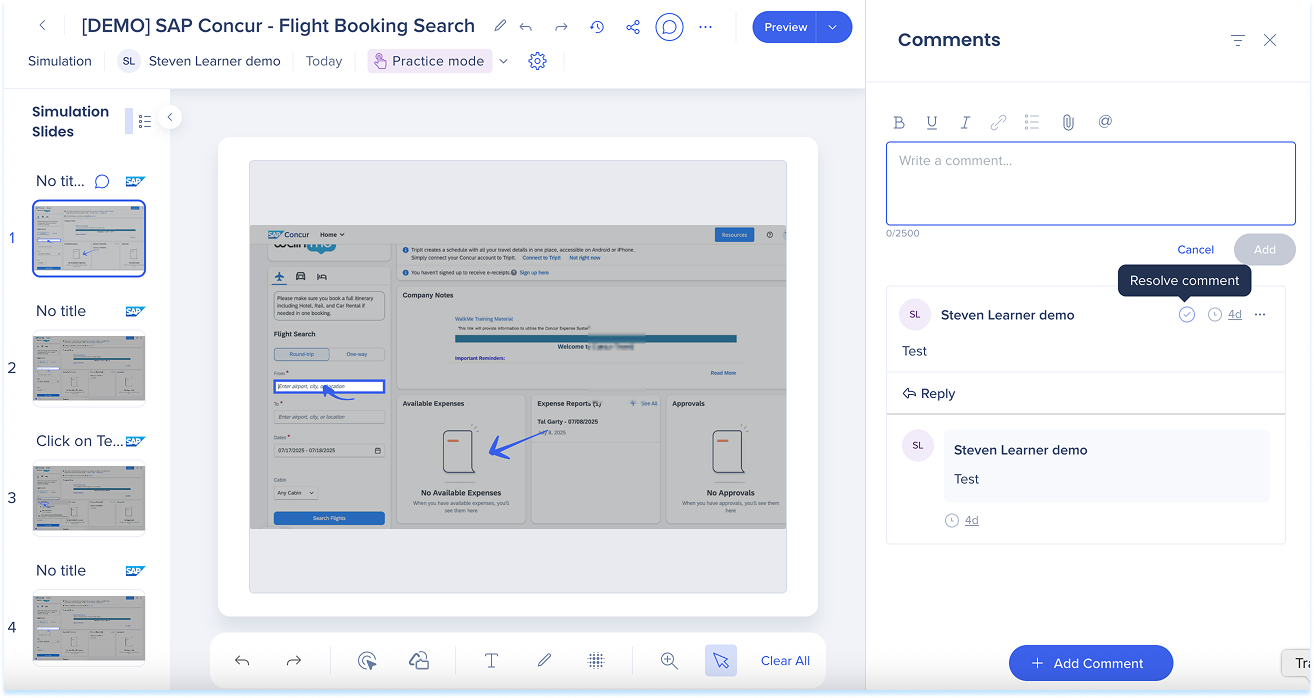
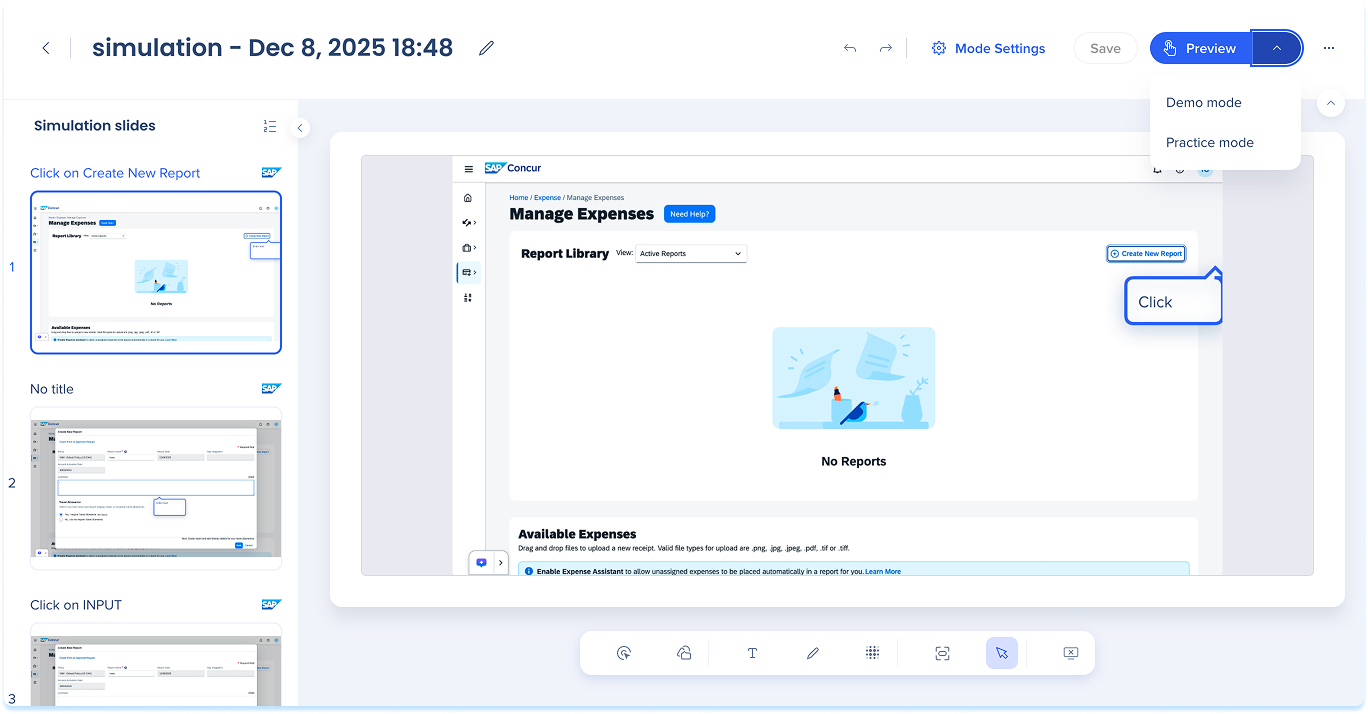
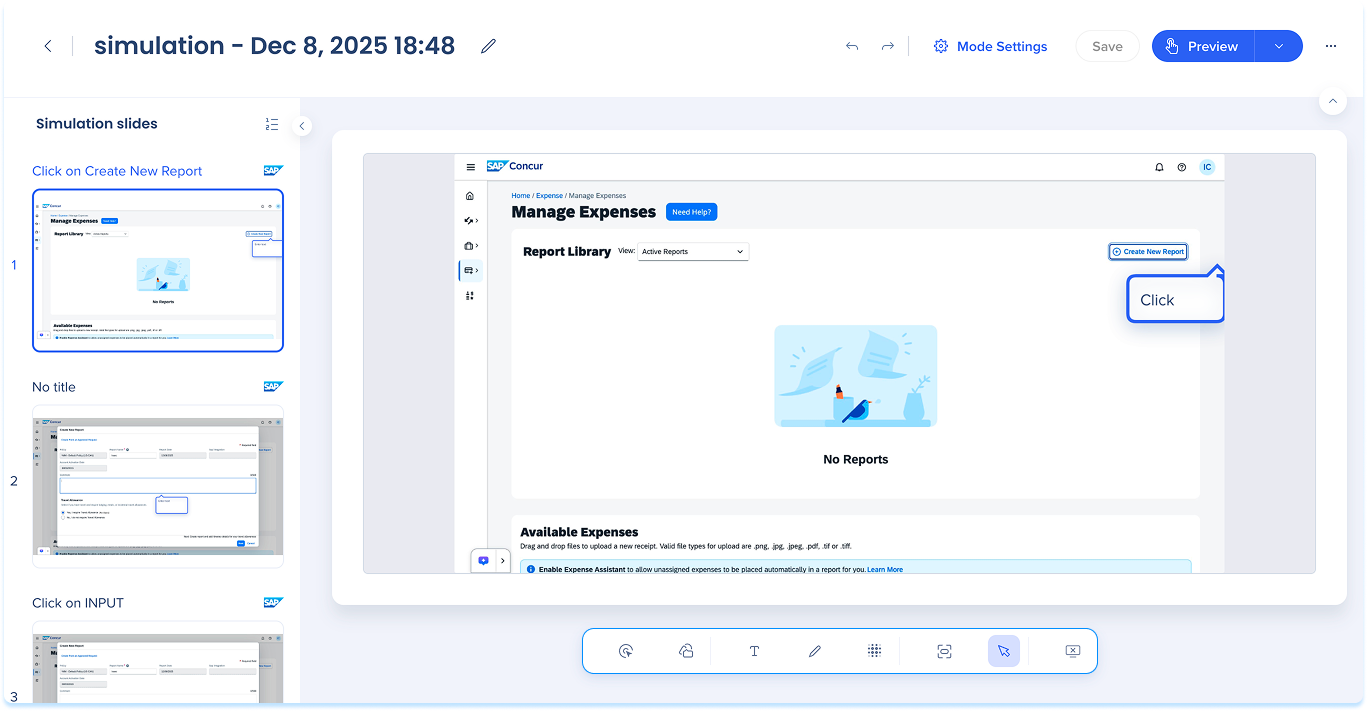
Simulations in WalkMe Learning Arc let you capture real workflows and play them in demo, practice, or test modes. This helps learners understand processes in a guided, controlled environment. Editing a simulation lets you modify slides, add visual annotations, and switch between modes. You can also adjust mode-specific settings and preview the experience from a learner's point of view. Together, these tools make it simple to create detailed, interactive simulations that enhance the learning experience.
Access Simulation Editing
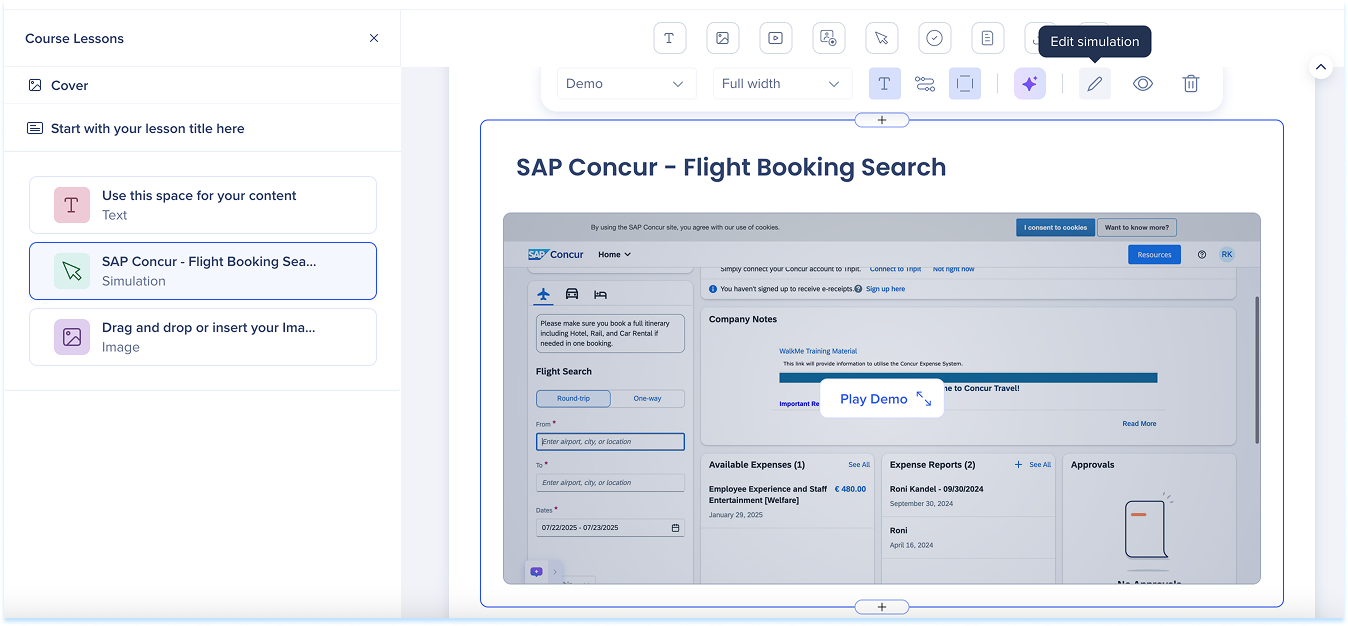
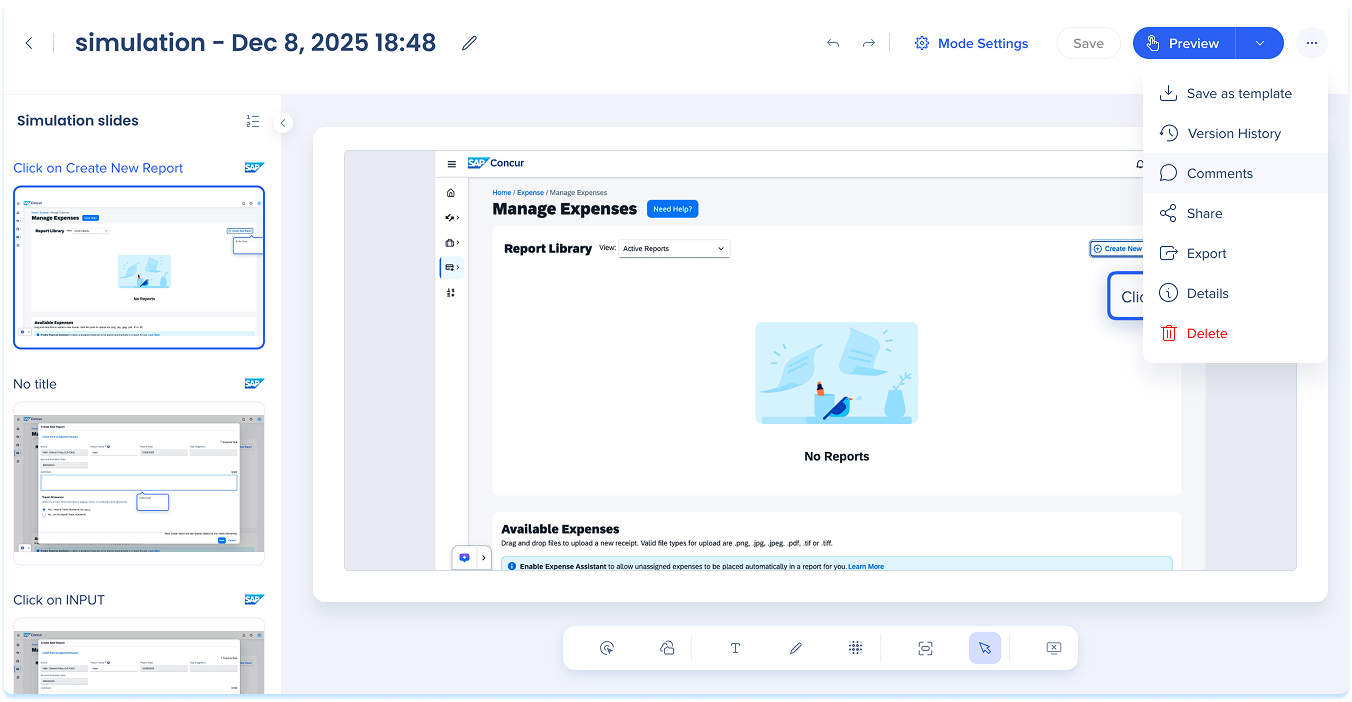
Go to the simulation element in the learning content builder
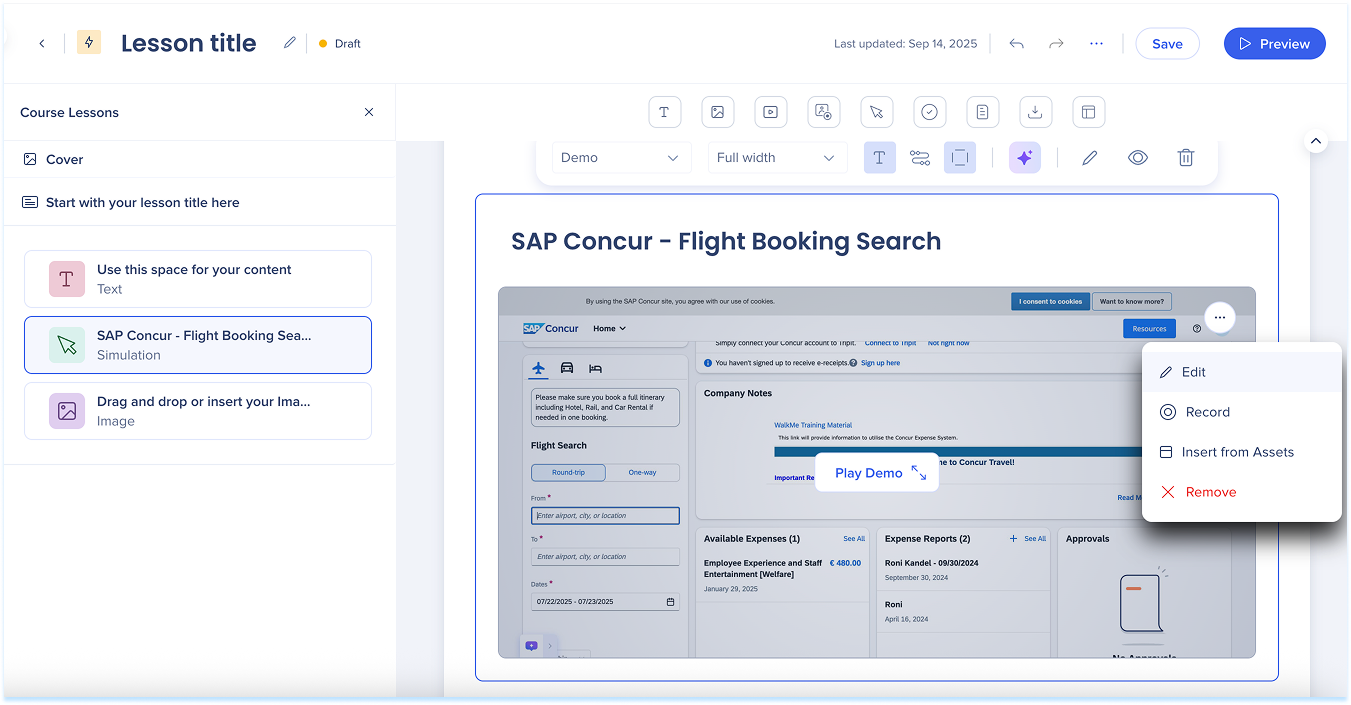
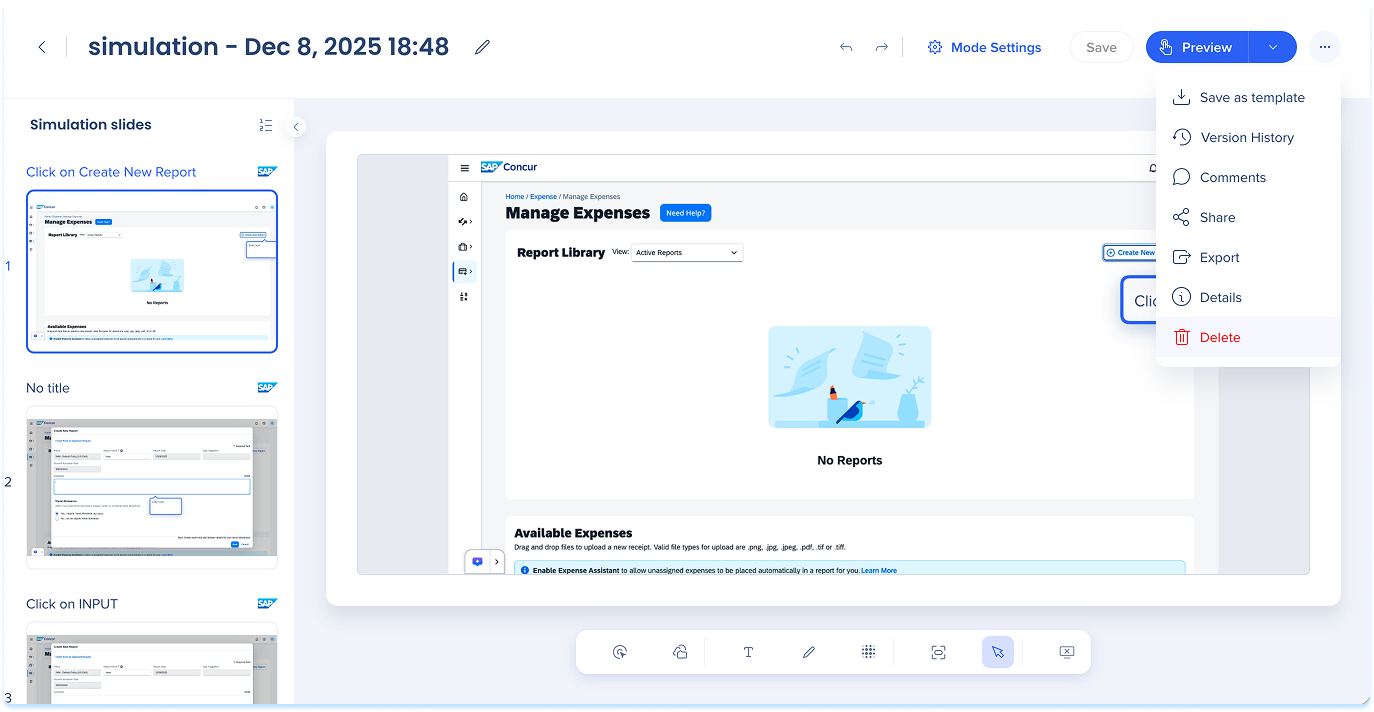
Open the simulation in edit mode using one of these actions:
Select the simulation element, then select Edit Simulation in the toolbar
Hover over the simulation element
Hover over the simulation element, open the Options menu, and select Edit
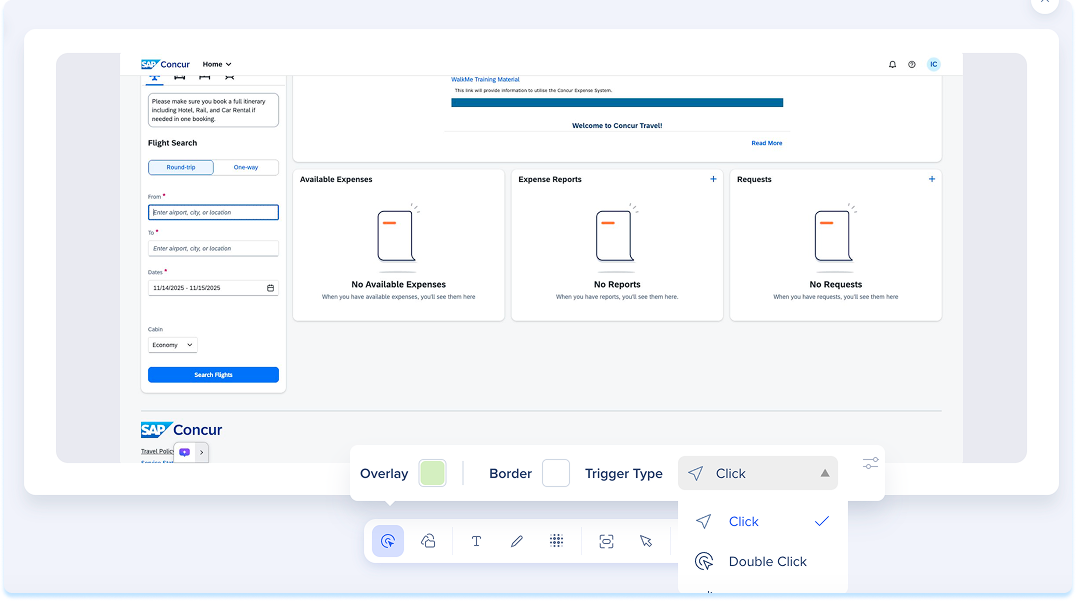
Trigger type defines how the learner completes the step. Click-based trigger types require a mouse interaction. Input trigger type requires entering text into a field.
In Trigger type, select one of the following:
Click
Double click
Right click
Input
Dropdown
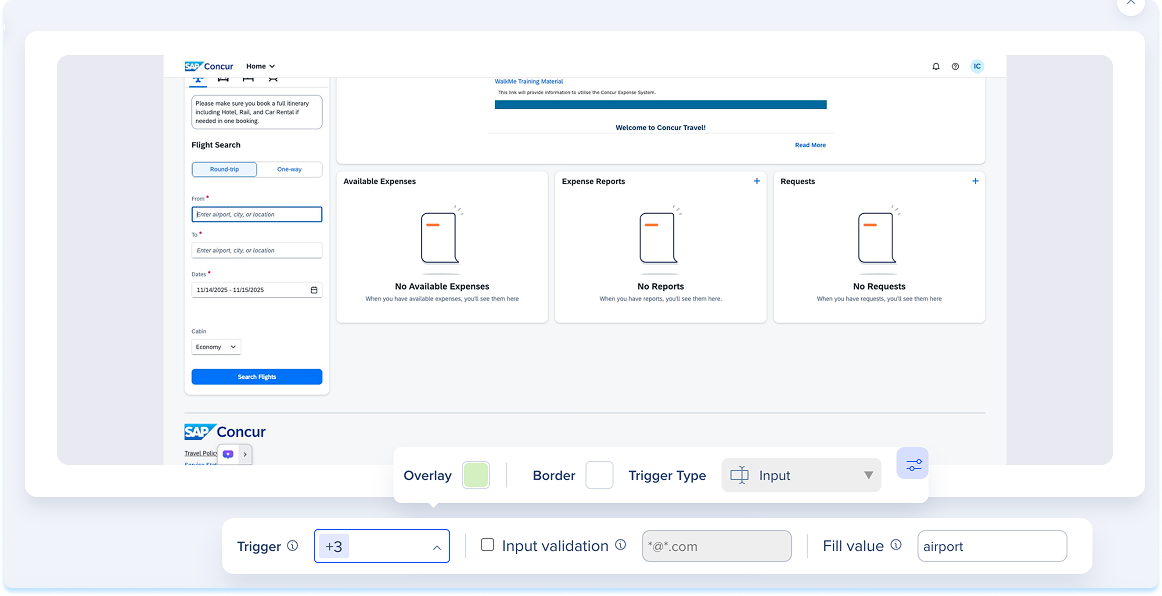
Input trigger type
If you select Input, select the Controls icon to configure additional settings
In Trigger action, define how the learner completes the input action by selecting one or more of the following:
All actions
Tab
Enter
Focus lost
Turn on Input validation to require the learner to enter a specific value or match a regex pattern
If the field contains a simple string, string matching will be used. If the field starts with /^ and ends with /, it is matched via regex.
Samples:
RegEx
Description
Accepted inputs
/^.*/
Any input including empty
"a", "123", ""
/^.+/
At least one character
"a", "123"
/^PR_.+/
Any string starting with PR_ and at least one more character
"PR_12345", "PR_Abcd"
/abc/
Any string containing "abc"
"123abc456", "abcd"
/^\d{6}$/
A string of exactly 6 digits
"123456"
In Fill value, enter the value populated automatically by the player when Show me is selected
The recorded value is used by default and can be edited
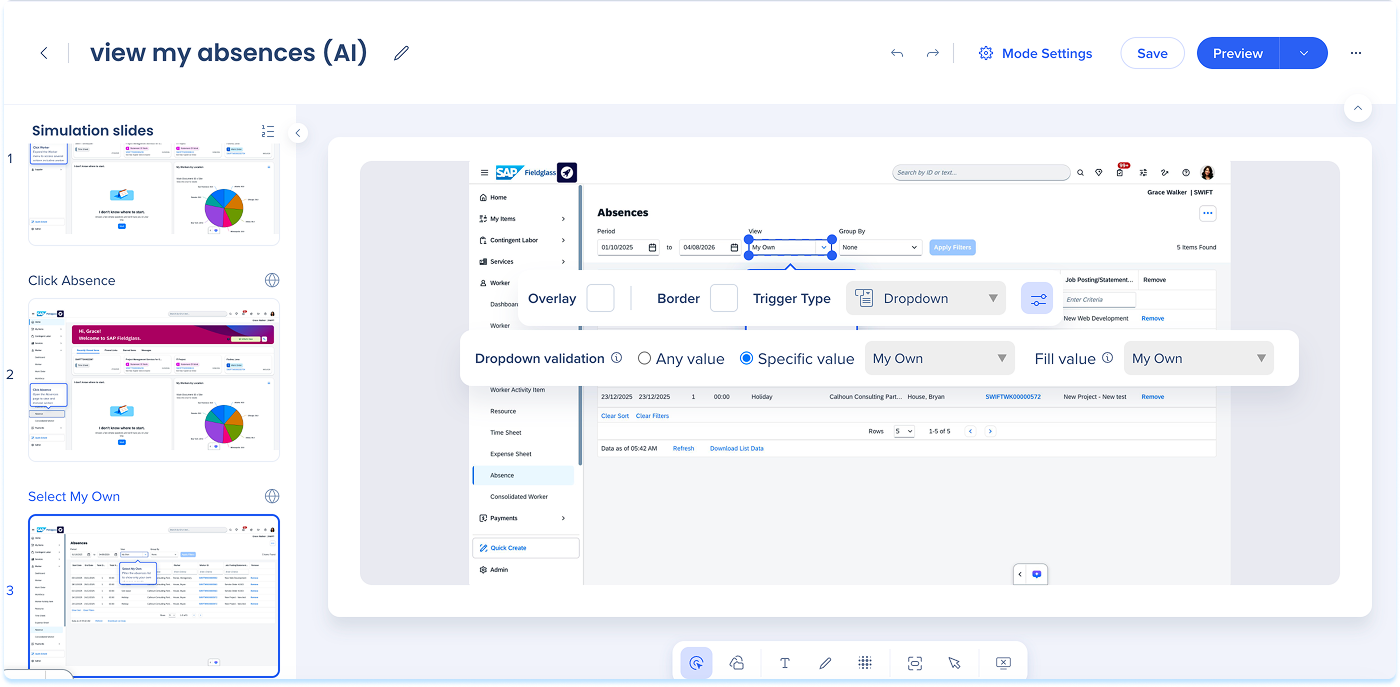
Dropdown trigger type
When you capture a native select element, it's automatically detected as a dropdown and plays back as a dropdown in all modes.
Select the Controls icon to configure additional settings
Dropdown validation: Define how the learner completes the step:
Any value: The step triggers when the learner selects any option
Specific value: The step triggers when the learner selects a specific option. The value recorded during capture is selected by default
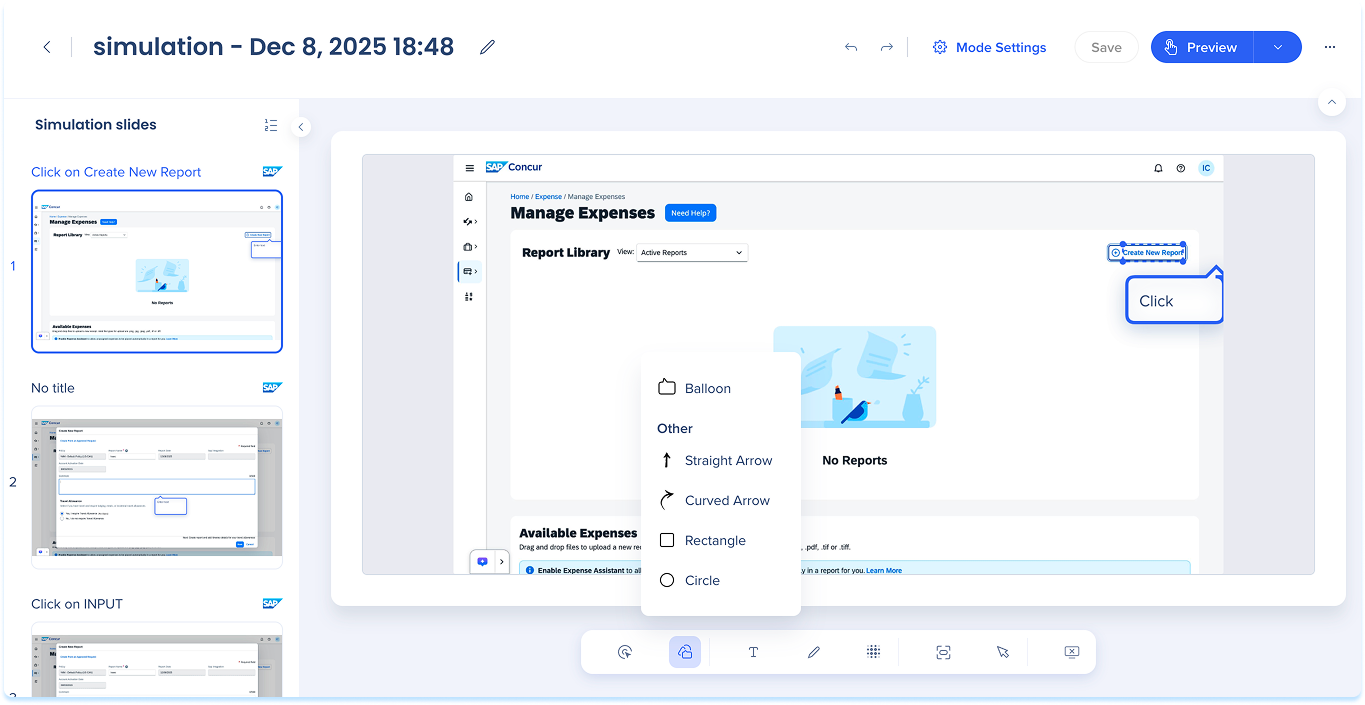
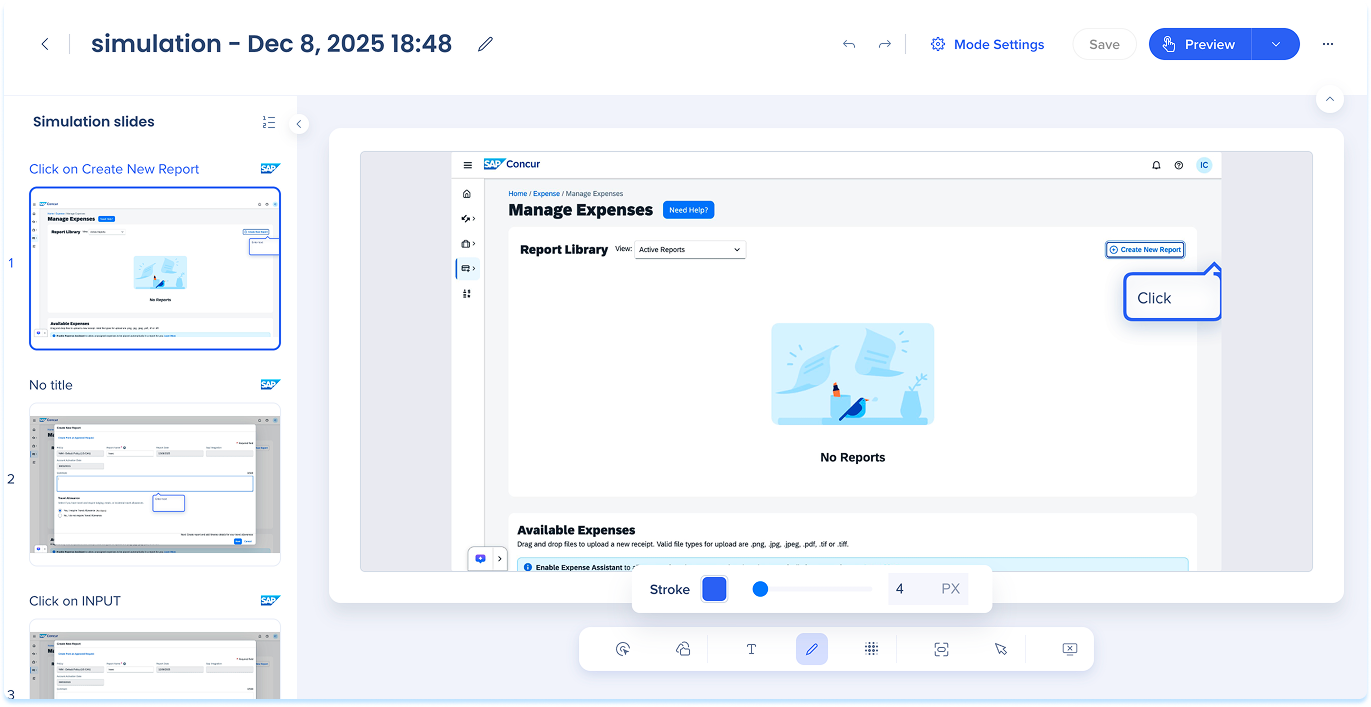
Shapes
Select Shapes in the annotation toolbar
Choose a shape:
Balloon
Straight arrow
Curved arrow
Rectangle
Circle
Use the inline toolbar to adjust:
Fill: Background color (balloon, rectangle, or circle)
Stroke: Border or line color
Width: Set the border thickness
注
バルーン図形は、リッチテキストとリンクをサポートします。
Balloon
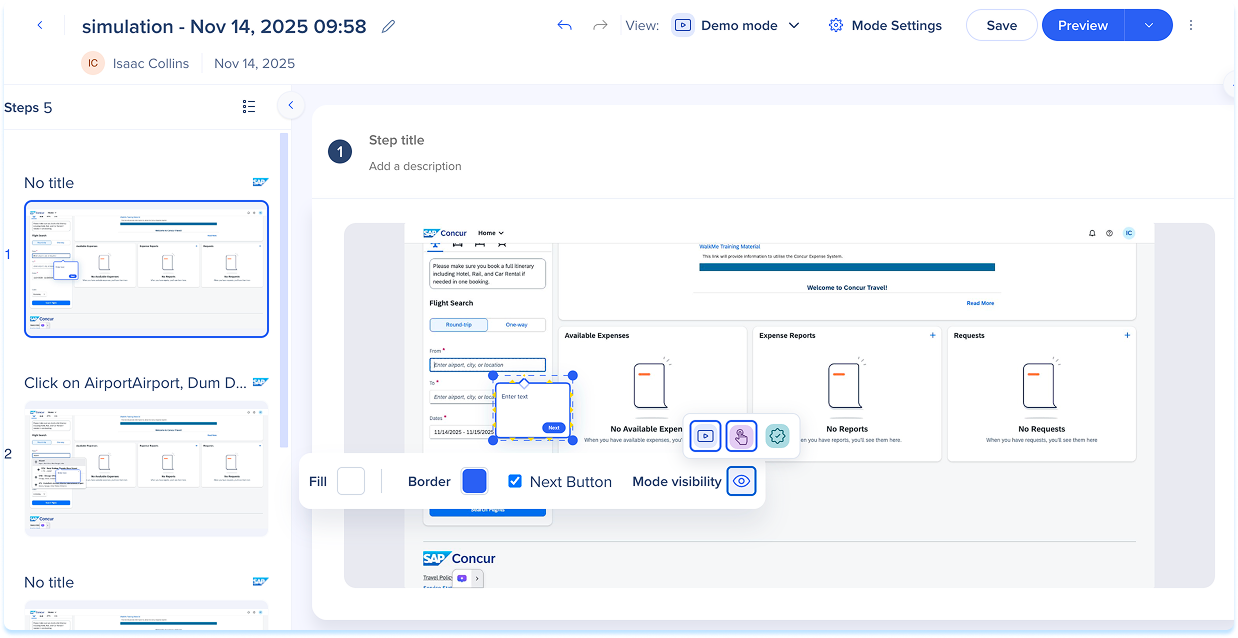
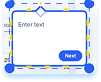
The Balloon shape supports rich text and links, and has additional inline toolbar options:
Next Button: Select Next Button in the inline toolbar to let learners move forward without interacting with a captured element
Tip: Drag the yellow dot around the balloon's border to position the tip, or drag it into the balloon to remove the tip and create an explanation box
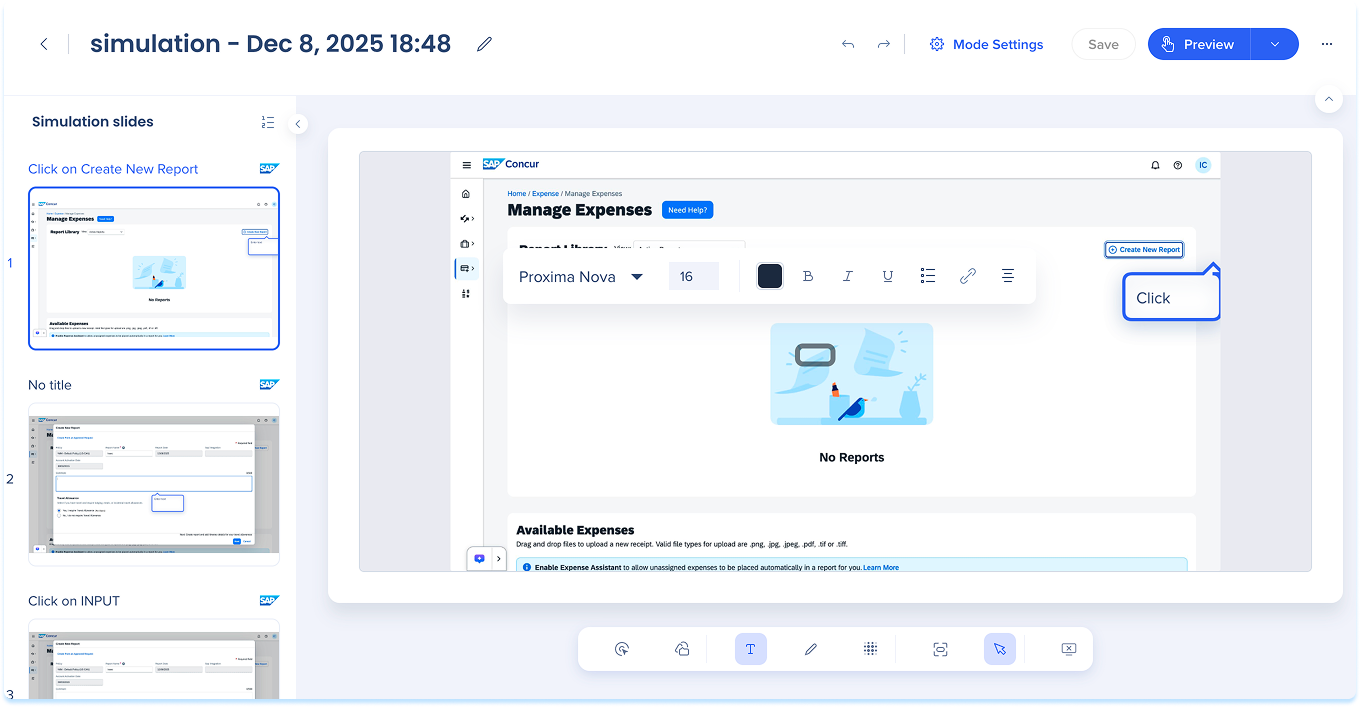
Click on the slide and type your instruction or label
Use the inline toolbar to apply the following formats:
Font
Font size
Color
Format text: Bold (B), Italic (I), Underline (U)
Lists: Bulleted list or numbered list
Link: Add a hyperlink
Alignment
Pencil
Select Pencil in the annotation toolbar to draw freehand on the slide
Use the inline toolbar to adjust:
Stroke: Line color
Width: Line thickness
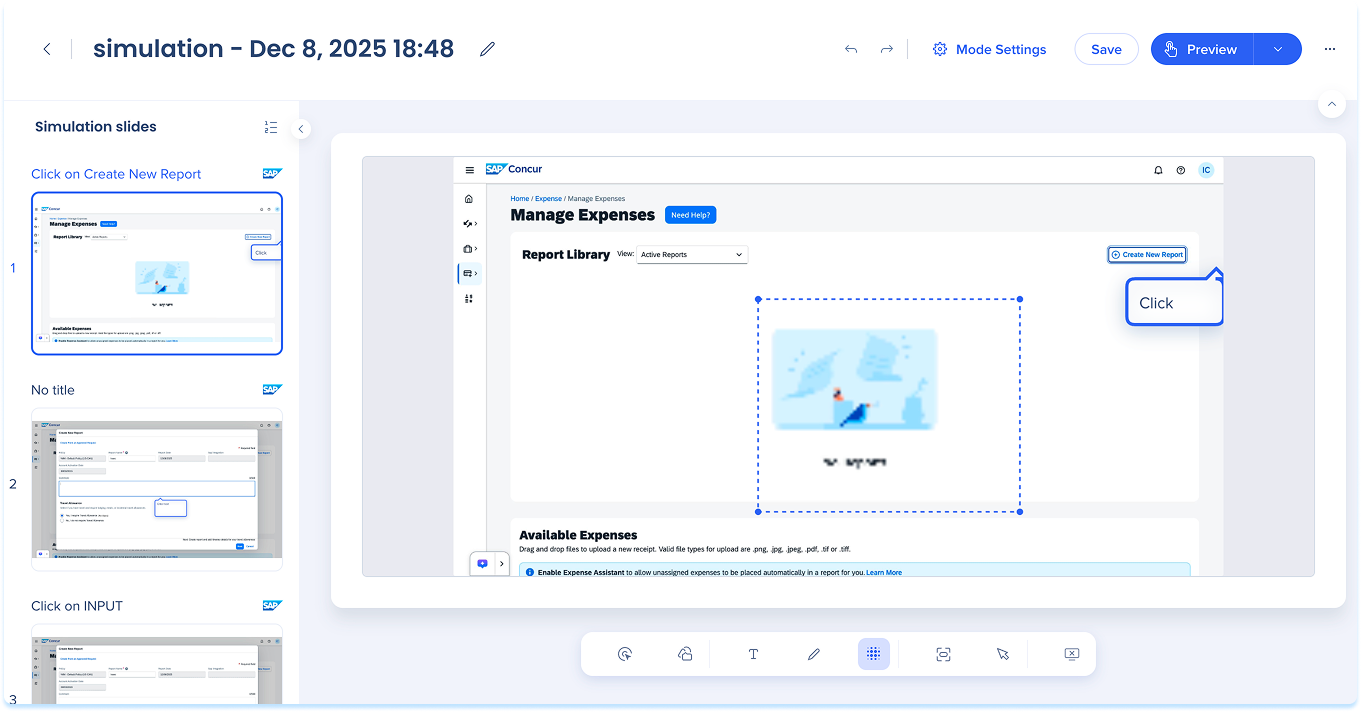
Blur
Select Blur in the annotation toolbar
Drag to draw a blur box
Resize or move the box as needed (optional)
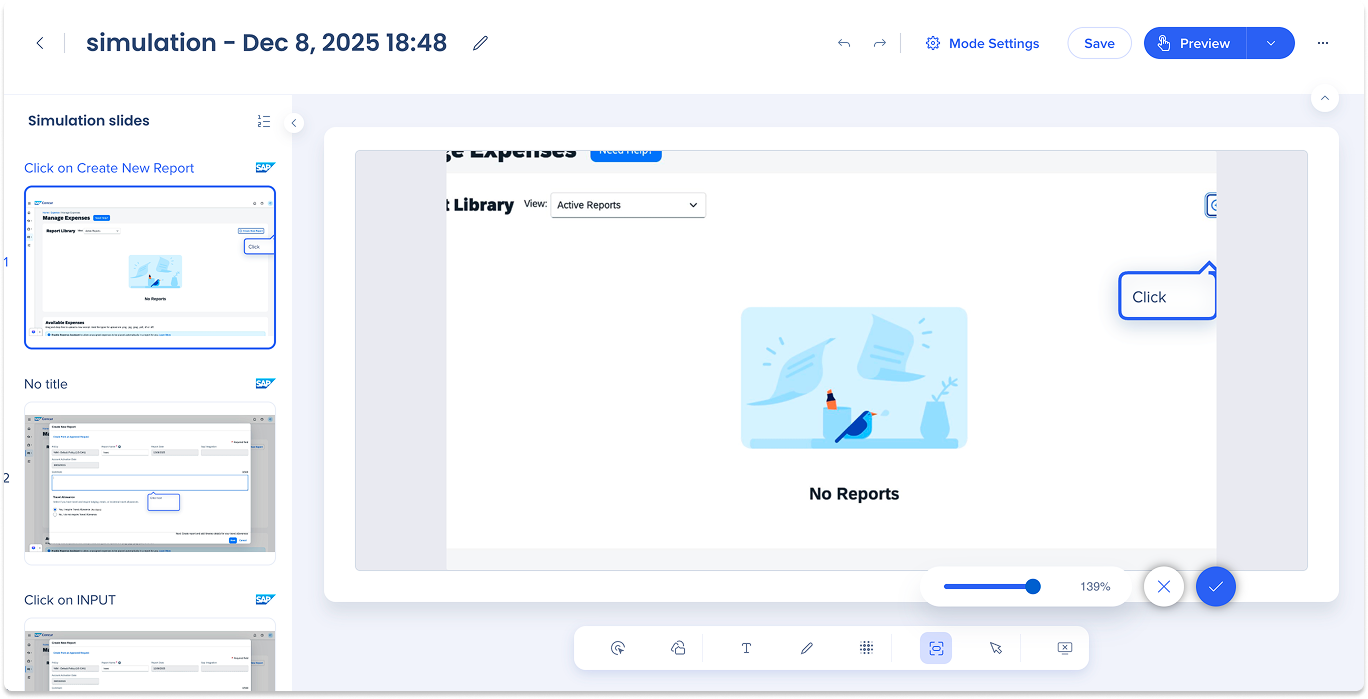
Focus area
Click Zoom in the annotation toolbar
Use the slider to zoom in or out
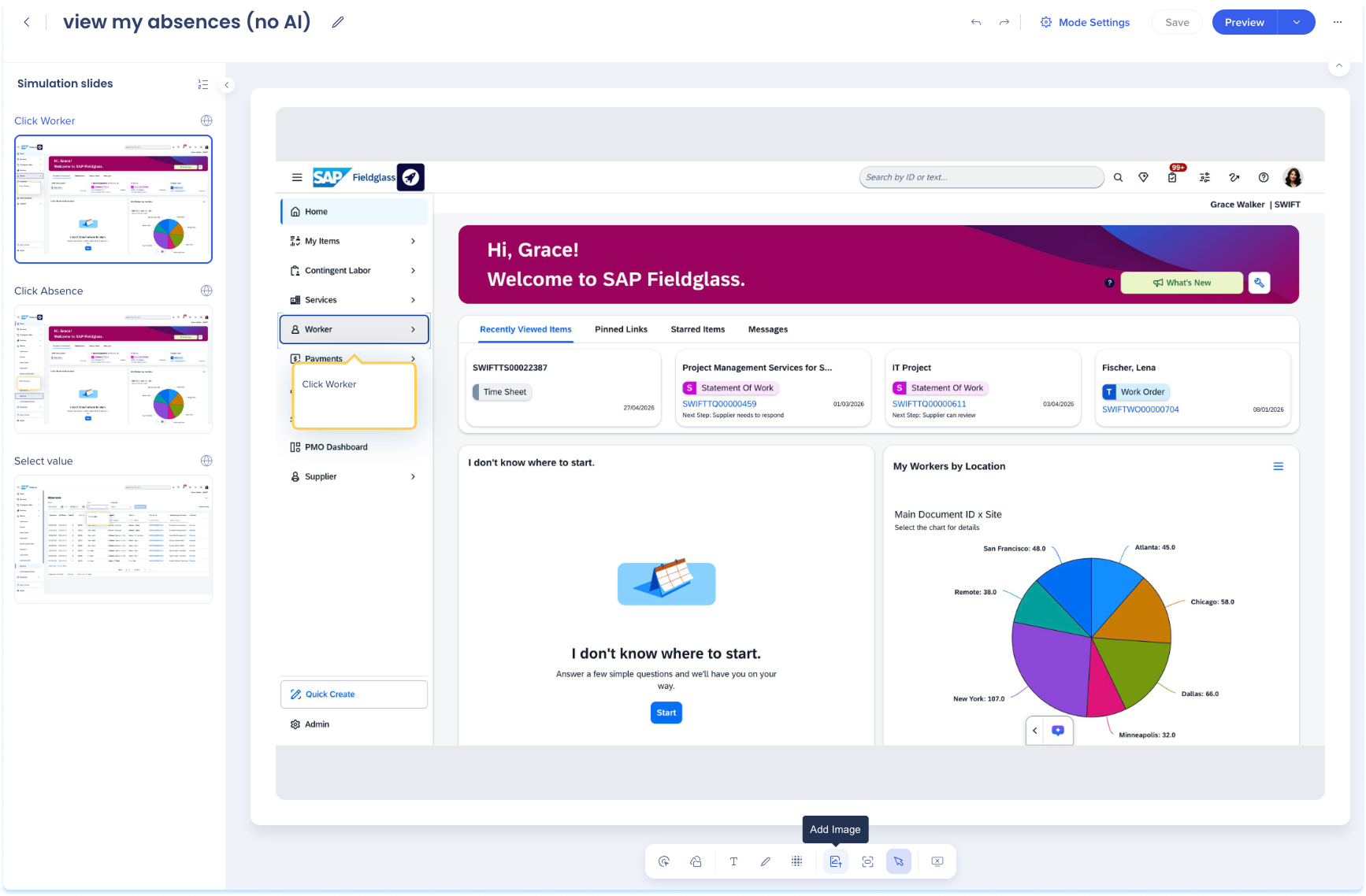
Image
Select Add Image in the annotation toolbar
Select and insert an image from your computer
Adjust the opacity using the slider
Technical Notes
Simulation recording issues on older Google Chrome browser version
If you are experiencing any issue with recording simulations, update your Google Chrome browser to the latest version, relaunch Chrome and try again.
Text to speech is currently limited to English only
AI Translation doesn't translate simulation content
Recording longer simulations
For optimal performance, we recommend recording in batches of up to 50 steps. After each batch, stop and let the system process before adding more steps to your simulation. While simulations can capture extended workflows, recordings of 100+ steps in a single session may experience processing issues. Recording in smaller segments ensures your work is saved reliably and gives the system time to process each batch.
Screen resolution and display scaling
Record simulations using common resolutions like 1920×1080 (or 1366×768) with display scaling and browser zoom at 100%. Avoid 4K, ultrawide, or maximized-on-large-monitor recordings, as balloon annotations are sized relative to resolution and oversized displays make them appear too small during playback.