Brief Overview
In WalkMe Learning Arc, you can add an existing microlearning to a course as a lesson. The course links to the microlearning instead of copying it. When you publish a change to the microlearning, learners see the update in every course that uses it.
In the course, an imported microlearning is read-only. To edit it, open the microlearning directly. If a course needs its own version, detach the microlearning to turn it into a regular lesson.
Use Cases
- Reuse 1 policy or how-to lesson in several courses and keep it up to date in 1 place
- Build a course from microlearnings you already have
- Let learners who already completed a microlearning get credit for it inside a course
Access
Add microlearnings from the course builder:
- Open the course in the course builder
- In the Course Outline pane, select +
- Select Import Microlearning
How It Works
An imported microlearning stays linked to its source. You edit it in its own builder, and every course that uses it picks up the published changes. Completion is shared, so a learner who completes it once gets credit everywhere it's used.
Add a microlearning to a course
- Open the course in the course builder
- In the Course Outline pane, select + and then Import Microlearning
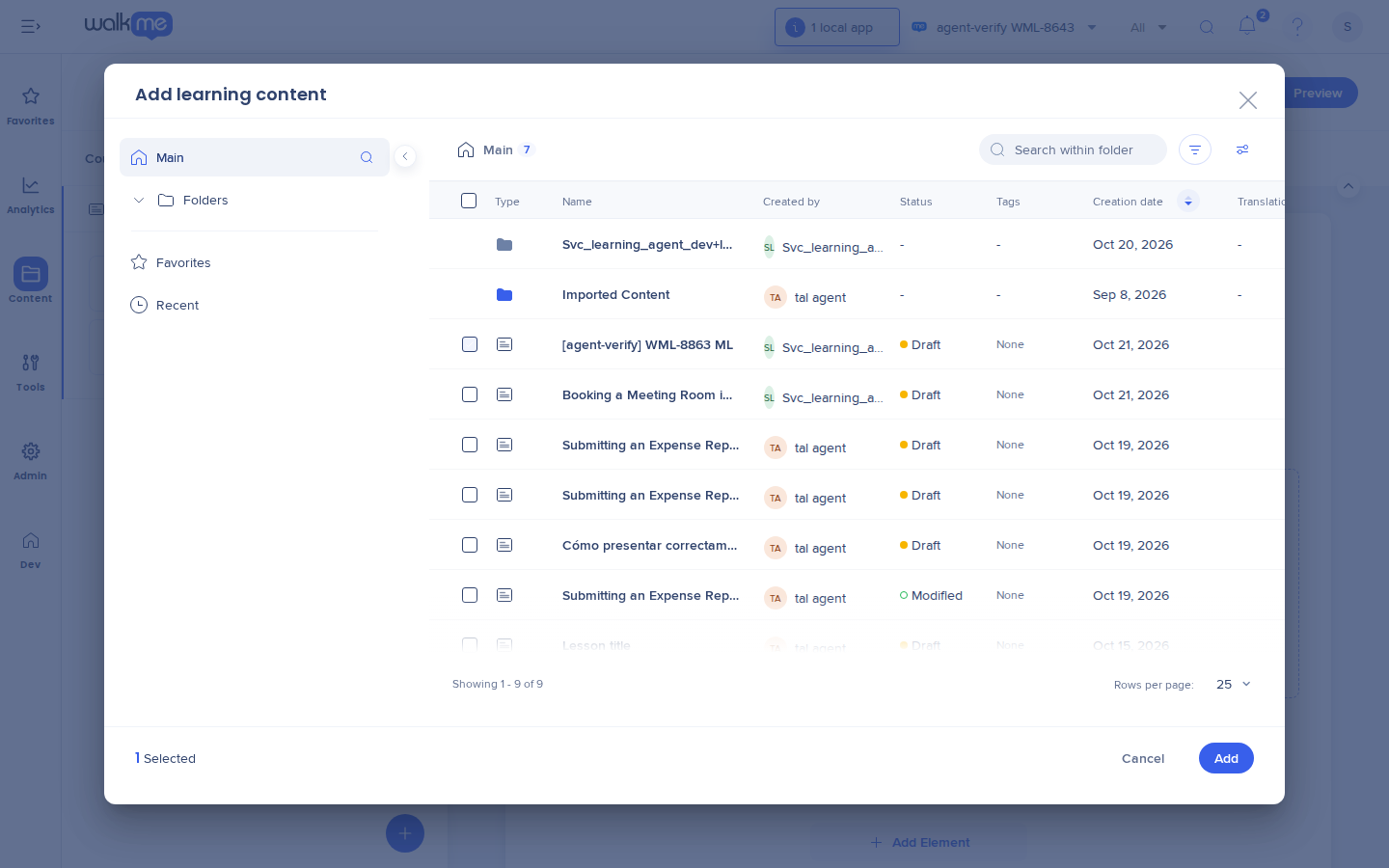
- In the Add learning content popup, select 1 or more microlearnings
- Select Add
- Select Save
Each microlearning is added to the outline as its own lesson. Drag it to move it, like any other lesson.
Note
- You can add a draft microlearning. Learners don't see it in the course until the microlearning is published
- Microlearnings already in the course, and microlearnings still being created with AI or that failed to create, aren't listed
- You see only microlearnings in folders you can access
An imported microlearning in the course
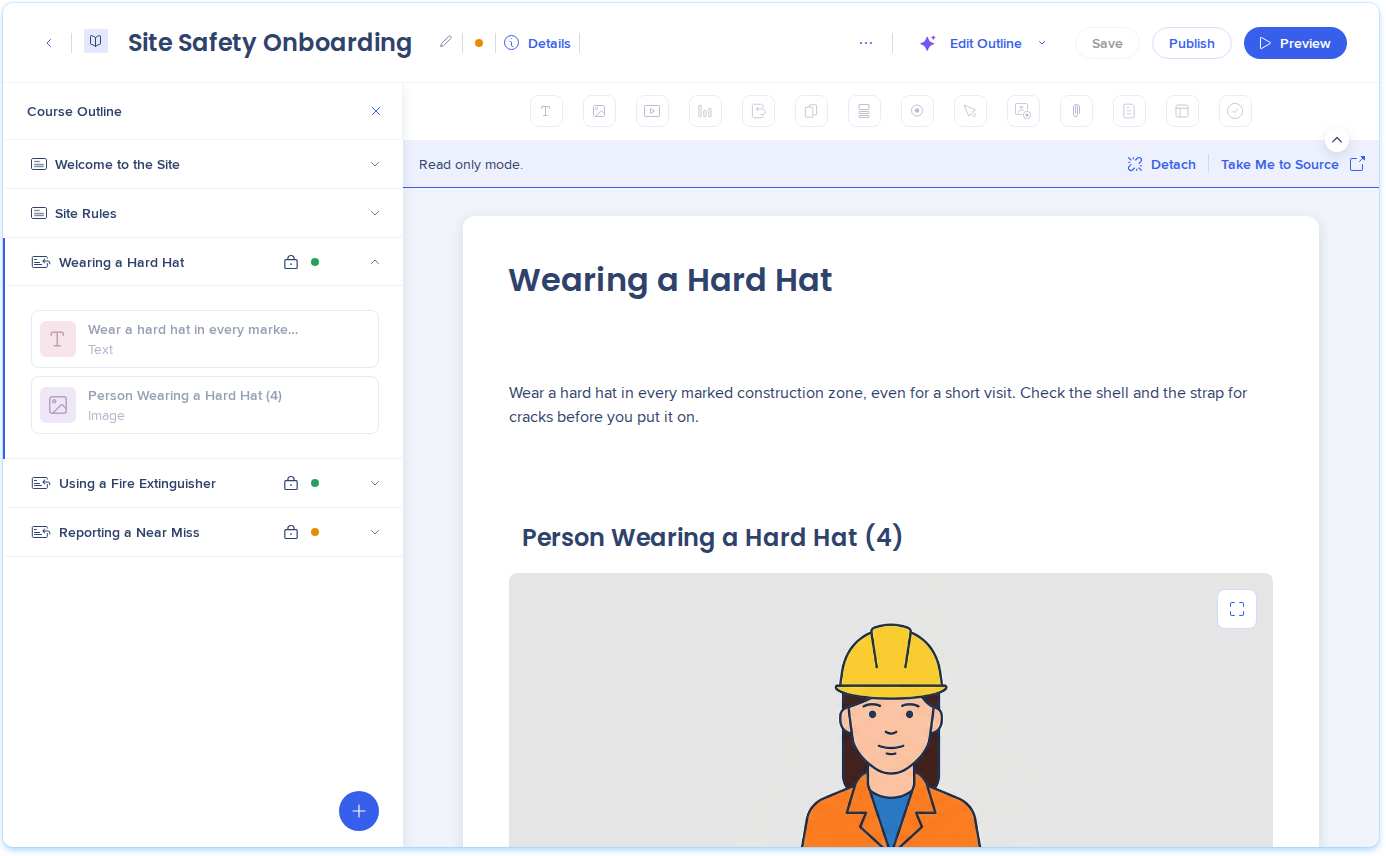
In the Course Outline pane, an imported microlearning shows:
Select the lesson to open it. A "Read only mode." banner shows at the top of the canvas, with Detach and Take Me to Source. You can preview the content, but you can't add, edit, or delete its elements.
Edit the microlearning
- Select the imported microlearning in the Course Outline pane
- In the banner, select Take Me to Source
- Edit the microlearning in its own builder
- Publish the microlearning
After you publish, your changes reach every course that uses the microlearning. Learners in a published course get the new version without a course publish.
Note
- Publishing a course and publishing a microlearning are separate. Publishing the microlearning doesn't publish the course, and publishing the course doesn't publish the microlearning
- When you publish a course, the publish popup lists any imported microlearnings that aren't published. Learners don't see them until they're published
Detach a microlearning
Detach turns the imported microlearning into a regular lesson that belongs to this course. Use it when this course needs its own version.
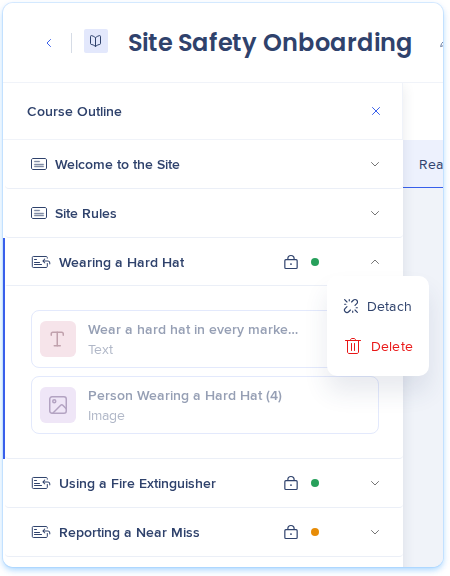
- Open the Options menu on the microlearning in the Course Outline pane and select Detach, or select Detach in the banner
- In the Detach microlearning popup, select Detach
The lesson keeps its content in every language and its place in the outline. It loses:
- Updates: Future changes to the microlearning don't reach this course
- Shared completion: Completing the microlearning elsewhere no longer counts for this lesson
Note
Detaching is permanent. The original microlearning stays in the library, and other courses that use it aren't affected.
Remove a microlearning from a course
- Open the Options menu on the microlearning in the Course Outline pane
- Select Delete
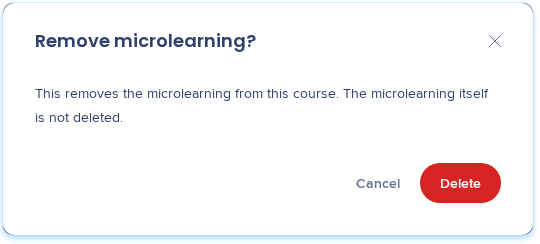
- In the Remove microlearning popup, select Delete
The microlearning is removed from this course only. It stays in the library and in any other course that uses it.
What learners see
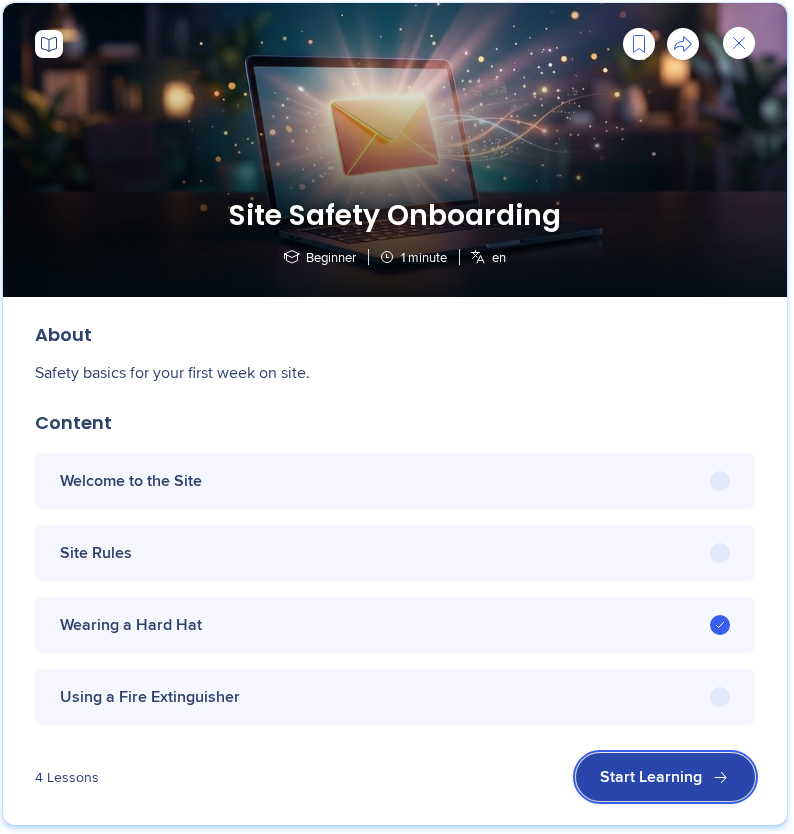
In the portal, an imported microlearning is a lesson in the course like any other.
Completion is shared between the course and the microlearning:
- Completed on its own first: The lesson is already completed when the learner opens the course, and it counts toward course progress
- Completed inside the course: The microlearning is completed on its own too, with its completion email and certificate
- 1 microlearning in several courses: Completing it once completes it in every course
Note
- If the course has an unpublished or draft microlearning, learners don't see that lesson, and it doesn't block course completion
- When you republish a microlearning and in-progress learners restart, only that lesson restarts in each course. The rest of the course keeps its progress
Unpublish, delete, or change a microlearning that courses use
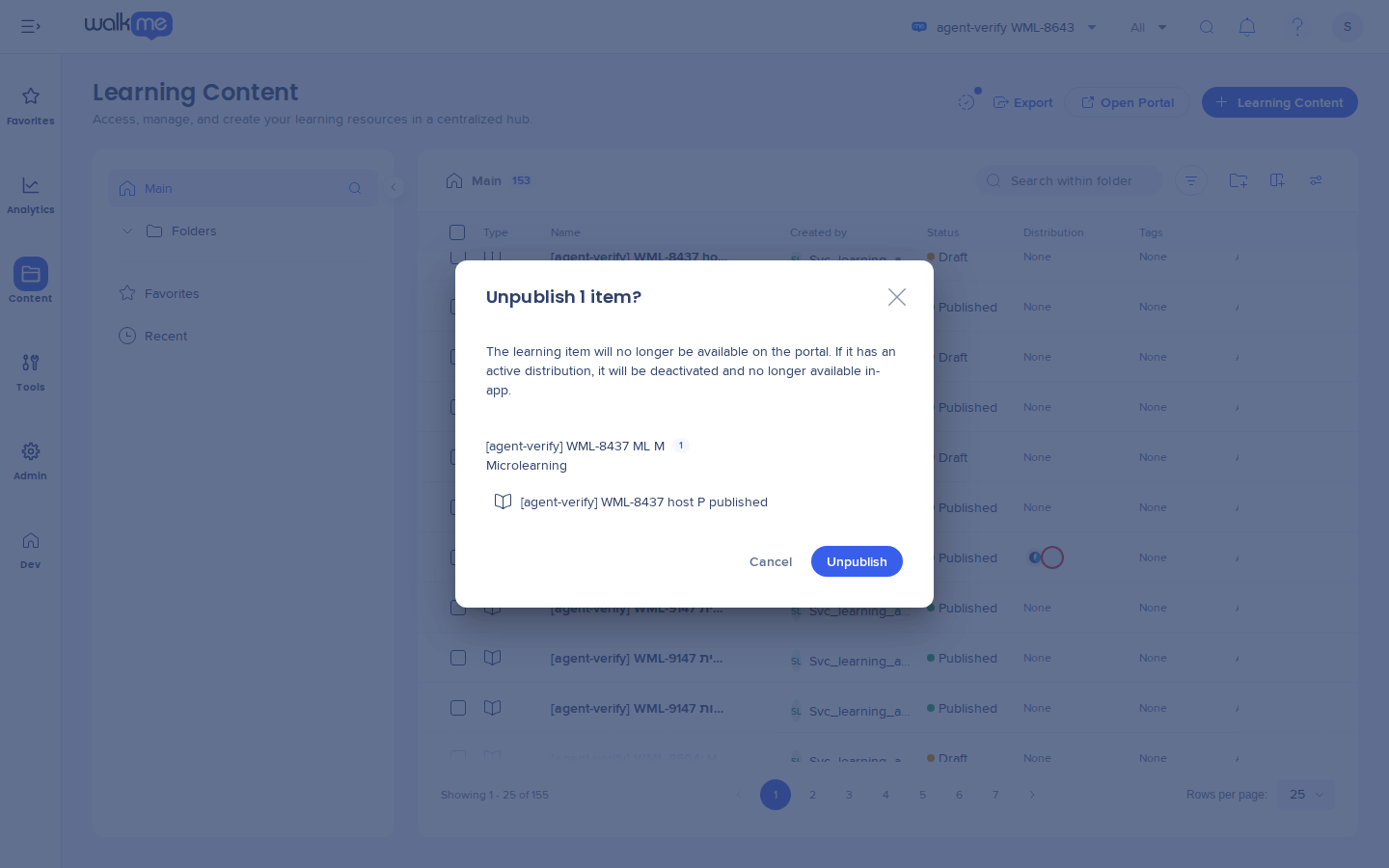
Before you unpublish a microlearning or change it to a course, the dialog lists the courses that use it. You can't delete a microlearning that courses use.
Note
To delete a published microlearning, unpublish it first.
Exports, languages, and duration
Technical Notes
Required permissions
- To import a microlearning, you need edit rights on the course and access to the microlearning's folder
- To change an imported microlearning, you need edit rights on the microlearning itself
For details, refer to WalkMe Learning Arc Roles & Permissions.
WalkMe Learning Arc Roles & Permissions
Limitations
- A course can include the same microlearning only once
- To edit the title or description of an imported microlearning in a course, detach it first
- Authors without access to the microlearning's folder see it as read-only in the course
- Course duration includes imported microlearnings, even ones that aren't published yet
- If you publish a microlearning that was still a draft in a course, learners who already completed the course see it as a new lesson with no completion status. The course stays completed


