Brief Overview
Use the hotspot element to place markers on an image that reveal more detail. Learners select a marker to open its section, so a single image can carry extra context without adding more text.

Use Cases
- Label parts of a diagram or interface screenshot
- Add detail to specific areas of an image without adding more text
- Turn a static image into something learners explore
Add a Hotspot
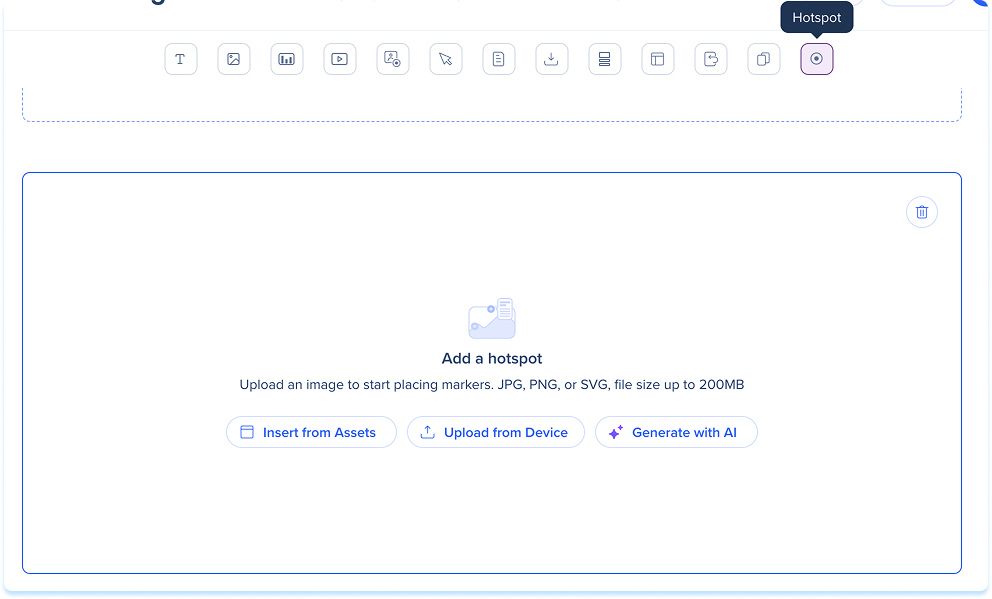
- Drag the hotspot element from the elements panel onto the canvas or a spot in the layers panel
- Choose one of the following options to add an image:
- Drag & drop the file into the placeholder
- Insert from Assets: Select an image from your learning assets
- Upload from Device: Choose a file from your computer
- Generate with AI: Create an image from AI
Image Element
Add Markers
- Select + Add Marker, or select the Add marker icon in the toolbar
- Select the spot on the image where you want the marker
- To add more markers, repeat the steps. Use the arrows next to Marker 1 of 1 to move between markers

Add Content
Each marker opens a section with a title and content area.
For each marker:
- Type a Section title
- Add the section content, which supports text and images
Use the formatting toolbar to style the section text:
- Bold: Make the selected text bold
- Italic: Italicize the selected text
- Underline: Underline the selected text
- Text color: Set the color of the selected text
- Link: Add a hyperlink to the selected text

Select the hotspot to show the toolbar:
- Hide title: Turn the element title off
- Marker style: Set the marker shape
- Marker color: Set the marker color
- Show on image: Changes how the hotspot opens on the learner side, displaying the content directly on the image rather than in a separate panel
- Add marker: Add a marker to the image
- Preview hotspot: Preview how the hotspot works for learners
- Hide element: Keep the element hidden from learners but available in the background
- Reset element: Reset the element
- Delete: Remove the element from the lesson
Learner View
Learners select the markers on the image to reveal more detail.