Brief Overview
You can invite two types of users to your Learning Arc workspace: contributors who help build content, and learners who access published courses through the learner portal.
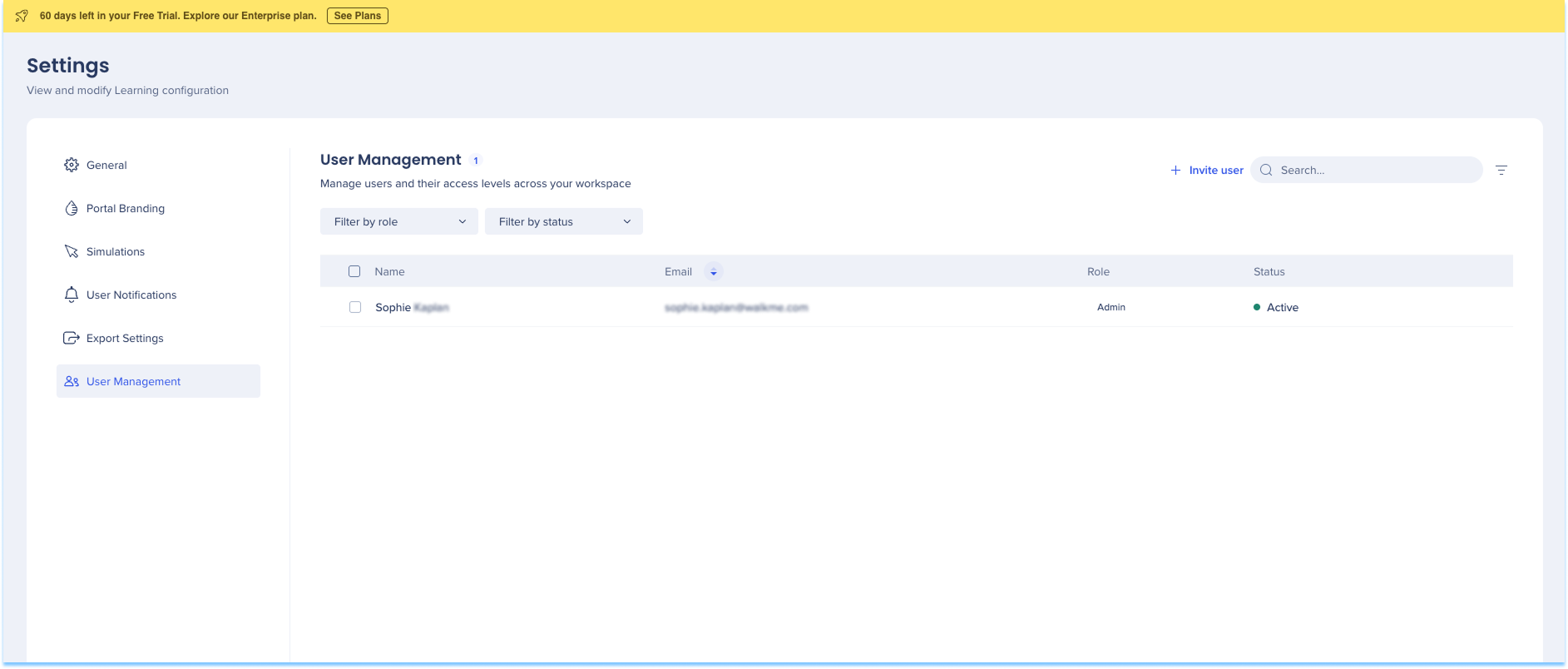
Invite a User
- Go to Settings
- Select User Management
- Select + Invite user
- Type the email address of the person you want to invite
- Select their role: Admin, Contributor or Viewer
- Select Apply
The invited user receives an email with a link to join your workspace. Their status shows as Invite Pending until they accept.
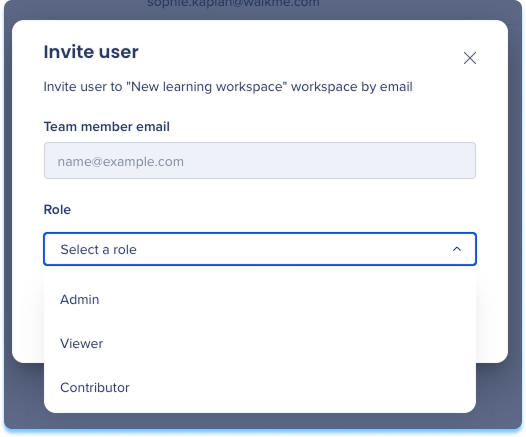
User Roles
Admin
- Full access to workspace settings and content
Contributor
- Can create, edit, and publish learning content
Viewer
- Can access and complete published learning content via the portal
Note
Inviting a contributor gives them access to your full workspace, including all courses and learning assets. Contributors who sign up via an invitation can also create their own content.
Statuses
Active
- User has accepted their invitation and has access to the workspace
Invite Pending
- Invitation has been sent but not yet accepted
Pending request
- User has requested access to the workspace and is awaiting approval
Revoked
- User's access has been removed
Revoke Access
To remove a user's access to your workspace:
- Go to Settings
- Select User Management
- Select the delete icon next to the user's name
- Select Revoke Access to confirm
The user loses their role and access to the workspace immediately.


