Brief Overview
WalkMe's Pinned AI brings timely, contextualized guidance directly attached to the UI elements users already interact with. With AI SmartTips on input fields and AI Launchers on the screen, users get instant, contextual help right where they're working—without breaking their flow or switching apps. Guidance can be calibrated to your trusted knowledge sources, so support is always grounded in your organization's processes, helping users complete tasks faster and with fewer errors.
This feature is part of WalkMe's Suite of Contextual AI Assistance, which provides access to an advanced set of WalkMe AI services – Pinned, Proactive, and On-Demand — to help inject workflows with AI-powered guidance and automations that improves user productivity and compliance across tasks, apps, and user workflows.
Onboarding Checklist
Connect knowledge sources to the AI Center
The AI Center is where you process connected knowledge sources—such as webpages and files—by extracting text-based content and converting it into vector embeddings for semantic search.
By connecting these sources, you enable AI Knowledge Referencing, which fetches curated information from company resources when conditions are met. This allows WalkMe to contextually retrieve company information from connected documentation—such as policies or governance stored in internal knowledge sources.
AI Center
Explore Pinned AI features
AI SmartTips
AI SmartTips validate and improve text input in open form fields using custom logic and generative AI. They suggest real-time improvements to guide users toward compliant or complete responses.
-
Validate CRM entries or performance review text for quality and completeness
-
Reduce friction and rework by helping users get it right the first time
-
Automatically suggest improvements when inputs don't meet validation criteria
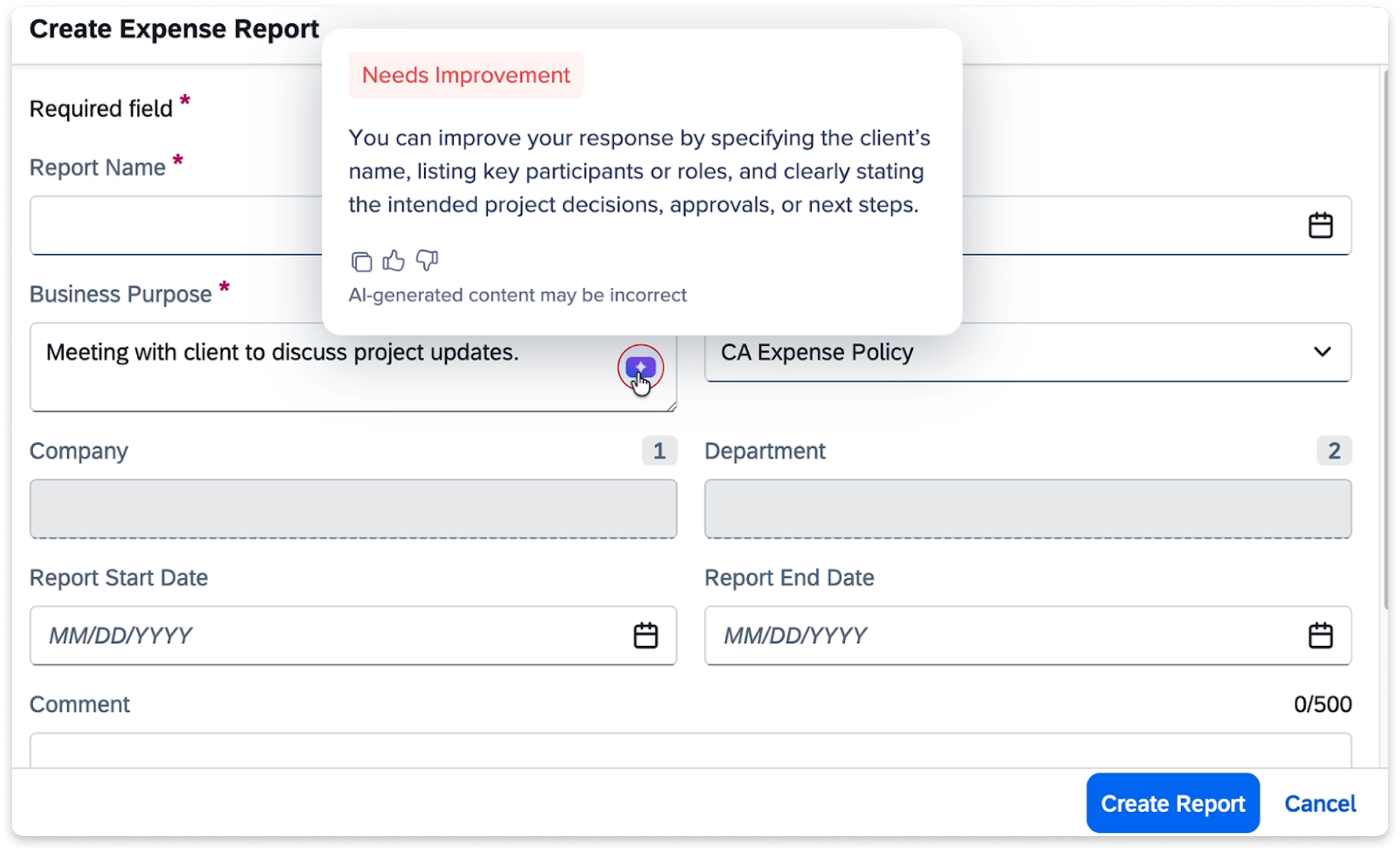
AI SmartTips
AI Launchers
Add AI Launchers to the screen to give users instant, contextual help right where they're working. This increases process efficiency via faster self-service and execution.
AI Display Conditions
Develop powerful display conditions, segmentation logic, and validation rules that leverage generative AI to determine when to expose your WalkMe content.
- AI Display Conditions are AI operators that have been added to the Condition Builder for the purpose of creating rules for triggering alerts and next best actions for users
- Trigger WalkMe content based on text meaning or tone (For example, "sentiment is inappropriate") rather than exact-match logic
- Further enrich AI Display Conditions by pulling information the user saved to memory— like whether the customer has expressed frustration before—so the user is fully informed and can take the right next steps
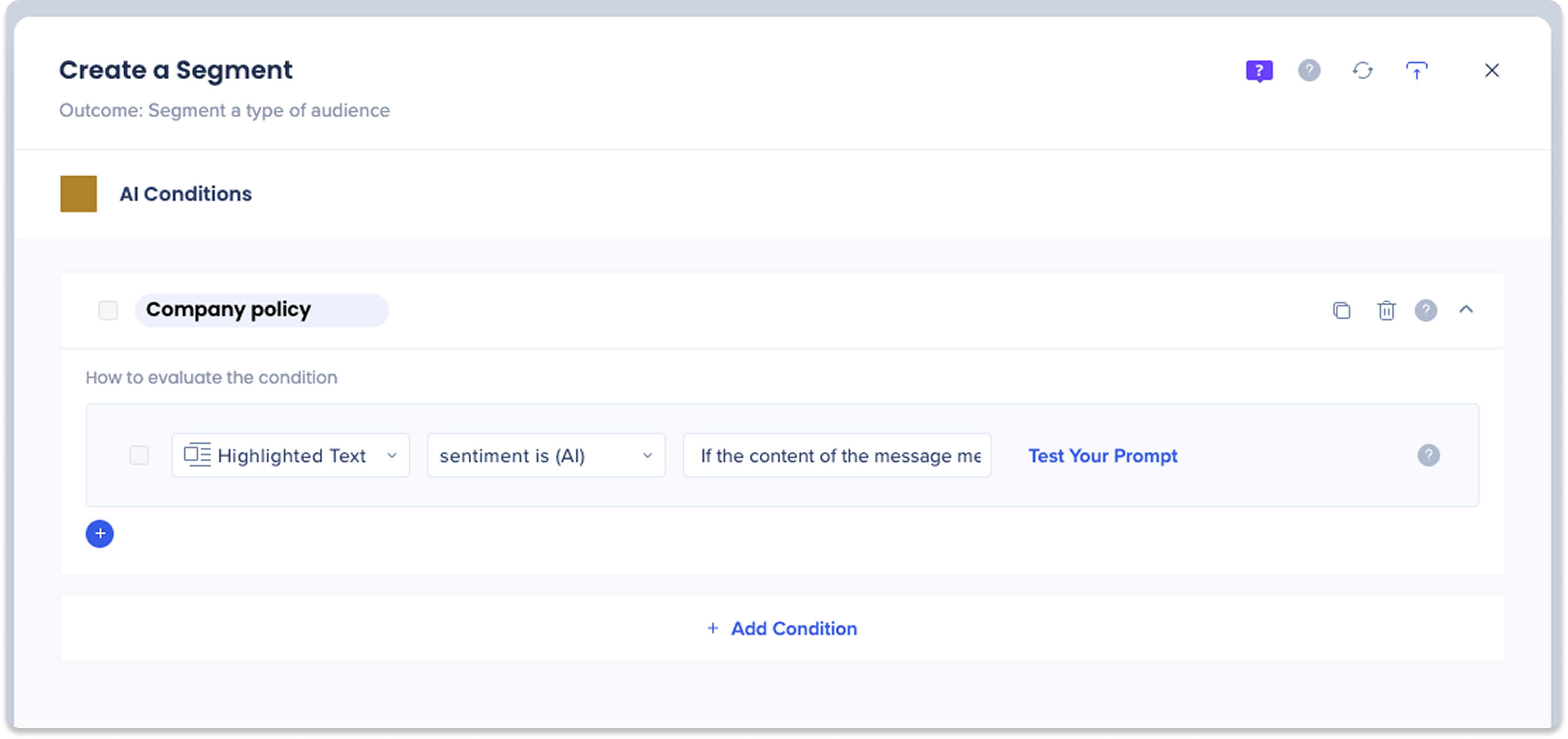
AI Conditions
AI Action Steps in Smart Walk-Thrus
Boost end-user productivity by creating smarter automated processes that seamlessly combine AI actions with your WalkMe guidance.
- Use AI Action Steps in SWTs for multi-field validation so a consolidated recommendation can be provided to users
- Use AI Action Steps in SWTs to evaluate inputs and surface dynamic prompts to users, offering specific guidance based on the data collected
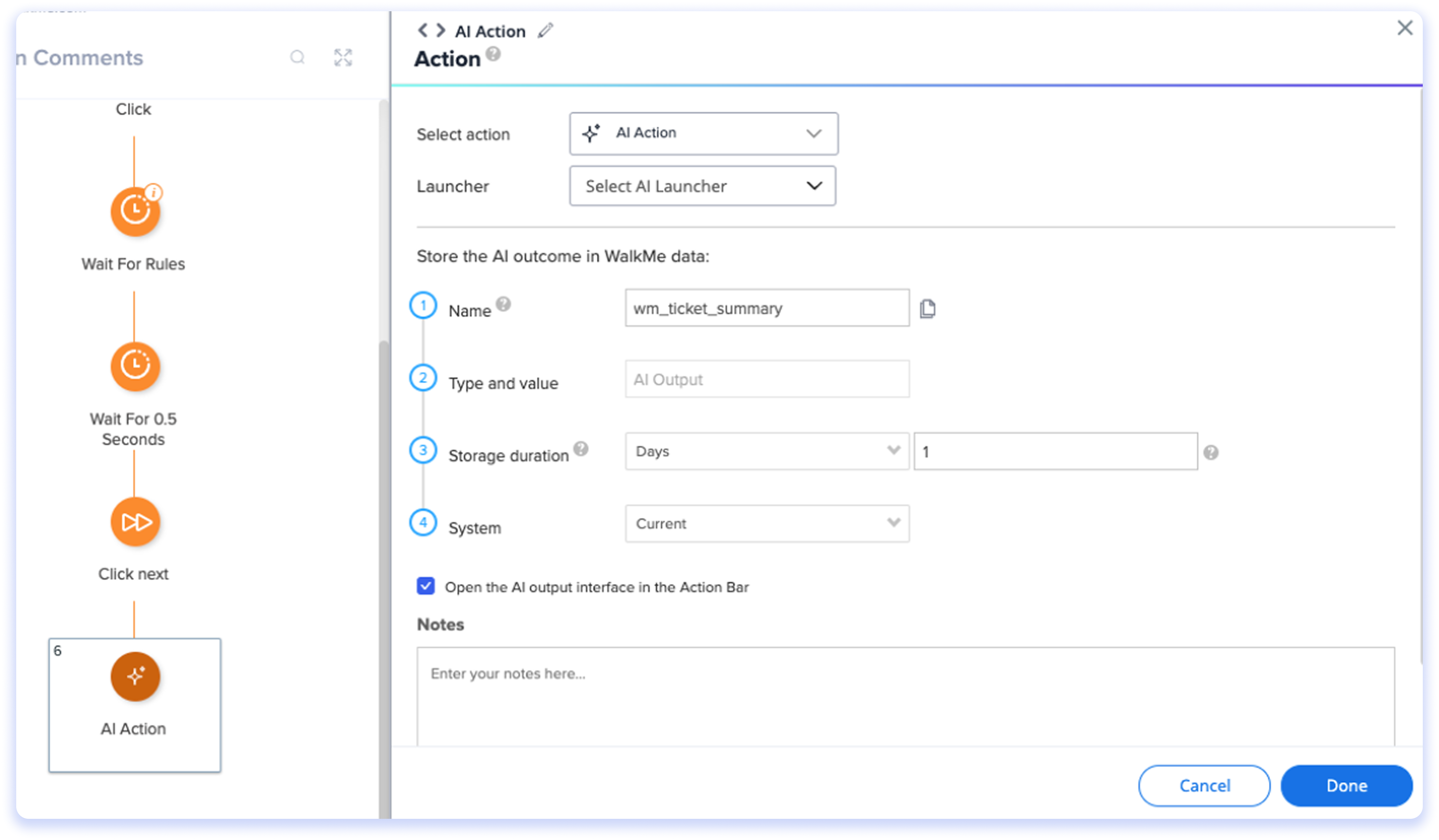
AI Action Steps in Smart Walk-Thrus
Visualize Adoption with AI Dashboards
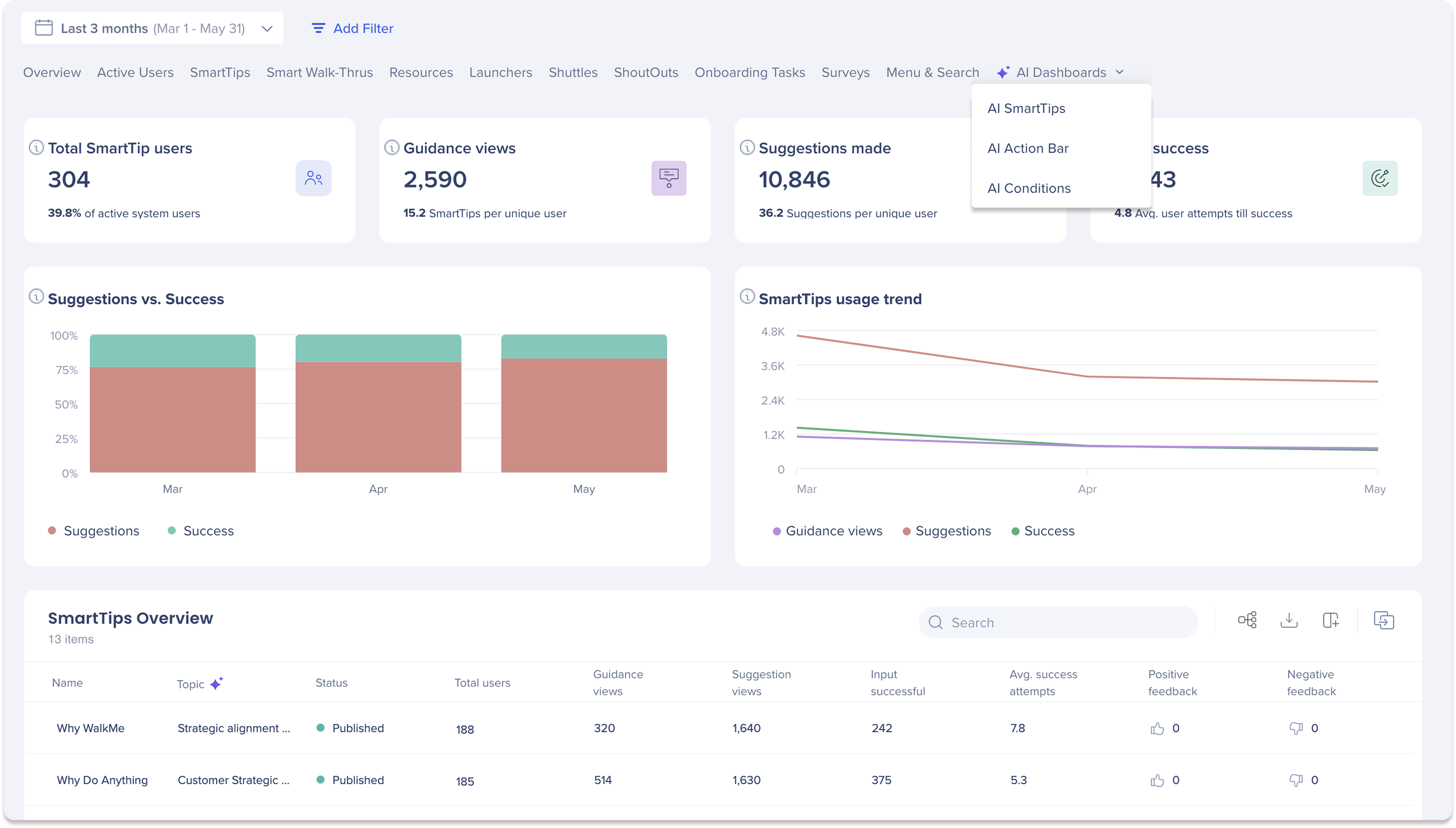
The AI Dashboards in the Insights Console help you monitor how Pinned AI features are being used across your organization.
Use it to:
AI Dashboards


