Brief Overview
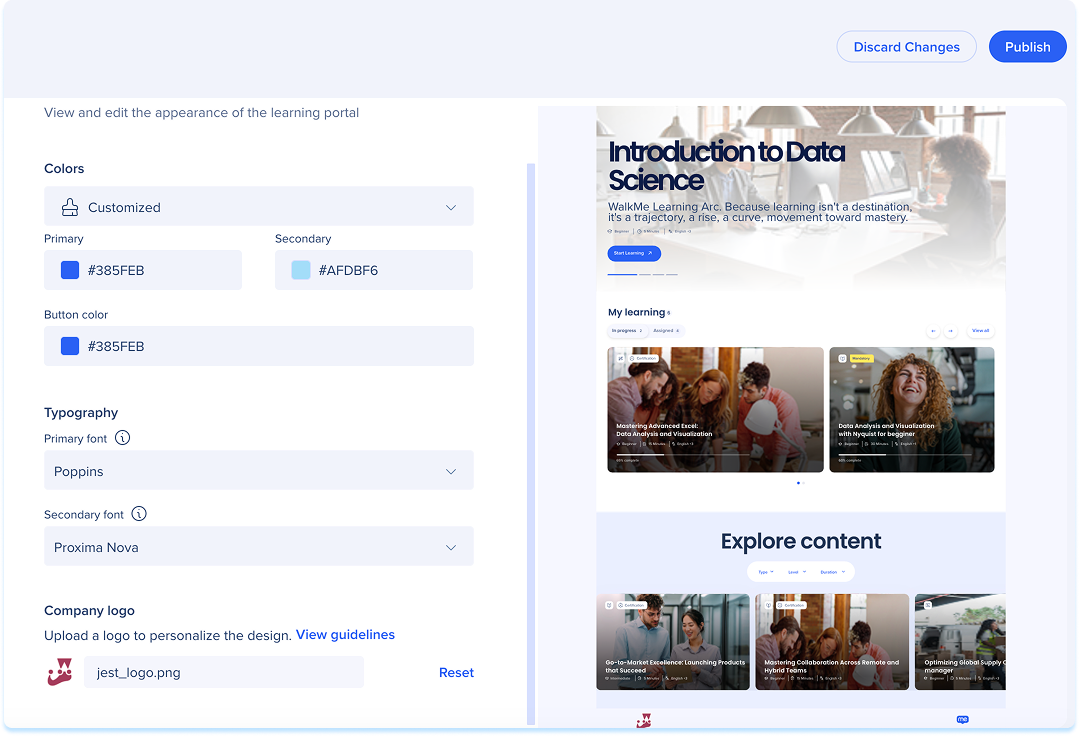
Portal Branding lets you customize the look and feel of your learning portal to match your organization's brand. You can update colors, typography, and your company logo, and preview changes before they go live.
Preview
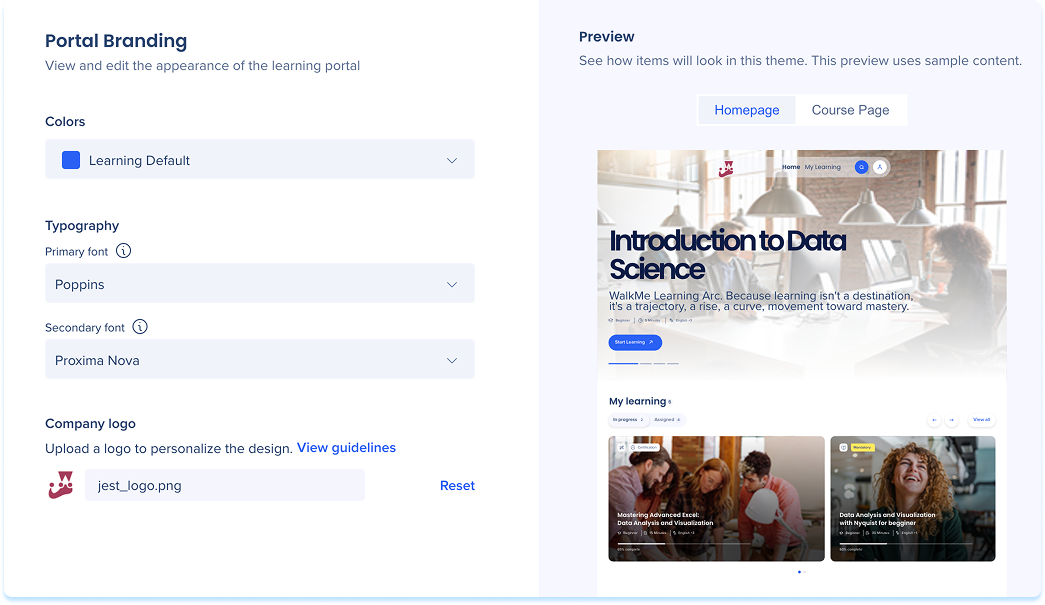
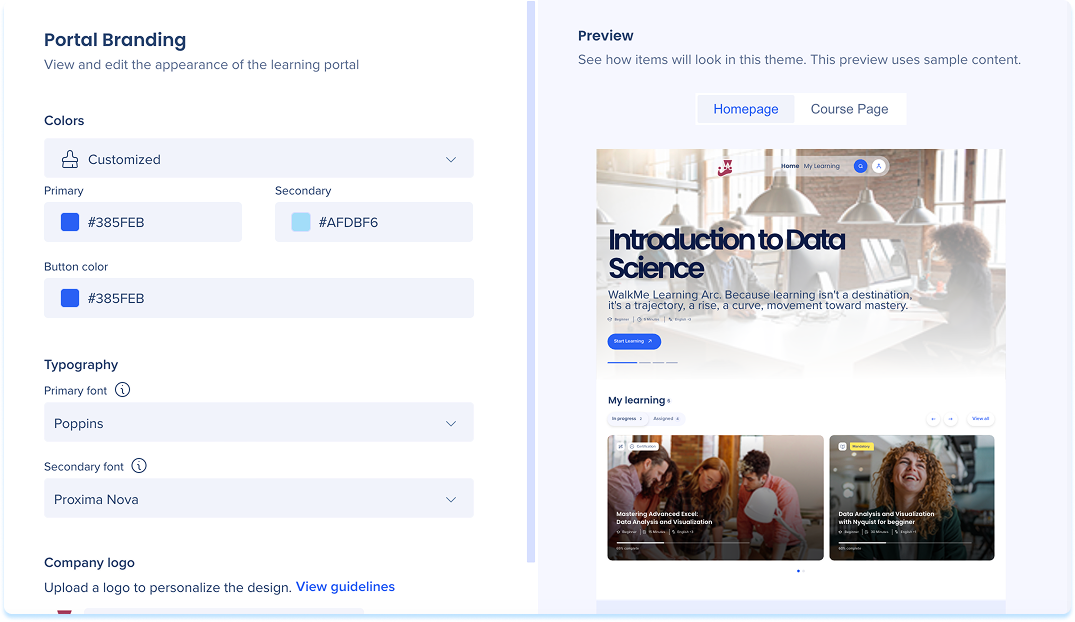
You can preview how your branding looks before it goes live.
- Select Homepage or Course Page in the Preview panel to switch between views
Colors
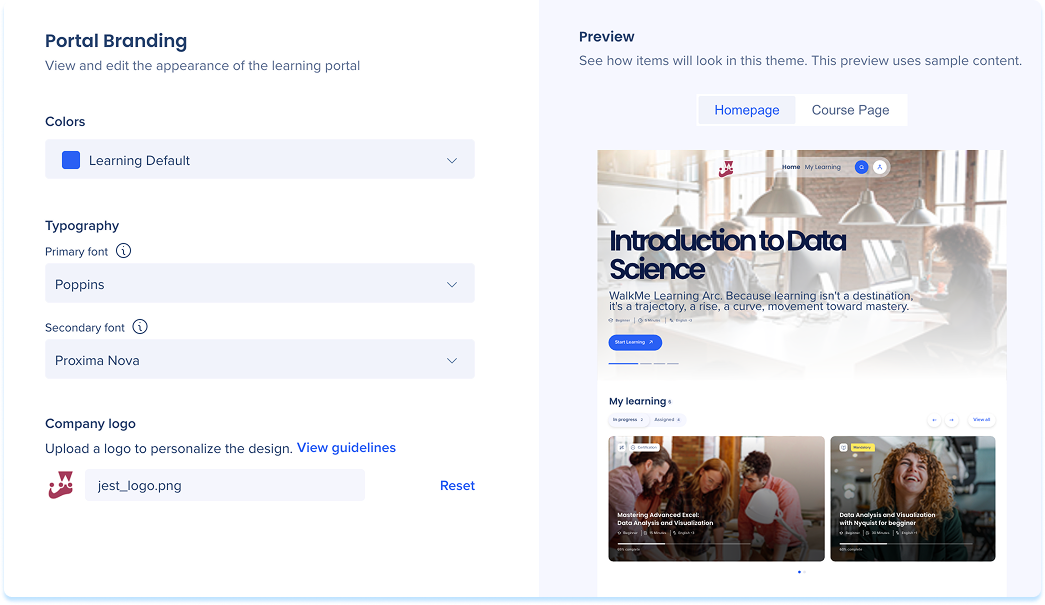
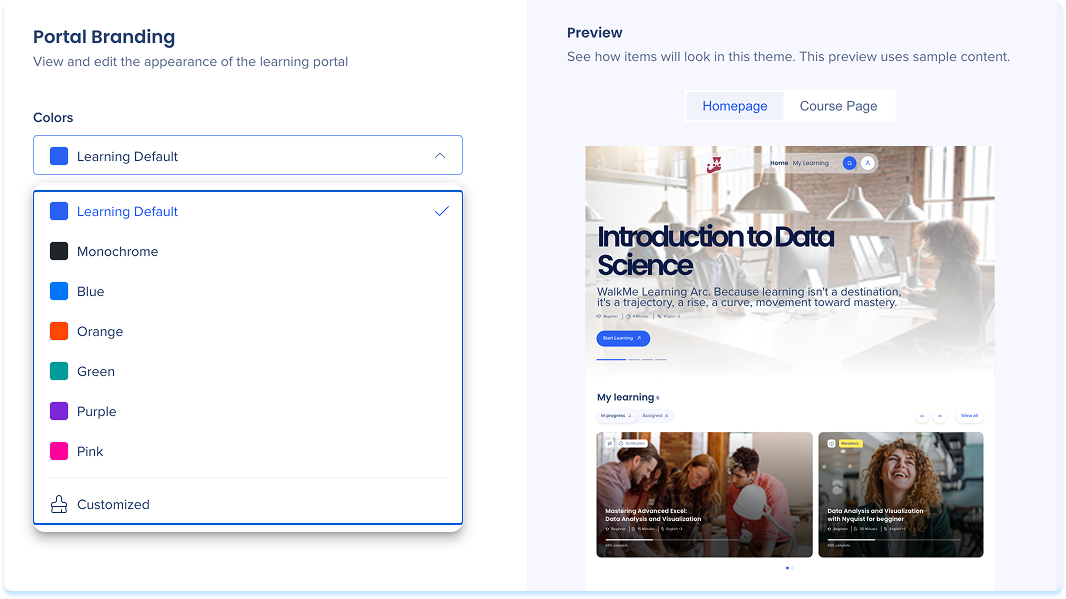
- Select a color theme from the Colors dropdown
- Choose a predefined theme or select Customized to set your own
If you selected Customized, set the following:
- Primary: Main color for the header and tile background
- Secondary: Supporting color that blends with the primary, used for gradients and complementary highlights
- Button color: Color applied to all clickable action buttons across the portal
Typography
Set the fonts used across your portal. Select from the following dropdowns:
- Primary font: Used mainly for titles and headers, including course titles and homepage sections
- Secondary font: Used for body text and paragraphs, especially throughout the learning page
Company Logo
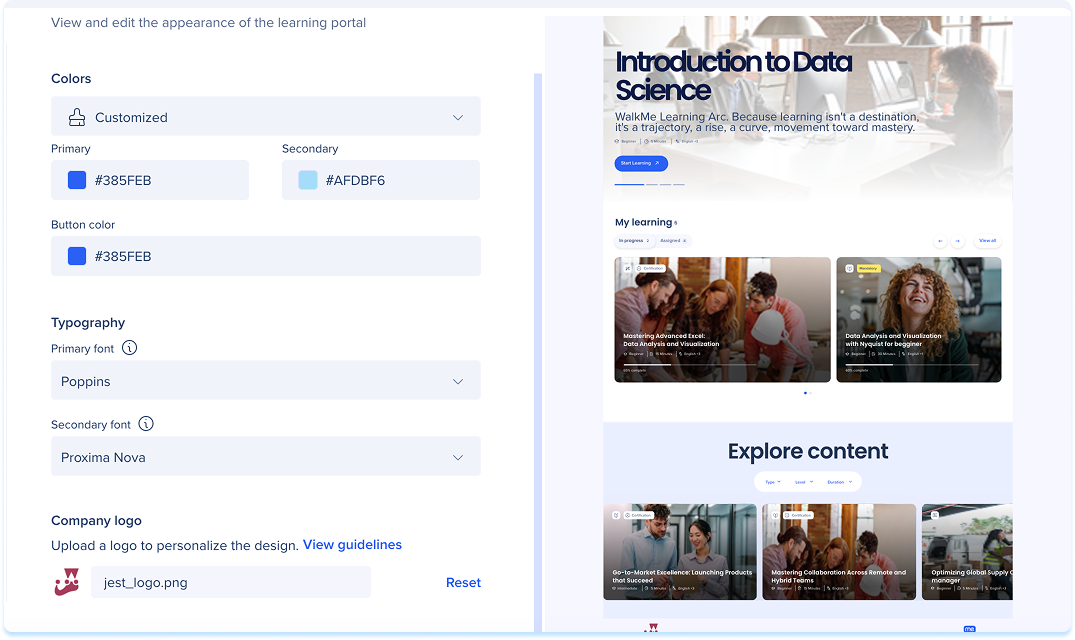
Upload a logo to personalize your portal.
- Select View guidelines to confirm your file meets the requirements before uploading
- Select the field to upload your logo
- To remove an uploaded logo and revert to the default, select Reset
Browser Tab
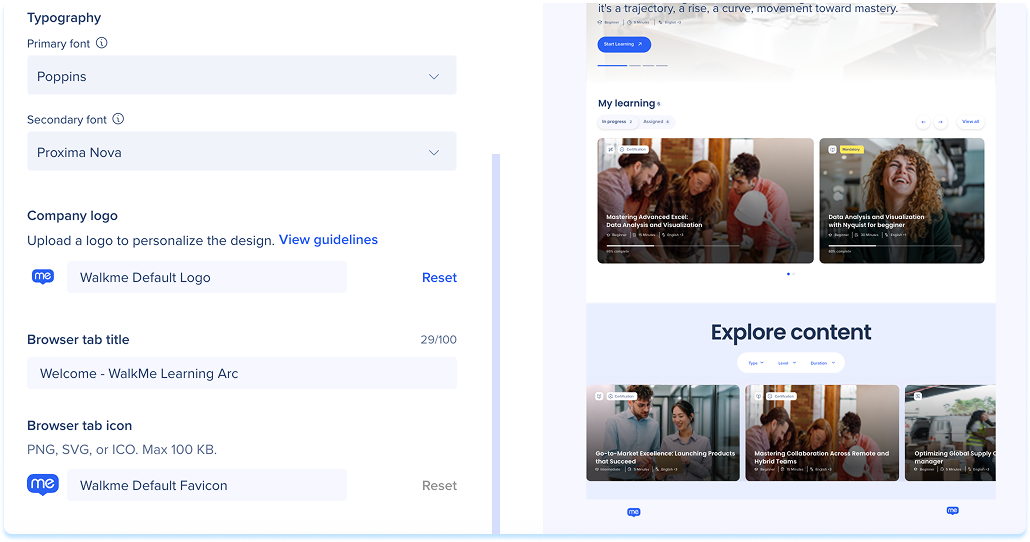
Set the title and icon that appear in the browser tab when learners open a portal, so it matches your organization's branding.
- In the Browser tab title field, type the text to show in the browser tab (up to 100 characters)
- Next to Browser tab icon, add an image file in PNG, SVG, or ICO format, up to 100 KB
- To go back to the default icon, select Reset
- Select Save
Publish Changes
- Select Publish at the top right of the page to apply your changes to the portal