Brief Overview
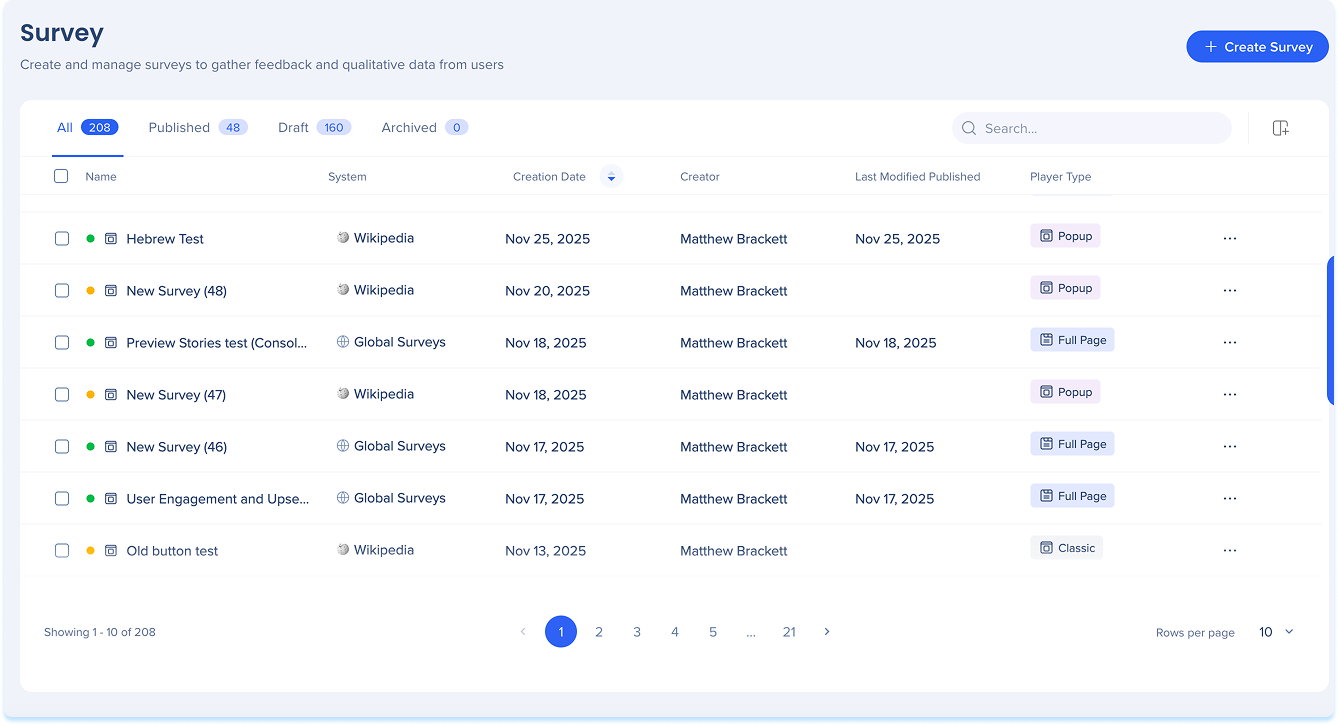
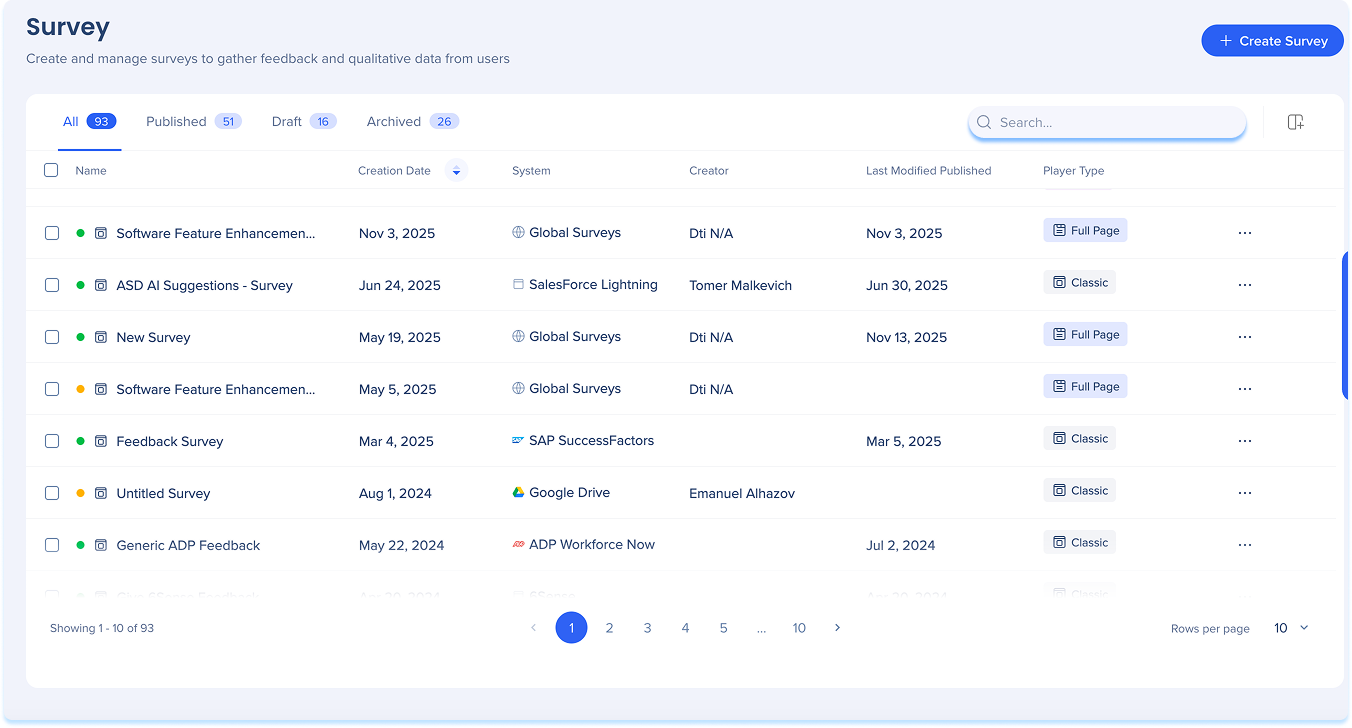
The Surveys Builder page is the central hub for creating, managing, and previewing surveys in the WalkMe Console. From this page, builders can view all surveys in their account, track survey status, and access actions related to publishing, distributing, and managing surveys.
Access
You can access the Surveys Builder page from the WalkMe Console.
WalkMe Surveys in the Console
How It Works
Overview
The Surveys Builder page is a central hub for creating, managing, and previewing all the surveys that you have created.
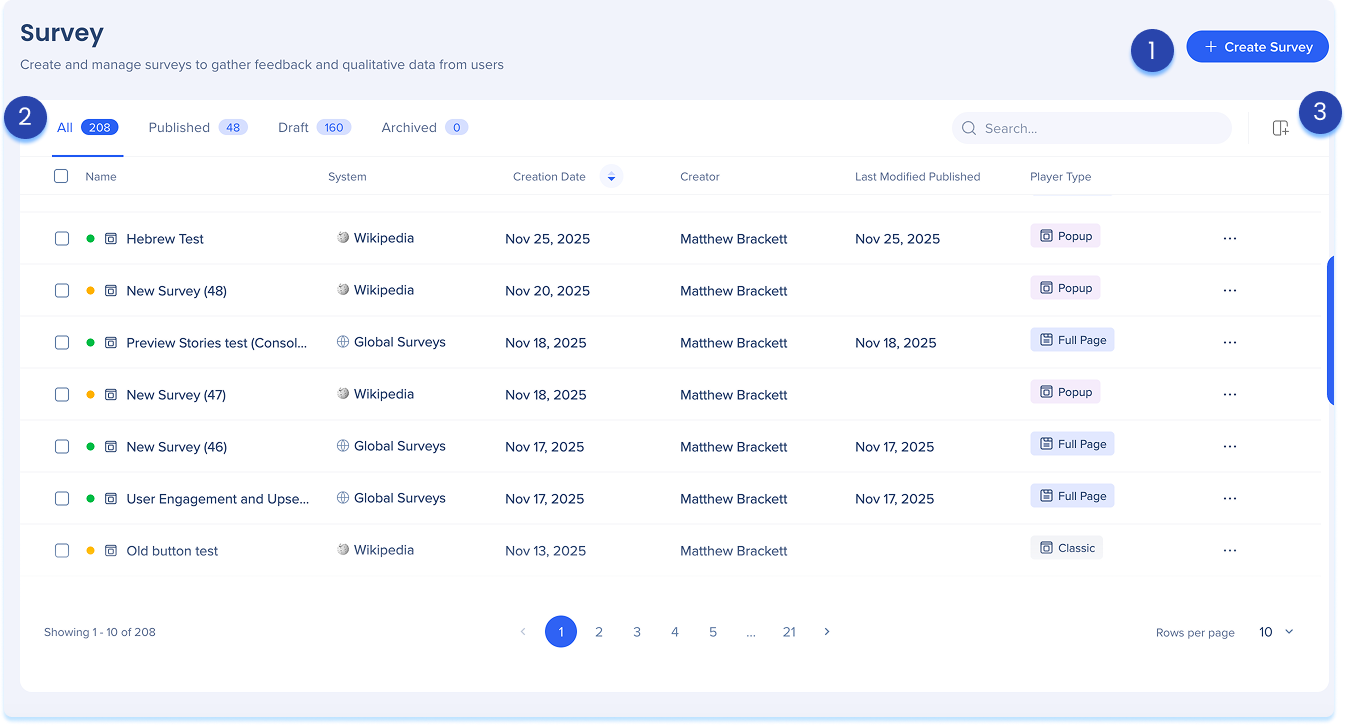
1. Create survey
The Create Survey button is the primary entry point for adding new surveys to the Surveys app. It is used to start the survey creation process.
How to Build and Distribute Surveys in the Console
2. Surveys table
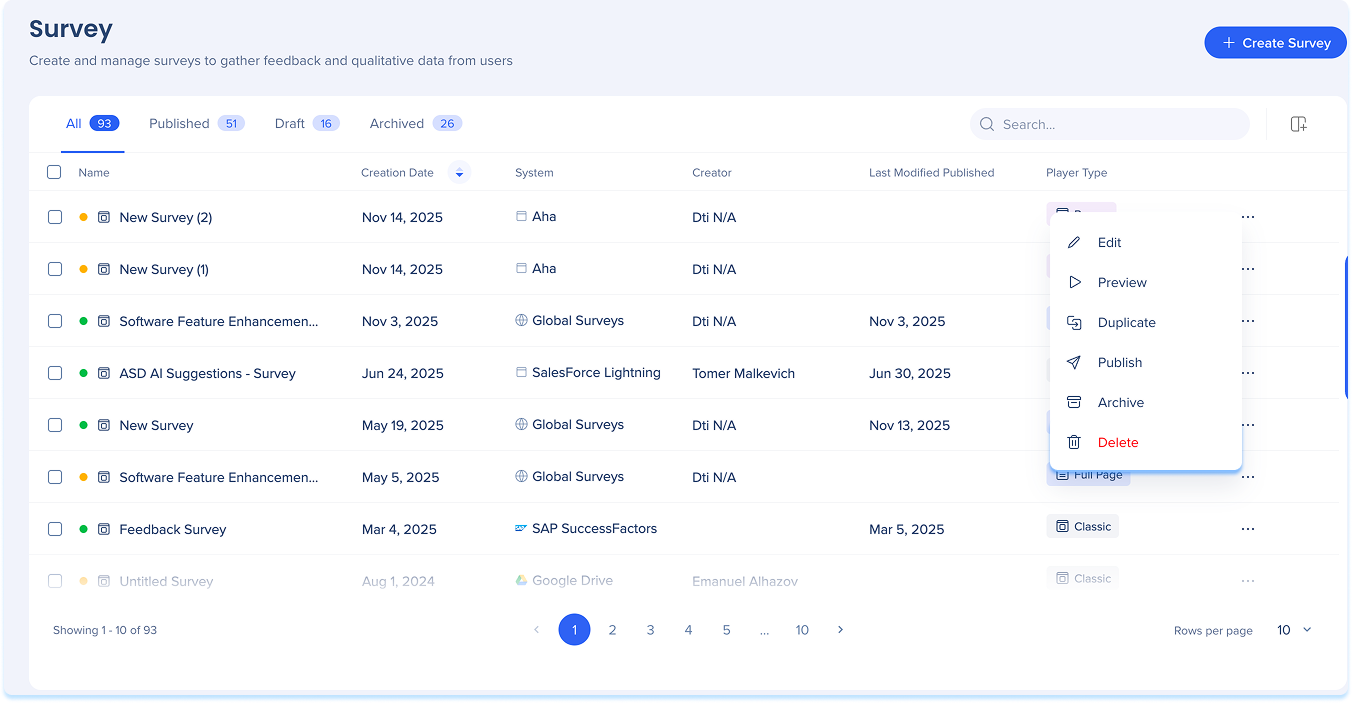
The Surveys table displays all surveys in your account and provides visibility into their current status and configuration. It serves as the central area for reviewing surveys and accessing management actions.
Surveys are organized into the following tabs:
- All Surveys: A full list of published and unpublished surveys
- Published: A list of all published and active surveys
- Drafts: A list of all unpublished and saved surveys
- Archived: A list of archived surveys
Table columns
- Name: The name of the survey
- System: The system the survey is associated with
- Global Systems: Refers to the new page player type
- Created Date: Date the survey was created
- Creator: User who created the survey
- Last Publish: Displays the date the survey was most recently published
- Player Type:
- Popup surveys: Displayed in-app as a modal during the user's workflow
- Full page surveys: Delivered as standalone surveys that open in a new browser tab
- Classic surveys: Surveys created in the WalkMe Editor that can be imported into the Surveys app
Statuses
- Yellow: Draft
- Green: Published
- Green stroke: Published and modified
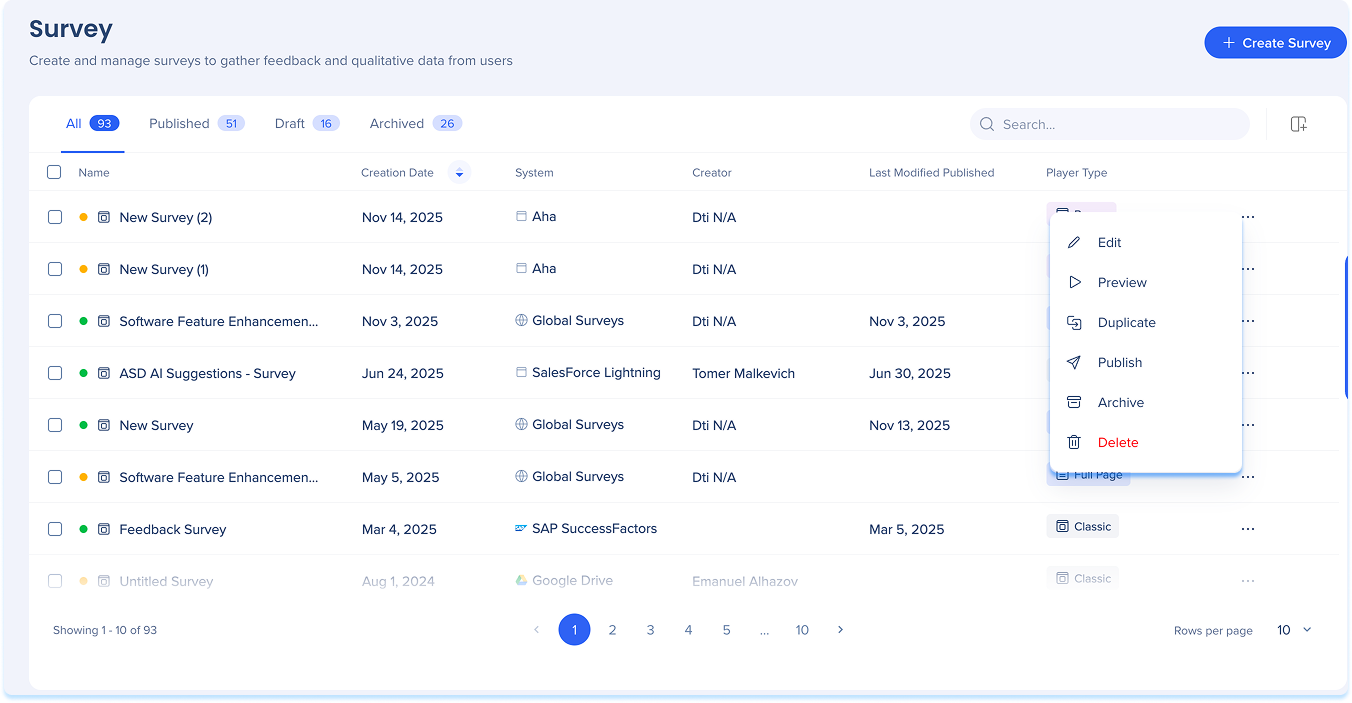
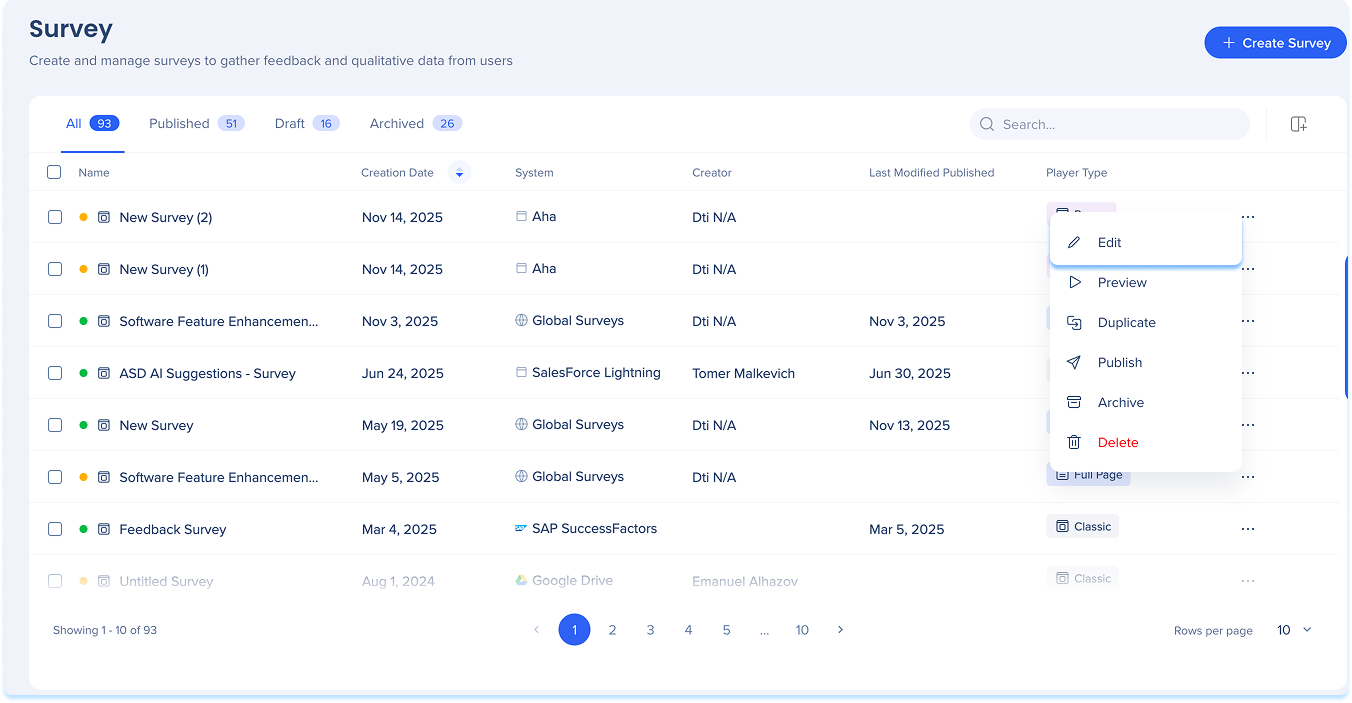
Item options
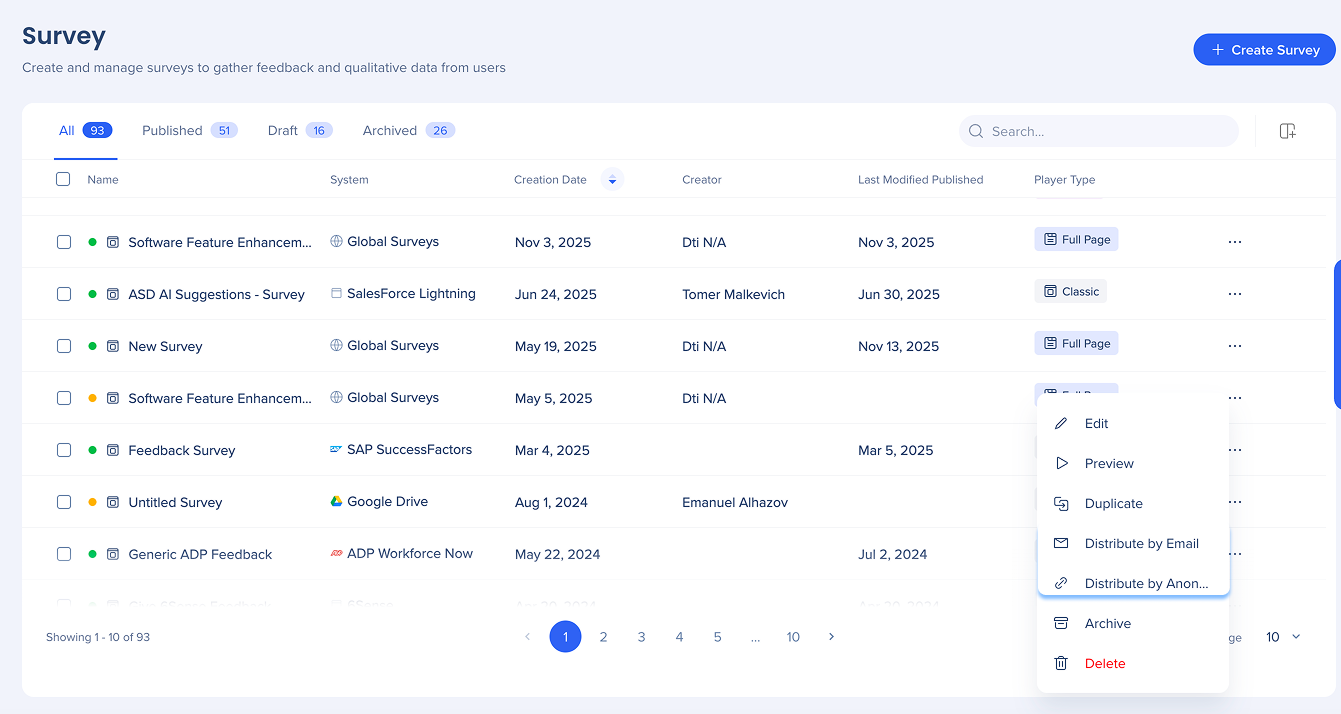
Each survey includes an Options menu that provides access to survey actions. The actions available depend on the survey type.
Common actions:
- Edit
- Preview
- Archive
- Delete
Popup surveys
Full page surveys
- Distribute by Email
- Distribute by Anonymous Link
- Duplicate
Classic surveys
Note
Published surveys must be archived before they can be deleted.
Edit
Edit allows you to make changes to an existing survey.
- Open the Options menu in the survey row
- Select Edit
- Make your updates
- Click Save
Preview
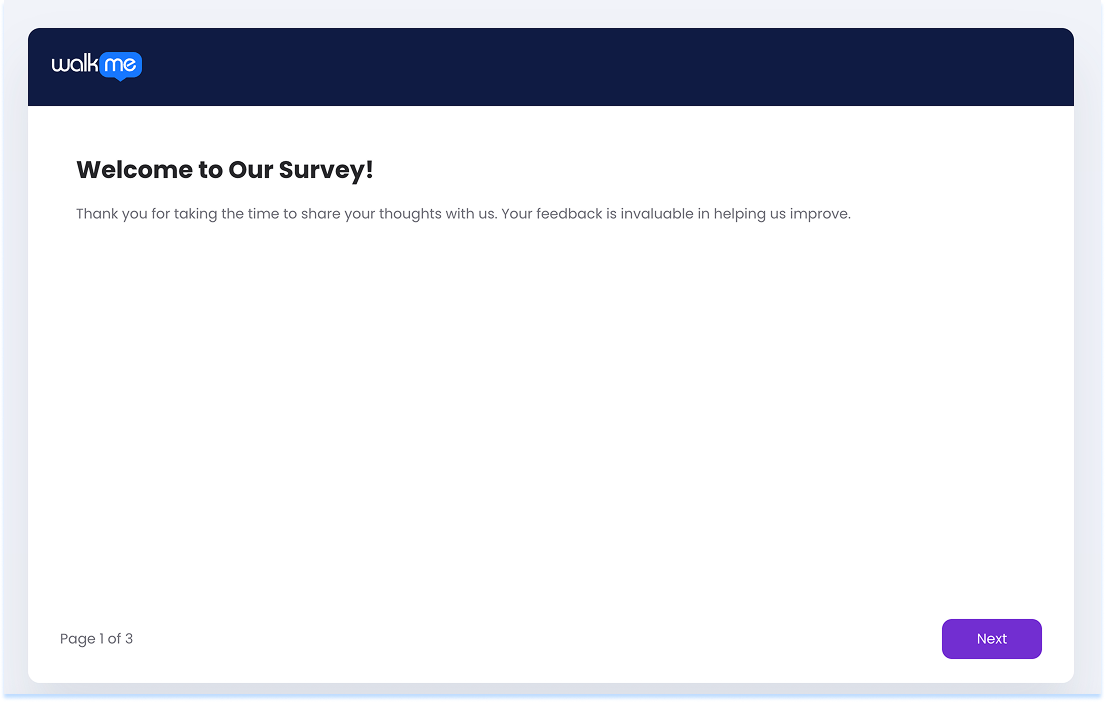
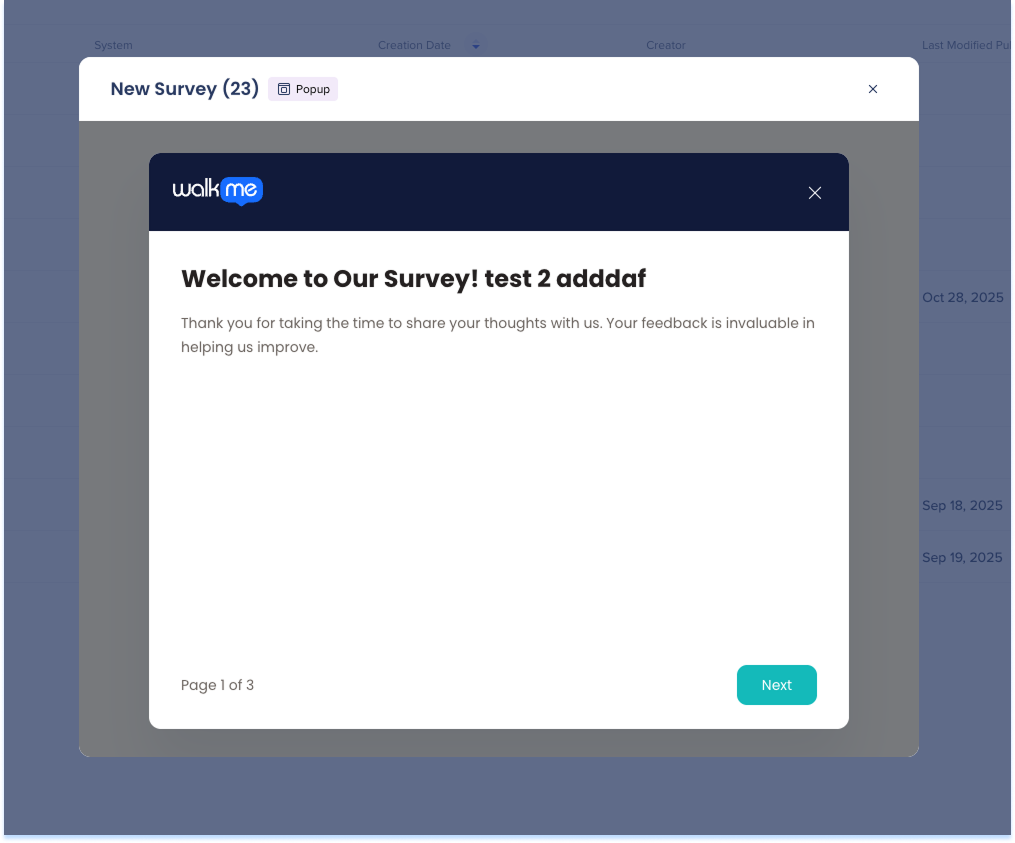
Preview lets you view the survey from the user's perspective before publishing or distributing it.
- Open the Options menu in the survey row
- Select Preview
- The preview behavior depends on the survey type:
- Full page surveys open in a new browser tab
- Popup surveys appear as an overlay on the current page
Archive
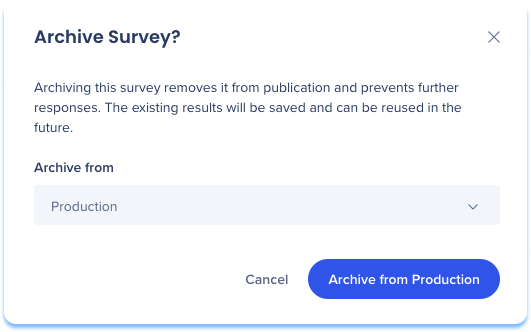
Archiving removes a survey from active use while keeping it available for reference.
- Open the Options menu in the survey row
- Select Archive
- From the Archive From dropdown, select the environment
- Select the Archive from Production/Success/Test button
Delete
Delete permanently removes a survey.
- Open the Options menu in the survey row
- Select Delete
Note
Published surveys must be archived before they can be deleted.[
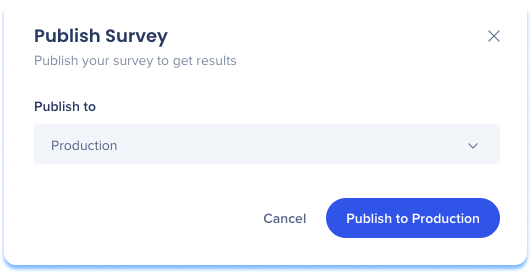
Publish popup surveys
- Open the survey's Options menu
- Select Publish
- Choose the environment where the survey will be available:
- Production
- Test
- Success
- Select Publish to Production/Test/Success button
Distribute full page surveys
- Open the survey's Options menu
- Select your preferred distribution:
- Distribute by Email: Sends the survey directly to a list of recipients by email
- Distribute by Anonymous Link: Generates a shareable link for anonymous access
How to Build and Distribute Surveys in the Console
Import classic surveys
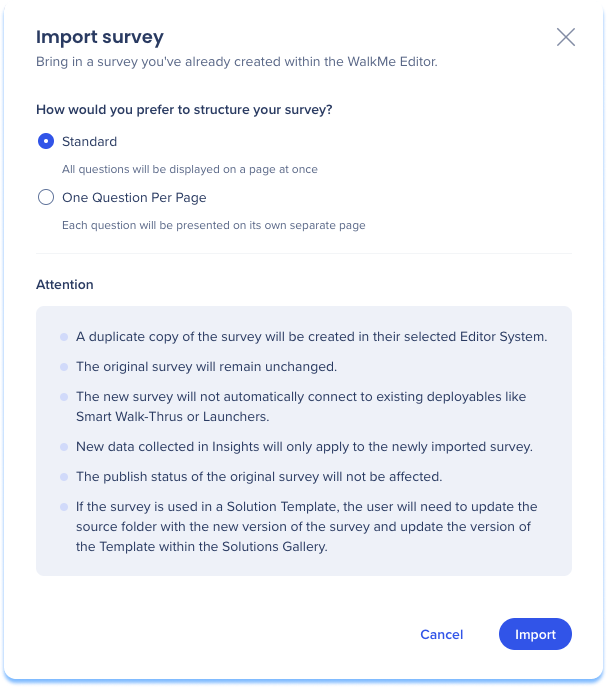
Import Survey allows you to create a copy of an existing WalkMe Editor survey in the Surveys app.
- Open the survey's Options menu
- Select Import Survey
- Choose the survey structure:
- Standard: Displays all questions on a single page
- One Question Per Page: Displays each question on a separate page
- Select Import
Item bulk actions
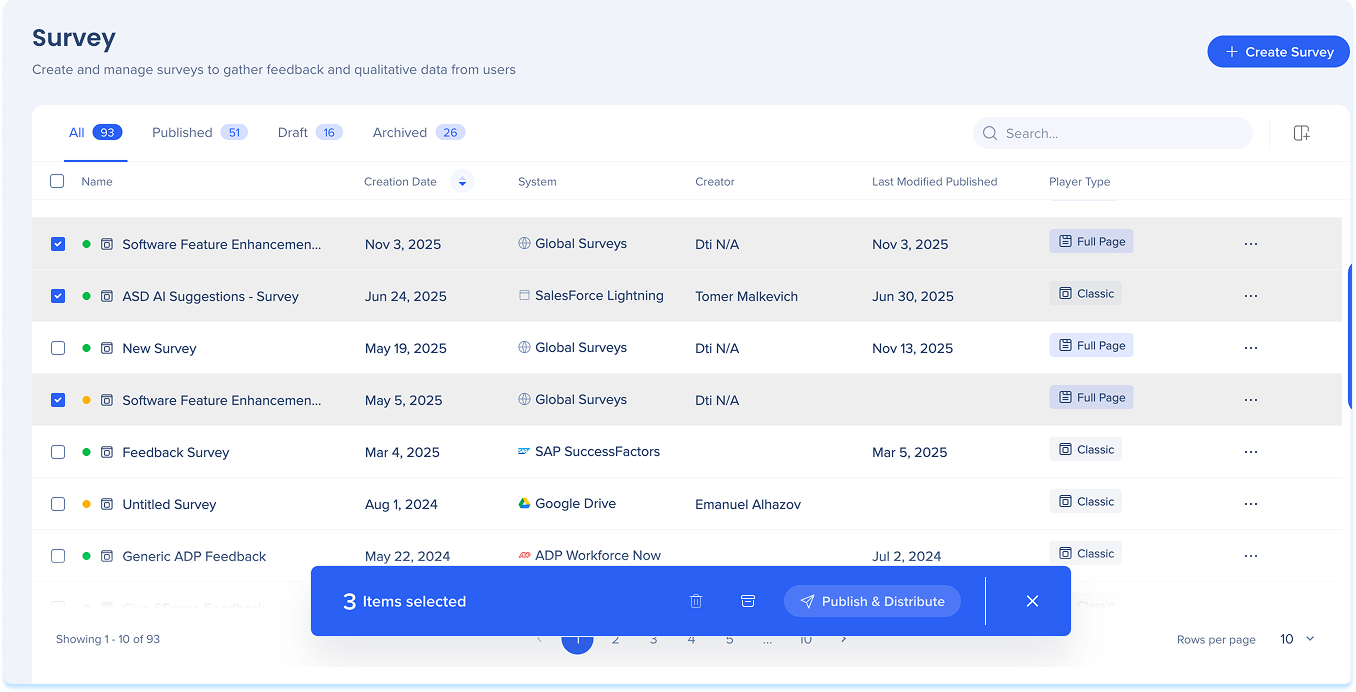
- Bulk actions allow you to manage multiple surveys at once.
- Select one or more surveys using the checkbox next to each item
- Choose one of the available actions:
- Publish & Distribute
- Archive
- Delete
Search
The Surveys table includes search functionality to help you quickly locate surveys.
You can search by:
- Survey name
- System type
- Creator
- Player type
3. Manage columns
The Manage columns option allows you to customize which columns appear in the Surveys table.
- Select the Manage columns icon
- Select the columns you want to display
- Click Apply


