Brief Overview
You can now create SAP GUI systems directly from the Create System dropdown. Select SAP GUI, and WalkMe creates a regular WS Desktop/Mobile system with the SAP GUI App Bundle already applied. Your system is ready for SAP GUI workflows, with no manual configuration.
SAP GUI isn't a new platform or system type. It's a faster way for you to set up a Desktop/Mobile system for SAP GUI.
This option is available to:
- An Enterprise License Agreement and DAP user
- An S/4HANA Public cloud contract holder
- An S/4HANA Private cloud contract holder
Use Cases
- A single flow for SAP GUI systems replaces the manual steps of creating a Desktop/Mobile system
- Reduces friction for onboarding users by enabling a simple create a SAP GUI system on top of the workstation
- Self-service user configuration reduces support tickets
- Removes manual BackOffice configuration removing support involvement
Access
Create an SAP GUI system from the console:
- Open the WalkMe Console:
- Go to Admin category
- Select System Management
How It Works
Create an SAP GUI system
- Click the arrow next to Create System and select SAP GUI
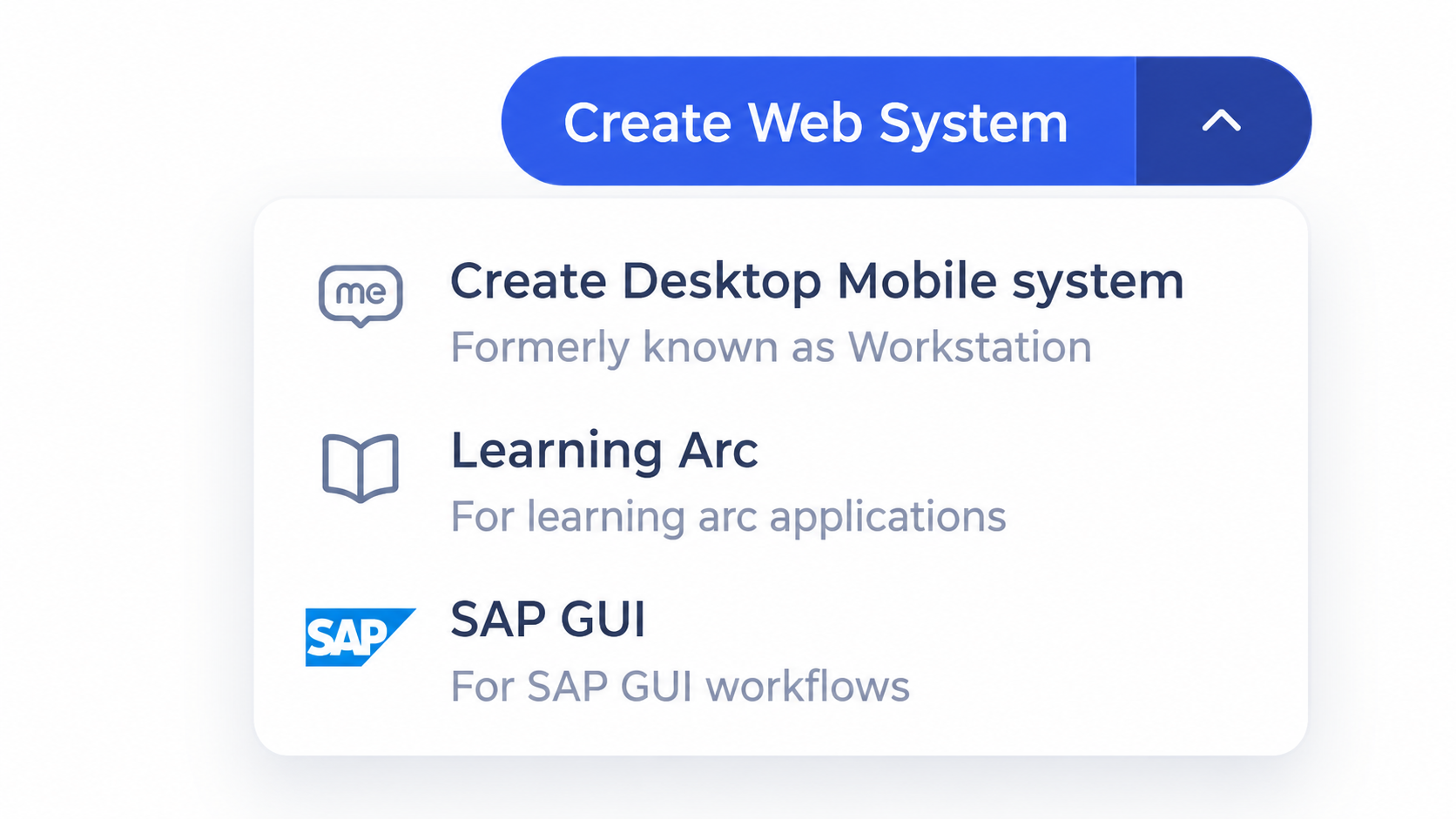
- Enter a name in Provide system name
- If you leave the field empty, the system is named SAP GUI
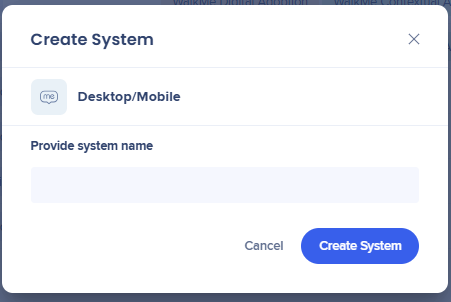
- Click Create System
Note
The system you create is a regular WS Desktop/Mobile system. SAP GUI gives you a dedicated way to create and configure it, built on the existing WS system architecture.
Technical Notes
- SAP GUI is a creation option only it doesn't add a new platform or technical system type
- Systems you create with the SAP GUI option are standard WS Desktop/Mobile systems, and you'll see them listed that way everywhere else in WalkMe


