Brief Overview
The IDP & SCIM page under Identity & Access shows how WalkMe Learning Arc authenticates your users and how their data is synced. The page is read-only: you set up both connections in the Admin Center, and this page shows their status. SCIM is optional in Learning Arc, but it changes how users appear in the account and what segmentation is possible.
An identity provider (IDP), such as Okta, Microsoft Entra ID or SAP IAS, signs your users in with single sign-on. SCIM (System for Cross-domain Identity Management) is a standard that lets your identity provider create, update and remove users in WalkMe automatically, together with attributes such as department or title.
When SCIM is configured in the Admin Center and your identity provider provisions users, Learning Arc syncs users from SCIM. Users appear in Learning Arc as soon as they're synced, and Learning Arc segments and assignments can use SCIM attributes. IDP is used as a fallback if SCIM isn't available. Each segment uses only its own source. A SCIM segment matches only users that SCIM provisioned, and an IDP segment matches users from your identity provider's data.
Access
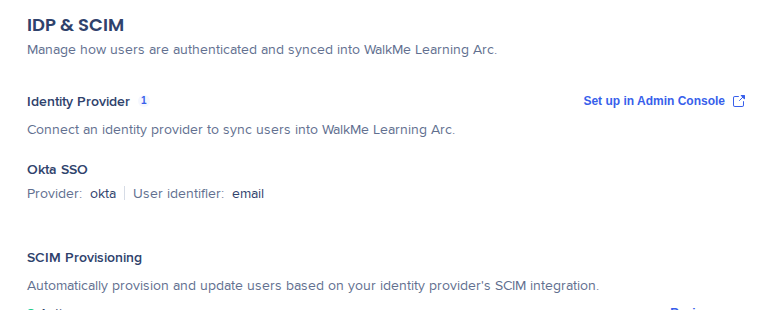
Open the IDP & SCIM page from the Learning Arc settings:
- Open WalkMe Learning Arc:
- Go to Settings
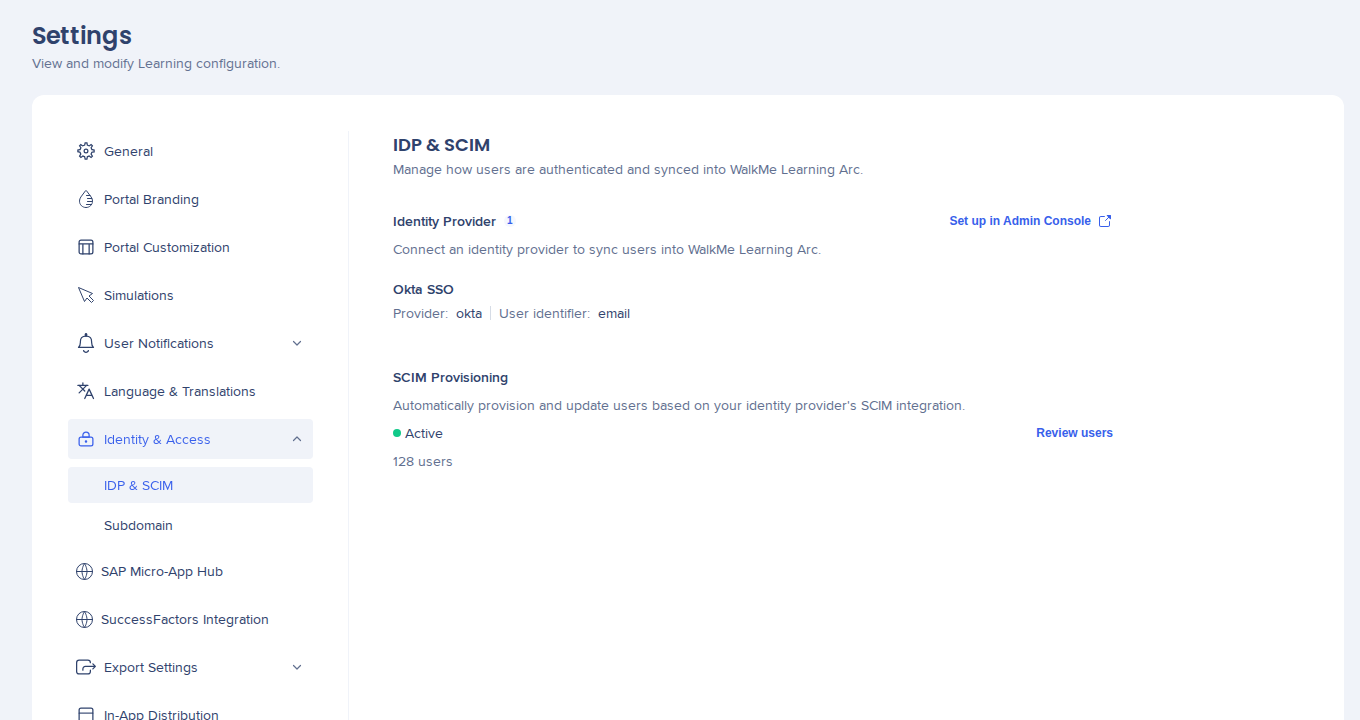
- Select Identity & Access, then IDP & SCIM
Setup
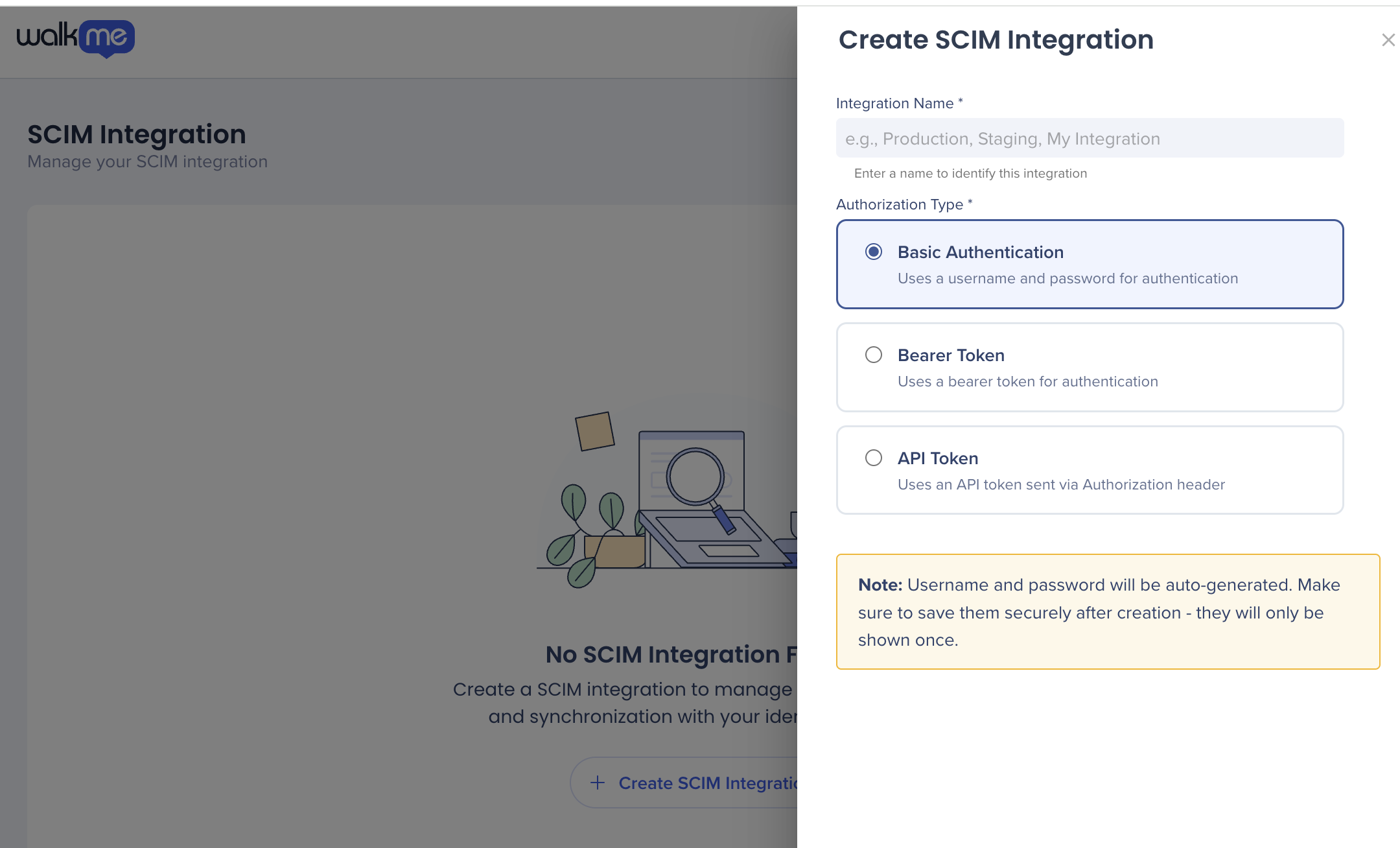
Before you can use SCIM in Learning Arc, set it up in the Admin Center. Set up the 2 connections in this order:
- Connect your IDP in the Admin Center. For steps, refer to the IDP Integration: Getting Started Guide
- Set up SCIM in the Admin Center and generate the SCIM credentials
- In your IDP:
- Add the SCIM credentials
- Assign a user group to the WalkMe app, so your IDP starts sending users
For details, refer to SCIM API for WalkMe and SCIM Integration for SAP.
Did you know?
Your IDP and SCIM providers don't need to be the same. For example, an account can use SAP IAS for single sign-on and Microsoft Entra ID for SCIM, as long as the email addresses from both match.
Update SCIM credentials
To generate new SCIM credentials, delete the existing SCIM integration in the Admin Center and create a new one.
How It Works
When SCIM is active, Learning Arc syncs users from SCIM. Users show up in Learning Arc as soon as they sync, and Learning Arc segments and assignments can use SCIM attributes.
Without active SCIM, Learning Arc uses IDP data. Users show up only after their first portal login, and segmentation is limited.
The IDP & SCIM page has 2 sections: Identity Provider and SCIM Provisioning. To make a change, use the links on the page. They open the Admin Center in a new tab.
Identity Provider
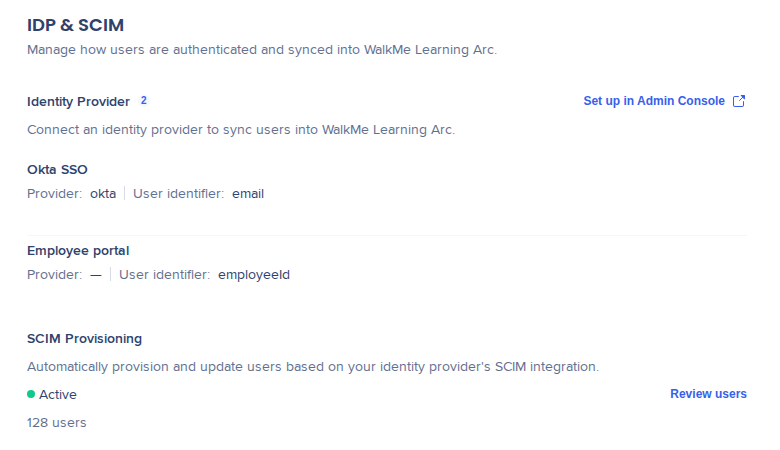
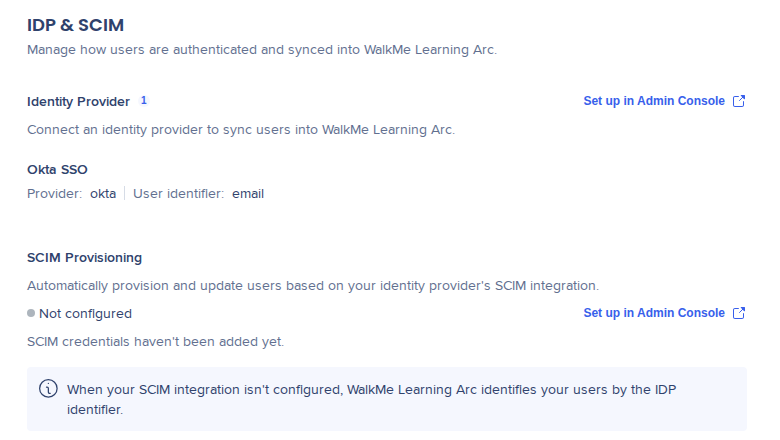
The Identity Provider section lists every IDP connected to your account. The number next to the section title shows how many are connected. Each IDP shows:
- Its name
- Provider: The provider type, for example okta. A dash (—) shows when the type isn't known
- User identifier: The attribute your IDP uses to identify users, for example email
To add or change an IDP, select Set up in Admin Console.
SCIM Provisioning
The SCIM Provisioning section shows 1 of 4 statuses:
- Blocked: No IDP is connected. Connect an IDP before you set up SCIM
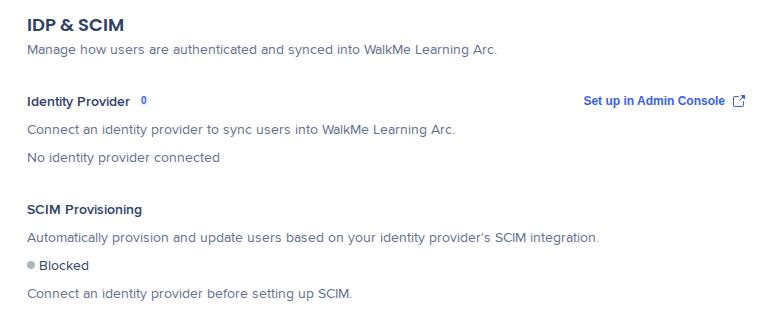
- Not configured: An IDP is connected, but SCIM credentials haven't been added yet. To set up SCIM, select Set up in Admin Console
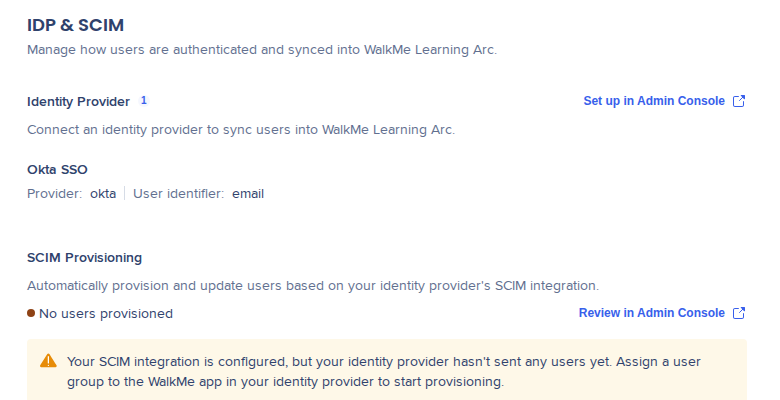
- No users provisioned: SCIM is set up, but your IDP hasn't sent any users yet. Assign a user group to the WalkMe app in your IDP. To check the SCIM setup, select Review in Admin Console
- Active: Your IDP is sending users. The section shows how many, for example 128 users. To see them, select Review users
Users List
Select Review users to open the Users List, which shows the total number of users next to the title.
Email and Name appear first, followed by each attribute your SCIM integration syncs. Empty attributes show a dash (—).
To find a user, type their email, user name, or display name in Search users. To change how many users appear per page, use Rows per page.
Note
Learning Arc uses SCIM data only when the status is Active. In every other status, Learning Arc uses IDP data.
Technical Notes
Required permissions
- To use the Admin Center links on the IDP & SCIM page, you need permission to edit identity provider settings
WalkMe Learning Arc Roles & Permissions
Limitations
- The user identifier from your IDP can be an email or another unique value, like a user name or employee ID. If it isn't an email, your IDP must also send an email attribute to use SCIM segments
- If your IDP and SCIM providers are different, the email addresses from both must match for Learning Arc to match users correctly
- IDP and SCIM segment sources need a connected IDP
- SCIM segments support the is and is not operators only
-
SCIM can't be set up until an identity provider is connected
-
SCIM setup happens in the Admin Center, not in WalkMe Learning Arc
-
Without SCIM, Learning Arc uses IDP data. Users appear only after their first portal login, and Learning Arc segments are limited segments can use only the IDP, CSV integration and User list sources