To create User Attributes, you must both add them to the Mobile Console and your developers must use the WalkMe Mobile SDK API to set them up in your app.
Adding User Attributes in the Mobile Console
Private Attributes
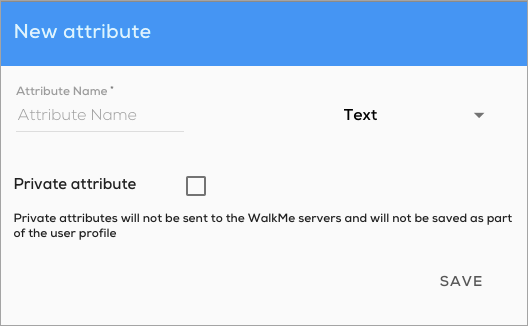
To protect your end-users' privacy and your app's sensitive data, you can set a User Attribute as private. This setting prevents WalkMe from storing the private User Attribute data, and this data will not be taken into account when WalkMe Mobile AI provides predictions about your end-users' behavior, nor will it be saved for analytics purposes.
Codeless User Attributes
Steps For Adding User Attributes in the WalkMe Mobile SDK
iOS
Your developers should implement the following code:
/** Regular User Attributes **/
+(void)setUserAttributeWithKey:(NSString *)key andValue:(id)value;
+(void)setUserAttributes:(NSDictionary<NSString*,id> *)attributes;

/** Private User Attributes **/
+(void)setPrivateUserAttributeWithKey:(NSString *)key andValue:(id)value;
+(void)setPrivateUserAttributes:(NSDictionary<NSString*,id> *)attributes;

/** Clearing Private User Attributes (if needed) **/
+(void)clearPrivateUserAttributes;
Android
Your developers should implement the following code:
/** Regular (non private) User Attributes **/
public static void setUserAttribute(String key, Object value)
public static void setUserAttributes(Map<String,Object> attributes)

/** Private User Attributes **/
public static void setPrivateUserAttribute(String key, Object value)
public static void setPrivateUserAttributes(Map<String,Object> attributes)

/** Clearing Private User Attributes (if needed) **/
public static void clearPrivateUserAttributes()
Multi Value User Attributes
The same API used for setting a single value user attribute can also be used for setting a User Attribute that represents an array.
iOS multi value user attribute example
[ABBI setUserAttributeWithKey:@"numbers" andValue:@[@"1", @"2"]];
Android multi value user attribute example
ABBI.setUserAttribute("numbers", new ArrayList<>(Arrays.asList("1", "2", "3")));