Brief Overview
Integrate with AWS S3 to securely transfer data for analytics, Insights backups, or automated workflows. Follow the steps in this article to connect your AWS S3 storage connection.
How It Works
AWS S3 connections page overview
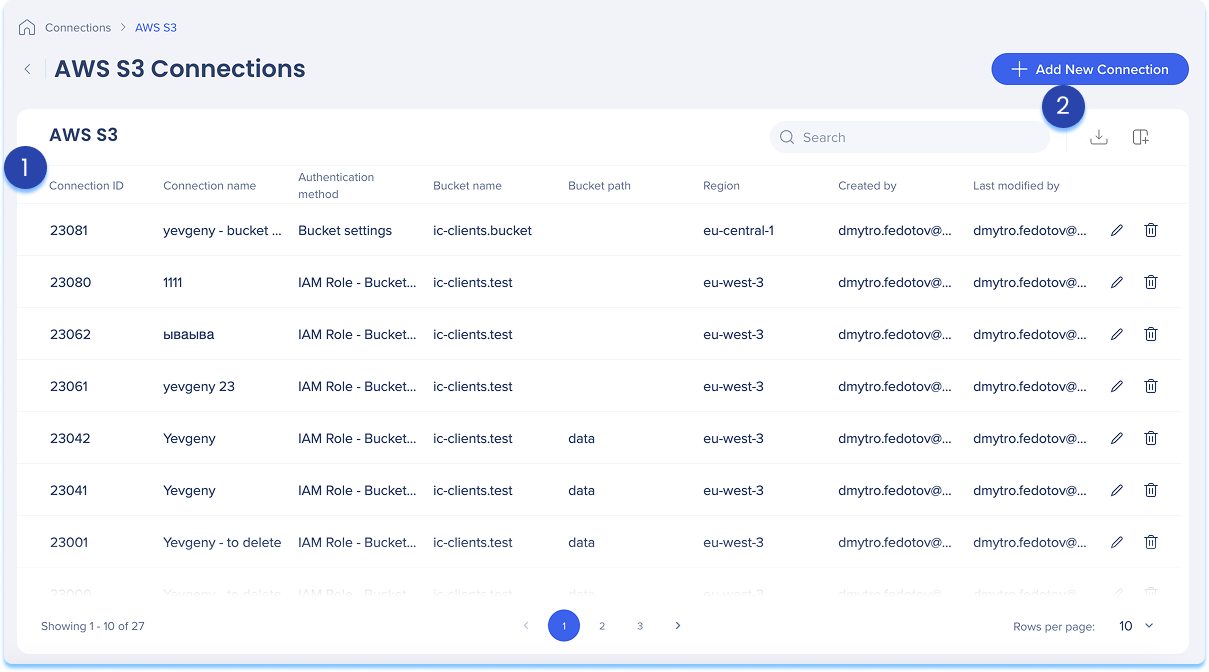
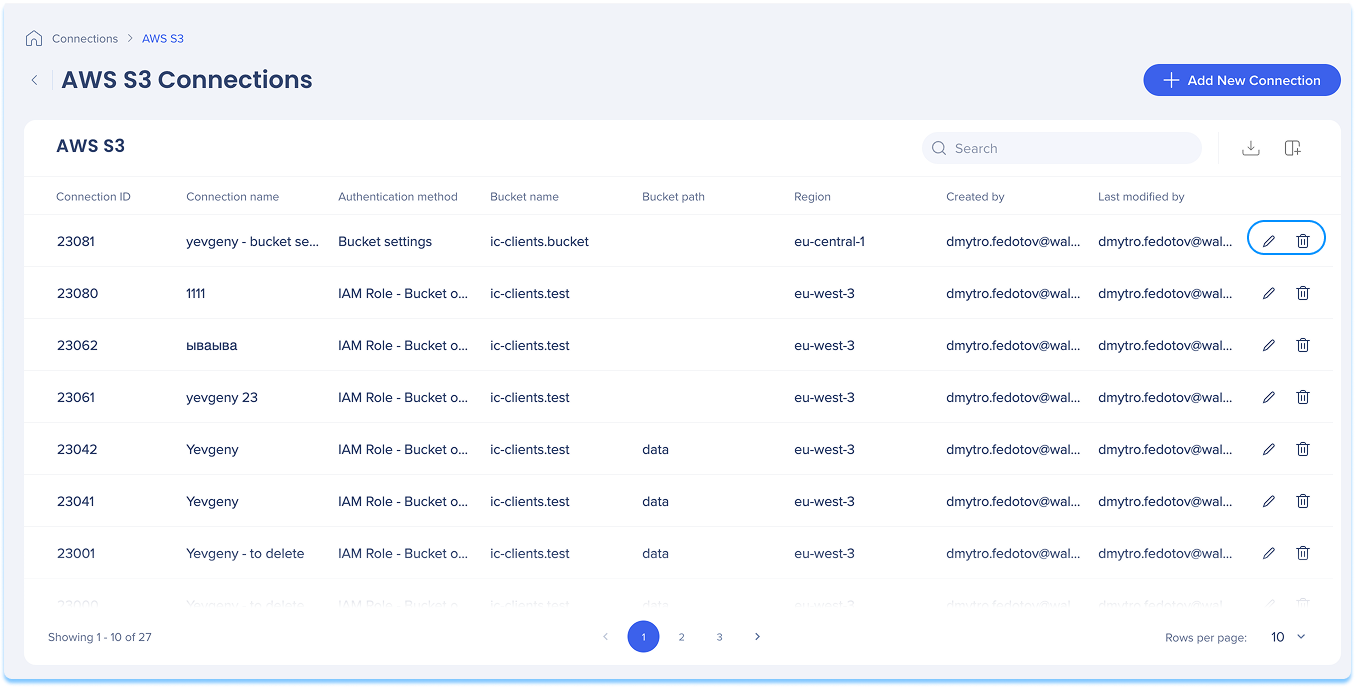
The AWS S3 Connections page is a central hub for viewing and managing all of your configured S3 connections.
1. AWS S3 table
The AWS S3 connections table lists all configured connections.
Table columns:
-
Connection ID: Unique identifier for the connection
-
Connection name: Custom name given to the connection
-
Authentication method: Type of authentication used
-
Bucket name: Name of the S3 bucket connected
-
Bucket path: Folder path within the bucket (if defined)
-
Region: AWS region where the bucket is hosted
-
Created by: User who created the connection
-
Last modified by: User who last updated the connection
2. Table icons
Manage columns
Remove or add columns from the table
-
Click the Manage columns icon
-
Select which columns you'd like to have in the table
-
Click Apply
Add new connection
-
Click the + Add New Connection button to add a new AWS S3 connection
Learn more in the section below.
Export connections
-
Click the Export Connections icon to download a csv or xlsx file containing all configured connection details
Search
Use the Search bar to quickly find specific connections
Item options
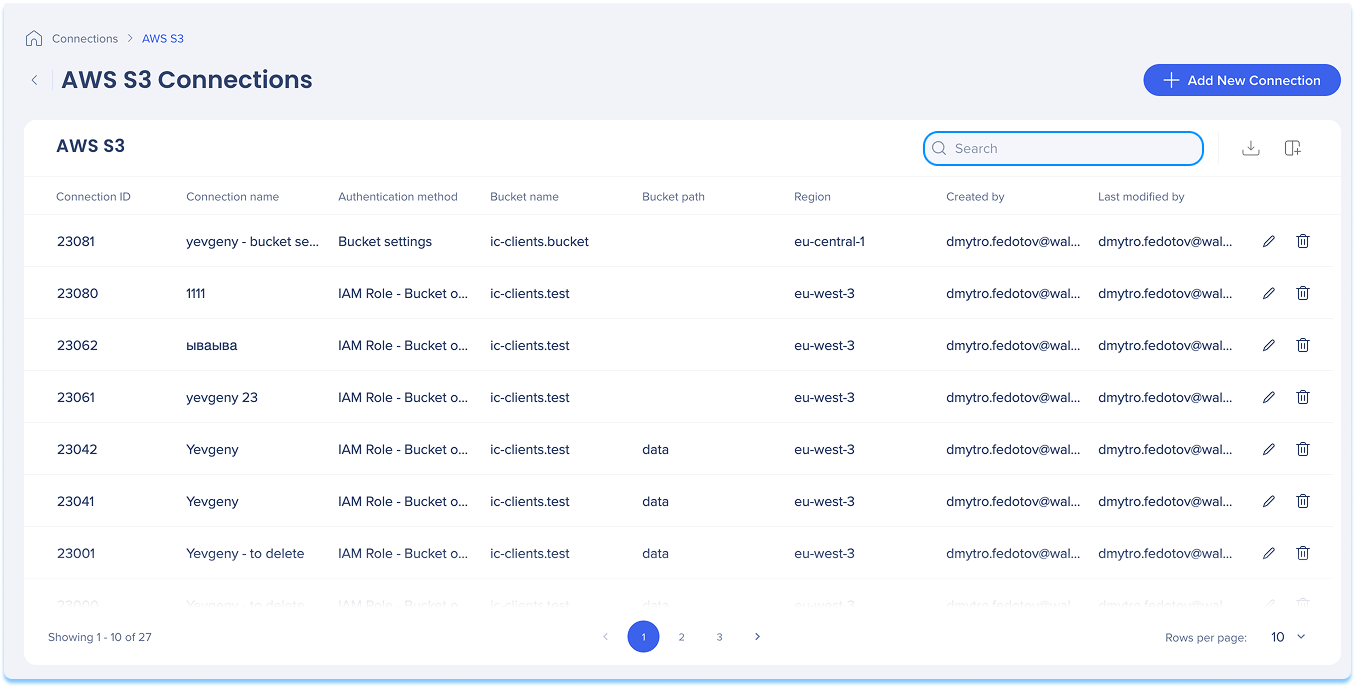
Available actions:
-
Click the Edit icon to update the connection
-
Click the Delete icon to remove the connection
How to setup an AWS S3 connection
You can add a new connection whether it's your first or you're adding to existing ones.
-
Choose how to start:
-
If this is your first connection:
-
Go to the Available connections tab
-
Hover over the AWS S3 tile
-
Click Setup
-
If you already have connections:
-
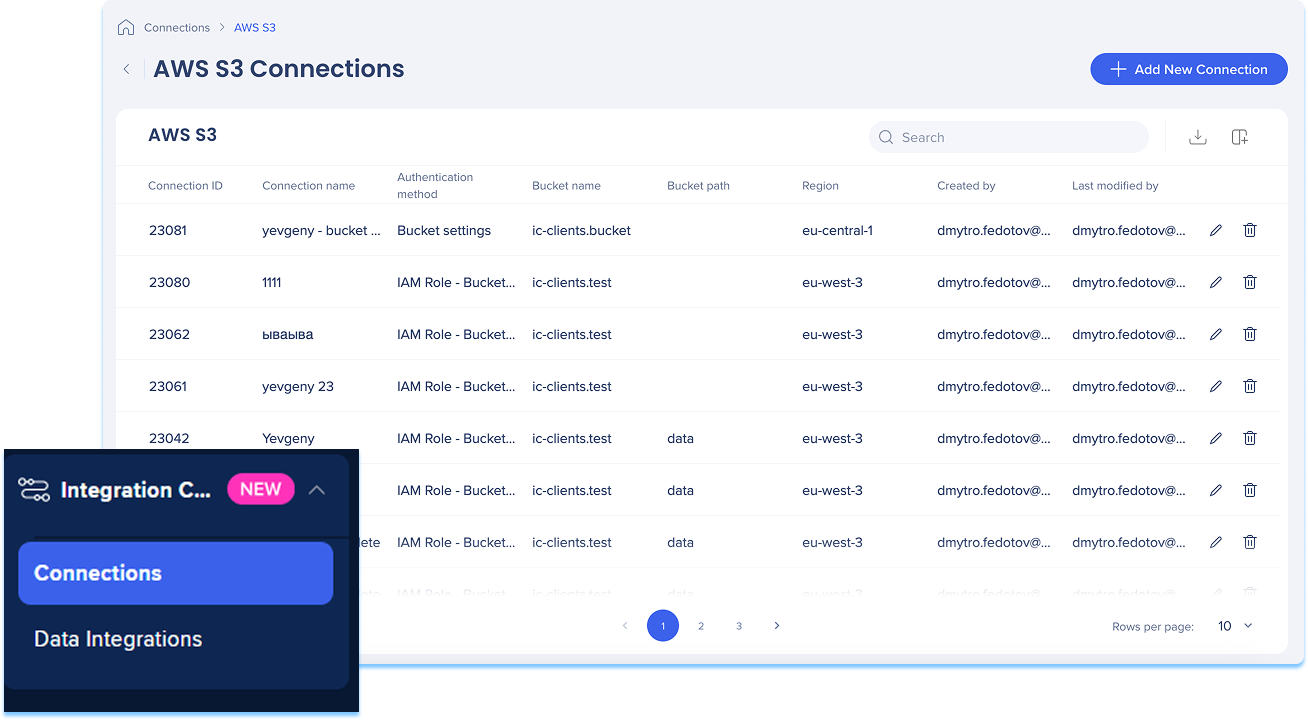
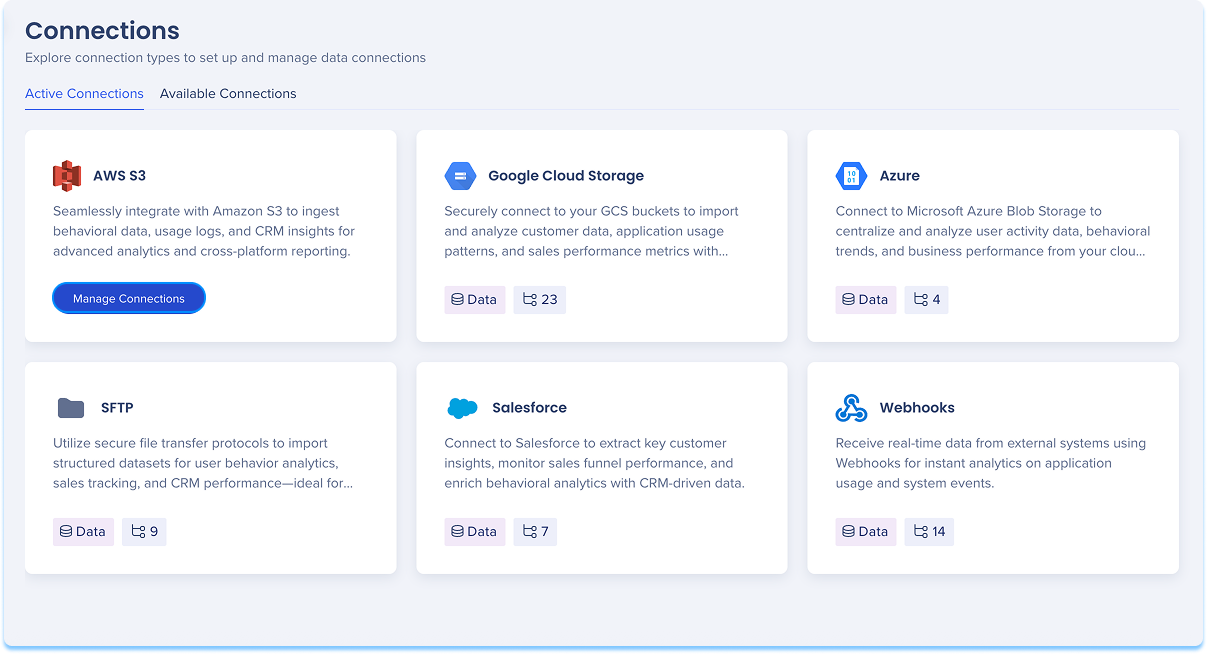
Go to the Active connections tab
-
Hover over the AWS S3 tile
-
Click Manage Connections
-
A table will open showing all configured connections for that integration
-
Click Add new connection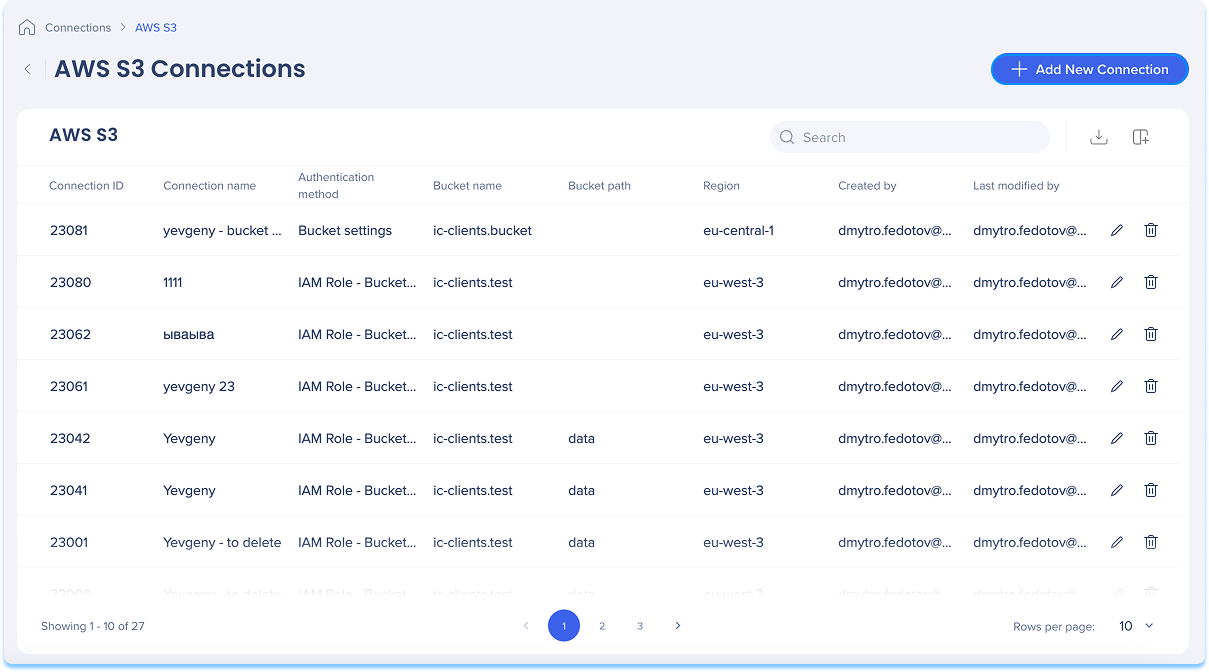
-
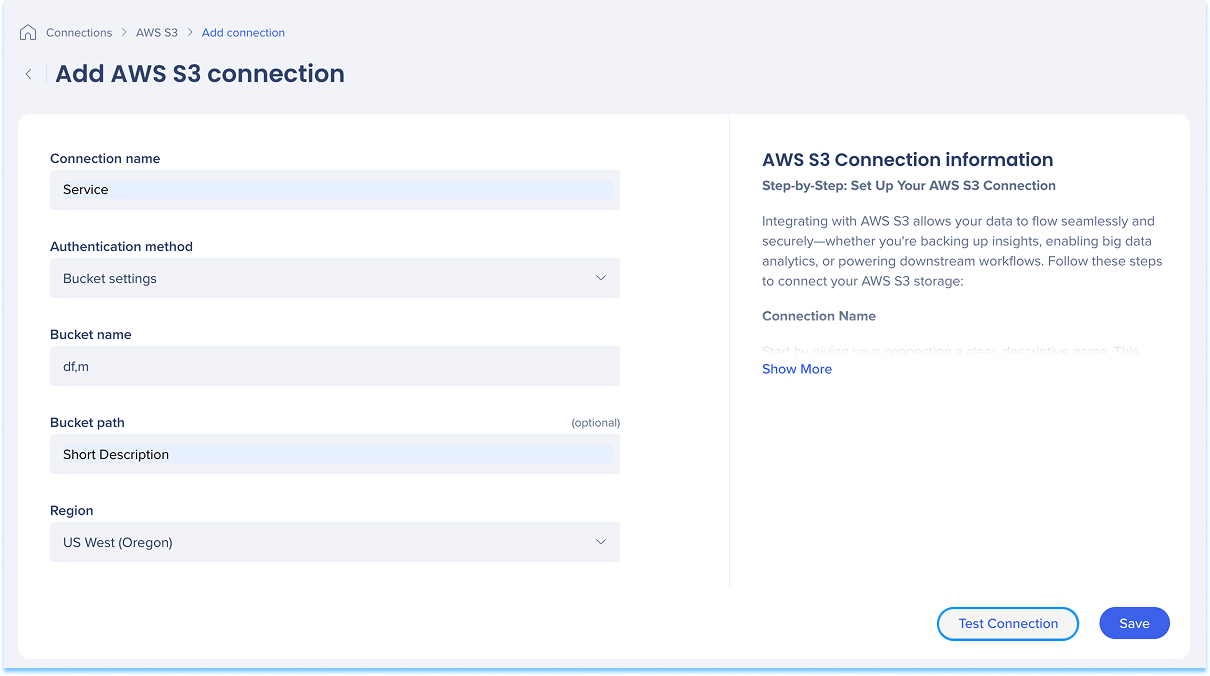
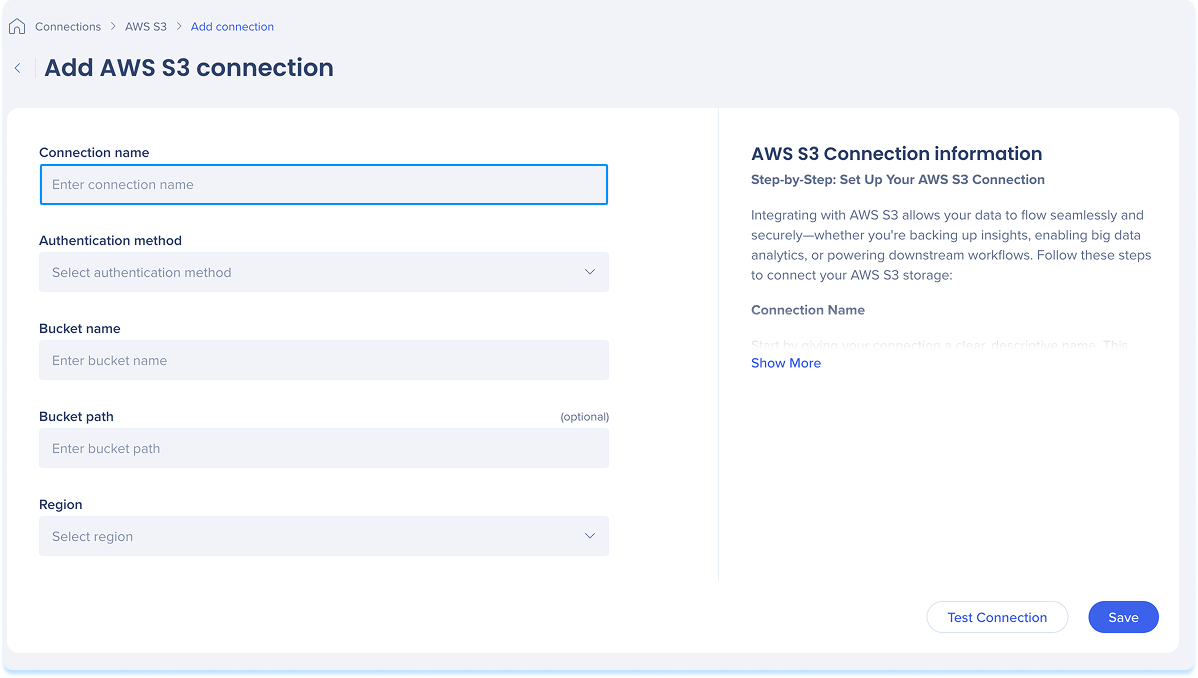
You'll be taken to the Add AWS S3 Connection page
-
Give your connection a clear, descriptive name so you can easily recognize it later
-
For example: MarketingReports_S3_EU
-
Select an authentication method from the dropdown that matches your security and access setup: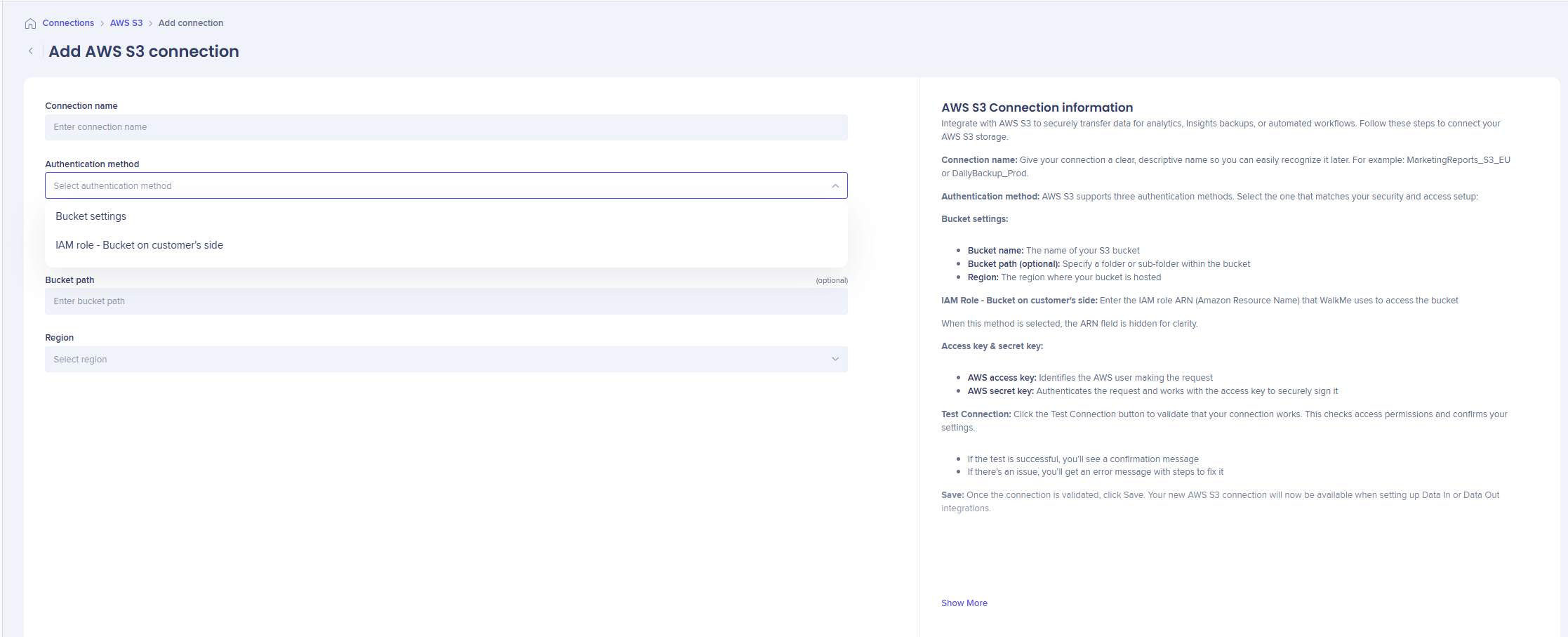
a. Bucket settings: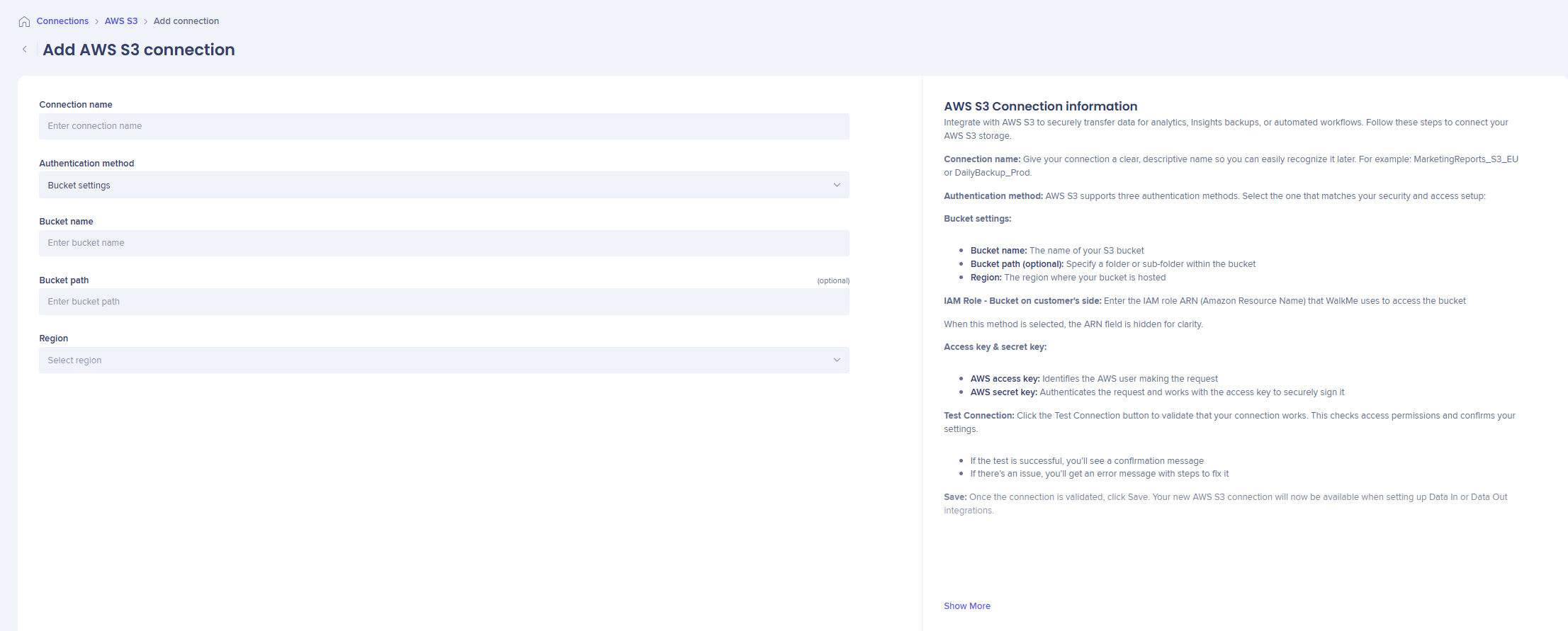
Step 1 - Configure AWS S3 (Customer side)
-
Login to you AWS S3 Console and select the target bucket
-
Create a folder: Inside the bucket, create a folder and name it "walkme" to define the path WalkMe will access (optional)
-
Go to the Permissions tab and scroll down to Bucket Policy
- Click Edit and paste the following JSON policy:
"Version": "2012-10-17",

"Id": "WalkMeS3AccessPolicy",

"Statement": [

{

"Sid": "AllowWalkMeList",

"Effect": "Allow",

"Principal": {

"AWS": "REPLACE_WITH_CORRECT_ARN_FROM_LIST"

},

"Action": ["s3:ListBucket"],

"Resource": "arn:aws:s3:::your-bucket-name"

},

{

"Sid": "AllowWalkMeReadWrite",

"Effect": "Allow",

"Principal": {

"AWS": "REPLACE_WITH_CORRECT_ARN_FROM_LIST"

},

"Action": [

"s3:PutObject",

"s3:GetObject",

"s3:DeleteObject"

],

"Resource": "arn:aws:s3:::your-bucket-name/*"

}

]

}
Note:
- Replace the Principal ARN with the one matching your WalkMe data center
- Update the Resource fields with your actual bucket name
Step 2 - Connect in WalkMe Console
-
- Enter a clear descriptive Connection Name
- Select Bucket settings as the Authentication Method
- Enter the exact Bucket Name of your S3 bucket
- Enter the name of the folder created in Phase 1 (e.g., walkme) in Bucket Path field
- Select the Region where your bucket is hosted
- Select Test Connection to validate and test access to the bucket path
b. IAM Role - Bucket on customer's side: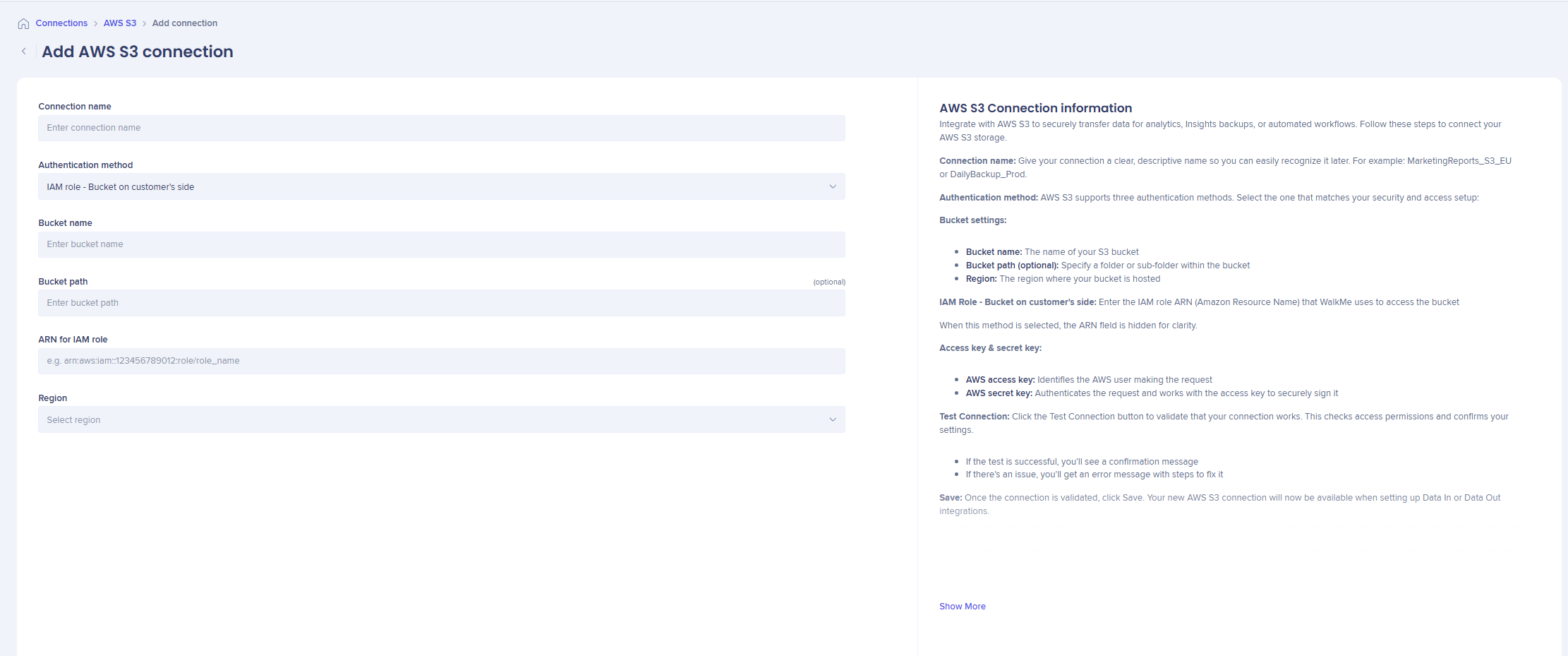
Step 1- Configure AWS S3 (Customer side)
- In the AWS Console, create a new IAM role
- Add Permissions Policy: Attach a policy to the role with the following JSON:
{
"Version": "2012-10-17",
"Statement": [
{
"Sid": "AllowWalkMeList",
"Effect": "Allow",
"Action": "s3:ListBucket",
"Resource": "arn:aws:s3:::<bucket-name>"
},
{
"Sid": "AllowWalkMeReadWrite",
"Effect": "Allow",
"Action": [
"s3:GetObject",
"s3:PutObject",
"s3:DeleteObject"
],
"Resource": "arn:aws:s3:::<bucket-name>/*"
}
]
}
Note:
- Replace the Principal ARN with the one matching your WalkMe data center
- Update the with your actual bucket name
3. In the Trust Relationships tab of the role, select Edit trust policy and paste the JSON:
{
"Version": "2012-10-17",
"Statement": [
{
"Effect": "Allow",
"Principal": {
"AWS": "REPLACE_WITH_YOUR_ENVIRONMENT_ARN"
},
"Action": "sts:AssumeRole",
"Condition": {}
}
]
}
Note:
Replace the "AWS" ARN in the Principal section with the specific ARN from that matches your WalkMe account and data center
Step 2 - Connect in WalkMe Console
- Enter a clear descriptive Connection Name
- Select IAM Role - Bucket on customer's side as the Authentication Method
- Enter the exact Bucket Name of your S3 bucket
- Enter the name of the folder created in Phase 1 (e.g., walkme) in Bucket Path field (optional)
- Enter the ARN of the role you created in the AWS console ( for example, arn:aws:iam::[Your_Account_ID]:role/[Role_Name])
- Select the Region where your bucket is hosted
ARN information per data center
- US/SAP US00: arn:aws:iam::584278441476:role/walkme-s3-integrations-prod
- EU / SAP EU00: arn:aws:iam::584278441476:role/walkme-s3-integrations-eu-prod
- SAP US: arn:aws:iam::116981778579:role/walkme-s3-integrations-us01
- SAP EU: arn:aws:iam::116981778579:role/walkme-s3-integrations-eu01
- FedRamp: arn:aws:iam::183129700000:role/walkme-s3-integrations-prod1
- Canada: arn:aws:iam::842147824859:role/walkme-s3-integrations-prod2
Access key & secret key:
-
Access & secret key
As of Feb 22, 2026 this method is no longer supported for new connections. Existing connections will continue to be supported however a warning will display encouraging users to migrate to more secure methods
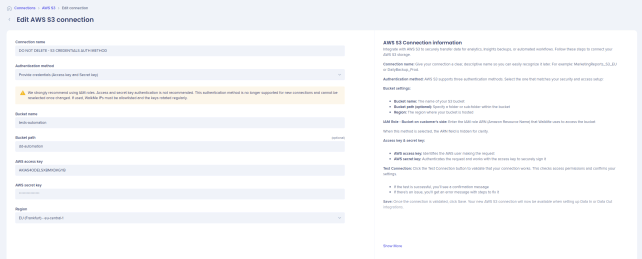
For existing connections:
- S3 bucket name: The name of the connected S3 bucket
- Optional folder path: A folder or sub-folder within the bucket
- AWS access key: Identifies the AWS user making the request
- AWS secret key: Authenticates the request and works with the access key to securely sign it
- Region: The AWS region where the bucket is hosted
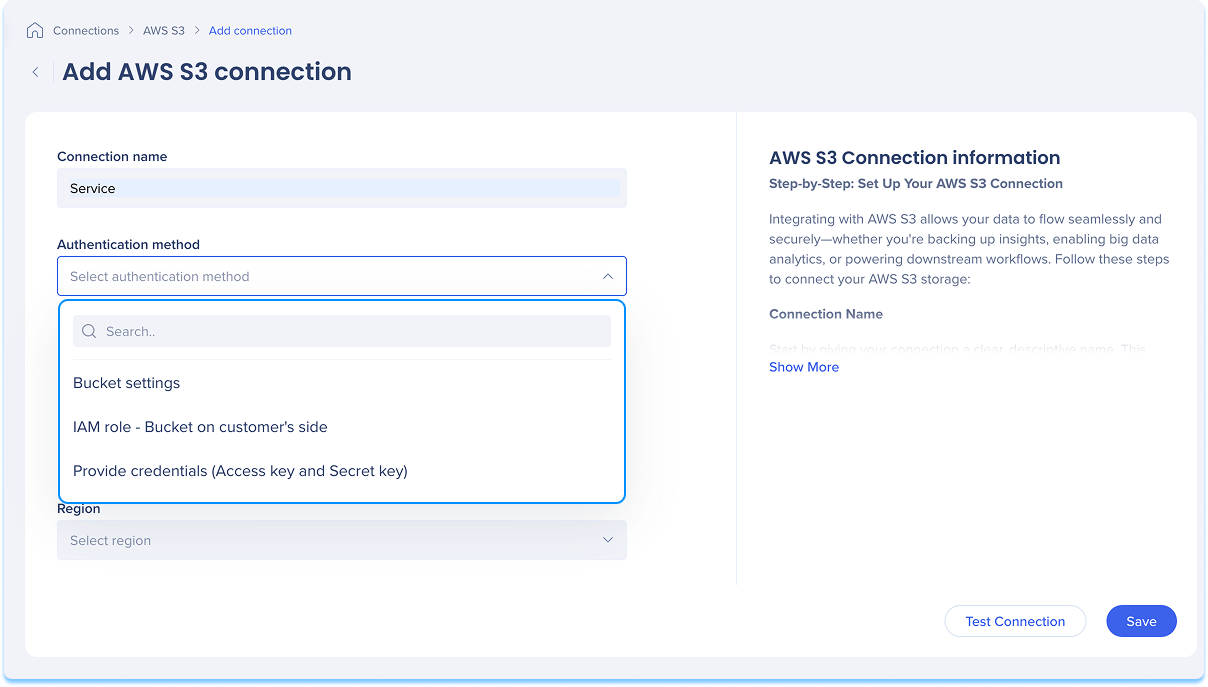 4. Click Test Connection to validate that your connection works
-
-
If the test is successful, you'll see a confirmation message
-
If there's an issue, you'll get an error message with steps to fix it
5. Click Save
Your new AWS S3 connection will now be available when setting up Data In or Data Out integrations.