Brief Overview
This guide explains how WalkMe uses SAP Semantic Intents to segment S/4HANA users by their active role or business context.
It is specifically for :
- WalkMe builders and solution architects configuring role-based content on SAP S/4HANA
- Embedded content builders for all SAP S/4HANA systems
- SAP administrators who assign custom semantic objects to business roles
Semantic Intents are a native SAP Fiori Launchpad mechanism, so this segmentation works without custom code and reflects the user's real SAP authorizations.
For environments using the wm-plugin-s4 extension, the guide also explains how to configure intent-based conditions with wmS4Data.intents
Use Cases
- Show a purchasing WalkThru only to users who can create purchase requisitions
- Hide sales order actions from users without the SalesOrder-manage intent
- Customers get users authorisation-based targeting that reflects each user's actual SAP capabilities, without custom development
- Gives S/4HANA a reliable proxy for role and capability, sourced directly from SAP as SAP has no built-in "user role" variable
How It Works
A Semantic Intent pairs a business object (Semantic Object) with a permitted operation (Semantic Action)
WalkMe content can target specific users based on their active roles or context. In SAP S/4HANA, this segmentation relies on Semantic Intents
A Semantic Intent pairs a business object with an allowed action:
- Semantic Object: The business entity, like SalesOrder or PurchaseOrder
- Semantic Action: The operation permitted on that entity, like display, manage, or create
Formula: Semantic Intent = Semantic Object + Semantic Action
At runtime, the wm-plugin-s4 extension uses SAP to retrieve the semantic intents available to the current user and exposes them under wmS4Data.intents. When SAP admins assign custom semantic objects to specific business roles, WalkMe can detect a user's role profile and serve targeted content accordingly.
For S/4HANA environments using the wm-plugin-s4 extension, currently available in US production and EU production, semantic intents are exposed through the wmS4Data object.
To configure an intent in the WalkMe Editor:
- Open the rule or segmentation condition where you want to use the intent
- Choose User Data > Variable
- Enter the variable using the following format: wmS4Data.intents["semantic-intent"]
- Set the operator to Is and the value to true
Example:
wmS4Data.intents["AccountingDocument-manage"] Is true
Note
The extension also makes the following data available: wmS4Data.endUserId and wmS4Data.userInfo.
Compatibility note:
The S/4HANA API used to retrieve intents may not be available in older S/4HANA versions. There is currently no defined minimum supported S/4HANA version.
The extension uses SAP's Navigation service API, specifically the getLinks method, to retrieve intents from S/4HANA.
Using intents as conditional variables
To build segmentation rulesrules with the wm-plugin-s4 extension in the WalkMe Editor:
- Use the wmS4Data.intents object, which exposes the semantic intents available to the current user
- Retrieve the entire object map: wmS4Data.intents
- Target a specific intent with wmS4Data.intents["semanticObject-semanticAction"]
- For example: wmS4Data.intents["ABAPSystem-display"]
- Another example: wmS4Data.intents["EnterpriseSearchMyQueries-analyze"]
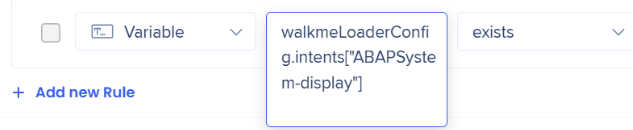
Verify intent configuration in the browser
Note
For customers using the wm-plugin-s4 extension, use wmS4Data.intents instead of walkmeLoaderConfig.intents when configuring the intent in the Editor.
Follow these steps in a browser to confirm whether an intent variable evaluates as true for a signed-in session.
Step 1: Open developer tools
- Go to the target S/4HANA Fiori Launchpad app where WalkMe is active
- Right-click the page and select Inspect
- Or use a hotkey — Windows/Linux: F12 or Ctrl + Shift + I. macOS: Cmd + Option + I
Step 2: Open the Console panel
- Select the Console tab at the top of the DevTools pane to open the JavaScript command environment
Step 3: Query the inent variable
- Enter the following and press Enter to see every intent available to the current user:
- To check a single intent, target it directly:
Step 4: Read the result
- true: The intent is deployed and available to the user's role profile
- false or undefined: The intent doesn't exist in the system landscape, or the user's role excludes it

How to find Semantic Objects and Actions
Use the SAP Fiori Apps Reference Library to find the semantic objects and actions available for an app. Once you find the app, its semantic objects and actions are listed alongside it.
- New version (filter by private or public versions): fal.cloud.sap
- Classic version (available until December): Fiori Apps Reference Library - classic viewer
For example; Manage Sales Orders – Version 2 (F3893) shows its Semantic Object, Semantic Action, and Target Mapping Parameter values in the Fiori Apps Reference Library.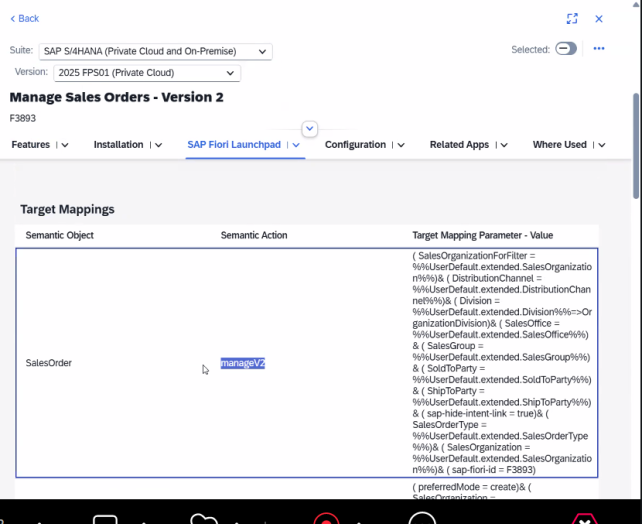
To find which intents are available for an app:
 En cours de chargement…
Technical Notes
- Semantic Intents only reflect what the Fiori Launchpad exposes at runtime. If a custom semantic object isn't assigned to a role in SAP, WalkMe can't detect it
- Semantic Intents reflect authorization data SAP already scopes to the signed-in user. WalkMe reads this client-side and doesn't store or transmit it outside the browser session
Support
- If an intent always returns false or undefined, confirm the semantic object is assigned to the user's business role in SAP, verify that wm-plugin-s4 is available and configured, and check whether the S/4HANA API is supported by that system version
- Content built on the wrong intent won't reach the intended audience, segmentation quietly evaluates to true or false, so no error appears in the editor
- Verify manually using the browser console steps in How It Works




 Recharger le document
  Ouvrir dans un nouvel onglet