Brief Overview
The AI Knowledge Sources page, located within the AI Center, is where admins securely connect internal company documentation to WalkMe. By uploading files or connecting webpages, you allow WalkMe to extract and index your organization's proprietary data for AI Knowledge Referencing.
This page provides full control over the knowledge ingestion process. Admins can upload resources, apply user segments to restrict visibility, schedule automated rescans to keep information up to date, and add custom Q&As to resolve content gaps.
Once a knowledge source is active, WalkMe's AI features—such as AI Chat, AI SmartTips, and the Action Bar—will use this trusted information to provide company-specific guidance instead of relying on generic external AI models.
How It Works
The page consists of two tabs:
-
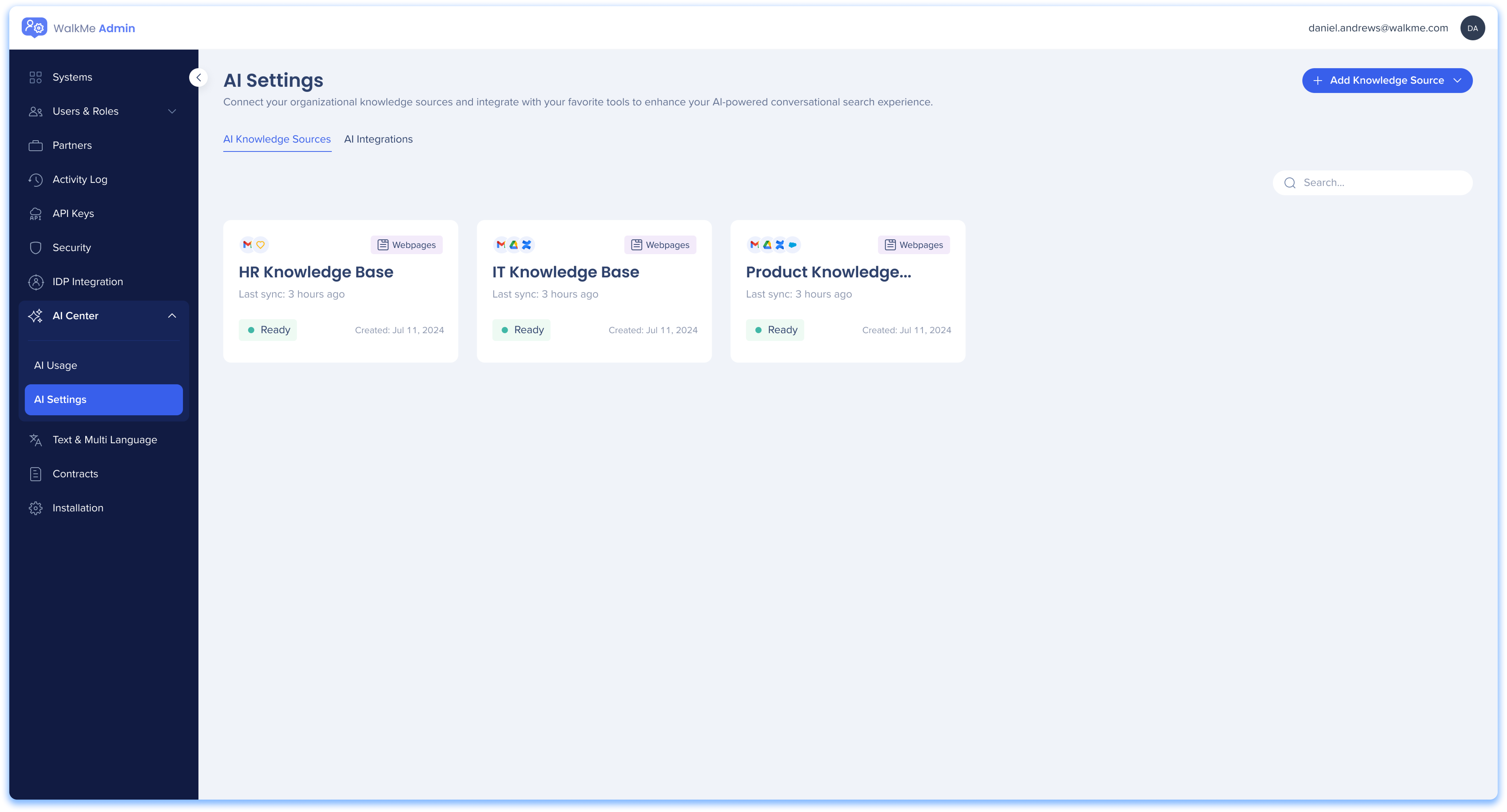
AI Knowledge Sources: This dashboard allows admins to view, manage, and upload all of their knowledge sources
-
AI Integrations: This dashboard allows admins to enable AI Answers to their existing integrations
AI Knowledge Sources
This dashboard allows admins to view, manage, and upload all of their knowledge sources.
Source tiles
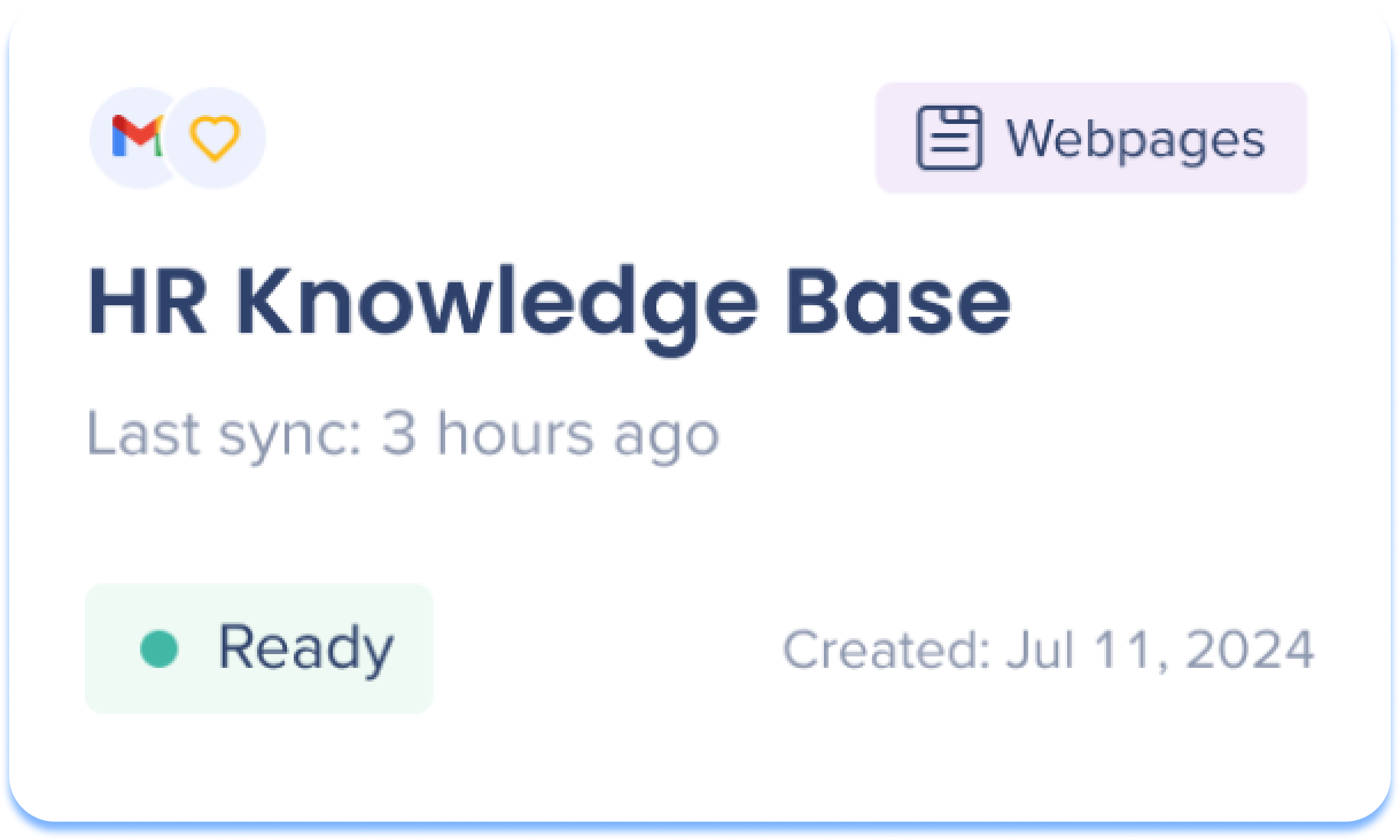
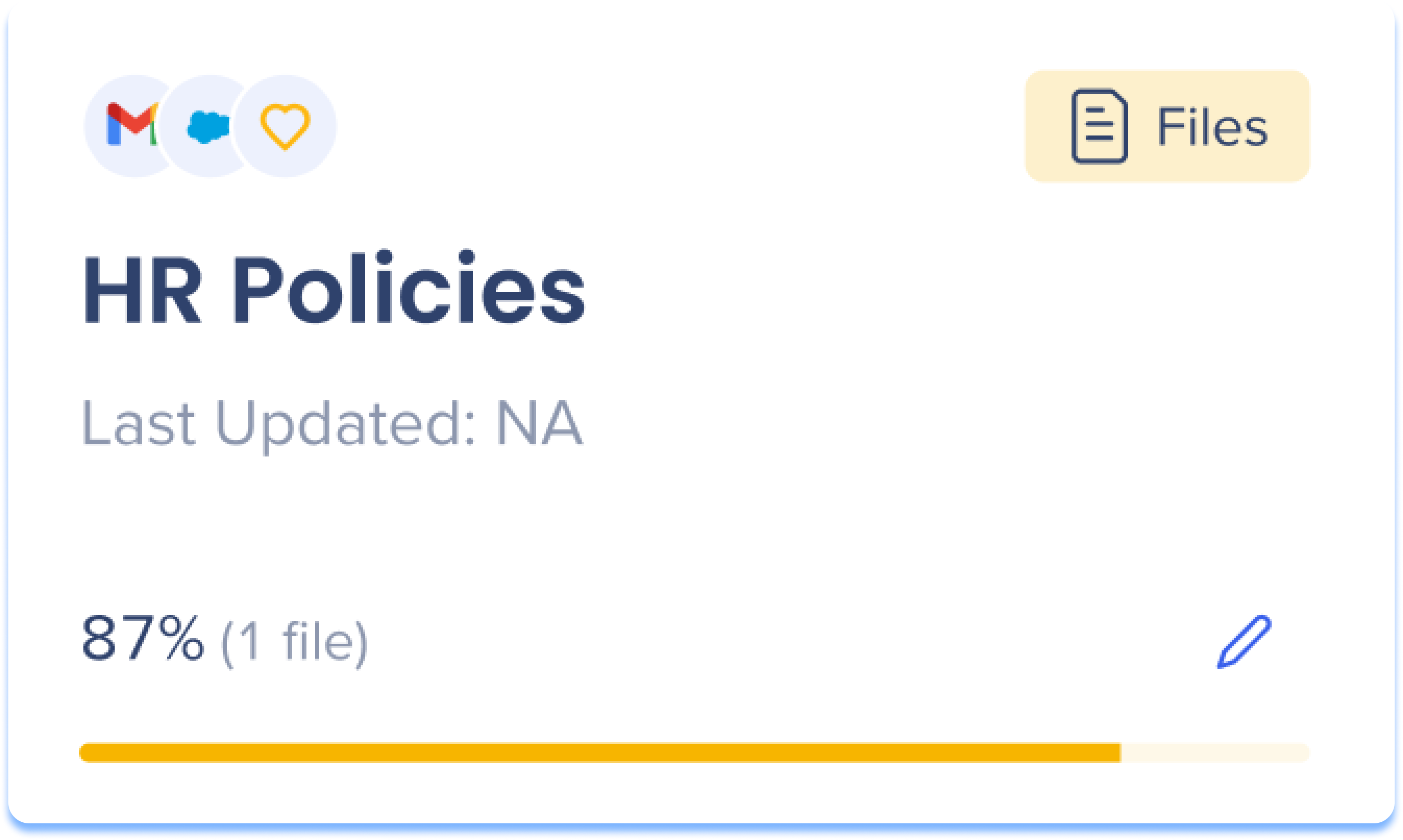
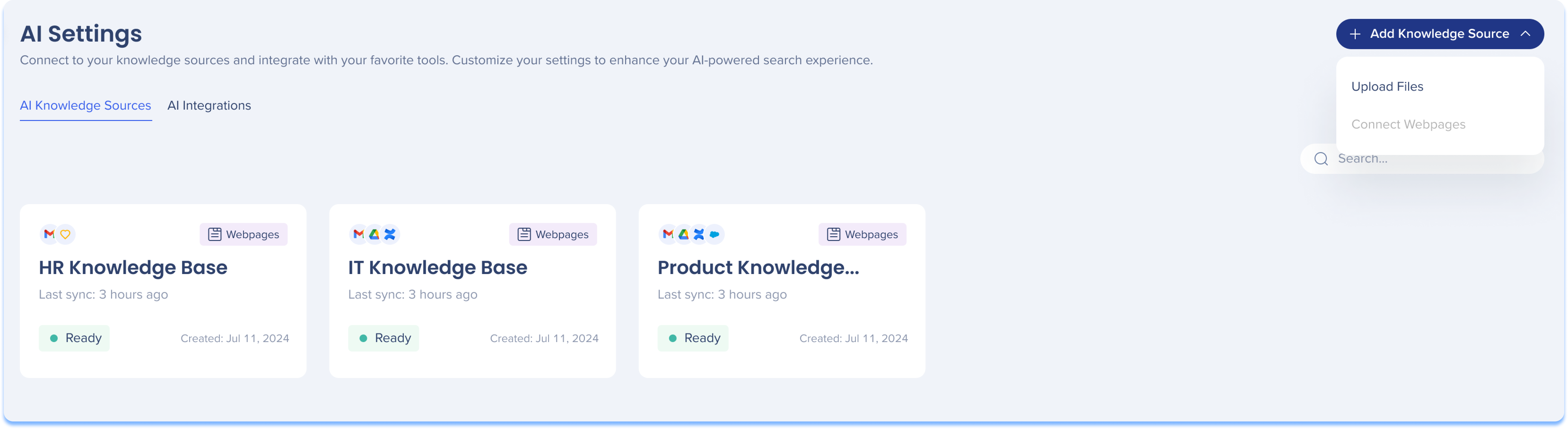
Each knowledge source is presented as a tile on the page and displays the following information:
-
Systems: Which systems have access to this knowledge source
-
Source type:
-
Source name: The name of the source
-
Last sync: Time the source was last updated
-
Status: Displays the uploading progress
-
Created date: Date the source was added
Hover actions

Hover over a source tile to view actions.
-
Delete: Permanently removes the knowledge source from the dashboard and AI Answers
-
Edit: Make changes to the knowledge source
-
Refresh: Re-syncs the knowledge source for updates
-
Demo: Opens a demo of AI Answers so admins can simulate the end-user experience
How to upload files for knowledge sources
-
Click the Add Knowledge Source button
-
Select Upload Files
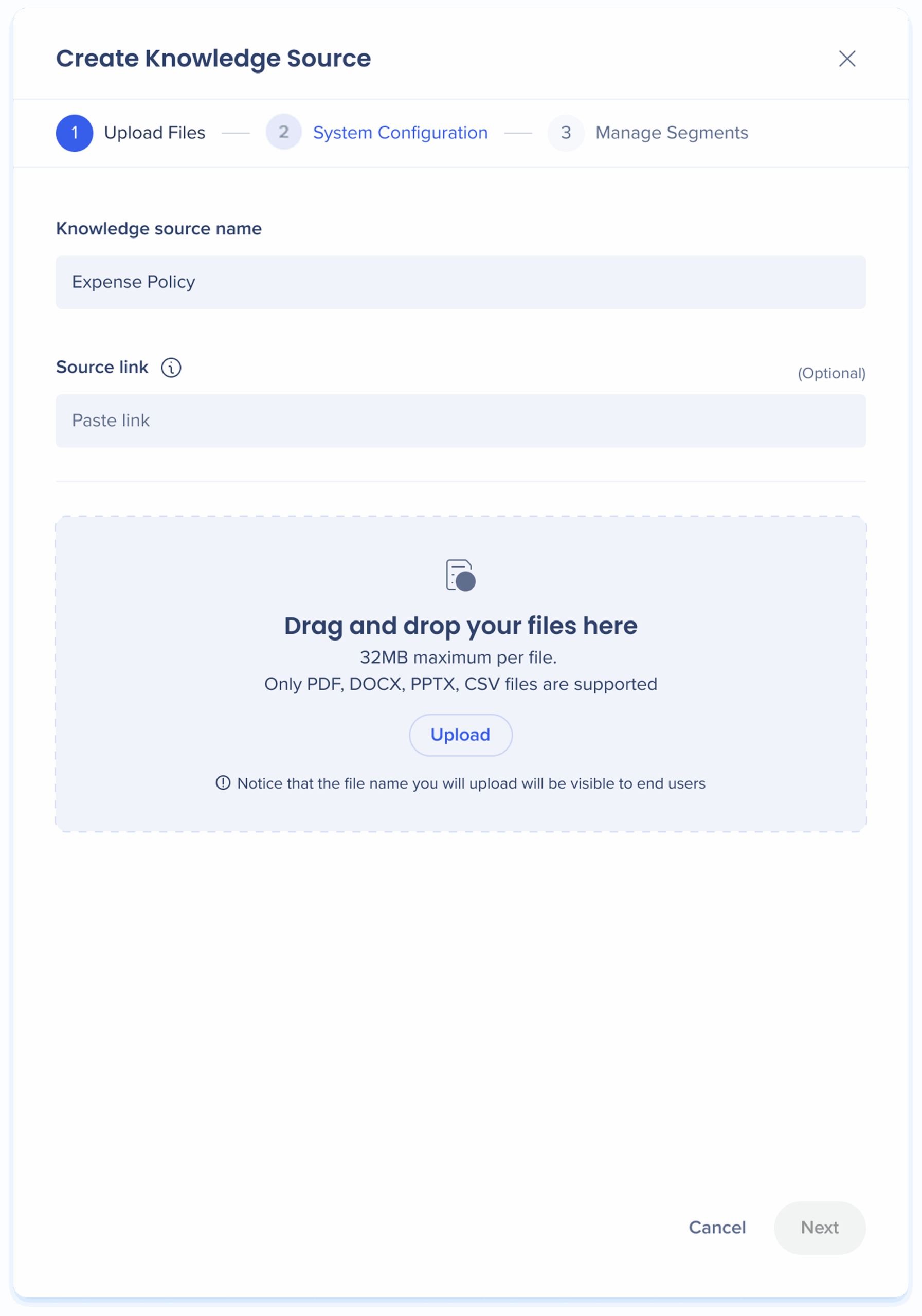
Step 1: Upload Files
- Enter a name for the Knowledge Source
-
Add a link to your file source. This link will appear as a clickable reference in chat responses (optional)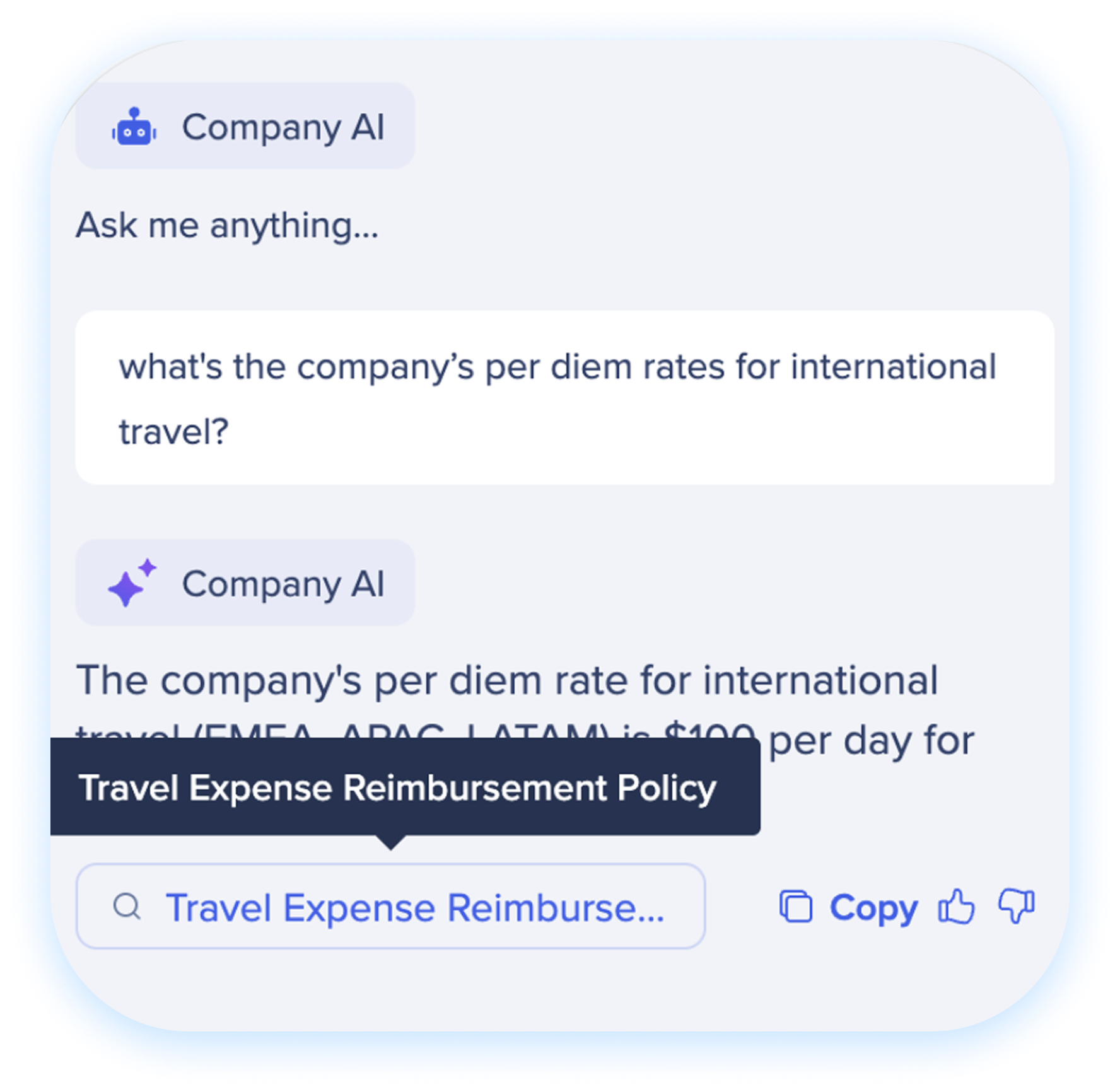
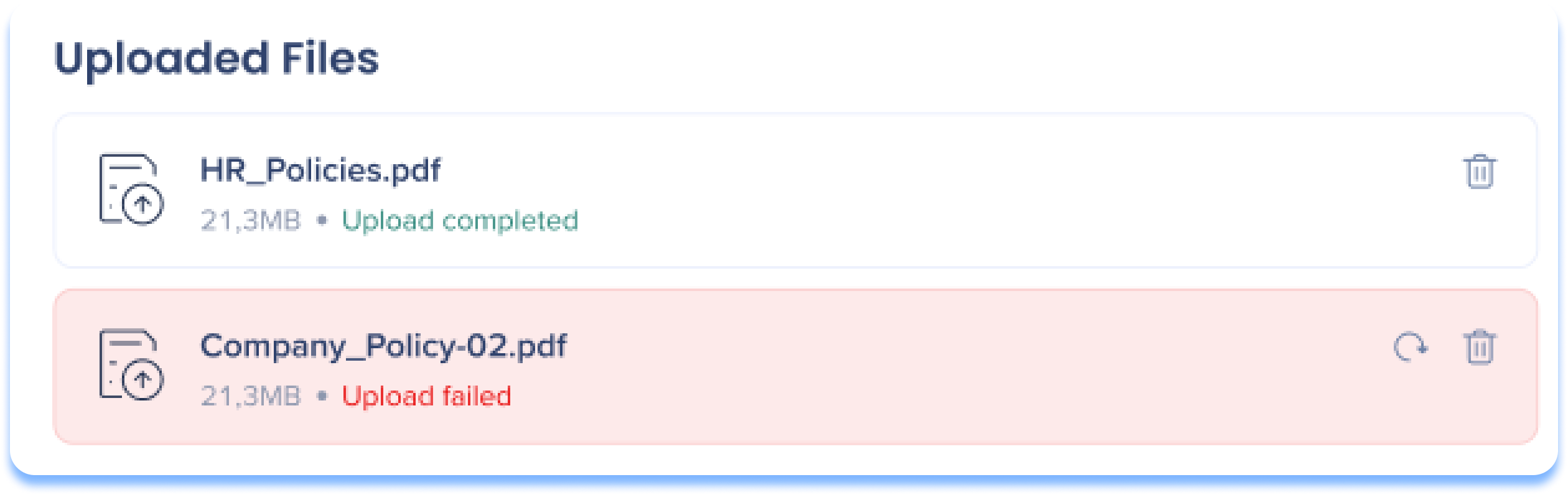
- Drag and drop your files or click Upload
4. The progress of the uploading files will appear
5. Click Next
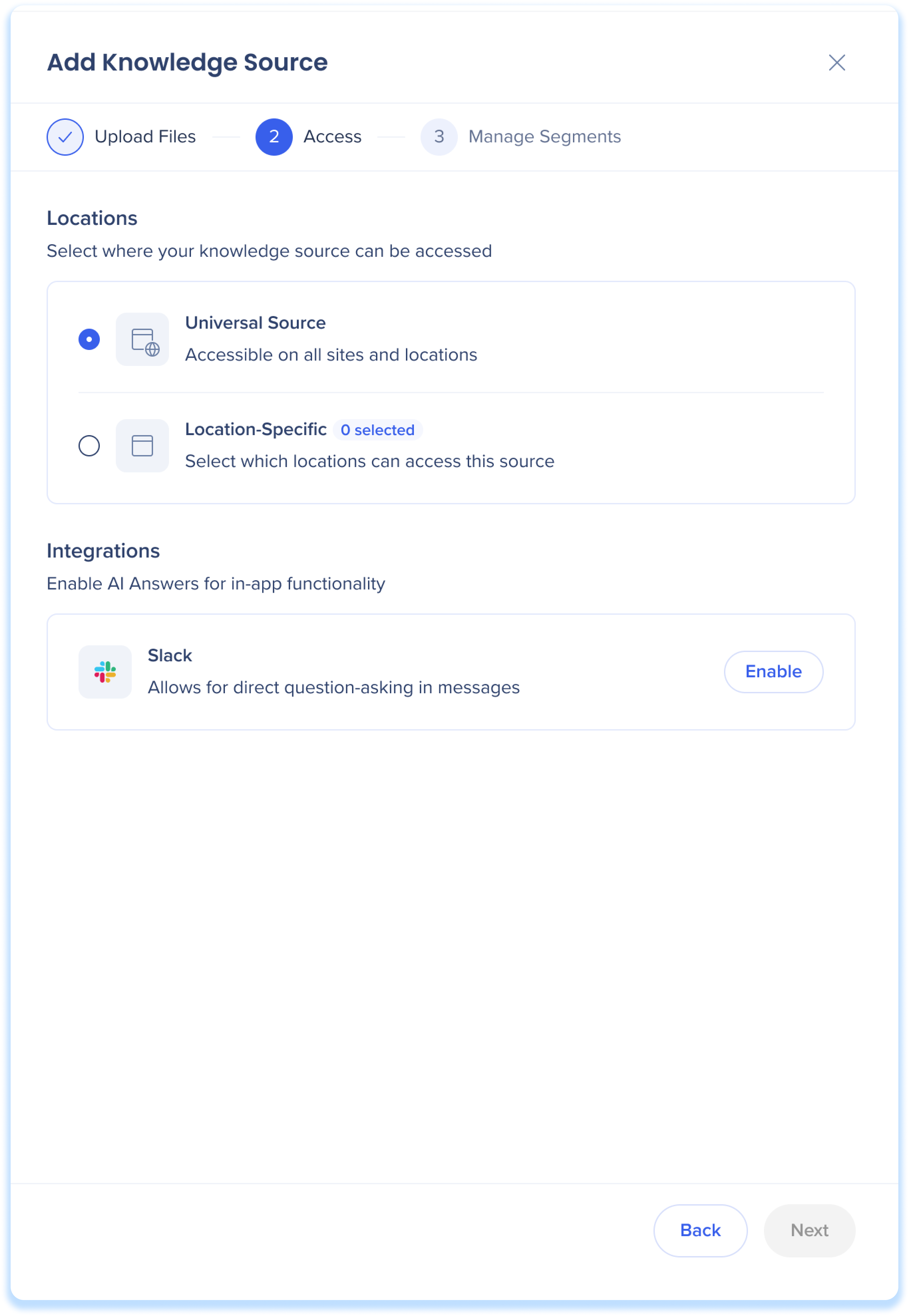
Step 2: Access
-
Select where your knowledge source can be accessed
- Click Next
Step 3: Manage Segments
For each system, customers have the option to add their user segments to better control the knowledge source availability.
- Select a system from the list
-
Select the user segments that will have access to your knowledge sources
-
Turn on a user segment toggle to enable per system
-
Click Create Source
-
The new knowledge source will appear in the dashboard
How to upload webpages
To upload webpages as a knowledge source, users can contact their customer success manager to make requests.
Learn more about segmentation and creating segments in the editor:
Segmentation
Custom Q&A
Enhance AI Answers with custom Q&As to resolve conflicts or fill gaps in your knowledge sources.
How it works
The AI prioritizes your custom Q&A over other knowledge sources, treating it as the most authoritative source of information.
It searches both your knowledge sources and your custom Q&A, but always ranks the custom Q&A higher. This ensures users receive the most relevant and correct answers quickly.
How to create custom Q&A
-
Click the Q&A icon on a source tile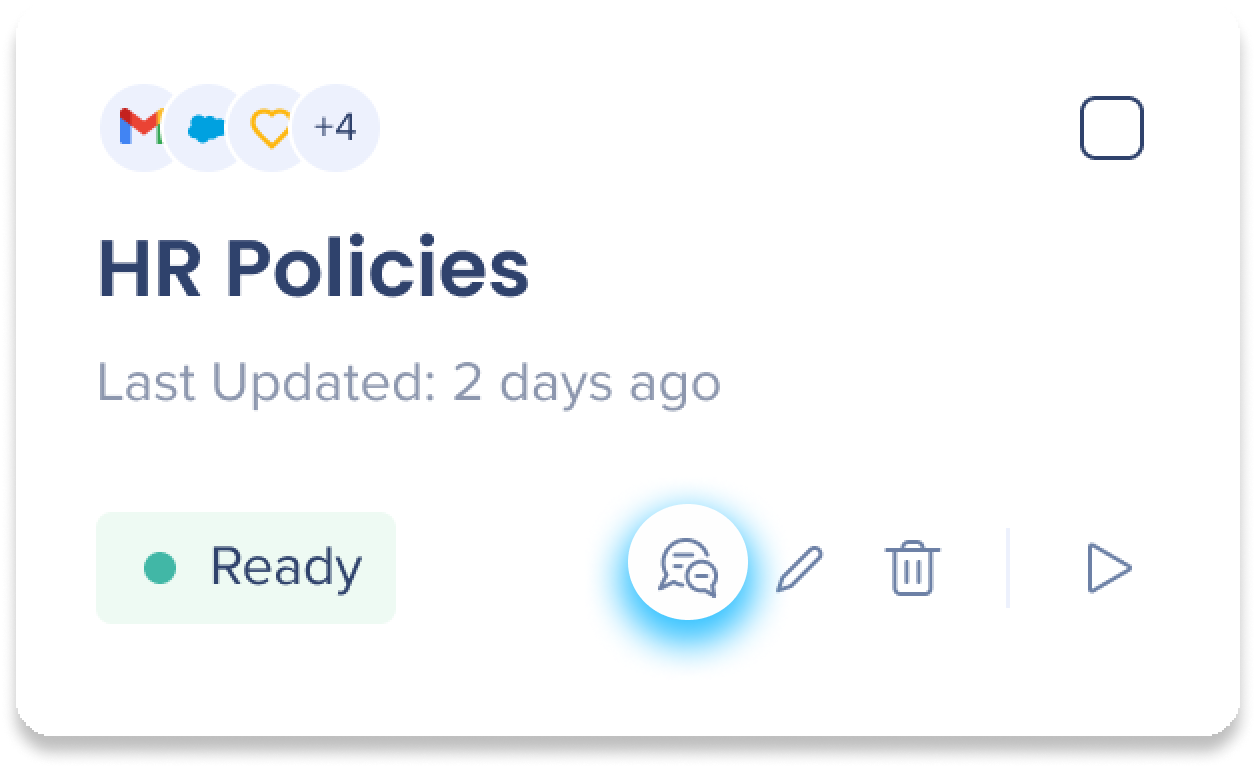
-
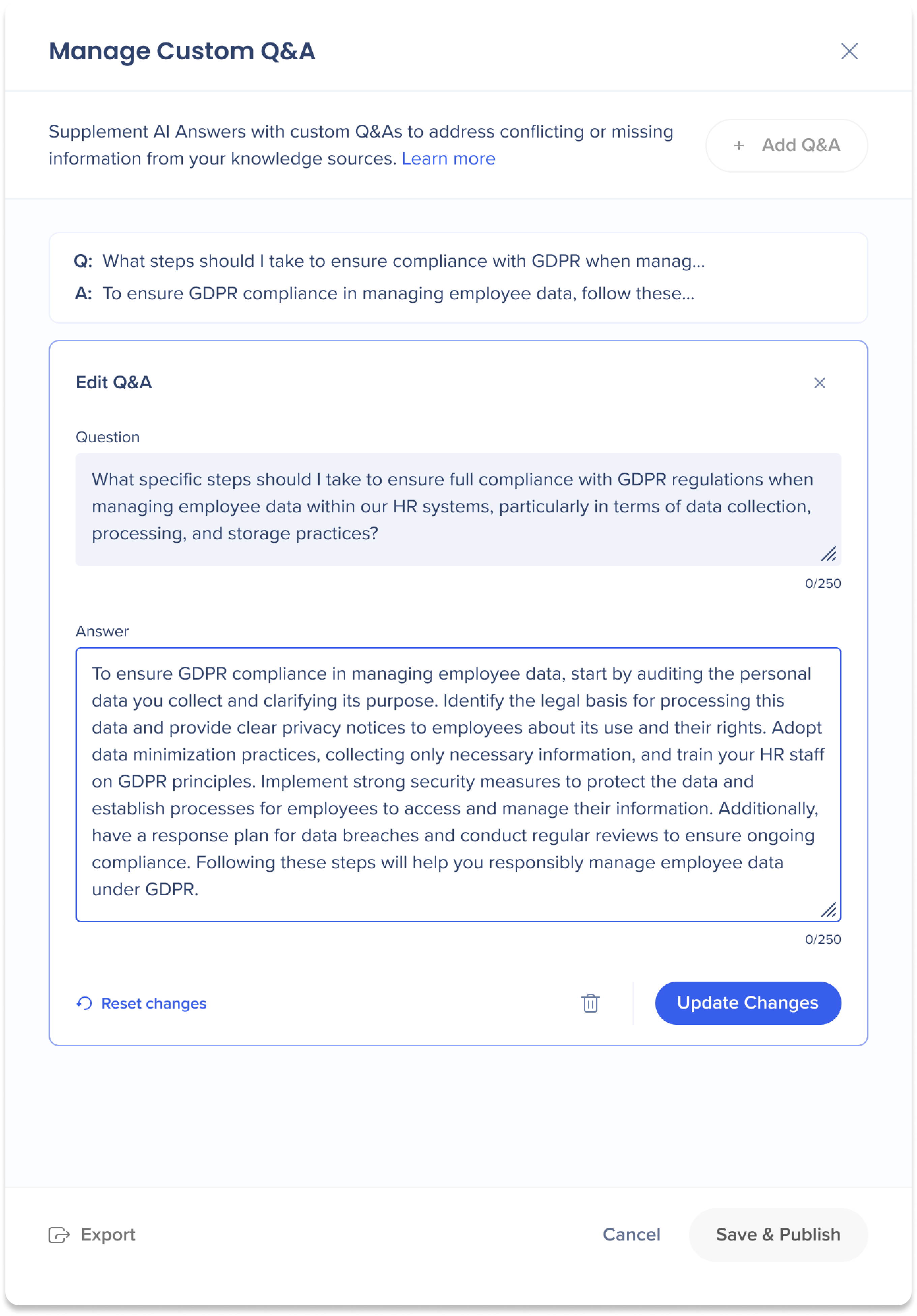
Click + Add Q&A
-
Enter your question and answer in the fields
-
Click Add
-
To add additional Q&A click + Add Q&A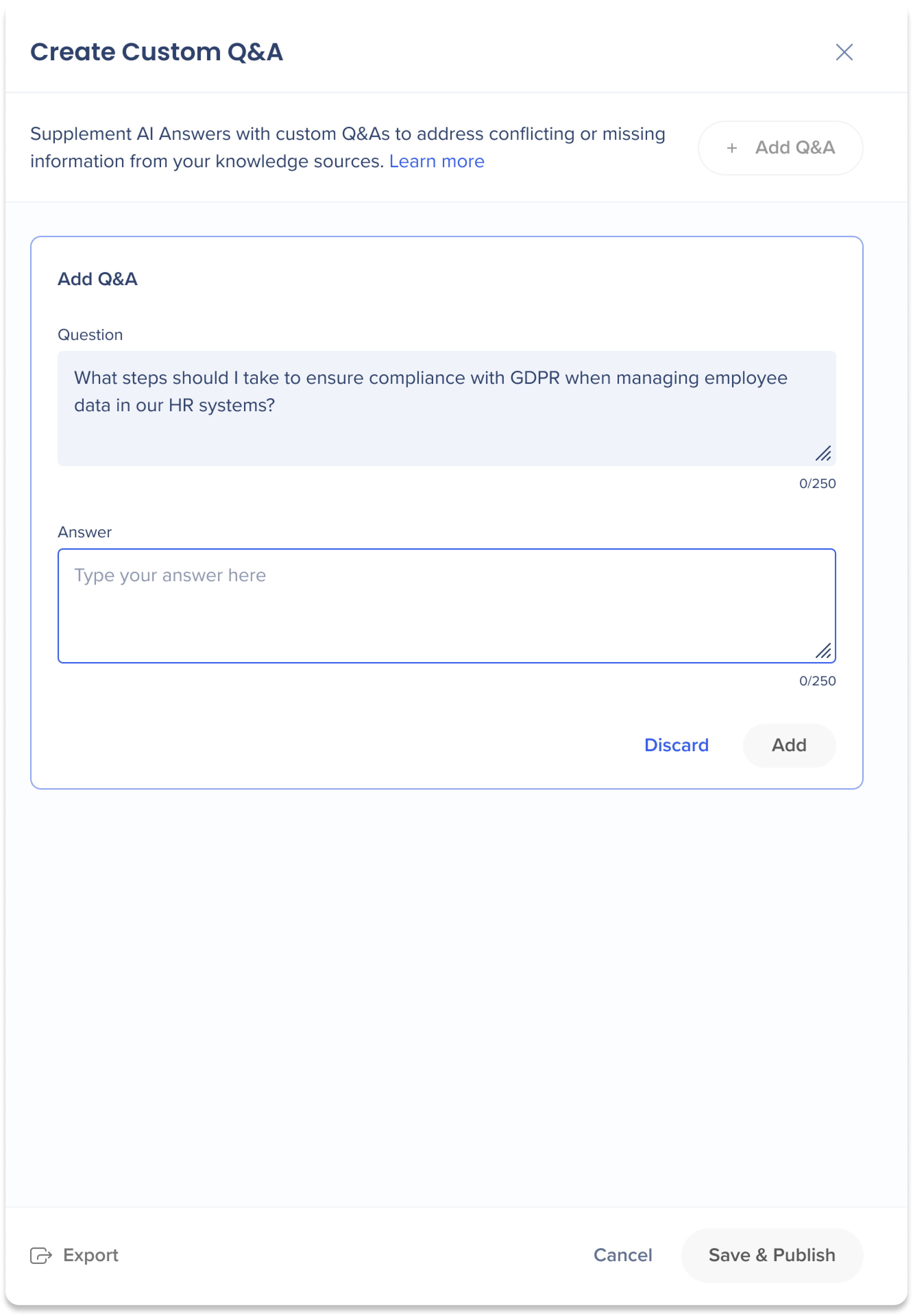
-
Click Save & Publish
-
A popup will appear informing you that the Q&A you've created will be available instantly to end-users. Click Save & Publish
-
To test AI Answers with your new supplement Q&A, click the Demo icon on the source tile you want to test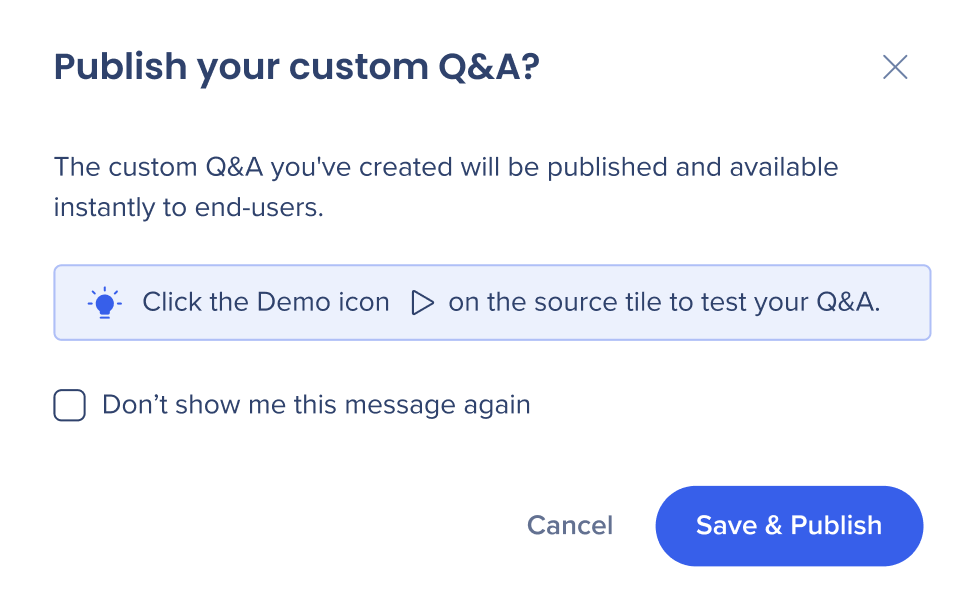
Note
Click Export to download your Q&A as a CSV file
Edit or Delete custom Q&A
-
Click the Q&A icon on a source tile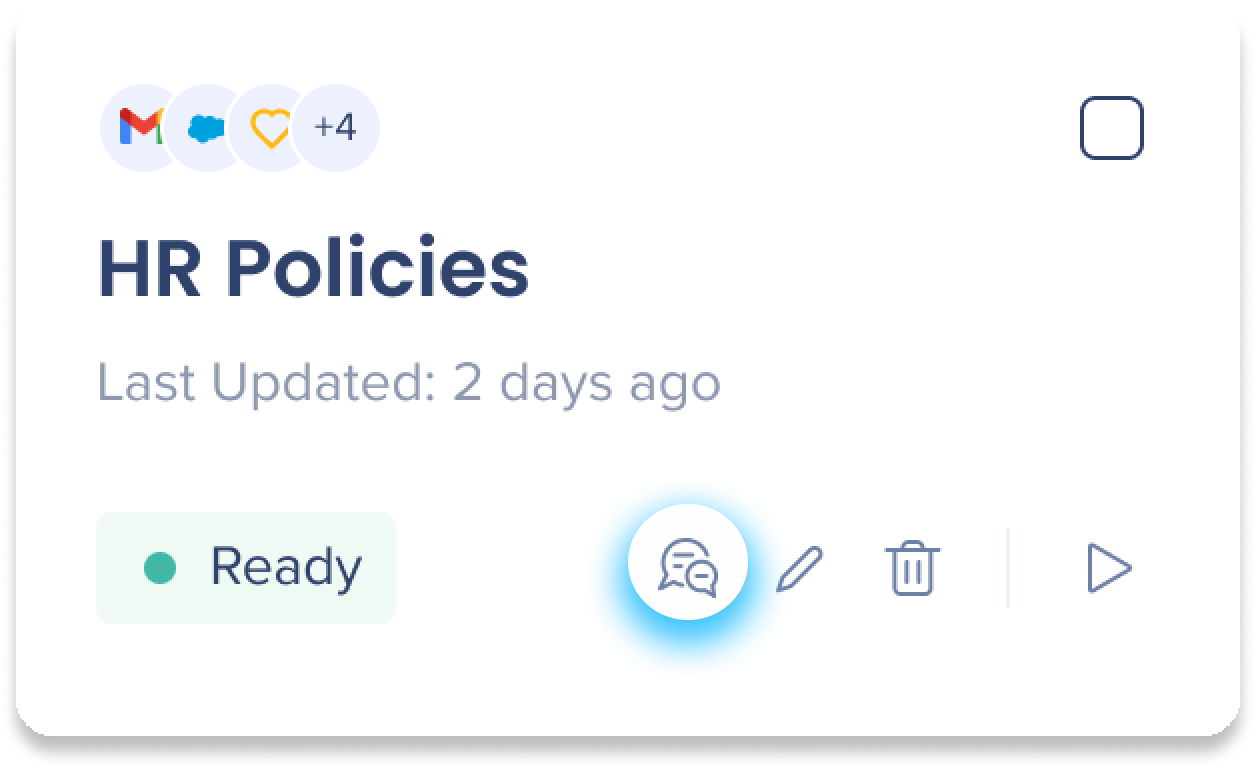
-
Select the Q&A you wish to edit or delete
-
To delete, click the Trash icon
-
To edit, make and change and click Update Changes
Rescan Knowledge Sources
Rescanning knowledge sources lets users schedule updates and view a summary of changes, including additions, modifications, and removals, along with other scanning settings.
How to rescan knowledge sources
-
Go to the AI Settings page in the AI Center
-
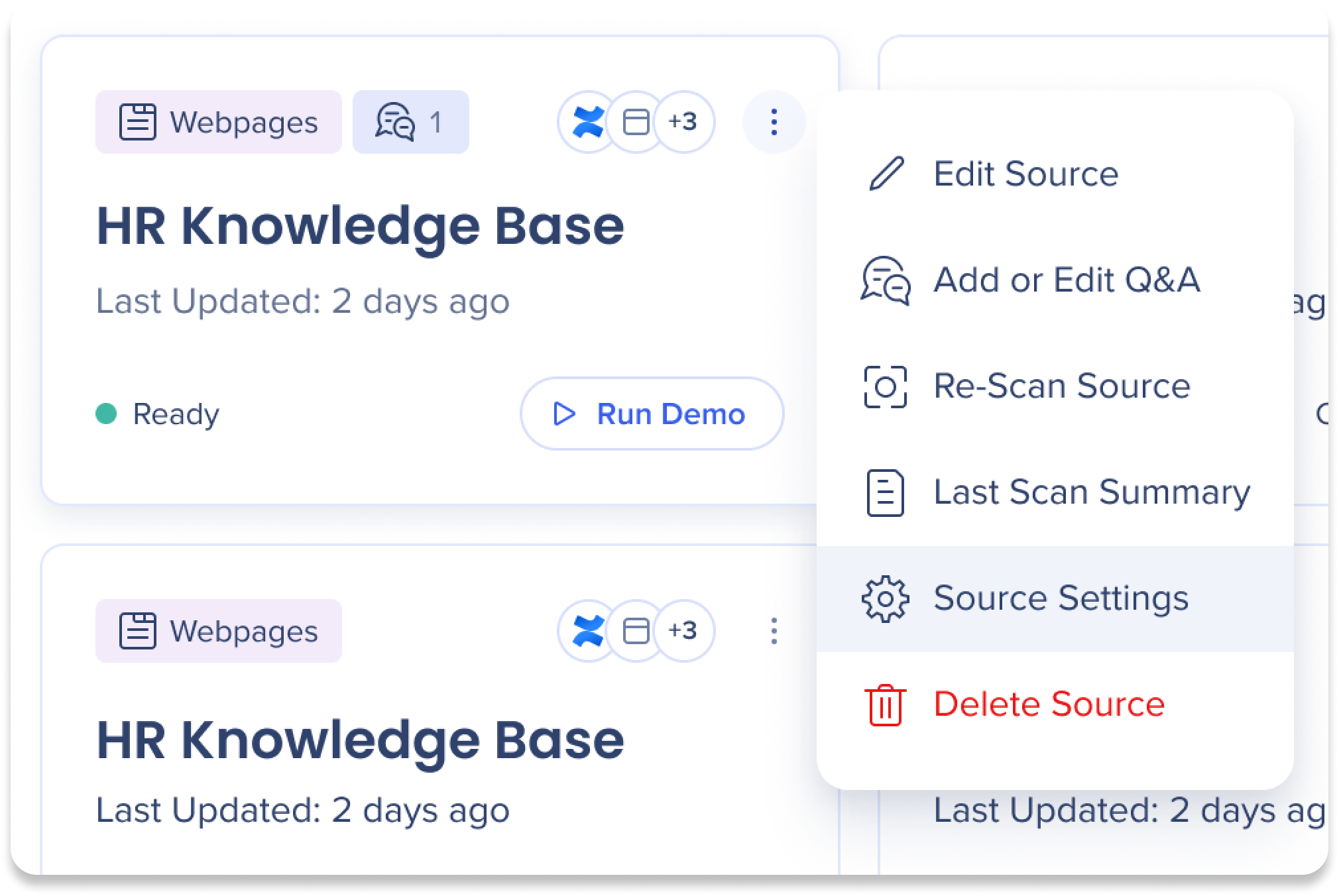
 Click the Options menu on the source you want to rescan
-
Click Source Settings
Rescan frequency settings
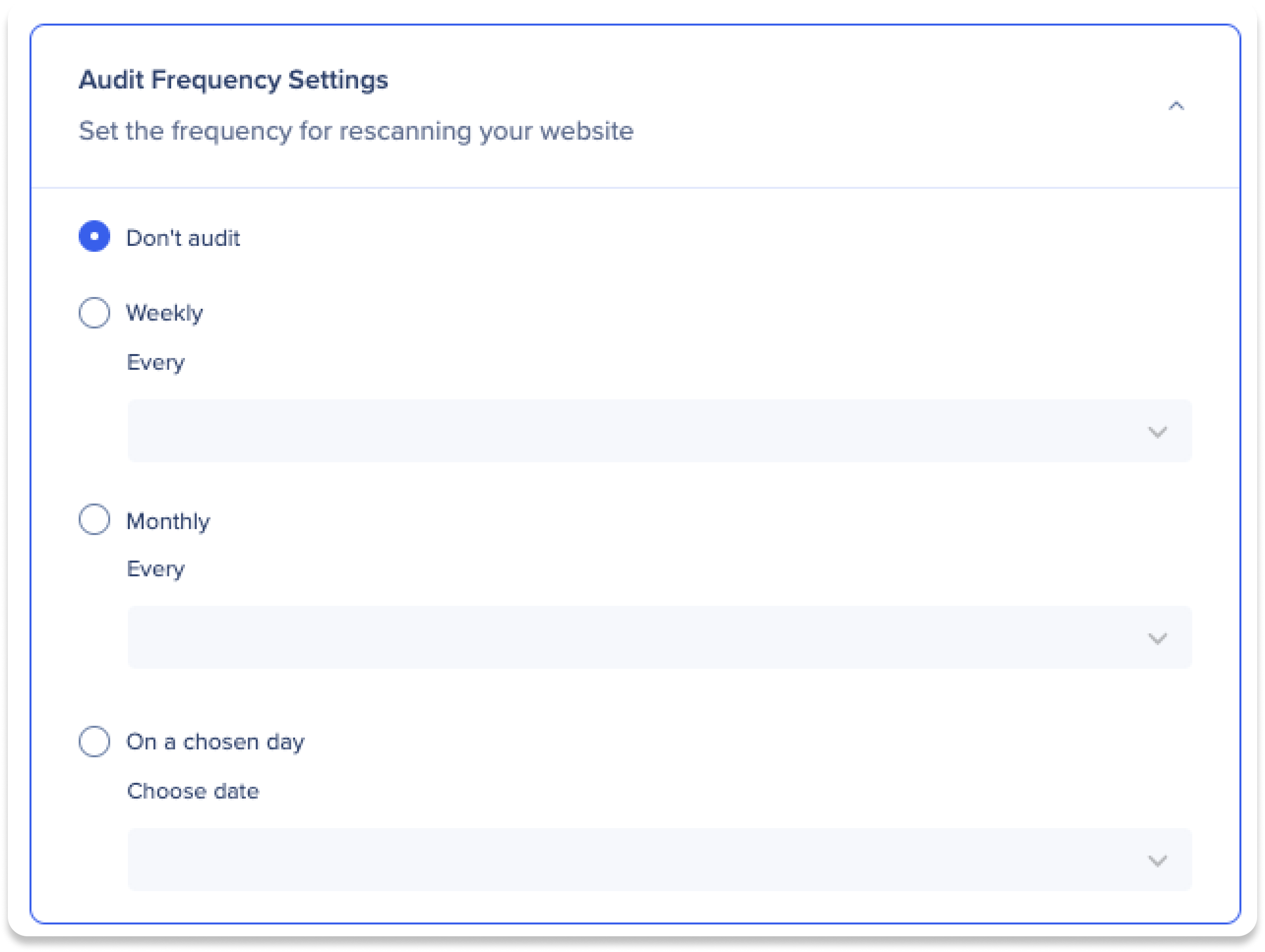
Choose how often you want to rescan your website:
-
Don't audit: Disable automatic website rescanning
-
Weekly: Select the day of the week for the weekly rescan
-
Monthly: Select the day of the month for the weekly rescan
- On months with fewer than 31 days, the rescan will take place on the final day of the month
-
On a chosen date: Select a specific date to rescan
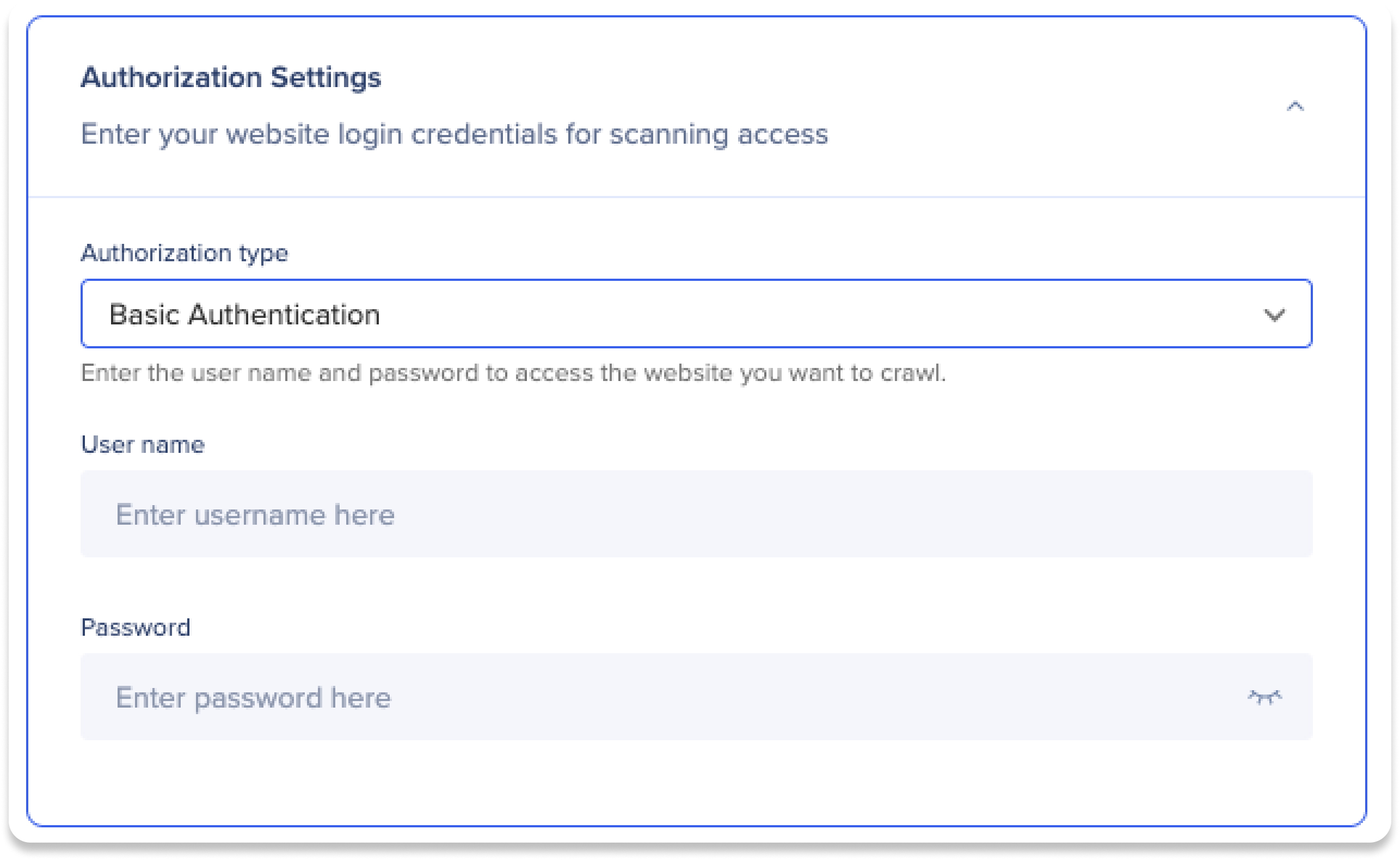
Enter your website login credentials to allow the AI access for scanning your website.
Note
Some information may already be filled out by the WalkMe Dev team. If there is an issue with invalid credentials, you likely only needs to update your username and password in the Authorization Settings.
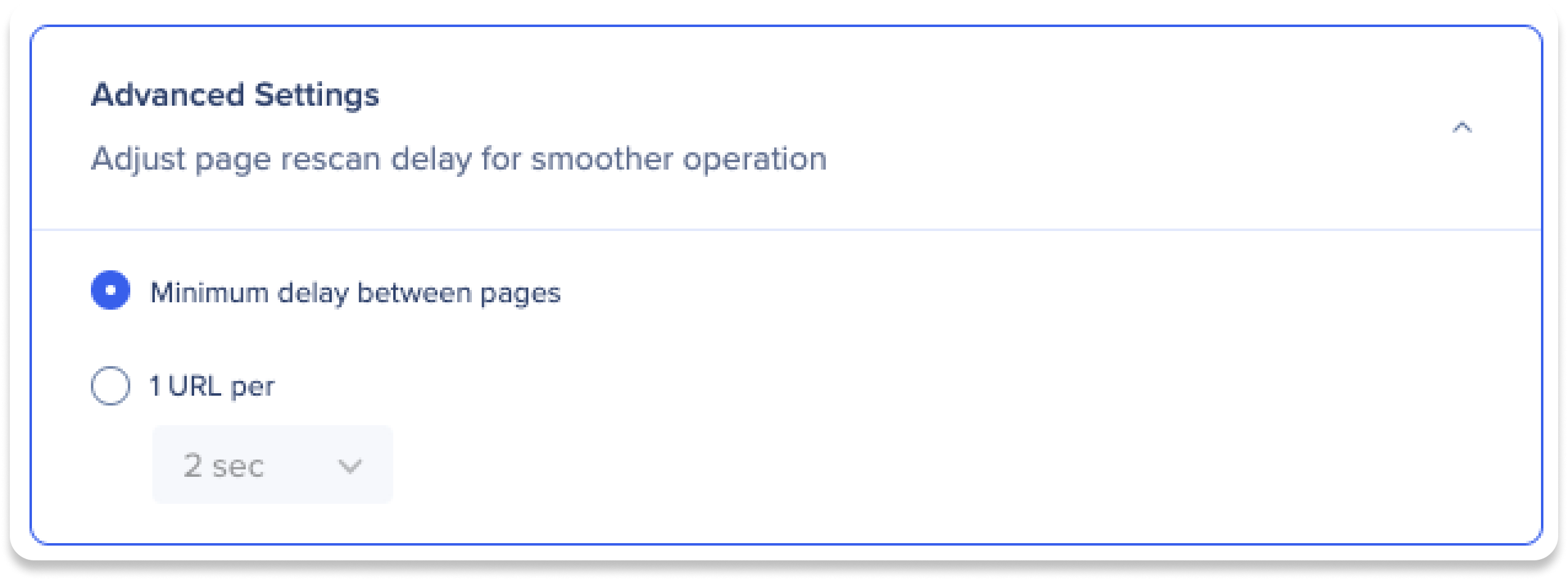
Advanced settings
Set the time intervals between page scans to ensure optimal performance, with the minimum delay usually sufficient.
-
Minimum delay between pages
-
 Best option for most users
-
URL per second
-
Select the amount of seconds between each page scan
Note
In most cases, you can keep the default minimum delay setting. The URL per second setting is typically only needed for specific situations where the site may have issues handling large data volumes.
Scan summary
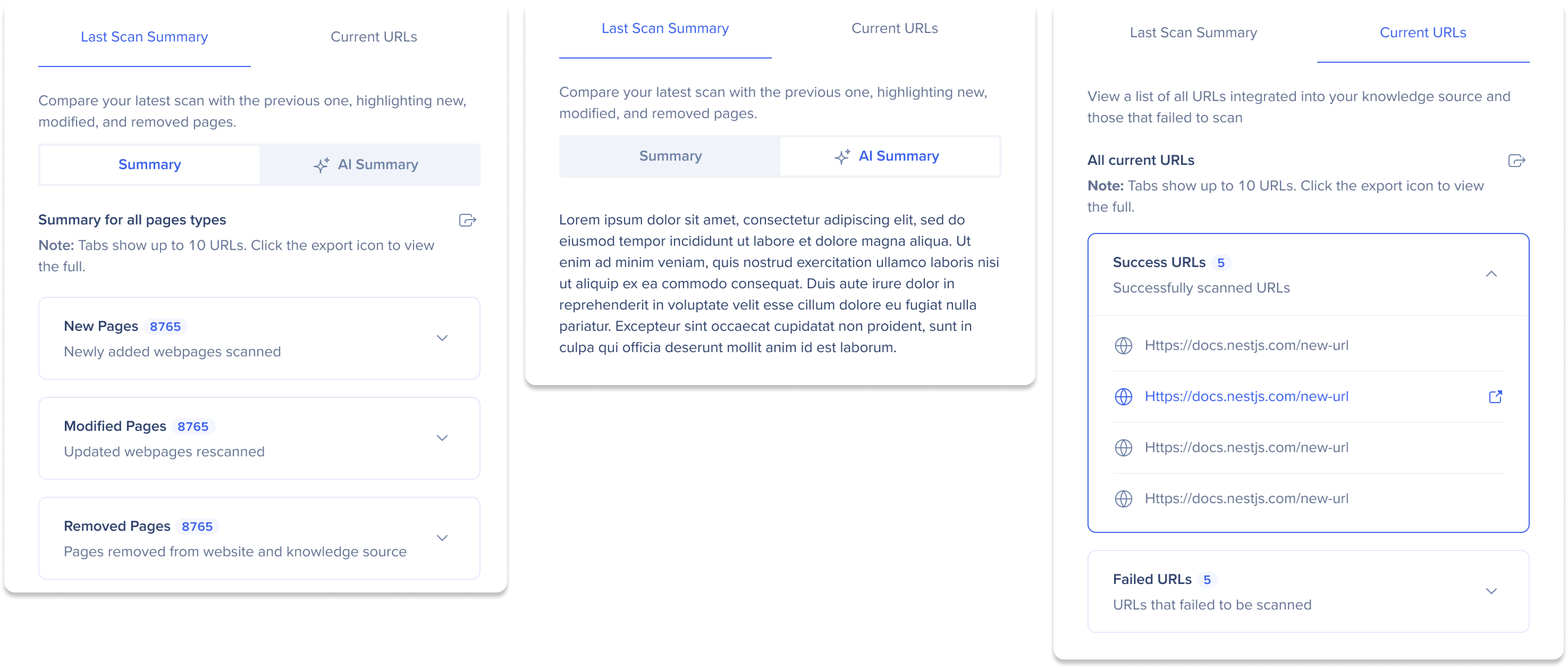
After configuring the rescan settings, click Save Changes to view a summary of the updates and current status of your AI Answers knowledge source. The scan summary consists of two pages:
-
Last Scan Summary: Compare your latest scan with the previous one, highlighting new, modified, and removed pages. Switch between Summary and AI Summary view mode toggles.
-
Summary: Click the tabs to view the webpages that have been added, updated, or removed
-
AI Summary: View a summary of all changes analyzed and generated by WalkMe's AI
-
Current URLs: View a list of all URLs integrated into your knowledge source and those that failed to scan
Note
-
 You can revert to the previous scan, but only once after a changes are saved. To do so, click the Revert to previous version icon
-
 Tabs show up to 10 URLs. Click the Export icon to view the full list
AI Integrations
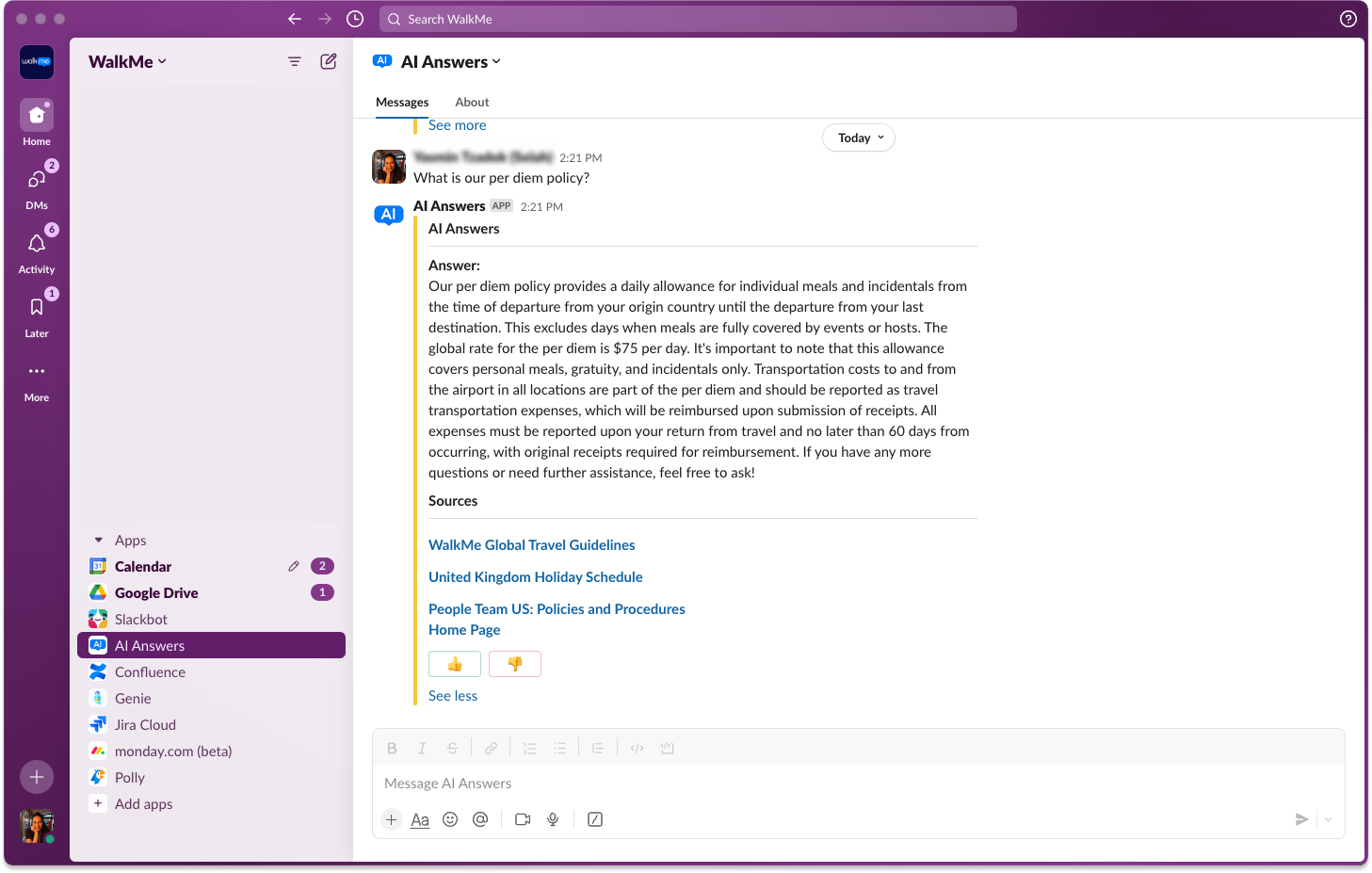
Enable the Slack Integration to use AI Answers within your Slack channels.
Configure the Slack integration
-
Click the AI Integrations tab on the AI Knowledge source page
-
Click Enable on the Slack tile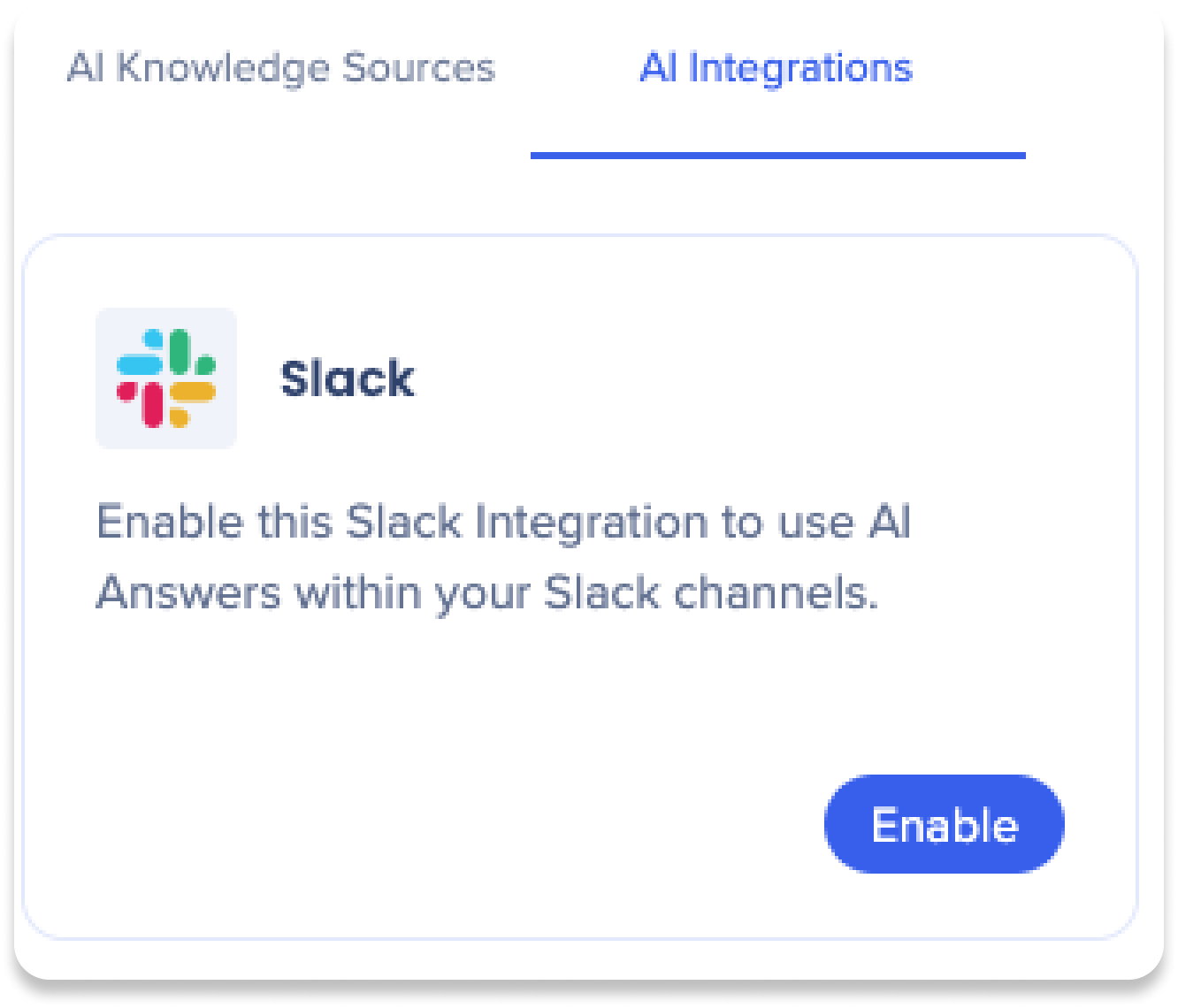
-
A popup will appear to configure the Slack integration
-
Enter a name for the Slack integration
-
Click Next
-
Follow the instructions for the App Manifest
-
Once completed, click Next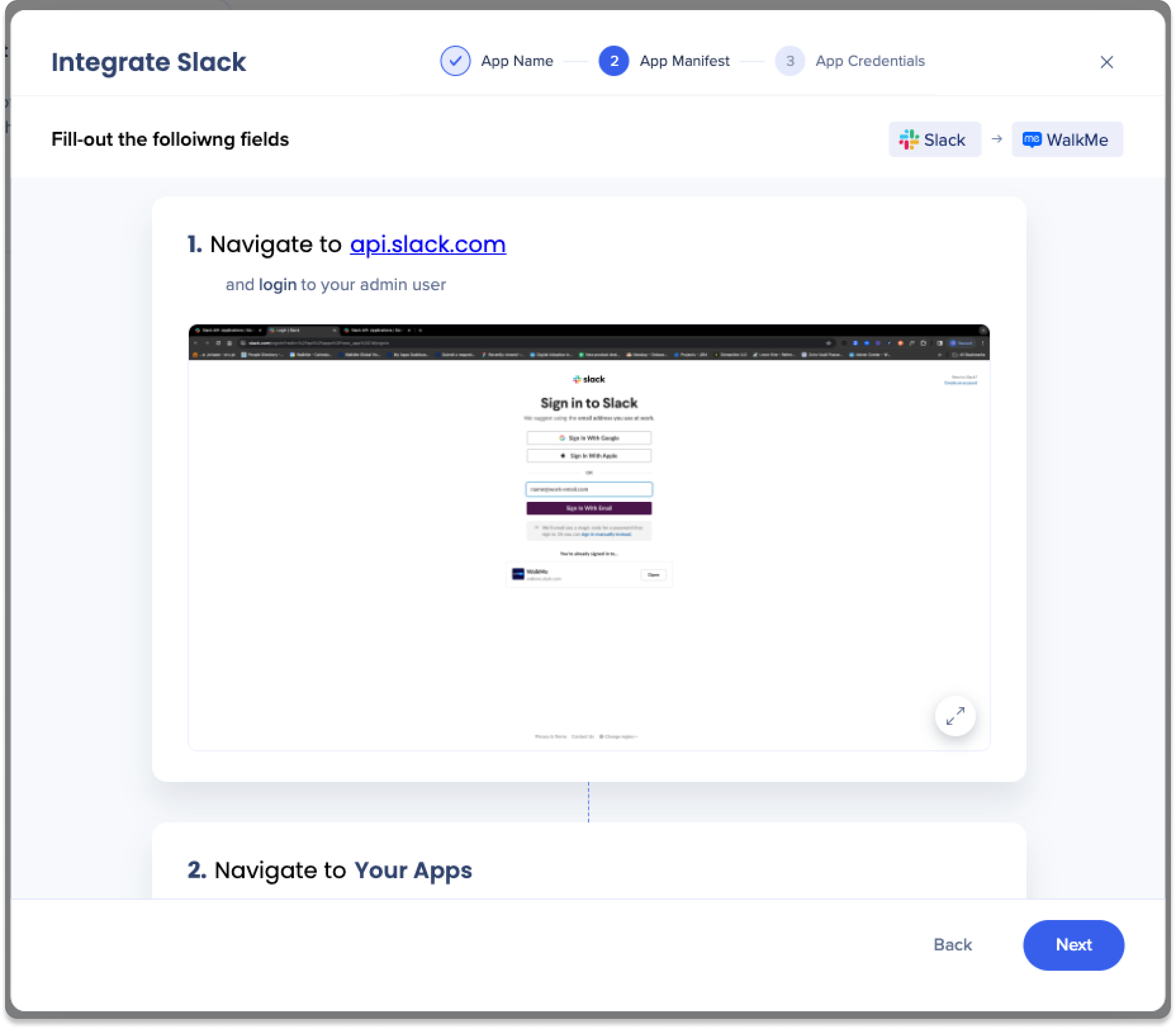
-
Copy and paste the app credentials
-
Signing Secret
-
Bot User OAuth Token
-
Click Add Slack Integration
-
Done!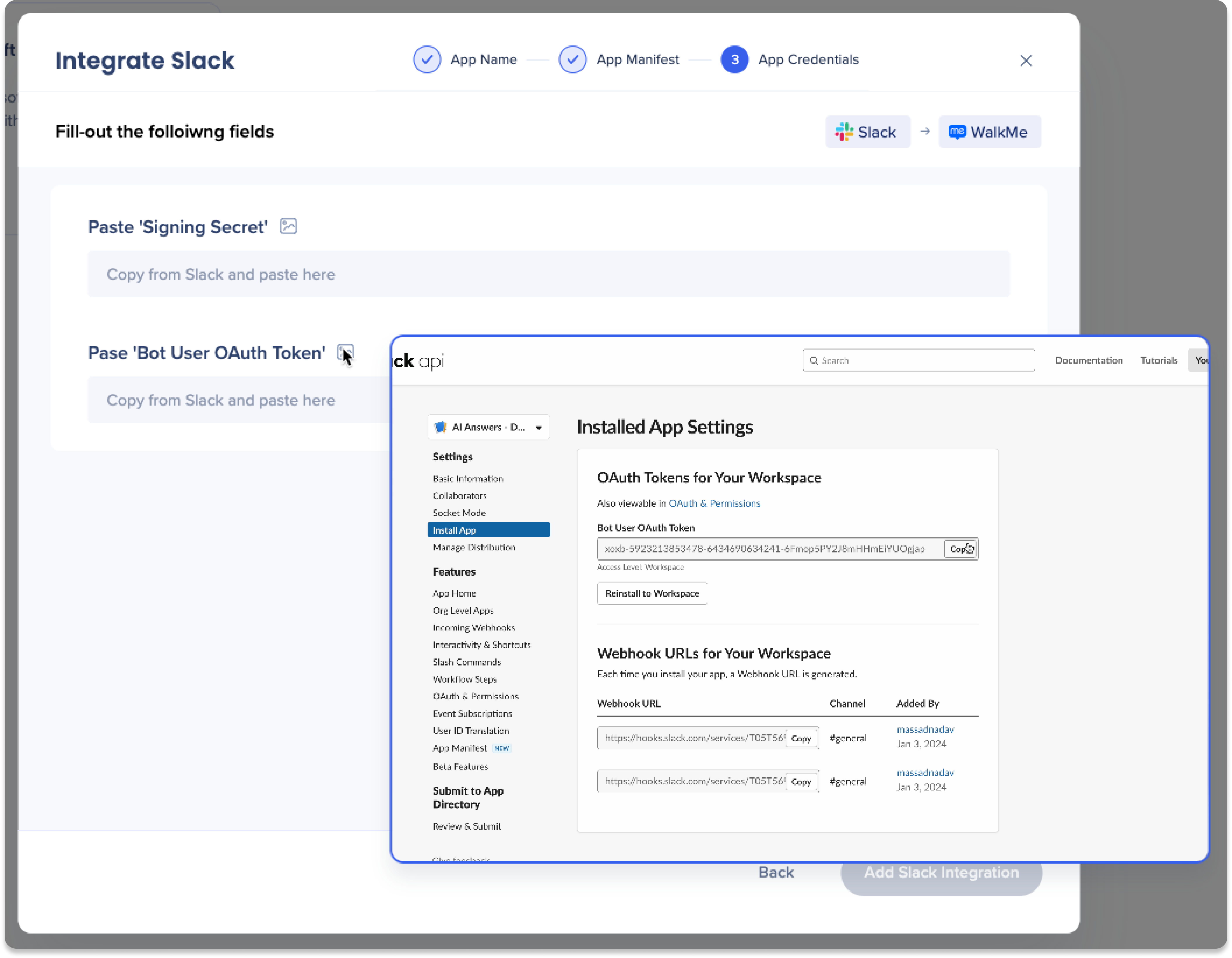
Data Collection Export
Opt in to view full report of Q&A interactions generated by AI Answers.
Enablement
You must opt-in to capture and export full Q&A logs:
-
 Select the Settings icon
-
Turn on the Enable Export AI Chat button toggle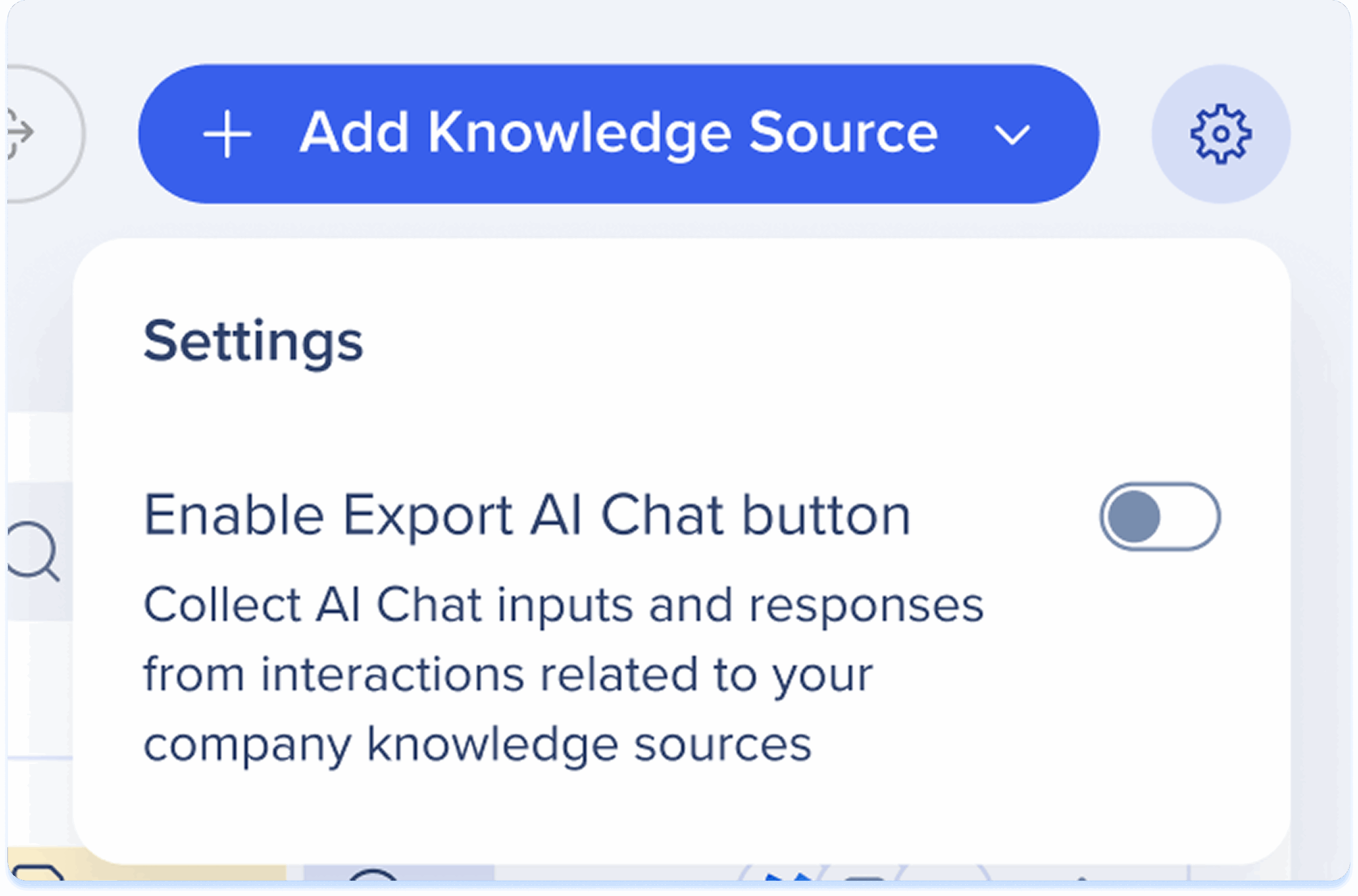
-
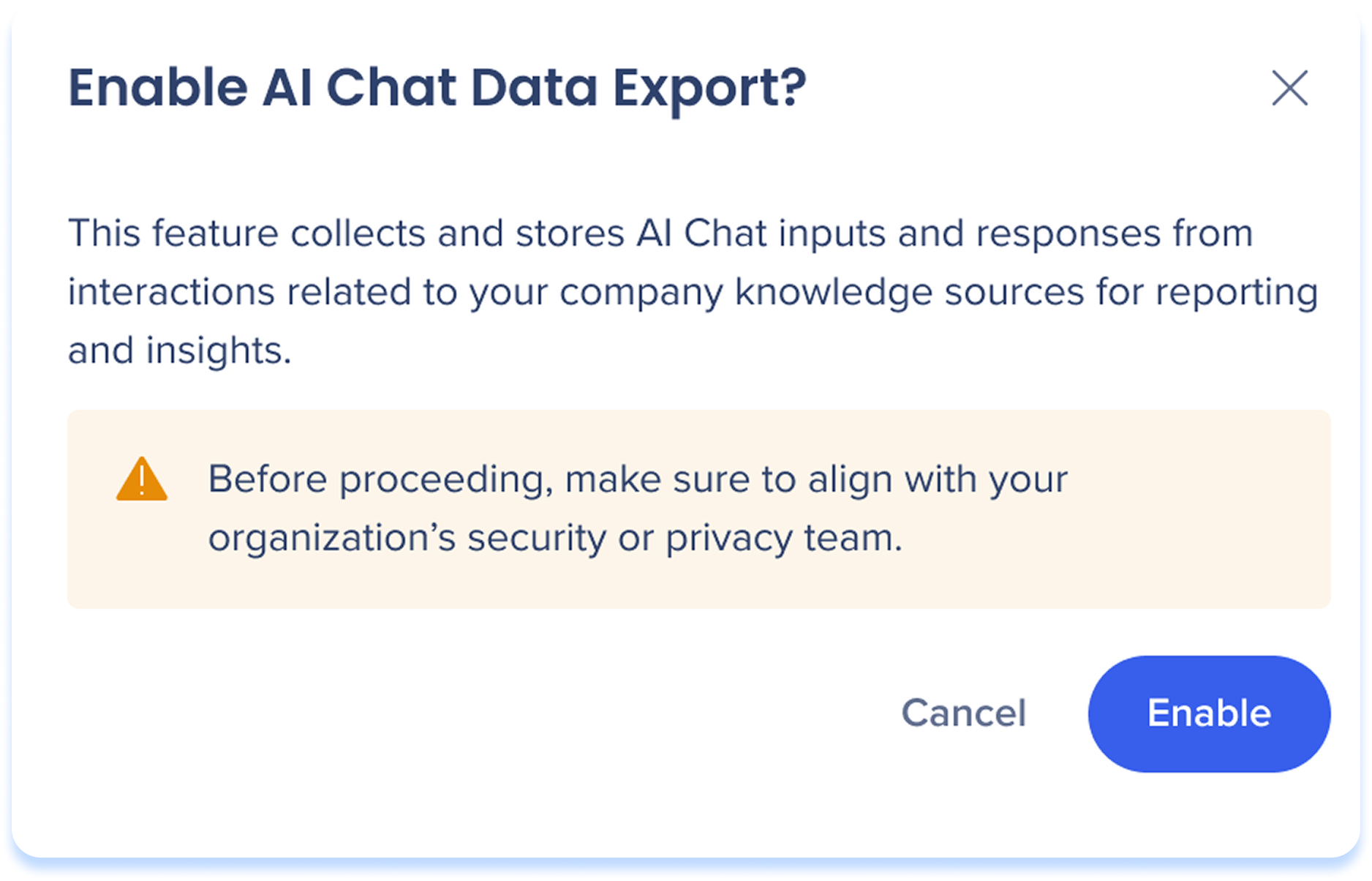
You'll get a popup warning letting you know that this feature collects and stores AI Chat inputs and responses from interactions related to your company knowledge sources for reporting and insight
-
Select Enable
How it works
-
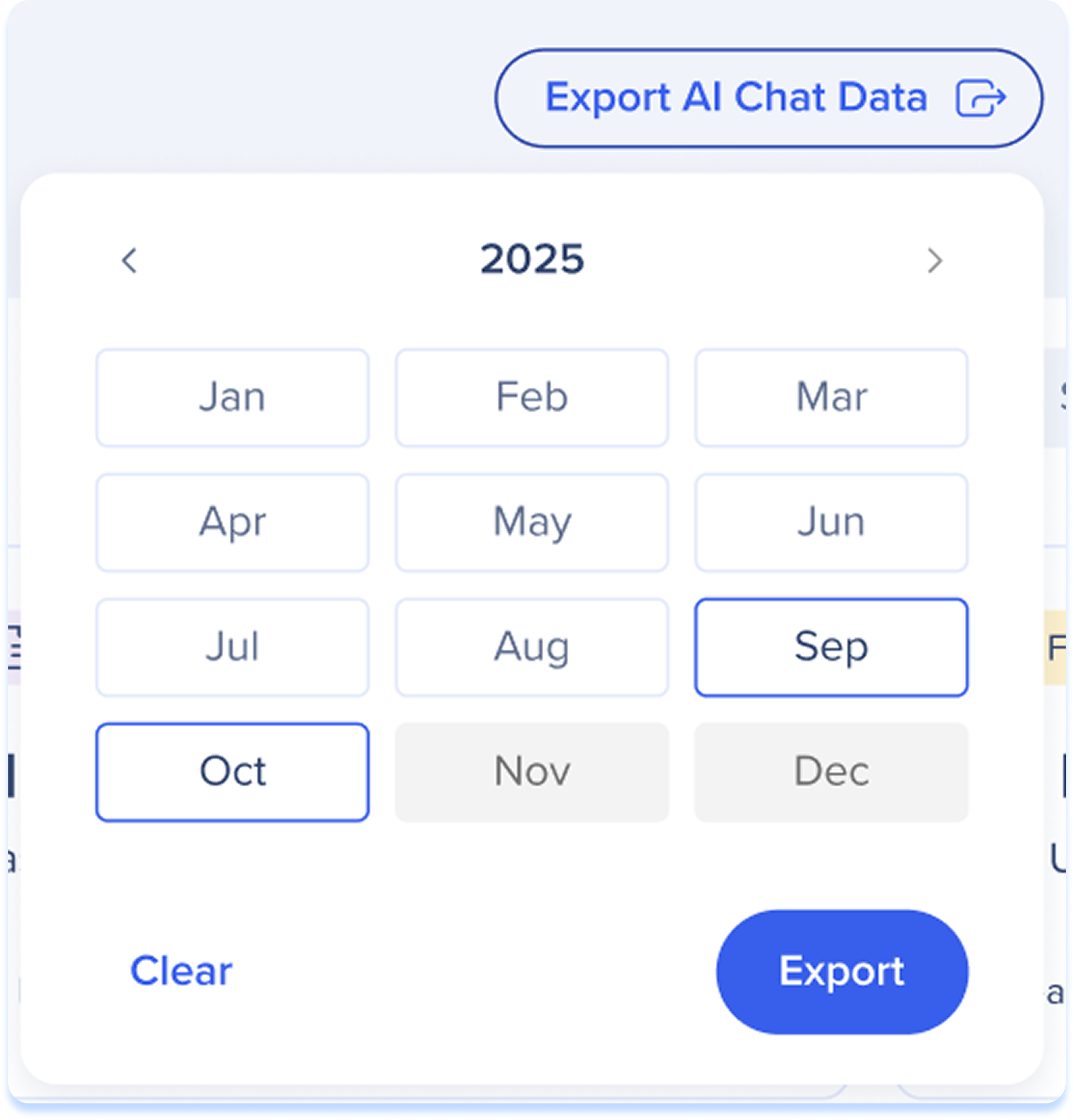
After enablement, Select the Export AI Chat Data button
-
Choose a date range
-
Select Export
Technical Notes
File Scanning
-
The following file types are supported: txt, doc, pdf, and coming soon csv
-
Only text is pulled from files
-
The file names appear to users in the AI Answers results, but the files aren't accessible by end-users
-
A single knowledge source can consist of one file or multiple files
-
Maximum file size is 15 MB
-
There is no limitation to the number of files you can upload
AI Segmentation
-
By default, sources are applied to all segments (including future segments that will be created in the system)
-
Once specific segments are applied, no publish is required for changes to take effect