We are constantly improving the desktop menu with new features and this article will provide a few first steps for common desktop menu issues, including symptoms related to:
Setup
Search
Notifications
ActionBot
For issues not listed here or if the solutions don't resolve the issue, we request that you send a diagnostic report.
Search Related Symptoms
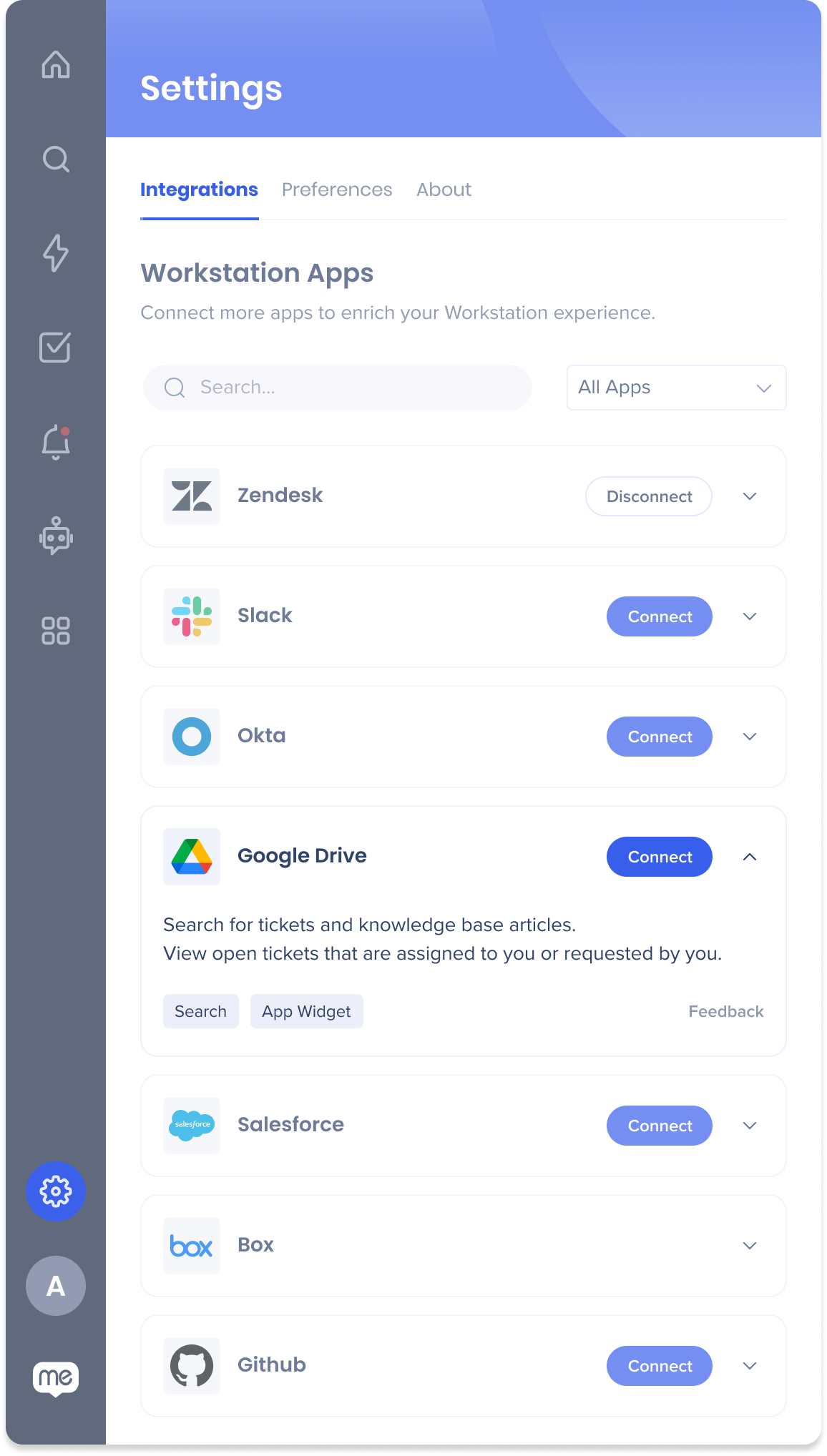
Unable to get results from integrations (3rd party apps)
Possible Solution #1 - Make sure the apps are connected
Click on the "Apps" icon at the top
Make sure you are connected to the Apps enabled by your Organization
If you are missing any of these, please click on the "Connect" button, below the Service you wish to connect
Menu Symptoms
"I can't open the Menu, even though the desktop menu icon is visible..."
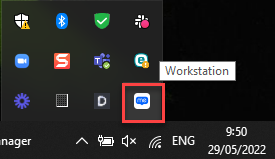
Start by killing the desktop menu process - Once you exit the desktop menu, make sure it is completely closed before moving to the next step
For Windows:
Press Windows key + 'X' Key
Click the Task Manager option
Click on the "Processes" Tab
Select the desktop menu process (Workstation.exe)
Right-click on the process
Click on "End task"
For MacOS:
Open “Activity Monitor”
Search 'WalkMe Menu'
Click on the Process
Click on "Stop" and then on “Force Quit”
Re-open the desktop menu:
For MacOS:
Go to
C:Program Files (x86)WalkMeWorkstation
Click on Workstation.exe
For Windows:
Click on cmd+Space (open Spotlight)
Search for WalkMe Menu
Hit Enter
Notification Symptoms
Not receiving notifications
Make sure you see the desktop menu running
On PC
On Mac
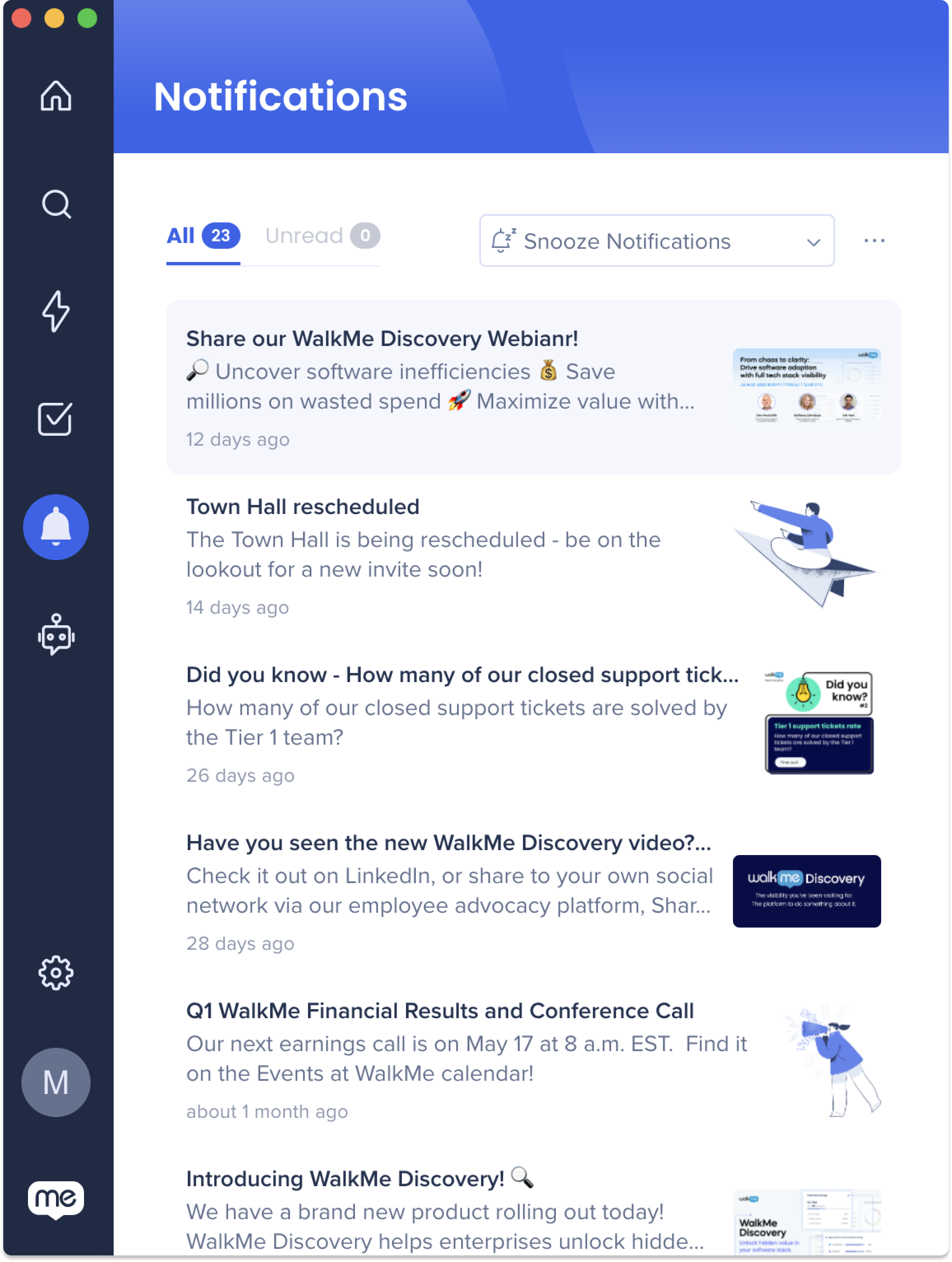
Are you able to open your desktop menu?
If so, go to the Notifications Center by clicking on the "bell" icon at the top right, and see if you have any unread Notifications
If not, please try the troubleshooting steps for "Menu won't open"
ActionBot Symptoms
ActionBot isn't working
ActionBot for desktop menu can't properly perform if the WalkMe Editor is open. So, verify your Editor is closed first.
If that's not the issue, then please refer to the Send Diagnostic Report section.
Collecting Desktop Menu Logs
For Windows:
Go to %AppData%\WalkMe_Menu\logs\WalkMe_log.log
Send us this file
For MacOS:
Go to ~/Library/Logs/WalkMe_Menu/WalkMe_log.log
Send us this file
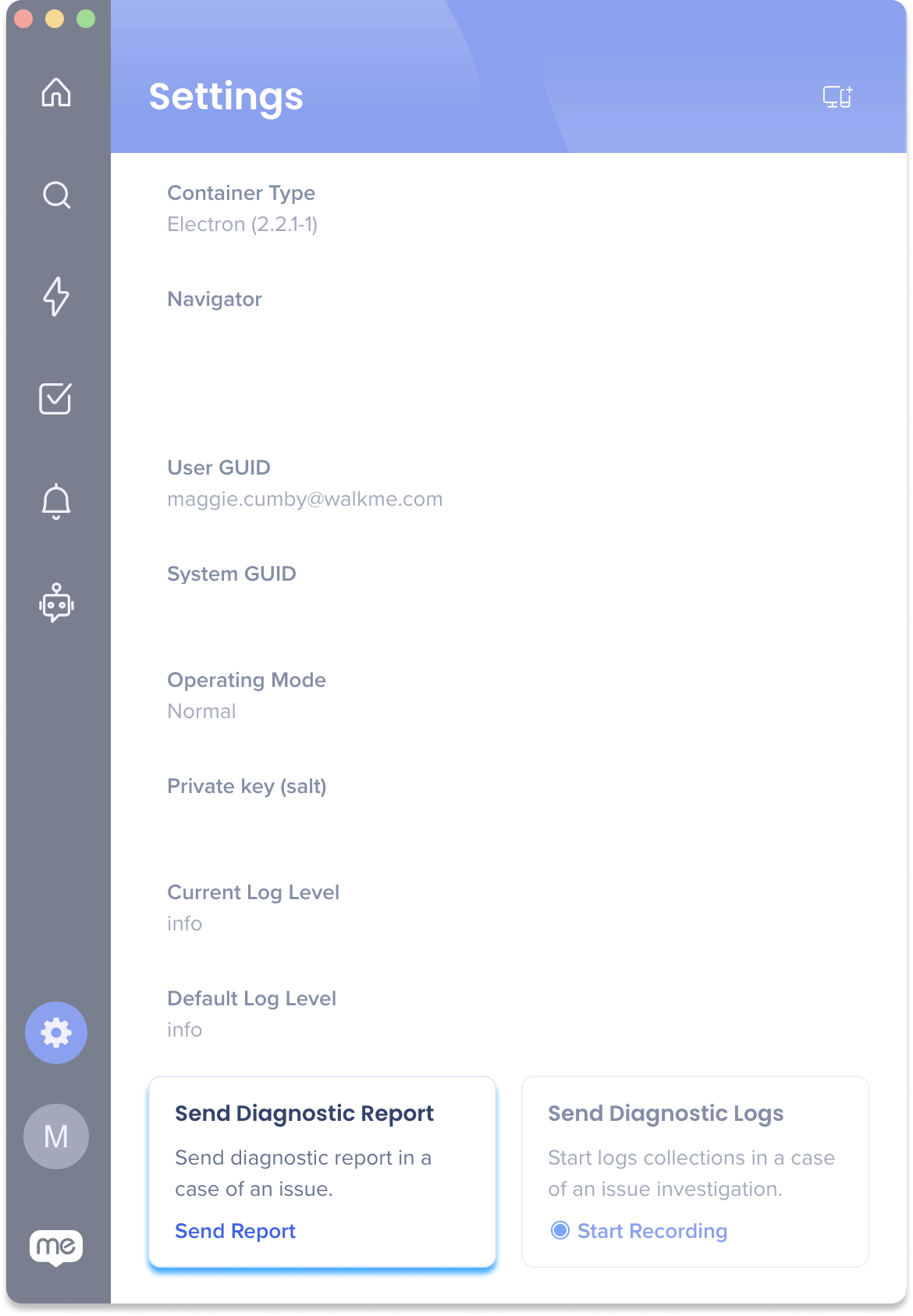
Send diagnostic report
If your issue wasn't resolved with the solutions above then send a diagnostic report:
Go to Settings → About
Scroll down to the Send Diagnostic Report
Click Send Report
Contact your Organization's WalkMe Admin who can reach out to the WalkMe Support team