Brief Overview
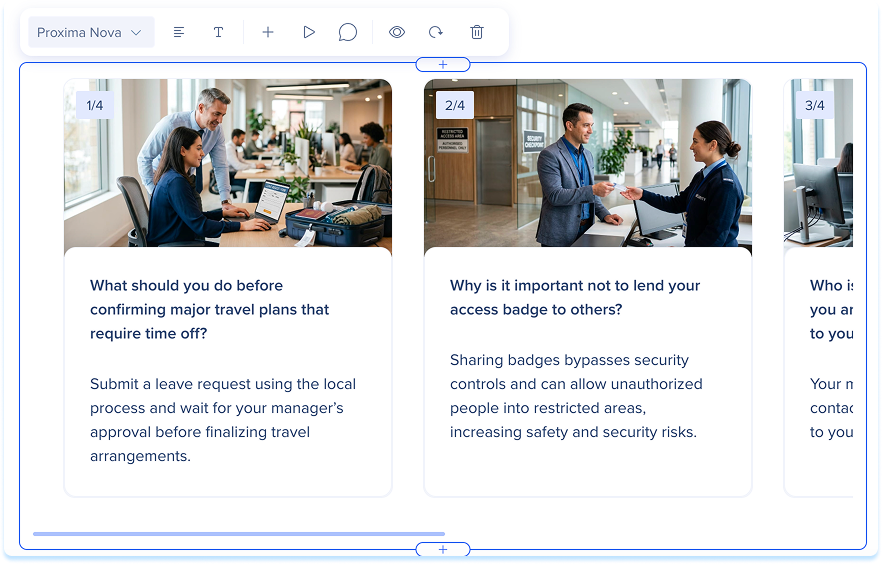
Use cards to give learners a lighter way to review and retain key ideas. Authors can add cards to any lesson in WalkMe Learning Arc, and learners move through the set in a horizontal, scrollable carousel at their own pace.
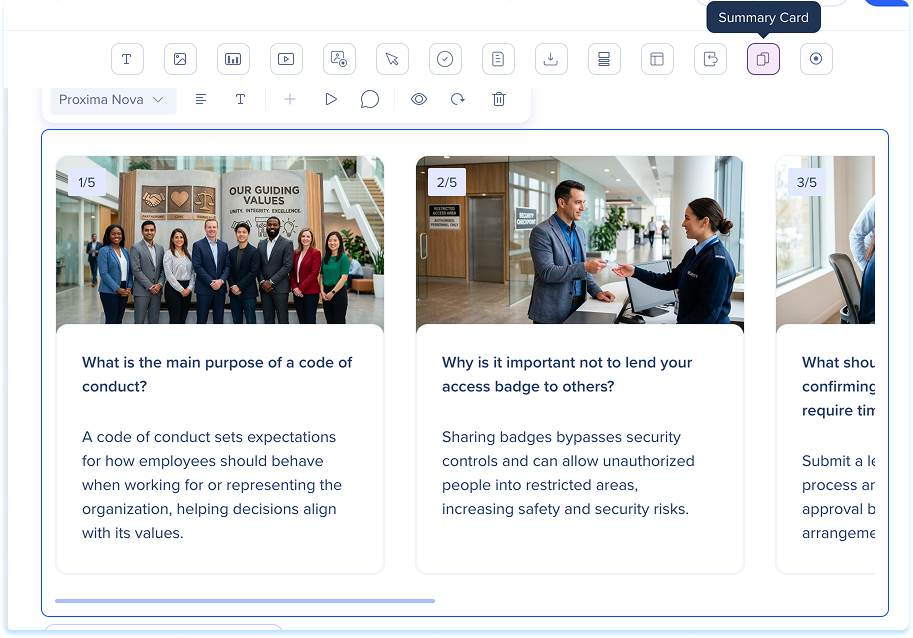
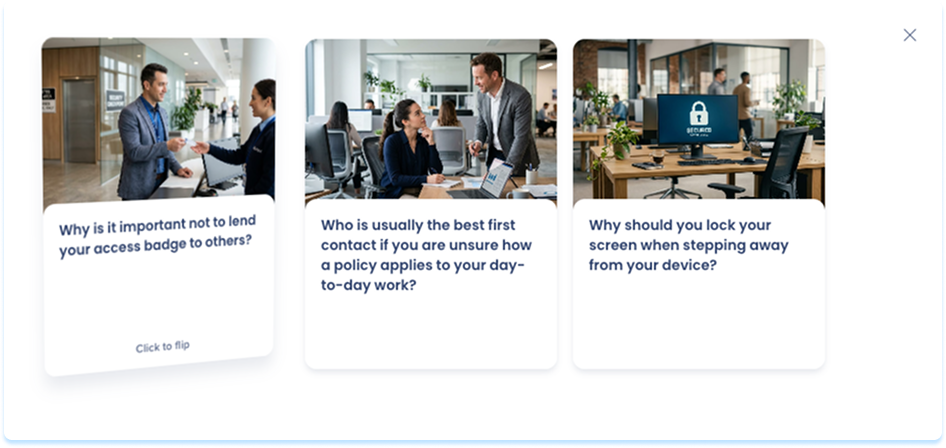
There are two card types. Flashcards have a front and a back: each card shows content on the front, like a term or prompt, and reveals related content on the back when a learner selects it, which suits glossary terms, definitions, or knowledge checks. Summary cards have a single face for reinforcing a key point or takeaway.
Use Cases
- Reinforce the main takeaways at the end of a lesson
- Give learners a quick way to check recall
- Break key points into cards learners move through one at a time
Add Cards
Add the flashcard or summary card element from the elements panel, then build the deck card by card
Build the Deck
For each card:
- Type a Title
-
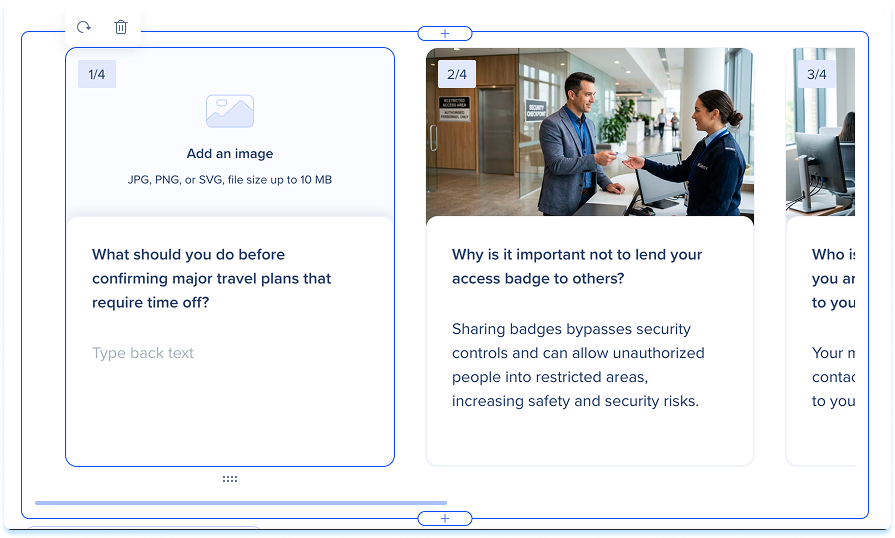
Add an image (optional):
-
- Insert from Assets: Select an image from your learning assets
- Upload from Device: Choose a file from your computer
Note
Recommended aspect ratio: 4:3.
-
Add the card text:
-
Flashcards: Type the front text and the back text
-
Summary cards: Type the summary text
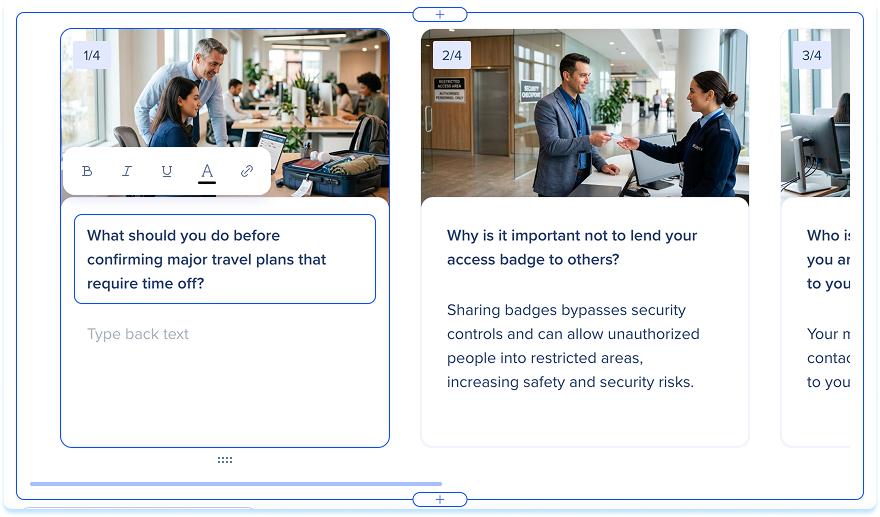
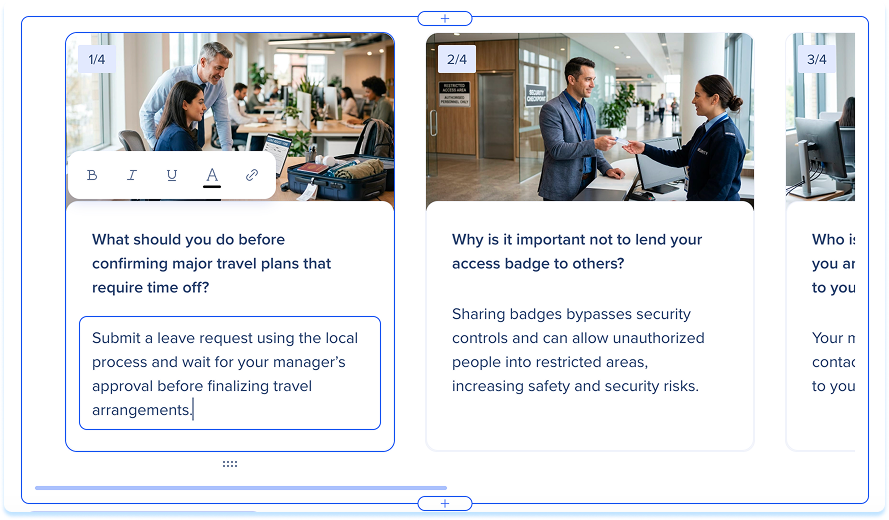
Use the formatting toolbar to style the card's text:
-
Bold: Make the selected text bold
-
Italic: Italicize the selected text
-
Underline: Underline the selected text
-
Text color: Set the color of the selected text
-
Link: Add a hyperlink to the selected text
-
To add another card, select + Add card
-
To reorder cards, drag them into the order you want
Tip
Keep questions short and specific. Flashcards work best when each card tests one concept — avoid multi-part questions.
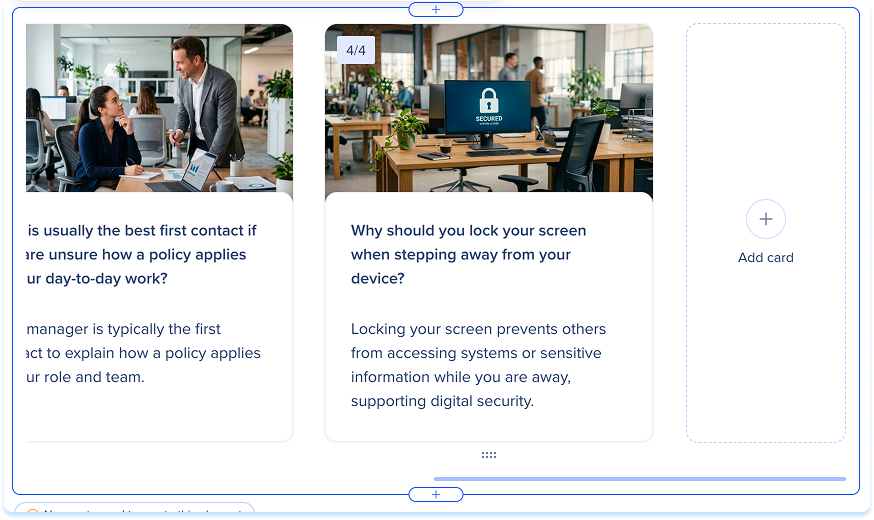
Select the deck to show the toolbar:
- Font: Set the font for the card text
- Alignment: Set the text alignment
- Hide title: Turn the element title off
- Add card: Add a card to the deck
- Preview: Preview how the cards work for learners
- Comment: Add a comment for collaborators
- Hide element: Keep the element hidden from learners but available in the background
- Reset element: Reset the element
- Delete: Remove the element from the lesson
Learner View
Learners move through the deck one card at a time.
Technical Notes
- Each flashcard deck holds between 1 and 5 cards


