Brief Overview
WalkMe Stories turns WalkMe items into step-by-step guides that you can share and edit. You can start a story straight from the Content Manager instead of rebuilding your content in the Stories app.
From the Content Manager, you can:
- Create a story from one item, several items, or a folder
- See which stories already include an item
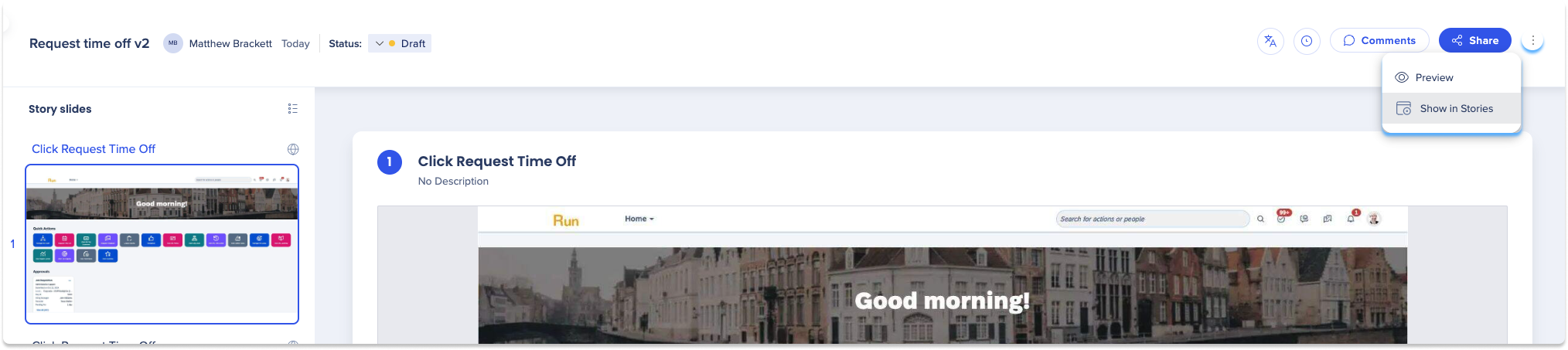
- Add an item to a story from its preview slides
WalkMe Stories
Add a WalkMe Item to Stories
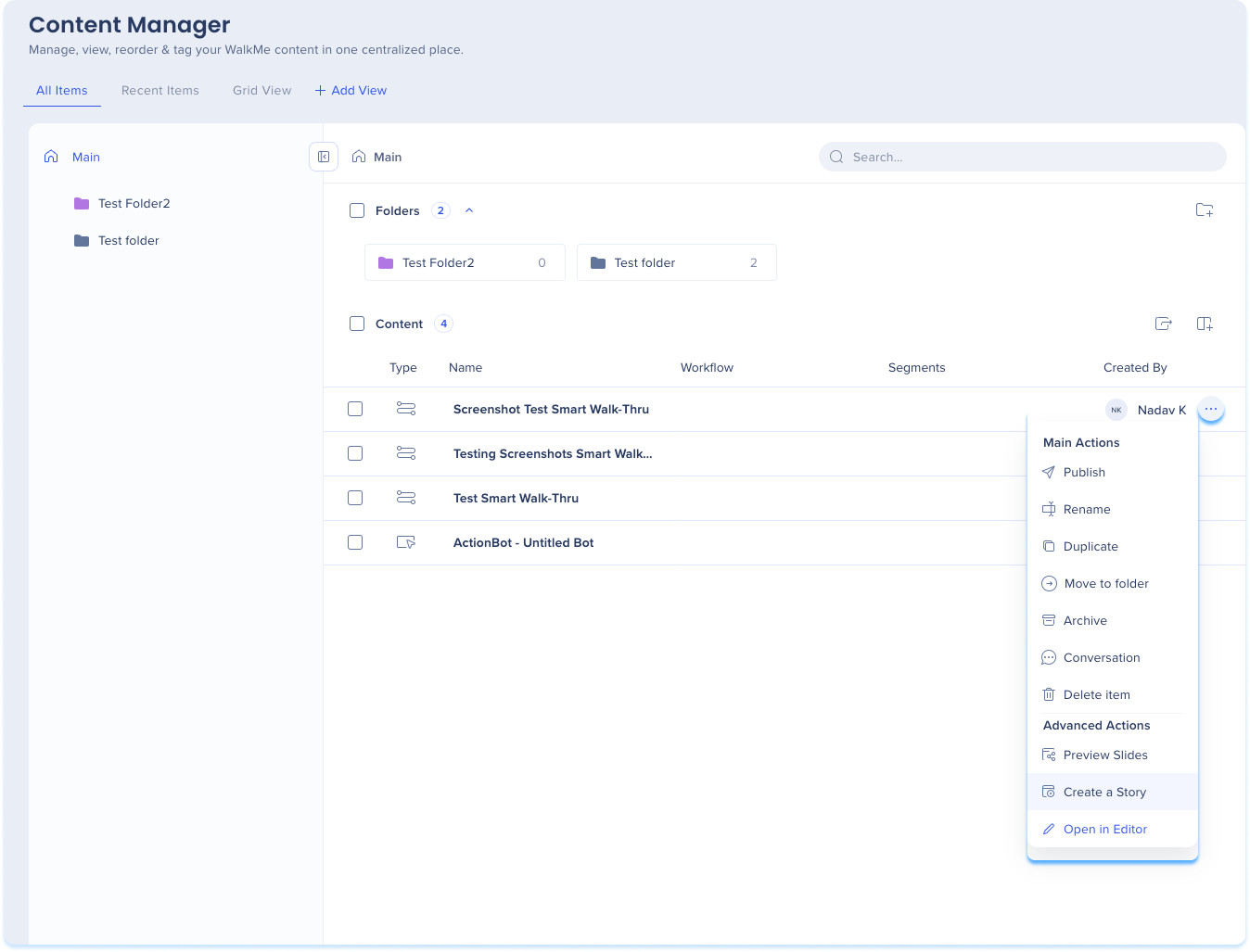
To create a new story with one WalkMe item:
- Click on the Options menu in the item line
-
Select Create a Story
-
A story will be created with the WalkMe item
-
The Stories app will open in a new tab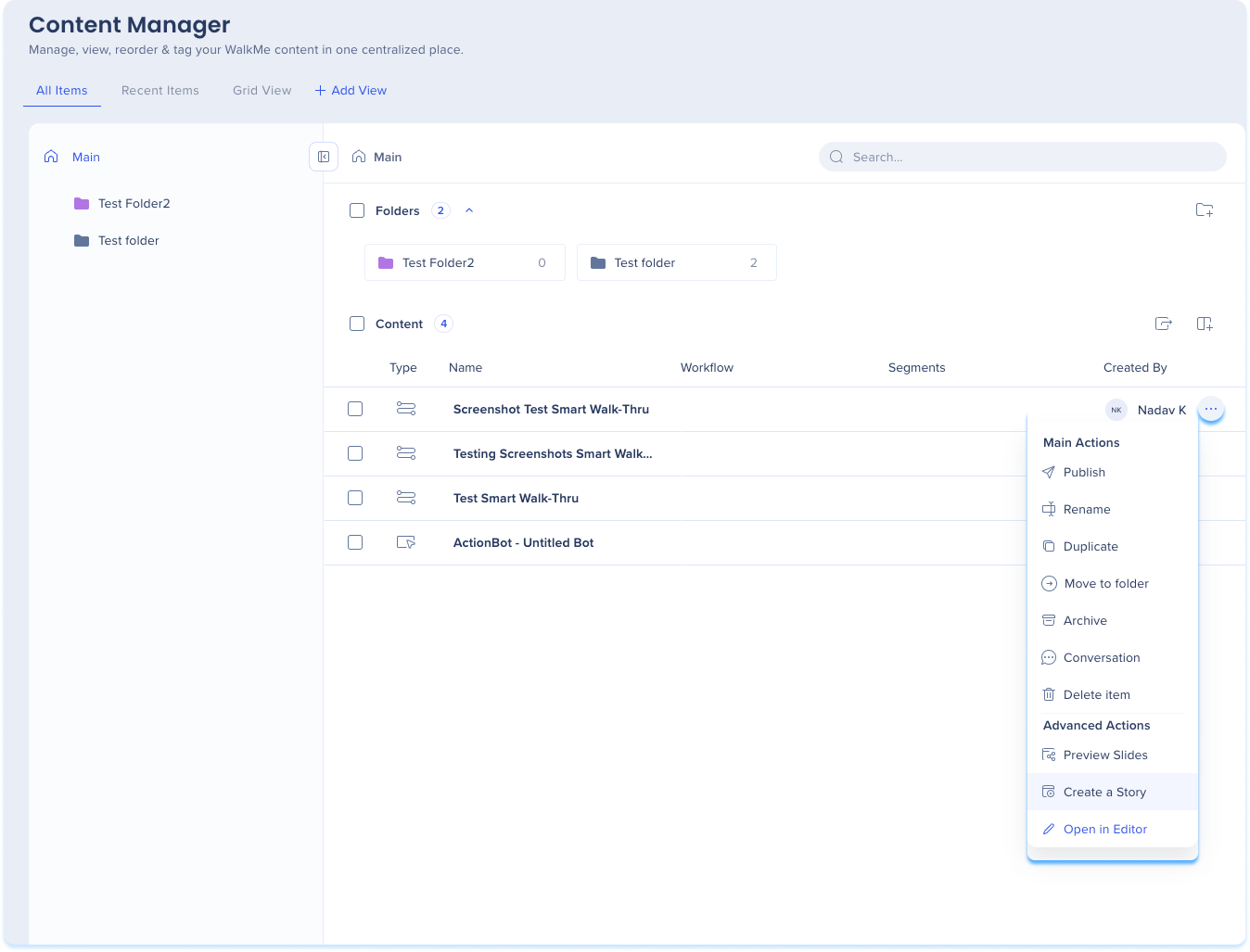
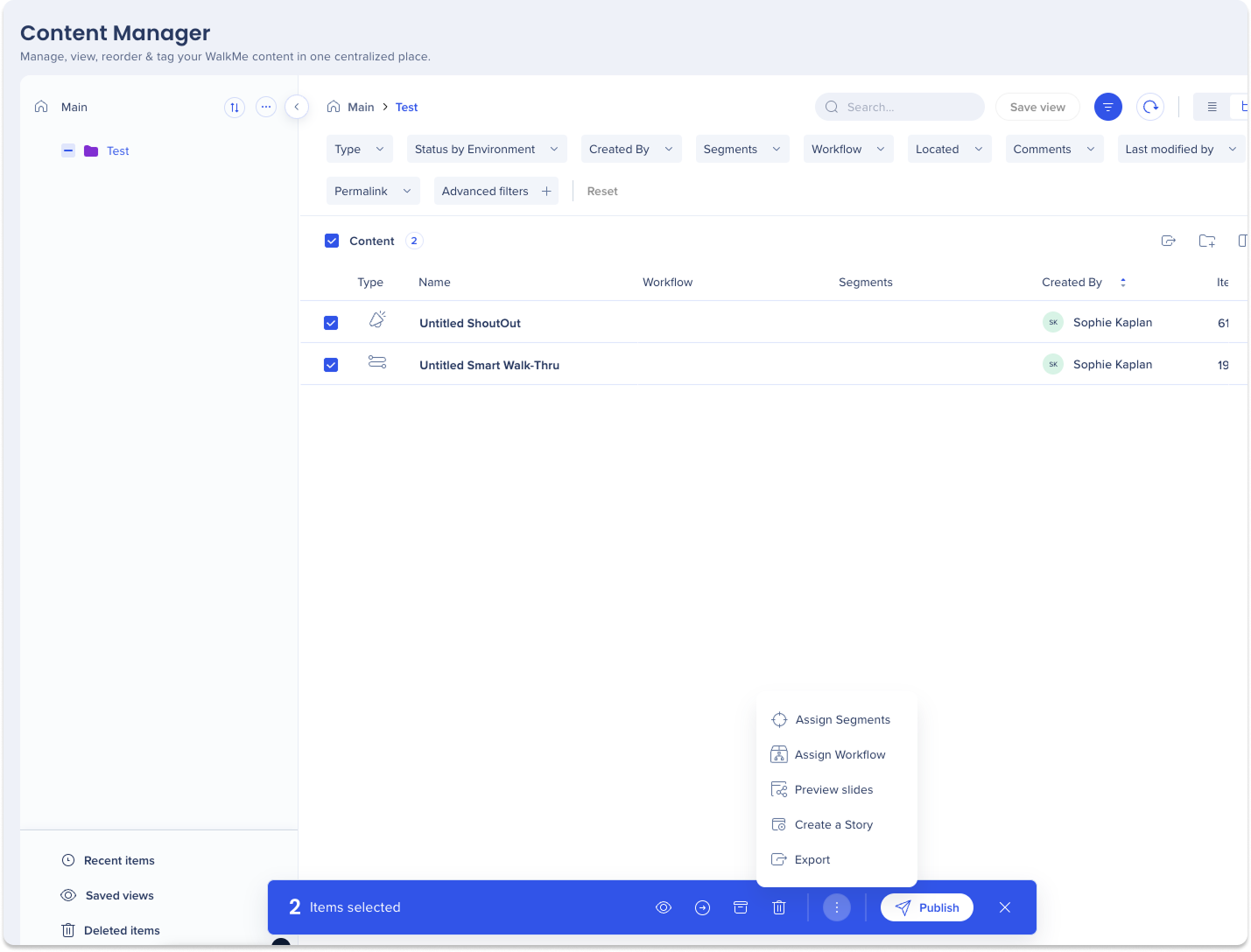
To create a new story with multiple WalkMe items:
- Select the items by checking the box next to them
- Click the Options menu in the floating tool bar
- Click Create a Story
- The Stories app will open in a new tab
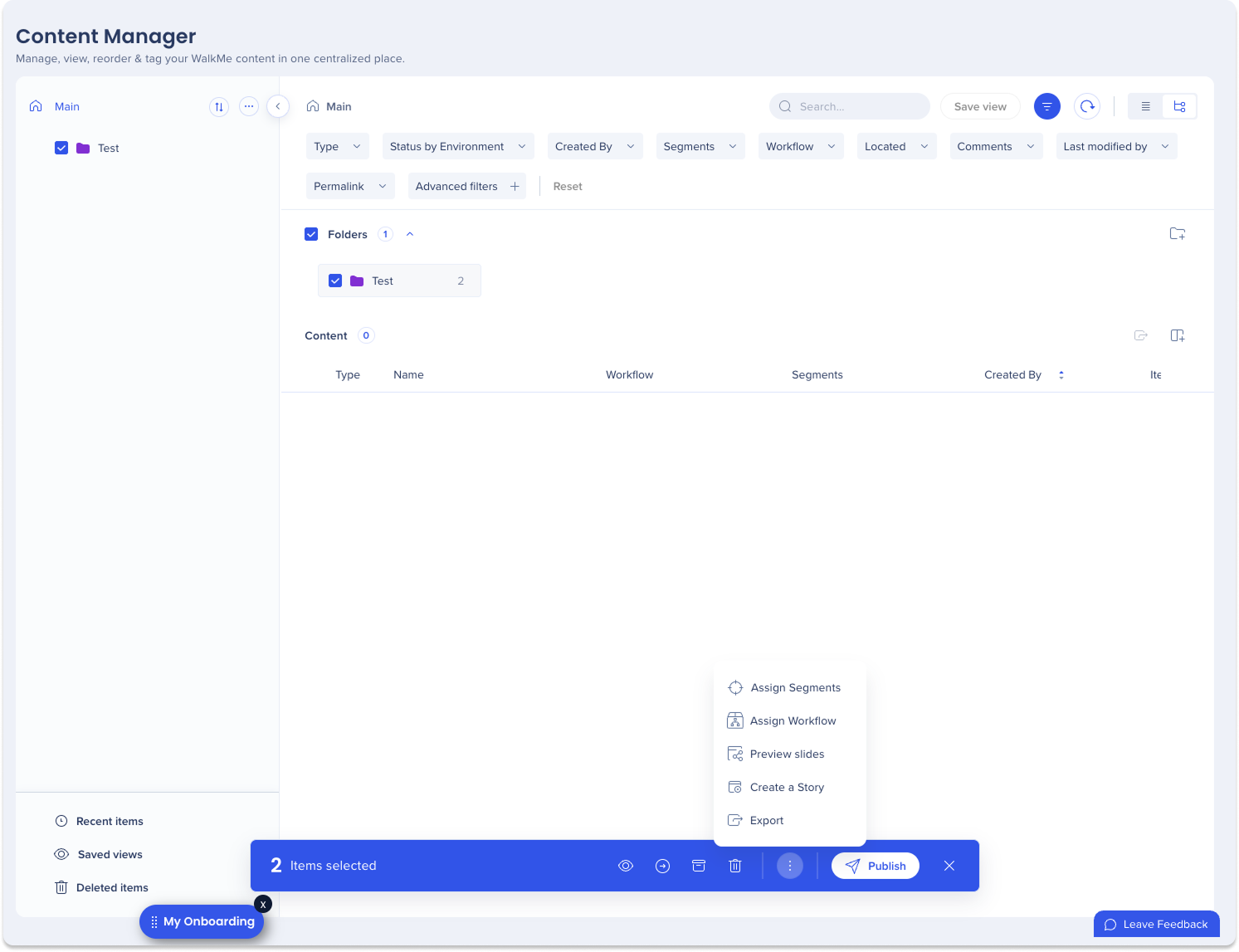
To create a new story from a folder:
- Select the folder
- Click the Options menu in the floating tool bar
- Click Create a Story
- The Stories app will open in a new tab
View a WalkMe Item in Stories
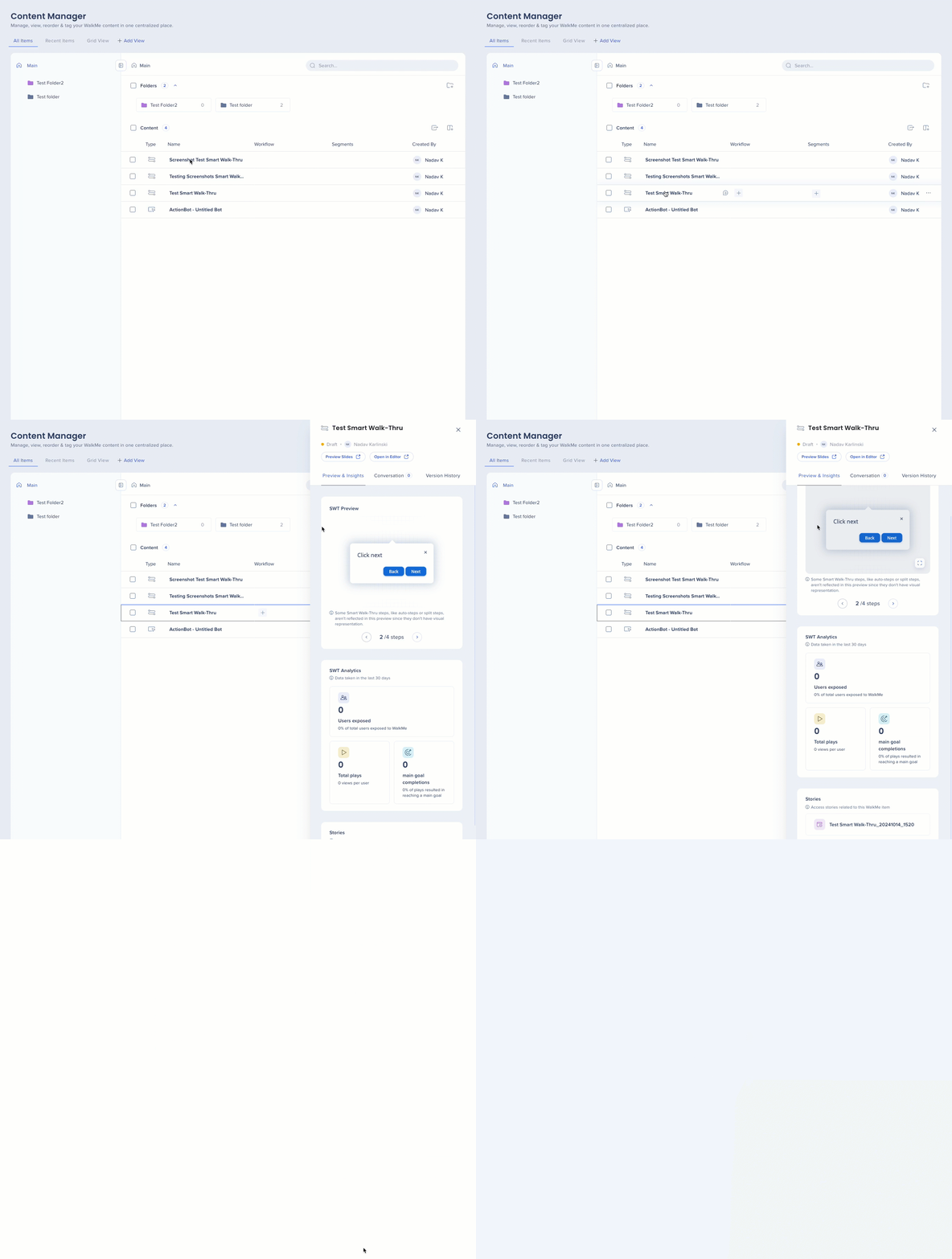
To view a WalkMe item in existing stories:
-
Click on the item line
-
Go to the Preview and Insights tab
-
Scroll down to the Stories heading and select a Story
-
The Stories app will open in a new tab
Remarque
Pour afficher un élément dans les histoires, vous devez avoir l'application Stories mise en place et il doit y avoir des histoires liées déjà créées pour cet élément.
Stories in Preview Slides
This action adds the item to a story file and will take the user to the Stories app.
- Click on the Options menu on the top-right of the page
-
Select Show in Stories
-
The Stories app will open in a new tab
Remarque
La capture d'écran de l'élément WalkMe sera stockée séparément dans un fichier de récits. Si vous apportez des modifications à l'élément WalkMe dans l'éditeur, la capture d'écran se mettra à jour dans la présentation de la diapositive, mais pas dans l'histoire.