Brief Overview
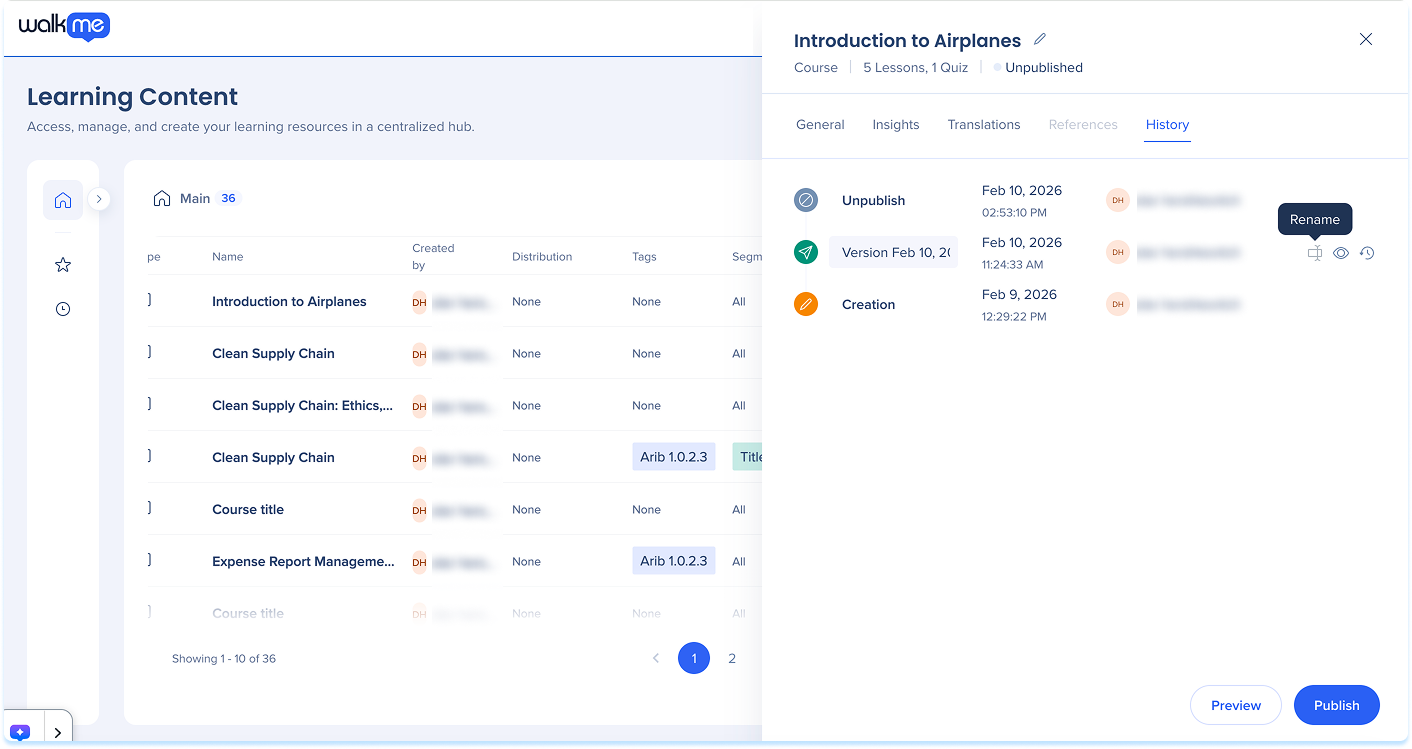
History lets you view, preview, rename, and restore previous versions of learning content in WalkMe Learning Arc. It helps you track changes over time and safely return to an earlier version when needed. Every learning item keeps a version history. Each time content is drafted, updated, or published, a new version is added to History. Versions record what changed, when, and who made the change. You can preview older versions without affecting the current one, or restore a previous version to continue editing from that point.
How It Works
Open history
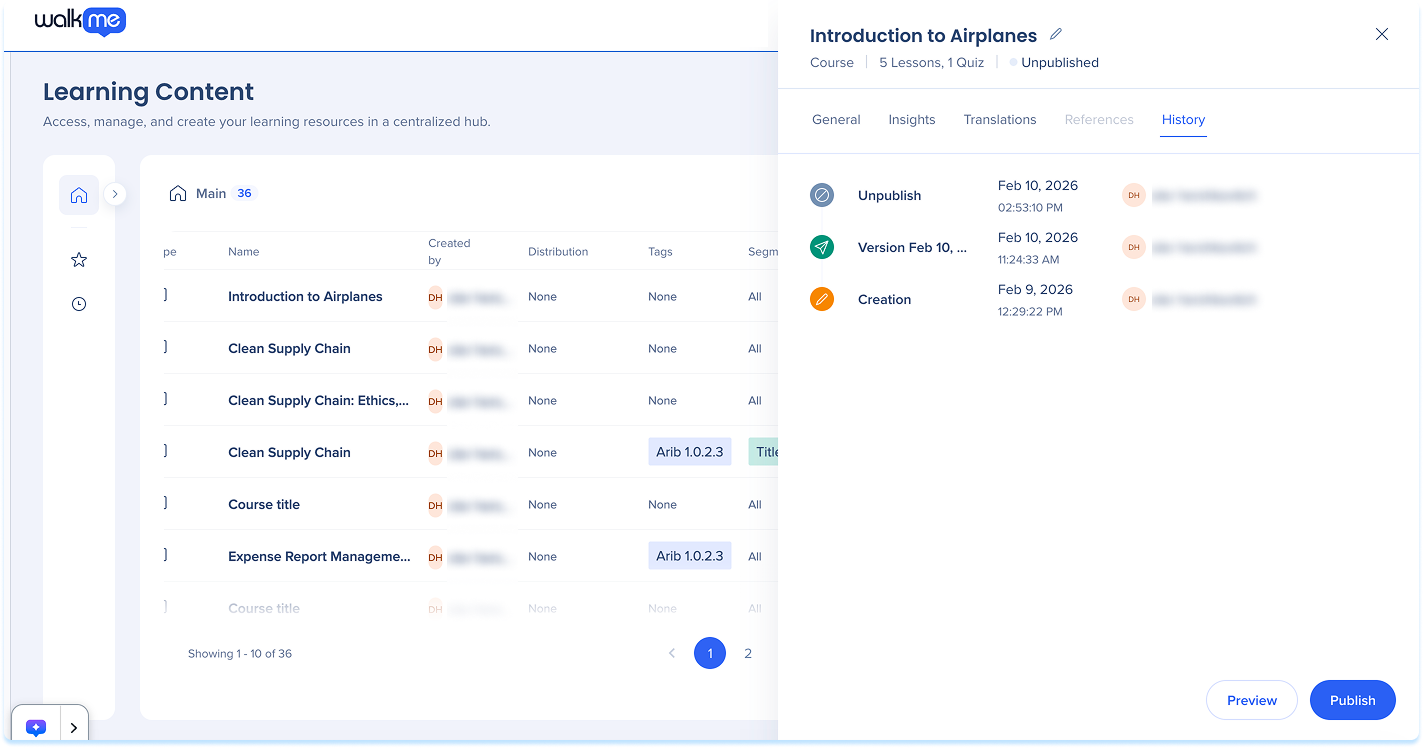
To view the history of a learning item:
- Go to the Learning Content page
- Select the Info icon
- Select the History tab in the side panel
History is also available:
- From the Publish dialog by selecting Show history
- From the Learning Content builder by selecting the Options menu
How to Create Learning Content
History details
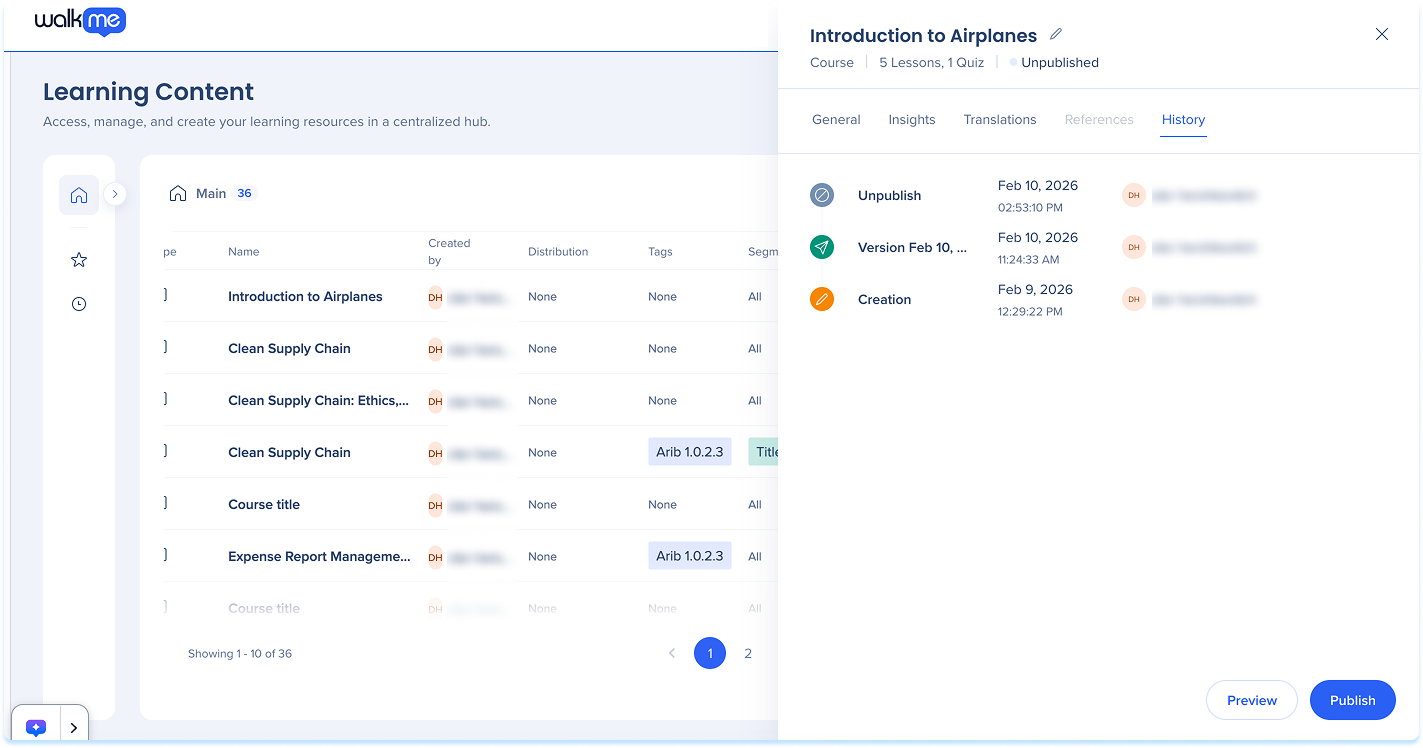
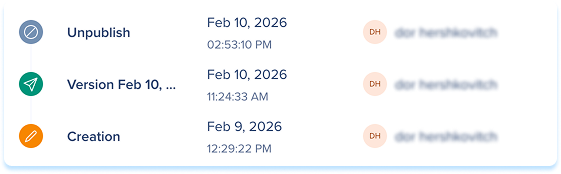
Each entry in History represents a saved version of the content and includes:
- Version type (draft, update, initial publish)
- Date and time
- Author
Note
Versions are listed in chronological order, with the most recent version shown at the top.
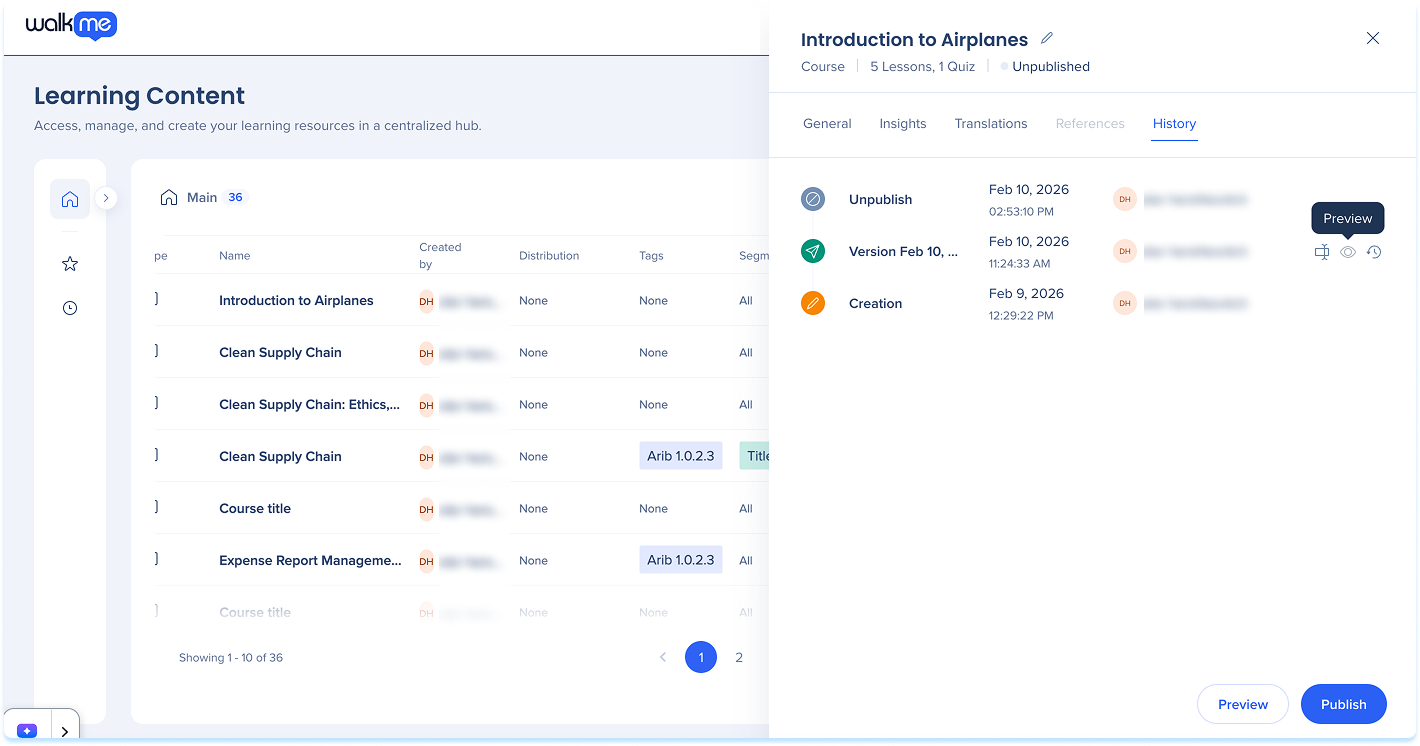
Preview a version
Previewing lets you see how the content looked at a specific point in time without changing the current version.
To preview a version:
- Open History
- Hover over a version
- Select Preview
- Confirm the preview if prompted
Note
When you preview a version, the content is displayed using the current asset library. Some assets may appear missing or outdated.
Restore a version
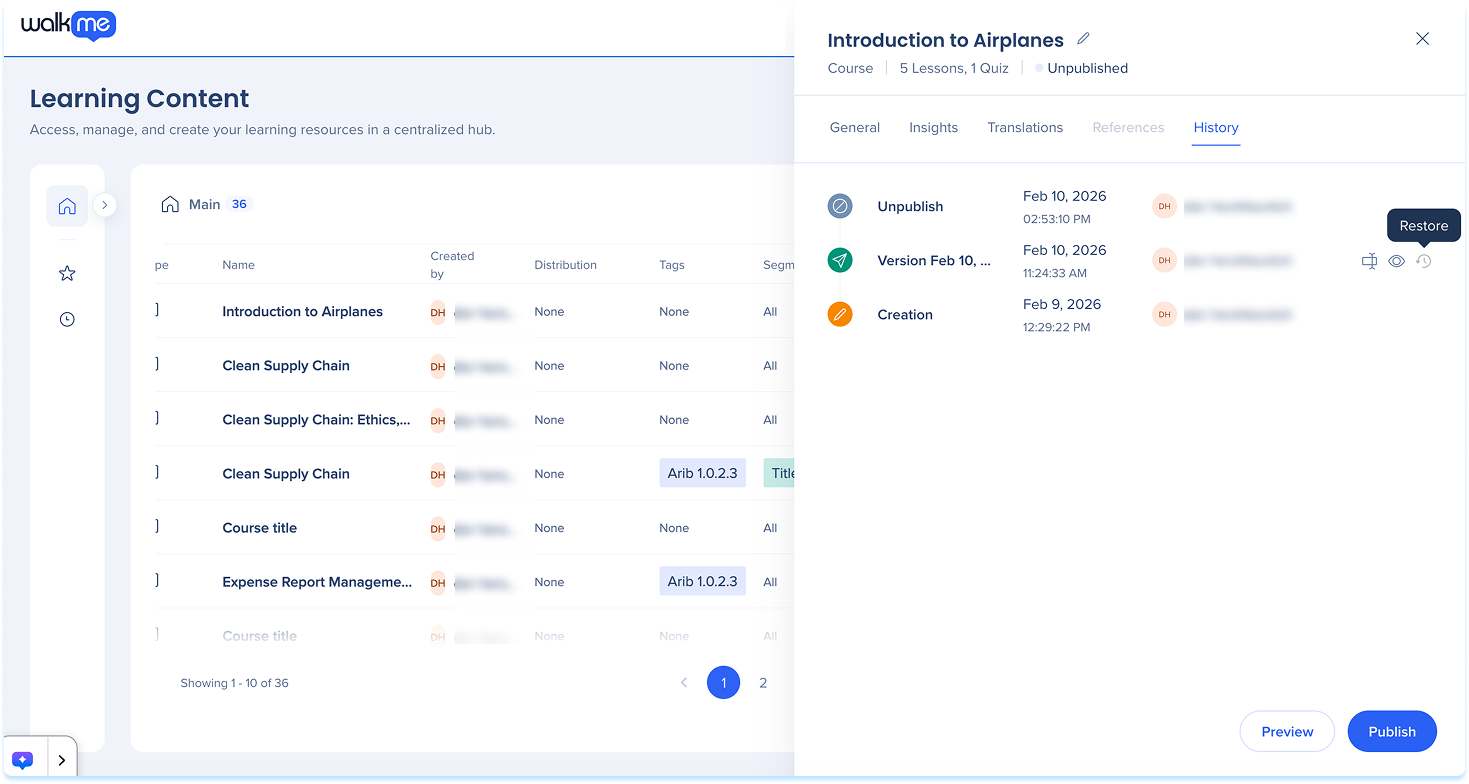
Restoring a version replaces the current draft with a previous version.
To restore a version:
- Open History
- Hover over the version you want to restore
- Select Restore
- Confirm the action
Note
Restoring a version replaces the current content and assets with those saved in the selected version. The restored version isn't published automatically. If any assets used in that version were moved or deleted, parts of the content may not work as expected.
Rename a version
You can rename versions to make them easier to identify.
To rename a version:
- Open History
- Hover over a version
- Select Rename
- Enter a new name and save