Brief Overview
The SCORM import feature lets you bring existing SCORM content into WalkMe Learning Arc and turn it into a publishable course. This is useful when you already manage training content in external authoring tools, such as Articulate 360, and want to deliver it through the portal.
Enabled feature
Please request access from your Customer Success Manager or WalkMe contact.
How It Works
Before you begin
Make sure you have:
- A SCORM 1.2 package (ZIP file)
Import a SCORM package
Export your course as a SCORM 1.2 package from Articulate 360.
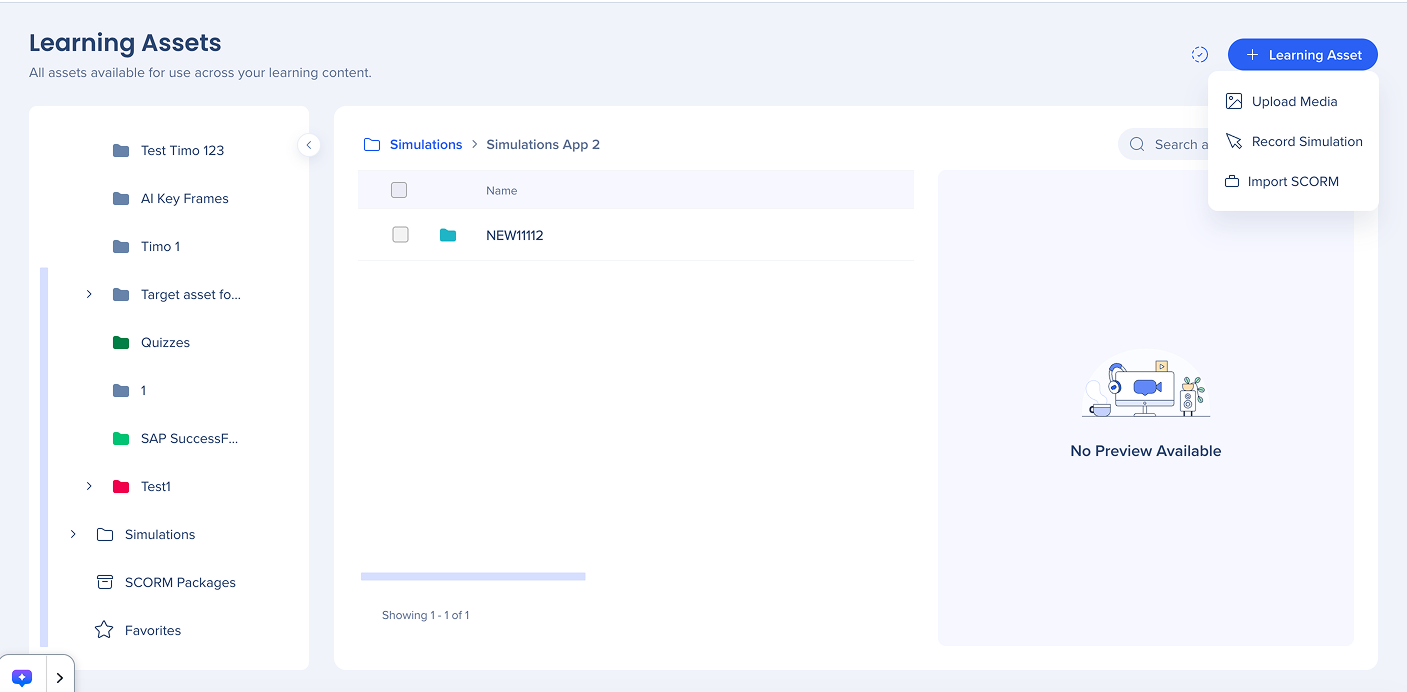
- Go to the Learning Assets page
- Select + Learning Asset in the top-right corner of the page
- Choose Import SCORM
- Upload the SCORM ZIP file by dragging and dropping it or uploading it from your device
Note
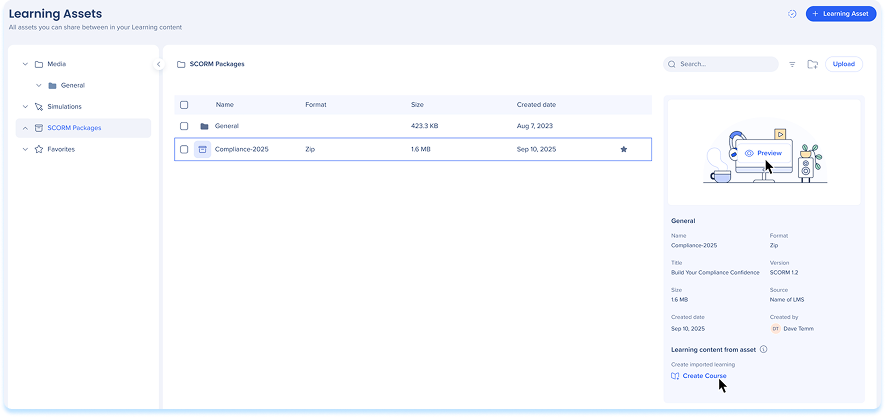
Once the upload is complete, the SCORM package appears in the SCORM Packages folder in the Asset Library.
Preview a SCORM asset
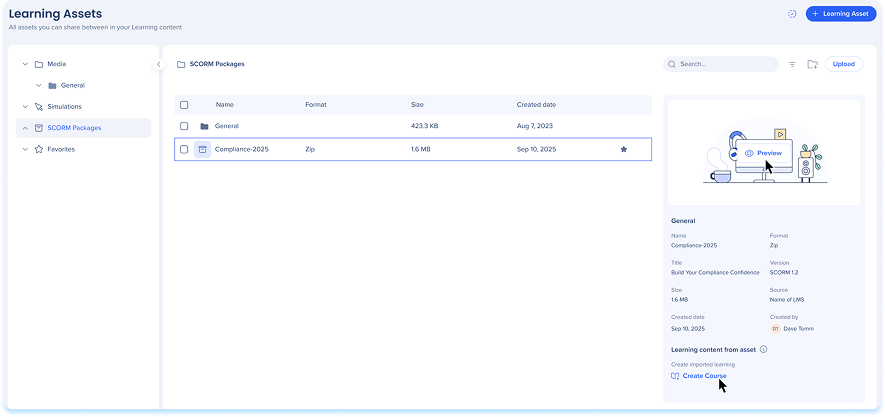
After import, the SCORM package is shown as a dedicated asset type with a SCORM icon.
- When you select the asset, the preview panel displays:
- A preview of the SCORM content
- Asset metadata, including:
- File name
- Title
- File size
- File format
- SCORM version (1.2 or 2004)
- Source (LMS origin)
- Created by
- Created date
SCORM asset actions
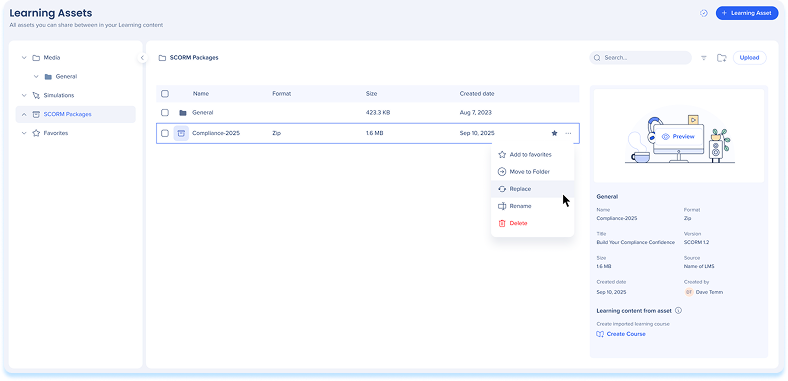
SCORM assets support the same asset management actions as other learning assets:
- Add or remove from Favorites
- Rename the asset
- Move the asset to another folder
- Delete the asset (only if no course has been created from it)
- Multi-select assets for bulk actions
Create a course from a SCORM asset
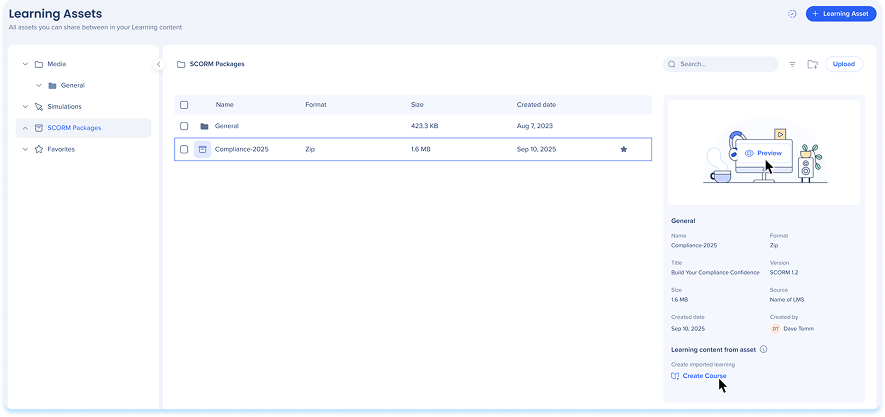
From the asset preview panel, you can create a course using the imported SCORM content.
- Select Create Course to create a new course using the imported SCORM asset
Note
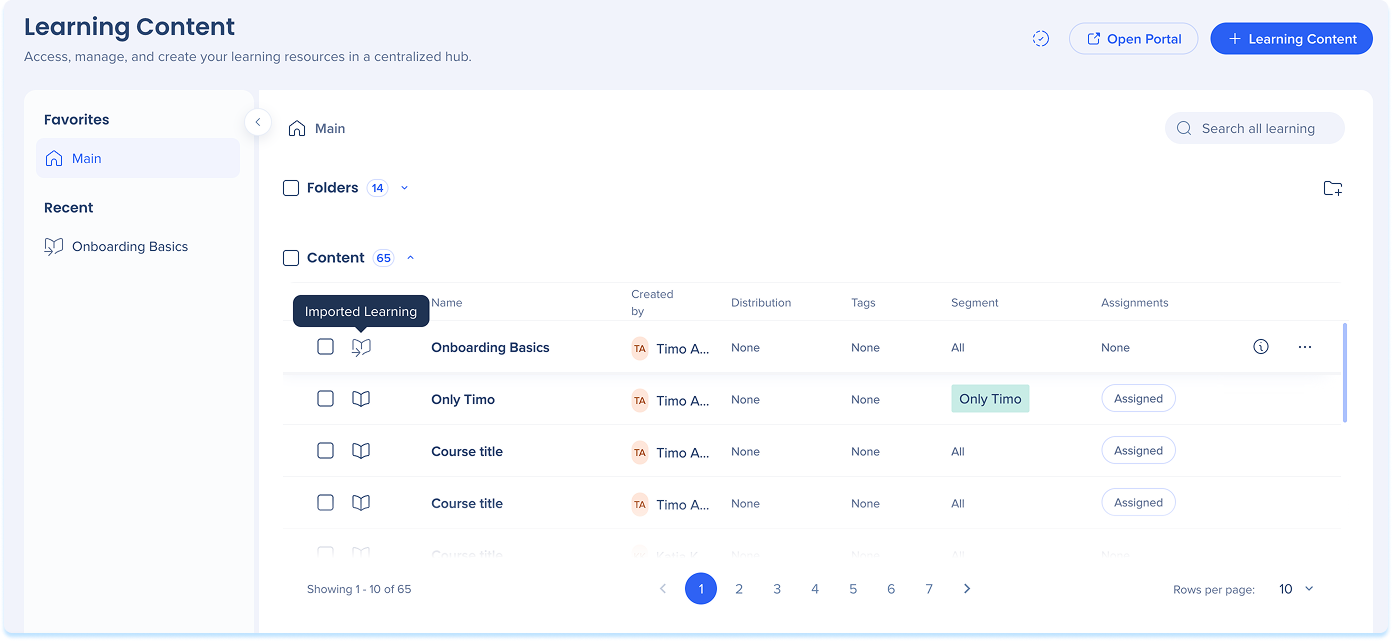
The course is added to the Imported content folder on the Learning Content page, under the current date
Manage imported SCORM content
Access the course:
- Select the imported course to open it in the learning content builder
Available actions:
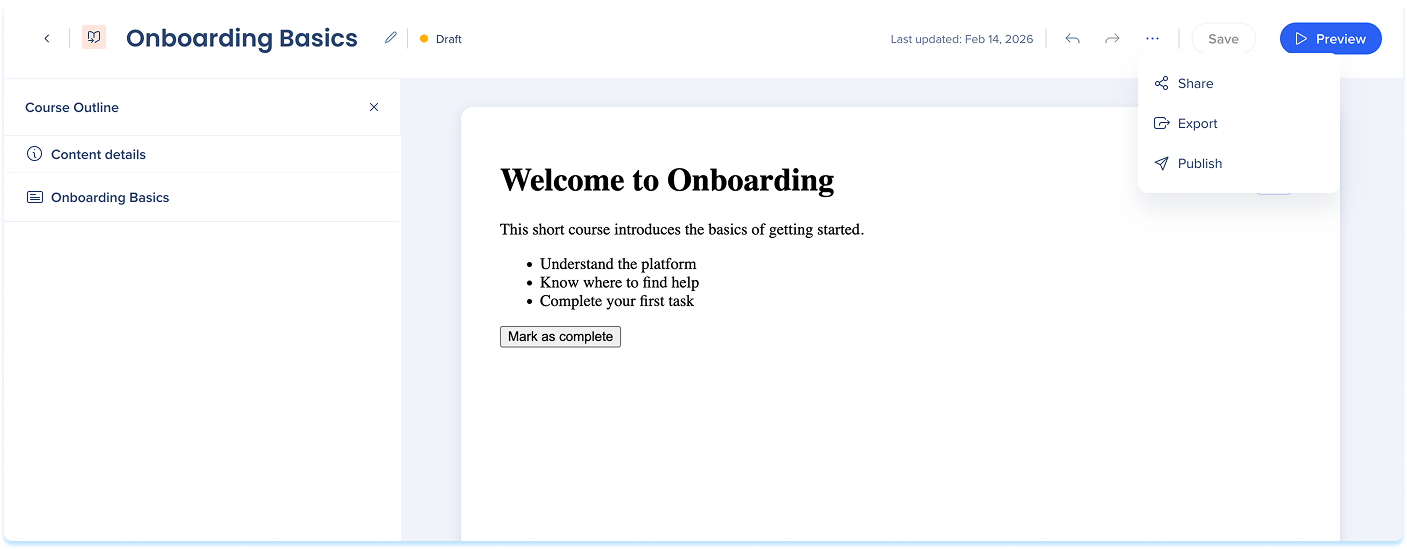
Within the builder, you can edit the Content details section or perform the following actions:
- Preview: View the course as it will appear to learners
- Share: Generate a link to the content
- Export: Download the course data
- Publish: Make the course available to your learners
Technical Notes
- Supports single SCO (Sharable Content Object) packages
- Supports SCORM 1.2 only
- PDF files embedded in a SCORM package can't be previewed by content authors in the console


