Brief Overview
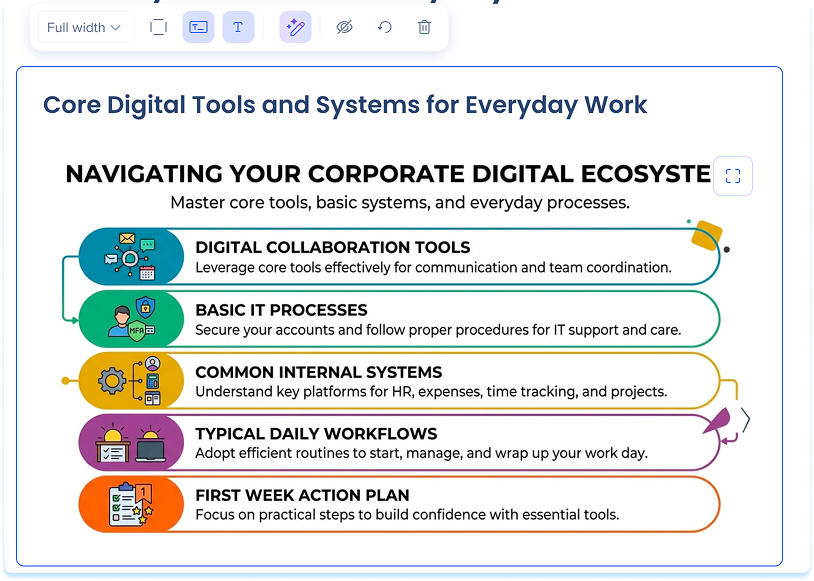
The infographic element lets you add a visual summary to a lesson in WalkMe Learning Arc. You can add an infographic you already have, upload one from your device, or generate one with AI based on your lesson or course content.
Use Cases
- Turn dense lesson text into a scannable visual
- Summarize the key points of a lesson
- Give learners a quick reference they can revisit
Add an Infographic Element
- Open your learning content
- Drag the Infographic element into your lesson
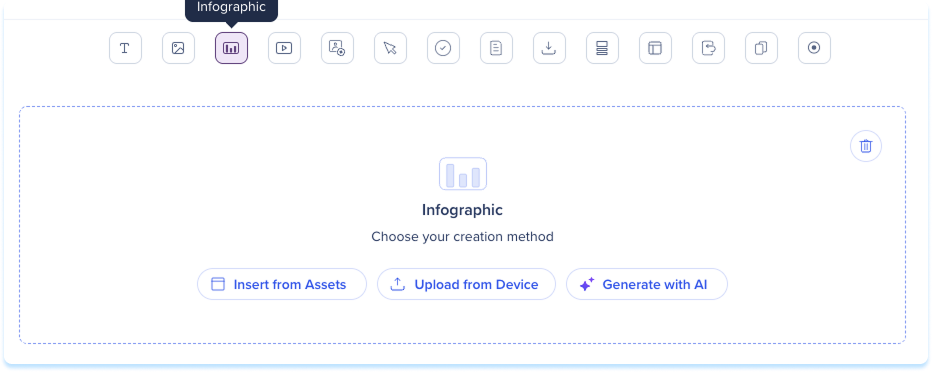
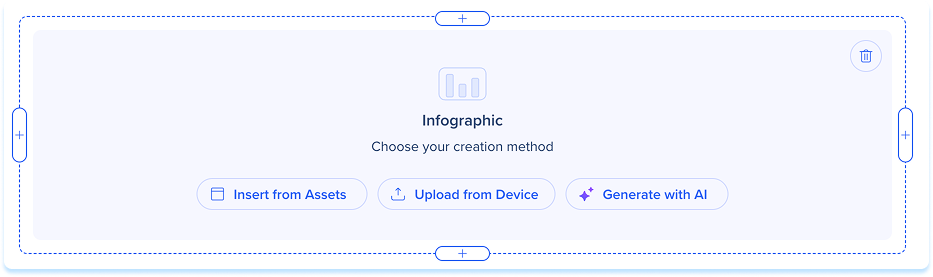
The infographic placeholder opens so you can choose your creation method.
Add an existing infographic
To use an infographic you already have:
- Select Insert from Assets to add an infographic from your assets
- Select Upload from Device to upload an infographic from your device
Generate an infographic with AI
- On the placeholder, select Generate with AI
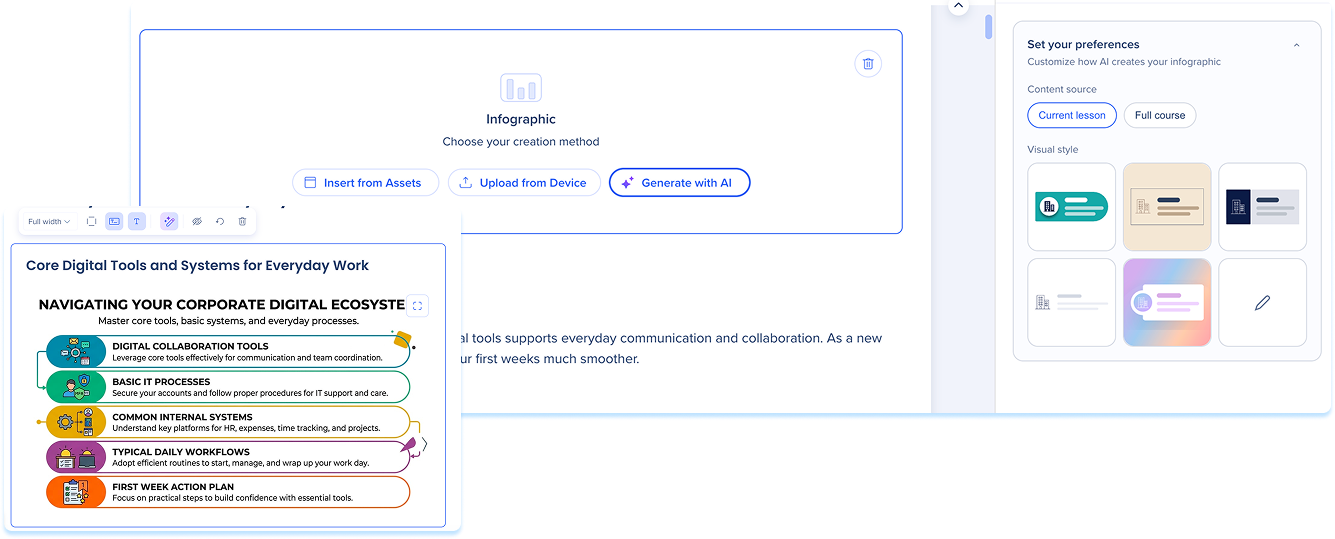
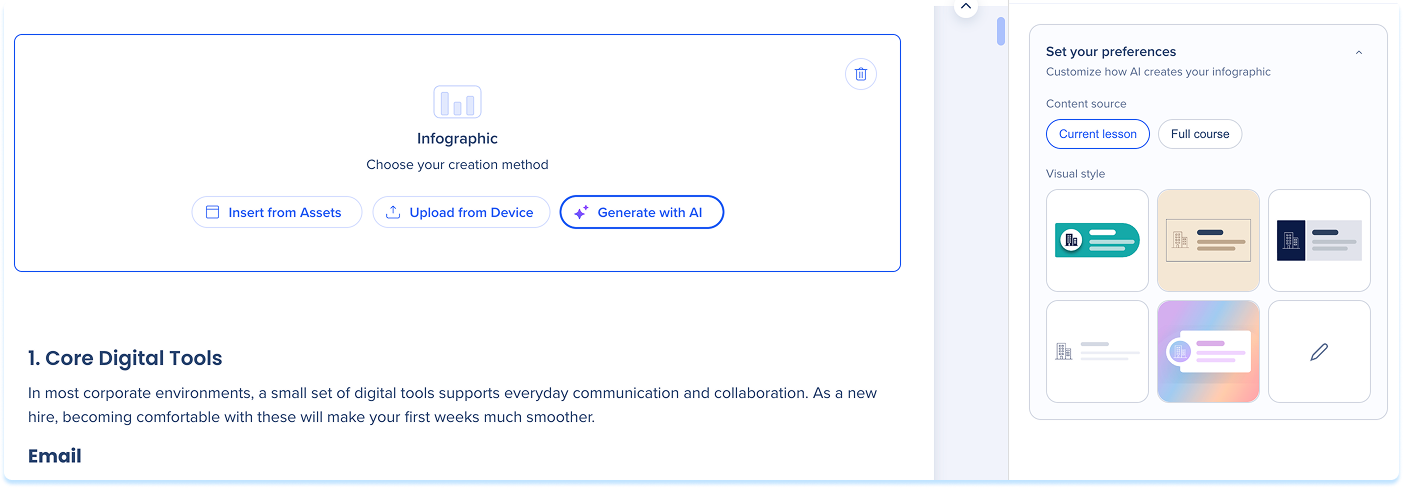
- In the AI Creation panel, choose a content source: Current lesson or Full course
-
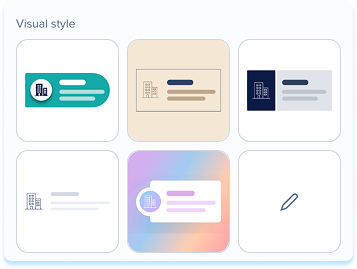
Choose a visual style from the grid, or select the custom option to describe the style you want
Visual style presets
-
Modern Banded: Color-coded bands or cards with flat icons and a polished, modern feel. Works well for step-by-step processes, hierarchies, or comparisons.
-
Premium Editorial: Refined, magazine-style layouts on a light background with a restrained palette and precise typography. Suited to sophisticated, professional content.
-
Corporate Clean: Structured, grid-aligned layouts in a blue and grey corporate palette. Best for business content, slide decks, and one-pagers.
-
Minimal Clean: Sparse, near-monochrome layouts with thin lines, small typography, and a single accent color. Suited to content where restraint and whitespace do the work.
-
WOW Creative: Bold, cinematic visuals with strong hierarchy. Best for high-impact content where one clear idea needs to land fast.
-
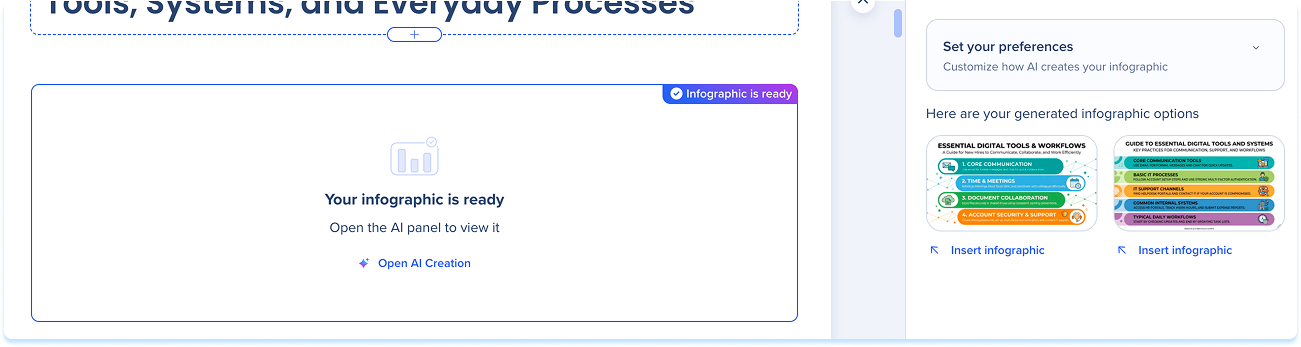
Generate the infographic
-
Review the options, then select Insert on the one you want
Generate from an existing element
You can also generate an infographic from an existing element.
Select the element to show the toolbar:
- Width: Set the element width
- Show border: Show an outline around the infographic
- Alternative text: Type short, descriptive alternative text to improve accessibility
- Reset element: Clear the infographic and return the element to its placeholder
- Hide: Hide the element from learners while keeping it in the lesson
- Delete: Delete the element from the lesson