Brief Overview
A pre-assessment is a quiz learners take at the start of a course. When a learner answers a question correctly, any content linked to that question is skipped, so each learner follows a path built around what they still need to learn.
You set up a pre-assessment in one of two ways: convert an existing quiz, or generate one with AI. Once the questions are in place, you link each question to the lessons and quizzes it covers.
Use Cases
Learners join a course with different levels of prior knowledge and you want each to start where they need to
Experienced learners shouldn't repeat content they already know during a refresher or recertification
A long course takes too much time for advanced learners and you want to shorten their path
You want to see what learners already know before they begin and focus them on their gaps
Create a Pre-Assessment
You build a pre-assessment inside a course in the Learning Builder. Start from a quiz, then link its questions to the content they cover.
Convert a quiz to a pre-assessment
- Open a course
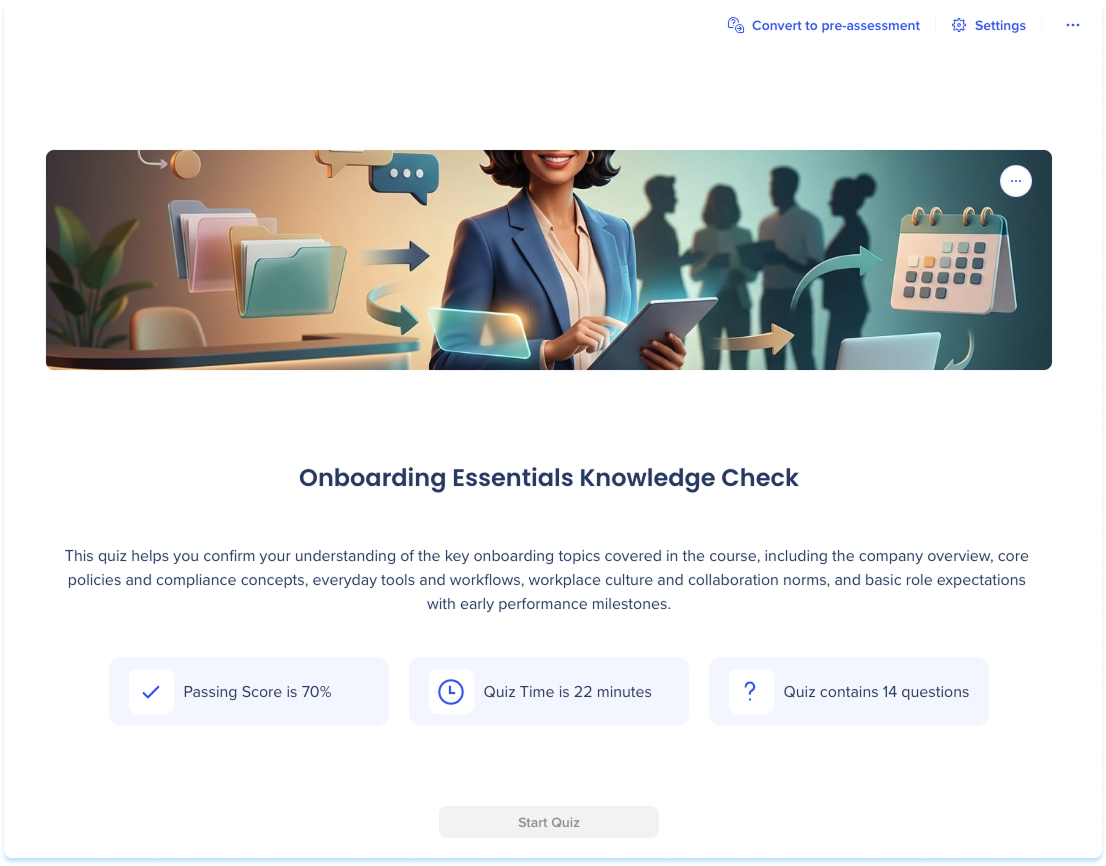
- Go to a quiz page
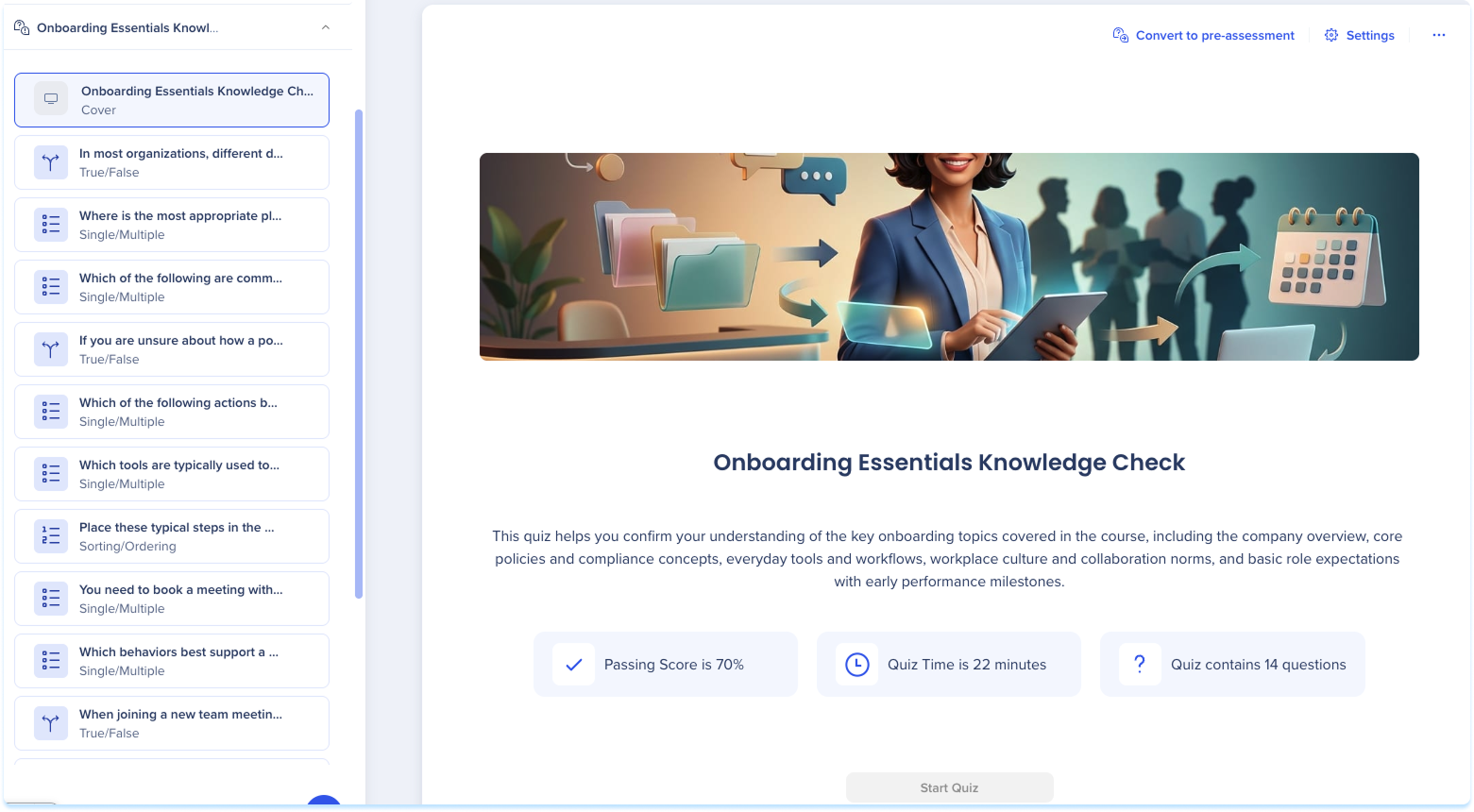
- Select Convert to pre-assessment
- In the popup, select Convert
Create a pre-assessment with AI
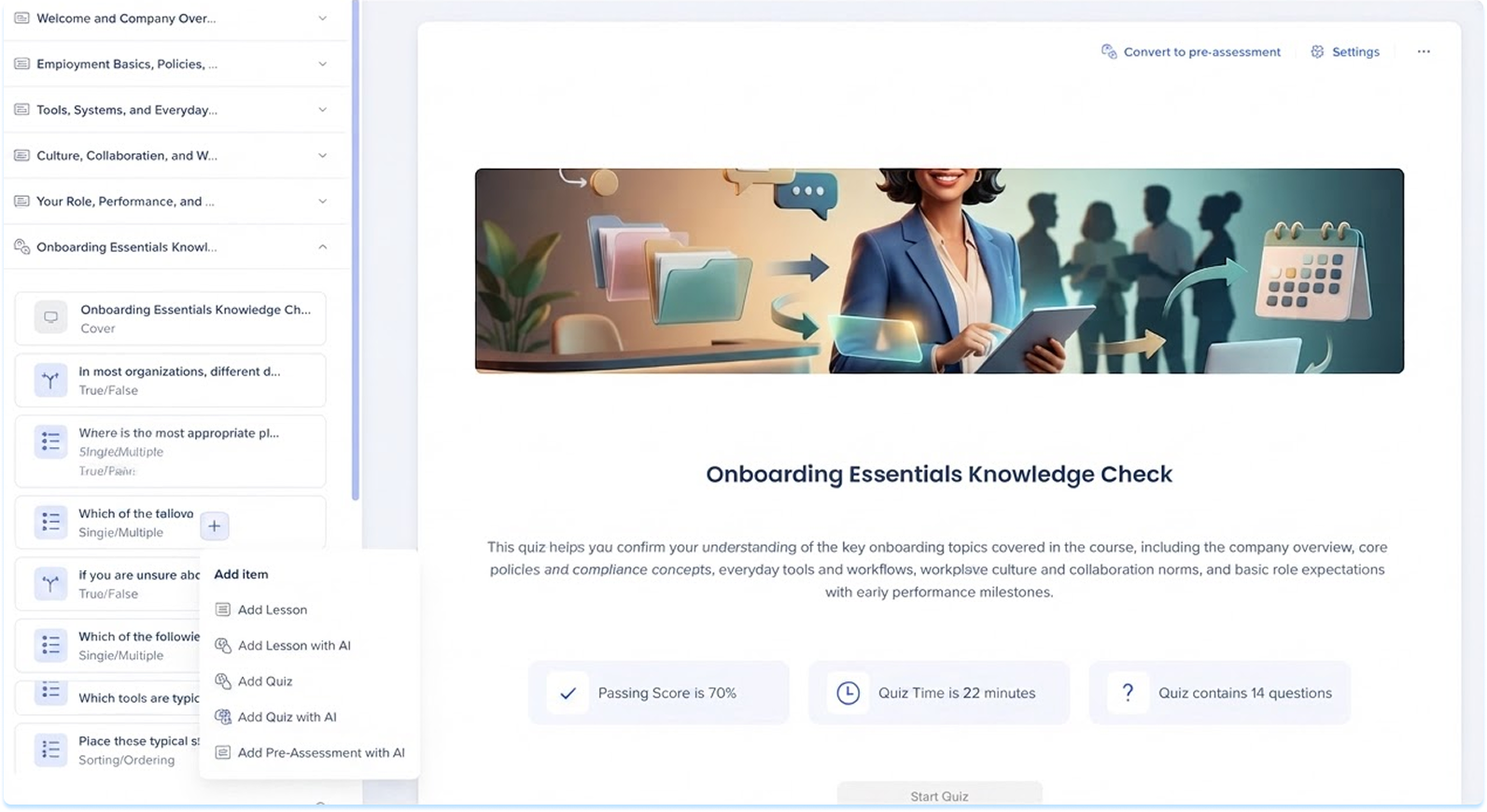
- Open a course
- Open the + menu
- Select Add Pre-Assessment with AI
-
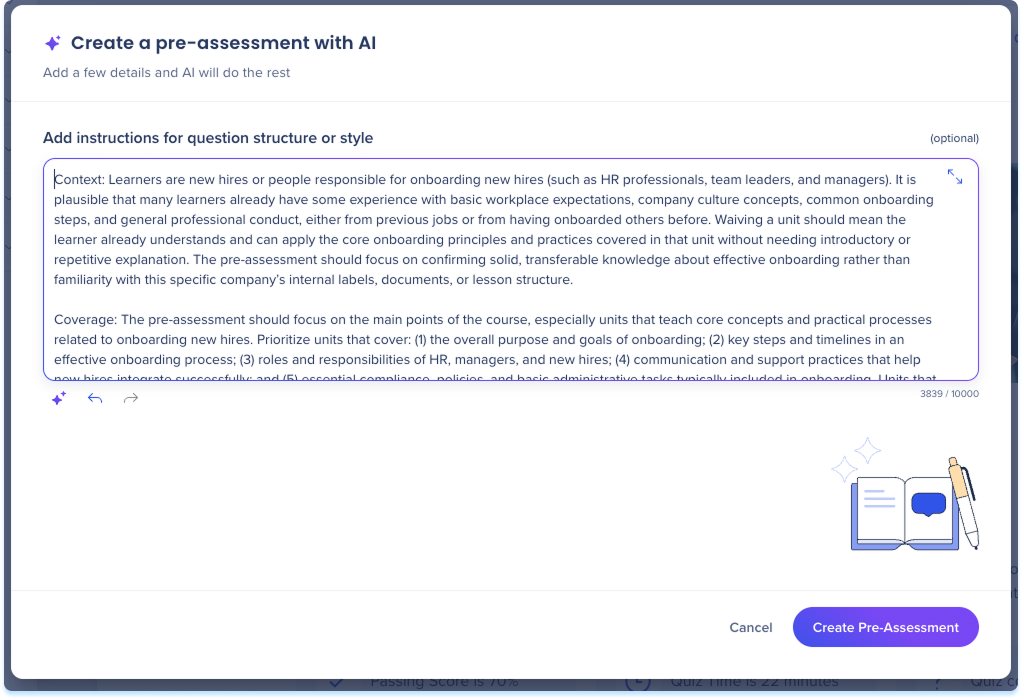
Type instructions for question structure or style (optional)
-
Select Create Pre-Assessment
Link Questions to Content
Linking connects a question to the content a correct answer will skip. You can link from the pre-assessment page or from a single question.
From the pre-assessment page
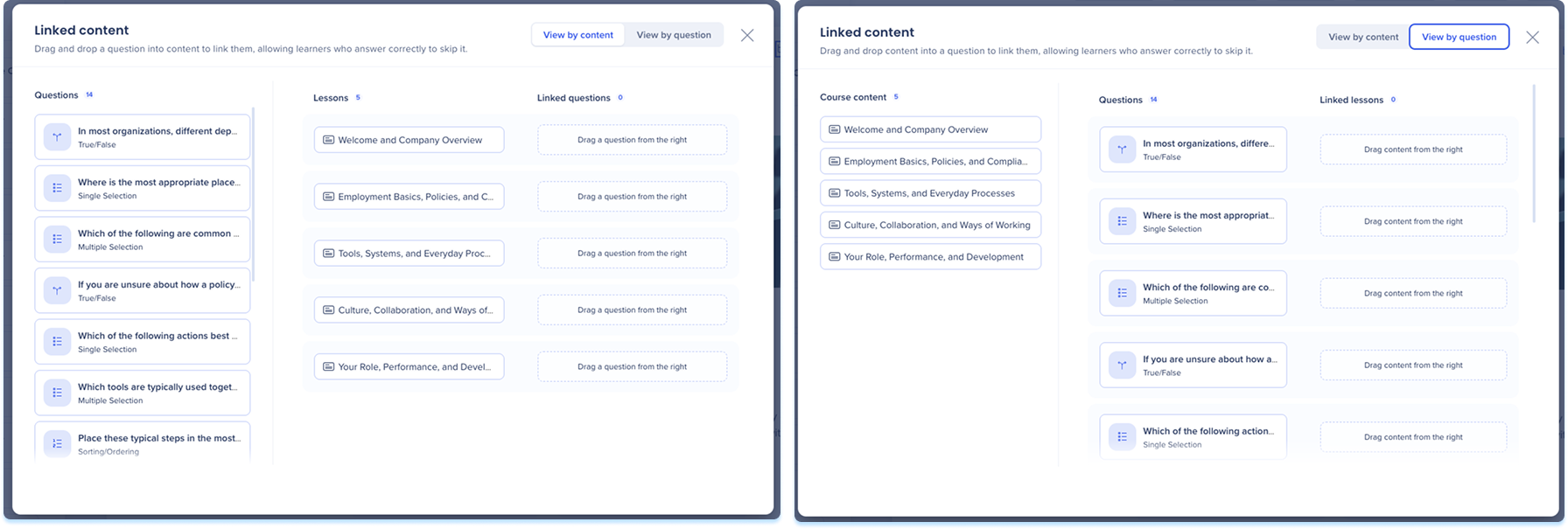
- Select Linked content

- Choose your view:
- View by content: Shows each piece of course content with the questions linked to it, so you can work through your content and attach questions to each one.
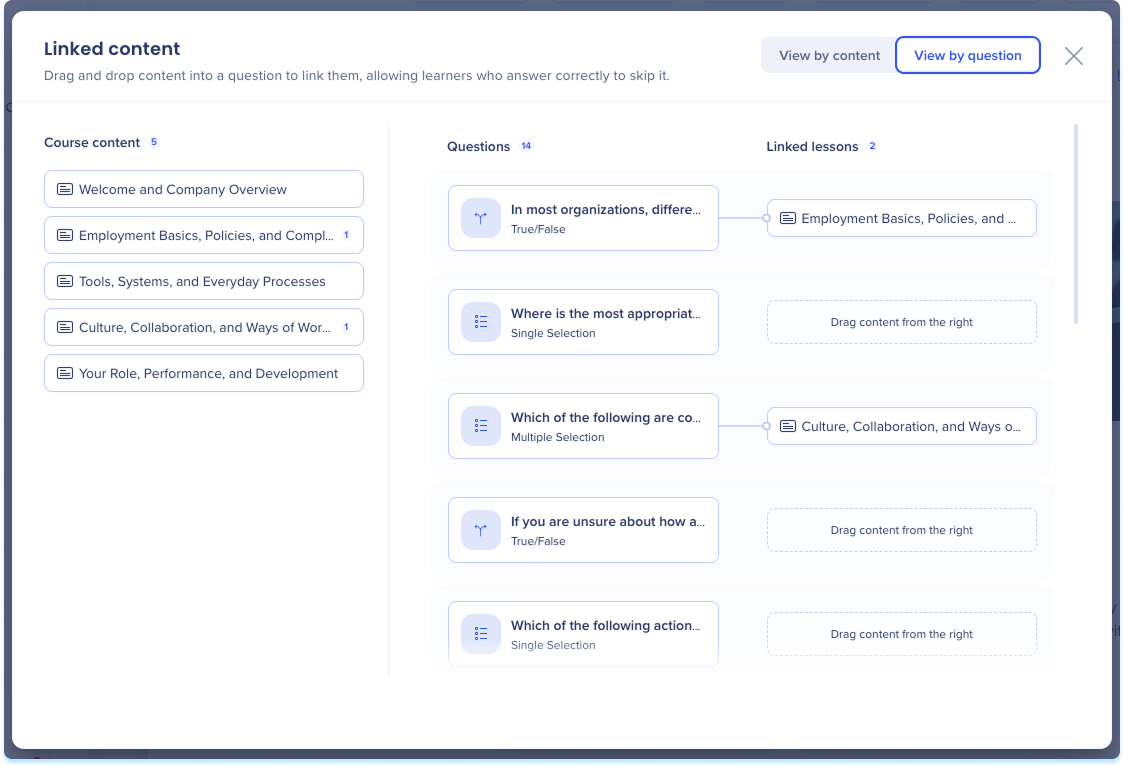
- View by question: Shows each question with the content linked to it, so you can work through your questions and attach content to each one
-
Drag a question onto the content it covers, or content onto a question
-
To remove a connection, hover over it and select the delete icon
From a single question
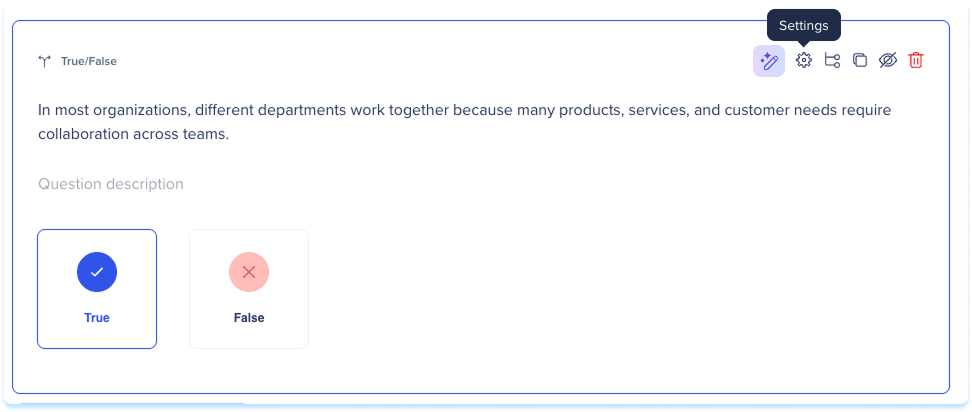
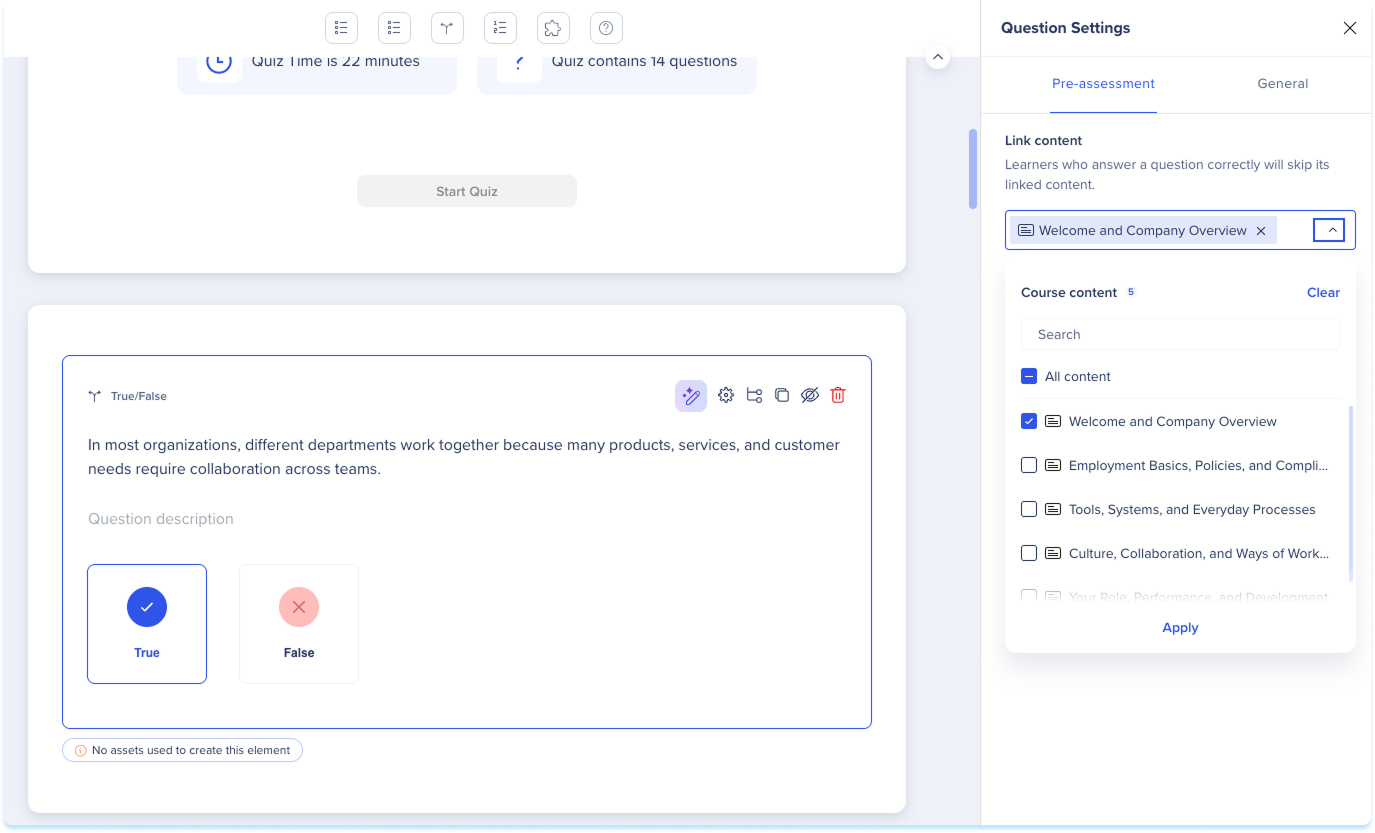
- Select a question and select Settings
-
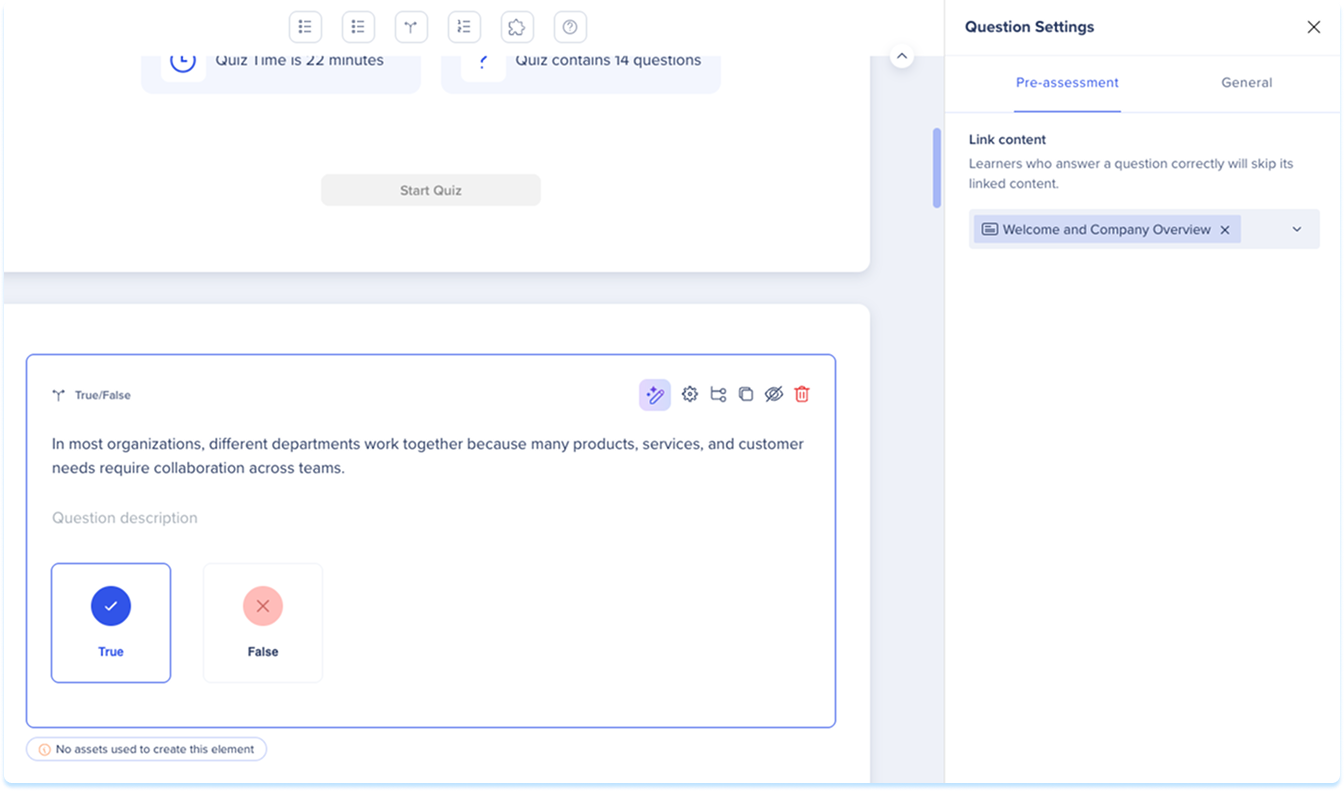
In Question Settings, open the Pre-assessment tab
-
Under Link content, choose the lessons and quizzes to link
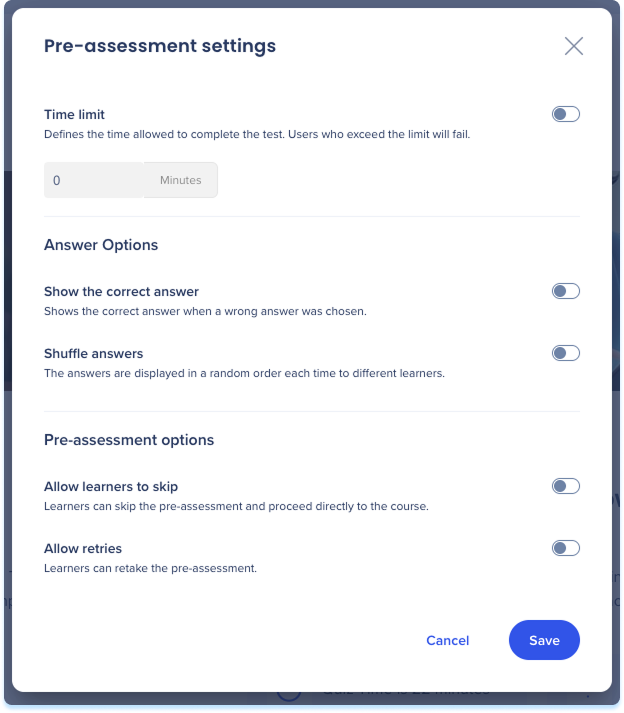
- On the pre-assessment page, select Settings
- Set any of the following:
- Time limit: Set how long learners have to finish
- Show the correct answer: Show the correct answer after a learner chooses a wrong one
- Shuffle answers: Show answers in a random order for each learner
- Allow learners to skip: Let learners skip the pre-assessment and go straight to the course
- Allow retries: Let learners retake the pre-assessment
- Select Save
Revert or Delete a Pre-Assessment
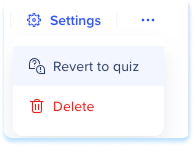
- On the pre-assessment page, open the Options menu
- Select Revert to quiz or Delete
Technical Notes
- Each course can have one pre-assessment, which learners take before any course content
- Every question must link to course content
- Learners can't retake a pre-assessment on their own, and re-enrollment is the only way to recompute the pre-assessment and their path
- “Edit outline” with AI doesn't regenerate the pre-assessment, so the author must revalidate it after any course changes


