Brief Overview
Use the text element to add and format written content in a lesson. Alongside headings, paragraphs, lists, and links, you can insert design blocks such as tables, panels, dividers, and quotes to structure and style your content.
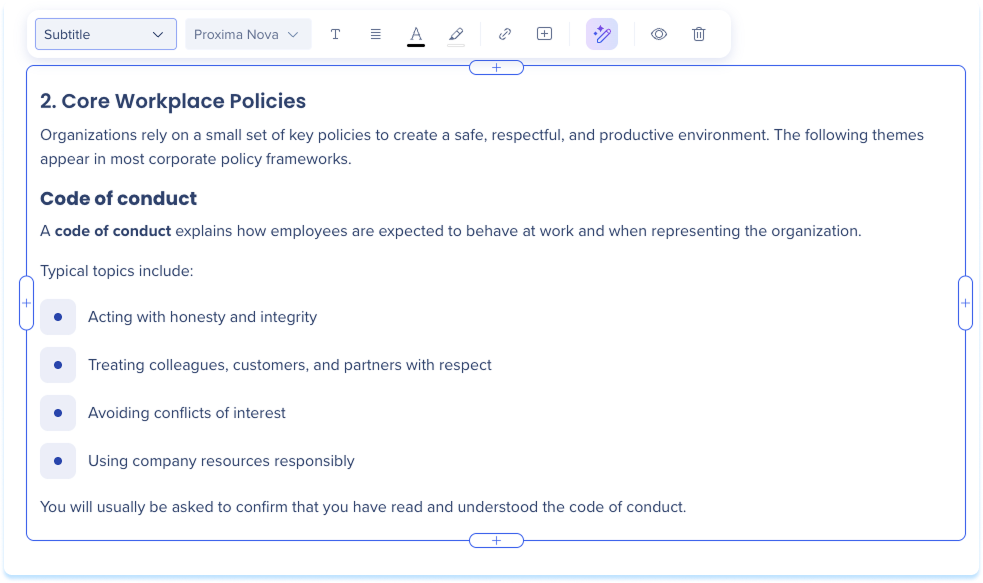
Add a Text Element
- Open a lesson in the learning content builder
- Drag the text element from the elements panel onto the canvas, or select + Add Element and choose Text
- Select inside the text field and type your content

Format Text
Select a text element to show the formatting toolbar. Use it to:
- Text style: Choose a style from the style dropdown, such as Paragraph or Title
- Font: Choose a font from the font dropdown
- Text formatting: Apply bold, italic, or underline
- Structure: Set alignment to left, center, or right, or turn text into a bulleted or numbered list
- Text color: Change the color of the text
- Highlight: Highlight selected text with a color
- Link: Add a link
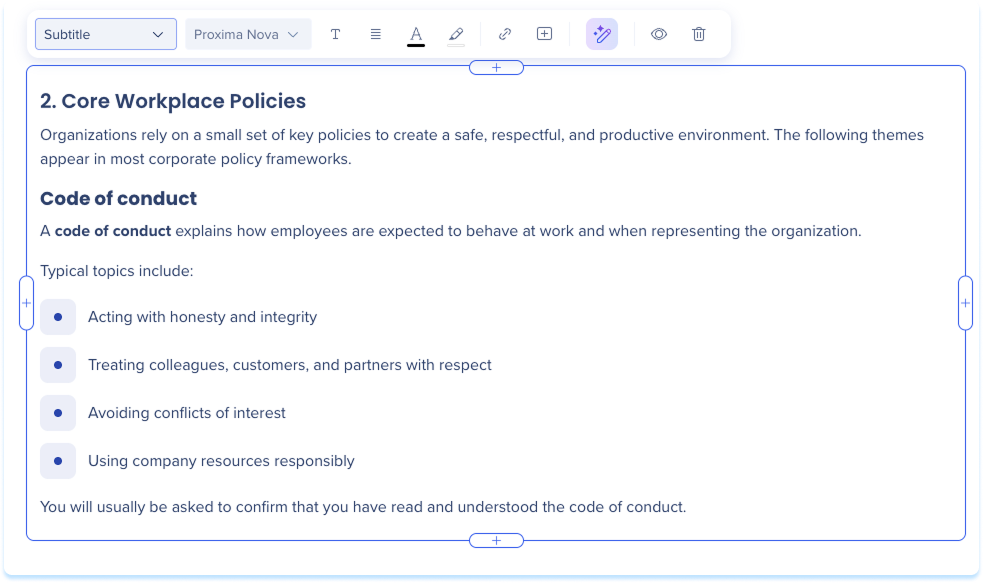
Add inline image
Paste an image directly into a text element to display it inline with your text.
Use the formatting toolbar to style the image:
- Width: Set the image width
- Show border: Show an outline around the image
- Alternative text: Type short, descriptive alternative text to improve accessibility
- Wrap text: Flow the section text around the image instead of stacking it above or below
- Delete: Delete the image
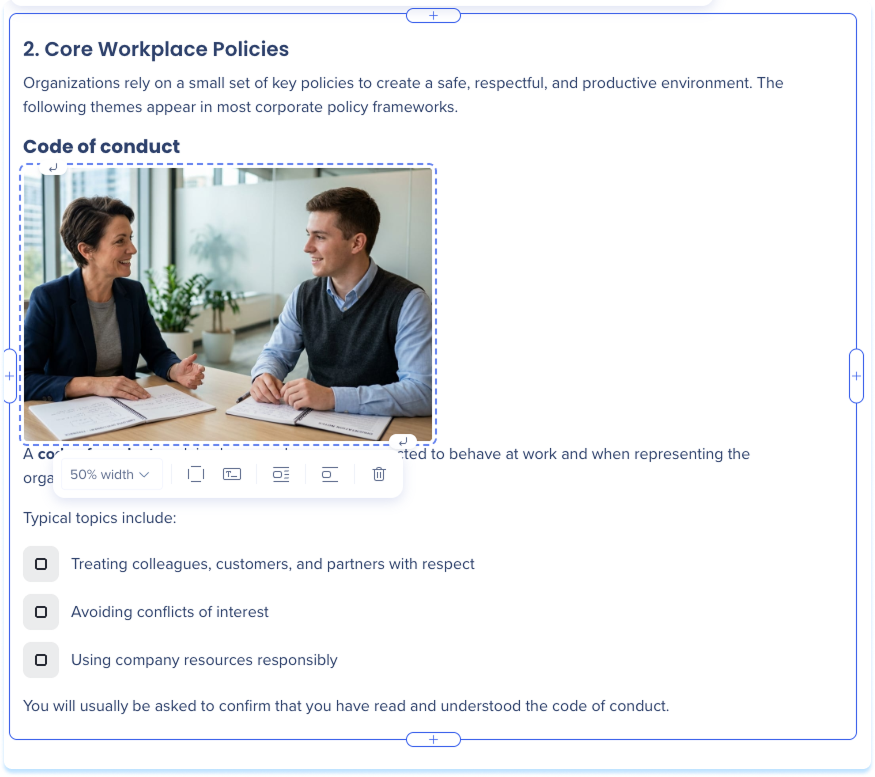
Insert Content
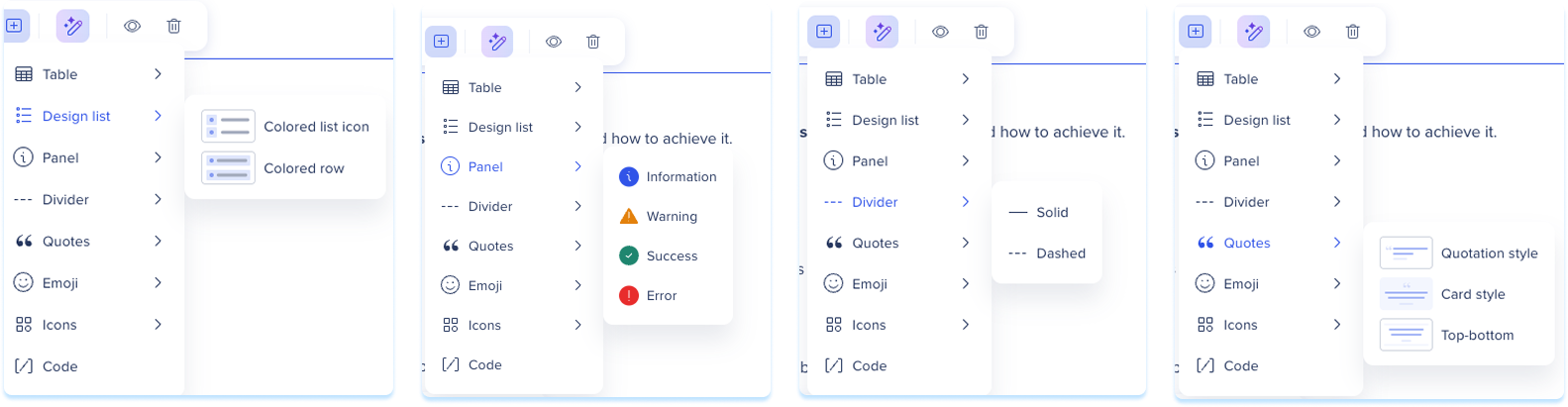
Use the insert menu to add a design block to a text element.
- Select a text element, then select the Insert icon
- Choose one of the following:
- Table: Choose the table size from the grid
- Design list: Choose Colored list icon or Colored row
- Panel: Choose Information, Warning, Success, or Error
- Divider: Choose Solid or Dashed
- Quotes: Choose Quotation style, Card style, or Top-bottom style
- Emoji: Choose an emoji
- Icons: Choose an icon
- Code: Add a code block
Generate and Edit with AI
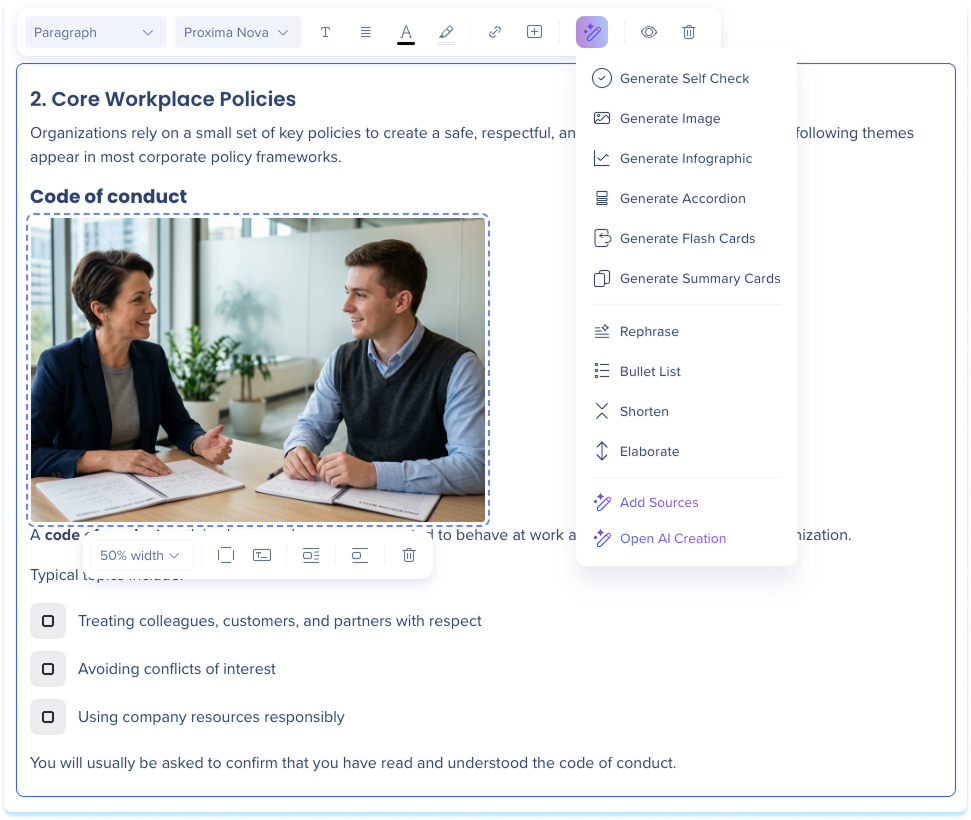
From a text element, you can generate other elements and refine your text with AI.
Generate and Edit Elements with AI
Suggest a title
Title suggestions are available for any element with a title.
- Select the title field above the element
- Select a title suggestion from the panel
- Select Generate New Title for more suggestions (optional)
- Select Apply
Note
Applying a suggestion updates both the title and the asset name.

Review Sources
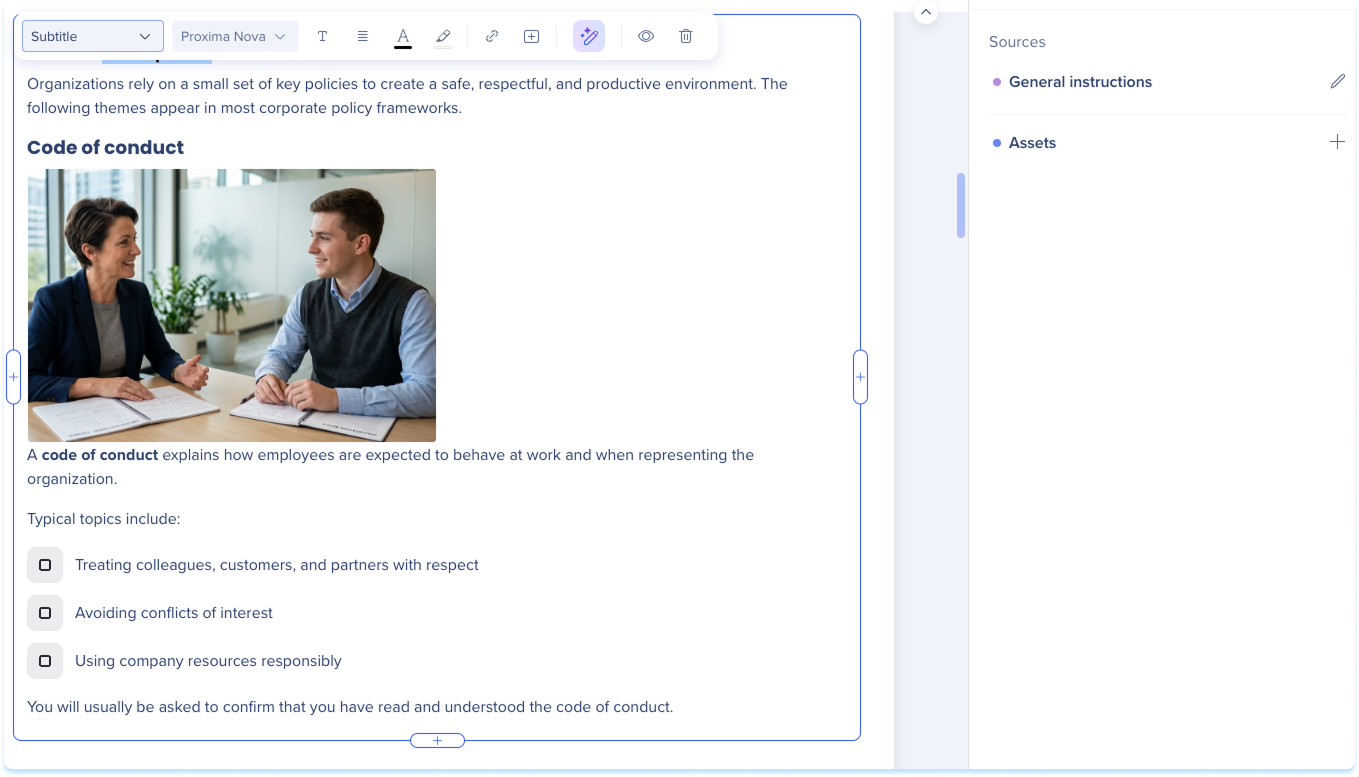
When a text element is generated with AI, an Asset based indicator appears below it. Select it to review the sources the AI used. Learn more: Precision AI Authoring.
Technical Notes
- Inline images:
- Supported image formats are PNG, JPG, WEBP, and GIF. SVG isn't supported
- Pasted images can be up to 2 MB
- Images display at up to 100% of the content width


