Generate and edit elements with AI lets you create and refine lesson content with AI in the learning content builder. From an element, you can generate new elements, rewrite text, edit an image, and review the sources behind AI-generated content. These actions help you build lessons faster and keep your content consistent.
Use Cases
Create supporting elements from content you've already added to a lesson
Refine the wording of a text element without leaving the lesson
Update an image by describing the change you want
Access
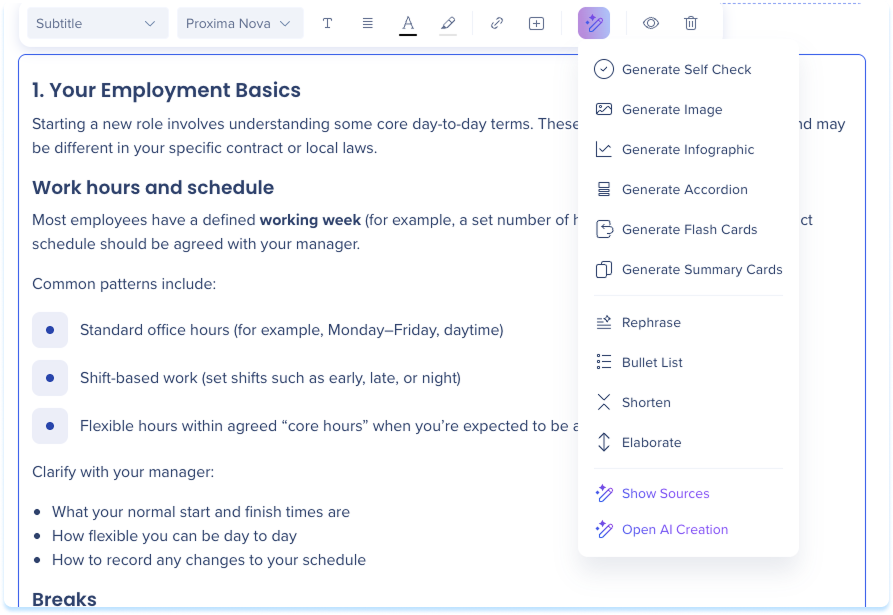
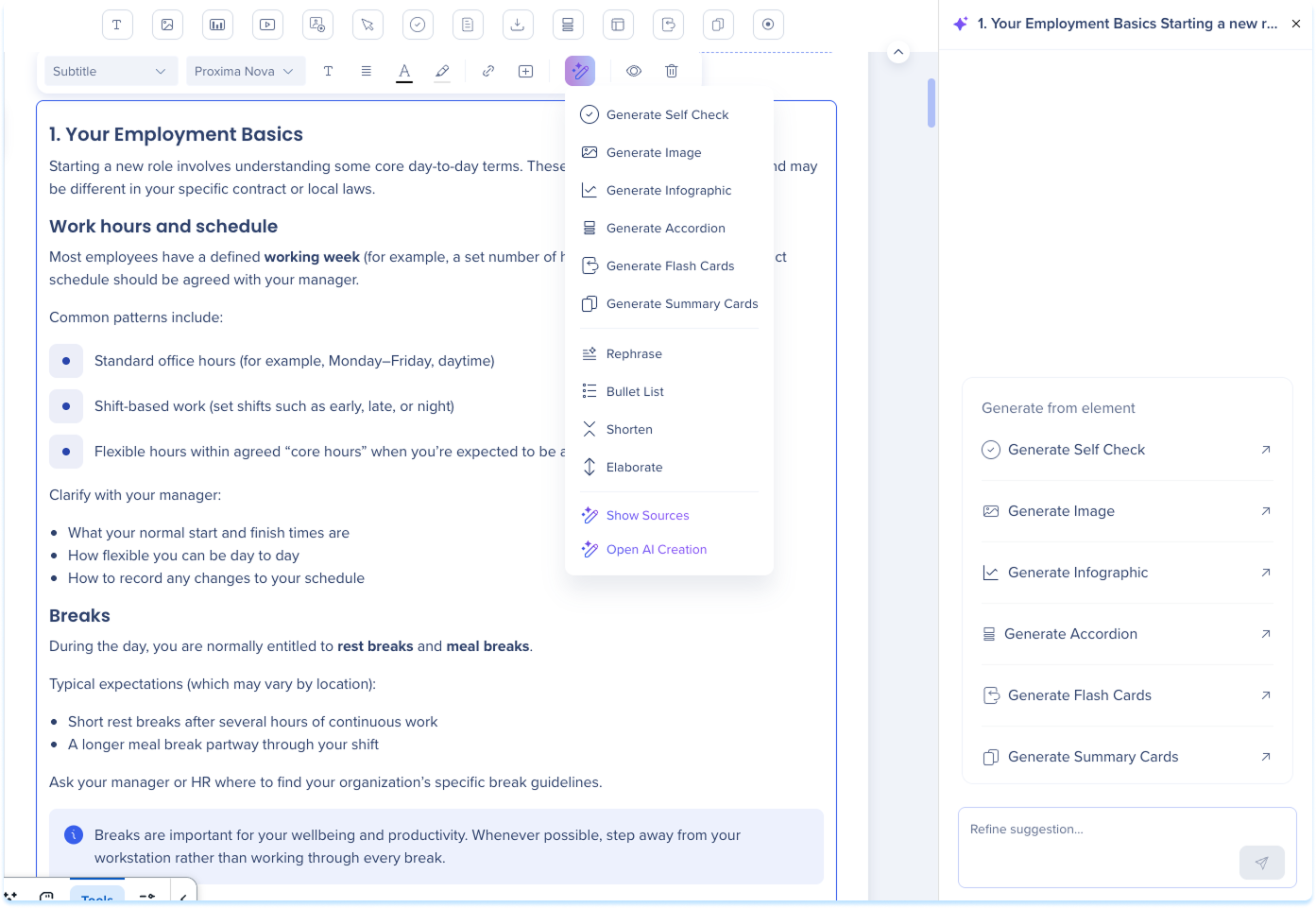
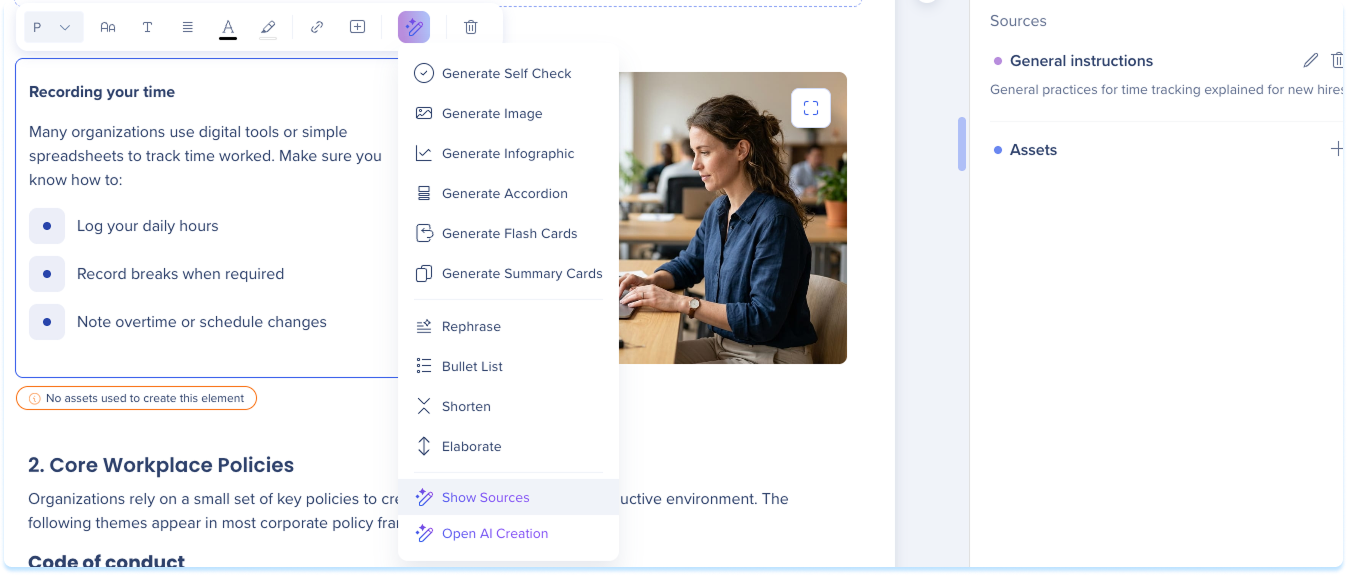
AI actions are available in the learning content builder. Open a lesson, select an element in the main canvas, then select the AI icon in the toolbar.
Open the AI Actions
The available actions depend on the element you select.
Open a lesson in the learning content builder
Select an element in the main canvas
Select the AI icon in the toolbar
Select an action from the menu
Note
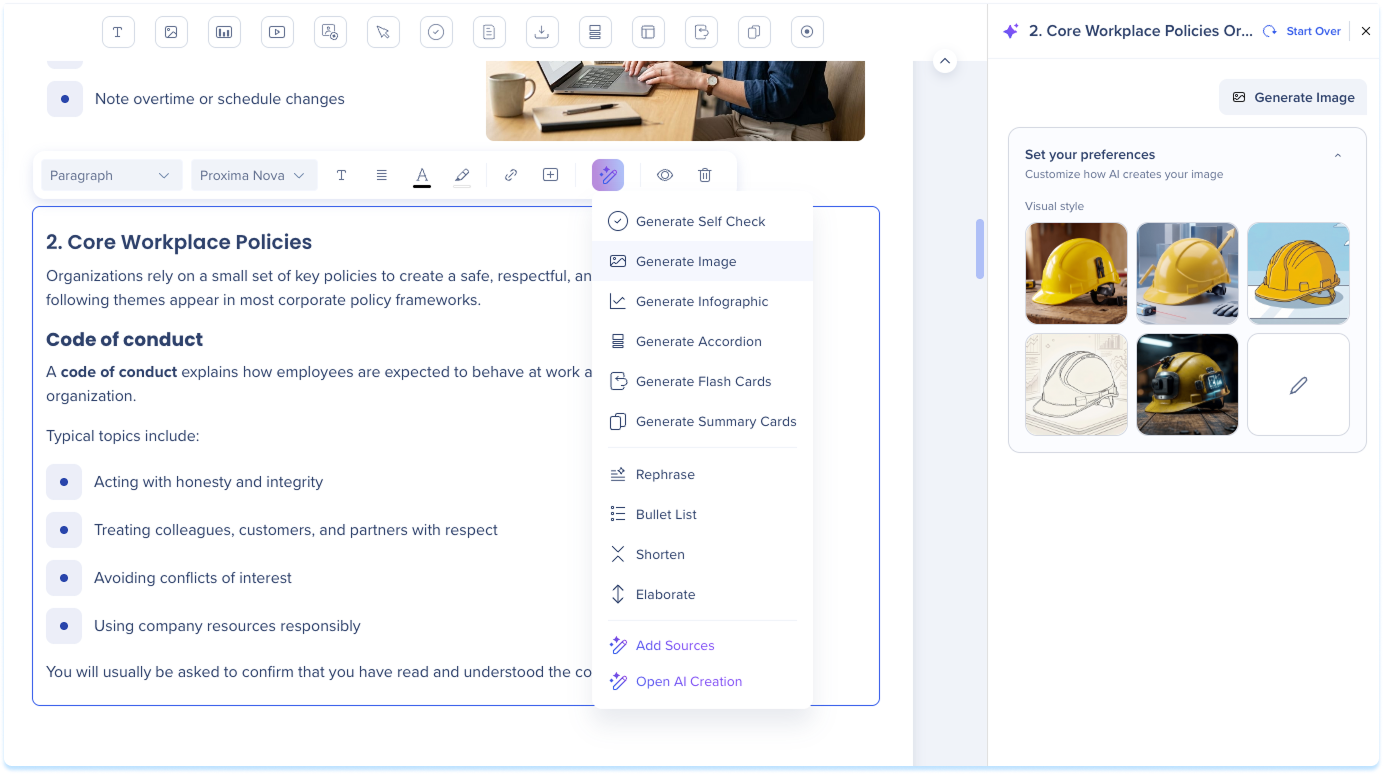
For image, video, screen recording, and simulation elements, select Open AI Creation at the bottom of the menu to open the AI Creation panel, where you can refine a prompt and insert the result.
Select a text, video or simulation element, then select the AI icon
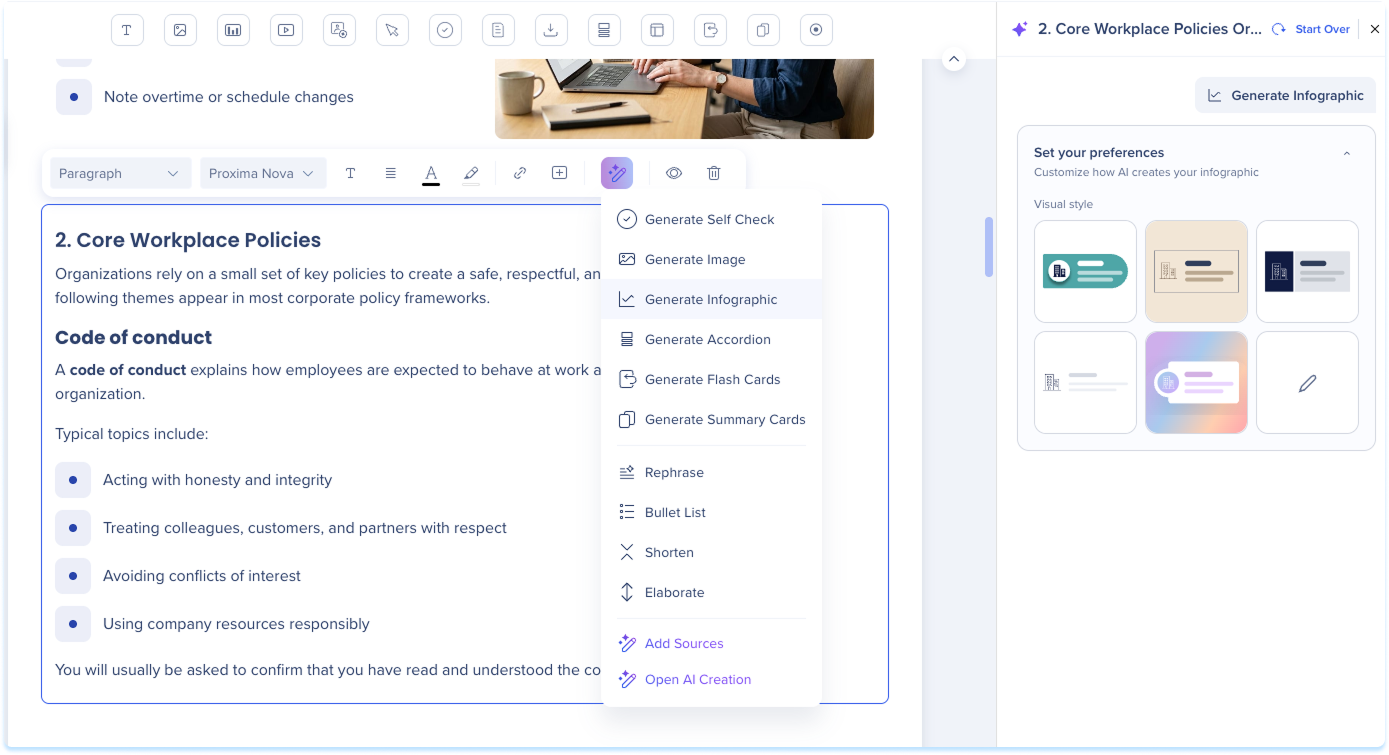
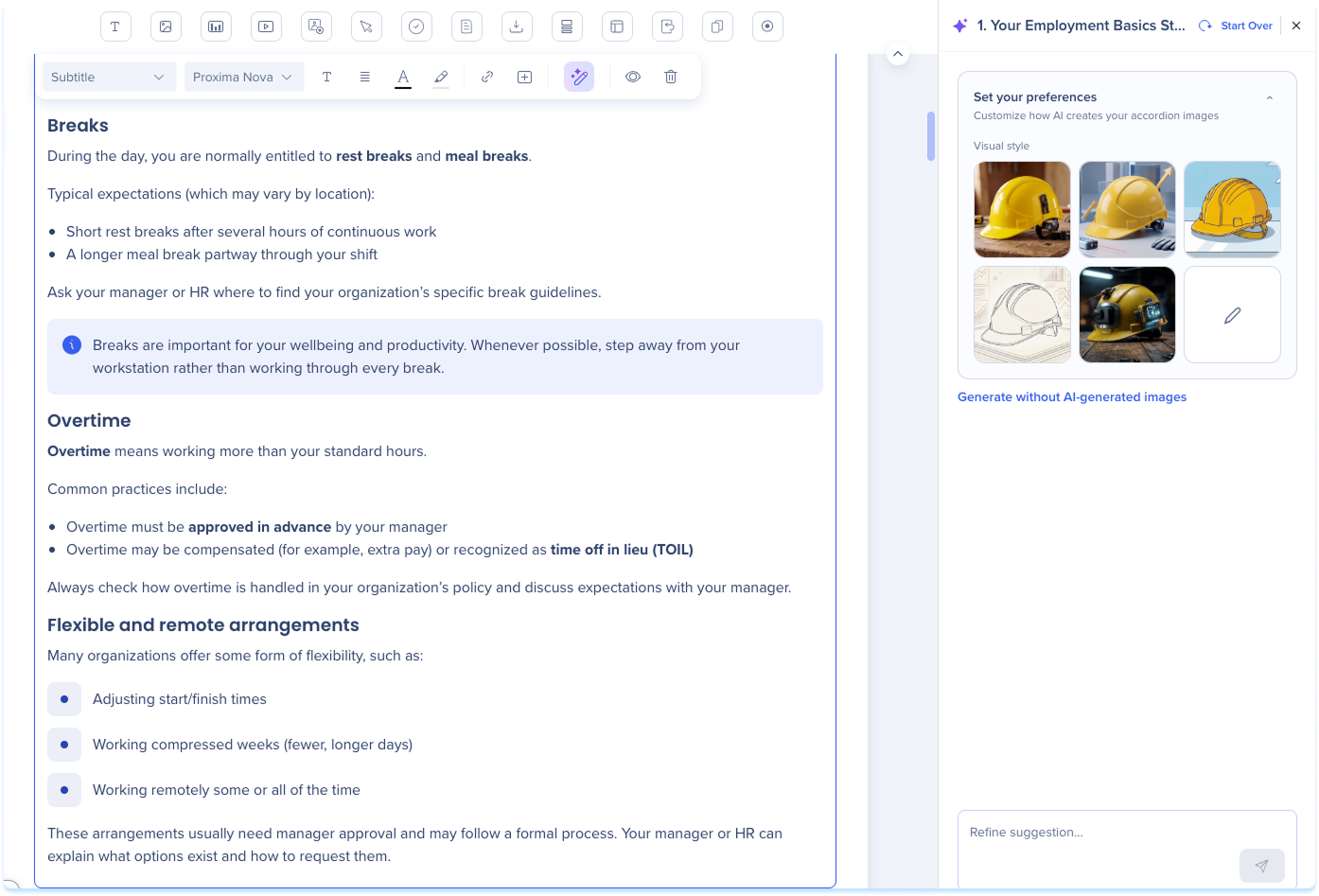
Select Generate Accordion, Generate Flashcards, or Generate Summary Cards
In the AI panel, choose a visual style
Review the options generated
Under the option you want, select Insert
Edit an Element with AI
You can edit text or image elements with AI.
Edit text with AI
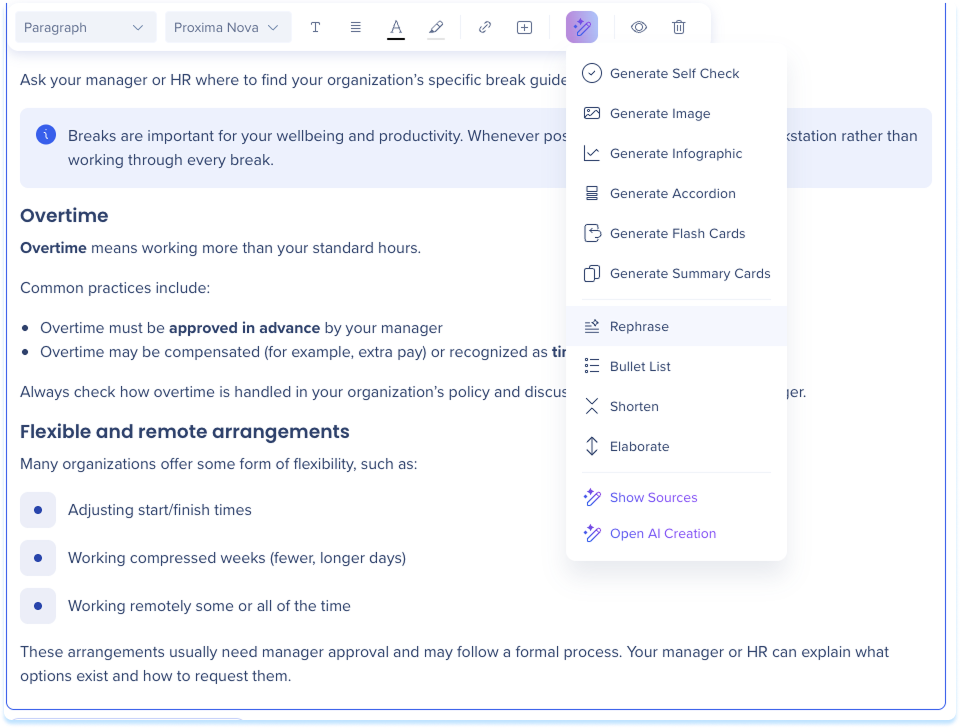
From a text element, refine your text without leaving the lesson. Select the AI icon, then choose one of the following:
Rephrase: Reword the text
Bullet List: Turn the text into a bulleted list
Shorten: Make the text shorter
Elaborate: Expand on the text
The action runs in the AI Creation panel. Review the result, then insert it into the lesson.
Edit an image with AI
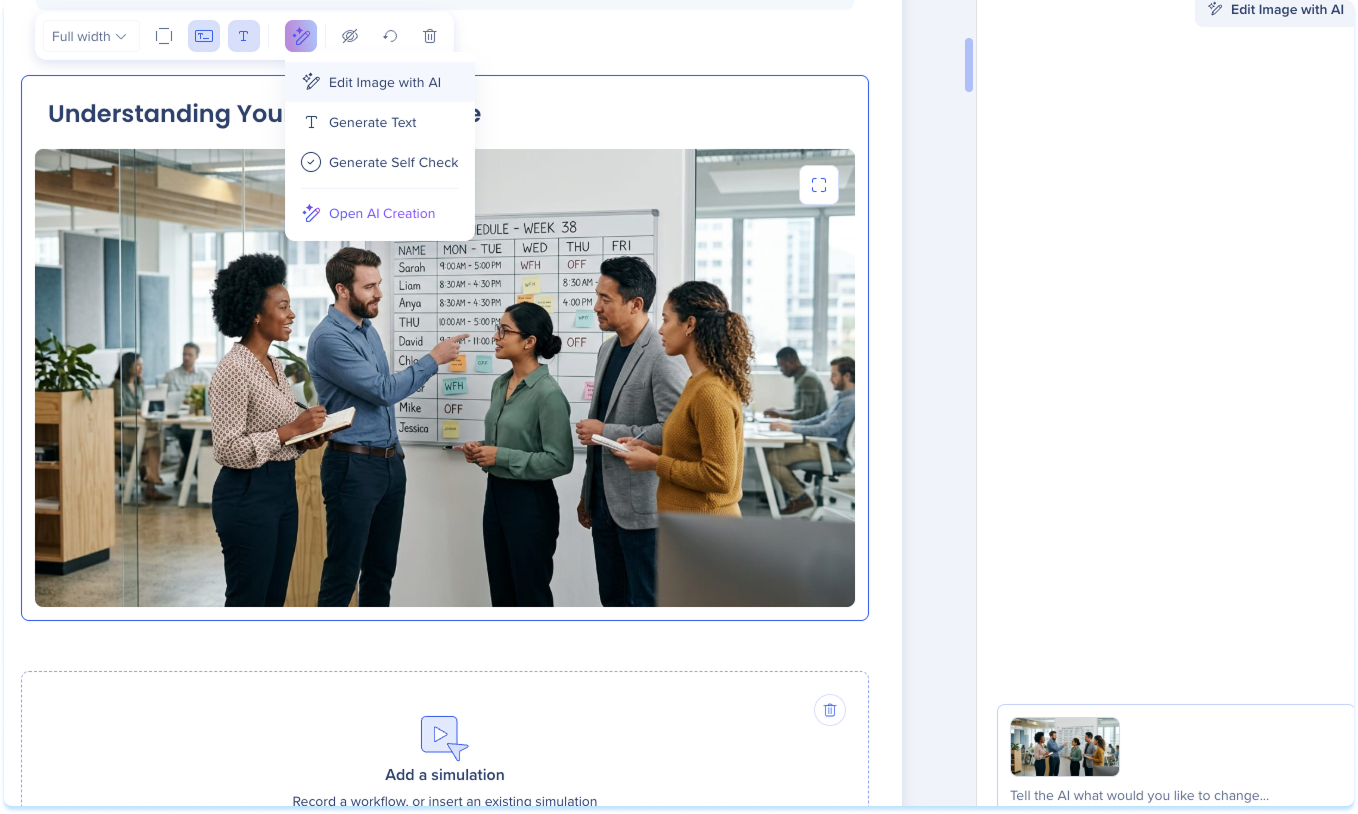
Select an image element, then select the AI icon
Select Edit Image with AI
In the text field, type the change you want
Select the Send icon or press Enter
Review the edited image, then select Replace image
Note
To start over, select Start Over at the top of the panel.
Generate a Lesson or Quiz
From a video, screen recording, or simulation element, you can generate a full lesson or a quiz.
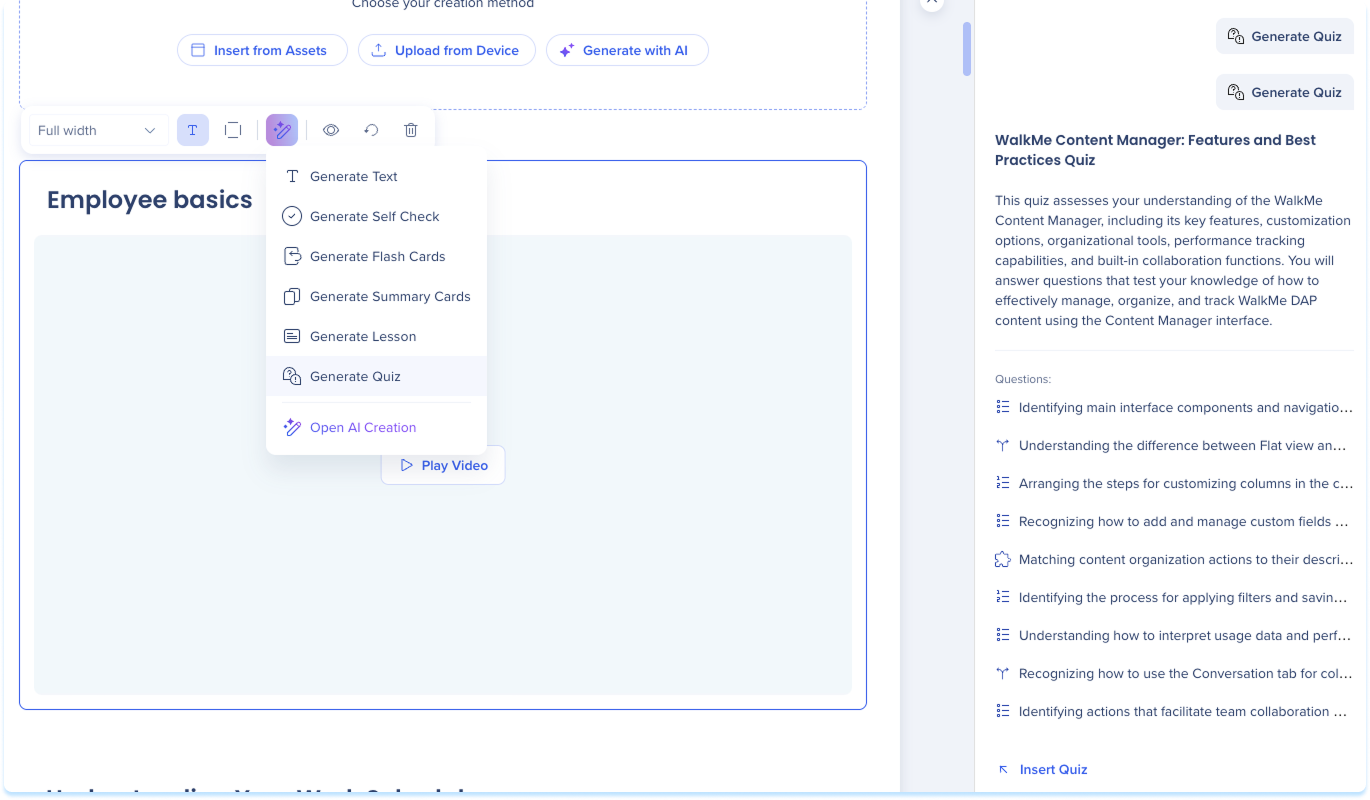
Select a video, screen recording, or simulation element, then select the AI icon
Select Generate Lesson or Generate Quiz
Review the result in the AI panel
Select Insert Lesson or Insert Quiz
Review and Refine Sources
When an element is generated with AI, you can review the sources it used and refine them, including the general instructions and assets. There are two ways to open the sources:
Select the AI icon, then select Show Sources
Select the Asset based indicator below the element
For elements that support AI actions, if an element wasn't generated with AI, the menu shows Add Sources.
Technical Notes
General
AI creation isn't available for the hotspot element
Models
Currently, WalkMe uses Google and OpenAI models for AI features in WalkMe Learning Arc. However, WalkMe reserves the right to change the LLM vendor in the future to enhance the performance and quality of the service.