Brief Overview
Translations let you manage multiple language versions of learning content from a single learning item. From one place, you can add languages, track translation status, and access translated content directly from the Learning Content page. Translations help you understand which languages are ready to publish, which need review, and which are out of sync with the source content. This article explains how translations work and where to find and manage translations.
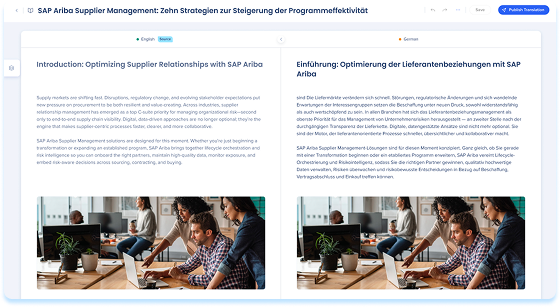
How It Works
Overview
Each learning item has one source language and can include multiple target languages.
- The source language is the original version of the content
- All translations are created from and compared to the source language
- Each language is managed independently and has its own state
Translations help you keep localized content aligned as the source content changes over time.
Access translations
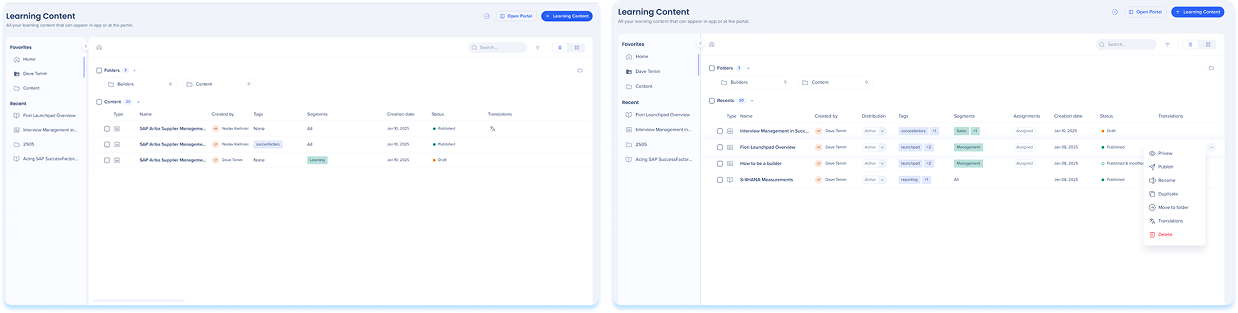
- Navigate to the Learning Content page
- Access the Translations tab in one of the following ways:
- Select the Info icon in the learning item row and select the Translations tab
- Select the Options menu in the learning item row and select Translations
Add languages
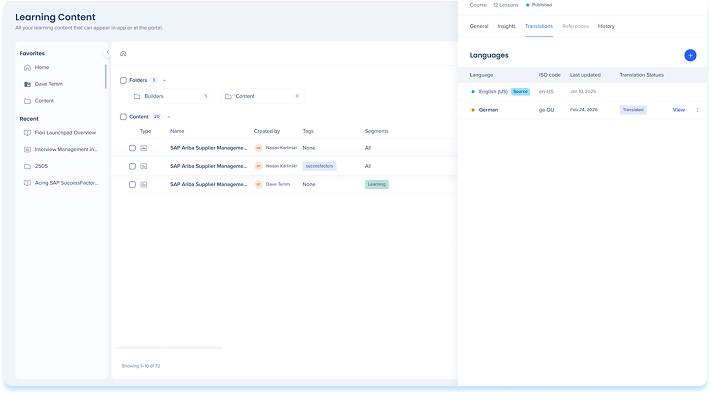
Before you can translate content, you must add the target languages to the learning item.
Translating content
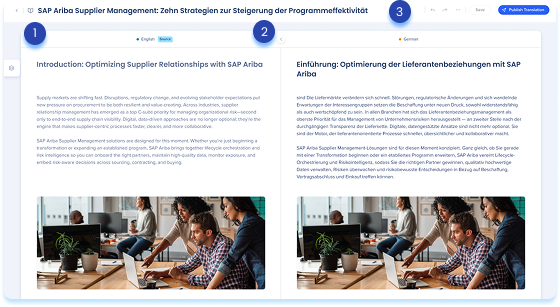
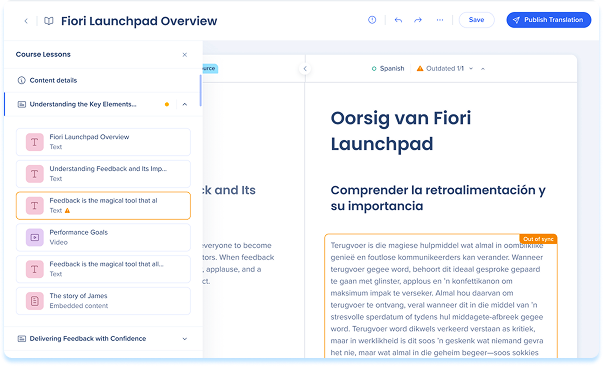
The side-by-side translator consists of three areas:
- Layers panel: Navigate lessons and elements
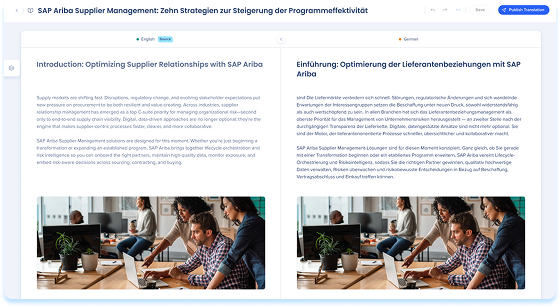
- Main area: View and edit source and translation content side by side
- Top bar: Save, preview, and publish translations
Translate using AI
When AI translation is available and applied, content is translated automatically. It can be applied to the entire learning item or to specific elements.
Note
- AI translation is optimized for English source content
- AI translation is powered by Amazon Web Services (AWS) or SAP translation services (for SAP customers)
To translate the entire item
You can trigger a full item translation from the Translations tab or from within the side-by-side translator.
From the Translations tab:
- Select the Options menu for the target language
- Select AI translation
- You'll be notified when the translation is ready
- Review and edit the translated content in the translator
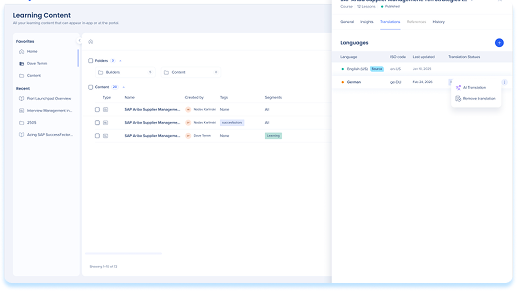
From the side-by-side translator:
- Select the Edit icon next to the target language to open the translator
- In the translator, select the Options menu in the top bar
- Select AI translation
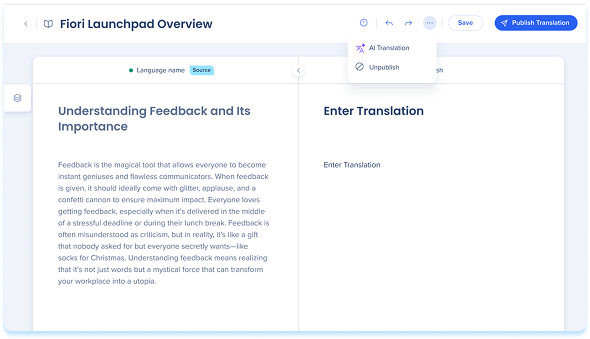
To translate a specific element
- Select an element in the main canvas
- select the AI translation icon from the floating toolbar
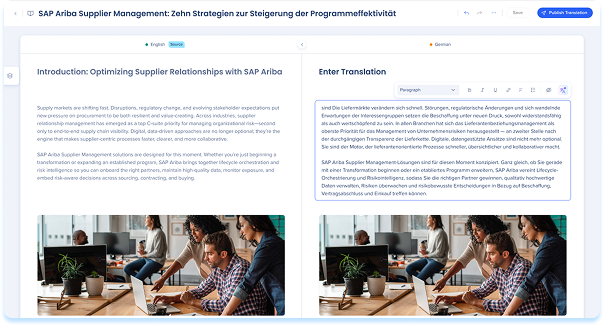
Manual translation
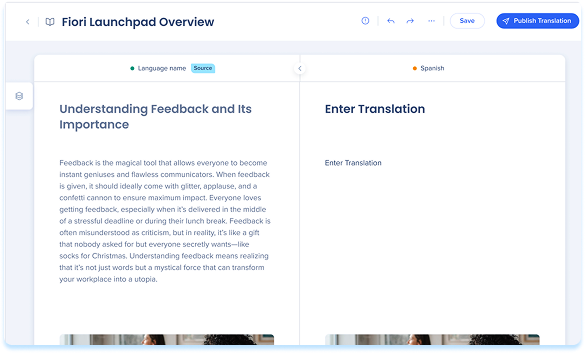
When AI translation isn't available or when you prefer full control, you can translate content manually. You can modify text and assets within the target language while maintaining the structure of the source content.
- Select the Edit icon next to the target language to open the translator
- Edit text directly in the right-hand column
- Upload or replace specific assets as needed
- Hide elements if they are not required for the specific language version
Note
The source language is display-only and cannot be edited within the translator interface. You can't delete or reorder elements on the translation side to ensure alignment with the source structure.
Translation status
Statuses indicate the current state of a target language version and whether it requires action.
- Translating: AI translation is currently in progress
- Out of sync: The source content was updated after this translation was created, requiring a review of the changes
Managing out of sync content
If the source content changes after a translation is created, affected elements are labeled Out of sync.
- Open the side-by-side translator
- Locate the Out of sync label on specific elements
- Use the navigation arrows at the top of the screen to move between multiple out of sync elements
- Review the changes in the source content and determine whether to update the translation or leave it as is
Publish translation
- Select Publish Translation to make the version available
Remove translation
- Select the Options menu in the target language row
- Select Remove translation
Technical Notes
- AI translation is not available for Canada or FedRAMP data centers
- AI translation is only supported when the source language is English


