WalkMe Learning Arc Roles & Permissions

Last Updated December 16, 2025

Brief Overview

WalkMe Learning Arc brings AI-powered learning into the flow of work. It transforms passive training into contextual learning experiences that build real skills and drive digital adoption. WalkMe Learning Arc operates at the system level, meaning each account with WalkMe Learning Arc includes its own dedicated Learning Arc system. To streamline user management and maintain security, the system automatically inherits existing WalkMe roles and permissions. User management for WalkMe Learning Arc is handled through the Roles & Permissions page in the Admin Center.

WalkMe Learning Arc:

  • Reuses WalkMe Console role definitions
  • Applies permissions uniformly across all systems a user is assigned to (for example, WalkMe Learning Arc, or Concur)
  • Controls both UI and backend capabilities according to each role's feature permissions

How It Works

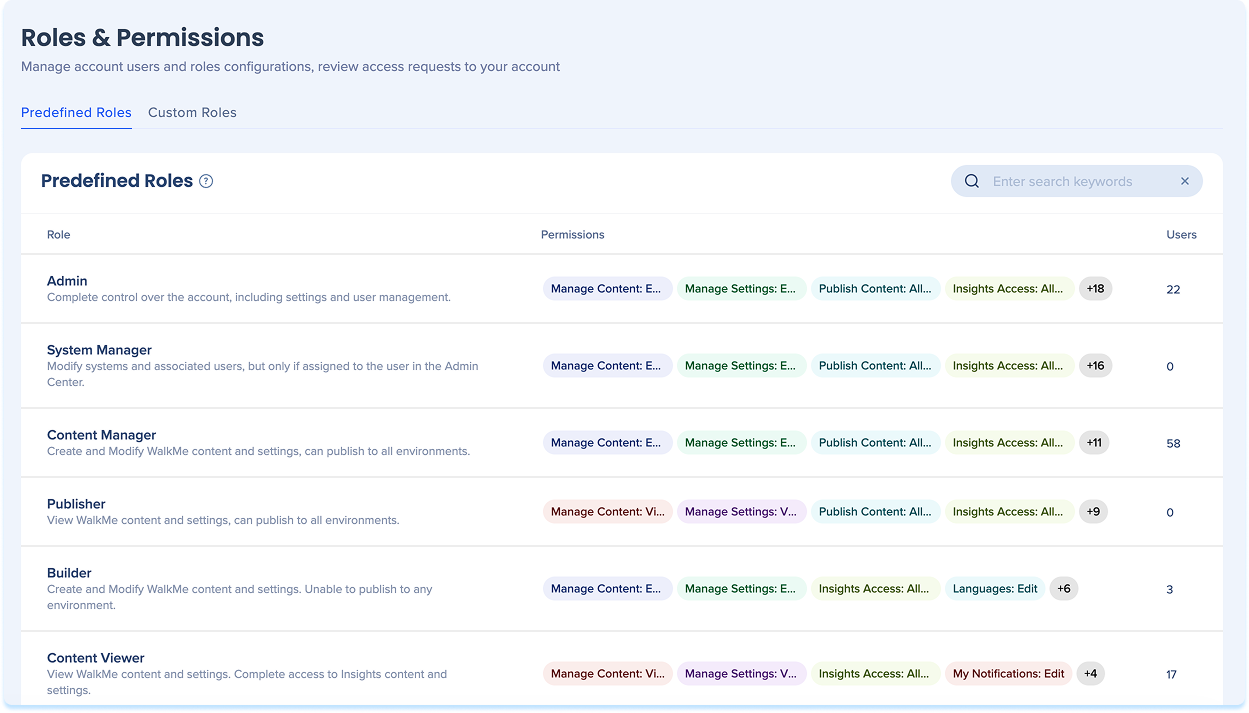
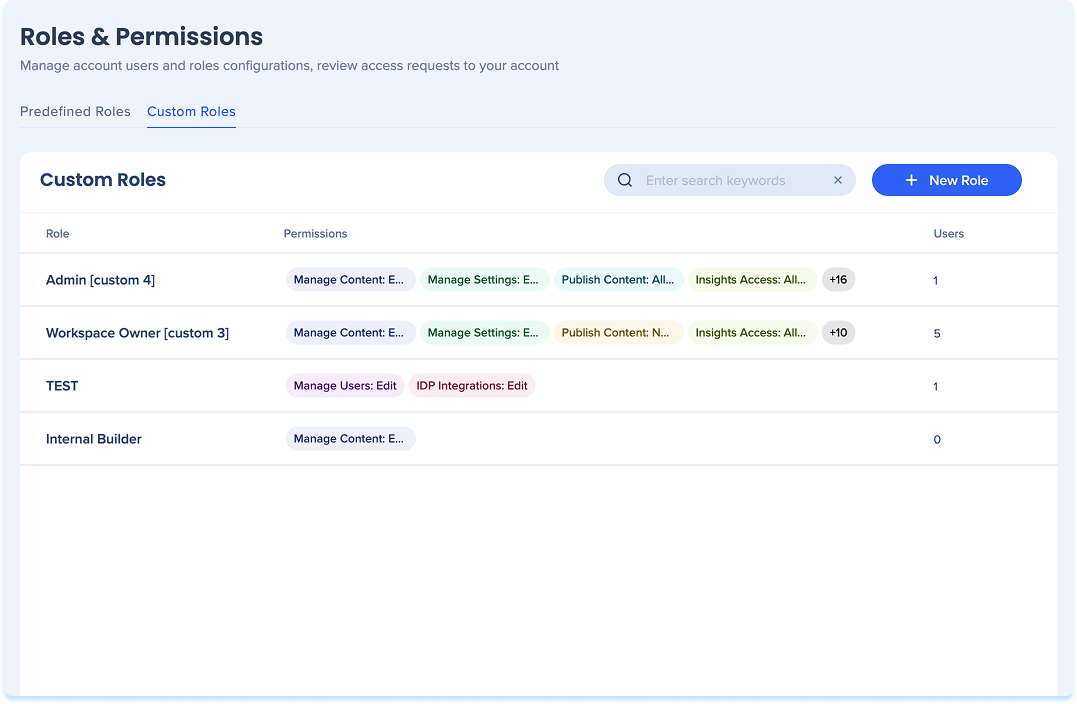
A user's role defines their permissions and limitations. In the Roles & Permissions tab, you can view all available roles and see how many users are assigned to each. You can choose from Predefined or Custom Roles.

Predefined roles

Admin

Full control of the account, including settings and user management.

Allowed actions: Settings, analytics, create, view, comment, share, export, publish

System Manager

Manage assigned systems and associated users; no access to security or API keys.

Allowed actions: Settings, analytics, create, view, comment, share, export, publish

Content Manager

Create and modify content and settings; can publish to all environments.

Allowed actions: Analytics, create, view, comment, share, export, publish

Publisher

View content and settings; publish to all environments.

Allowed actions: Analytics, view, comment, share, export, publish

Builder

Full access except for publishing and user management.

Allowed actions: Analytics, create, view, comment, share, export

Content Viewer

View content and settings.

Allowed actions: Analytics, view, comment, share, export

Content Creator

Edit content and view settings; no publishing access.

Allowed actions: Analytics, create, view, comment, share, export

Analyst

View content and settings.

Allowed actions: Analytics, view, comment, share, export

Translator

Create and modify Text and Multi-Language content.

Allowed actions: View, comment, share, export

Custom roles

Settings

Role permissions: Content
Category: Manage Settings
Values: Edit

Role permissions: Publish
Category: Publish Settings
Values: All Environments

Role permissions: Publish
Category: Publish Content
Values: All Environments

Role permissions: Administrative
Category: Manage Systems
Values: Edit

Analytics

Role permissions: Data
Category: Insights Access
Values: Allowed

Create

Role permissions: Content
Category: Manage Content
Values: Edit

View

Role permissions: Content
Category: Manage Content
Values: View

Comment, Share, Export

Role permissions: Content
Category: Manage Content
Values: Comment, Share, Export

Publish

Role permissions: Publish
Category: Publish Content
Values: All Environments

Manage custom roles

Create a custom role

  1. Go to the Admin Center
  2. Select Roles & Permissions from the left navigation bar
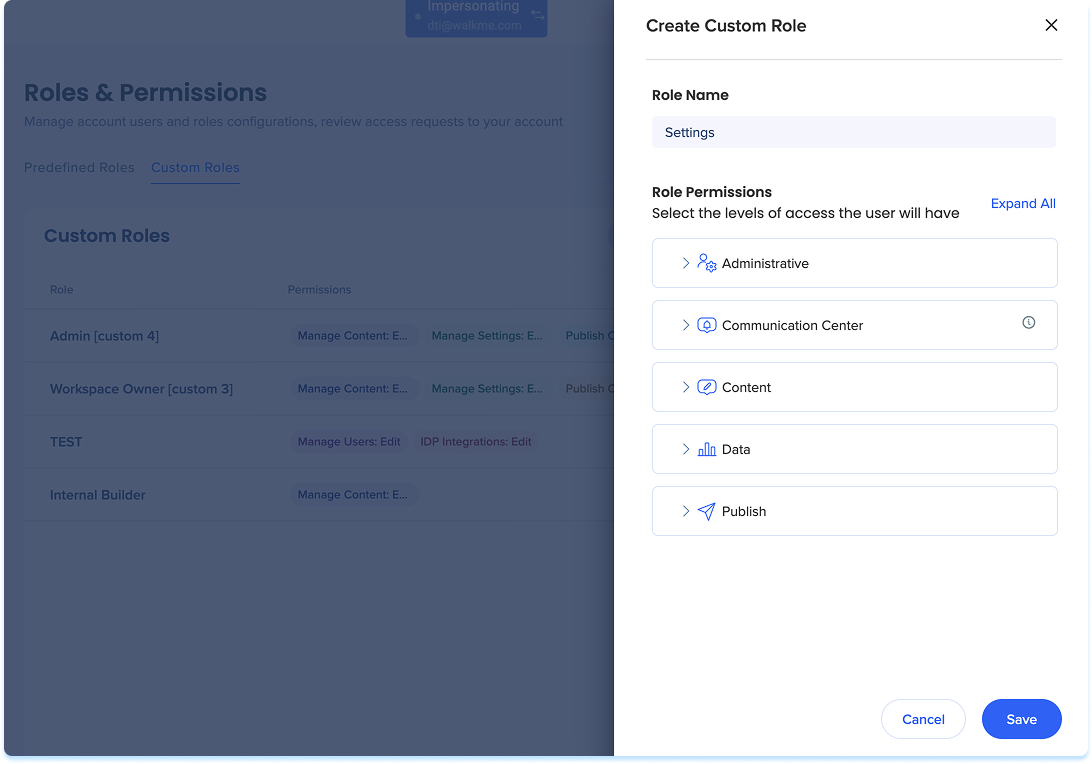
  3. In the Custom Roles tab, select + Create Role

  1. Enter a role name

  2. Under Role permissions, assign access levels for each category

  3. Select Save

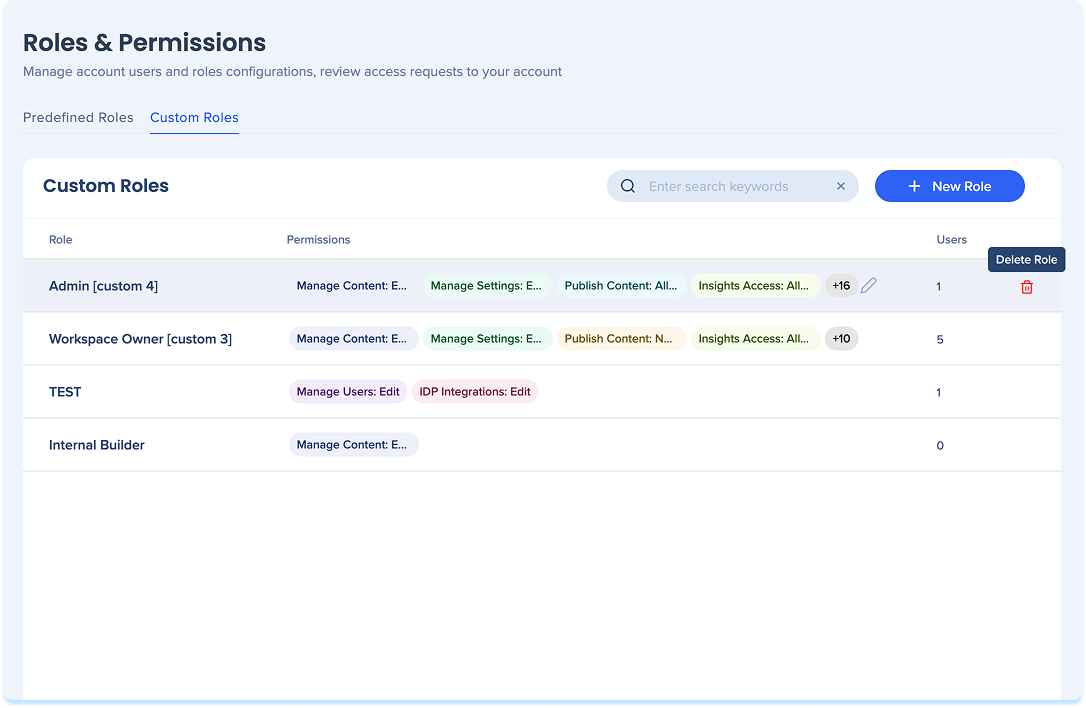
Delete a custom role

  1. Hover over the custom role you want to delete
  2. Select the Delete icon
Note

You can only delete roles that have zero users assigned

Was this article helpful?

Thanks for your feedback!

Be part of something bigger.

Engage with peers, ask questions, share ideas

Ask the Community
×