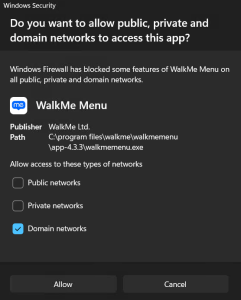
When you install or update Menu for Desktop on a Windows device, Windows may show a security prompt asking whether to allow the menu to communicate on domain, private, and public networks. The prompt comes from Windows Firewall, not from WalkMe.
This article explains why the prompt appears, which options to select, and what to do if the prompt was closed without allowing access.
How It Works
Why the prompt appears
WalkMe Menu for Desktop uses network communication as part of its normal operation, including communication between menu components and the services the desktop environment needs.
When an application starts listening for network communication and no matching administrator-defined firewall rule exists, Windows may display a prompt requesting permission for the application. Microsoft documents this as expected Windows Firewall behavior for applications that require inbound communication.
The prompt doesn't mean that the menu is turning off or bypassing Windows Firewall. It's asking Windows to create an exception for the WalkMe Menu application under the selected network profiles.
Which networks to allow
WalkMe recommends allowing WalkMe Menu for Desktop through Windows Firewall for the network profiles used by the organization.
For managed enterprise devices, this is typically:
Network type
What it means
Recommendation
Domain
Your organization's managed network
Allow
Private
A trusted network, such as a home or internal network
Allow
Public
A public network that Windows treats as untrusted or unidentified
Allow when required by the organization's deployment and network policy
Administrators should configure the profiles appropriate for their environment rather than disabling Windows Firewall.
Microsoft recommends keeping Windows Firewall enabled and creating application-specific firewall rules when communication must be allowed.
Respond to the prompt
To allow the menu through Windows Firewall:
In the Windows Security prompt, select the network types your organization uses
Select Allow access
If Access was denied
If the prompt is cancelled or access is denied, Windows may create rules that block the menu. Microsoft documents that dismissing the notification can create TCP and UDP block rules for the application, which can stop menu features that depend on network communication from working as expected.
An administrator can review the rules on the device:
Open Windows Security
Select Firewall & network protection
Select Allow an app through firewall
In organizations that manage the firewall centrally, the equivalent policy is updated instead.
Technical Notes
WalkMe doesn't recommend turning off Windows Firewall. Allow only the menu and the network types required by your organization's security policy
In highly restricted environments, customers should work with their IT or security team to define an application-specific firewall rule for WalkMe Menu
Organizations that manage Windows Firewall centrally — through Microsoft Intune, Group Policy, Microsoft Defender, or another endpoint management solution — should define the rule centrally rather than relying on individual users to respond to the prompt
The rule applies to the installed Menu for Desktop program file, for example walkmemenu.exe. The installation path and version folder can change between releases, so administrators should validate the applicable deployment path for their WalkMe Menu installation.