Brief Overview
Segments let you target and organize learning content for specific user groups in the portal. Each segment defines which users can access particular courses, paths, or learning items, helping administrators deliver tailored learning experiences.
Segments are primarily built using identity provider (IdP) attributes. When SCIM is configured, segments use SCIM attributes instead, with IdP as a fallback.
Access
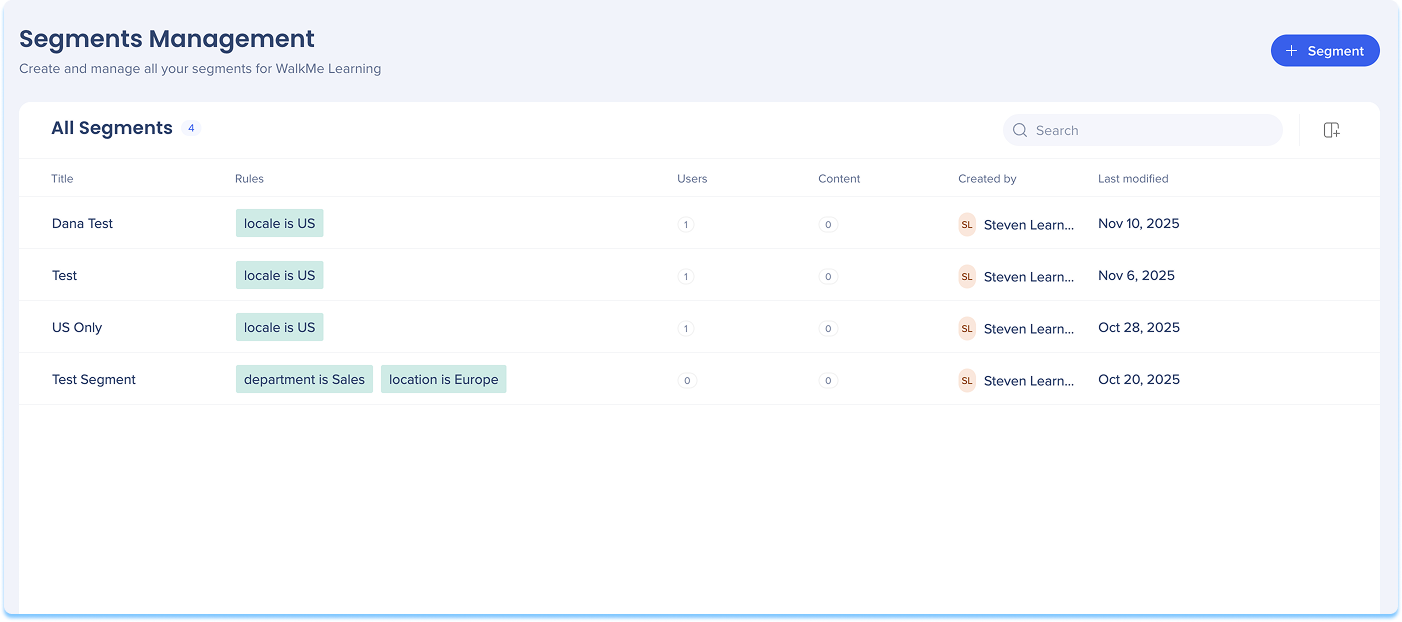
To access the Segments page, navigate to it by clicking on the Segments page in the console navigation or use a direct link to the page:
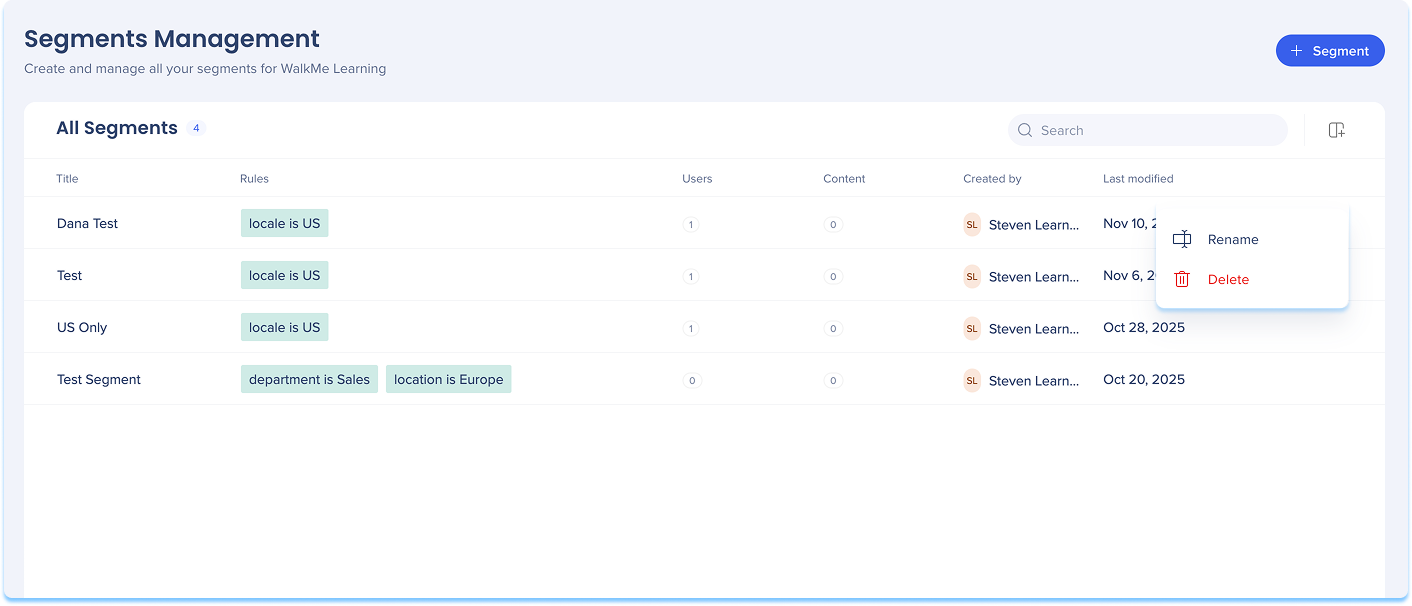
Segments Management Page
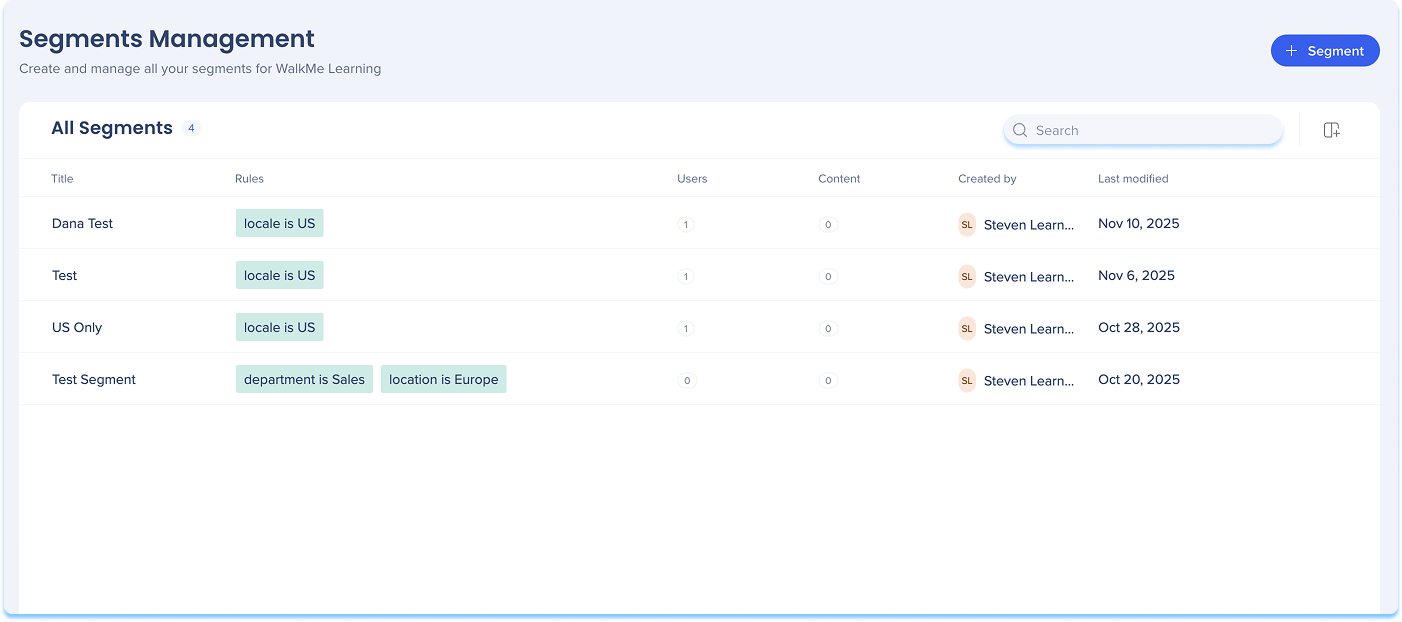
The Segments Management page lets you add, edit, rename, or delete segments used in learning content.
Add a segment from Segment Management
- Go to the Segments page
- Select + Segment
Observação
Os segmentos podem ser adicionados na página Conteúdo de Aprendizagem ou na página Gerenciamento de Segmentos.
Consulte abaixo para saber como adicionar um segmento na página Conteúdo de Aprendizagem.
-
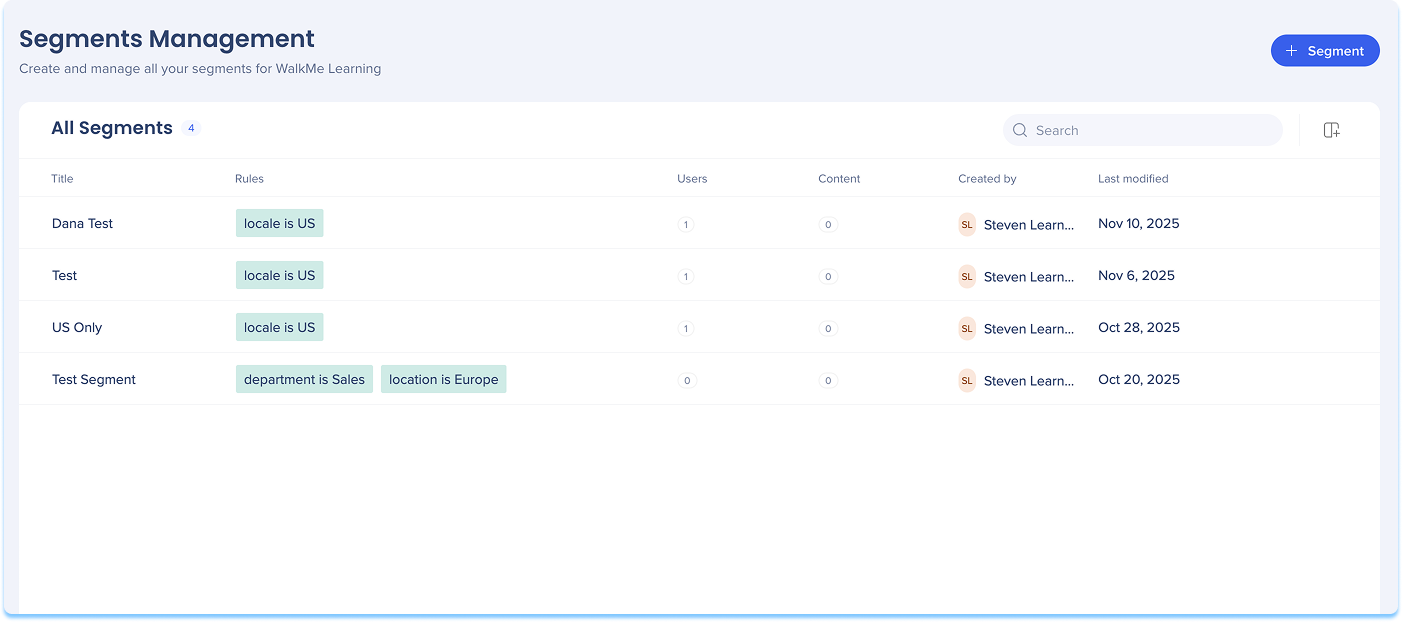
The Create a Segment builder opens
-
Enter a Segment name and, optionally, select Add description
-
Choose how to define the segment:
-
Add by conditions: Use rules based on user attributes from your IDP
-
Add manually: Enter user email addresses directly
- Upload CSV: Upload a CSV file containing the list of users to add to the segment
-
The Users panel updates in real time as you add conditions
-
Select Save
Add a segment from a CSV
CSV segments let you group users who don't share a common identity provider (IDP) attribute. When an attribute-based rule can't capture the users you want, you can list their emails in a CSV file and upload it to build the segment from that list. Membership comes only from the emails on the list. To enter, a user needs to meet both of these conditions:
- Their email is on the list
- They're logged in through the IDP
So even though membership isn't tied to any IDP attribute, only users logged in through the IDP can enter.
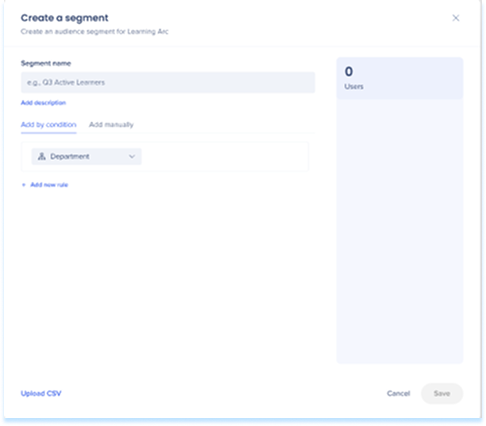
- Selecting Upload CSV opens the Create CSV segment builder instead, with its own Segment name and Add description fields
- Select Download template to format your CSV file correctly (recommended)
- Drag and drop your file, or select Upload
- The Users panel updates with the total number of users found in the file
- Select Save
Search capabilities
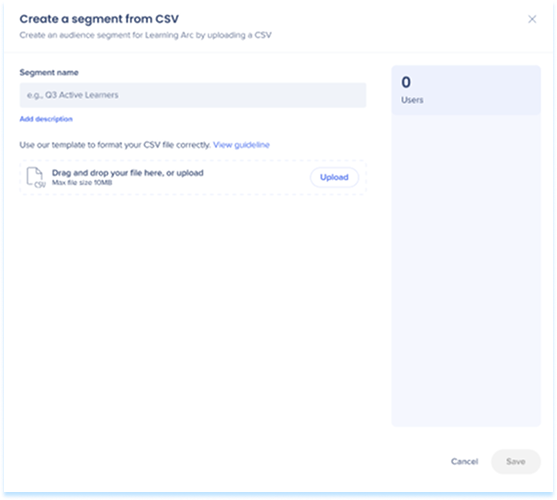
- Use the Search bar to quickly find a segment by name or attribute
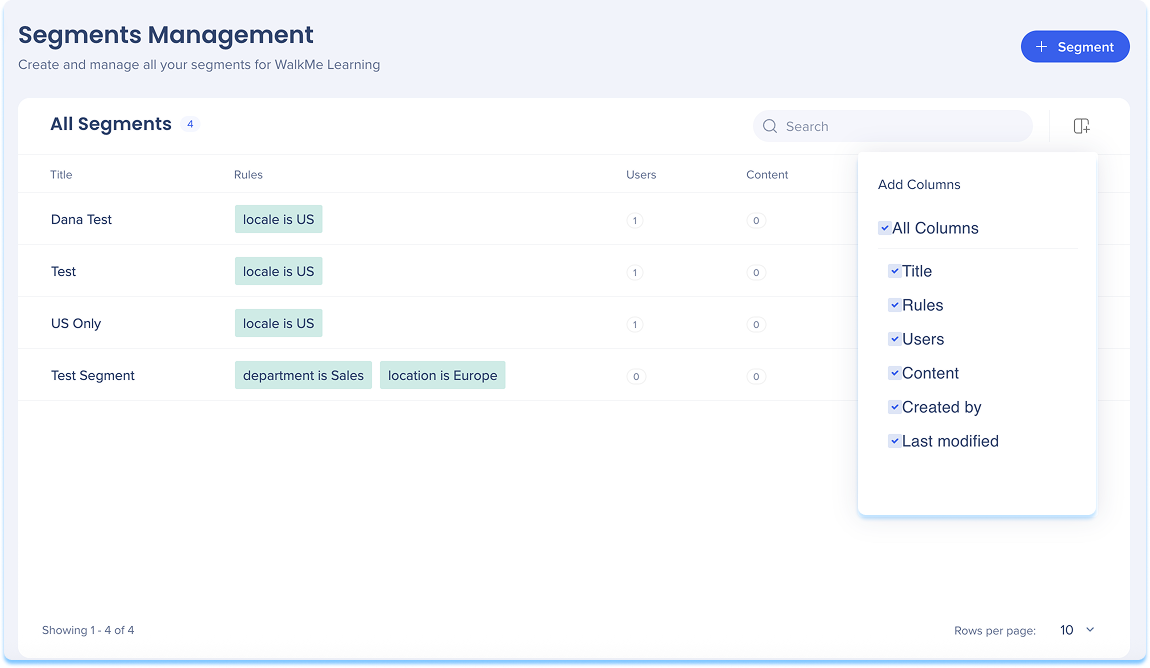
Columns
- Select the Manage Columns icon to choose which columns appear in the table
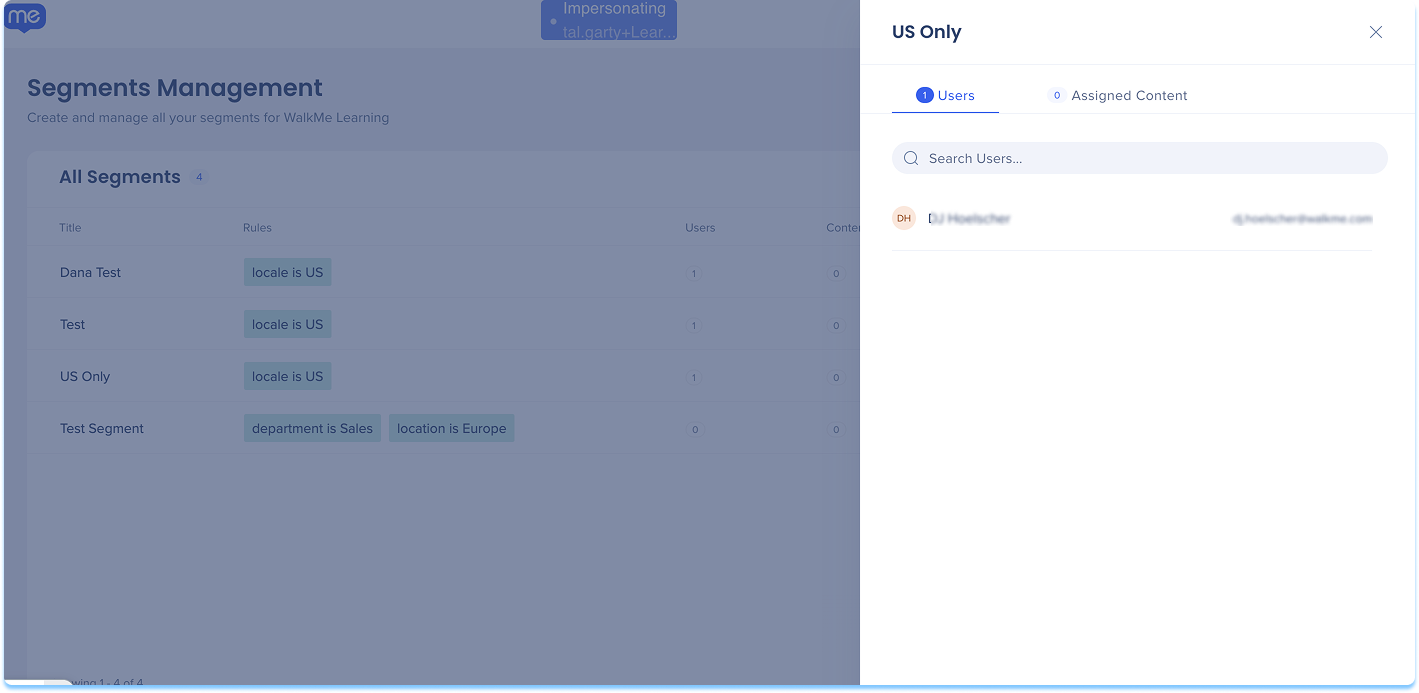
- Select the Segment information icon next to the item row to open the information panel
- The panel includes two tabs:
- Users
- Assigned content
Edit segment
- Select the Edit icon next to a segment
- The Create a Segment builder opens with your current conditions
- Update the rules or attributes as needed
- Select Save to save your changes
Observação
A edição de um segmento redefinirá todos os seus dados salvos e poderá interromper a entrega de itens do WalkMe conectados ao segmento.
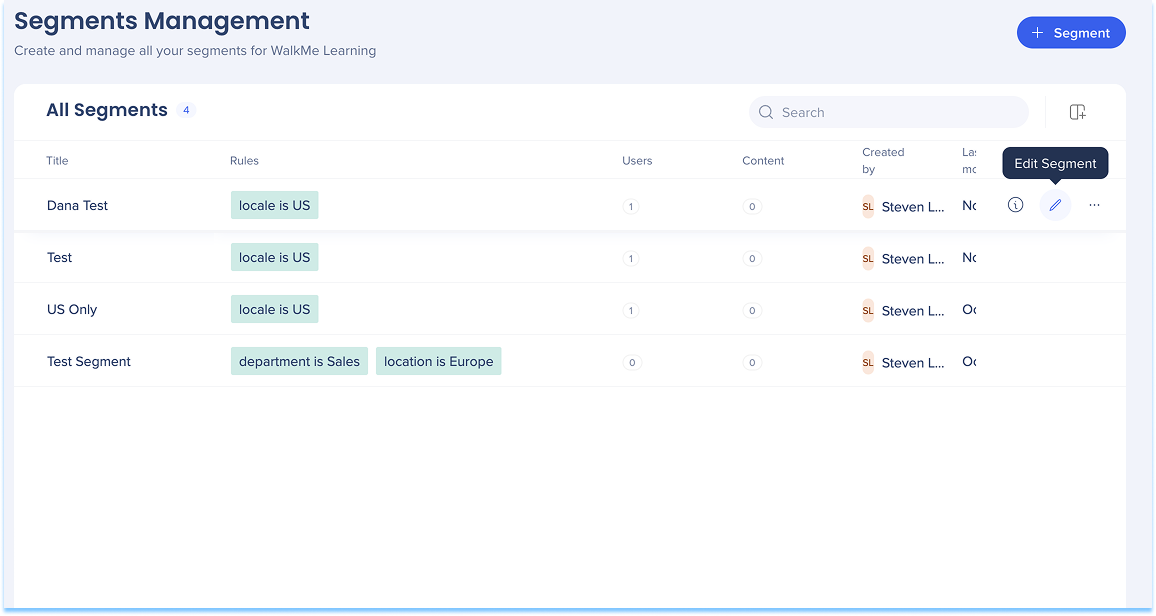
Segment options
- Select the Options menu next to a segment, then choose one of the following actions:
- Rename: Change the segment's name
- Delete: Remove the segment
Observação
Você não pode excluir um segmento que esteja conectado atualmente ao conteúdo. Para excluí-lo, primeiro remova-o da página Conteúdo de Aprendizagem e depois retorne ao Gerenciamento de Segmentos e exclua-o.
Segments In Learning Content Page
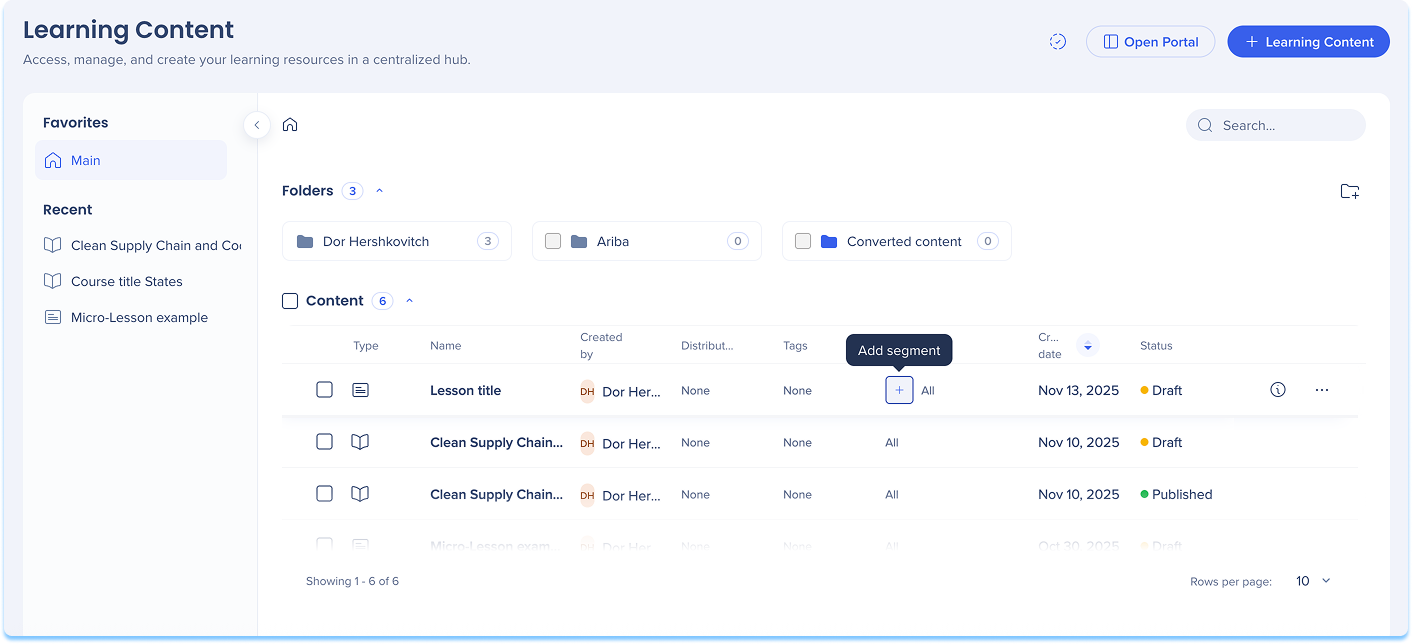
Segments can be added and assigned in the Learning Content page. Use this page to create new segments or apply existing ones to learning items.
Add a segment from Learning Content page
- Go to the Learning Content page
- In the Segment column, select the + Add icon
Observação
Siga as mesmas instruções descritas em Adicionar um segmento do Gerenciamento de Segmentos acima.
Apply segments
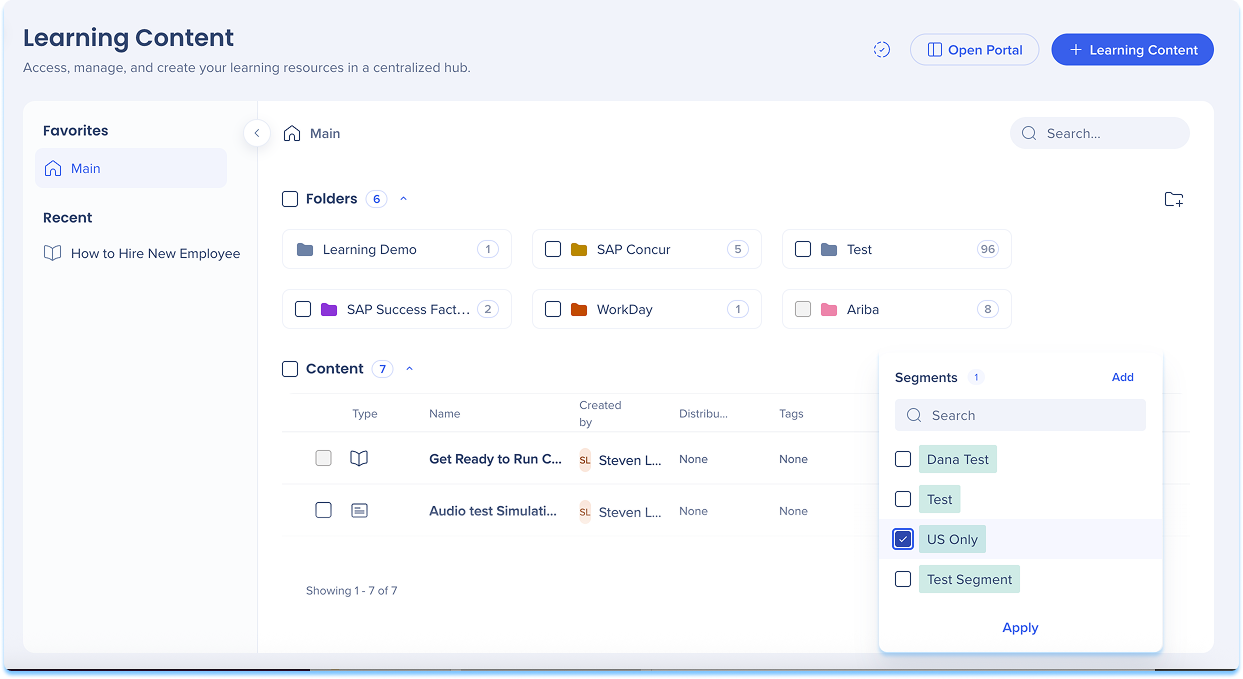
Apply an existing segment to content:
- In the Segment column, select the + Add icon
- Choose an existing segment from the list
- Select Apply to connect it to your content
Apply segments to multiple items
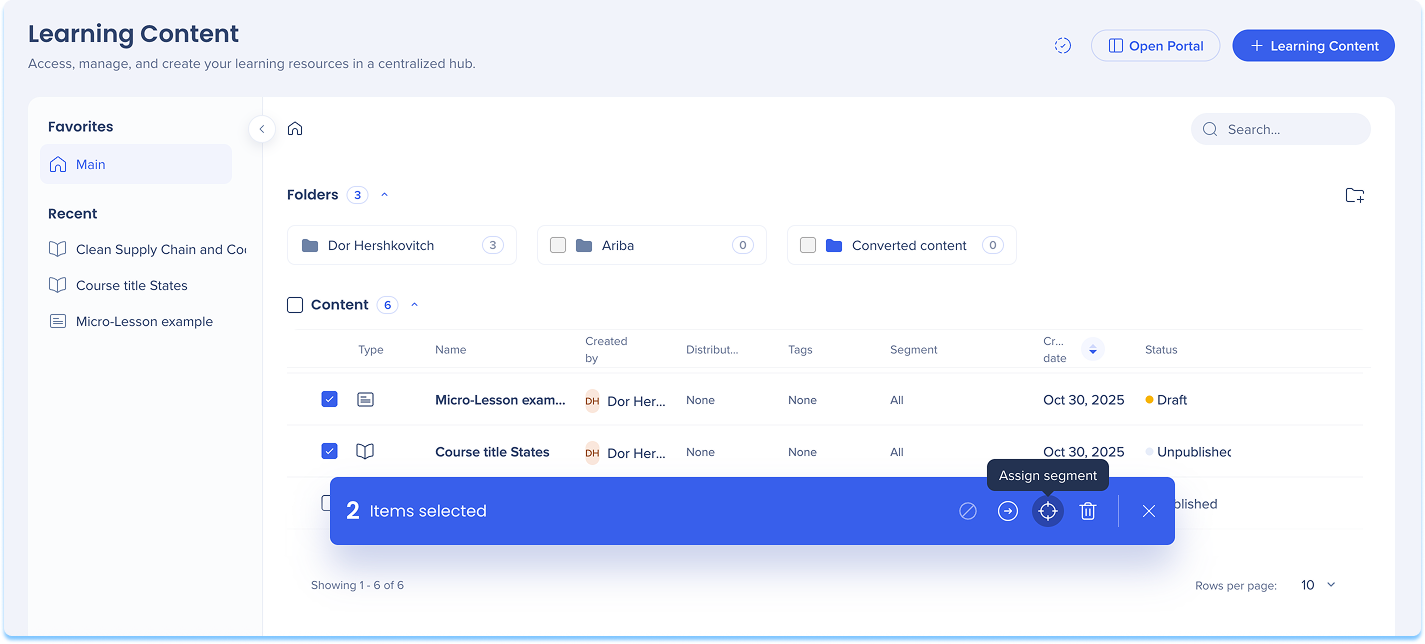
- Select the checkboxes next to the learning items you want to assign
- In the floating toolbar, select Assign Segments
- Choose one or more segments
- Select Apply
FAQs
Q: Why aren't users showing up in my segments?
A: A few common reasons:
- If your account uses IdP, users only appear after their first portal login. The segment still works, but users won't show up in the UI for selection until then.
- If your account uses SCIM, only users in the SCIM-assigned group are synced.
- Check that your segment conditions match the attributes available in your IdP or SCIM configuration.
Q: I set up SCIM but users aren't syncing. What should I check?
A: On the SCIM Access page, both status indicators need to be green. If either is grey, Learning Arc falls back to IdP data.
Configure SCIM with Okta
Q: Why is a user seeing in-app content when they're not in the segment?
A: Segments gate access to content in the portal. In-app content appears to all users regardless of segment. Users are only gated by segment when they're redirected to the portal.
Q: Can I use IdP and SCIM at the same time?
A: Yes. When both are set up, SCIM is used as the identifier and IdP is the fallback. Admins are responsible for keeping IdP and SCIM attributes aligned.
Q: What happens to my existing IdP-based segments when I turn on SCIM?
A: Existing segments continue to work as they were. Any new segments created after SCIM is turned on use SCIM attributes only.
Technical Notes
- IdP must be configured to create segments
- The UUID sent from your identity provider must be in email format. If the UUID uses a different format, users won't be matched and won't have access to Learning Arc content.
-
When using IdP (no SCIM)
-
Segments use IdP attributes
-
Users appear in segment selection only after their first portal login. Until then, segments still work, but you won't be able to see or select those users in the UI.
-
When using SCIM
-
When SCIM is on and credentials are configured, segments use SCIM attributes. IdP is used only as a fallback if SCIM isn't available.
-
Only users in the SCIM-assigned group are available for segmentation
-
Only attributes configured in SCIM are available as segmentation conditions


