Breve Visão Geral
Você adiciona e gerencia idiomas para o Conteúdo de Learning na guia Traduções de um item de aprendizagem. Os idiomas são compartilhados em toda a organização e podem ser reutilizados para outros itens de aprendizagem. Este artigo explica como adicionar idiomas, entender a disponibilidade de tradução de IA e gerenciar ações no nível do idioma.
Abra a Guia Traduções
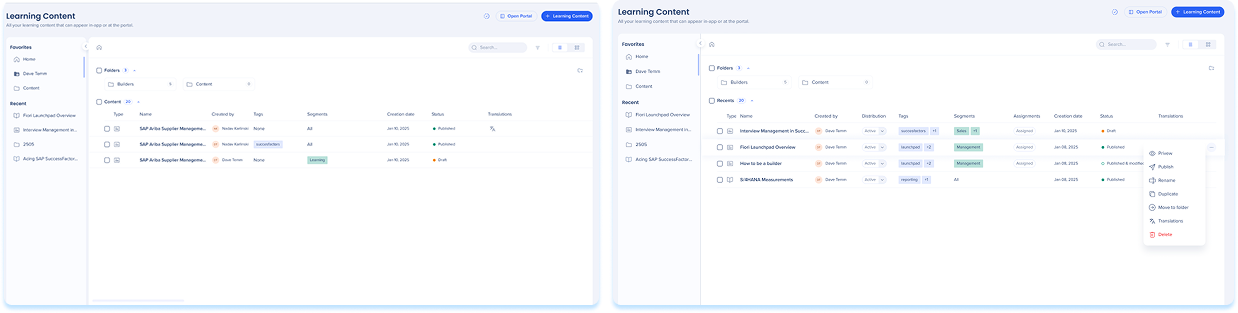
- Vá para a página Conteúdo de Aprendizagem
- Você pode:
- Selecione o ícone Informações para um item de aprendizagem
- Selecione o Menu Opções na linha de itens e selecione Traduções
- Selecione a guia Traduções
Adicionar idiomas
Adicione idiomas quando quiser criar versões traduzidas do seu conteúdo.
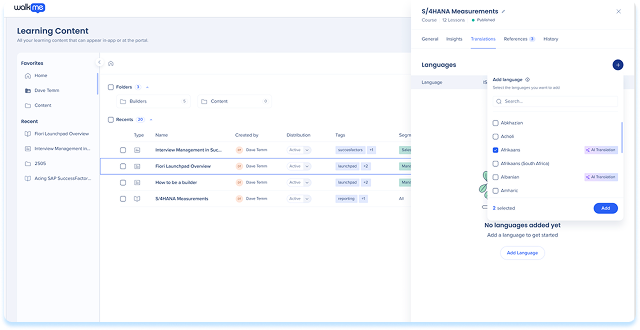
- Selecione Adicionar idioma
- Pesquise e selecione um ou mais idiomas
- Revise a disponibilidade de tradução de IA exibida ao lado dos idiomas suportados
- Selecione Adicionar
Observação
- Idiomas adicionais estão disponíveis em todo o Conteúdo de Learning da organização.
- Você precisa traduzir e publicar o idioma de cada item de aprendizagem onde ele deve aparecer
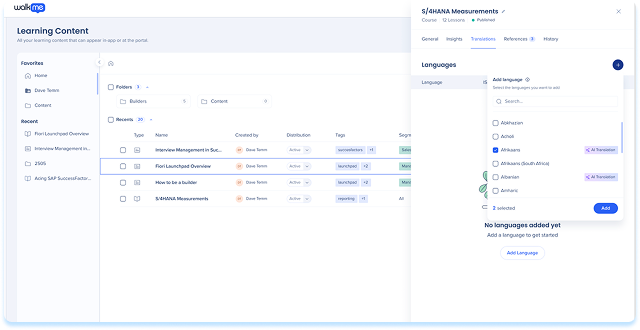
Tabela de Idiomas
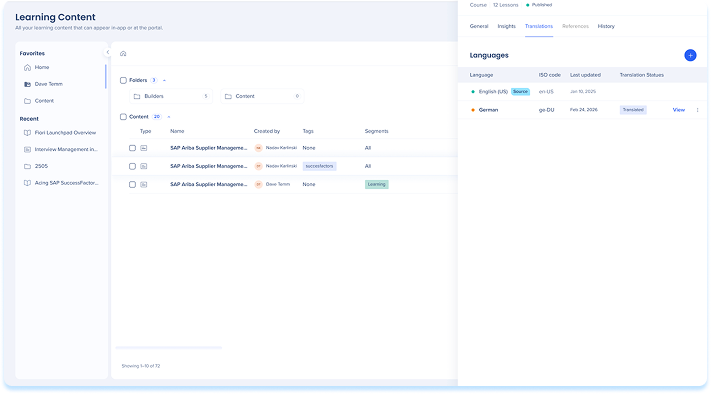
Você adiciona e gerencia idiomas na tabela Idiomas na guia Traduções. A tabela mostra todos os idiomas associados ao item de aprendizagem e seu estado atual.
Cada linha da tabela representa um idioma e inclui:
- Idioma: o nome do idioma
- Código ISO: o código de idioma padronizado usado para identificação
- Status: se o idioma está disponível, traduzido ou precisa de atenção
- Última atualização: a data e a hora da última atualização da tradução
- Atualizado por: O usuário que atualizou a tradução pela última vez
- Status da tradução: o estado atual da tradução
Observação
O idioma de origem é a versão original usada para criar todas as outras traduções. É identificado por um rótulo ao lado do nome do idioma. As atualizações para esta versão acionarão um status Fora de Sincronia para todos os outros idiomas.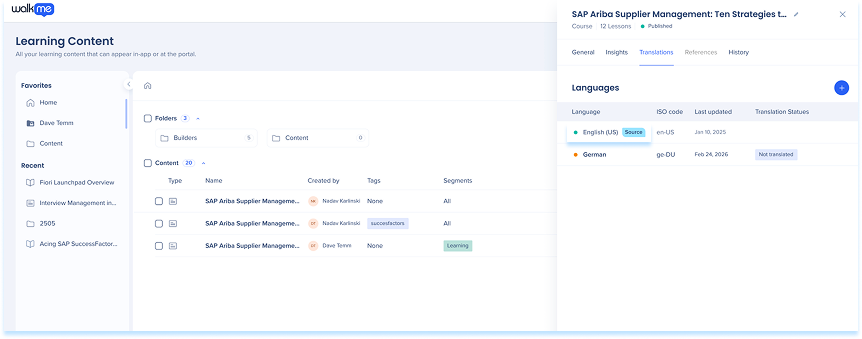
Altere o idioma de Target
O idioma de Target é a versão a partir da qual todas as Traduções são criadas. Você pode alterá-lo na guia Traduções de um item de Learning.
- Na tabela de idiomas, selecione Alterar Próximo ao idioma de Target
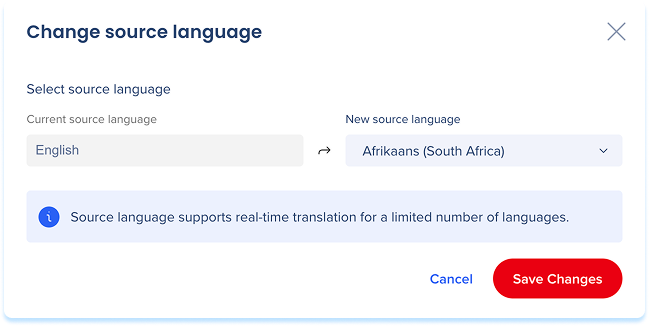
- No menu suspenso Novo idioma de Target, escolha um idioma
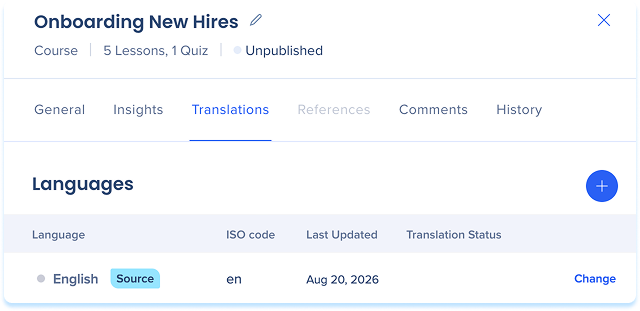
- Selecione Salvar Alterações
Quando você altera o idioma de origem
-
- O Target anterior torna-se uma tradução na tabela de idiomas
- O Conteúdo do curso não é reescrito
- Se o idioma escolhido já tiver uma tradução, uma mensagem avisará que ela será removida
Status da tradução
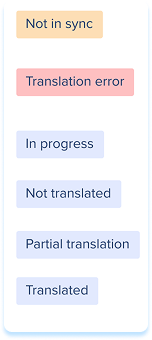
A coluna status indica o estado atual de cada versão localizada:
-
-
- Não traduzido: nenhuma tradução foi fornecida para este idioma
- Em andamento: a tradução está sendo criada ou editada no momento.
- Traduzido: Conteúdo é traduzido e corresponde à versão atual do idioma de origem
- Tradução parcial: apenas uma parte do Conteúdo foi traduzida
- Não em sincronia: Conteúdo de origem foi atualizado após a tradução ser finalizada
- Erro de tradução: o sistema encontrou um problema durante o processo de tradução
Translate Learning Content


