Kurzübersicht
Sprachen für Lerninhalte können Sie über die Registerkarte Übersetzungen eines Lernelements hinzufügen und verwalten. Sprachen werden in der gesamten Organisation geteilt und können für andere Lernelemente wiederverwendet werden. Dieser Artikel erklärt, wie Sie Sprachen hinzufügen, die Verfügbarkeit von KI-Übersetzungen verstehen und Aktionen auf Sprachebene verwalten.
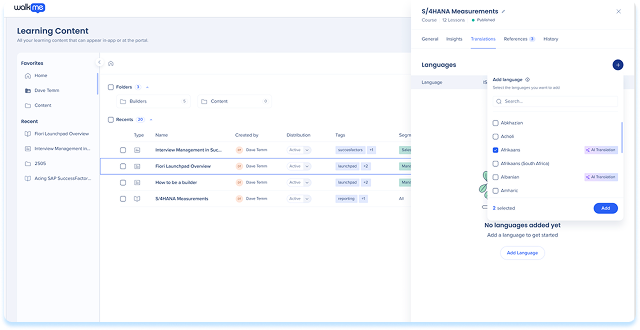
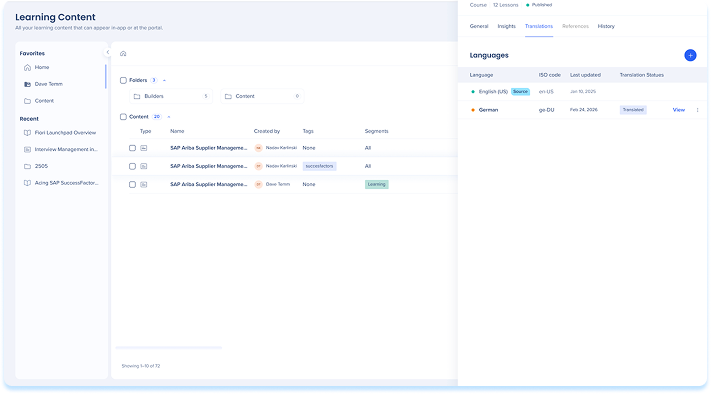
Öffnen Sie die Registerkarte Übersetzungen
- Gehen Sie zur Seite Lerninhalte
- Sie können entweder:
- Wählen Sie das Info-Symbol für ein Lernelement aus
- Wählen Sie das Optionsmenü in der Elementzeile aus und wählen Sie Übersetzungen aus
- Wählen Sie die Registerkarte Übersetzungen aus.
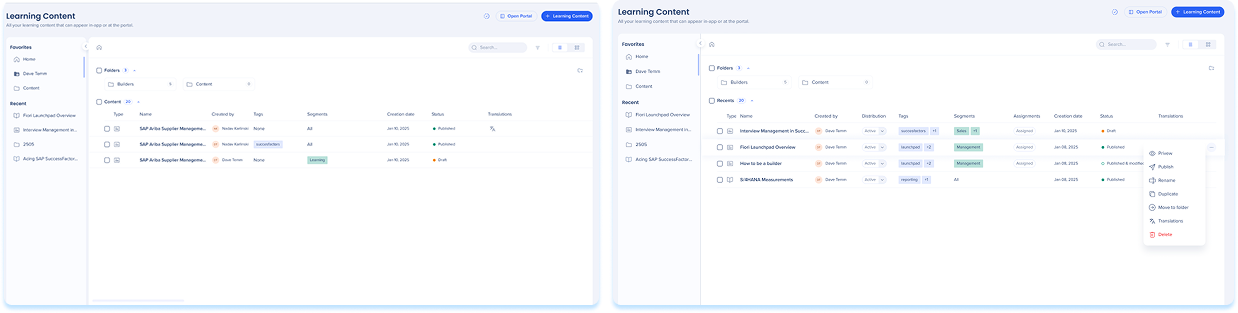
Sprachen hinzufügen
Fügen Sie Sprachen hinzu, wenn Sie übersetzte Versionen Ihrer Inhalte erstellen möchten.
- Wählen Sie Sprache hinzufügen aus
- Suchen und wählen Sie eine oder mehrere Sprachen aus
- Überprüfen Sie die Verfügbarkeit der KI-Übersetzung neben den unterstützten Sprachen.
- Wählen Sie Hinzufügen aus
Anmerkung
- Hinzugefügte Sprachen sind für alle Lerninhalte in der Organisation verfügbar
- Sie müssen die Sprache für jedes Lernelement übersetzen und dort veröffentlichen, wo es erscheinen soll.
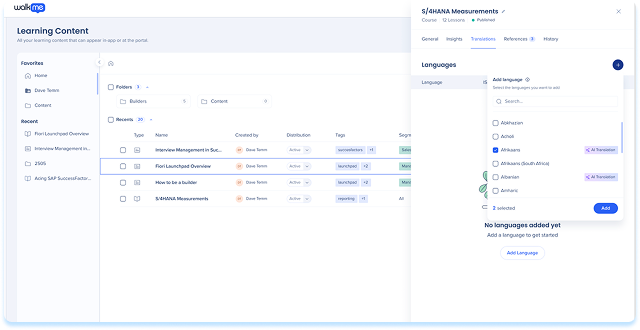
Sprachen-Tabelle
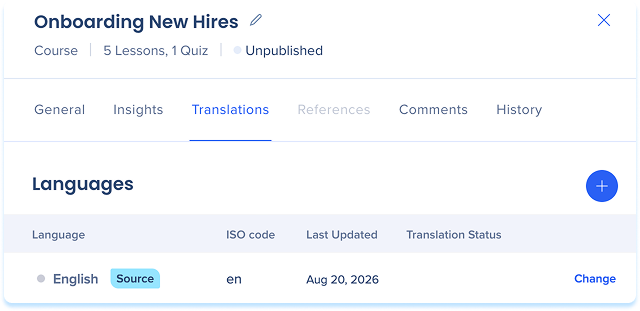
Sie fügen und verwalten Sprachen über die Sprachen-Tabelle auf der Registerkarte Übersetzungen. Die Tabelle zeigt alle Sprachen, die mit dem Lernelement verbunden sind, und ihren aktuellen Status.
Jede Zeile in der Tabelle stellt eine Sprache dar und enthält:
- Sprache: Der Name der Sprache
- ISO-Code: Der standardisierte Sprachcode, der für die Identifizierung verwendet wird
- Status: Ob die Sprache verfügbar, übersetzt ist oder Aufmerksamkeit benötigt.
- Zuletzt aktualisiert: Datum und Uhrzeit, zu der die Übersetzung zuletzt aktualisiert wurde
- Aktualisiert von: Der Benutzer, der die Übersetzung zuletzt aktualisiert hat
- Übersetzungsstatus: Der aktuelle Zustand der Übersetzung
Anmerkung
Die Quellsprache ist die Originalversion, die zum Erstellen aller anderen Übersetzungen verwendet wird. Es wird durch ein Label neben dem Sprachnamen identifiziert. Aktualisierungen dieser Version lösen einen Status „Nicht synchronisiert“ für alle anderen Sprachen aus.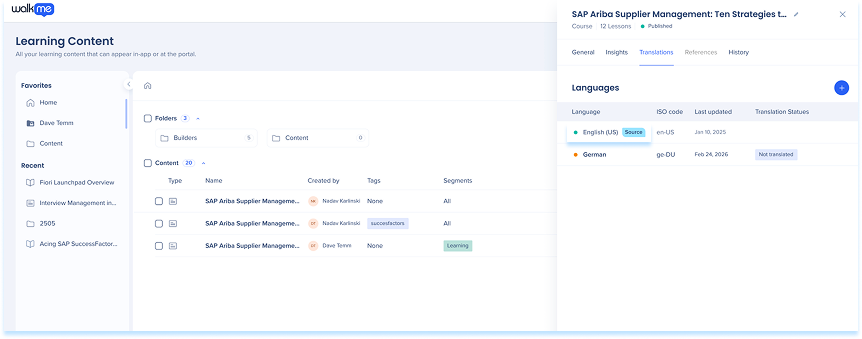
Ändern Sie die Target-Sprache
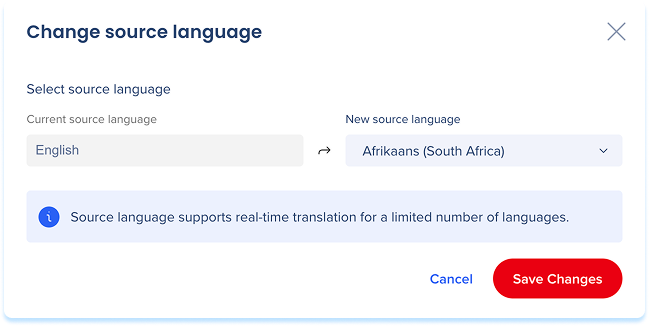
Die Quellsprache ist die Version, in der alle Übersetzungen erstellt werden. Sie können dies über die Registerkarte Übersetzungen eines Lernelements ändern.
- Wählen Sie in der Sprachen-Tabelle neben der Quellsprache die Option Ändern aus
- Wählen Sie aus dem Dropdown-Menü Neue Quellsprache eine Sprache aus
- Wählen Sie Änderungen speichern aus.
Wenn Sie die Quellsprache ändern
-
- Die vorherige Quellsprache wird zu einer Übersetzung in der Sprachen-Tabelle
- Der Kursinhalt wird nicht umgeschrieben
- Wenn die von Ihnen ausgewählte Sprache bereits eine Übersetzung hat, warnt Sie eine Meldung, dass sie entfernt wird
Übersetzungsstatus
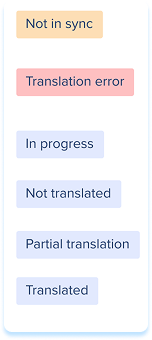
Die Status-Spalte zeigt den aktuellen Status jeder lokalisierten Version an:
-
-
- Nicht übersetzt: Für diese Sprache wurde keine Übersetzung bereitgestellt
- In Bearbeitung: Die Übersetzung wird derzeit erstellt oder bearbeitet
- Übersetzt: Der Inhalt wurde übersetzt und entspricht der aktuellen Quellsprachversion
- Teilübersetzung: Nur ein Teil des Inhalts wurde übersetzt
- Nicht synchronisiert: Der Quellinhalt wurde aktualisiert, nachdem die Übersetzung abgeschlossen wurde
- Übersetzungsfehler: Das System ist während des Übersetzungsprozesses auf ein Problem gestoßen
Translate Learning Content


