Brief Overview
Automate Salesforce processes and pull live data into ActionBot conversations, using pre-configured connections right in the console. Let users pick from real Salesforce records, filter and validate their answers, and act on that data without ever leaving the conversation.
Use Cases
- Let users pick from live Salesforce records: Offer accounts, contacts, or other Salesforce data as suggestions so users can select the right record without leaving the conversation
- Filter and sort results before they're shown: Narrow suggestions to relevant records — for example, accounts in a specific industry — and sort them for easier scanning
- Validate answers before they're accepted: Check user input against defined criteria and show an error message when it doesn't match
- Mix in custom suggestions: Add your own suggestions alongside the ones pulled from Salesforce, and control where they appear in the list
Access
Access ActionBot in the console:
- Open the WalkMe Console:
- Go to the Content category
- Select ActionBot
How It Works
Setting up Salesforce in ActionBot happens in two stages. First, connect a Salesforce API connection in the console, linking to either your sandbox or production environment. Once that connection exists, build a Salesforce question in a conversation step — pulling live records or field values from Salesforce and presenting them to users as selectable suggestions.
Connect a Salesforce API Connection
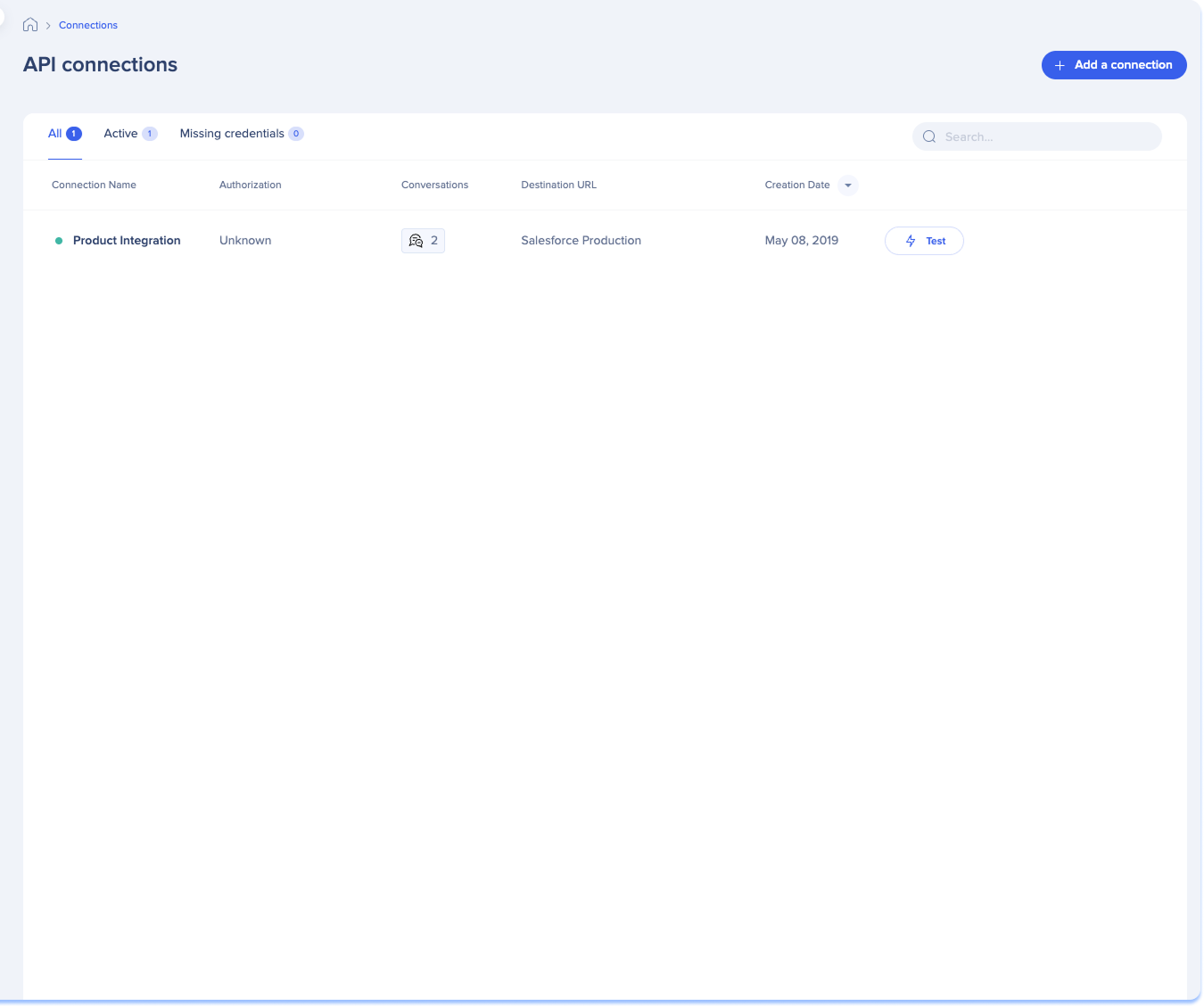
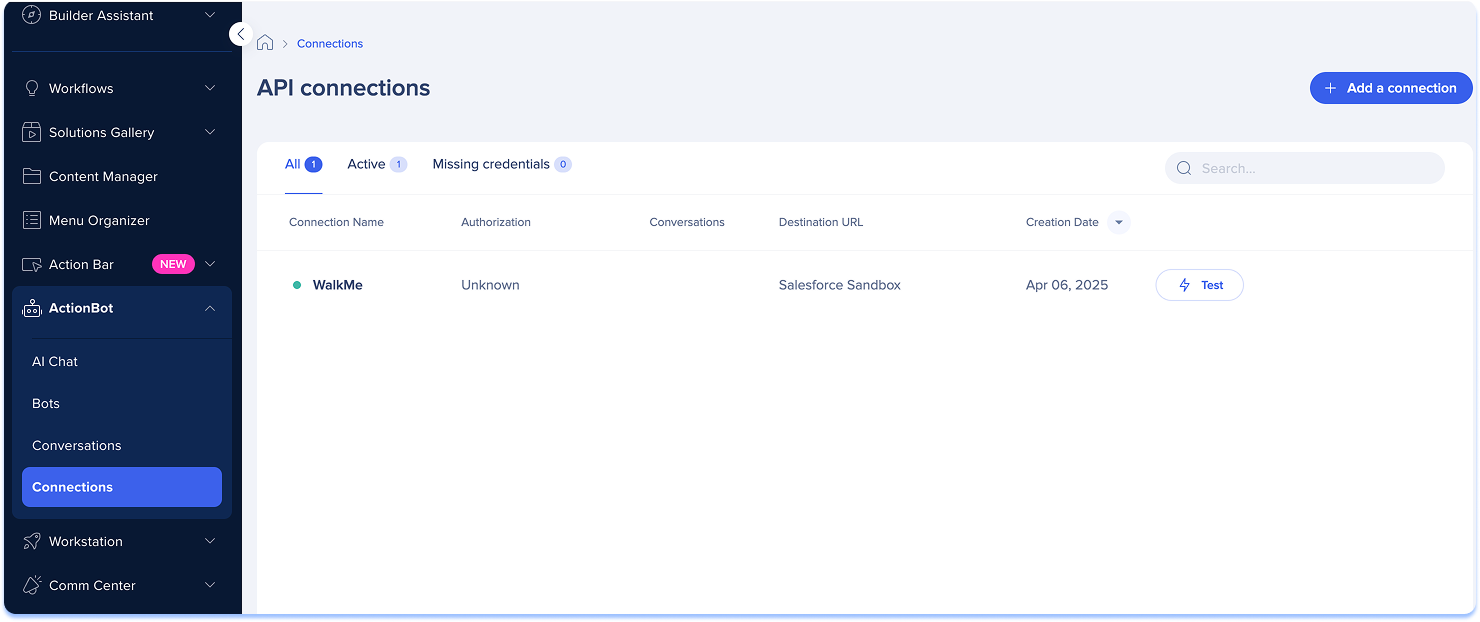
- Open the Connections page
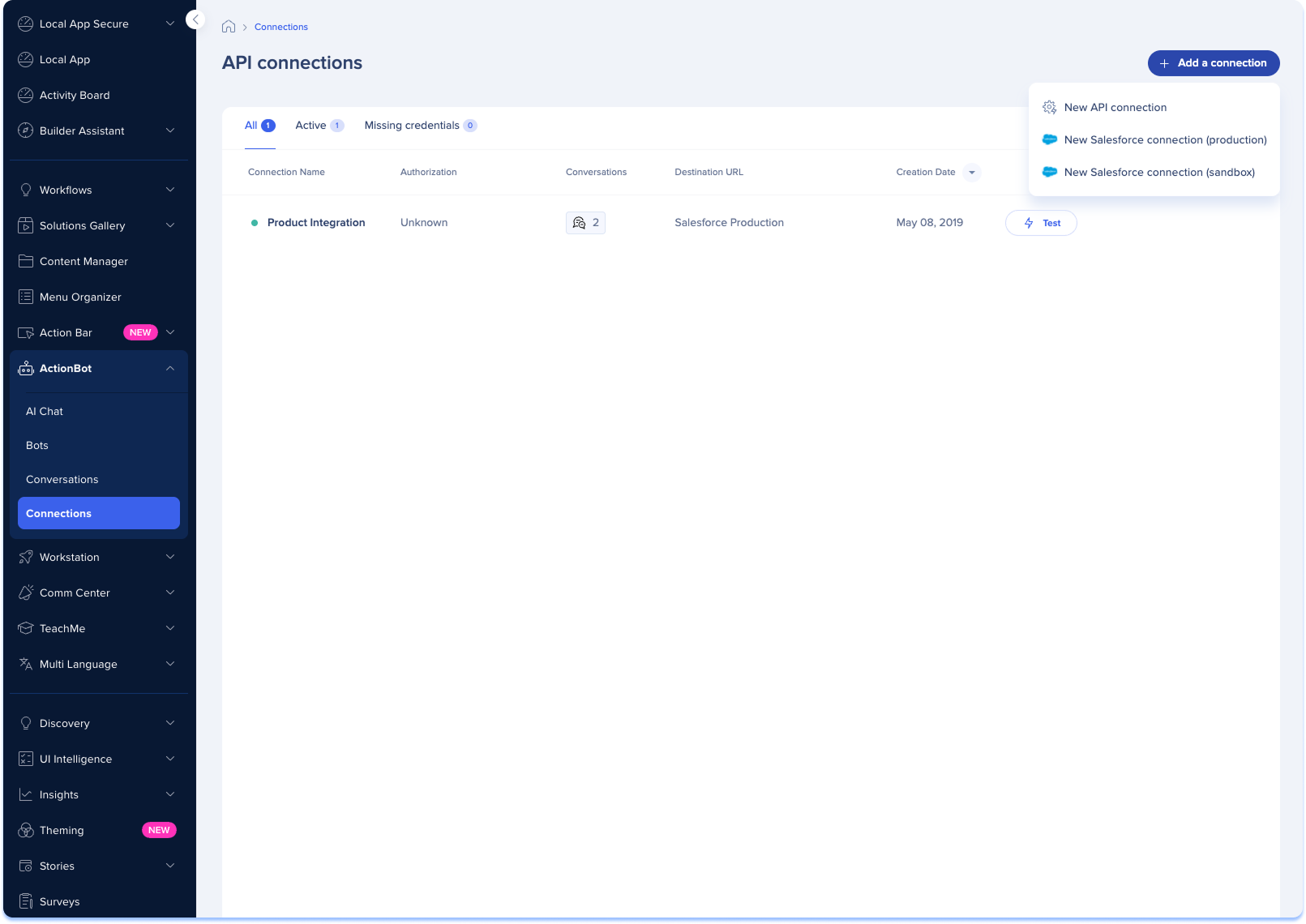
- Select + Add a connection
- Select which Salesforce environment to connect:
- Salesforce sandbox
- Salesforce production
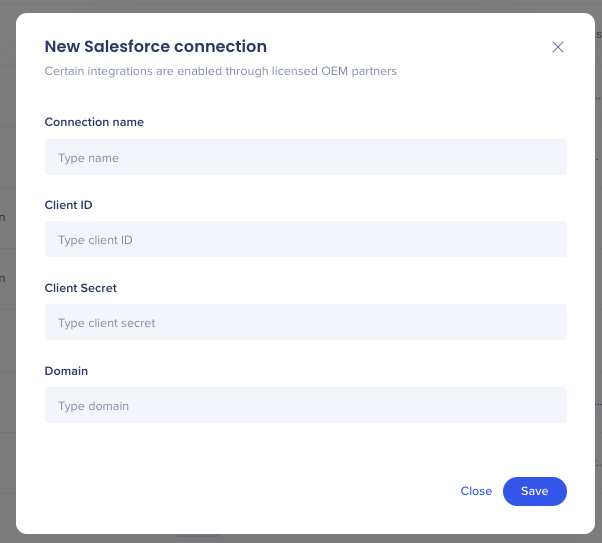
- Enter the connection details:
- Connection name: A custom name to identify this integration in your WalkMe console
- Client ID: A unique public identifier for your application, generated when you set up a Connected App in Salesforce
- Client Secret: A security key generated alongside your Client ID, used to authenticateWalkMe application with your Salesforce environment
- Find your Client ID and Client Secret in the Create a Connected App (Legacy/Alternative) configuration in Salesforce
- Domain: The base URL of your organization's Salesforce environment
- Select Save
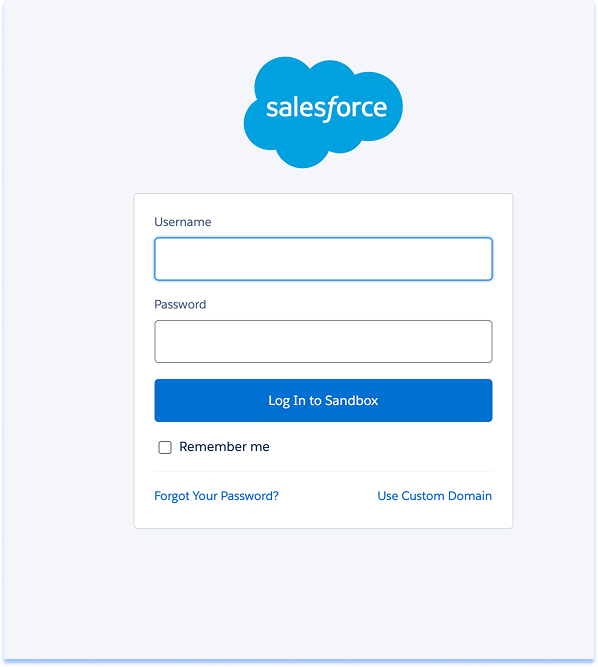
- The Salesforce authorization page will open
- Sign in on the Salesforce authorization page with the admin user's email and password
- Return to the connections page
- Test the connection (optional)
Create a Salesforce Question
The bot retrieves records or data from Salesforce and offers them as suggestions for users to select as answers. Users can filter suggestions by typing to quickly find the right record.
Note
This question type is available only after you've established at least one connection (see above).
Create the question
- Open the Conversations page
- Select + Create a conversation

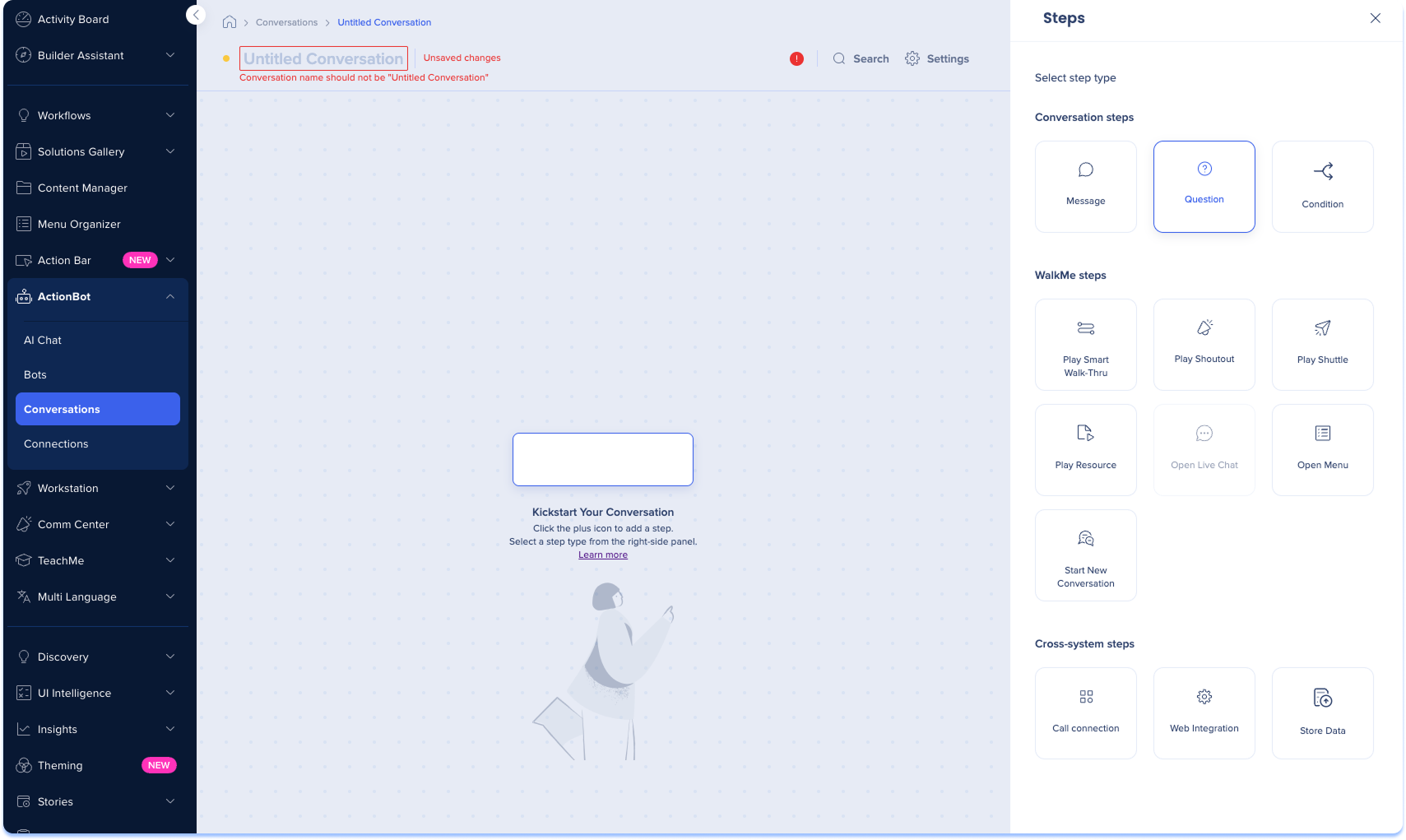
- Select the + Create button in the center of the conversation
- Select the Question conversation step
ActionBot Conversation Steps
Settings
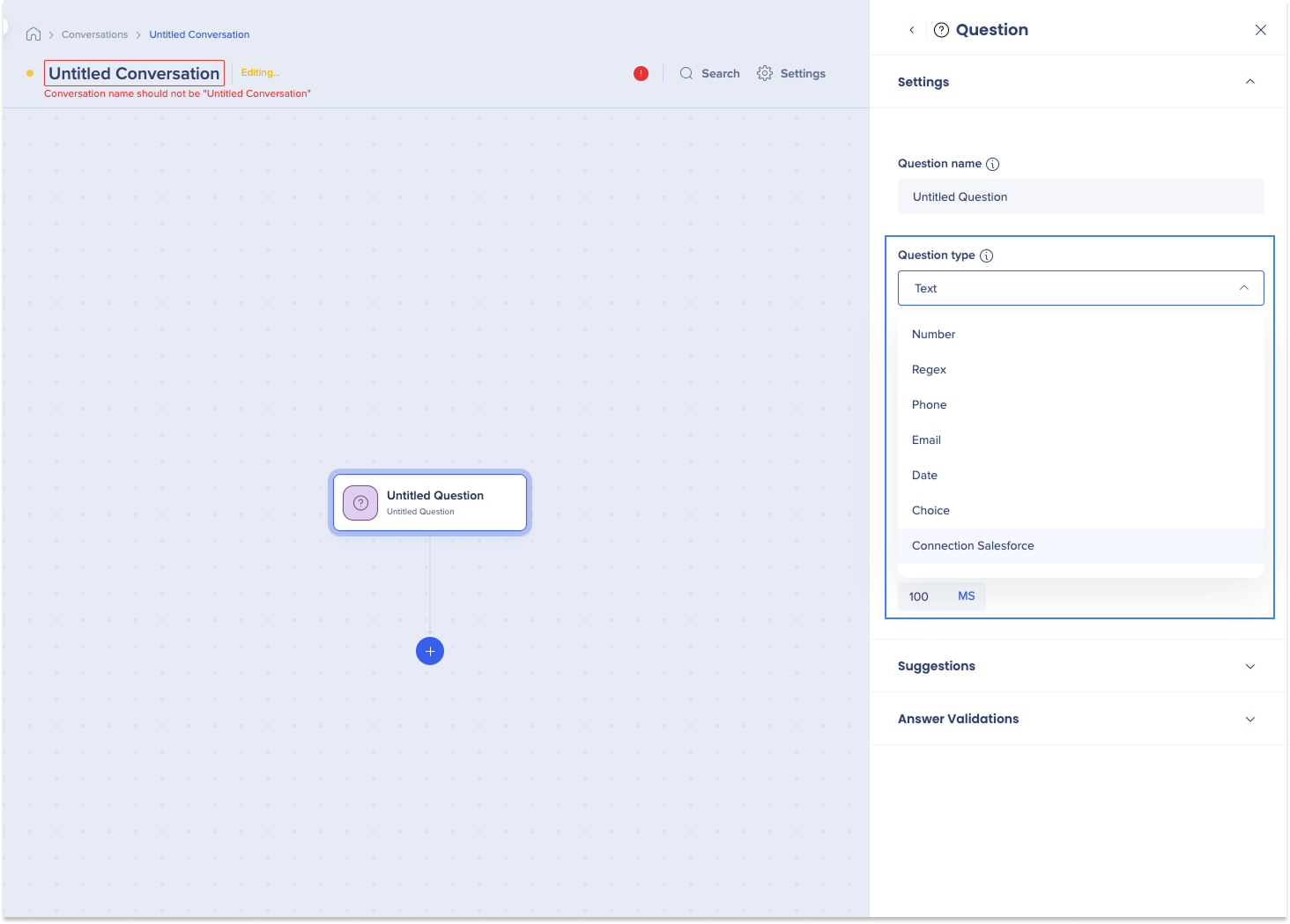
- Enter a name for your question
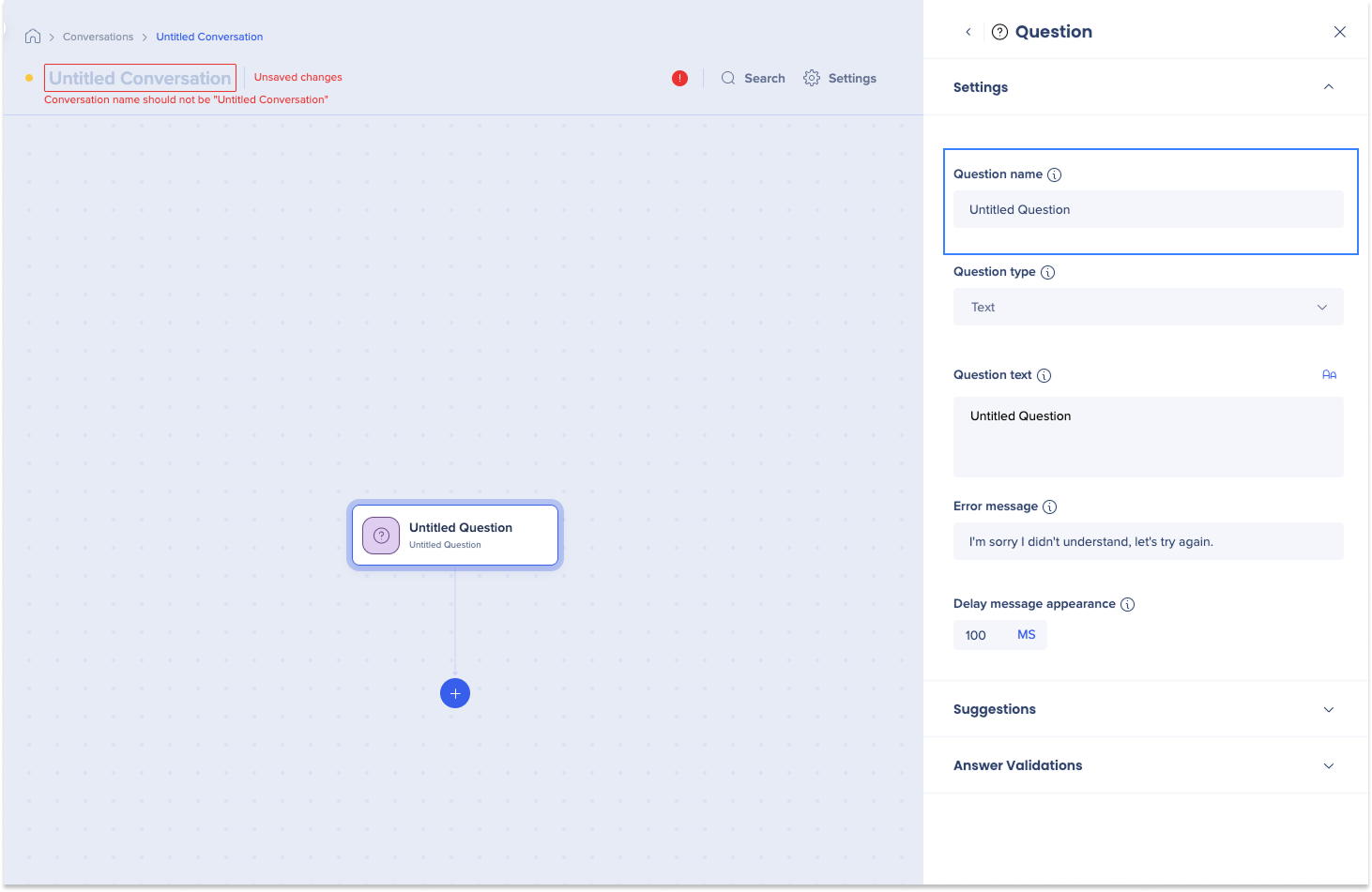
- Select Connection Salesforce in the question type dropdown
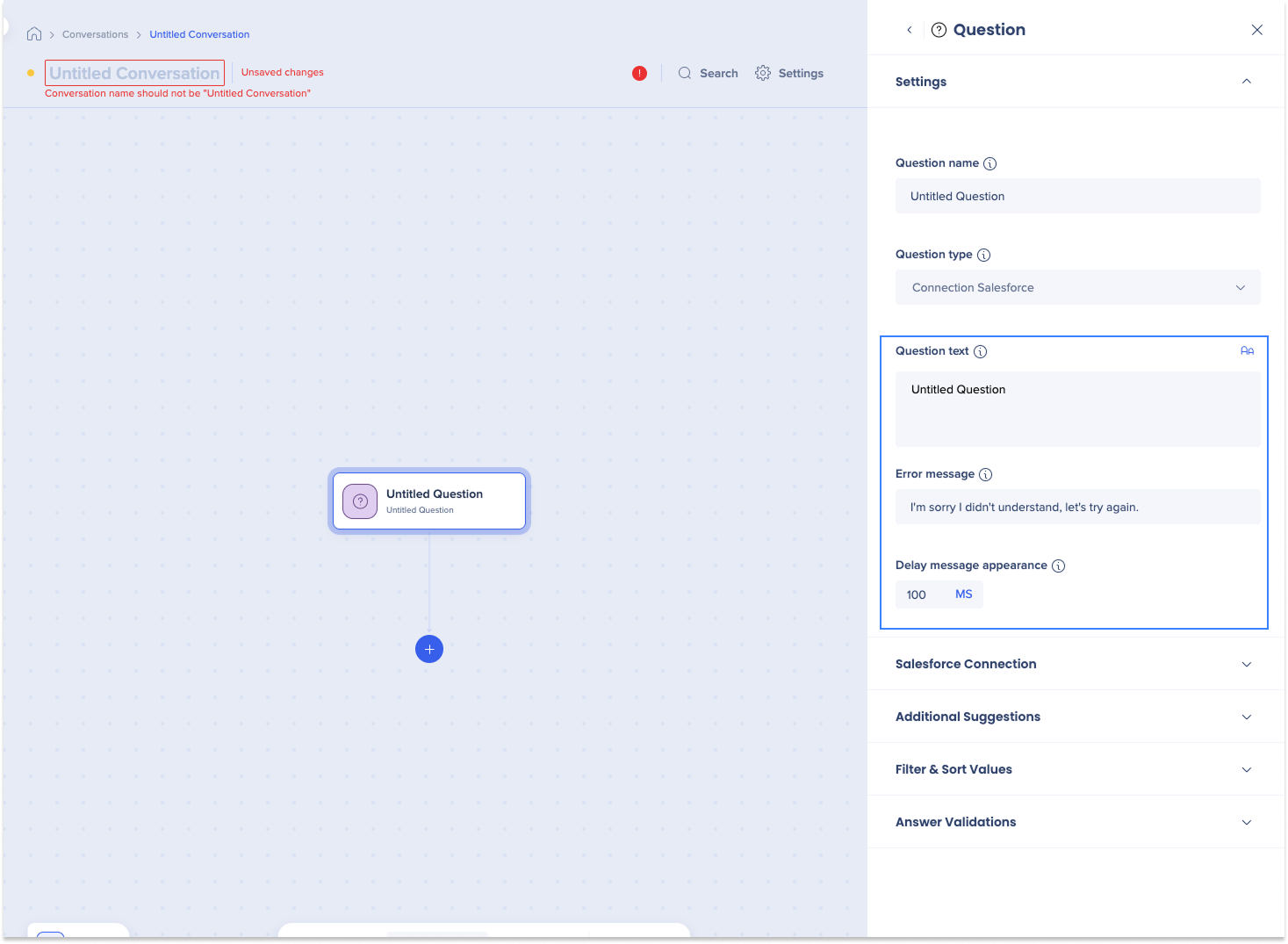
- Type the question that will appear to users
- Type the error message shown if the bot can't retrieve an answer (optional)
- Adjust the pause before the question plays (optional)
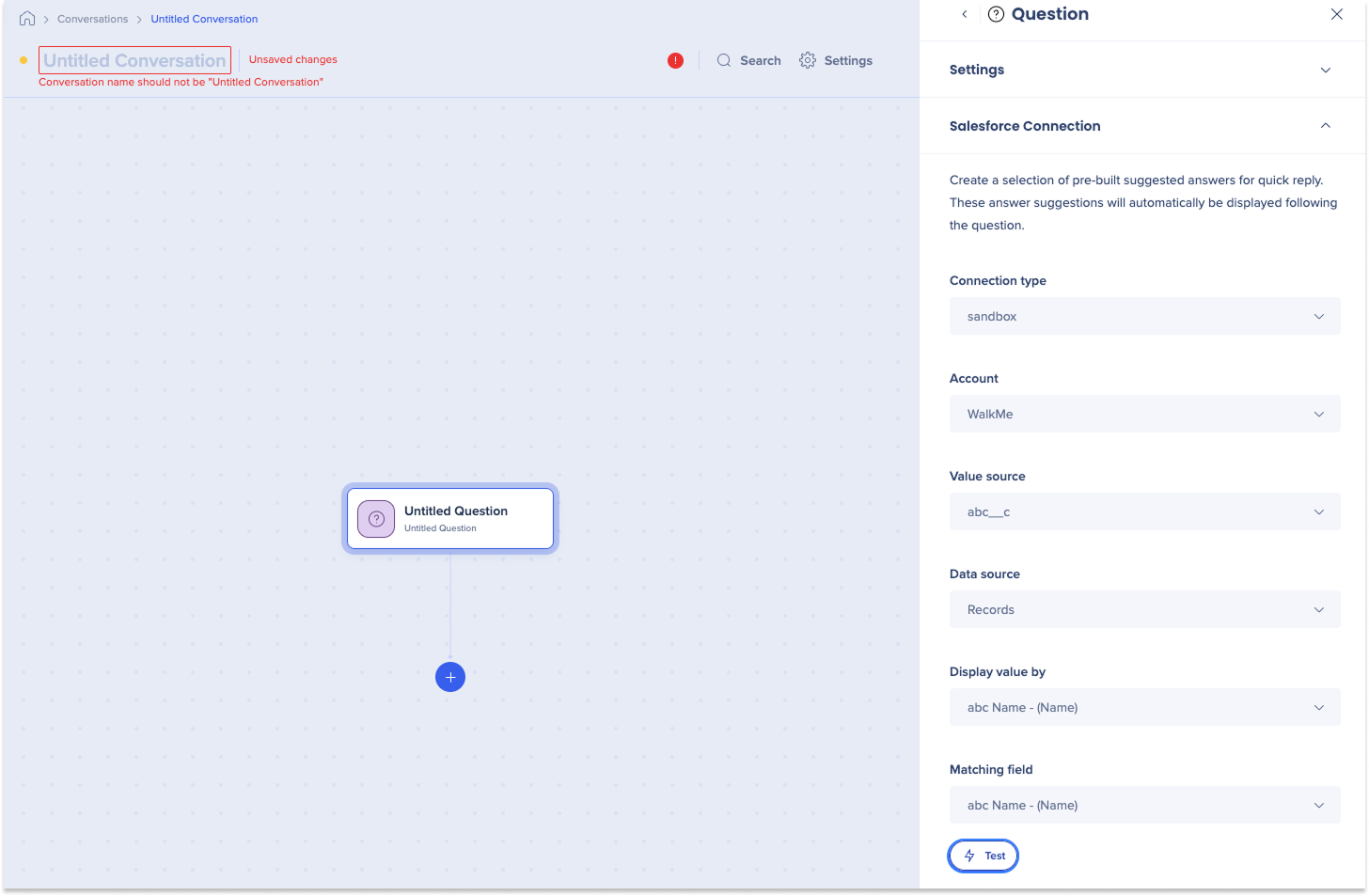
Salesforce connection
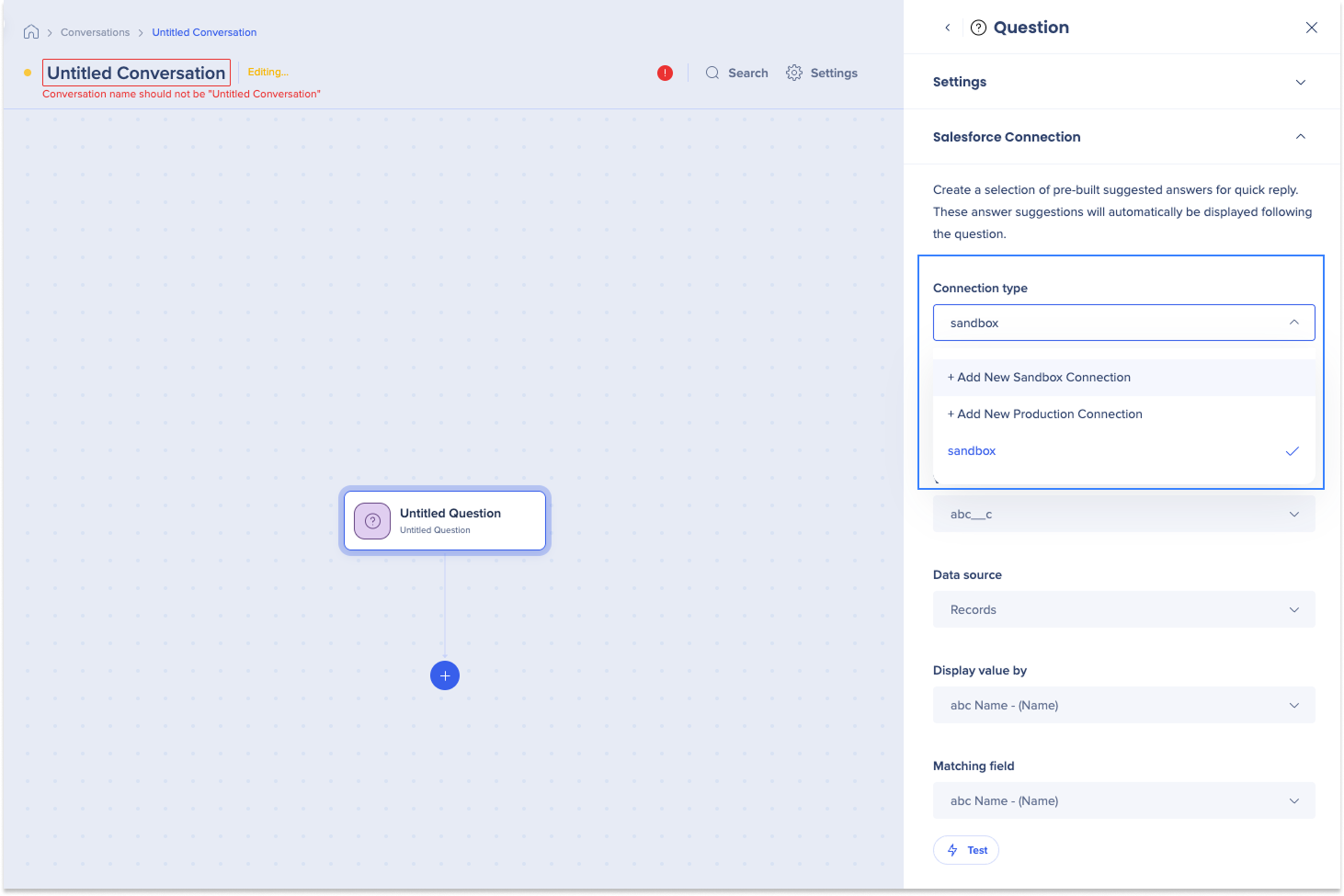
- Select the Connection type dropdown to choose the source for the values:
- Select a preconfigured connection
- Select + Add New Sandbox Connection
- Select + Add New Production Connection
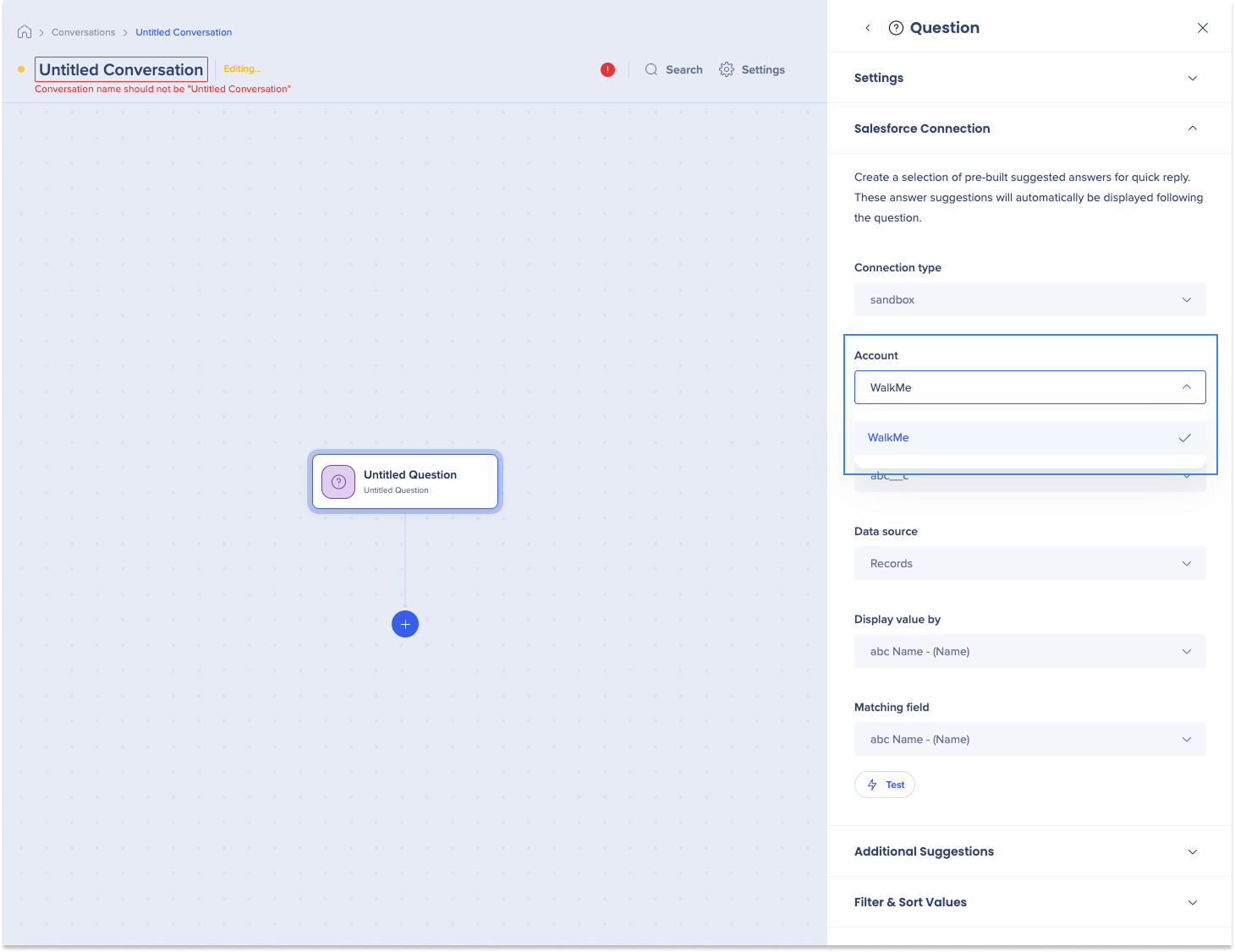
- Select the Account dropdown to choose the account to draw values from
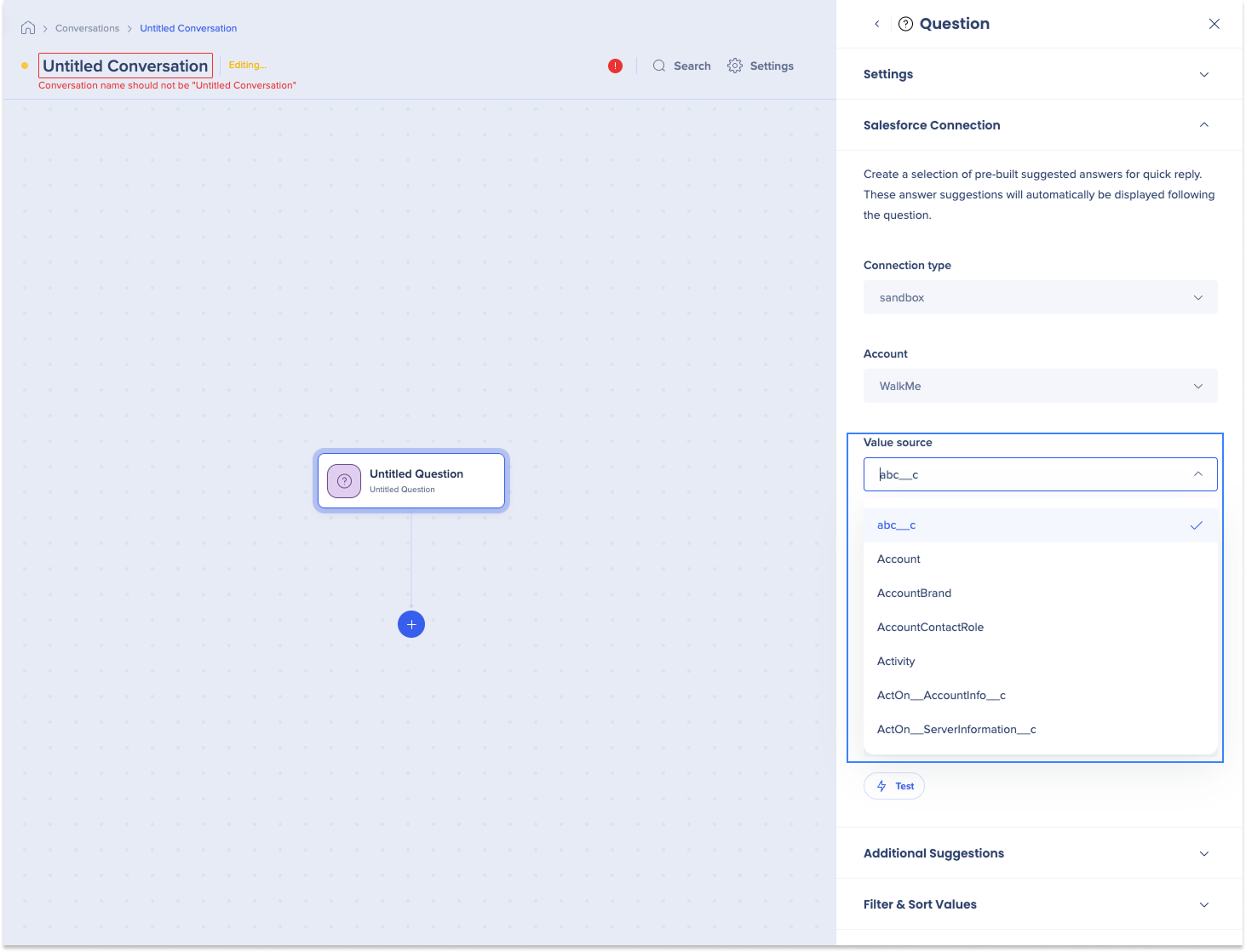
- Select the Value source dropdown to choose which Salesforce object contains the answers to your question
- For example, when editing an account, users select the account first — the object to select is Account, which uses the API to list available accounts
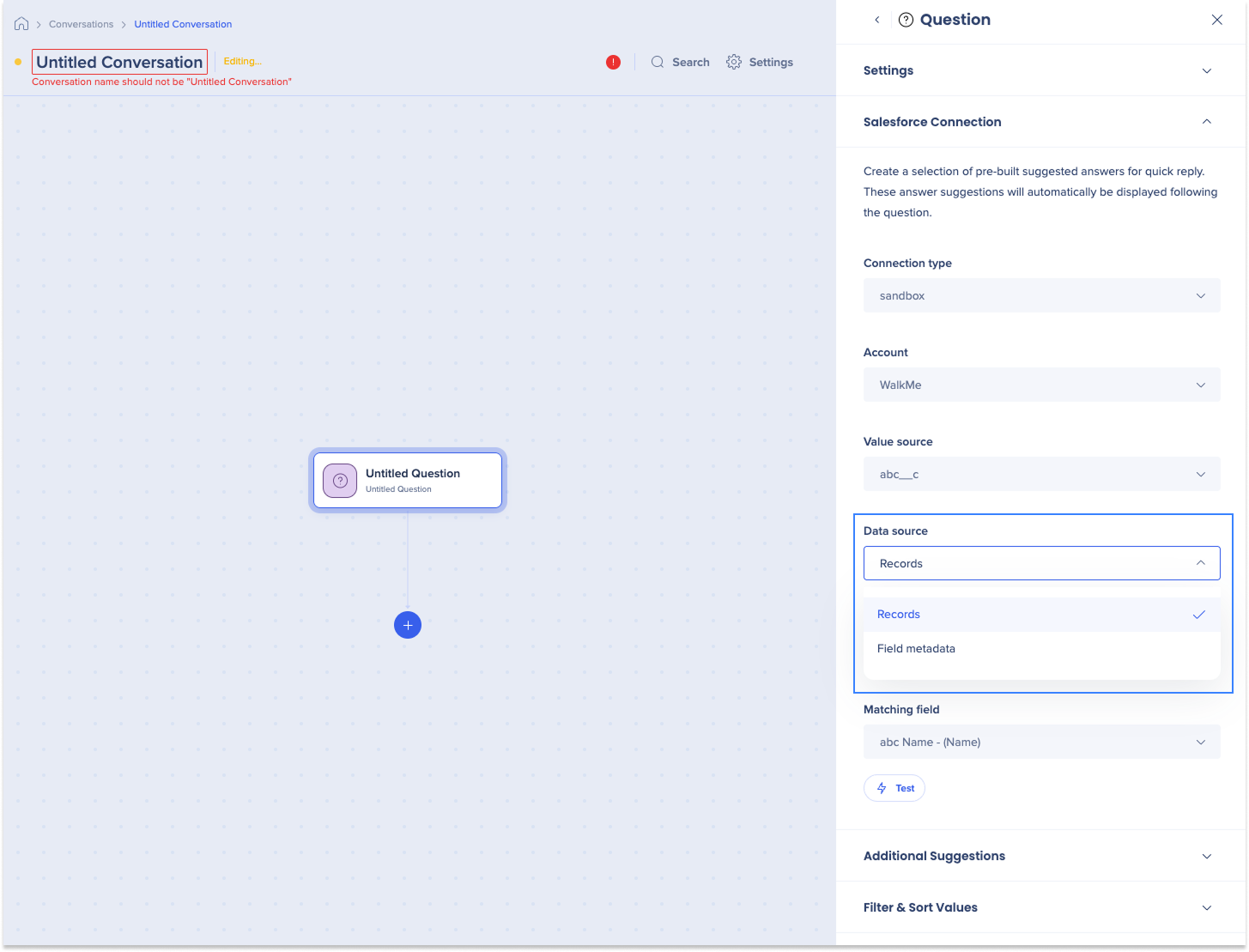
- Select the Data source dropdown to choose whether suggestions come from:
- Records: The object's actual records
- Field metadata: The field's possible values
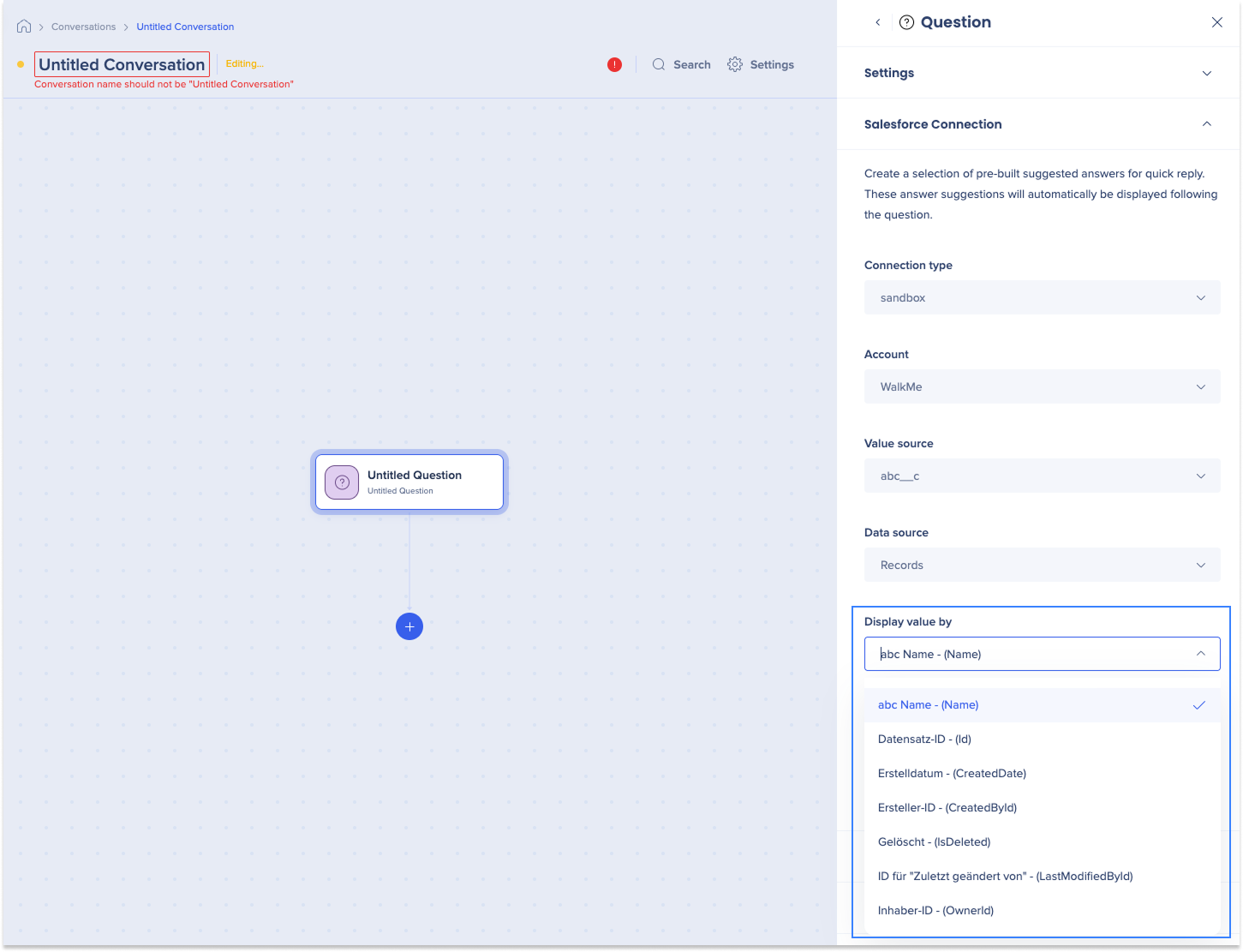
- Select the Display value by dropdown to choose which object field will be shown as suggestions to users
Tip
Choose the field that best represents the answer — typically the object's name.
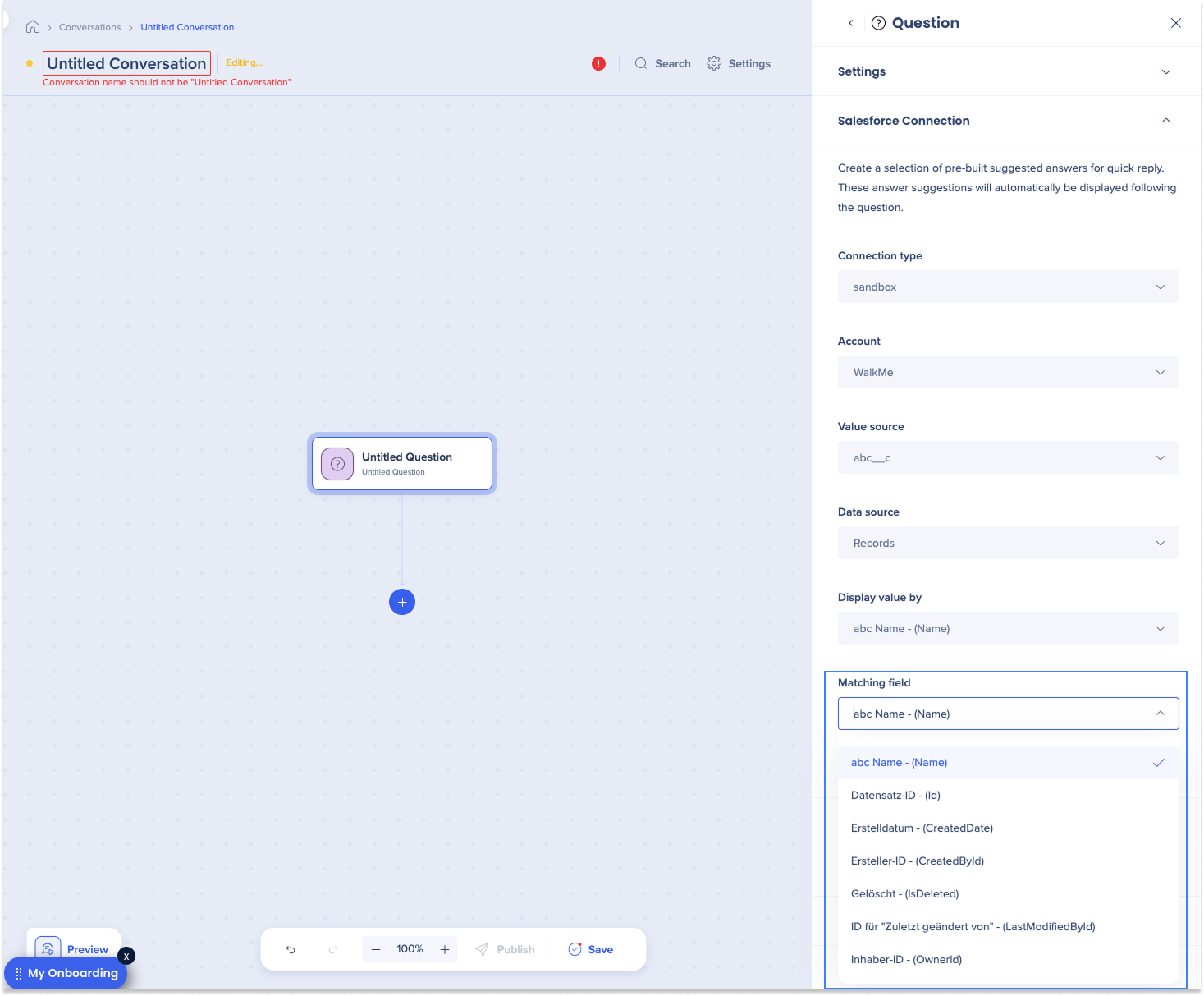
- Select the Matching field dropdown to choose the field used for suggestions versus the value that gets selected
- For example, selecting the Account object with Display as set to Name and Matching Field set to ID shows names as suggestions, but stores the ID as the value — useful for later steps like a URL redirect to the chosen account
- Select Test to check your results (optional)
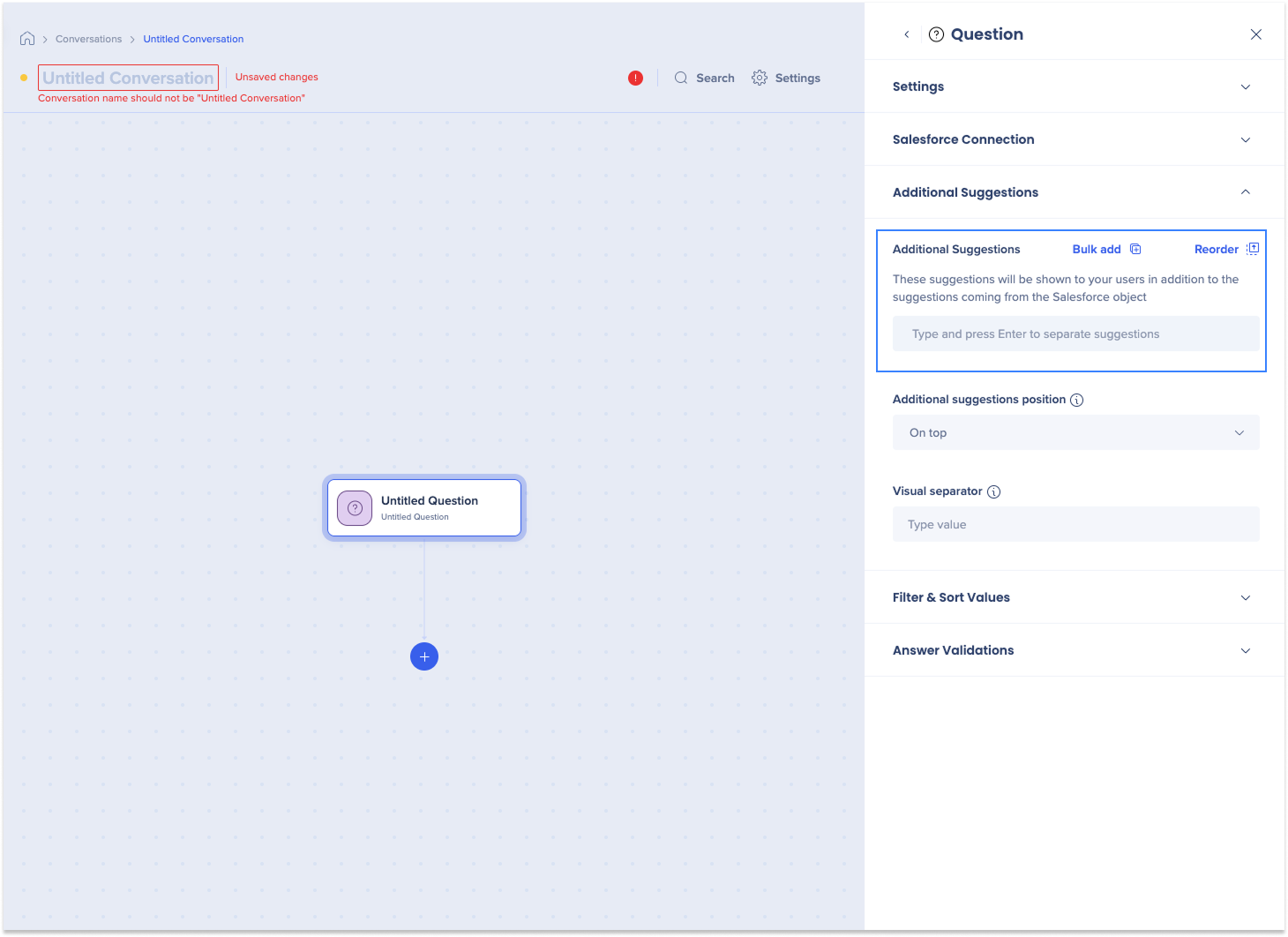
Additional suggestions
These are shown to users alongside suggestions from the Salesforce object (optional).
- Select Bulk add
- Enter suggestions individually in the text field
- Select Reorder to change the display order (optional)
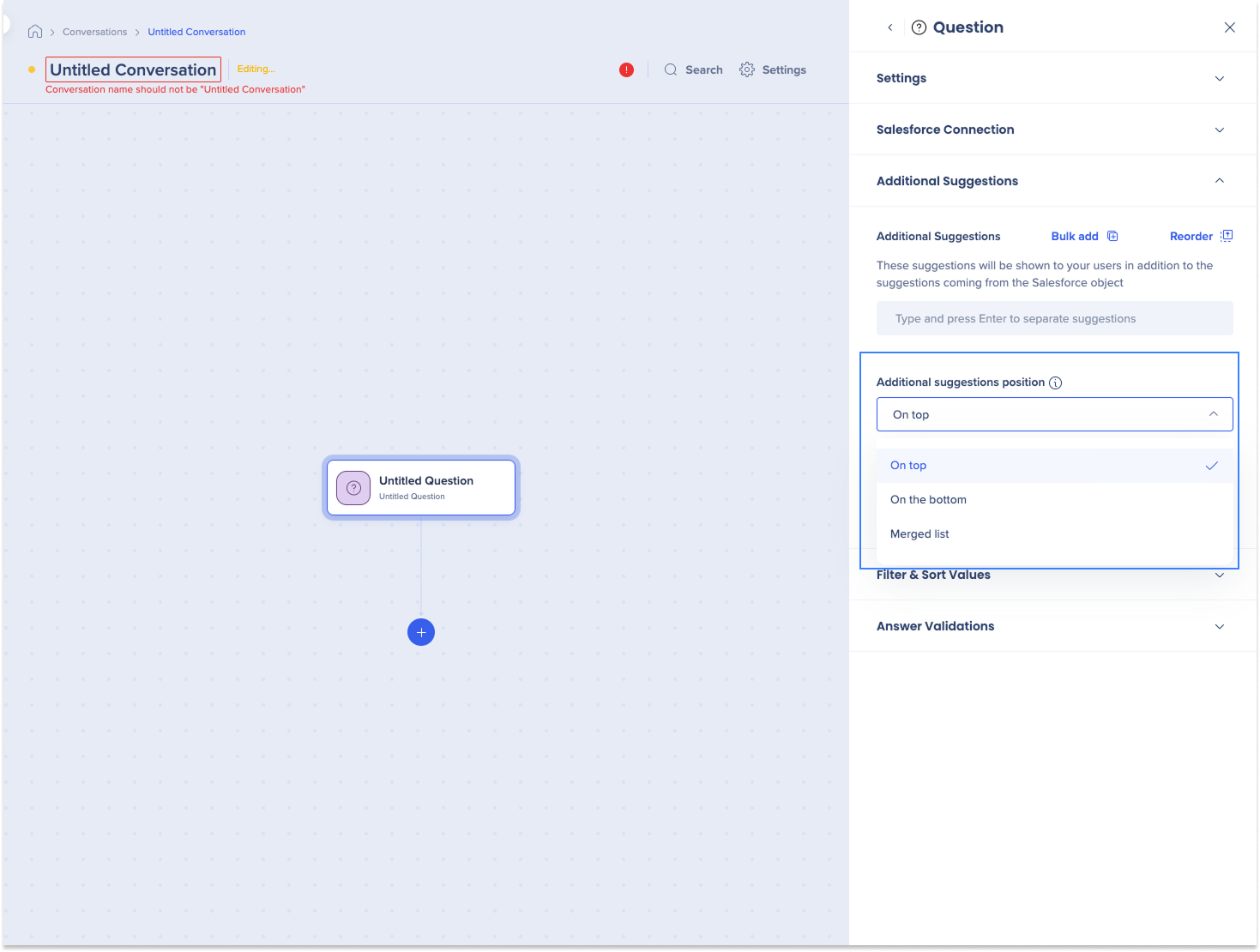
- Select the Additional suggestions position dropdown to choose how they're added:
- On top
- On the bottom
- Merged list
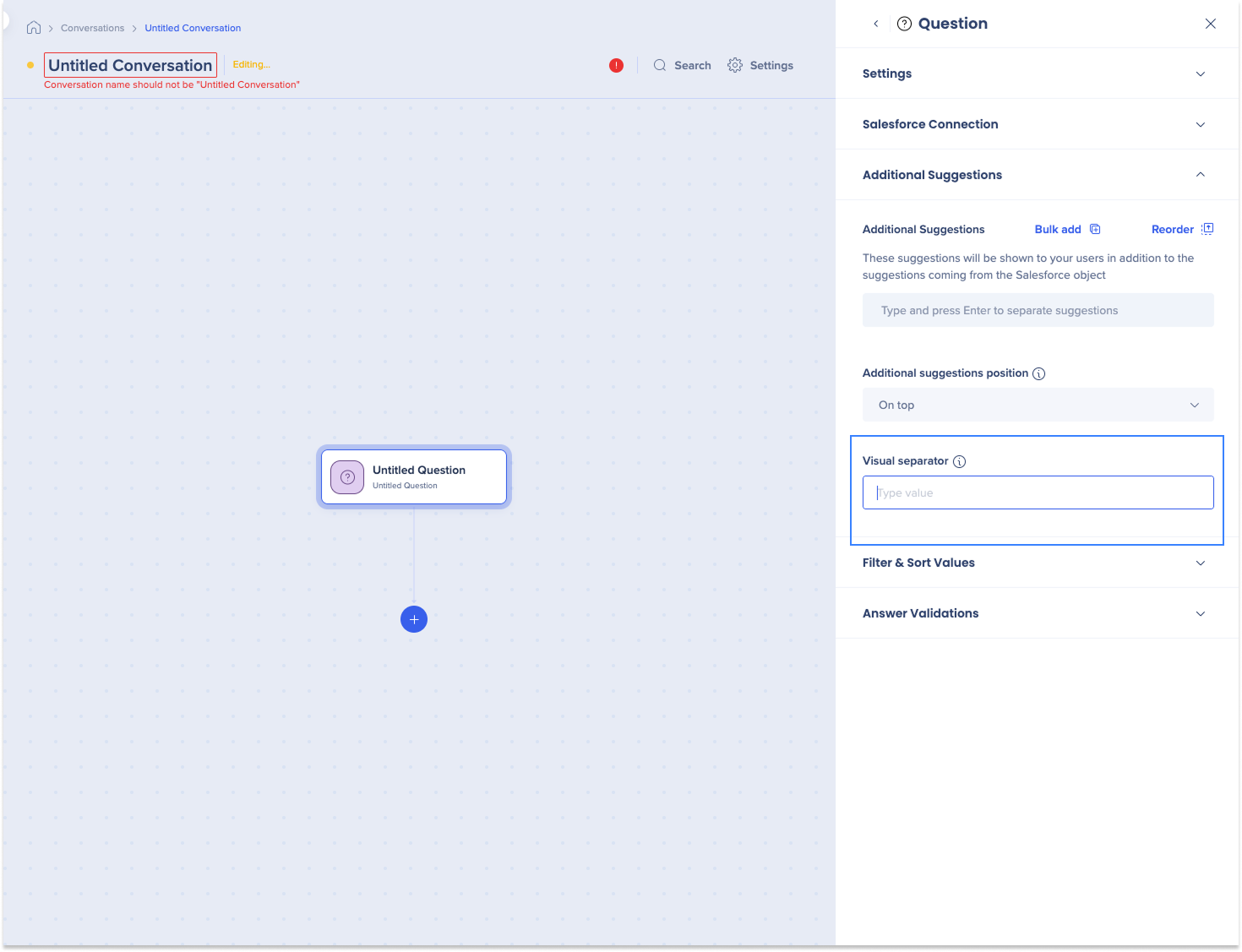
- Add a visual separator between additional and Salesforce suggestions (optional)
Filter and sort values
Filter out unnecessary records and sort the ones returned.
Note
You can use filtering, sorting, or both.
To add a filter:
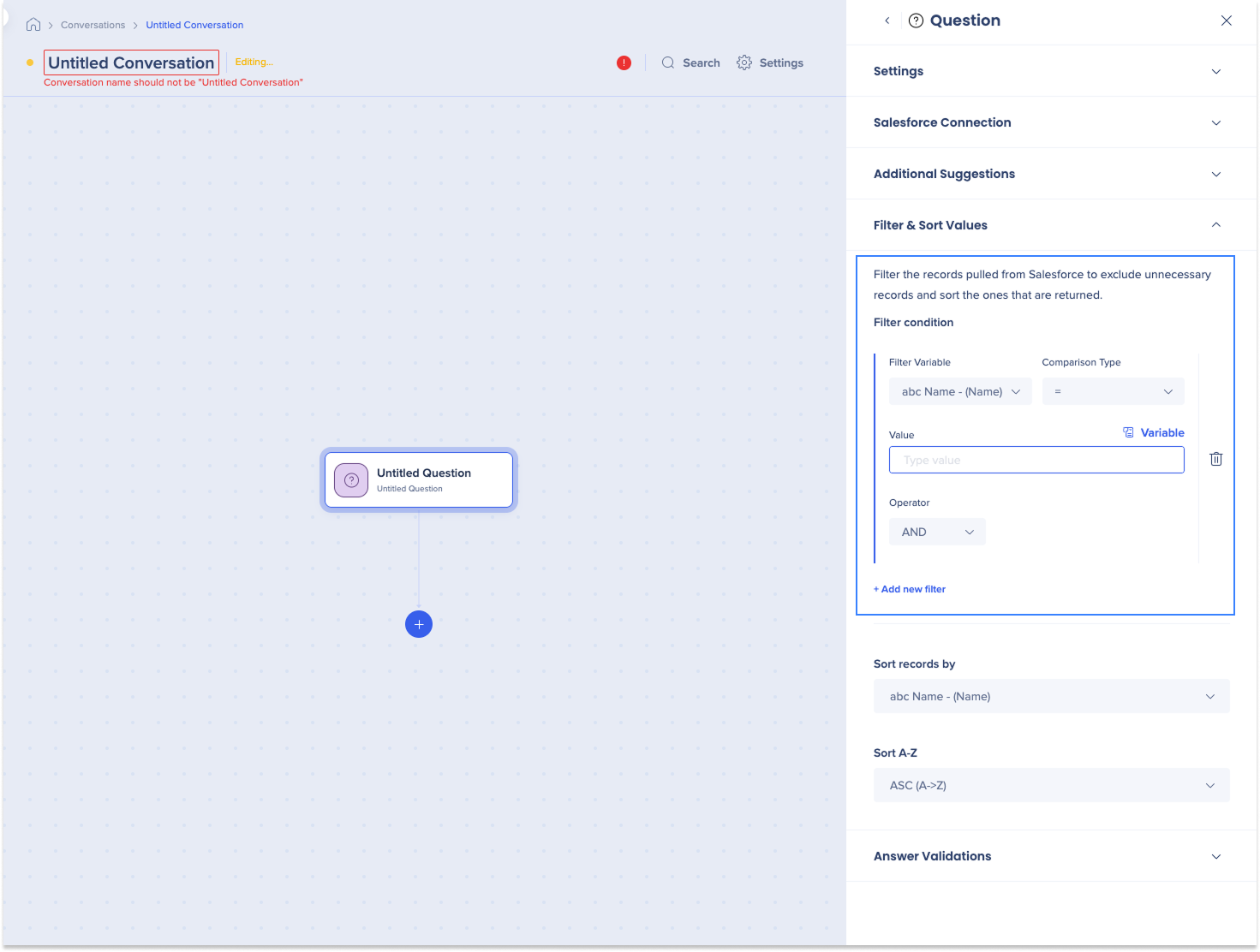
- Select + Add new filter
- Enter the filter fields
- For example, to pull accounts where the industry is Banks: select Industry as the variable, choose the = operator, and enter Banks as the value
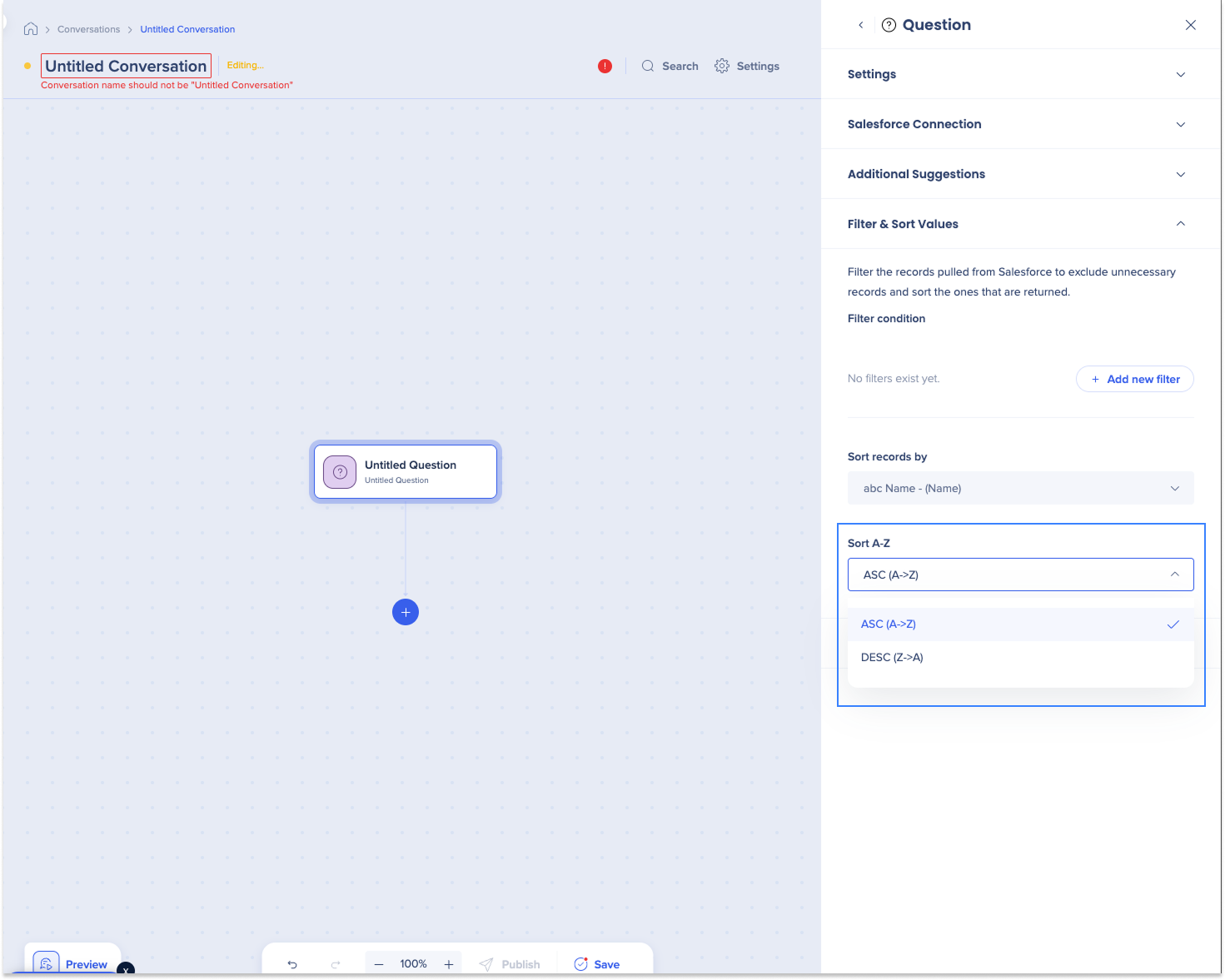
- Select the Sort records by dropdown to organize the results
- For example, to sort account names A→Z: select Name as the field, then choose ASC (A → Z)
Answer validations
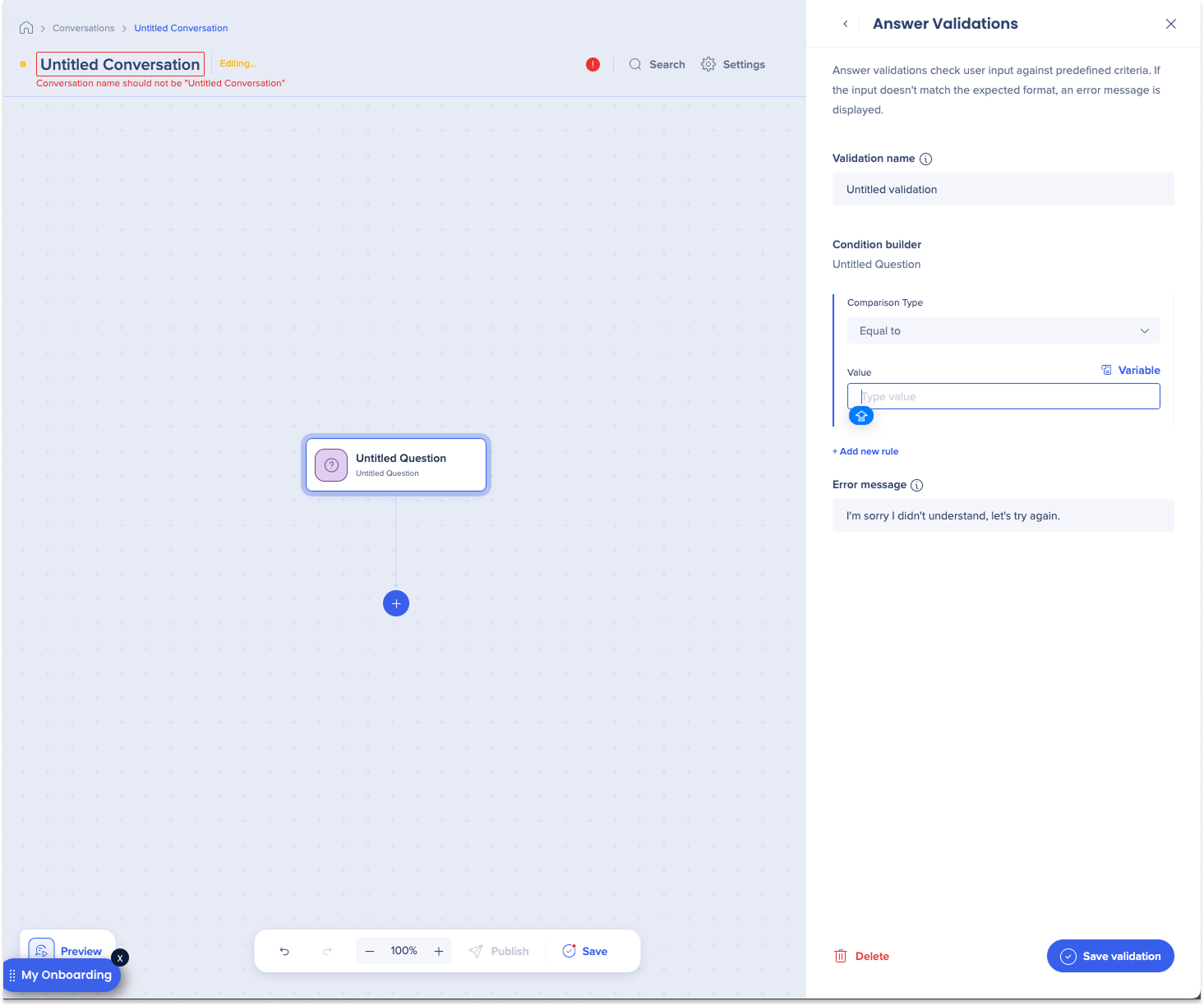
Answer validations check user input against set criteria and show an error message if it doesn't match.
- Select + Add new validation
- Enter the validation name
- Select the Comparison type
- Enter the value
- Select Save validation