Brief Overview
WalkMe Onboard is a collection of resources and tasks to help you get started with WalkMe. This guided onboarding flow will equip you with the essential knowledge and tools to get started efficient so you can start seeing results faster.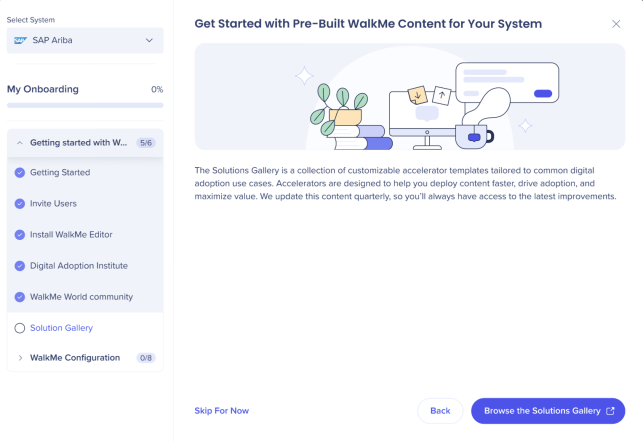
It includes:
-
Self-Serve Resources: Gain confidence with WalkMe through self-paced courses and best practices in the WalkMe Community and Digital Adoption Institute
-
Admin Setup Essentials: A clear checklist to configure WalkMe for your system
-
A Go-To Resource: Come back to WalkMe Onboard anytime, whether you're just getting started or need a quick refresher
Access
To access WalkMe Onboard SAP GUI, select the link for your data center:
How it Works
You will see an overview of WalkMe Onboard:
- Self-serve training and best practices
- Admin setup checklist
- Access to return to WalkMe Onboard at any time for future reference
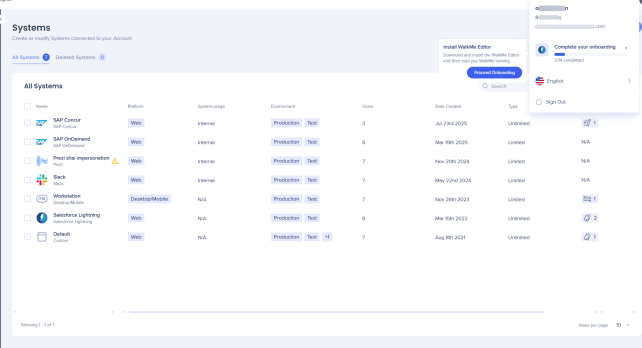
Select x to close this window, the onboarding app displays where you can begin the onboarding experience.
The new onboarding experience give users the ability to return to the main menu to complete their onboarding at their own pace.
Hovering over the progess bar shows the next steps and how many steps remain for the user to complete the onboarding process.
General WalkMe setup steps
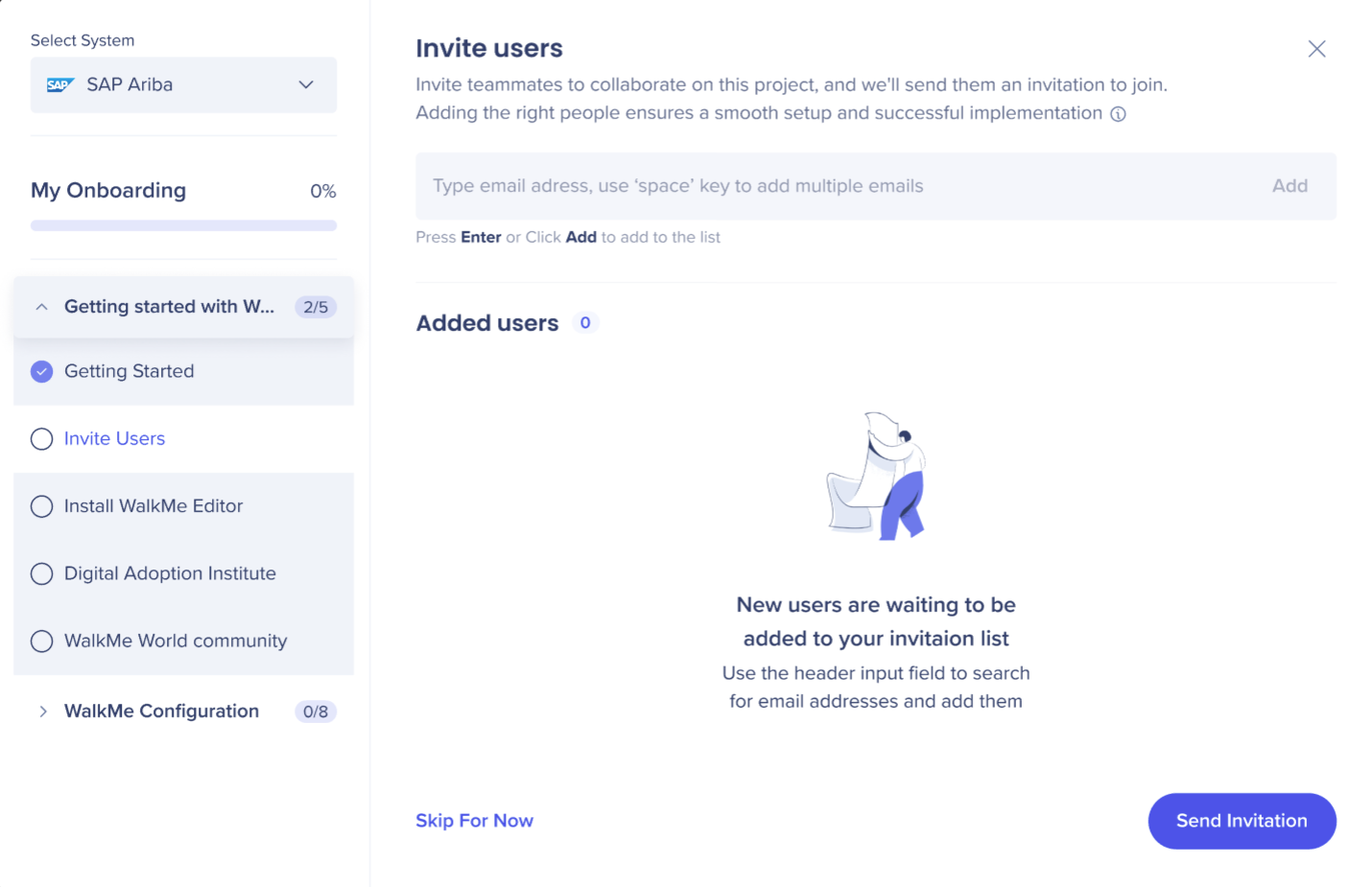
Invite users
You can invite teammates to collaborate on your WalkMe project.
Typical collaborators may include:
- Developers
- IT team members
- Content creators
- Admins managing WalkMe
Enter the email addresses of the users you want to invite.
Install WalkMe Editor
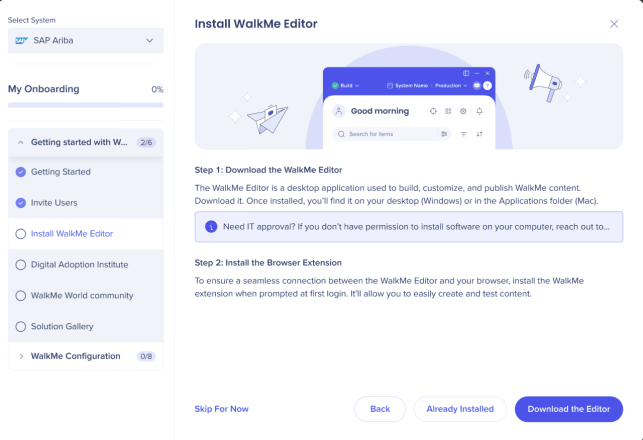
Download the WalkMe Editor for your operating system (Windows or Mac).
Install the application on your computer.
If you do not have installation permissions, contact your IT department for assistance.
After installing the editor:
- Install the WalkMe browser extension when prompted to ensure the editor connects properly with your browser
Digital Adoption Insitute
You can access the Digital Adoption Institute for self-paced WalkMe training and certifications.
Log in with your WalkMe credentials to begin your learning journey.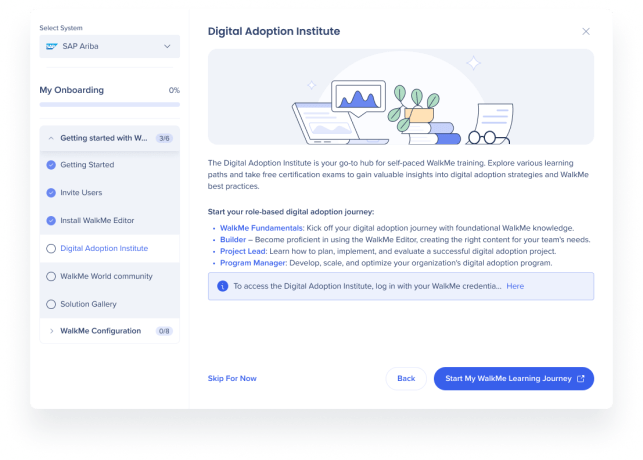
You can join the WalkMe World Community to:
- Browse discussions and feature ideas
- Connect with other WalkMe users and experts
- Participate in forums, groups, and events
Access the community using your WalkMe credentials.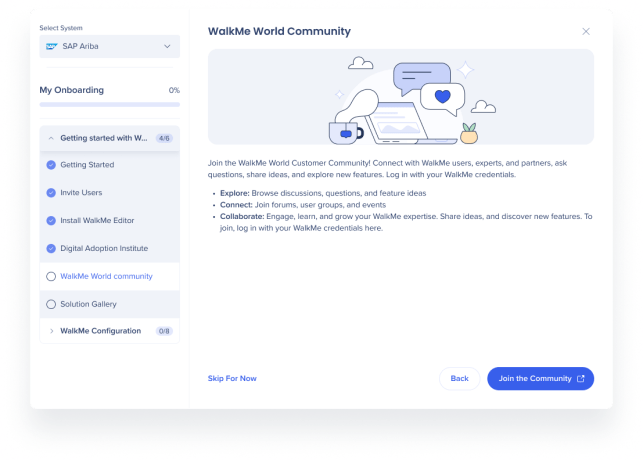
Configuration
IDP integration
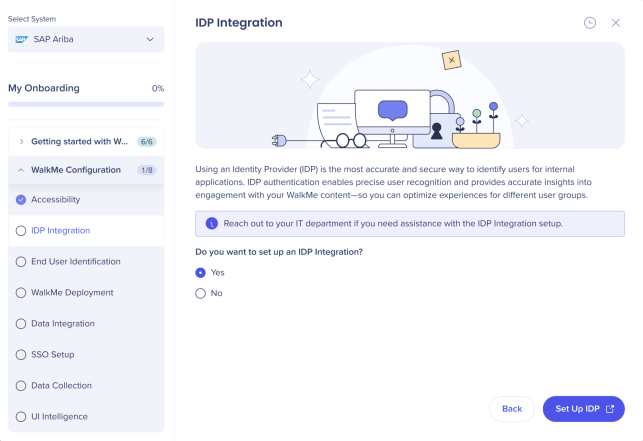
You will be asked whether you want to set up an Identity Provider (IDP) Integration to securely identify users.
Choose from:
- "Yes" and then select "Set Up IDP"
- "No" and then "Confirm and Continue" to progress the onboarding process
Info
Reach out to your IT department if you need assistance with the IDP Integration setup.
SSO
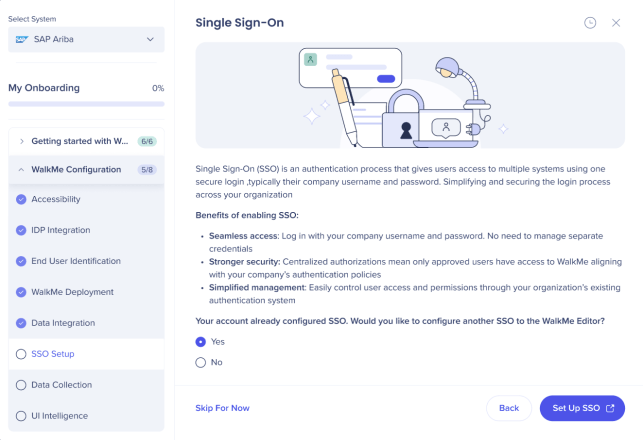
You can configure Single Sign-On (SSO) to allow users to log into WalkMe with their existing company credentials. Enabling SSO improves security, simplifies user management, and streamlines access.
Choose one of the options:
- "Yes" to configure more than one SSO to the WalkMe Editor
- "Skip For Now" to return to setup later
- "No" to confirm your SSO is already configured
If already set up you can edit SSO in WalkMe deployment options.
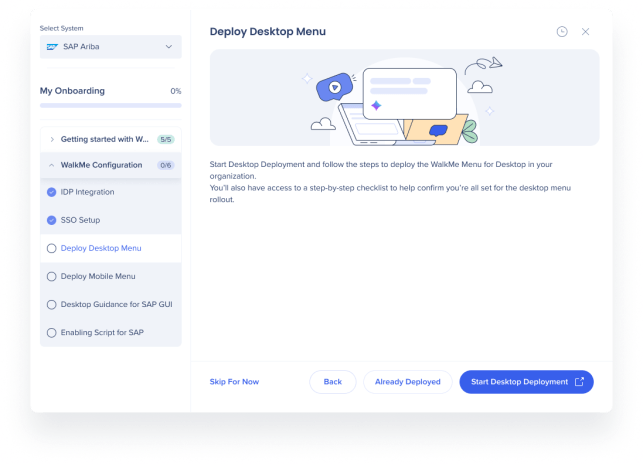
Select one of the options:
- "Start Desktop Deployment" to set up your mobile WalkMe menu
- "Skip For Now" to return to setup later
- "Already Deployed" to confirm set up has been completed
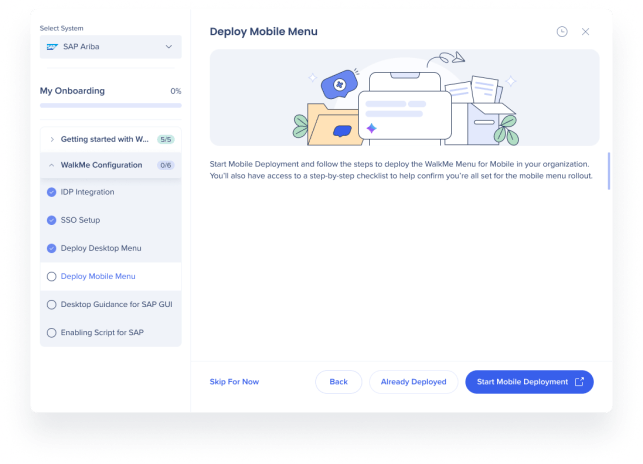
You must select one of the options:
- "Start Mobile Deployment" to set up your mobile WalkMe menu
- "Skip For Now" to return to setup later
- "Already Deployed" to confirm set up has been completed
Advanced Configurations
This is specifically for builders. Learn more
These steps appear only WalkMe recieve an API call identifying the system is entitled to SAP GUI.
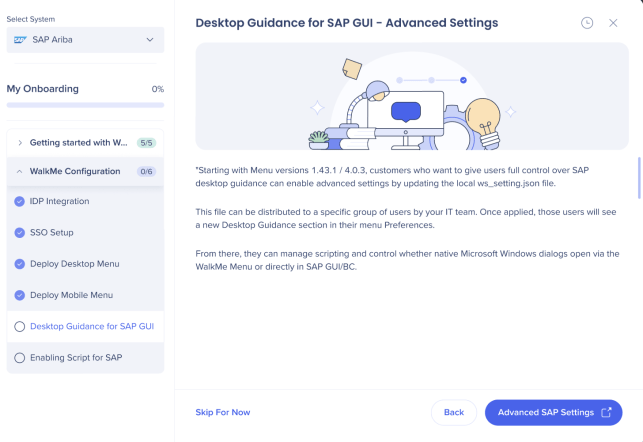
Desktop Guidance for SAP GUI
WalkMe Desktop Guidance brings contextual support into SAP GUI and Business Client, including ECC and S/4HANA. It guides employees through key workflows with step-by-step instructions, tips, and action, without leaving SAP.
You can choose from:
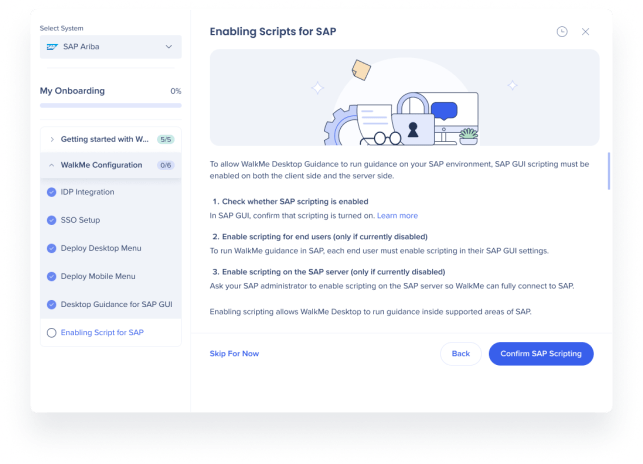
Enabling Scripts for SAP
WalkMe Desktop uses SAP scripts to access and play guidance content on the SAP environment.
These scripts need to be enabled from the client-side and from the server-side in order for WalkMe to work. Learn more
You can choose from:
- "Confirm SAP Scripting" or
- "Skip for Now"